ac mode LINCOLN MKX 2016 Repair Manual
[x] Cancel search | Manufacturer: LINCOLN, Model Year: 2016, Model line: MKX, Model: LINCOLN MKX 2016Pages: 563, PDF Size: 4.96 MB
Page 392 of 563
Do not expose discs to direct sunlight or heat
sources for extended periods.
MP3 Track and Folder Structure
Audio systems capable of recognizing and
playing MP3 individual tracks and folder
structures work as follows:
•
There are two different modes for MP3
disc playback: MP3 track mode (system
default) and MP3 folder mode.
• MP3 track mode ignores any folder
structure on the MP3 disc. The player
numbers each MP3 track on the disc
(noted by the .mp3 file extension) from
T001 to a maximum of T255. The
maximum number of playable MP3 files
may be less depending on the structure
of the CD and exact model of radio
present. •
MP3 folder mode represents a folder
structure consisting of one level of
folders. The CD player numbers all MP3
tracks on the disc (noted by the .mp3 file
extension) and all folders containing MP3
files, from F001 (folder) T001 (track) to
F253 T255.
• Creating discs with only one level of
folders helps with navigation through the
disc files.
If you are burning your own MP3 discs, it is
important to understand how the system
reads the structures you create. While
various files may be present, (files with
extensions other than mp3), only files with
the .mp3 extension are played; other files
are ignored by the system. This enables you
to use the same MP3 disc for a variety of
tasks on your work computer, home
computer and your in-vehicle system.
In track mode, the system displays and plays
the structure as if it were only one level deep
(all .mp3 files play, regardless of being in a
specific folder). In folder mode, the system
only plays the .mp3 files in the current folder. AUDIO UNIT - VEHICLES WITH:
PREMIUM AM/FM/CD WARNING
Driving while distracted can result in
loss of vehicle control, crash and injury.
We strongly recommend that you use
extreme caution when using any device that
may take your focus off the road. Your
primary responsibility is the safe operation
of your vehicle. We recommend against the
use of any hand-held device while driving
and encourage the use of voice-operated
systems when possible. Make sure you are
aware of all applicable local laws that may
affect the use of electronic devices while
driving. Note:
The MyLincoln Touch system controls
most of the audio features. See
Entertainment (page 422).
389
MKX (CD9) Canada/United States of America, enUSA, ASO/OGC Review Audio System
Page 394 of 563

TUNE: Turn the control to search manually through the radio frequency band. The\
system stops at the first station it finds in that
direction. In SIRIUS mode, the system selects the previous or next channel. If you select a speci\
fic category (Jazz, Rock, News, etc.),
turn the TUNE control to find the previous or next channel in the select\
ed category.
C
Seek/Fast Forward/Reverse:
Press the control to go to the previous or next track or available radi\
o station. Press and hold to either
reverse or fast forward through the current track or to quickly reverse \
or advance through the radio bands in individual increments.
D
Volume:
Turn the control to adjust the volume level on your system.
E
Power:
Press the control to switch the audio system on and off.
F
MEDIA HUB
The media hub is located in the center
console or in front of the gear shift. USB Port
A
SD card slot
B
391
MKX (CD9) Canada/United States of America, enUSA, ASO/OGC Review Audio SystemE194341
Page 396 of 563
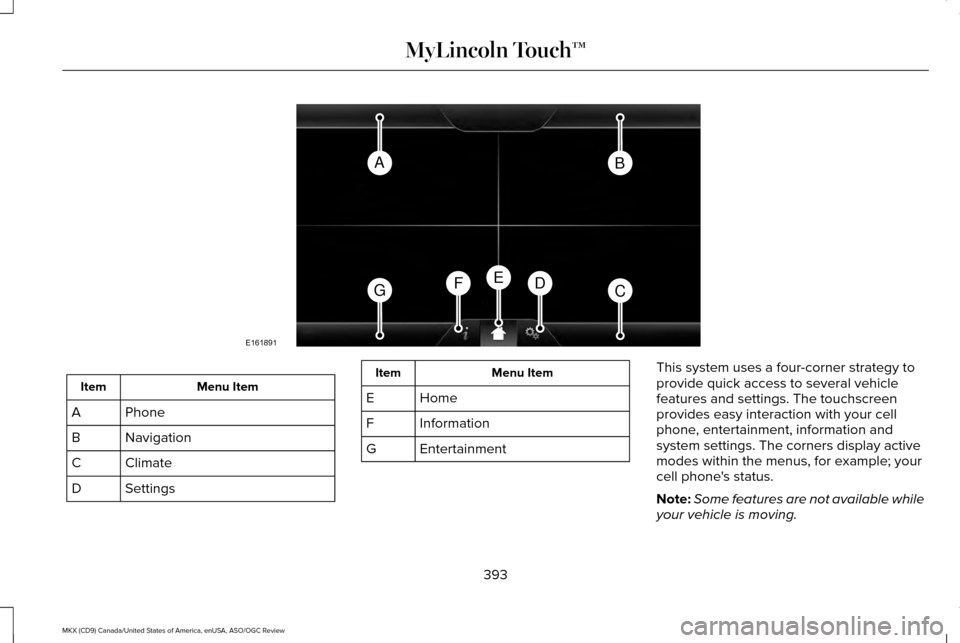
Menu Item
Item
Phone
A
Navigation
B
Climate
C
Settings
D Menu Item
Item
Home
E
Information
F
Entertainment
G This system uses a four-corner strategy to
provide quick access to several vehicle
features and settings. The touchscreen
provides easy interaction with your cell
phone, entertainment, information and
system settings. The corners display active
modes within the menus, for example; your
cell phone's status.
Note:
Some features are not available while
your vehicle is moving.
393
MKX (CD9) Canada/United States of America, enUSA, ASO/OGC Review MyLincoln Touch™AB
GCDFE
E161891
Page 398 of 563
HOME
Press to access the home screen.
Note: Depending on your vehicle ’s option
package and software, the screens may vary
in appearance from the descriptions in this
section. The features may also be limited
depending on the market. Check with an
authorized dealer for availability.
INFORMATION Press to select any of the following:
Menu Item
Services
Travel Link
Alerts
Calendar
Apps
Where Am I? ENTERTAINMENT
Press to select any of the following: Menu Item
AM
FM
SIRIUS
CD
USB
BT Stereo
SD Card
Using the Audio Controls
Depending on your vehicle, it may also have the following controls: Action and Description
Controls
Switch the media features on or off.
Power
Adjust the volume of playing media.
Volume
Use as you normally would in media modes.
Tune
395
MKX (CD9) Canada/United States of America, enUSA, ASO/OGC Review MyLincoln Touch™E142613 E142608
Page 399 of 563
Action and Description
Controls
Eject a CD from the entertainment system.
Eject
Press this button to switch the display screen off. Press again, or touch the screen to switch the
display screen on.
Display
Touch the control repeatedly to switch between media modes.
Source
Adjust the settings for:
Sound
Bass
Treble
Midrange
Set Balance and Fade
DSP
EQ Mode
Speed Compensated Volume
396
MKX (CD9) Canada/United States of America, enUSA, ASO/OGC Review MyLincoln Touch™
Page 400 of 563
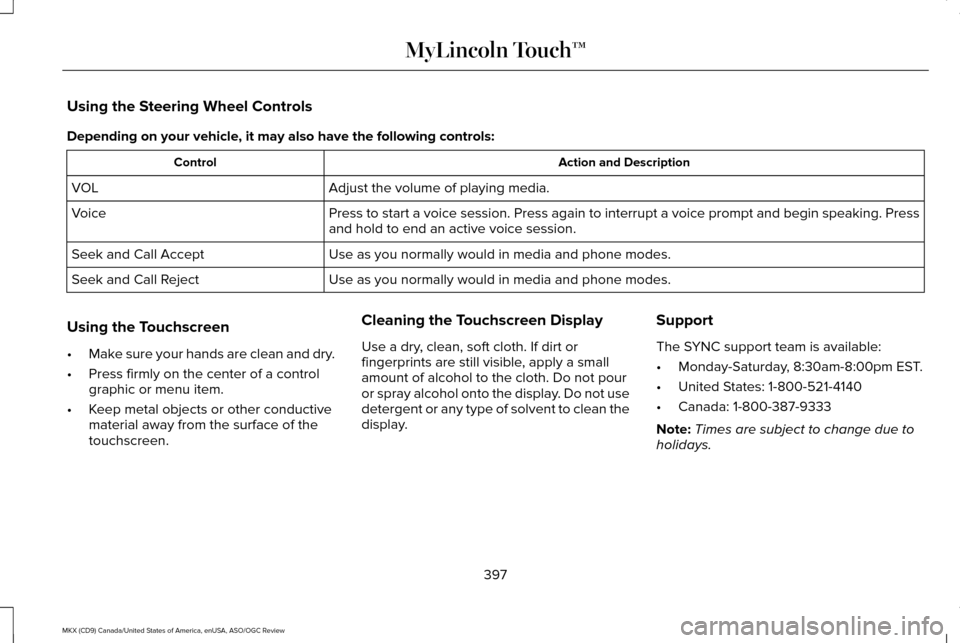
Using the Steering Wheel Controls
Depending on your vehicle, it may also have the following controls:
Action and Description
Control
Adjust the volume of playing media.
VOL
Press to start a voice session. Press again to interrupt a voice prompt \
and begin speaking. Press
and hold to end an active voice session.
Voice
Use as you normally would in media and phone modes.
Seek and Call Accept
Use as you normally would in media and phone modes.
Seek and Call Reject
Using the Touchscreen
• Make sure your hands are clean and dry.
• Press firmly on the center of a control
graphic or menu item.
• Keep metal objects or other conductive
material away from the surface of the
touchscreen. Cleaning the Touchscreen Display
Use a dry, clean, soft cloth. If dirt or
fingerprints are still visible, apply a small
amount of alcohol to the cloth. Do not pour
or spray alcohol onto the display. Do not use
detergent or any type of solvent to clean the
display.
Support
The SYNC support team is available:
•
Monday-Saturday, 8:30am-8:00pm EST.
• United States: 1-800-521-4140
• Canada: 1-800-387-9333
Note: Times are subject to change due to
holidays.
397
MKX (CD9) Canada/United States of America, enUSA, ASO/OGC Review MyLincoln Touch™
Page 402 of 563

Speed-restricted Features
Enabling Valet Mode
System Functionality
Editing settings while the rear view camera or active park assist are ac\
tive
Editing wireless settings
Wi-Fi and Wireless
Editing the list of wireless networks
Adding or editing wallpaper
Photos and Graphics
Composing text messages
Text Messages
Viewing received text messages
Editing preset text messages
Using the keyboard to enter a destination
Navigation
Demo navigation route
Adding or editing Address Book or Avoid Area entries
399
MKX (CD9) Canada/United States of America, enUSA, ASO/OGC Review MyLincoln Touch™
Page 405 of 563
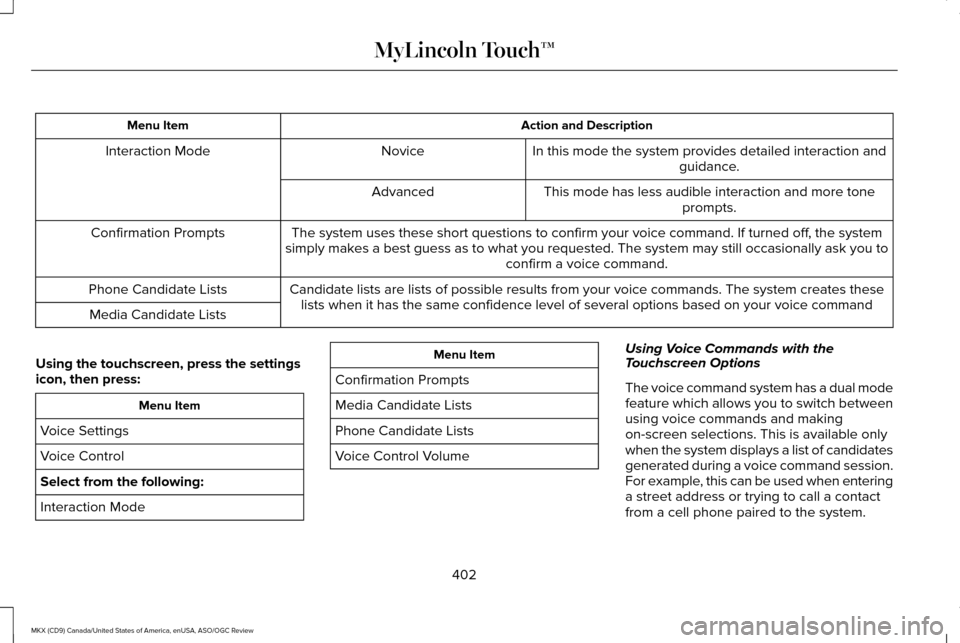
Action and Description
Menu Item
In this mode the system provides detailed interaction andguidance.
Novice
Interaction Mode
This mode has less audible interaction and more toneprompts.
Advanced
The system uses these short questions to confirm your voice command. If \
turned off, the system
simply makes a best guess as to what you requested. The system may still occasiona\
lly ask you to confirm a voice command.
Confirmation Prompts
Candidate lists are lists of possible results from your voice commands. \
The system creates theselists when it has the same confidence level of several options based on \
your voice command
Phone Candidate Lists
Media Candidate Lists
Using the touchscreen, press the settings
icon, then press: Menu Item
Voice Settings
Voice Control
Select from the following:
Interaction Mode Menu Item
Confirmation Prompts
Media Candidate Lists
Phone Candidate Lists
Voice Control Volume Using Voice Commands with the
Touchscreen Options
The voice command system has a dual mode
feature which allows you to switch between
using voice commands and making
on-screen selections. This is available only
when the system displays a list of candidates
generated during a voice command session.
For example, this can be used when entering
a street address or trying to call a contact
from a cell phone paired to the system.
402
MKX (CD9) Canada/United States of America, enUSA, ASO/OGC Review MyLincoln Touch™
Page 406 of 563
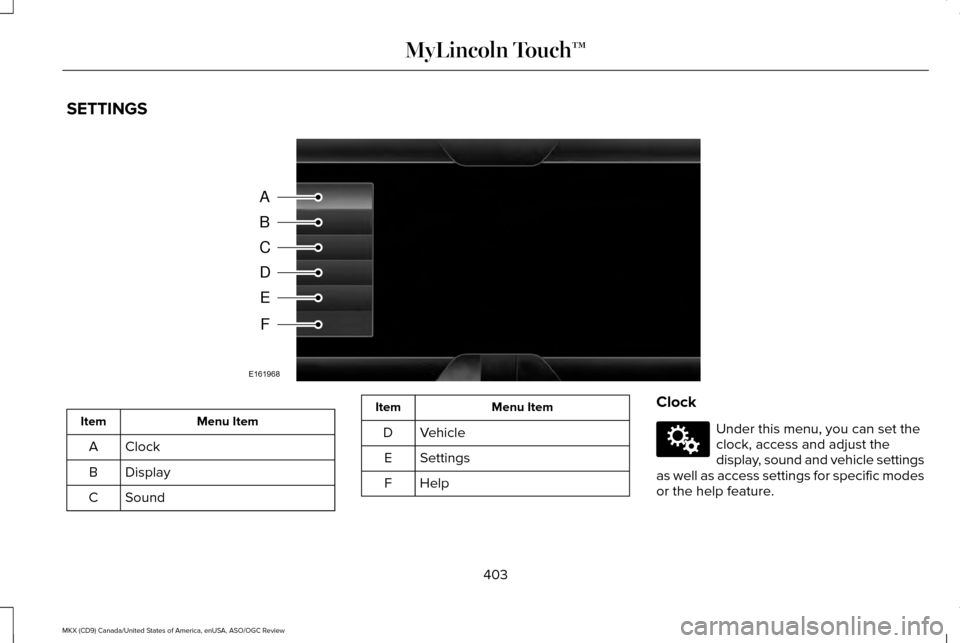
SETTINGS
Menu Item
Item
Clock
A
Display
B
Sound
C Menu Item
Item
Vehicle
D
Settings
E
HelpF Clock Under this menu, you can set the
clock, access and adjust the
display, sound and vehicle settings
as well as access settings for specific modes
or the help feature.
403
MKX (CD9) Canada/United States of America, enUSA, ASO/OGC Review MyLincoln Touch™A
B
C
D
E
F
E161968 E142607
Page 407 of 563
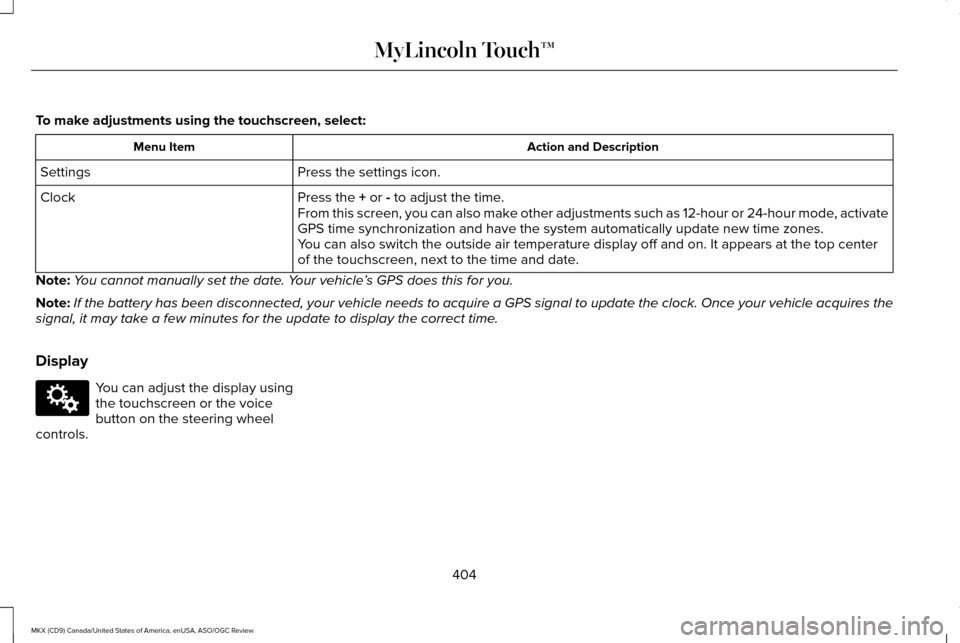
To make adjustments using the touchscreen, select:
Action and Description
Menu Item
Press the settings icon.
Settings
Press the + or - to adjust the time.
Clock
From this screen, you can also make other adjustments such as 12-hour or 24-hour mode, activate
GPS time synchronization and have the system automatically update new ti\
me zones.
You can also switch the outside air temperature display off and on. It ap\
pears at the top center
of the touchscreen, next to the time and date.
Note: You cannot manually set the date. Your vehicle ’s GPS does this for you.
Note: If the battery has been disconnected, your vehicle needs to acquire a GP\
S signal to update the clock. Once your vehicle acquires the
signal, it may take a few minutes for the update to display the correct time.
Display You can adjust the display using
the touchscreen or the voice
button on the steering wheel
controls.
404
MKX (CD9) Canada/United States of America, enUSA, ASO/OGC Review MyLincoln Touch™E142607