change time LINCOLN MKX 2018 User Guide
[x] Cancel search | Manufacturer: LINCOLN, Model Year: 2018, Model line: MKX, Model: LINCOLN MKX 2018Pages: 603, PDF Size: 4.94 MB
Page 212 of 603
Electronic Stability Control
The system enhances your vehicle’s abilityto prevent skids or lateral slides by applyingbrakes to one or more of the wheelsindividually and, if necessary, reducingengine power.
Roll Stability Control
The system enhances your vehicle’s abilityto prevent rollovers by detecting yourvehicle’s roll motion and the rate at which itchanges by applying the brakes to one ormore wheels individually.
Traction Control
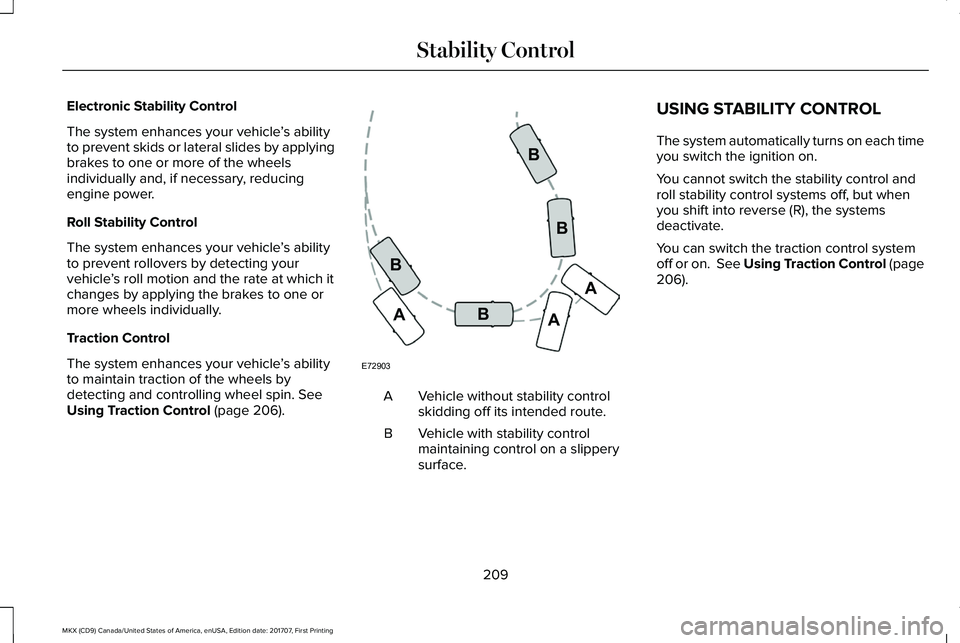
The system enhances your vehicle’s abilityto maintain traction of the wheels bydetecting and controlling wheel spin. SeeUsing Traction Control (page 206).Vehicle without stability controlskidding off its intended route.A
Vehicle with stability controlmaintaining control on a slipperysurface.
B
USING STABILITY CONTROL
The system automatically turns on each timeyou switch the ignition on.
You cannot switch the stability control androll stability control systems off, but whenyou shift into reverse (R), the systemsdeactivate.
You can switch the traction control systemoff or on. See Using Traction Control (page206).
209
MKX (CD9) Canada/United States of America, enUSA, Edition date: 201707, First Printing
Stability ControlE72903A
AA
B
BB
B
Page 218 of 603
Parallel Park Out Assist automatically steersyour vehicle out of a parallel parking space(hands-free) while you control theaccelerator, gearshift and brakes. The systemvisually and audibly guides you to entertraffic.
The system may not correctly operate in anyof the following conditions:
•You use a spare tire or a tire significantlyworn more than the other tires.
•One or more tires are improperly inflated.
•You try to park on a tight curve.
•Something passes between the frontbumper and the parking space. Forexample, a pedestrian or cyclist.
•The edge of the neighboring parkedvehicle is high off the ground. Forexample, a bus, tow truck or flatbedtruck.
•The weather conditions are poor. Forexample, during heavy rain, snow or fog.
Note: Keep the sensors on the bumper orfascia free from snow, ice and largeaccumulations of dirt. Covered sensors canaffect the system's accuracy. Do not cleanthe sensors with sharp objects.
Note:The sensors may not detect objectswith surfaces that absorb ultrasonic wavesor cause ultrasonic interference. Forexample, motorcycle exhaust, truck airbrakes or horns.
Note:Following a change in tire size, thesystem must recalibrate and operation maybe impaired for a short time.
Do not use the system if:
•You have attached a foreign object closeto the sensors on the front or rear of yourvehicle. For example, a bike rack ortrailer.
•You attach an overhanging object to theroof. For example, a surfboard.
•A foreign object damages or obstructsthe front or rear bumper or side sensors.
•The correct tire size is not in use on yourvehicle. For example, a mini-spare tire.
Using Active Park Assist - Parallel Parking
Press the Active Park Assist buttononce to search for a parallelparking space.
When driving at a speed less than 22 mph(35 km/h), the system automatically scansboth sides of your vehicle for an availableparking space. The system displays amessage and a corresponding graphic toindicate it is searching for a parking space.Use the direction indicator to selectsearching either to the left-hand side orright-hand side of your vehicle.
Note:If the direction indicators are not used,the system defaults to the passenger sideof your vehicle.
215
MKX (CD9) Canada/United States of America, enUSA, Edition date: 201707, First Printing
Parking AidsE146186
Page 227 of 603
Note:When towing, the camera only seeswhat you are towing. This might not provideadequate coverage as it usually provides innormal operation and some objects mightnot be seen. In some vehicles, the guidelinesmay disappear when you connect the trailertow connector.
The camera may not operate correctly underthe following conditions:
•Nighttime or dark areas if one or bothreverse lamps are not operating.
•Mud, water or debris obstructs thecamera's view. Clean the lens with a soft,lint-free cloth and non-abrasive cleaner.
•The rear of your vehicle is hit ordamaged, causing the camera to becomemisaligned.
Camera System Settings
You can access the rear view camera systemsettings through the display screen. SeeGeneral Information (page 118).
Camera Guidelines
Note:Active guidelines are only availablewhen the transmission is in reverse (R).
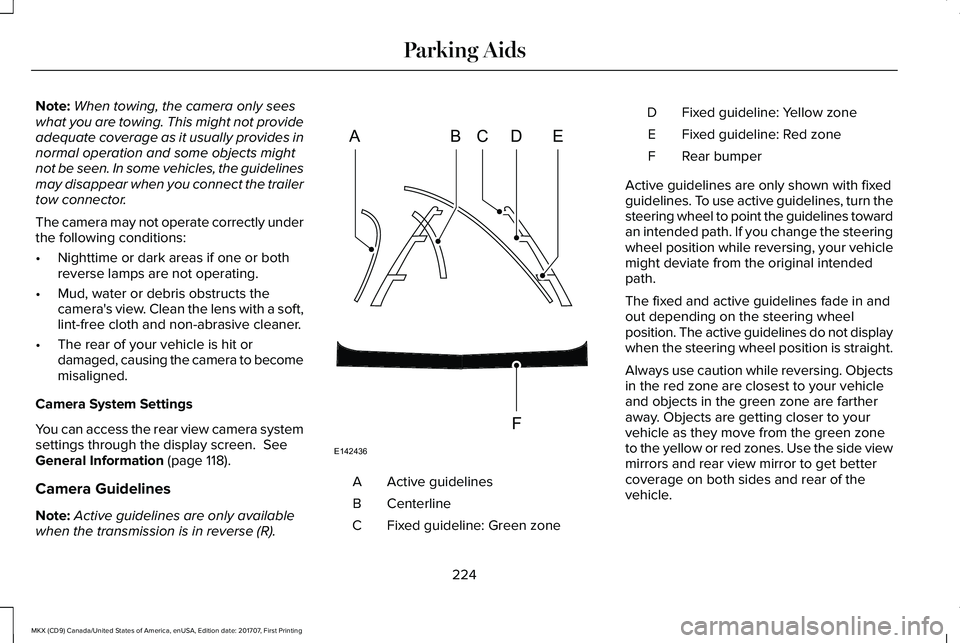
Active guidelinesA
CenterlineB
Fixed guideline: Green zoneC
Fixed guideline: Yellow zoneD
Fixed guideline: Red zoneE
Rear bumperF
Active guidelines are only shown with fixedguidelines. To use active guidelines, turn thesteering wheel to point the guidelines towardan intended path. If you change the steeringwheel position while reversing, your vehiclemight deviate from the original intendedpath.
The fixed and active guidelines fade in andout depending on the steering wheelposition. The active guidelines do not displaywhen the steering wheel position is straight.
Always use caution while reversing. Objectsin the red zone are closest to your vehicleand objects in the green zone are fartheraway. Objects are getting closer to yourvehicle as they move from the green zoneto the yellow or red zones. Use the side viewmirrors and rear view mirror to get bettercoverage on both sides and rear of thevehicle.
224
MKX (CD9) Canada/United States of America, enUSA, Edition date: 201707, First Printing
Parking AidsABCD
F
E
E142436
Page 236 of 603
When you override the system, thegreen indicator light illuminatesand the vehicle graphic does notappear in the information display.
The system resumes operation when yourelease the accelerator pedal. The vehiclespeed decreases to the set speed, or a lowerspeed if following a slower vehicle.
Changing the Set Speed
•Press SET+ or SET- to change the setspeed in small increments.
•Press the accelerator or brake pedal untilyou reach the desired speed. Press SET+or SET-.
•Press and hold SET+ or SET- to changethe set speed in large increments.Release the control when you reach thedesired speed.
The system may apply the brakes to slowthe vehicle to the new set speed. The setspeed displays continuously in theinformation display when the system isactive.
Canceling the Set Speed
Press CNCL or tap the brake pedal. The setspeed does not erase.
Resuming the Set Speed
Note:Only use resume if you are aware ofthe set speed and intend to return to it.
Press RES. Your vehicle speed returns tothe previously set speed and gap setting. The set speed displays continuously in theinformation display when the system isactive.
Automatic Cancellation
Note:If the engine speed drops too low, anaudible warning sounds and a messageappears in the information display.Automatic braking releases.
The system does not operate below 12 mph(20 km/h).
Automatic cancellation can also occur if:
•The tires lose traction.
•The engine speed is too low.
•You apply the parking brake.
Hilly Condition Usage
Note:An audible alarm sounds and thesystem shuts down if it applies brakes for anextended period of time. This allows thebrakes to cool. The system functionsnormally again after the brakes cool.
Select a lower gear when the system isactive in situations such as prolongeddownhill driving on steep grades, forexample in mountainous areas. The systemneeds additional engine braking in thesesituations to reduce the load on the vehicle’sregular brake system to prevent it fromoverheating.
Switching Adaptive Cruise Control Off
Note:You erase the set speed and gapsetting when you switch the system off.
Press OFF when the system is in standbymode, or switch the ignition off.
233
MKX (CD9) Canada/United States of America, enUSA, Edition date: 201707, First Printing
Cruise ControlE144529
Page 237 of 603
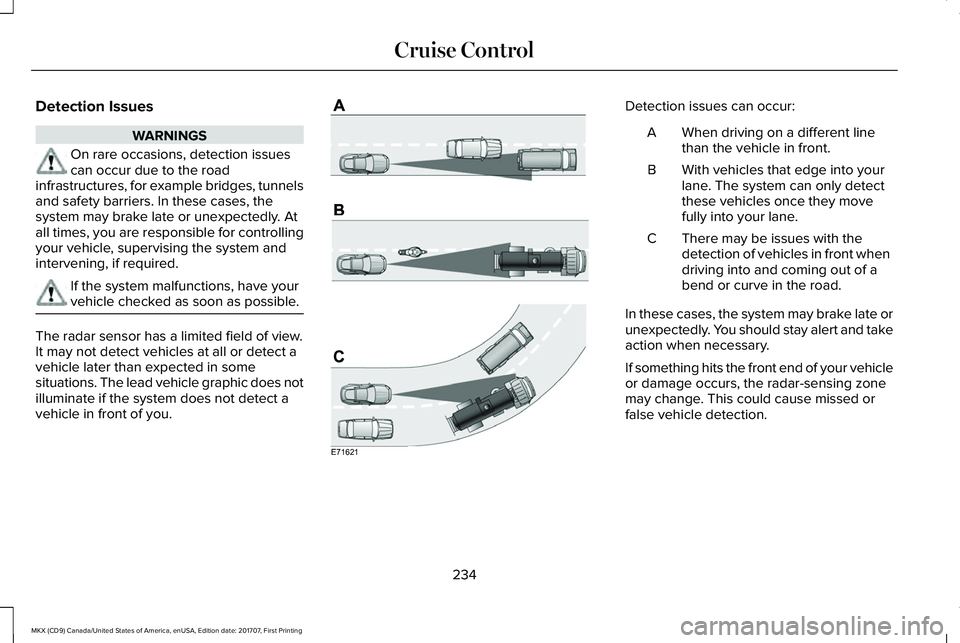
Detection Issues
WARNINGS
On rare occasions, detection issuescan occur due to the roadinfrastructures, for example bridges, tunnelsand safety barriers. In these cases, thesystem may brake late or unexpectedly. Atall times, you are responsible for controllingyour vehicle, supervising the system andintervening, if required.
If the system malfunctions, have yourvehicle checked as soon as possible.
The radar sensor has a limited field of view.It may not detect vehicles at all or detect avehicle later than expected in somesituations. The lead vehicle graphic does notilluminate if the system does not detect avehicle in front of you.
Detection issues can occur:
When driving on a different linethan the vehicle in front.A
With vehicles that edge into yourlane. The system can only detectthese vehicles once they movefully into your lane.
B
There may be issues with thedetection of vehicles in front whendriving into and coming out of abend or curve in the road.
C
In these cases, the system may brake late orunexpectedly. You should stay alert and takeaction when necessary.
If something hits the front end of your vehicleor damage occurs, the radar-sensing zonemay change. This could cause missed orfalse vehicle detection.
234
MKX (CD9) Canada/United States of America, enUSA, Edition date: 201707, First Printing
Cruise ControlE71621
Page 239 of 603
ActionCause
Do not use the system in these conditions because it may not detectany vehicles ahead.Water, snow or ice on the surface of the road may interfere with theradar signals.
Wait a short time or switch to normal cruise control.You are in a desert or remote area with no other vehicles and noroadside objects.
Due to the nature of radar technology, it is possible to get a blockage warning with no actual block. This happens, for example, when drivingin sparse rural or desert environments. A false blocked condition either self clears, or clears after you restart your vehicle.
Switching to Normal Cruise Control
WARNING
Normal cruise control will not brakewhen your vehicle is approachingslower vehicles. Always be aware of whichmode you have selected and apply thebrakes when necessary.
You can change from adaptive cruise controlto normal cruise control through theinformation display.
The cruise control indicator lightreplaces the adaptive cruisecontrol indicator light if you selectnormal cruise control. The gap setting doesnot display, and the system does not respondto lead vehicles. Automatic braking remainsactive to maintain set speed.
236
MKX (CD9) Canada/United States of America, enUSA, Edition date: 201707, First Printing
Cruise ControlE71340
Page 241 of 603
When active, the system monitors youralertness level based upon your drivingbehavior in relation to the lane markings andother factors.
System Warnings
Note:The system does not issue warningsbelow approximately 40 mph (64 km/h).
The warning system has two stages. First,the system issues a temporary warning thatyou need to take a rest. This message onlyappears for a short time. If the systemdetects further reduction in driving alertness,it may issue another warning that remains inthe information display for a longer time. Youcan press OK on the steering wheel controlto clear the warning.
System Display
When active, the system runs automaticallyin the background and only issues a warningif required. You can view the status at anytime using the information display. SeeGeneral Information (page 118).
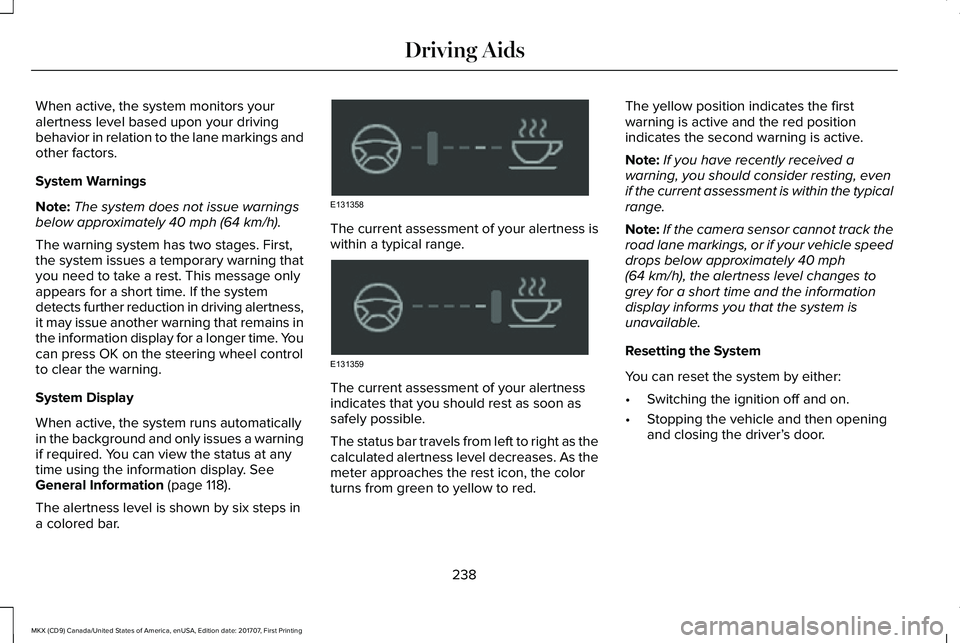
The alertness level is shown by six steps ina colored bar.
The current assessment of your alertness iswithin a typical range.
The current assessment of your alertnessindicates that you should rest as soon assafely possible.
The status bar travels from left to right as thecalculated alertness level decreases. As themeter approaches the rest icon, the colorturns from green to yellow to red.
The yellow position indicates the firstwarning is active and the red positionindicates the second warning is active.
Note:If you have recently received awarning, you should consider resting, evenif the current assessment is within the typicalrange.
Note:If the camera sensor cannot track theroad lane markings, or if your vehicle speeddrops below approximately 40 mph(64 km/h), the alertness level changes togrey for a short time and the informationdisplay informs you that the system isunavailable.
Resetting the System
You can reset the system by either:
•Switching the ignition off and on.
•Stopping the vehicle and then openingand closing the driver’s door.
238
MKX (CD9) Canada/United States of America, enUSA, Edition date: 201707, First Printing
Driving AidsE131358 E131359
Page 242 of 603
LANE KEEPING SYSTEM (If Equipped)
WARNINGS
The system is designed to aid thedriver. It is not intended to replace yourattention and judgment. You are stillresponsible to drive with due care andattention.
Always drive with due care andattention when using and operating thecontrols and features on your vehicle.
At all times, you are responsible forcontrolling your vehicle, supervisingthe system and intervening, if required.Failure to take care may result in the loss ofcontrol of your vehicle, serious personalinjury or death.
In cold and severe weather conditionsthe system may not function. Rain,snow and spray can all limit sensorperformance.
The system will not operate if thesensor cannot track the road lanemarkings.
WARNINGS
The sensor may incorrectly track lanemarkings as other structures or objects.This can result in a false or missed warning.
The system may not operate properlyif the sensor is blocked. Keep thewindshield free from obstruction.
If damage occurs in the immediate areasurrounding the sensor, have yourvehicle checked as soon as possible.
Note:The system works above 40 mph(64 km/h).
Note:The system works as long as thecamera can detect one lane marking.
Note:When Aid or both modes are selectedand the system detects no steering activityfor a short period, the system alerts you toput your hands on the steering wheel. Thesystem may detect a light grip or touch onthe steering wheel as hands off driving.
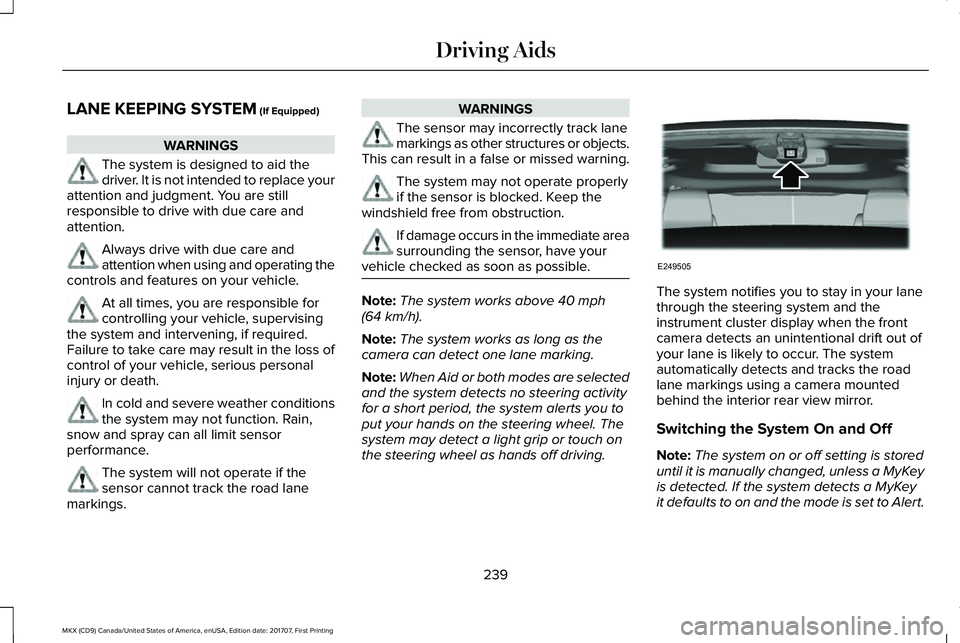
The system notifies you to stay in your lanethrough the steering system and theinstrument cluster display when the frontcamera detects an unintentional drift out ofyour lane is likely to occur. The systemautomatically detects and tracks the roadlane markings using a camera mountedbehind the interior rear view mirror.
Switching the System On and Off
Note:The system on or off setting is storeduntil it is manually changed, unless a MyKeyis detected. If the system detects a MyKeyit defaults to on and the mode is set to Alert.
239
MKX (CD9) Canada/United States of America, enUSA, Edition date: 201707, First Printing
Driving AidsE249505
Page 244 of 603
Intensity: This setting affects the intensity ofthe steering wheel vibration used for the alertand alert + aid modes. This setting does notaffect the aid mode.
•Low
•Normal
•High
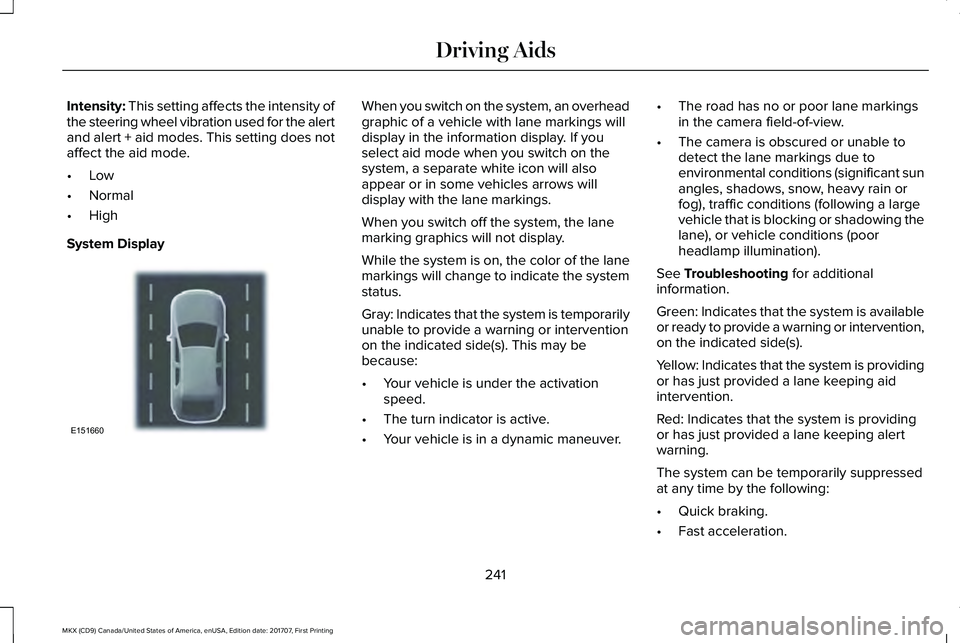
System Display
When you switch on the system, an overheadgraphic of a vehicle with lane markings willdisplay in the information display. If youselect aid mode when you switch on thesystem, a separate white icon will alsoappear or in some vehicles arrows willdisplay with the lane markings.
When you switch off the system, the lanemarking graphics will not display.
While the system is on, the color of the lanemarkings will change to indicate the systemstatus.
Gray: Indicates that the system is temporarilyunable to provide a warning or interventionon the indicated side(s). This may bebecause:
•Your vehicle is under the activationspeed.
•The turn indicator is active.
•Your vehicle is in a dynamic maneuver.
•The road has no or poor lane markingsin the camera field-of-view.
•The camera is obscured or unable todetect the lane markings due toenvironmental conditions (significant sunangles, shadows, snow, heavy rain orfog), traffic conditions (following a largevehicle that is blocking or shadowing thelane), or vehicle conditions (poorheadlamp illumination).
See Troubleshooting for additionalinformation.
Green: Indicates that the system is availableor ready to provide a warning or intervention,on the indicated side(s).
Yellow: Indicates that the system is providingor has just provided a lane keeping aidintervention.
Red: Indicates that the system is providingor has just provided a lane keeping alertwarning.
The system can be temporarily suppressedat any time by the following:
•Quick braking.
•Fast acceleration.
241
MKX (CD9) Canada/United States of America, enUSA, Edition date: 201707, First Printing
Driving AidsE151660
Page 245 of 603
•Using the turn signal indicator.•Evasive steering maneuver.
Troubleshooting
Why is the feature not available (line markings are gray) when I can see the lane markings on the road?
Vehicle speed is outside the operational range of the feature
Sun is shining directly into the camera lens
Quick intentional lane change
Staying too close to the lane marking
Driving at high speeds in curves
The last Alert warning or Aid intervention occurred a short time ago
Ambiguous lane markings (mainly in construction zones)
Rapid transition from light to dark or vice versa
Sudden offset in lane markings
ABS or AdvanceTrac activation
Camera blockage due to dirt, grime, fog, frost or water on the windshield
Driving too close to the vehicle in front of you
Transitioning between no lane markings to lane markings or vice versa
Standing water on the road
242
MKX (CD9) Canada/United States of America, enUSA, Edition date: 201707, First Printing
Driving Aids