warning LINCOLN MKZ 2013 Owners Manual
[x] Cancel search | Manufacturer: LINCOLN, Model Year: 2013, Model line: MKZ, Model: LINCOLN MKZ 2013Pages: 474, PDF Size: 3.79 MB
Page 202 of 474
Dynamic behavior
Following
distance at 60
mph (100 km/h)
Following
distance
Graphic display
(bars between vehicles)
Sporty
29 yards (28 m)
1 second
1 bar
Normal
44 yards (42 m)
1.5 seconds
2 bars
Normal
56 yards (53 m)
1.9 seconds
3 bars
Comfort
66 yards (64 m)
2.3 seconds
4 bars
Each time the vehicle is restarted, the
last chosen gap for the current driver
will be automatically selected.
Disengaging the System
Press the brake pedal or press CNCL.
The last set speed will be displayed
in grey but will not be erased.
Overriding the System WARNING
Whenever the driver is overriding
the system by pressing the
accelerator pedal, the system will not
automatically apply the brakes to
maintain separation from any vehicle
ahead. The set speed and gap distance can
be overridden by pressing the
accelerator pedal.
When you override the
system, the green indicator
light is illuminated, and the
follow vehicle is not shown in the
information display. The system will resume operation
when you release the accelerator
pedal. The vehicle speed will decrease
to the set speed, or a lower speed if
following a slower vehicle.
Changing the Set Speed
•
Accelerate or brake to the desired
speed, then press and release
SET+.
• Press and hold SET+ or SET- until
the desired set speed is shown on
the information display. The
vehicle speed will gradually
change to the selected speed.
• Press and release
SET+ or SET-.
The set speed will change in
approximately 1 mph (2 km/h)
increments.
The system may apply the brakes to
slow the vehicle to the new set speed.
The set speed will display
continuously in the information
display while the system is active.
199
Cruise ControlE144529
Page 204 of 474
Detection issues can occur:
When driving on a different
line than the vehicle in front.
A
With vehicles that edge into
your lane. These vehicles can
only be detected once they
have moved fully into your
lane.
B
There may be issues with the
detection of vehicles in front
when driving into and coming
out of a bend or curve in the
road.
C
In these cases the system may brake
late or unexpectedly. The driver
should stay alert and intervene when
necessary.
If the front end of the vehicle is hit or
damaged, the radar sensing zone may
be altered causing missed or false
vehicle detections. See your
authorized dealer to have the radar
checked for proper coverage and
operation.
System Not Available
Conditions which can cause the
system to deactivate or prevent the
system from activating when
requested include:
• a blocked sensor
• high brake temperature
• a failure in the system or a related
system. Blocked Sensor WARNINGS
Do not use the system when
towing a trailer with brake
controls. Aftermarket trailer brakes
will not function properly when the
system is activated because the
brakes are electronically controlled.
Failing to do so may result in loss of
vehicle control, which could result in
serious injury. Do not use tires sizes other than
those recommended because
this can affect the normal operation
of the system. Failing to do so may
result in a loss of vehicle control,
which could result in serious injury. A message will display if the radar
signals from the sensor have been
obstructed. The sensor is located
behind a fascia cover near the driver
side of the lower grille. A vehicle
ahead cannot be detected and the
system will not function when the
radar signals are obstructed. The
following table lists possible causes
and actions for this message being
displayed.
201
Cruise ControlE145632
Page 205 of 474
Action
Cause
Clean the grille surface in front of the
radar or remove the object causing the obstruction.
The surface of the radar in the grille is
dirty or obstructed in some way.
Wait a short time. It may take several
minutes for the radar to detect that it is no longer obstructed
The surface of the radar in the grille is
clean but the message remains in the display.
Do not use the system in these condi-tion because it may not detect, warn, or respond to potential collisions.
Heavy rain or snow is interfering with
the radar signals.
Do not use the system in these condi-tion because it may not detect, warn, or respond to potential collisions.
Swirling water, or snow or ice on the
surface of the road may interfere with the radar signals.
Wait a short time or switch to normalcruise control.
You are in a desert or remote area with
no other vehicles and no roadside objects.
Due to the nature of radar technology,
it is possible to get a blockage warning
and not be blocked. This can happen,
for example, when driving in sparse
rural or desert environments. A false
blocked condition will either self clear
or clear after a key cycle.
Switching to Normal Cruise
Control WARNING
Normal cruise control will not
brake due to slower vehicles.
Always be aware of which mode is
selected and apply the brakes when
necessary. You can manually change from
adaptive cruise control to normal
cruise control through the information
display.
The cruise control indicator
light will replace the adaptive
cruise control indicator light
if normal cruise control is selected.
The gap setting will not be displayed,
the system will not automatically
respond to lead vehicles and
automatic braking will not be
activated. The system will default to
adaptive cruise control when the
engine is started.
202
Cruise ControlE71340
Page 206 of 474
DRIVER ALERT (IF EQUIPPED)
PRINCIPLE OF OPERATION WARNING
The driver alert system is
designed to aid you. It is not
intended to replace your attention and
judgment. You are still responsible to
drive with due care and attention. Note:
The system will store the on/off
setting in the information display menu
through ignition cycles.
Note: If enabled in the menu, the
system will be active at speeds above
40 mph (64 km/h).
Note: The system works as long as one
lane marking can be detected by the
camera.
Note: If the camera is blocked or if the
windshield is damaged, the system
may not function.
Note: The system may not be
available in poor weather or other low
visibility conditions.
The system automatically monitors
your driving behavior using various
inputs including the front camera
sensor.
If the system detects that your driving
alertness is reduced below a certain
threshold, the system will alert you
using a chime and a message in the
cluster display. USING DRIVER ALERT
Switching the system on and off
By default, the system is enabled. You
may disable or re-enable the system
by selecting Setting then Driver Assist
then Driver Alert in the menu. When
activated, the system will monitor
your alertness level based upon your
driving behavior in relation to the lane
markings, and other factors.
System Warnings
Note:
Note: The system will not issue
warnings below approximately 40 mph
(65 km/h).
The warning system is in two stages.
At first the system issues a temporary
warning that you need to take a rest.
This message will only appear for a
short time. If the system detects
further reduction in driving alertness,
another warning may be issued which
will remain in the information display
for a longer time. Press OK on the
steering wheel control to clear the
warning
System Display
When active the system will run
automatically in the background and
only issue a warning if required. You
can view the status at any time using
the information display. See General
Information
(page 100).
The alertness level is shown by six
steps in a colored bar.
203
Driving Aids
Page 207 of 474
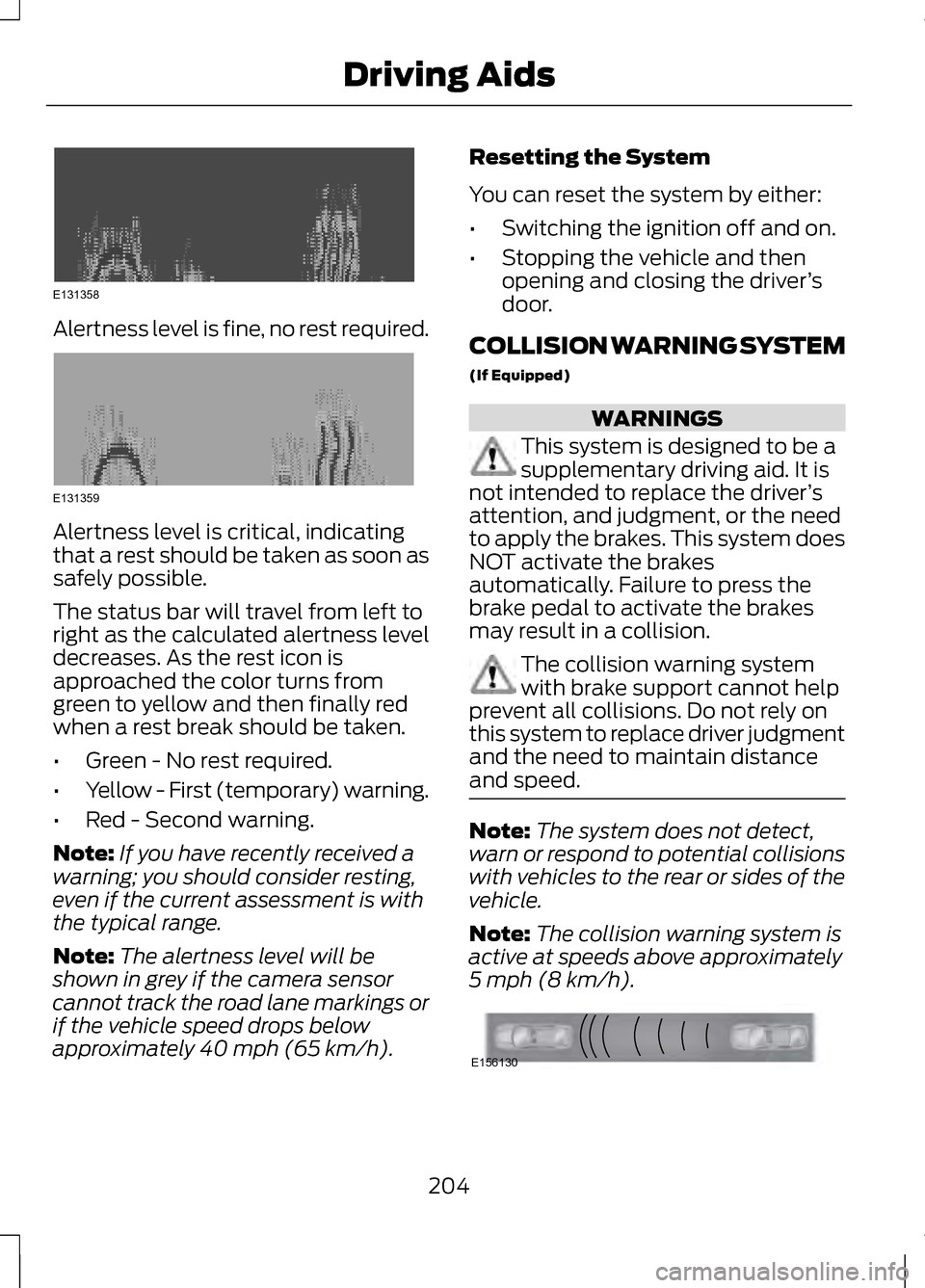
Alertness level is fine, no rest required.
Alertness level is critical, indicating
that a rest should be taken as soon as
safely possible.
The status bar will travel from left to
right as the calculated alertness level
decreases. As the rest icon is
approached the color turns from
green to yellow and then finally red
when a rest break should be taken.
•
Green - No rest required.
• Yellow - First (temporary) warning.
• Red - Second warning.
Note: If you have recently received a
warning; you should consider resting,
even if the current assessment is with
the typical range.
Note: The alertness level will be
shown in grey if the camera sensor
cannot track the road lane markings or
if the vehicle speed drops below
approximately 40 mph (65 km/h). Resetting the System
You can reset the system by either:
•
Switching the ignition off and on.
• Stopping the vehicle and then
opening and closing the driver ’s
door.
COLLISION WARNING SYSTEM
(If Equipped) WARNINGS
This system is designed to be a
supplementary driving aid. It is
not intended to replace the driver ’s
attention, and judgment, or the need
to apply the brakes. This system does
NOT activate the brakes
automatically. Failure to press the
brake pedal to activate the brakes
may result in a collision. The collision warning system
with brake support cannot help
prevent all collisions. Do not rely on
this system to replace driver judgment
and the need to maintain distance
and speed. Note:
The system does not detect,
warn or respond to potential collisions
with vehicles to the rear or sides of the
vehicle.
Note: The collision warning system is
active at speeds above approximately
5 mph (8 km/h). 204
Driving AidsE131358 E131359 E156130
Page 208 of 474
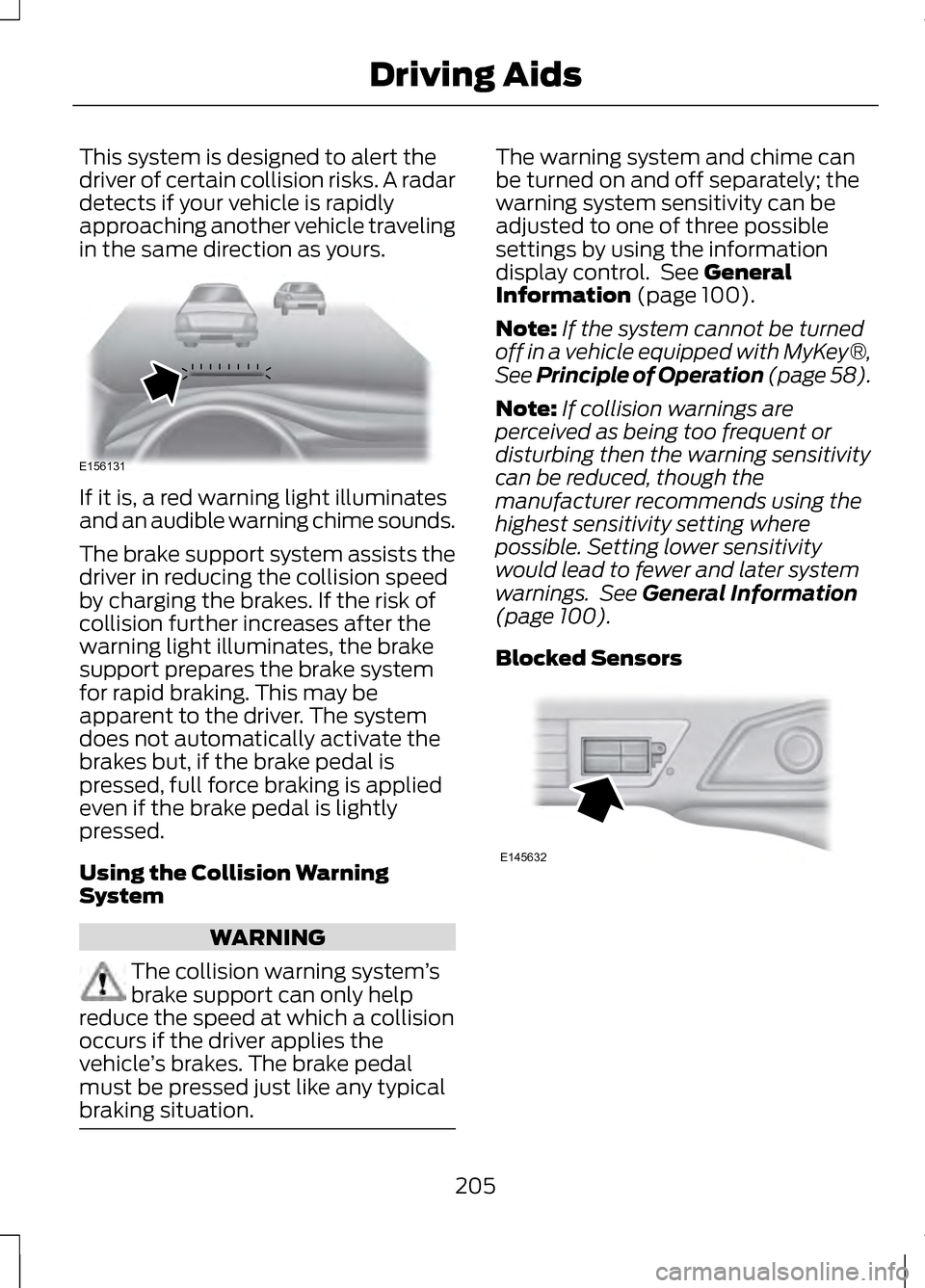
This system is designed to alert the
driver of certain collision risks. A radar
detects if your vehicle is rapidly
approaching another vehicle traveling
in the same direction as yours.
If it is, a red warning light illuminates
and an audible warning chime sounds.
The brake support system assists the
driver in reducing the collision speed
by charging the brakes. If the risk of
collision further increases after the
warning light illuminates, the brake
support prepares the brake system
for rapid braking. This may be
apparent to the driver. The system
does not automatically activate the
brakes but, if the brake pedal is
pressed, full force braking is applied
even if the brake pedal is lightly
pressed.
Using the Collision Warning
System
WARNING
The collision warning system
’s
brake support can only help
reduce the speed at which a collision
occurs if the driver applies the
vehicle ’s brakes. The brake pedal
must be pressed just like any typical
braking situation. The warning system and chime can
be turned on and off separately; the
warning system sensitivity can be
adjusted to one of three possible
settings by using the information
display control. See General
Information (page 100).
Note: If the system cannot be turned
off in a vehicle equipped with MyKey®,
See Principle of Operation (page 58).
Note: If collision warnings are
perceived as being too frequent or
disturbing then the warning sensitivity
can be reduced, though the
manufacturer recommends using the
highest sensitivity setting where
possible. Setting lower sensitivity
would lead to fewer and later system
warnings. See
General Information
(page 100).
Blocked Sensors 205
Driving AidsE156131 E145632
Page 209 of 474
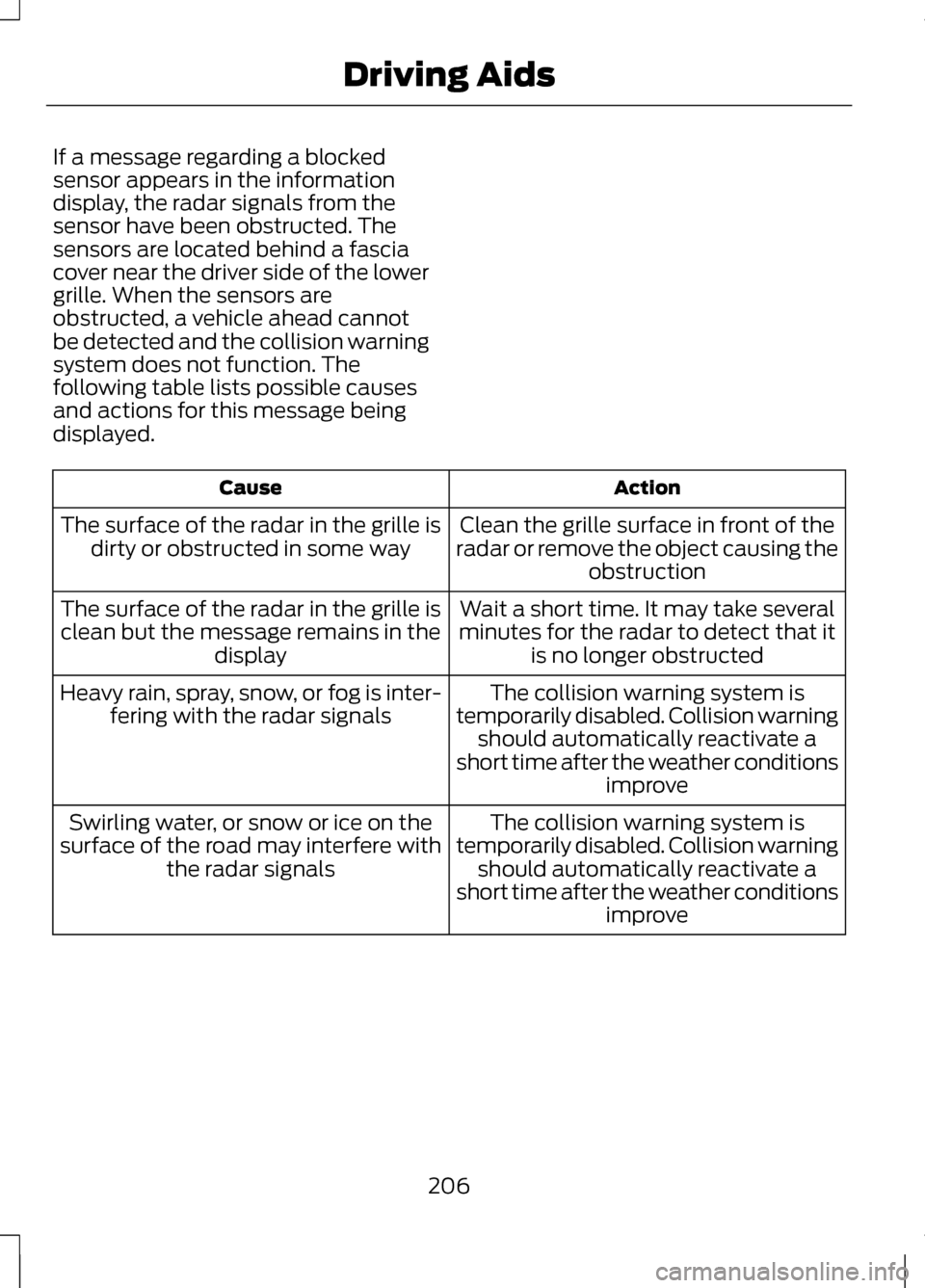
If a message regarding a blocked
sensor appears in the information
display, the radar signals from the
sensor have been obstructed. The
sensors are located behind a fascia
cover near the driver side of the lower
grille. When the sensors are
obstructed, a vehicle ahead cannot
be detected and the collision warning
system does not function. The
following table lists possible causes
and actions for this message being
displayed.
Action
Cause
Clean the grille surface in front of the
radar or remove the object causing the obstruction
The surface of the radar in the grille is
dirty or obstructed in some way
Wait a short time. It may take several
minutes for the radar to detect that it is no longer obstructed
The surface of the radar in the grille is
clean but the message remains in the display
The collision warning system is
temporarily disabled. Collision warning should automatically reactivate a
short time after the weather conditions improve
Heavy rain, spray, snow, or fog is inter-
fering with the radar signals
The collision warning system is
temporarily disabled. Collision warning should automatically reactivate a
short time after the weather conditions improve
Swirling water, or snow or ice on the
surface of the road may interfere with the radar signals
206
Driving Aids
Page 210 of 474
System Limitations
WARNING
The collision warning system
’s
brake support can only help
reduce the speed at which a collision
occurs if the driver applies the
vehicle ’s brakes. The brake pedal
must be pressed just like any typical
braking situation. Due to the nature of radar technology,
there may be certain instances where
vehicles do not provide a collision
warning. These include:
•
Stationary vehicles or vehicles
moving below 6 mph (10 km/h).
• Pedestrians or objects in the
roadway.
• Oncoming vehicles in the same
lane.
• Severe weather conditions (see
blocked sensor section).
• Debris build-up on the grille near
the headlamps (see blocked
sensor section).
• Small distance to vehicle ahead.
• Steering wheel and pedal
movements are large (very active
driving style).
•
Certain conditions may reduce the
visibility of the warning lamp;
therefore, it is recommended to keep
the audible warning on. If the front end of the vehicle is hit or
damaged, the radar sensing zone may
be altered causing missed or false
collision warnings. See your
authorized dealer to have your
collision warning radar checked for
proper coverage and operation.
LINCOLN DRIVE CONTROL
The Lincoln driving experience is
delivered through a suite of
sophisticated electronic vehicle
systems that continuously monitor
both your inputs and the road
conditions to optimize ride comfort,
steering, handling, and powertrain
response and sound.
These systems include:
•
Continuously Controlled Damping
which dynamically adjusts the
shock absorbers in real time to
match the road surface and your
inputs.
• Electronically Power-Assisted
Steering which adjusts steering
effort and feel based on vehicle
speed and your inputs.
• Active Noise Control which utilizes
vehicle electronics to enhance the
acoustic experience.
• Electronic Stability Control and
Traction Control which maintain
vehicle control in adverse
conditions or high performance
driving.
• Electronic Throttle Control which
enhances the powertrain response
to your inputs.
207
Driving Aids
Page 211 of 474
These systems have a range of modes
which you can choose from in order
to customize your ideal driving
experience:
•
Comfort – Provides a more relaxed
driving experience. Steering effort
is decreased, suspension
movement is more fluid. Comfort
mode is ideal when enhanced
traveling comfort is desired.
• Normal – Delivers a balanced
combination of comfortable,
controlled ride and confident
handling and powerful yet quiet
powertrain sound. This mode
provides an engaging drive
experience and a direct connection
to the road without sacrificing any
of the composure demanded from
a luxury vehicle. Unwanted noises
from the powertrain are cancelled
while desired sounds are shaped
to deliver a smooth powerful note.
This setting is ideal for everyday
use and daily driving.
• Sport – Provides a sportier driving
experience. Suspension stiffens,
with an emphasis on handling and
control. The engine responds more
directly to your inputs and takes
on a more powerful tone. Sport
mode is intended to be used during
more spirited driving.
You can configure which of the
Adaptive Drive modes is active when
the vehicle is in D (Drive) or in S
(Sport). The configuration is retained
until modified from the main menu on
the information display. See General
Information (page 100). LANE KEEPING SYSTEM WARNING
The system is designed to aid the
driver. It is not intended to
replace the driver ’s attention and
judgment. The driver is still
responsible to drive with due care and
attention. Note:
The system needs to be
activated by the driver at each key
cycle.
Note: The system works above 40
mph (64 km/h).
Note: The system works as long as one
lane marking can be detected by the
camera.
Note: If the camera is blocked or if the
windshield is damaged, the system
may not function.
Note: When Aid mode is on and the
system detects no driver steering
activity for a short continuous period
of time, the system alerts the driver to
put their hands on the steering wheel.
The system may detect a light
grip/touch on the steering wheel as
hands off driving.
The system detects unintentional
drifting toward the outside of the lane
and alerts and/or aids the driver to
stay in the lane through the steering
system and instrument cluster display.
The system automatically detects and
tracks the road lane markings using a
camera that is mounted behind the
interior rear view mirror.
208
Driving Aids
Page 213 of 474
When the system is turned off, the
lane marking graphics will not be
displayed.
Note:
The overhead vehicle graphic
may still be displayed if adaptive cruise
control is enabled.
While the system is on, the color of
the lane markings will change to
indicate the system status.
Gray: Indicates that the system is
temporarily unable to provide a
warning or intervention on the
indicated side(s). This may be
because:
• the vehicle is under the activation
speed
• the turn indicator is active
• the vehicle is in a dynamic
maneuver
• the road has no or poor lane
markings in the camera
field-of-view
• the camera is obscured or unable
to detect the lane markings due to
environmental conditions (e.g.
significant sun angles or shadows,
snow, heavy rain, fog), traffic
conditions (e.g. following a large
vehicle that is blocking or
shadowing the lane), or vehicle
conditions (e.g. poor headlamp
illumination). See Troubleshooting for additional
information.
Green: Indicates that the system is
available or ready to provide a
warning or intervention, on the
indicated side(s).
Yellow: Indicates that the system is
providing or has just provided a lane
keeping aid intervention.
Red: Indicates that the system is
providing or has just provided a lane
keeping alert warning.
The system can be temporarily
suppressed at any time by the
following:
• Quick braking
• Fast acceleration
• Using the turn signal indicator
• Evasive steering maneuver
210
Driving Aids