reset LINCOLN MKZ 2014 Owner's Manual
[x] Cancel search | Manufacturer: LINCOLN, Model Year: 2014, Model line: MKZ, Model: LINCOLN MKZ 2014Pages: 468, PDF Size: 4.49 MB
Page 285 of 468
If you see any corrosion on the battery
or terminals, remove the cables from
the terminals and clean with a wire
brush. You can neutralize the acid with
a solution of baking soda and water.
When a battery replacement is
required, the battery should only be
replaced with a Ford recommended
replacement battery that matches
the electrical requirements of the
vehicle.
Because your vehicle’s engine is
electronically-controlled by a
computer, some engine control
settings are maintained by power
from the low voltage battery. Some
engine computer settings, like the idle
trim and fuel trim strategy, optimize
the driveability and performance of
the engine. Some other computer
settings, like the clock and radio
station presets, are also maintained
in memory by power from the low
voltage battery. When a technician
disconnects and connects the low
voltage battery, these settings are
erased. Complete the following
procedure in order to restore the
settings:
1. With the vehicle at a completestop, set the parking brake.
2. Shift the transmission into P.
3. Turn off all accessories.
4. Step on the brake pedal and start the vehicle. 5. Run the engine until it reaches
normal operating temperature.
While the engine is warming up,
complete the following: Reset the
clock. See Audio System (page
124). Reset the power windows
bounce-back feature. See
Windows and Mirrors (page 88).
Reset the radio station presets.
See Audio System (page 124).
6. Allow the engine to idle for at least one minute. If the engine turns off,
step on the accelerator to start the
engine.
7. While the engine is running, step on the brake pedal and shift the
transmission to N.
8. Allow the engine to run for at least one minute by pressing on the
accelerator pedal.
9. Drive the vehicle at least 10 miles (16 kilometers) to completely
relearn the idle and fuel trim
strategy.
Note: If you do not allow the engine to
relearn the idle and fuel trim strategy,
the idle quality of your vehicle may be
adversely affected until the engine
computer eventually relearns the idle
trim and fuel trim strategy.
Note: Always dispose of automotive
batteries in a responsible manner.
Follow your local authorized standards
for disposal. Call your local authorized
recycling center to find out more about
recycling automotive batteries.
282
Maintenance
Page 298 of 468
Note:During extended periods of
vehicle storage (30 days or more), fuel
may deteriorate due to oxidation. Add
a quality gas stabilizer product to your
vehicle's fuel system whenever actual
or expected storage periods exceed 30
days. Follow the instructions on the
additive label. your vehicle should then
be operated at idle speed to circulate
the additive throughout the fuel
system.
Cooling system
• Protect against freezing temperatures.
• When removing your vehicle from storage, check coolant fluid level.
Confirm there are no cooling
system leaks, and fluid is at the
recommended level.
Battery
• Check and recharge as necessary.Keep connections clean.
• If storing your vehicle for more than 30 days without recharging
the battery, it may be advisable to
disconnect the battery cables to
ensure battery charge is
maintained for quick starting.
Note: If battery cables are
disconnected, it will be necessary to
reset memory features.
Brakes
• Make sure brakes and parking brake are fully released.
Tires
• Maintain recommended airpressure.
Miscellaneous
• Make sure all linkages, cables,levers and pins under your vehicle
are covered with grease to prevent
rust.
• Move vehicles at least 25 feet (8 meters) every 15 days to lubricate
working parts and prevent
corrosion.
Removing Vehicle From
Storage
When your vehicle is ready to come
out of storage, do the following:
• Wash your vehicle to remove anydirt or grease film build-up on
window surfaces.
• Check windshield wipers for any deterioration.
• Check under the hood for any foreign material that may have
collected during storage
(mice/squirrel nests).
• Check the exhaust for any foreign material that may have collected
during storage.
• Check tire pressures and set tire inflation per the Tire Label.
• Check brake pedal operation. Drive your vehicle 15 feet (4.5 meters)
back and forth to remove rust
build-up.
295
Vehicle Care
Page 350 of 468
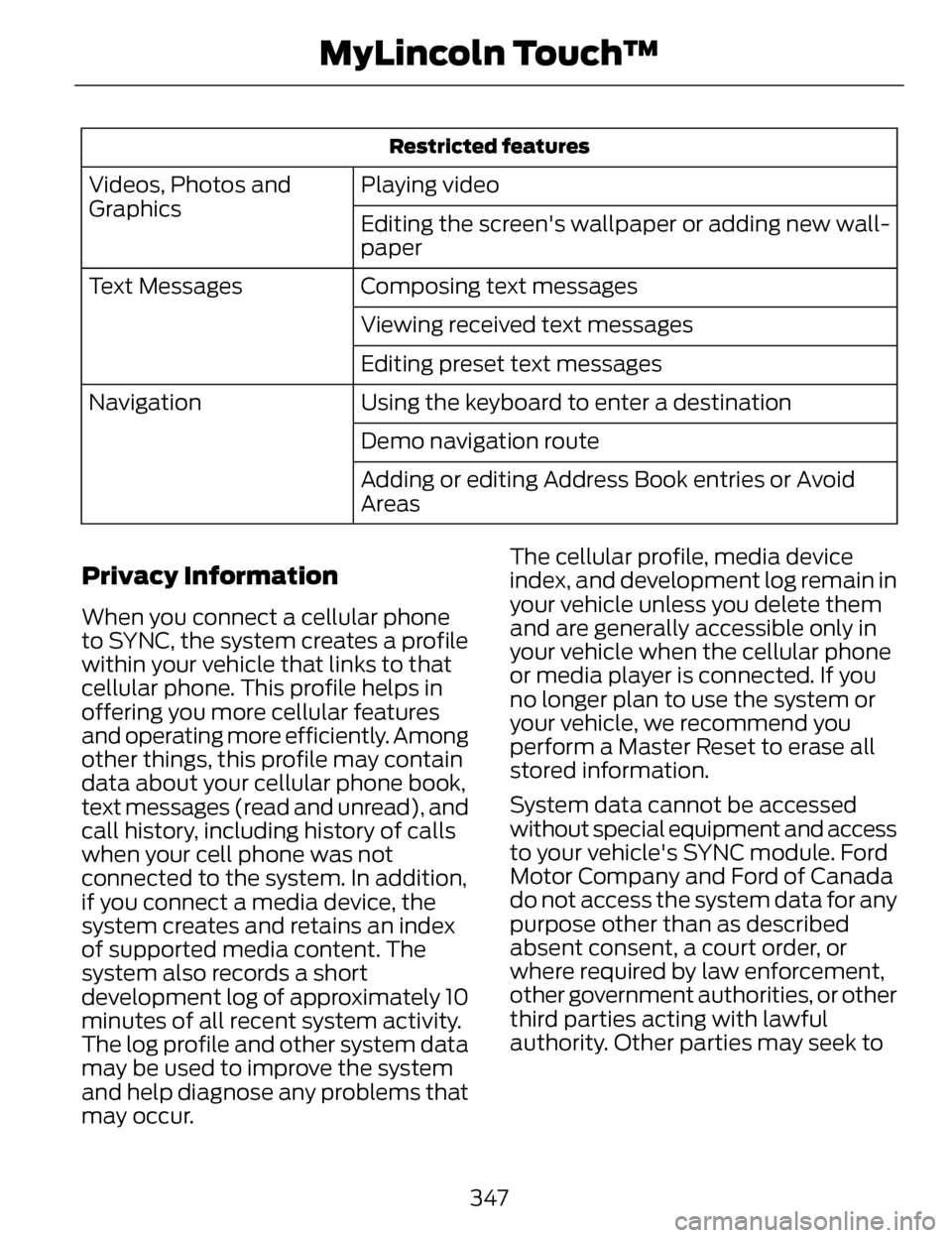
Restricted features
Playing video
Videos, Photos and
Graphics
Editing the screen's wallpaper or adding new wall-
paper
Composing text messages
Text Messages
Viewing received text messages
Editing preset text messages
Using the keyboard to enter a destination
Navigation
Demo navigation route
Adding or editing Address Book entries or Avoid
Areas
Privacy Information
When you connect a cellular phone
to SYNC, the system creates a profile
within your vehicle that links to that
cellular phone. This profile helps in
offering you more cellular features
and operating more efficiently. Among
other things, this profile may contain
data about your cellular phone book,
text messages (read and unread), and
call history, including history of calls
when your cell phone was not
connected to the system. In addition,
if you connect a media device, the
system creates and retains an index
of supported media content. The
system also records a short
development log of approximately 10
minutes of all recent system activity.
The log profile and other system data
may be used to improve the system
and help diagnose any problems that
may occur. The cellular profile, media device
index, and development log remain in
your vehicle unless you delete them
and are generally accessible only in
your vehicle when the cellular phone
or media player is connected. If you
no longer plan to use the system or
your vehicle, we recommend you
perform a Master Reset to erase all
stored information.
System data cannot be accessed
without special equipment and access
to your vehicle's SYNC module. Ford
Motor Company and Ford of Canada
do not access the system data for any
purpose other than as described
absent consent, a court order, or
where required by law enforcement,
other
government authorities, or other
third parties acting with lawful
authority. Other parties may seek to
347
MyLincoln Touch™
Page 351 of 468
access the information independently
of Ford Motor Company and Ford of
Canada. For further privacyinformation, see the sections on 911
Assist, Vehicle Health Report, and
Traffic, Directions and Information.
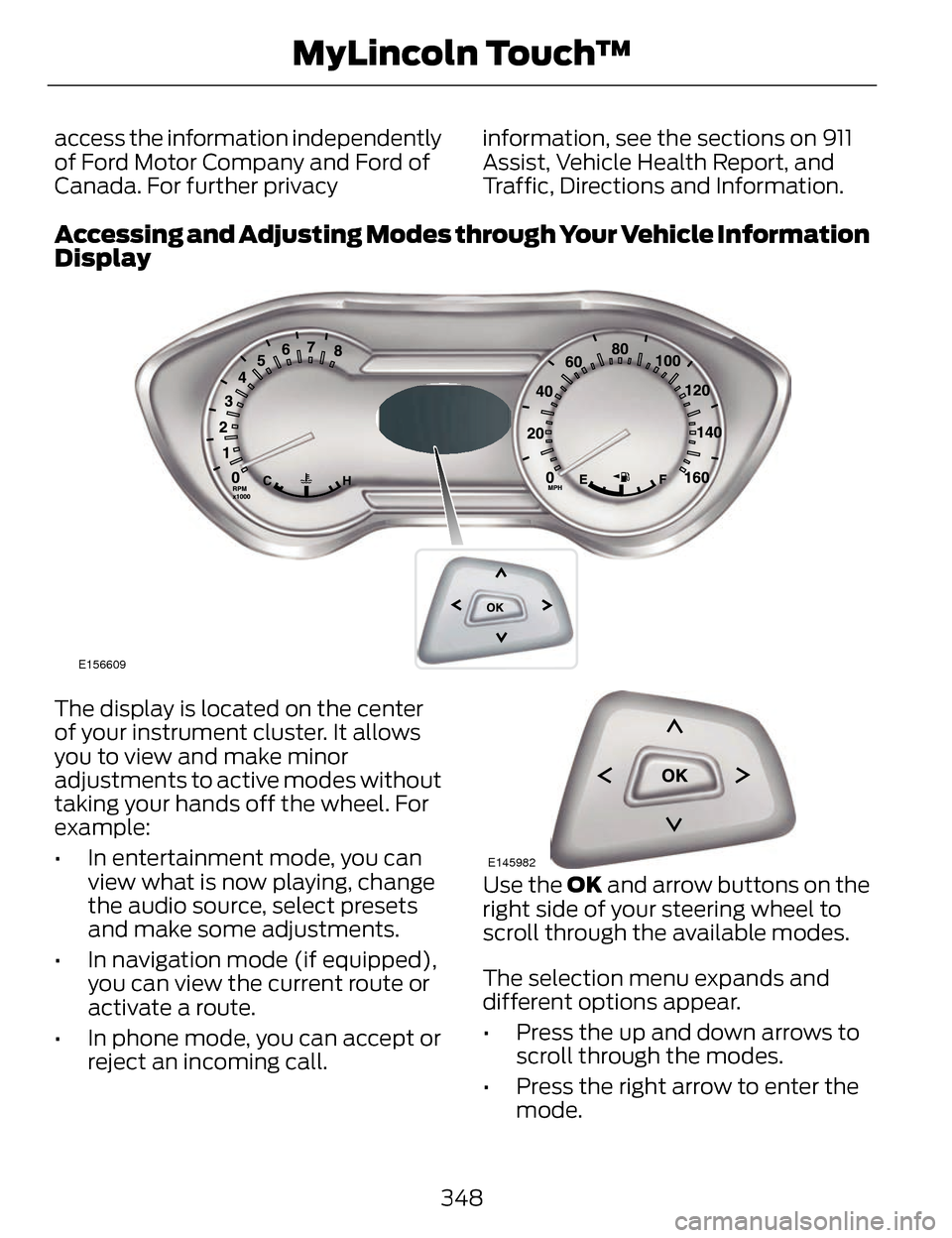
Accessing and Adjusting Modes through Your Vehicle Information
Display
E156609
The display is located on the center
of your instrument cluster. It allows
you to view and make minor
adjustments to active modes without
taking your hands off the wheel. For
example:
• In entertainment mode, you can
view what is now playing, change
the audio source, select presets
and make some adjustments.
• In navigation mode (if equipped), you can view the current route or
activate a route.
• In phone mode, you can accept or reject an incoming call.
E145982
Use the OK and arrow buttons on the
right side of your steering wheel to
scroll through the available modes.
The selection menu expands and
different options appear.
• Press the up and down arrows to scroll through the modes.
• Press the right arrow to enter the mode.
348
MyLincoln Touch™
Page 358 of 468
• Rear Camera Delay
• Visual Park Aid Alert
• Guidelines.
You can find more information on the
rear view camera in another chapter.
See Rear View Camera (page 194).
Enable Valet Mode
Note: If the system locks, and you
need to reset the PIN, enter 3681 and
the system unlocks.
Valet mode allows you to lock the
system. No information is accessible
until the system is unlocked with the
correct PIN.
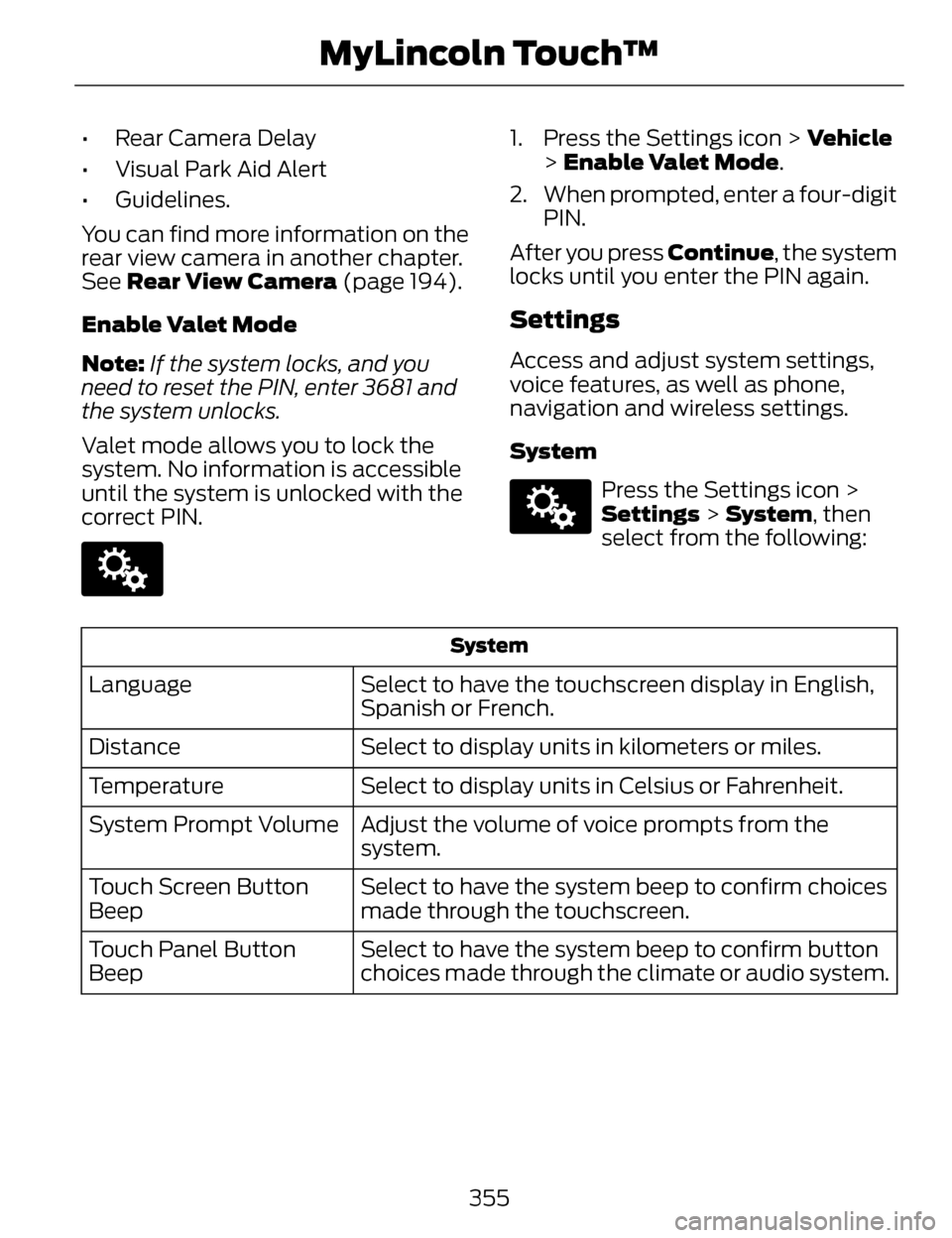
E142607
1. Press the Settings icon > Vehicle > Enable Valet Mode.
2. When prompted, enter a four-digit PIN.
After you press Continue, the system
locks until you enter the PIN again.
Settings
Access and adjust system settings,
voice features, as well as phone,
navigation and wireless settings.
System
E142607
Press the Settings icon >
Settings > System , then
select from the following:
System
Select to have the touchscreen display in English,
Spanish or French.
Language
Select to display units in kilometers or miles.
Distance
Select to display units in Celsius or Fahrenheit.
Temperature
Adjust the volume of voice prompts from the
system.
System Prompt Volume
Select to have the system beep to confirm choices
made through the touchscreen.
Touch Screen Button
Beep
Select to have the system beep to confirm button
choices made through the climate or audio system.
Touch Panel Button
Beep
355
MyLincoln Touch™
Page 359 of 468
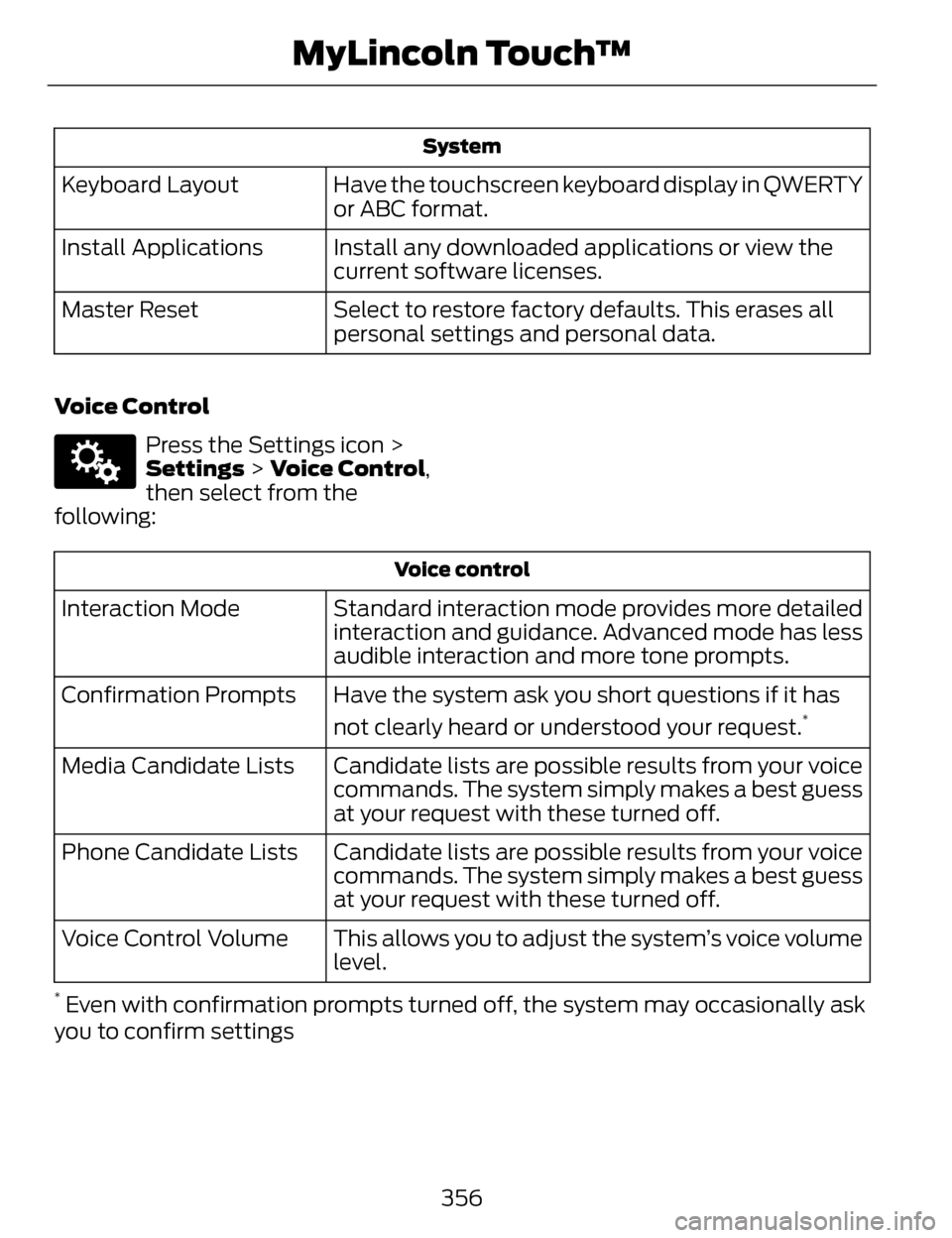
System
Have the touchscreen keyboard display in QWERTY
or ABC format.
Keyboard Layout
Install any downloaded applications or view the
current software licenses.
Install Applications
Select to restore factory defaults. This erases all
personal settings and personal data.
Master Reset
Voice Control
E142607
Press the Settings icon >
Settings > Voice Control,
then select from the
following:
Voice control
Standard interaction mode provides more detailed
interaction and guidance. Advanced mode has less
audible interaction and more tone prompts.
Interaction Mode
Have the system ask you short questions if it has
not clearly heard or understood your request.
*Confirmation PromptsCandidate lists are possible results from your voice
commands. The system simply makes a best guess
at your request with these turned off.
Media Candidate Lists
Candidate lists are possible results from your voice
commands. The system simply makes a best guess
at your request with these turned off.
Phone Candidate Lists
This allows you to adjust the system’s voice volume
level.
Voice Control Volume
* Even with confirmation prompts turned off, the system may occasionally ask
you to confirm settings
356
MyLincoln Touch™
Page 367 of 468
ENTERTAINMENT
A
B
C
D
E
F
G
H
E161892
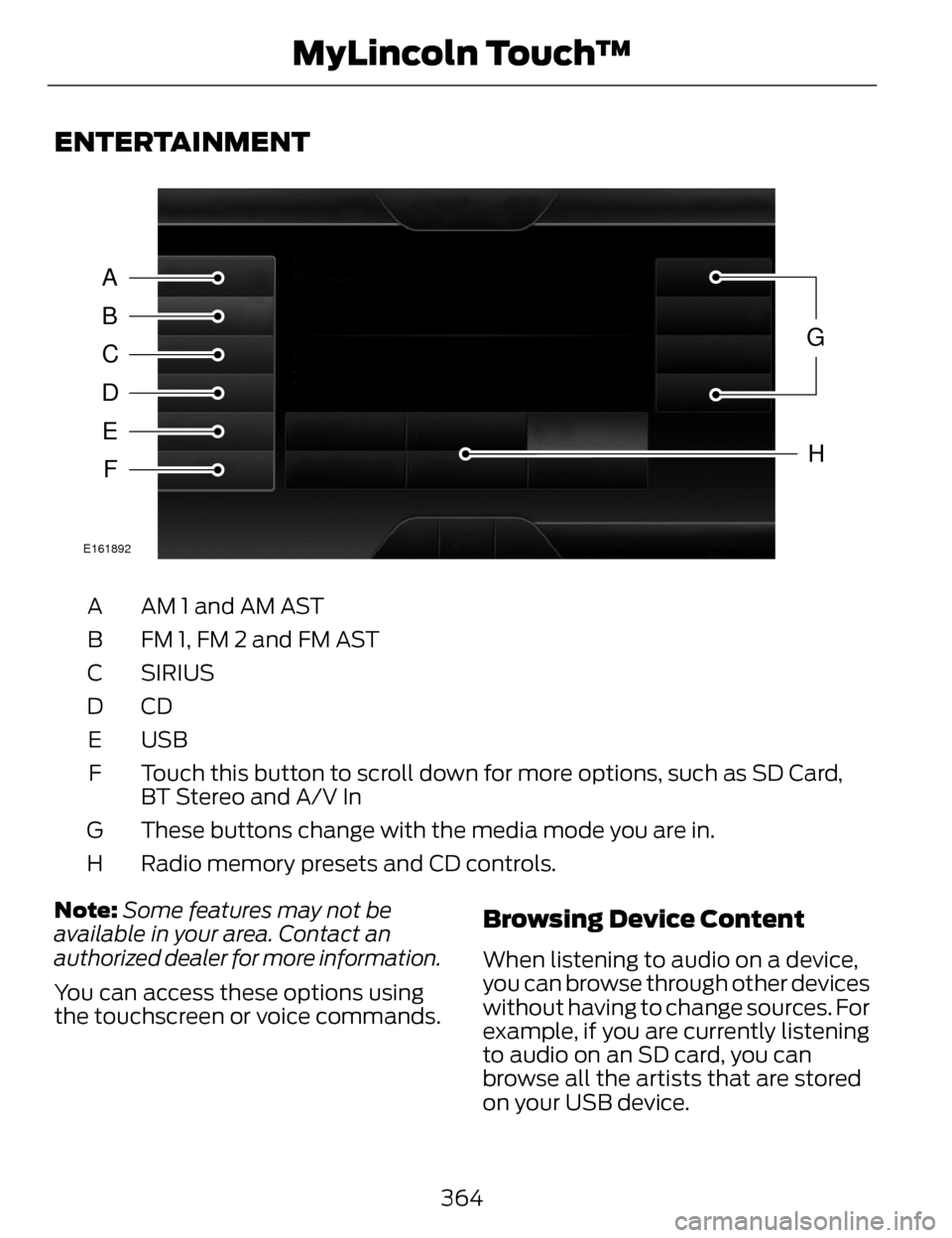
AM 1 and AM AST
A
FM 1, FM 2 and FM AST
B
SIRIUS
C
CDD
USB
E
Touch this button to scroll down for more options, such as SD Card,
BT Stereo and A/V In
F
These buttons change with the media mode you are in.
G
Radio memory presets and CD controls.
H
Note: Some features may not be
available in your area. Contact an
authorized dealer for more information.
You can access these options using
the touchscreen or voice commands.
Browsing Device Content
When listening to audio on a device,
you can browse through other devices
without having to change sources. For
example, if you are currently listening
to audio on an SD card, you can
browse all the artists that are stored
on your USB device.
364
MyLincoln Touch™
Page 369 of 468
![LINCOLN MKZ 2014 Owners Manual Sample commands
"Play [album] <name>"**
"Play [artist] <name>"**
"Play [genre] <name>"**
"Play [playlist] <name>"**
"Play [song] <name>"**
"Play <name>"
"Play <name (song or album)> by <artist name>"](/img/15/6982/w960_6982-368.png "LINCOLN MKZ 2014 Owners Manual Sample commands
\"Play [album] <name>\"**
\"Play [artist] <name>\"**
\"Play [genre] <name>\"**
\"Play [playlist] <name>\"**
\"Play [song] <name>\"**
\"Play <name>\"
\"Play <name (song or album)> by <artist name>\"")
Sample commands
"Play [album]
"Play [artist]
"Play [genre]
"Play [playlist]
"Play [song]
"Play
"Play
"Sirius <0-223>"
*
"Sports games"*
*
This command is only usable if you
have an active subscription to Sirius
satellite radio.
** The commands that have [ ] around
the word means that the word is
optional. For example, if you say, "Play
Metallica", this is the same as the
voice command, "Play [artist]
AM/FM Radio
E142611
Touch the AM or FM tab to
listen to the radio.
To change between AM and FM
presets, just touch the AM or FM tab. Memory Presets
Save a station by pressing and holding
one of the memory preset areas.
There is a brief mute while the radio
saves the station. Sound returns when
finished.
HD Radio
Touch this button to turn HD Radio
on. The light on the button illuminates
when the feature is on. HD Radio
allows you to receive radio broadcasts
digitally, where available, providing
free, crystal-clear sound. See HD
Radio information later in this chapter.
Scan
Touch this button to go to the next
strong AM or FM radio station. The
light on the button illuminates when
the feature is on.
Options
Sound Settings
Touch this button to adjust settings
for:
•Bass
• Midrange
• Treble
• Balance and Fade
• THX Deep Note Demo
• DSP (Digital Signal processing)
• Occupancy Mode
• Speed Compensated Volume.
Note:
Your vehicle may not have all
these sound settings.
366
MyLincoln Touch™
Page 371 of 468
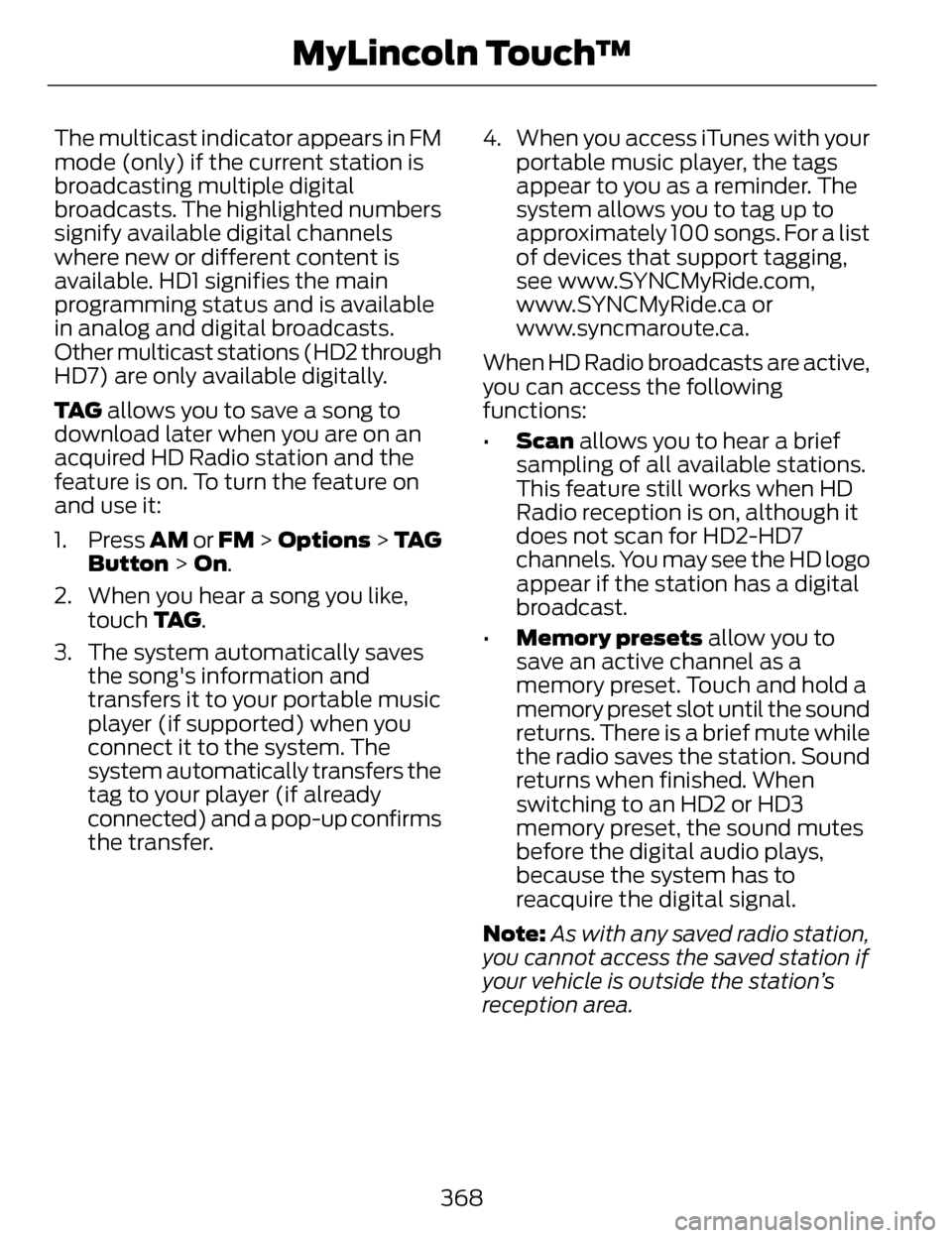
The multicast indicator appears in FM
mode (only) if the current station is
broadcasting multiple digital
broadcasts. The highlighted numbers
signify available digital channels
where new or different content is
available. HD1 signifies the main
programming status and is available
in analog and digital broadcasts.
Other multicast stations (HD2 through
HD7) are only available digitally.
TA G allows you to save a song to
download later when you are on an
acquired HD Radio station and the
feature is on. To turn the feature on
and use it:
1. Press AM or FM > Options > TA G
Button > On.
2. When you hear a song you like, touch TA G .
3. The system automatically saves the song's information and
transfers it to your portable music
player (if supported) when you
connect it to the system. The
system automatically transfers the
tag to your player (if already
connected) and a pop-up confirms
the transfer. 4. When you access iTunes with your
portable music player, the tags
appear to you as a reminder. The
system allows you to tag up to
approximately 100 songs. For a list
of devices that support tagging,
see www.SYNCMyRide.com,
www.SYNCMyRide.ca or
www.syncmaroute.ca.
When HD Radio broadcasts are active,
you can access the following
functions:
• Scan allows you to hear a brief
sampling of all available stations.
This feature still works when HD
Radio reception is on, although it
does not scan for HD2-HD7
channels. You may see the HD logo
appear if the station has a digital
broadcast.
• Memory presets allow you to
save an active channel as a
memory preset. Touch and hold a
memory preset slot until the sound
returns. There is a brief mute while
the radio saves the station. Sound
returns when finished. When
switching to an HD2 or HD3
memory preset, the sound mutes
before the digital audio plays,
because the system has to
reacquire the digital signal.
Note: As with any saved radio station,
you cannot access the saved station if
your vehicle is outside the station’s
reception area.
368
MyLincoln Touch™
Page 373 of 468
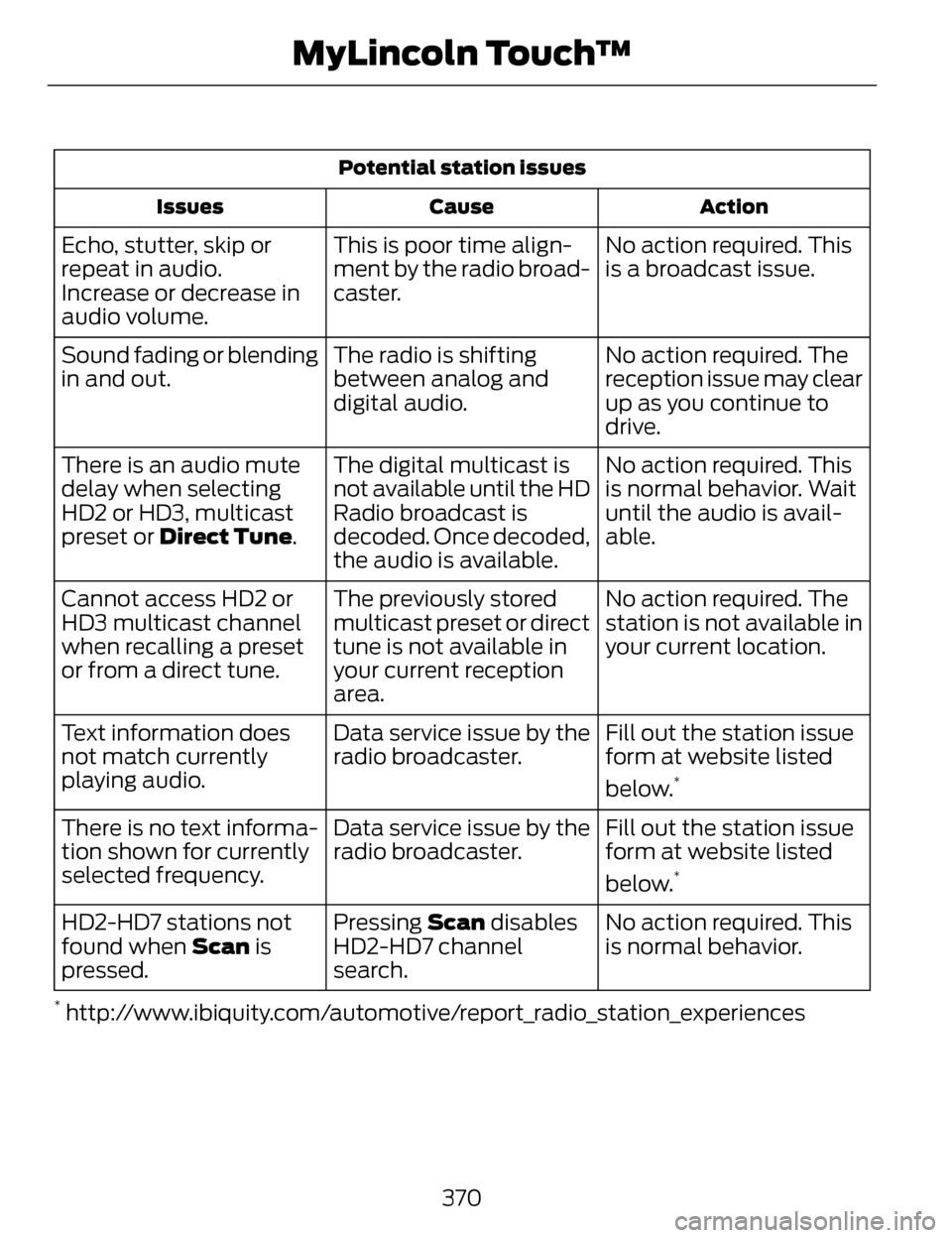
Potential station issuesAction
Cause
Issues
No action required. This
is a broadcast issue.
This is poor time align-
ment by the radio broad-
caster.
Echo, stutter, skip or
repeat in audio.
Increase or decrease in
audio volume.
No action required. The
reception issue may clear
up as you continue to
drive.
The radio is shifting
between analog and
digital audio.
Sound fading or blending
in and out.
No action required. This
is normal behavior. Wait
until the audio is avail-
able.
The digital multicast is
not available until the HD
Radio broadcast is
decoded. Once decoded,
the audio is available.
There is an audio mute
delay when selecting
HD2 or HD3, multicast
preset or Direct Tune.
No action required. The
station is not available in
your current location.
The previously stored
multicast preset or direct
tune is not available in
your current reception
area.
Cannot access HD2 or
HD3 multicast channel
when recalling a preset
or from a direct tune.
Fill out the station issue
form at website listed
below.
*
Data service issue by the
radio broadcaster.
Text information does
not match currently
playing audio.
Fill out the station issue
form at website listed
below.
*
Data service issue by the
radio broadcaster.
There is no text informa-
tion shown for currently
selected frequency.
No action required. This
is normal behavior.
Pressing Scan
disables
HD2-HD7 channel
search.
HD2-HD7 stations not
found when Scan
is
pressed.
* http://www.ibiquity.com/automotive/report_radio_station_experiences
370
MyLincoln Touch™