wheel LINCOLN MKZ 2015 Owners Manual
[x] Cancel search | Manufacturer: LINCOLN, Model Year: 2015, Model line: MKZ, Model: LINCOLN MKZ 2015Pages: 516, PDF Size: 4.48 MB
Page 363 of 516
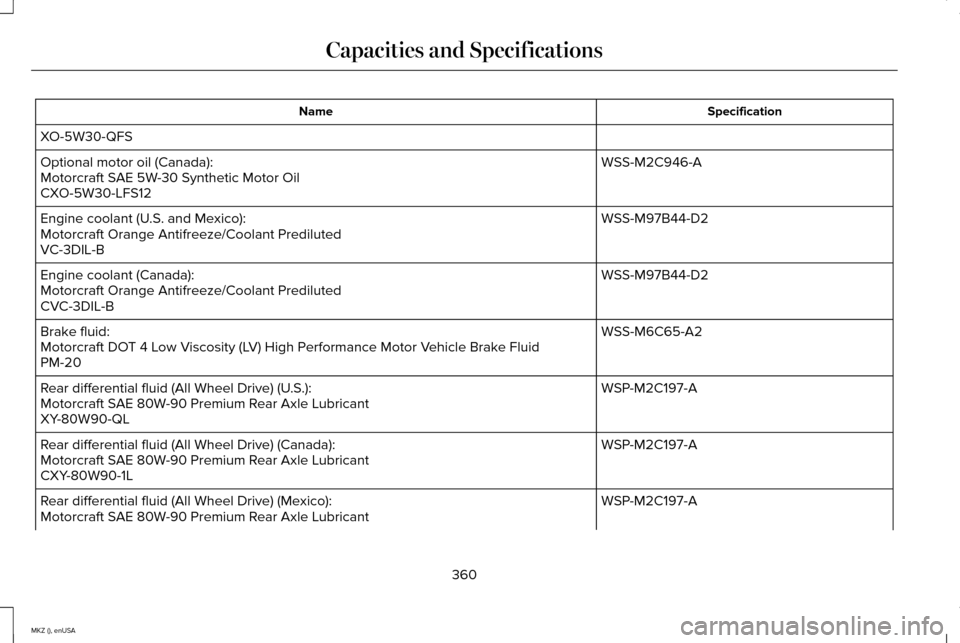
Specification
Name
XO-5W30-QFS WSS-M2C946-A
Optional motor oil (Canada):
Motorcraft SAE 5W-30 Synthetic Motor Oil
CXO-5W30-LFS12
WSS-M97B44-D2
Engine coolant (U.S. and Mexico):
Motorcraft Orange Antifreeze/Coolant Prediluted
VC-3DIL-B
WSS-M97B44-D2
Engine coolant (Canada):
Motorcraft Orange Antifreeze/Coolant Prediluted
CVC-3DIL-B
WSS-M6C65-A2
Brake fluid:
Motorcraft DOT 4 Low Viscosity (LV) High Performance Motor Vehicle Brake Fluid
PM-20
WSP-M2C197-A
Rear differential fluid (All Wheel Drive) (U.S.):
Motorcraft SAE 80W-90 Premium Rear Axle Lubricant
XY-80W90-QL
WSP-M2C197-A
Rear differential fluid (All Wheel Drive) (Canada):
Motorcraft SAE 80W-90 Premium Rear Axle Lubricant
CXY-80W90-1L
WSP-M2C197-A
Rear differential fluid (All Wheel Drive) (Mexico):
Motorcraft SAE 80W-90 Premium Rear Axle Lubricant
360
MKZ (), enUSA Capacities and Specifications
Page 364 of 516
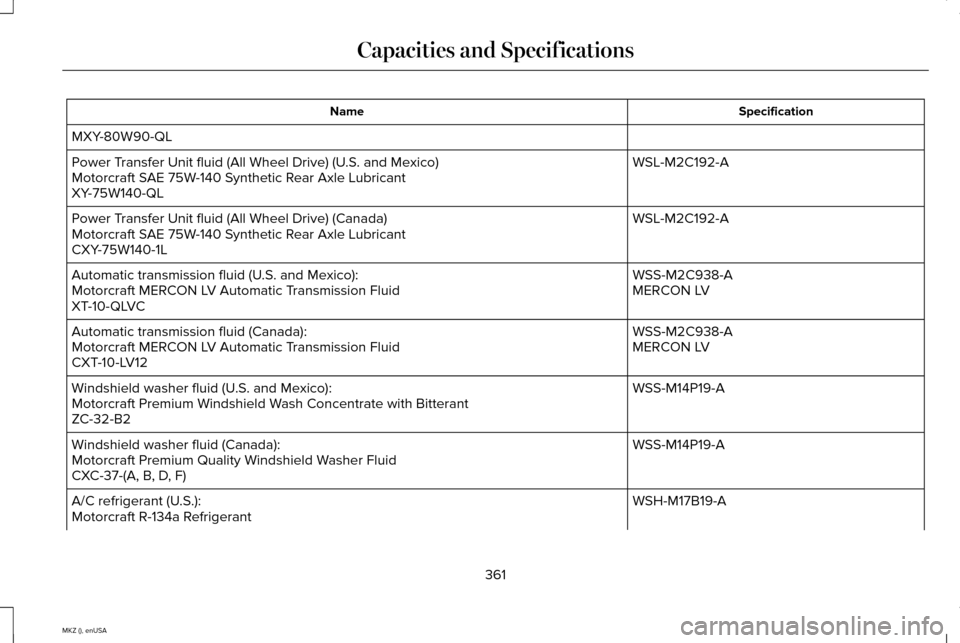
Specification
Name
MXY-80W90-QL WSL-M2C192-A
Power Transfer Unit fluid (All Wheel Drive) (U.S. and Mexico)
Motorcraft SAE 75W-140 Synthetic Rear Axle Lubricant
XY-75W140-QL
WSL-M2C192-A
Power Transfer Unit fluid (All Wheel Drive) (Canada)
Motorcraft SAE 75W-140 Synthetic Rear Axle Lubricant
CXY-75W140-1L
WSS-M2C938-A
Automatic transmission fluid (U.S. and Mexico):
MERCON LV
Motorcraft MERCON LV Automatic Transmission Fluid
XT-10-QLVC
WSS-M2C938-A
Automatic transmission fluid (Canada):
MERCON LV
Motorcraft MERCON LV Automatic Transmission Fluid
CXT-10-LV12
WSS-M14P19-A
Windshield washer fluid (U.S. and Mexico):
Motorcraft Premium Windshield Wash Concentrate with Bitterant
ZC-32-B2
WSS-M14P19-A
Windshield washer fluid (Canada):
Motorcraft Premium Quality Windshield Washer Fluid
CXC-37-(A, B, D, F)
WSH-M17B19-A
A/C refrigerant (U.S.):
Motorcraft R-134a Refrigerant
361
MKZ (), enUSA Capacities and Specifications
Page 367 of 516

CAPACITIES AND SPECIFICATIONS - 3.7L
Capacities
WARNING
The air conditioning refrigerant system contains refrigerant R-134a unde\
r high pressure. Opening the air conditioning refrigerant system
can cause personal injury. Have the air conditioning refrigerant system serviced only by qualifie\
d personnel.
Capacity
Item
6.0 qt (5.7 L)
Engine oil
9.7 qt (9.2 L)
Engine coolant
Between MIN/MAX on brake fluid reservoir
Brake fluid
2.4 pt (1.15L)
Rear differential fluid (All Wheel Drive)
18.0 fl oz (532 ml)
Power Transfer Unit fluid (All Wheel Drive) 1
11.6 qt (11 L)
Automatic transmission fluid 2
Fill as required
Windshield washer fluid
17.5 gal (66.2 L)
Fuel tank
364
MKZ (), enUSA Capacities and Specifications
Page 369 of 516
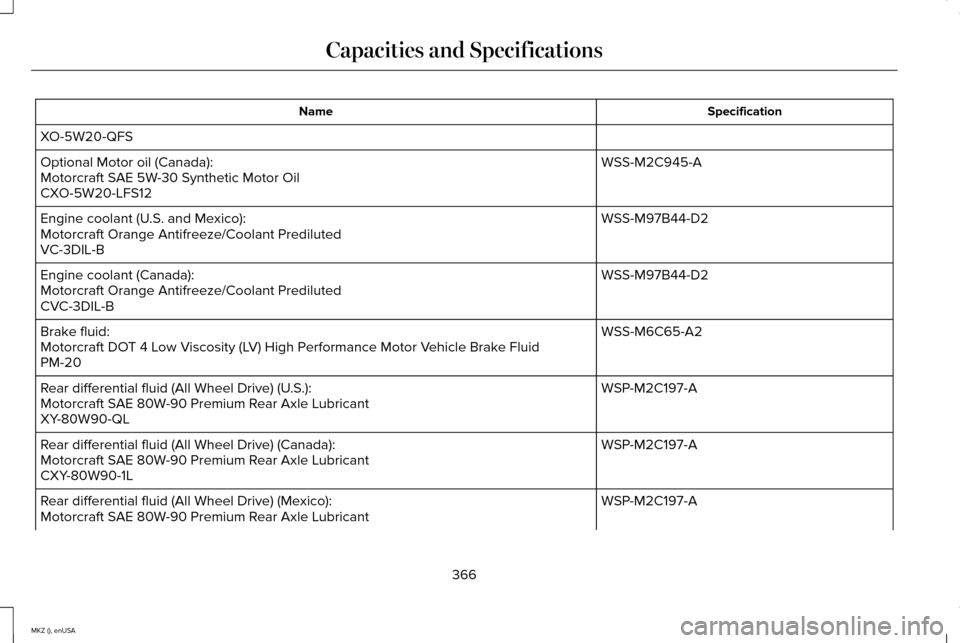
Specification
Name
XO-5W20-QFS WSS-M2C945-A
Optional Motor oil (Canada):
Motorcraft SAE 5W-30 Synthetic Motor Oil
CXO-5W20-LFS12
WSS-M97B44-D2
Engine coolant (U.S. and Mexico):
Motorcraft Orange Antifreeze/Coolant Prediluted
VC-3DIL-B
WSS-M97B44-D2
Engine coolant (Canada):
Motorcraft Orange Antifreeze/Coolant Prediluted
CVC-3DIL-B
WSS-M6C65-A2
Brake fluid:
Motorcraft DOT 4 Low Viscosity (LV) High Performance Motor Vehicle Brake Fluid
PM-20
WSP-M2C197-A
Rear differential fluid (All Wheel Drive) (U.S.):
Motorcraft SAE 80W-90 Premium Rear Axle Lubricant
XY-80W90-QL
WSP-M2C197-A
Rear differential fluid (All Wheel Drive) (Canada):
Motorcraft SAE 80W-90 Premium Rear Axle Lubricant
CXY-80W90-1L
WSP-M2C197-A
Rear differential fluid (All Wheel Drive) (Mexico):
Motorcraft SAE 80W-90 Premium Rear Axle Lubricant
366
MKZ (), enUSA Capacities and Specifications
Page 370 of 516
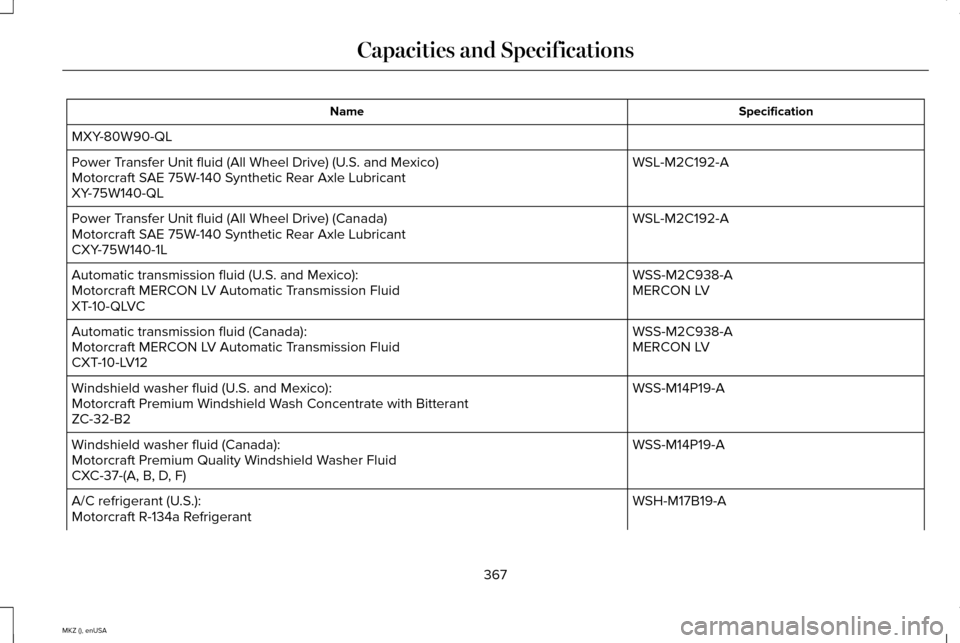
Specification
Name
MXY-80W90-QL WSL-M2C192-A
Power Transfer Unit fluid (All Wheel Drive) (U.S. and Mexico)
Motorcraft SAE 75W-140 Synthetic Rear Axle Lubricant
XY-75W140-QL
WSL-M2C192-A
Power Transfer Unit fluid (All Wheel Drive) (Canada)
Motorcraft SAE 75W-140 Synthetic Rear Axle Lubricant
CXY-75W140-1L
WSS-M2C938-A
Automatic transmission fluid (U.S. and Mexico):
MERCON LV
Motorcraft MERCON LV Automatic Transmission Fluid
XT-10-QLVC
WSS-M2C938-A
Automatic transmission fluid (Canada):
MERCON LV
Motorcraft MERCON LV Automatic Transmission Fluid
CXT-10-LV12
WSS-M14P19-A
Windshield washer fluid (U.S. and Mexico):
Motorcraft Premium Windshield Wash Concentrate with Bitterant
ZC-32-B2
WSS-M14P19-A
Windshield washer fluid (Canada):
Motorcraft Premium Quality Windshield Washer Fluid
CXC-37-(A, B, D, F)
WSH-M17B19-A
A/C refrigerant (U.S.):
Motorcraft R-134a Refrigerant
367
MKZ (), enUSA Capacities and Specifications
Page 380 of 516
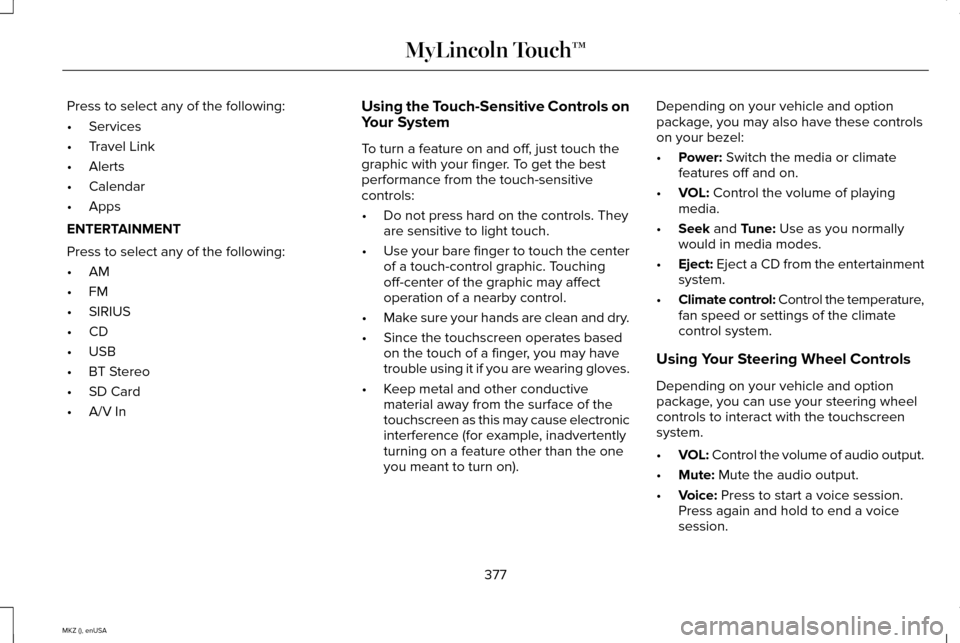
Press to select any of the following:
•
Services
• Travel Link
• Alerts
• Calendar
• Apps
ENTERTAINMENT
Press to select any of the following:
• AM
• FM
• SIRIUS
• CD
• USB
• BT Stereo
• SD Card
• A/V In Using the Touch-Sensitive Controls on
Your System
To turn a feature on and off, just touch the
graphic with your finger. To get the best
performance from the touch-sensitive
controls:
•
Do not press hard on the controls. They
are sensitive to light touch.
• Use your bare finger to touch the center
of a touch-control graphic. Touching
off-center of the graphic may affect
operation of a nearby control.
• Make sure your hands are clean and dry.
• Since the touchscreen operates based
on the touch of a finger, you may have
trouble using it if you are wearing gloves.
• Keep metal and other conductive
material away from the surface of the
touchscreen as this may cause electronic
interference (for example, inadvertently
turning on a feature other than the one
you meant to turn on). Depending on your vehicle and option
package, you may also have these controls
on your bezel:
•
Power: Switch the media or climate
features off and on.
• VOL:
Control the volume of playing
media.
• Seek
and Tune: Use as you normally
would in media modes.
• Eject:
Eject a CD from the entertainment
system.
• Climate control: Control the temperature,
fan speed or settings of the climate
control system.
Using Your Steering Wheel Controls
Depending on your vehicle and option
package, you can use your steering wheel
controls to interact with the touchscreen
system.
• VOL: Control the volume of audio output.
• Mute:
Mute the audio output.
• Voice:
Press to start a voice session.
Press again and hold to end a voice
session.
377
MKZ (), enUSA MyLincoln Touch™
Page 381 of 516
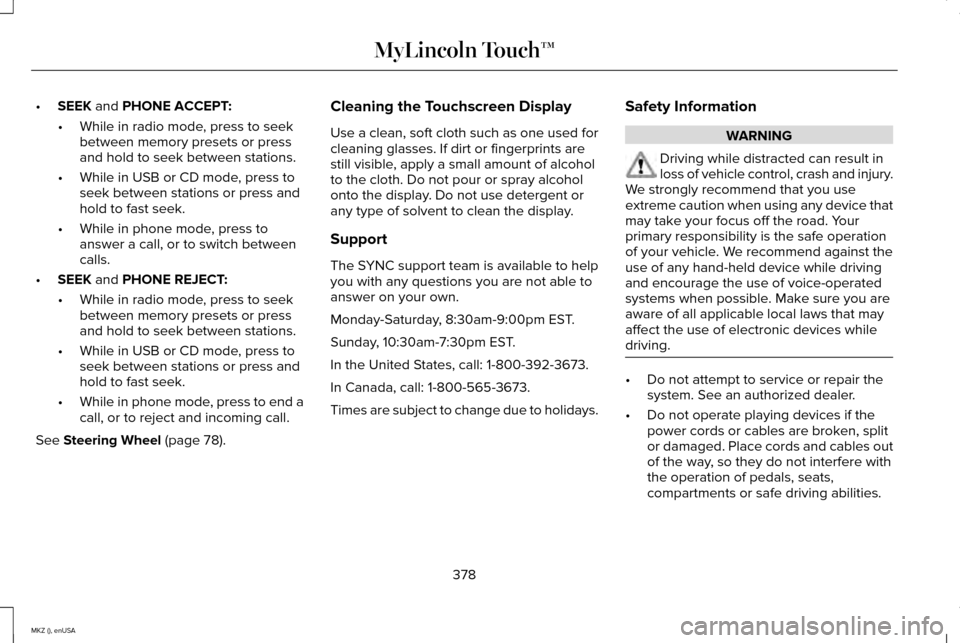
•
SEEK and PHONE ACCEPT:
• While in radio mode, press to seek
between memory presets or press
and hold to seek between stations.
• While in USB or CD mode, press to
seek between stations or press and
hold to fast seek.
• While in phone mode, press to
answer a call, or to switch between
calls.
• SEEK
and PHONE REJECT:
• While in radio mode, press to seek
between memory presets or press
and hold to seek between stations.
• While in USB or CD mode, press to
seek between stations or press and
hold to fast seek.
• While in phone mode, press to end a
call, or to reject and incoming call.
See
Steering Wheel (page 78). Cleaning the Touchscreen Display
Use a clean, soft cloth such as one used for
cleaning glasses. If dirt or fingerprints are
still visible, apply a small amount of alcohol
to the cloth. Do not pour or spray alcohol
onto the display. Do not use detergent or
any type of solvent to clean the display.
Support
The SYNC support team is available to help
you with any questions you are not able to
answer on your own.
Monday-Saturday, 8:30am-9:00pm EST.
Sunday, 10:30am-7:30pm EST.
In the United States, call: 1-800-392-3673.
In Canada, call: 1-800-565-3673.
Times are subject to change due to holidays.
Safety Information WARNING
Driving while distracted can result in
loss of vehicle control, crash and injury.
We strongly recommend that you use
extreme caution when using any device that
may take your focus off the road. Your
primary responsibility is the safe operation
of your vehicle. We recommend against the
use of any hand-held device while driving
and encourage the use of voice-operated
systems when possible. Make sure you are
aware of all applicable local laws that may
affect the use of electronic devices while
driving. •
Do not attempt to service or repair the
system. See an authorized dealer.
• Do not operate playing devices if the
power cords or cables are broken, split
or damaged. Place cords and cables out
of the way, so they do not interfere with
the operation of pedals, seats,
compartments or safe driving abilities.
378
MKZ (), enUSA MyLincoln Touch™
Page 386 of 516
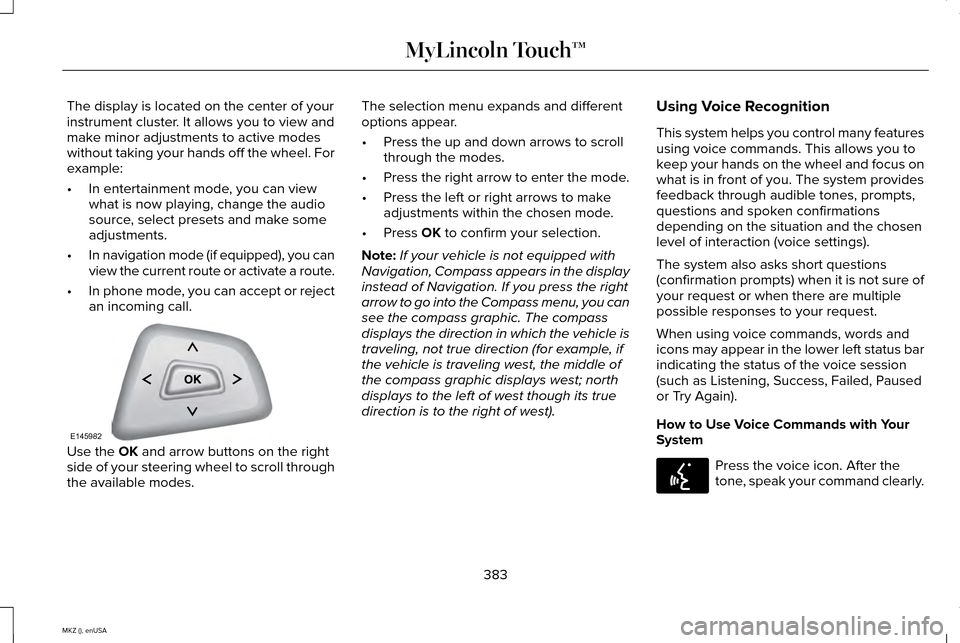
The display is located on the center of your
instrument cluster. It allows you to view and
make minor adjustments to active modes
without taking your hands off the wheel. For
example:
•
In entertainment mode, you can view
what is now playing, change the audio
source, select presets and make some
adjustments.
• In navigation mode (if equipped), you can
view the current route or activate a route.
• In phone mode, you can accept or reject
an incoming call. Use the OK and arrow buttons on the right
side of your steering wheel to scroll through
the available modes. The selection menu expands and different
options appear.
•
Press the up and down arrows to scroll
through the modes.
• Press the right arrow to enter the mode.
• Press the left or right arrows to make
adjustments within the chosen mode.
• Press
OK to confirm your selection.
Note: If your vehicle is not equipped with
Navigation, Compass appears in the display
instead of Navigation. If you press the right
arrow to go into the Compass menu, you can
see the compass graphic. The compass
displays the direction in which the vehicle is
traveling, not true direction (for example, if
the vehicle is traveling west, the middle of
the compass graphic displays west; north
displays to the left of west though its true
direction is to the right of west). Using Voice Recognition
This system helps you control many features
using voice commands. This allows you to
keep your hands on the wheel and focus on
what is in front of you. The system provides
feedback through audible tones, prompts,
questions and spoken confirmations
depending on the situation and the chosen
level of interaction (voice settings).
The system also asks short questions
(confirmation prompts) when it is not sure of
your request or when there are multiple
possible responses to your request.
When using voice commands, words and
icons may appear in the lower left status bar
indicating the status of the voice session
(such as Listening, Success, Failed, Paused
or Try Again).
How to Use Voice Commands with Your
System
Press the voice icon. After the
tone, speak your command clearly.
383
MKZ (), enUSA MyLincoln Touch™E145982 E142599
Page 387 of 516
These commands can be said at any time
during a voice session
"Cancel""Exit"
"Go back"
"List of commands" "Main menu""Next page"
"Previous page"
"What can I say?" "Help" What Can I Say?
To access the available voice commands for
the current session, do one of the following:
•
During a voice session, press the help
icon (?) in the lower left status bar of the
screen.
• Say, "What can I say?" for an on-screen
listing of the possible voice commands
associated with your current voice
session.
• Press the voice icon. After the tone, say,
"Help" for an audible list of possible voice
commands.
Helpful Hints
• Make sure the interior of your vehicle is
as quiet as possible. Wind noise from
open windows and road vibrations may
prevent the system from correctly
recognizing spoken commands.
• After pressing the voice icon, wait until
after the tone sounds and Listening
appears before saying a command. Any
command spoken before this does not
register with the system. •
Speak naturally, without long pauses
between words.
• At any time, you can interrupt the system
while it is speaking by pressing the voice
icon.
Accessing a List of Available Commands
• If you use the touchscreen, press the
Settings icon >
Help > Voice Command
List.
• If you use the steering wheel control,
press the voice icon. After the tone,
speak your command clearly. Available voice commands
"Audio list of commands"
"Bluetooth audio list of commands" "Browse list of commands""CD list of commands"
"Climate control list of commands" "List of commands"
384
MKZ (), enUSA MyLincoln Touch™
Page 391 of 516
Under this menu, you can set your
clock, access and adjust the
display, sound and vehicle settings
as well as access settings for specific modes
or the help feature.
Clock
Note: You cannot manually set the date.
Your vehicle ’s GPS does this for you.
Note: If the battery has been disconnected,
your vehicle needs to acquire a GPS signal
to update the clock. Once your vehicle
acquires the signal, it may take a few
minutes for the update to display the correct
time. 1. Press the Settings icon > Clock.
2. Press
+ and - to adjust the time.
From this screen, you can also make other
adjustments such as 12-hour or 24-hour
mode, activate GPS time synchronization and
have the system automatically update new
time zones. You can also turn the outside air temperature
display off and on. It appears at the top
center of the touchscreen, next to the time
and date.
The system automatically saves any updates
you make to the settings.
Display
You can adjust the touchscreen display
through the touchscreen or by pressing the
voice button on your steering wheel controls
and when prompted, say, "Display settings".
Press the Settings icon >
Display,
to access and make adjustments
using the touchscreen.
• Brightness
allows you to make the
screen display brighter or dimmer.
• Auto DIM
, when set to On, lets you use
the Auto Dim Manual Offset feature.
When set to
Off, screen brightness does
not change. •
Mode
allows you to set the screen to a
certain brightness or have the system
automatically change based on the
outside light level, or turn the display off.
• If you select
AUTO or NIGHT, you
have the options of turning the
display's Auto Dim feature on or off
and changing the Auto Dim Manual
Offset feature.
• Auto Dim Manual Offset
allows you to
adjust screen dimming as the outside
lighting conditions change from day to
night. This feature also allows you to
adjust screen brightness using the
instrument panel dimming control.
• Edit Wallpaper
•You can have your touchscreen
display the default photo or upload
your own.
Uploading Photos for Your Home Screen
Wallpaper
Note: You cannot load photos directly from
your camera. You must access the photos
either from your USB mass storage device
or from an SD card.
388
MKZ (), enUSA MyLincoln Touch™E142607 E142607 E142607