wheel LINCOLN MKZ 2015 Owners Manual
[x] Cancel search | Manufacturer: LINCOLN, Model Year: 2015, Model line: MKZ, Model: LINCOLN MKZ 2015Pages: 516, PDF Size: 4.48 MB
Page 404 of 516
CDD
USBE
Touch this button to scroll down for more options, such as SD Card, BT Stereo and A/V In
F
These buttons change with the media mode you are in.
G
Radio memory presets and CD controls.
H
Note: Some features may not be available
in your area. Contact an authorized dealer
for more information.
You can access these options using the
touchscreen or voice commands.
Browsing Device Content
When listening to audio on a device, you can
browse through other devices without having
to change sources. For example, if you are
currently listening to audio on an SD card,
you can browse all the artists that are stored
on your USB device. Press the voice icon on the
steering wheel. When prompted,
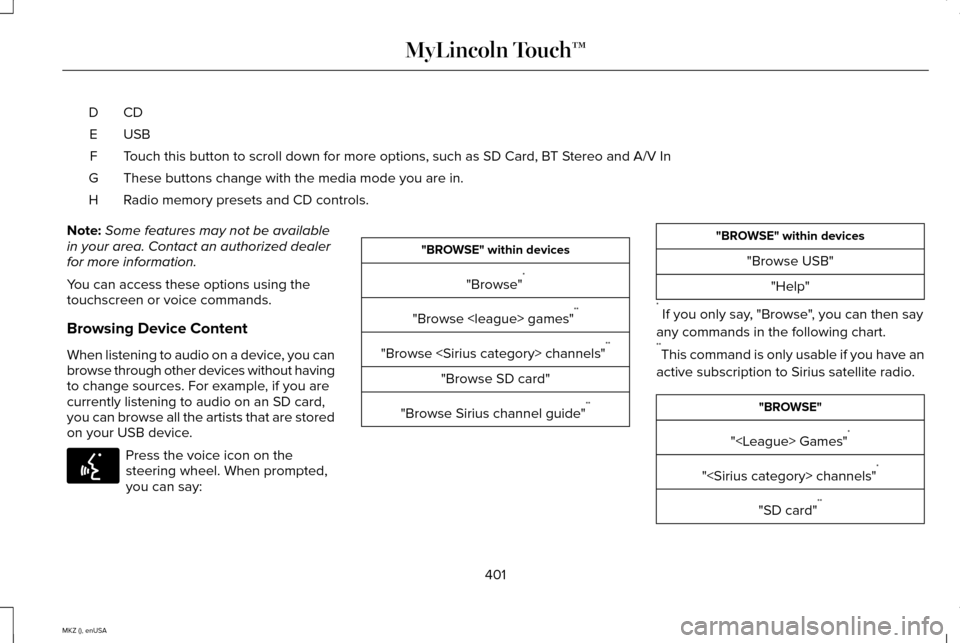
you can say: "BROWSE" within devices
"Browse" *
"Browse
"Browse
"Browse SD card"
"Browse Sirius channel guide" ** "BROWSE" within devices
"Browse USB""Help"
* If you only say, "Browse", you can then say
any commands in the following chart.
** This command is only usable if you have an
active subscription to Sirius satellite radio. "BROWSE"
"
"
"SD card" **
401
MKZ (), enUSA MyLincoln Touch™E142599
Page 405 of 516
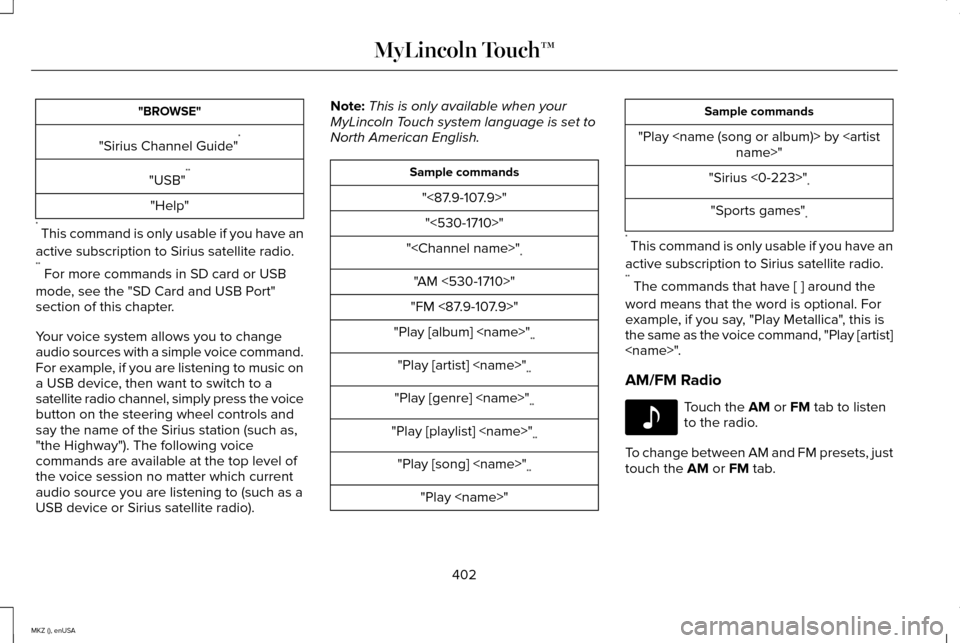
"BROWSE"
"Sirius Channel Guide" *
"USB" **
"Help"
* This command is only usable if you have an
active subscription to Sirius satellite radio.
** For more commands in SD card or USB
mode, see the "SD Card and USB Port"
section of this chapter.
Your voice system allows you to change
audio sources with a simple voice command.
For example, if you are listening to music on
a USB device, then want to switch to a
satellite radio channel, simply press the voice
button on the steering wheel controls and
say the name of the Sirius station (such as,
"the Highway"). The following voice
commands are available at the top level of
the voice session no matter which current
audio source you are listening to (such as a
USB device or Sirius satellite radio). Note:
This is only available when your
MyLincoln Touch system language is set to
North American English. Sample commands
"<87.9-107.9>""<530-1710>"
"
"AM <530-1710>"
"FM <87.9-107.9>"
"Play [album]
"Play [artist]
"Play [genre]
"Play [playlist]
"Play [song]
"Play
"Play
"Sirius <0-223>" *
"Sports games" *
* This command is only usable if you have an
active subscription to Sirius satellite radio.
** The commands that have [ ] around the
word means that the word is optional. For
example, if you say, "Play Metallica", this is
the same as the voice command, "Play [artist]
AM/FM Radio Touch the AM or FM tab to listen
to the radio.
To change between AM and FM presets, just
touch the
AM or FM tab.
402
MKZ (), enUSA MyLincoln Touch™E142611
Page 410 of 516
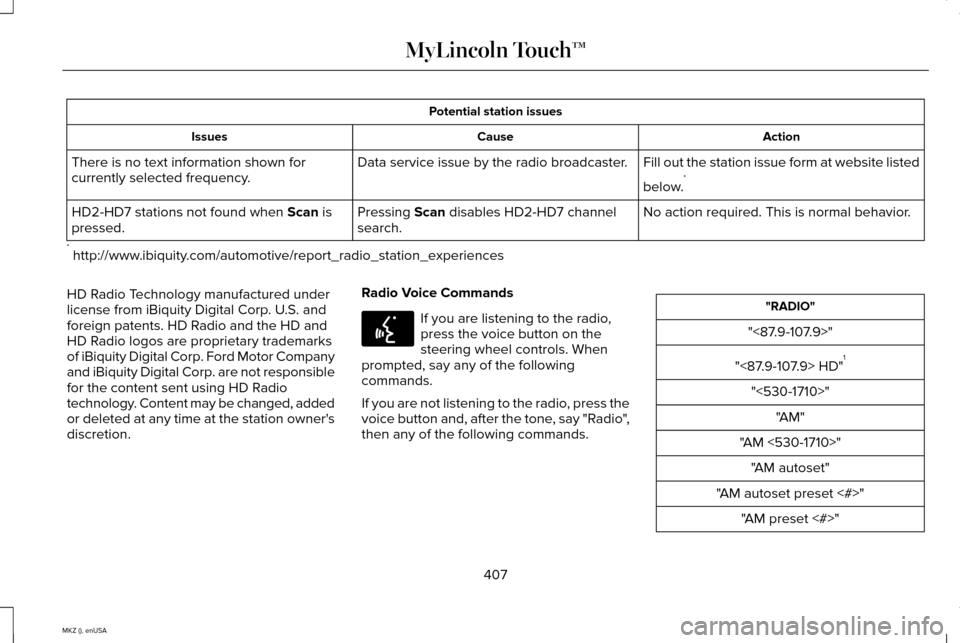
Potential station issues
Action
Cause
Issues
Fill out the station issue form at website listed
below.*
Data service issue by the radio broadcaster.
There is no text information shown for
currently selected frequency.
No action required. This is normal behavior.
Pressing Scan disables HD2-HD7 channel
search.
HD2-HD7 stations not found when Scan is
pressed.
* http://www.ibiquity.com/automotive/report_radio_station_experiences
HD Radio Technology manufactured under
license from iBiquity Digital Corp. U.S. and
foreign patents. HD Radio and the HD and
HD Radio logos are proprietary trademarks
of iBiquity Digital Corp. Ford Motor Company
and iBiquity Digital Corp. are not responsible
for the content sent using HD Radio
technology. Content may be changed, added
or deleted at any time at the station owner's
discretion. Radio Voice Commands If you are listening to the radio,
press the voice button on the
steering wheel controls. When
prompted, say any of the following
commands.
If you are not listening to the radio, press the
voice button and, after the tone, say "Radio",
then any of the following commands. "RADIO"
"<87.9-107.9>"
"<87.9-107.9> HD" 1
"<530-1710>" "AM"
"AM <530-1710>" "AM autoset"
"AM autoset preset <#>" "AM preset <#>"
407
MKZ (), enUSA MyLincoln Touch™E142599
Page 416 of 516
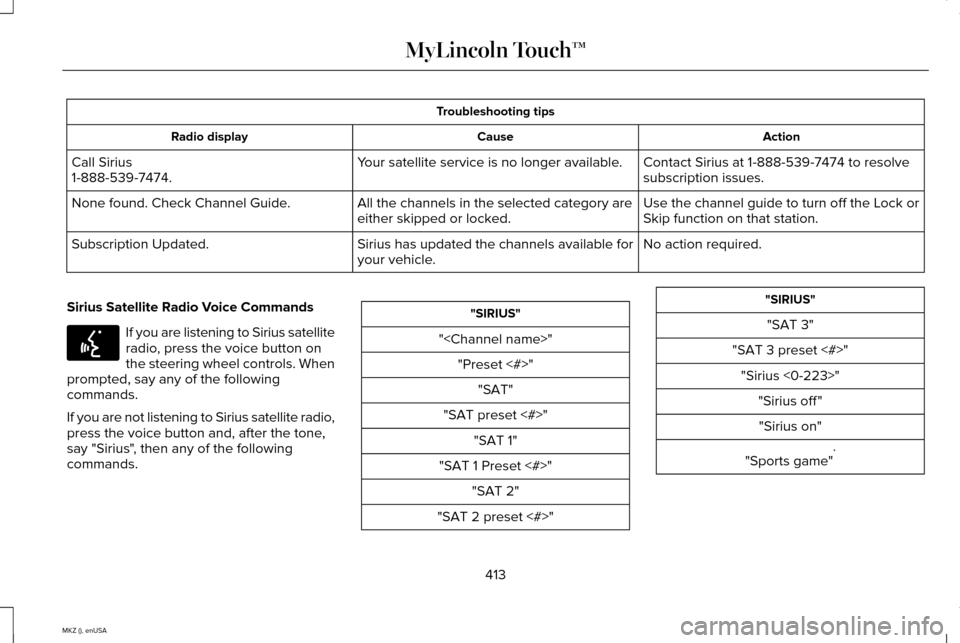
Troubleshooting tips
Action
Cause
Radio display
Contact Sirius at 1-888-539-7474 to resolve
subscription issues.
Your satellite service is no longer available.
Call Sirius
1-888-539-7474.
Use the channel guide to turn off the Lock or
Skip function on that station.
All the channels in the selected category are
either skipped or locked.
None found. Check Channel Guide.
No action required.
Sirius has updated the channels available for
your vehicle.
Subscription Updated.
Sirius Satellite Radio Voice Commands If you are listening to Sirius satellite
radio, press the voice button on
the steering wheel controls. When
prompted, say any of the following
commands.
If you are not listening to Sirius satellite radio,
press the voice button and, after the tone,
say "Sirius", then any of the following
commands. "SIRIUS"
"
"SAT preset <#>" "SAT 1"
"SAT 1 Preset <#>" "SAT 2"
"SAT 2 preset <#>" "SIRIUS"
"SAT 3"
"SAT 3 preset <#>" "Sirius <0-223>" "Sirius off ""Sirius on"
"Sports game" *
413
MKZ (), enUSA MyLincoln Touch™E142599
Page 418 of 516
•
Bass
• Midrange
• Treble
• Balance and Fade
• THX Deep Note Demo
• DSP (Digital Signal processing)
• Occupancy Mode
• Speed Compensated Volume.
Note: Your vehicle may not have all these
sound settings.
Compression
Touch this button to turn the compression
feature off and on.
Browse
Touch this button to look through all
available CD tracks.
CD Voice Commands If you are listening to a CD, press
the voice button on the steering
wheel controls. When prompted,
say any of the following commands. If you are not listening to a CD, press the
voice button and, after the tone, say "CD",
then any of the following commands. "CD"
"Pause" "Play"
"Play next track"
"Play previous track" "Play track <1-512>" "Repeat"
"Repeat folder" *
"Repeat off "
"Repeat track" "Shuffle"
"Shuffle CD" *
"Shuffle folder" * "CD"
"Shuffle off " "Help"
* This applies to WMA or MP3 files only.
SD Card Slot and USB Port
SD Card
Note: Your SD card slot is spring-loaded. To
remove the SD card, press the card in and
the system ejects it. Do not attempt to pull
the card to remove it as this could cause
damage.
Note: The navigation system also uses this
card slot. See Navigation (page 444).
415
MKZ (), enUSA MyLincoln Touch™E142599
Page 420 of 516
Similar Music
This feature allows you to choose music
similar to what is currently playing.
More Info
Touch this button to see disc information
such as current track, artist name, album and
genre.
Options
Touch this button to view and adjust various
media settings.
Sound Settings allows you to adjust settings
for:
• Bass
• Midrange
• Treble
• Balance and Fade
• THX Deep Note Demo
• DSP (Digital Signal processing)
• Occupancy Mode
• Speed Compensated Volume. Note:
Your vehicle may not have all these
sound settings.
Media Player Settings
allows you to select
more settings, which is under Media Player.
See
Settings (page 387).
Device Information
displays software and
firmware information about the currently
connected media device.
Update Media Index
indexes your device
when you connect it for the first time and
each time the content changes (such as
adding or removing tracks) to make sure you
have the latest voice commands available
for all media on the device.
Browse
This feature allows you to view the contents
of the device. It also allows you to search by
categories, such as genre, artist or album.
If you want to view song information such as
Title, Artist, File, Folder, Album, and Genre,
touch the on-screen album art. You can also touch
What’
s Playing to hear
how the system pronounces the current band
and song. This can be helpful when using
voice commands to make sure the system
correctly plays your request.
Playing Video from Your Device
To access and play video from your device,
your vehicle's transmission must be in
position
P with the ignition in accessory
mode. See Starting and Stopping the
Engine (page 156).
SD Card and USB Voice Commands If you are listening to a USB device
or an SD card, press the voice
button on the steering wheel
controls. When prompted, say any of the
following commands.
If you are not listening to a USB device or an
SD card, press the voice button and, after
the tone, say "USB" or "SD card", then any
of the following commands.
417
MKZ (), enUSA MyLincoln Touch™E142599
Page 423 of 516
Bluetooth Audio
Your system allows you to stream audio over
your vehicle's speakers from your connected,
Bluetooth-enabled cellular phone.
To access, press the lower left
corner on the touchscreen, then
select the BT Stereo tab.
Bluetooth Audio Voice Commands If you are listening to a Bluetooth
audio device, press the voice
button on the steering wheel
control. When prompted, say "Next song",
"Pause", "Play" or "Previous song".
If you are not listening to a Bluetooth audio
device, press the voice button and, after the
tone, say "Next song", "Pause", "Play" or
"Previous song". A/V Inputs WARNINGS
Driving while distracted can result in
loss of vehicle control, crash and injury.
We strongly recommend that you use
extreme caution when using any device that
may take your focus off the road. Your
primary responsibility is the safe operation
of your vehicle. We recommend against the
use of any handheld device while driving and
encourage the use of voice-operated
systems when possible. Make sure you are
aware of all applicable local laws that may
affect the use of electronic devices while
driving. For safety reasons, do not connect or
adjust the settings on your portable
music player while your vehicle is moving. WARNINGS
Store the portable music player in a
secure location, such as the center
console or the glove box, when your vehicle
is moving. Hard objects may become
projectiles in a crash or sudden stop, which
may increase the risk of serious injury. The
audio extension cable must be long enough
to allow the portable music player to be
safely stored while your vehicle is moving. 420
MKZ (), enUSA MyLincoln Touch™E142611 E142599
Page 427 of 516
The first thing you must do to use the phone
features of SYNC is to pair your
Bluetooth-enabled cellular phone with SYNC.
This allows you to use your phone in a
hands-free manner.
Note:
Put the transmission in park (P). Switch
on your vehicle ignition and the radio.
1. Touch Add Phone in the upper left
corner of the touchscreen. Find SYNC
appears on the screen, and instructs you
to begin the pairing process from your
device.
2. Make sure that Bluetooth is set to On and
that your cellular phone is in the proper
mode. See your device ’s manual if
necessary.
Note: Select
SYNC, and a six-digit PIN
appears on your device.
3. If prompted to enter a PIN on your device, it does not support Secure Simple
Pairing. To pair, enter the PIN displayed
on the touchscreen. Skip the next step. 4.
When prompted on your phone ’s display,
confirm that the PIN provided by SYNC
matches the PIN displayed on your
cellular phone.
5. The display indicates when the pairing is
successful.
SYNC may prompt you with more phone
options. For more information on your
phone's capability, see your device's manual
and visit the website.
Pairing Subsequent Phones
Note: Put the transmission in park (P). Switch
on your vehicle ignition and the radio.
1. Press the
Phone corner of the
touchscreen > Settings > BT Devices >
Add Device.
2. Make sure that Bluetooth is set to On and
that your cellular phone is in the proper
mode. See your device ’s manual if
necessary.
Note: Select
SYNC, and a six-digit PIN
appears on your device. 3. If prompted to enter a PIN on your
device, it does not support Secure Simple
Pairing. To pair, enter the PIN displayed
on the touchscreen. Skip the next step.
4. When prompted on your phone ’s display,
confirm that the PIN provided by SYNC
matches the PIN displayed on your
cellular phone.
5. The display indicates when the pairing is
successful.
SYNC may prompt you with more phone
options. For more information on your
phone's capability, see your device's manual
and visit the website.
Making Calls Press the voice button on your
steering wheel controls. When
prompted, say, "Call
say "Dial", then the desired number. To end the call or exit phone
mode, press and hold this phone
button on your steering wheel
controls.
424
MKZ (), enUSA MyLincoln Touch™E142599 E142632
Page 428 of 516
Receiving Calls
During an incoming call, an audible tone
sounds. Call information appears in the
display if it is available.
Accept the call by pressing Accept
on the touchscreen or by pressing
this phone button on your steering
wheel controls. Reject the call by pressing Reject
on the touchscreen or by pressing
and holding this phone button on
your steering wheel controls.
Ignore the call by doing nothing. SYNC logs
it as a missed call.
Phone Menu Options
Press the top left corner on your touchscreen
to select from the following options: Phone
Touch this button to access the on-screen
numerical pad to enter a number and place
a call. During an active call, you can also
choose to:
•
Mute the call.
• Put the call on hold.
• Turn on the privacy feature.
• Join two calls.
• End the call.
Quick Dial
Set up favorite contacts from your
phonebook or history folder.
Phonebook
Touch this button to access and call any
contacts in your previously downloaded
phone book. The system places the entries
in alphabetical categories summarized at the
top of the screen. To switch on contact picture settings, if your
device supports this feature, press
Phone >
Settings > Manage Phonebook > Download
photos from Phonebook > On.
History
After you connect your Bluetooth-enabled
phone to SYNC, you can access any
previously dialed, received or missed calls.
You can also choose to save these to your
Favorites or to Quick Dial.
Note: This is a phone-dependent feature. If
your phone does not support downloading
call history using Bluetooth, SYNC keeps
track of calls made with the SYNC system.
Messaging
Send text messages using your touchscreen.
See
Text messaging later in this section.
Settings
Touch this button to access various phone
settings, such as turning Bluetooth on and
off, managing your phonebook and more.
See
Phone settings later in this section.
425
MKZ (), enUSA MyLincoln Touch™ E142632
Page 431 of 516
Roaming Warning
Touch this button to have the system alert
you when your phone is in roaming mode.
Phone Voice Commands
Press the voice button on the
steering wheel controls. When
prompted, say any of the following
commands: "PHONE"
"Call"
"Call
"Call
"Call
"Do not disturb off " "PHONE"
"Do not disturb on"
"Forward text messages"
"Go to hands free" *
"Hold call off " *
"Hold on" *
"Join calls" *
"Listen to text message <#>" "Listen to text messages"
"Messages" **
"Mute call" *
"Pair phone" "Privacy on" *
"Read text message" "PHONE"
"Reply to text messages" "Turn ringer off ""Turn ringer on"
"Unmute call" *
"Help"
* This command is only available during an
active call.
** If you say "Messages", see the following
"Messages" chart for additional commands. "MESSAGES"
"Call"
"Forward text messages"
"Listen to text message <#>" "Listen to text messages""Reply to text messages" "Help"
428
MKZ (), enUSA MyLincoln Touch™E142599