light LINCOLN MKZ 2015 Repair Manual
[x] Cancel search | Manufacturer: LINCOLN, Model Year: 2015, Model line: MKZ, Model: LINCOLN MKZ 2015Pages: 516, PDF Size: 4.48 MB
Page 191 of 516
PRINCIPLE OF OPERATION
The traction control system helps avoid drive
wheel spin and loss of traction.
If your vehicle begins to slide, the system
applies the brakes to individual wheels and,
when needed, reduces engine power at the
same time. If the wheels spin when
accelerating on slippery or loose surfaces,
the system reduces engine power in order
to increase traction.
USING TRACTION CONTROL
In certain situations for example, stuck in
snow or mud, turning the traction control off
may be beneficial as this allows the wheels
to spin with full engine power. Depending
on the type of system you have on your
vehicle, you can either turn the system off
using the information display or by pressing
the button.
Switching the System Off Using the
Information Display Controls (If Equipped)
Your vehicle comes with this feature already
enabled. If required, you can switch this
feature off using the information display
controls.
See General Information (page
107).
Switching the System Off Using a
Switch
(If Equipped)
The button is located in the instrument panel.
Press the button. You will see a message in
conjunction with an illuminated icon in the
display. Press the button again to return the
system to normal mode.
When you switch the traction control system
off, stability control remains fully active. System Indicator Lights and Messages WARNING
If a failure has been detected within
the AdvanceTrac system, the stability
control light will illuminate steadily. Verify
that the AdvanceTrac system was not
manually disabled through the information
display. If the stability control light still
illuminates steadily, have the system serviced
by an authorized dealer immediately.
Operating your vehicle with AdvanceTrac
disabled could lead to an increased risk of
loss of vehicle control, vehicle rollover,
personal injury and death. The stability control light
temporarily illuminates on engine
start-up and flashes when a driving
condition activates the stability system. The stability control off light
temporarily illuminates on engine
start-up and stays on when you
turn the traction control system off.
188
MKZ (), enUSA Traction ControlE138639
Page 204 of 516
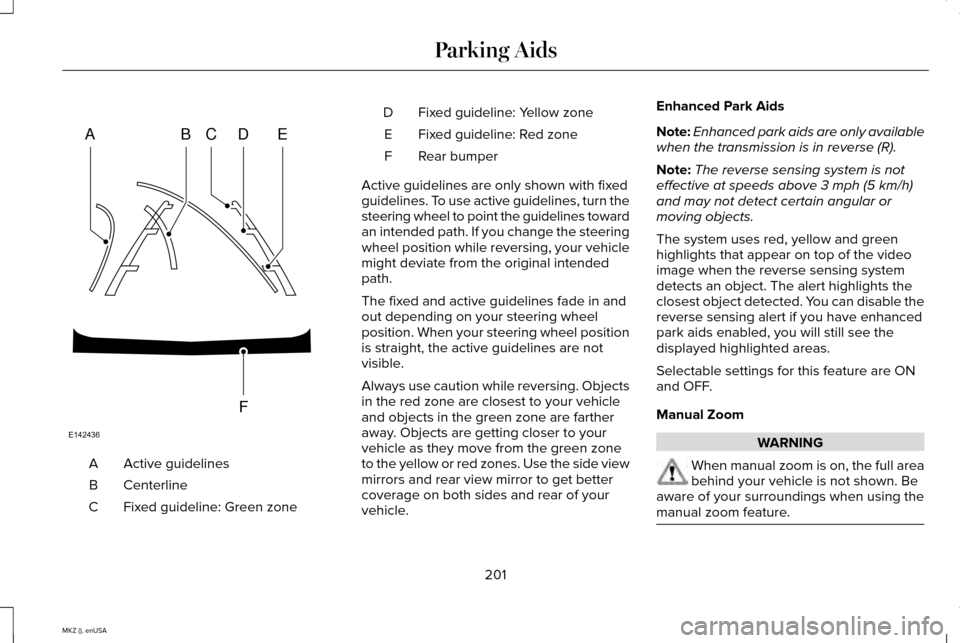
Active guidelines
A
Centerline
B
Fixed guideline: Green zone
C Fixed guideline: Yellow zone
D
Fixed guideline: Red zone
E
Rear bumper
F
Active guidelines are only shown with fixed
guidelines. To use active guidelines, turn the
steering wheel to point the guidelines toward
an intended path. If you change the steering
wheel position while reversing, your vehicle
might deviate from the original intended
path.
The fixed and active guidelines fade in and
out depending on your steering wheel
position. When your steering wheel position
is straight, the active guidelines are not
visible.
Always use caution while reversing. Objects
in the red zone are closest to your vehicle
and objects in the green zone are farther
away. Objects are getting closer to your
vehicle as they move from the green zone
to the yellow or red zones. Use the side view
mirrors and rear view mirror to get better
coverage on both sides and rear of your
vehicle. Enhanced Park Aids
Note:
Enhanced park aids are only available
when the transmission is in reverse (R).
Note: The reverse sensing system is not
effective at speeds above 3 mph (5 km/h)
and may not detect certain angular or
moving objects.
The system uses red, yellow and green
highlights that appear on top of the video
image when the reverse sensing system
detects an object. The alert highlights the
closest object detected. You can disable the
reverse sensing alert if you have enhanced
park aids enabled, you will still see the
displayed highlighted areas.
Selectable settings for this feature are ON
and OFF.
Manual Zoom WARNING
When manual zoom is on, the full area
behind your vehicle is not shown. Be
aware of your surroundings when using the
manual zoom feature. 201
MKZ (), enUSA Parking AidsABCD
F
E
E142436
Page 207 of 516
Resuming the Set Speed
Press and release RES.
Switching Cruise Control Off
Note: You will erase the set speed if you
switch the system off.
Press and release OFF or switch the ignition
off.
USING ADAPTIVE CRUISE
CONTROL
(If Equipped) WARNINGS
Always pay close attention to changing
road conditions, especially when using
adaptive cruise control. Adaptive cruise
control cannot replace attentive driving.
Failing to follow any of the warnings below
or failing to pay attention to the road may
result in a crash, serious injury or death. Adaptive cruise control is not a crash
warning or avoidance system. WARNINGS
Adaptive cruise control does not detect
stationary or slow moving vehicles
below 6 mph (10 km/h). Adaptive cruise control does not detect
pedestrians or objects in the roadway.
Adaptive cruise control does not detect
oncoming vehicles in the same lane.
Do not use the adaptive cruise control
when entering or leaving a highway, in
heavy traffic or on roads that are winding,
slippery or unpaved. Do not use in poor visibility, specifically
fog, rain, spray or snow.
Note:
It is your responsibility to stay alert,
drive safely and be in control of the vehicle
at all times.
The system adjusts your speed to maintain
a proper distance between you and the
vehicle in front of you in the same lane. You
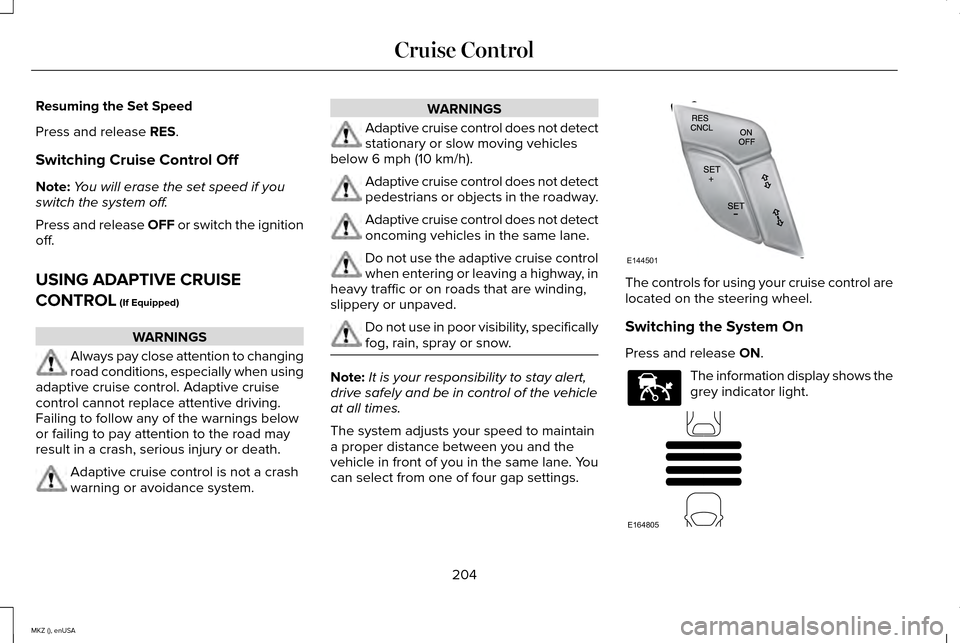
can select from one of four gap settings. The controls for using your cruise control are
located on the steering wheel.
Switching the System On
Press and release
ON.
The information display shows the
grey indicator light.
204
MKZ (), enUSA Cruise ControlE144501 E144529 E164805
Page 208 of 516
The current gap setting and SET also display.
Setting a Speed
1. Accelerate to the desired speed.
2. Press and release SET+. The vehicle
speed is stored in the memory.
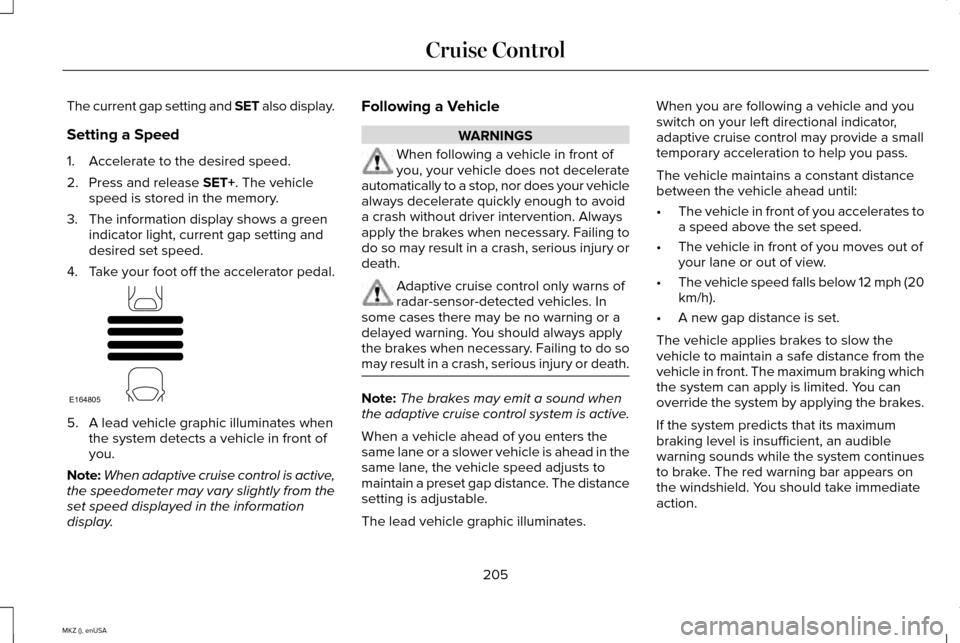
3. The information display shows a green indicator light, current gap setting and
desired set speed.
4. Take your foot off the accelerator pedal. 5. A lead vehicle graphic illuminates when
the system detects a vehicle in front of
you.
Note: When adaptive cruise control is active,
the speedometer may vary slightly from the
set speed displayed in the information
display. Following a Vehicle WARNINGS
When following a vehicle in front of
you, your vehicle does not decelerate
automatically to a stop, nor does your vehicle
always decelerate quickly enough to avoid
a crash without driver intervention. Always
apply the brakes when necessary. Failing to
do so may result in a crash, serious injury or
death. Adaptive cruise control only warns of
radar-sensor-detected vehicles. In
some cases there may be no warning or a
delayed warning. You should always apply
the brakes when necessary. Failing to do so
may result in a crash, serious injury or death. Note:
The brakes may emit a sound when
the adaptive cruise control system is active.
When a vehicle ahead of you enters the
same lane or a slower vehicle is ahead in the
same lane, the vehicle speed adjusts to
maintain a preset gap distance. The distance
setting is adjustable.
The lead vehicle graphic illuminates. When you are following a vehicle and you
switch on your left directional indicator,
adaptive cruise control may provide a small
temporary acceleration to help you pass.
The vehicle maintains a constant distance
between the vehicle ahead until:
•
The vehicle in front of you accelerates to
a speed above the set speed.
• The vehicle in front of you moves out of
your lane or out of view.
• The vehicle speed falls below 12 mph (20
km/h).
• A new gap distance is set.
The vehicle applies brakes to slow the
vehicle to maintain a safe distance from the
vehicle in front. The maximum braking which
the system can apply is limited. You can
override the system by applying the brakes.
If the system predicts that its maximum
braking level is insufficient, an audible
warning sounds while the system continues
to brake. The red warning bar appears on
the windshield. You should take immediate
action.
205
MKZ (), enUSA Cruise ControlE164805
Page 210 of 516
Each time you start the vehicle, the system
selects the last chosen gap for the current
driver.
Disengaging the System
Press the brake pedal or press CNCL. The
last set speed displays in grey but does not
erase.
Overriding the System WARNING
Whenever the driver presses the
accelerator pedal and overrides the
system, the system does not automatically
apply the brakes to maintain the set distance
from any vehicle ahead. Press the accelerator pedal to override the
set speed and gap distance.
When you override the system,
the green indicator light
illuminates and the lead vehicle
graphic does not show in the information
display. The system resumes operation when you
release the accelerator pedal. The vehicle
speed decreases to the set speed, or a
slower speed if following a slower vehicle.
Changing the Set Speed
•
Accelerate or brake to the desired speed,
then press and release
SET+.
• Press and hold
SET+ or SET- until the
desired set speed shows on the
information display. The vehicle speed
gradually changes to the selected speed.
• Press and release SET+ or SET-. The set
speed changes in approximately 1 mph
(2 km/h) increments.
The system may apply the brakes to slow
the vehicle to the new set speed. The set
speed displays continuously in the
information display when the system is
active.
Resuming the Set Speed
Note: Only use resume if you are aware of
the set speed and intend to return to it. Press and release
RES. The vehicle returns
to the previously set speed. The set speed
displays continuously in the information
display while the system is active.
Low Speed Automatic Cancellation
The system does not function at speeds
below 12 mph (20 km/h). An audible alarm
sounds and the automatic braking releases
if your vehicle drops below this speed.
Hilly Condition Usage
Note: An audible alarm sounds and the
system shuts down if it is applying brakes
for an extended period of time. This allows
the brakes to cool. The system functions
normally again when the brakes cool.
Select a lower gear during prolonged
downhill driving on steep slopes, such as
mountainous areas, when the system is
active. In such situations, the system needs
additional engine braking to reduce the load
on the vehicle ’s regular brake system to
prevent the brakes from overheating.
207
MKZ (), enUSA Cruise ControlE144529
Page 213 of 516
Action
Cause
Clean the grille surface in front of the radar or remove the objectcausing the obstruction.
The surface of the radar in the grille is dirty or obstructed in some
way.
Wait a short time. It may take several minutes for the radar to detectthat it is free from obstruction.
The surface of the radar in the grille is clean but the message remains
in the display.
Do not use the system in these conditions because it may not detectany vehicles ahead.
Heavy rain or snow is interfering with the radar signals.
Do not use the system in these conditions because it may not detectany vehicles ahead.
Swirling water, or snow or ice on the surface of the road may interfere
with the radar signals.
Wait a short time or switch to normal cruise control.
You are in a desert or remote area with no other vehicles and no
roadside objects.
Due to the nature of radar technology, it is
possible to get a blockage warning with no
actual block. This happens, for example,
when driving in sparse rural or desert
environments. A false blocked condition
either self clears or clears after a you restart
your vehicle. Switching to Normal Cruise Control WARNING
Normal cruise control does not brake
for slower vehicles. Always be aware
of which mode you have selected and apply
the brakes when necessary. You can manually change from adaptive
cruise control to normal cruise control
through the information display.
The cruise control indicator light
replaces the adaptive cruise
control indicator light if you select
normal cruise control. The gap setting does
not display, the system does not
automatically respond to lead vehicles and
automatic braking does not activate.
210
MKZ (), enUSA Cruise ControlE71340
Page 215 of 516
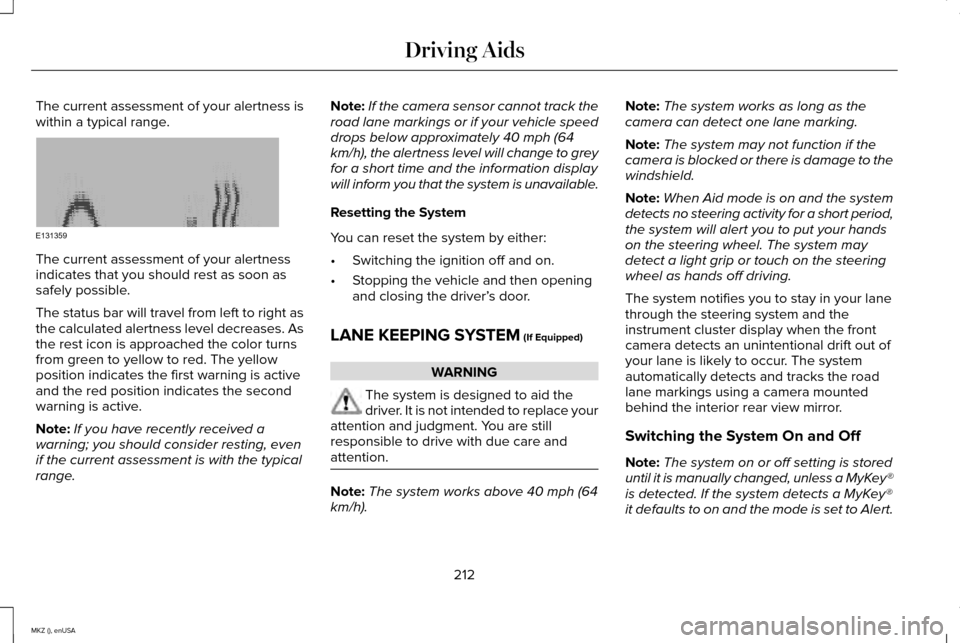
The current assessment of your alertness is
within a typical range.
The current assessment of your alertness
indicates that you should rest as soon as
safely possible.
The status bar will travel from left to right as
the calculated alertness level decreases. As
the rest icon is approached the color turns
from green to yellow to red. The yellow
position indicates the first warning is active
and the red position indicates the second
warning is active.
Note:
If you have recently received a
warning; you should consider resting, even
if the current assessment is with the typical
range. Note:
If the camera sensor cannot track the
road lane markings or if your vehicle speed
drops below approximately 40 mph (64
km/h), the alertness level will change to grey
for a short time and the information display
will inform you that the system is unavailable.
Resetting the System
You can reset the system by either:
• Switching the ignition off and on.
• Stopping the vehicle and then opening
and closing the driver’ s door.
LANE KEEPING SYSTEM (If Equipped) WARNING
The system is designed to aid the
driver. It is not intended to replace your
attention and judgment. You are still
responsible to drive with due care and
attention. Note:
The system works above 40 mph (64
km/h). Note:
The system works as long as the
camera can detect one lane marking.
Note: The system may not function if the
camera is blocked or there is damage to the
windshield.
Note: When Aid mode is on and the system
detects no steering activity for a short period,
the system will alert you to put your hands
on the steering wheel. The system may
detect a light grip or touch on the steering
wheel as hands off driving.
The system notifies you to stay in your lane
through the steering system and the
instrument cluster display when the front
camera detects an unintentional drift out of
your lane is likely to occur. The system
automatically detects and tracks the road
lane markings using a camera mounted
behind the interior rear view mirror.
Switching the System On and Off
Note: The system on or off setting is stored
until it is manually changed, unless a MyKey®
is detected. If the system detects a MyKey®
it defaults to on and the mode is set to Alert.
212
MKZ (), enUSA Driving AidsE131359
Page 218 of 516
 when I can s\
ee the lane markings on the road?
Vehicle spe")
•
Using the turn signal indicator. •Evasive steering maneuver.
Troubleshooting Why is the feature not available (line markings are gray) when I can s\
ee the lane markings on the road?
Vehicle speed is outside the operational range of the feature
Sun is shining directly into the camera lens
Quick intentional lane change
Staying too close to the lane marking
Driving at high speeds in curves
Previous feature activation happened within the last one second
Ambiguous lane markings (mainly in construction zones)
Rapid transition from light to dark or vice versa
Sudden offset in lane markings
ABS or AdvanceTrac activation
Camera blockage due to dirt, grime, fog, frost or water on the windshield
Driving too close to the vehicle in front of you
Transitioning between no lane markings to lane markings or vice versa
Standing water on the road
215
MKZ (), enUSA Driving Aids
Page 223 of 516
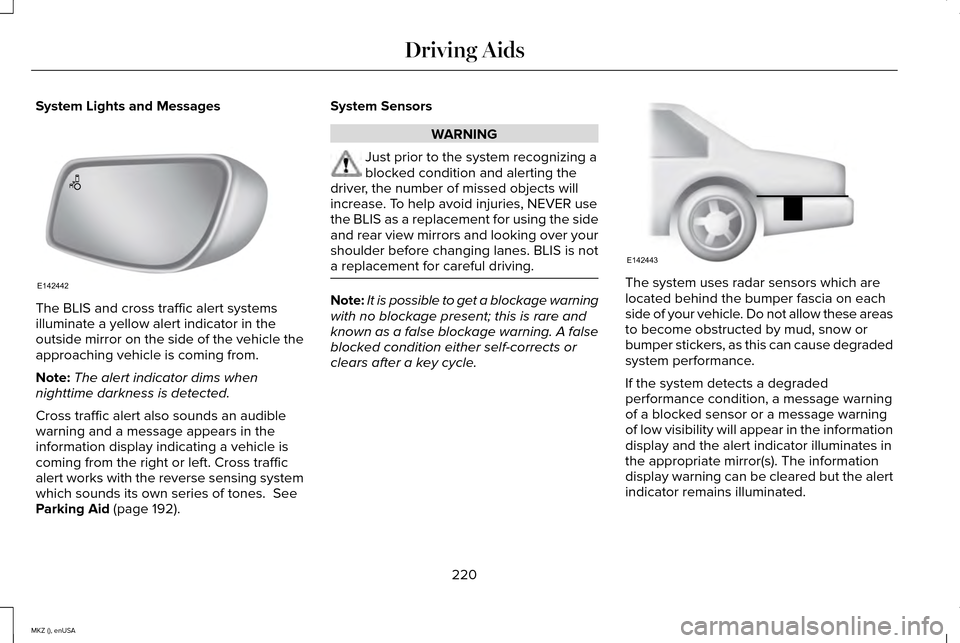
System Lights and Messages
The BLIS and cross traffic alert systems
illuminate a yellow alert indicator in the
outside mirror on the side of the vehicle the
approaching vehicle is coming from.
Note:
The alert indicator dims when
nighttime darkness is detected.
Cross traffic alert also sounds an audible
warning and a message appears in the
information display indicating a vehicle is
coming from the right or left. Cross traffic
alert works with the reverse sensing system
which sounds its own series of tones. See
Parking Aid (page 192). System Sensors WARNING
Just prior to the system recognizing a
blocked condition and alerting the
driver, the number of missed objects will
increase. To help avoid injuries, NEVER use
the BLIS as a replacement for using the side
and rear view mirrors and looking over your
shoulder before changing lanes. BLIS is not
a replacement for careful driving. Note:
It is possible to get a blockage warning
with no blockage present; this is rare and
known as a false blockage warning. A false
blocked condition either self-corrects or
clears after a key cycle. The system uses radar sensors which are
located behind the bumper fascia on each
side of your vehicle. Do not allow these areas
to become obstructed by mud, snow or
bumper stickers, as this can cause degraded
system performance.
If the system detects a degraded
performance condition, a message warning
of a blocked sensor or a message warning
of low visibility will appear in the information
display and the alert indicator illuminates in
the appropriate mirror(s). The information
display warning can be cleared but the alert
indicator remains illuminated.
220
MKZ (), enUSA Driving AidsE142442 E142443
Page 227 of 516
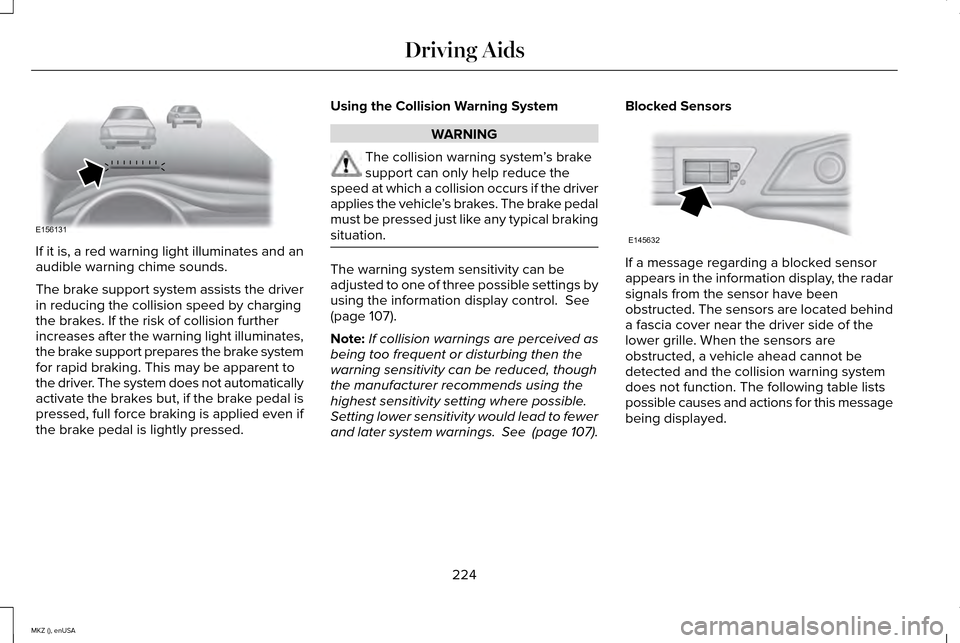
If it is, a red warning light illuminates and an
audible warning chime sounds.
The brake support system assists the driver
in reducing the collision speed by charging
the brakes. If the risk of collision further
increases after the warning light illuminates,
the brake support prepares the brake system
for rapid braking. This may be apparent to
the driver. The system does not automatically
activate the brakes but, if the brake pedal is
pressed, full force braking is applied even if
the brake pedal is lightly pressed.
Using the Collision Warning System WARNING
The collision warning system
’s brake
support can only help reduce the
speed at which a collision occurs if the driver
applies the vehicle ’s brakes. The brake pedal
must be pressed just like any typical braking
situation. The warning system sensitivity can be
adjusted to one of three possible settings by
using the information display control. See
(page 107).
Note: If collision warnings are perceived as
being too frequent or disturbing then the
warning sensitivity can be reduced, though
the manufacturer recommends using the
highest sensitivity setting where possible.
Setting lower sensitivity would lead to fewer
and later system warnings. See (page 107). Blocked Sensors If a message regarding a blocked sensor
appears in the information display, the radar
signals from the sensor have been
obstructed. The sensors are located behind
a fascia cover near the driver side of the
lower grille. When the sensors are
obstructed, a vehicle ahead cannot be
detected and the collision warning system
does not function. The following table lists
possible causes and actions for this message
being displayed.
224
MKZ (), enUSA Driving AidsE156131 E145632