light LINCOLN MKZ 2015 Owners Manual
[x] Cancel search | Manufacturer: LINCOLN, Model Year: 2015, Model line: MKZ, Model: LINCOLN MKZ 2015Pages: 516, PDF Size: 4.48 MB
Page 380 of 516
Press to select any of the following:
•
Services
• Travel Link
• Alerts
• Calendar
• Apps
ENTERTAINMENT
Press to select any of the following:
• AM
• FM
• SIRIUS
• CD
• USB
• BT Stereo
• SD Card
• A/V In Using the Touch-Sensitive Controls on
Your System
To turn a feature on and off, just touch the
graphic with your finger. To get the best
performance from the touch-sensitive
controls:
•
Do not press hard on the controls. They
are sensitive to light touch.
• Use your bare finger to touch the center
of a touch-control graphic. Touching
off-center of the graphic may affect
operation of a nearby control.
• Make sure your hands are clean and dry.
• Since the touchscreen operates based
on the touch of a finger, you may have
trouble using it if you are wearing gloves.
• Keep metal and other conductive
material away from the surface of the
touchscreen as this may cause electronic
interference (for example, inadvertently
turning on a feature other than the one
you meant to turn on). Depending on your vehicle and option
package, you may also have these controls
on your bezel:
•
Power: Switch the media or climate
features off and on.
• VOL:
Control the volume of playing
media.
• Seek
and Tune: Use as you normally
would in media modes.
• Eject:
Eject a CD from the entertainment
system.
• Climate control: Control the temperature,
fan speed or settings of the climate
control system.
Using Your Steering Wheel Controls
Depending on your vehicle and option
package, you can use your steering wheel
controls to interact with the touchscreen
system.
• VOL: Control the volume of audio output.
• Mute:
Mute the audio output.
• Voice:
Press to start a voice session.
Press again and hold to end a voice
session.
377
MKZ (), enUSA MyLincoln Touch™
Page 391 of 516
Under this menu, you can set your
clock, access and adjust the
display, sound and vehicle settings
as well as access settings for specific modes
or the help feature.
Clock
Note: You cannot manually set the date.
Your vehicle ’s GPS does this for you.
Note: If the battery has been disconnected,
your vehicle needs to acquire a GPS signal
to update the clock. Once your vehicle
acquires the signal, it may take a few
minutes for the update to display the correct
time. 1. Press the Settings icon > Clock.
2. Press
+ and - to adjust the time.
From this screen, you can also make other
adjustments such as 12-hour or 24-hour
mode, activate GPS time synchronization and
have the system automatically update new
time zones. You can also turn the outside air temperature
display off and on. It appears at the top
center of the touchscreen, next to the time
and date.
The system automatically saves any updates
you make to the settings.
Display
You can adjust the touchscreen display
through the touchscreen or by pressing the
voice button on your steering wheel controls
and when prompted, say, "Display settings".
Press the Settings icon >
Display,
to access and make adjustments
using the touchscreen.
• Brightness
allows you to make the
screen display brighter or dimmer.
• Auto DIM
, when set to On, lets you use
the Auto Dim Manual Offset feature.
When set to
Off, screen brightness does
not change. •
Mode
allows you to set the screen to a
certain brightness or have the system
automatically change based on the
outside light level, or turn the display off.
• If you select
AUTO or NIGHT, you
have the options of turning the
display's Auto Dim feature on or off
and changing the Auto Dim Manual
Offset feature.
• Auto Dim Manual Offset
allows you to
adjust screen dimming as the outside
lighting conditions change from day to
night. This feature also allows you to
adjust screen brightness using the
instrument panel dimming control.
• Edit Wallpaper
•You can have your touchscreen
display the default photo or upload
your own.
Uploading Photos for Your Home Screen
Wallpaper
Note: You cannot load photos directly from
your camera. You must access the photos
either from your USB mass storage device
or from an SD card.
388
MKZ (), enUSA MyLincoln Touch™E142607 E142607 E142607
Page 392 of 516
Note:
Photographs with extremely large
dimensions (such as 2048 x 1536) may not
be compatible and appear as a blank (black)
image on the display.
Your system allows you to upload and view
up to 32 photos. To access, press the Settings icon
> Display > Edit Wallpaper, and
then follow the system prompts to
upload your photographs.
Only the photograph(s), which meets the
following conditions, display:
• Compatible file formats are as follows:
.jpg, .gif, .png, .bmp
• Each file must be 1.5 MB or less.
• Recommended dimensions: 800 x 384
Sound Press the
Settings icon > Sound,
then select from the following: Sound
Bass
Midrange Treble
Set Balance and Fade
DSP*
THX Deep Note Demo *
Occupancy Mode *
Speed Compensated Volume
* Your vehicle may not have these sound
settings.
Vehicle Press the Settings icon >
Vehicle,
then select from the following:
• Ambient Lighting.
• Vehicle Health Report. •
Camera Settings.
• Enable Valet Mode.
Ambient Lighting (If Equipped)
When you turn this feature on, ambient
lighting illuminates footwells and cupholders
with a choice of colors. To access and make
adjustments: 1. Press the Settings icon >
Vehicle >
Ambient Lighting.
2. Touch the desired color.
3. Use the scroll bar to increase or decrease
the intensity.
To turn the feature on or off, press the power
button.
Vehicle Health Report
Turn
Automatic Reminders on and off and
set the mileage interval at which you would
like to receive the reports. Press
? for more
information on these selections.
389
MKZ (), enUSA MyLincoln Touch™E142607 E142607 E142607 E142607
Page 406 of 516
Memory Presets
Save a station by pressing and holding one
of the memory preset areas. There is a brief
mute while the radio saves the station. Sound
returns when finished.
HD Radio
Touch this button to turn HD Radio on. The
light on the button illuminates when the
feature is on. HD Radio allows you to receive
radio broadcasts digitally, where available,
providing free, crystal-clear sound. See HD
Radio information later in this chapter.
Scan
Touch this button to go to the next strong
AM or FM radio station. The light on the
button illuminates when the feature is on.
Options
Sound Settings
Touch this button to adjust settings for:
•
Bass
• Midrange •
Treble
• Balance and Fade
• THX Deep Note Demo
• DSP (Digital Signal processing)
• Occupancy Mode
• Speed Compensated Volume.
Note: Your vehicle may not have all these
sound settings.
Set PTY for Seek/Scan
This allows you to select a category of music
you would like to search for. You can then
choose to either seek or scan for the stations
playing that category.
RDS Text Display
This allows you to view the information
broadcast by FM stations.
AST
AST (Autostore) allows you to have the
system automatically store the six strongest
stations in your current location. TAG Button
This feature is available when HD Radio is
on, and allows you to tag a song to download
later. When you select On, TAG appears
on-screen when HD Radio is active. You can
touch
TAG to save the information of the
song that is playing. When you plug in your
portable music player, the information
transfers, if supported by your device. When
you are connected to iTunes®, the tags
appear to remind you of the songs you would
like to download. See HD Radio information
later in this chapter.
Direct Tune
Touch this button to enter the desired station
number manually. Touch Enter when you are
done.
HD Radio ™ Information (If Available)
Note: HD Radio broadcasts are not available
in all markets.
403
MKZ (), enUSA MyLincoln Touch™
Page 407 of 516
HD Radio technology is the digital evolution
of analog AM/FM radio. Your system has a
special receiver that allows it to receive
digital broadcasts (where available) in
addition to the analog broadcasts, it already
receives. Digital broadcasts provide a better
sound quality than analog broadcasts with
free, crystal-clear audio and no static or
distortion. For more information, and a guide
to available stations and programming,
please visit www.hdradio.com.
When HD Radio is on and you tune to a
station broadcasting HD Radio technology,
you may notice the following indicators on
your screen:
The HD Radio logo either blinks when
acquiring a digital station, and then stays
solid when digital audio is playing, or is grey
when acquiring a digital station, and then
changes to orange when digital audio is
playing. When this logo is available, you may
also see Title and Artist fields on-screen.
The multicast indicator appears in FM mode
(only) if the current station is broadcasting
multiple digital broadcasts. The highlighted
numbers signify available digital channels
where new or different content is available.
HD1 signifies the main programming status
and is available in analog and digital
broadcasts. Other multicast stations (HD2
through HD7) are only available digitally.
TAG allows you to save a song to download
later when you are on an acquired HD Radio
station and the feature is on. To turn the
feature on and use it:
1. Press
AM or FM > Options > TAG Button
> On.
2. When you hear a song you like, touch TAG
.
3. The system automatically saves the song's information and transfers it to your
portable music player (if supported) when
you connect it to the system. The system
automatically transfers the tag to your
player (if already connected) and a
pop-up confirms the transfer.
4. When you access iTunes with your portable music player, the tags appear
to you as a reminder. The system allows
you to tag up to approximately 100
songs. For a list of devices that support
tagging, see www.SYNCMyRide.com,
www.SYNCMyRide.ca or
www.syncmaroute.ca.
404
MKZ (), enUSA MyLincoln Touch™E142616
Page 408 of 516
When HD Radio broadcasts are active, you
can access the following functions:
•
Scan allows you to hear a brief sampling
of all available stations. This feature still
works when HD Radio reception is on,
although it does not scan for HD2-HD7
channels. You may see the HD logo
appear if the station has a digital
broadcast. •
Memory presets
allow you to save an
active channel as a memory preset.
Touch and hold a memory preset slot
until the sound returns. There is a brief
mute while the radio saves the station.
Sound returns when finished. When
switching to an HD2 or HD3 memory
preset, the sound mutes before the
digital audio plays, because the system
has to reacquire the digital signal. Note:
As with any saved radio station, you
cannot access the saved station if your
vehicle is outside the station’ s reception
area.
HD Radio Reception and Station Troubleshooting Potential reception issues
If you are listening to a multicast station and you are on the fringe of\
the reception area, the station may mute
due to weak signal strength.
Reception area
If you are listening to HD1, the system switches back to the analog broa\
dcast until the digital broadcast is
available again. However, if you are listening to any of the possible HD2-HD7 multicast channels\
, the station
mutes and stays muted unless it is able to connect to the digital signal\
again.
When the system first receives a station (aside from HD2-HD7 multicast \
stations), it first plays the station in the
analog version. Once the receiver verifies the station is an HD Radio station, it shifts to the digital version.
Depending on the station quality, you may hear a slight sound change when the station changes from analo\
g
to digital. Blending is the shift from analog to digital sound or digita\
l back to analog sound.
Station blending
405
MKZ (), enUSA MyLincoln Touch™
Page 448 of 516
To set a destination, press the green corner
of your touchscreen, then the Dest button
when it appears. See Setting a destination
later in this chapter.
To view the navigation map and your
vehicle's current location, touch the green
bar in the upper right-hand corner of the
touchscreen, or, press
Dest, then Map. See
Map mode later in this chapter.
Setting a Destination
Press the green corner of your touchscreen,
then the
Dest button when it appears.
Choose any of the following: Destination
My HomeFavorites
Previous Destinations Point of InterestEmergency
Street Address Destination
Intersection City Center Map
Edit Route Cancel Route
1. Enter the necessary information into the
highlighted text fields (in any order). For
address destination entry, the Go! button
appears once you enter all the necessary
information. Pressing the Go! button
makes the address location appear on
the map. If you choose
Previous
Destination, the last 20 destinations you
have selected appear.
2. Select
Set as Dest to make this your
destination. You can also choose to set
this as a waypoint (have the system route
to this point on the way to your current
destination) or save it as a favorite. The
system considers any
Avoid Areas
selections in its route calculation.
3. Choose from up to three different types of routes, and then select
Start Route. •
Fastest: Uses the fastest moving roads
possible.
• Shortest: Uses the shortest distance
possible.
• Eco Route: Uses the most fuel-efficient
route.
You can cancel the route or have the system
demo the route for you. Select
Route Prefs
to set route preferences like avoiding
freeways, tollroads, ferries and car trains as
well as to use or not use high-occupancy
vehicle lanes. (High-occupancy vehicle lanes
are also known as carpool or diamond lanes.
People who ride in buses, vanpools or
carpools use these lanes.)
Note: If your vehicle is on a recognized road
and you do not press the Start Route button,
the system defaults to the Fastest Route
option and begins guidance.
445
MKZ (), enUSA MyLincoln Touch™
Page 453 of 516
North up (2D map) always shows
the northern direction to be upward
on the screen. 3D map mode
provides an elevated
perspective of the map. This viewing
angle can be adjusted and the map
can be rotated 180 degrees by
touching the map twice, and then dragging
your finger along the shaded bar with arrows
at the bottom of the map.
View
switches between full map, street list
and exit view in route guidance.
Menu
displays a pop-up box that allows
direct access to navigation settings,
View/Edit Route, SIRIUS Travel Link,
Guidance Mute and Cancel Route. Press the speaker button on the
map to mute route guidance. When
the light on the button illuminates,
the feature is on. The speaker button
appears on the map only when route
guidance is active. Re-center the map by pressing this
icon whenever you scroll the map
away from your vehicle
’s current
location.
Auto Zoom
Press the green bar to access map mode,
then select the
+ or - zoom button to bring
up the zoom level and Auto buttons on the
touchscreen. When you press
Auto, Auto
Zoom turns on and Auto displays in the
bottom left corner of the screen in the map
scale. The map zoom level then synchronizes
with vehicle speed. The slower your vehicle
is traveling, the farther in the map zooms in;
the faster your vehicle is traveling, the farther
the map zooms out. To switch off the feature,
just press the
+ or - button again.
In 3D mode, rotate the map view by swiping
your finger across the shaded bar with the
arrows. The ETA box under the zoom buttons
appears when a route is active and displays
the distance and time to your destination. If
the button is pressed, a pop up appears with
the destination listed (and waypoint if
applicable) along with mileage and time to
destination. You may also select to have
either the estimated time to reach your
destination or your estimated arrival time.
Map Icons
Vehicle mark
shows the current
location of your vehicle. It stays in
the center of the map display,
except when in scroll mode. Scroll cursor
allows you to scroll the
map; the fixed icon is in the center
of the screen. The map position
closest to the cursor is in a window on the
top center part of the screen.
450
MKZ (), enUSA MyLincoln Touch™E142643 E142644 E174017 E146188 E142646 E142647
Page 483 of 516
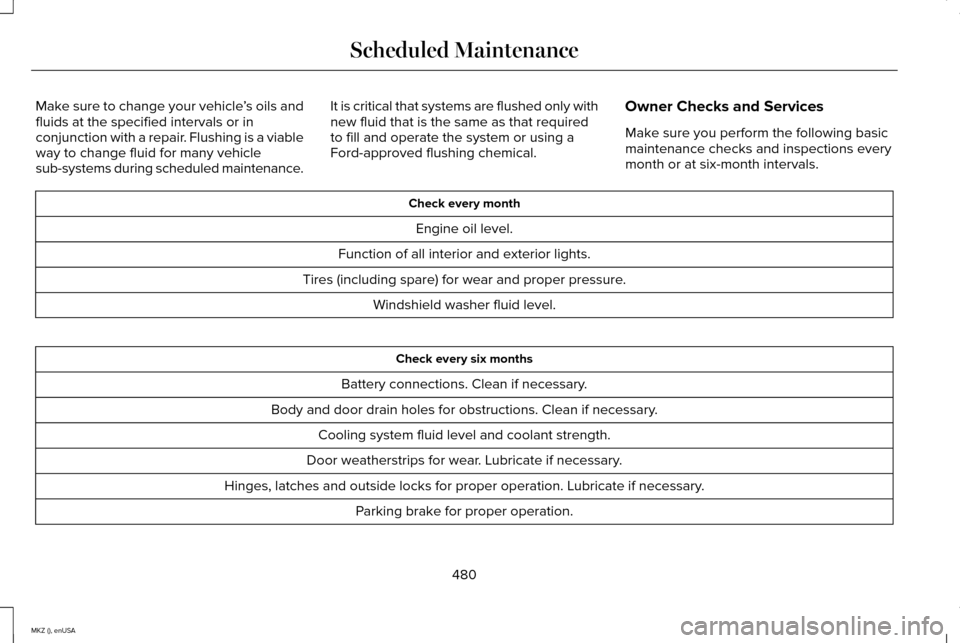
Make sure to change your vehicle
’s oils and
fluids at the specified intervals or in
conjunction with a repair. Flushing is a viable
way to change fluid for many vehicle
sub-systems during scheduled maintenance. It is critical that systems are flushed only with
new fluid that is the same as that required
to fill and operate the system or using a
Ford-approved flushing chemical.
Owner Checks and Services
Make sure you perform the following basic
maintenance checks and inspections every
month or at six-month intervals. Check every month
Engine oil level.
Function of all interior and exterior lights.
Tires (including spare) for wear and proper pressure. Windshield washer fluid level. Check every six months
Battery connections. Clean if necessary.
Body and door drain holes for obstructions. Clean if necessary. Cooling system fluid level and coolant strength.
Door weatherstrips for wear. Lubricate if necessary.
Hinges, latches and outside locks for proper operation. Lubricate if necessary. Parking brake for proper operation.
480
MKZ (), enUSA Scheduled Maintenance
Page 509 of 516
Information Messages...................................113
Active Park.............................................................113
Adaptive Cruise Control.....................................114
AdvanceTrac ™........................................................115
Airbag......................................................................115
Alarm.......................................................................115
Automatic Engine Shutdown.............................116
AWD........................................................................\
.116
Battery and Charging System...........................117
Blind Spot Information and Cross Traffic Alert System................................................................118
Doors and Locks...................................................118
Driver Alert.............................................................119
Fuel........................................................................\
..119
Hill Start Assist.....................................................120
Keys and Intelligent Access.............................120
Lane Keeping System.........................................121
Maintenance.........................................................122
MyKey.....................................................................123
Park Aid..................................................................124
Park Brake.............................................................124
Power Steering....................................................125
Pre-Collision Assist.............................................126
Remote Start.........................................................126
Seats.......................................................................127
Starting System ...................................................127
Tire Pressure Monitoring System....................128
Traction Control...................................................128 Transmission....................................................129
Installing Child Seats.......................................17 Child Seats...............................................................17
Using Lap and Shoulder Belts............................17
Using Lower Anchors and Tethers for CHildren (LATCH).............................................23
Using Tether Straps..............................................24
Instrument Cluster
........................................100
Instrument Lighting Dimmer........................86
Interior Lamps
..................................................90
Front Interior Lamp................................................91
Rear Interior Lamp.................................................91
Rear Interior Lamp (If Equipped).......................92
Interior Luggage Compartment Release...........................................................73
Interior Mirror...................................................96 Auto-Dimming Mirror............................................97
Introduction
.........................................................7
J
Jump Starting the Vehicle..........................249 Connecting the Jumper Cables.....................250
Jump Starting......................................................250
Preparing Your Vehicle.....................................249
Removing the Jumper Cables.........................251 K
Keyless Entry
....................................................70
SECURICODE™ KEYLESS ENTRY
KEYPAD...............................................................70
Keyless Starting.............................................156 Ignition Modes.....................................................156
Keys and Remote Controls...........................53
L
Lane Keeping System
..................................212
Switching the System On and Off...................212
Lighting Control
..............................................85
Headlamp Flasher................................................85
High Beams............................................................85
Lighting..............................................................85
Lincoln Automotive Financial Services......12
Load Carrying................................................228
Load Limit
.......................................................228
Vehicle Loading - with and without a
Trailer................................................................228
506
MKZ (), enUSA Index