light LINCOLN MKZ 2016 Owners Manual
[x] Cancel search | Manufacturer: LINCOLN, Model Year: 2016, Model line: MKZ, Model: LINCOLN MKZ 2016Pages: 544, PDF Size: 5.77 MB
Page 349 of 544
When Inflating Your Tires
When putting air into your tires (such as at a
gas station or in your garage), the tire
pressure monitoring system may not respond
immediately to the air added to your tires.
It may take up to two minutes of driving over
20 mph (32 km/h) for the light to turn off after
you have filled your tires to the
recommended inflation pressure
How Temperature Affects Your Tire
Pressure
The tire pressure monitoring system monitors
tire pressure in each pneumatic tire. While
driving in a normal manner, a typical
passenger tire inflation pressure may
increase about 2 to 4 psi (14 to 28 kPa) from
a cold start situation. If the vehicle is
stationary overnight with the outside
temperature significantly lower than the
daytime temperature, the tire pressure may
decrease about 3 psi (21 kPa) for a drop of
30°F (17°C) in ambient temperature. This
lower pressure value may be detected by
the tire pressure monitoring system as being
significantly lower than the recommendedinflation pressure and activate the system
warning light for low tire pressure. If the low
tire pressure warning light is on, visually
check each tire to verify that no tire is flat. If
one or more tires are flat, repair as
necessary. Check the air pressure in the road
tires. If any tire is under-inflated, carefully
drive the vehicle to the nearest location
where air can be added to the tires. Inflate
all the tires to the recommended inflation
pressure.
CHANGING A ROAD WHEEL
WARNINGS
The use of tire sealant may damage
your tire pressure monitoring system
and should only be used in roadside
emergencies. If you must use a sealant, the
Ford Tire Mobility Kit sealant should be used.
The tire pressure monitoring system sensor
and valve stem on the wheel must be
replaced by an authorized dealer after use
of the sealant.
WARNINGS
If the tire pressure monitor sensor
becomes damaged, it will no longer
function. See Tire Pressure Monitoring
System (page 342).
Note: The tire pressure monitoring system
indicator light will illuminate when the spare
tire is in use. To restore the full function of
the monitoring system, all road wheels
equipped with tire pressure monitoring
sensors must be mounted on the vehicle.
If you get a flat tire while driving, do not apply
the brake heavily. Instead, gradually
decrease your speed. Hold the steering
wheel firmly and slowly move to a safe place
on the side of the road.
Have a flat serviced by an authorized dealer
in order to prevent damage to the tire
pressure monitoring system sensors. See
Tire Pressure Monitoring System (page 342).
Replace the spare tire with a road tire as
soon as possible. During repairing or
replacing of the flat tire, have an authorized
dealer inspect the tire pressure monitoring
system sensor for damage.
346
Wheels and Tires
Page 373 of 544
Do not expose discs to direct sunlight or heat
sources for extended periods.
MP3 Track and Folder Structure
Audio systems capable of recognizing and
playing MP3 individual tracks and folder
structures work as follows:
• There are two different modes for MP3disc playback: MP3 track mode (system
default) and MP3 folder mode.
• MP3 track mode ignores any folder structure on the MP3 disc. The player
numbers each MP3 track on the disc
(noted by the .mp3 file extension) from
T001 to a maximum of T255. The
maximum number of playable MP3 files
may be less depending on the structure
of the CD and exact model of radio
present. • MP3 folder mode represents a folder
structure consisting of one level of
folders. The CD player numbers all MP3
tracks on the disc (noted by the .mp3 file
extension) and all folders containing MP3
files, from F001 (folder) T001 (track) to
F253 T255.
• Creating discs with only one level of folders helps with navigation through the
disc files.
If you are burning your own MP3 discs, it is
important to understand how the system
reads the structures you create. While
various files may be present, (files with
extensions other than mp3), only files with
the .mp3 extension are played; other files
are ignored by the system. This enables you
to use the same MP3 disc for a variety of
tasks on your work computer, home
computer and your in-vehicle system.
In track mode, the system displays and plays
the structure as if it were only one level deep
(all .mp3 files play, regardless of being in a
specific folder). In folder mode, the system
only plays the .mp3 files in the current folder.
AUDIO UNIT - VEHICLES WITH:
PREMIUM AM/FM/CD
WARNING
Driving while distracted can result in
loss of vehicle control, crash and injury.
We strongly recommend that you use
extreme caution when using any device that
may take your focus off the road. Your
primary responsibility is the safe operation
of your vehicle. We recommend against the
use of any hand-held device while driving
and encourage the use of voice-operated
systems when possible. Make sure you are
aware of all applicable local laws that may
affect the use of electronic devices while
driving.
Note: The MyLincoln Touch system controls
most of the audio features. See
Entertainment (page 403).
370
Audio System
Page 389 of 544
To make adjustments using the touchscreen, select:
Action and Description
Menu Item
Press the settings icon.
Settings
Display
Then select from the following:
Allows you to switch the display off. It also allows you to set the screen to a certain brightness or have t\
he system
automatically change based on the outside light level.
Mode
If you also select:These features will allow you to adjust the dimming of your screen.
Auto
Night
Allows you to display the default photo or upload your own.
Edit Wallpaper
When set to On, lets you use the automatic dimming feature.
Auto Dim
When set to Off you are able to adjust the brightness of the screen.
Make the screen display brighter or dimmer.
Brightness
Allows you to adjust screen dimming as the outside lighting conditions c\
hange from day to night.
Auto Dim Manual Offset
E142599
386
MyLincoln Touch™
Page 391 of 544

To make adjustments using the
touchscreen, select:
Menu Item
Settings
Sound
Then select from the following:
Bass
Midrange
Treble
Set Balance and Fade
Occupancy Mode
Menu Item
Speed Compensated Volume
DSP
Note: Your vehicle may not have all of these
sound settings.
Vehicle
E142607
To make adjustments using the
touchscreen, select:
Menu Item
Settings
Vehicle
Then select from the following:
Menu Item
Ambient Lighting
Vehicle Health Report
Camera Settings
Enable Valet Mode
Ambient Lighting
When you switch this feature on, ambient
lighting illuminates the dashboard, footwells,
doors, cupholders, and console with a choice
of colors.
388
MyLincoln Touch™
Page 392 of 544
To make adjustments using the touchscreen, select:
Action and Description
Menu Item
Press the settings icon.
Settings
Vehicle
Ambient Lighting
• You can then touch the desired color.
• Use the scroll bar to increase or decrease the intensity.
• To switch the feature on or off, press the power button.
Vehicle Health Report (If Equipped, US Only)
To make adjustments using the touchscreen, select:
Action and Description
Menu Item
Press the settings icon.
Settings
Vehicle
Vehicle Health
Turn on and off and set the mileage interval at which you would like to r\
eceive the reports. Press
the ? for more information on these selections.
Automatic Reminders
389
MyLincoln Touch™
Page 408 of 544
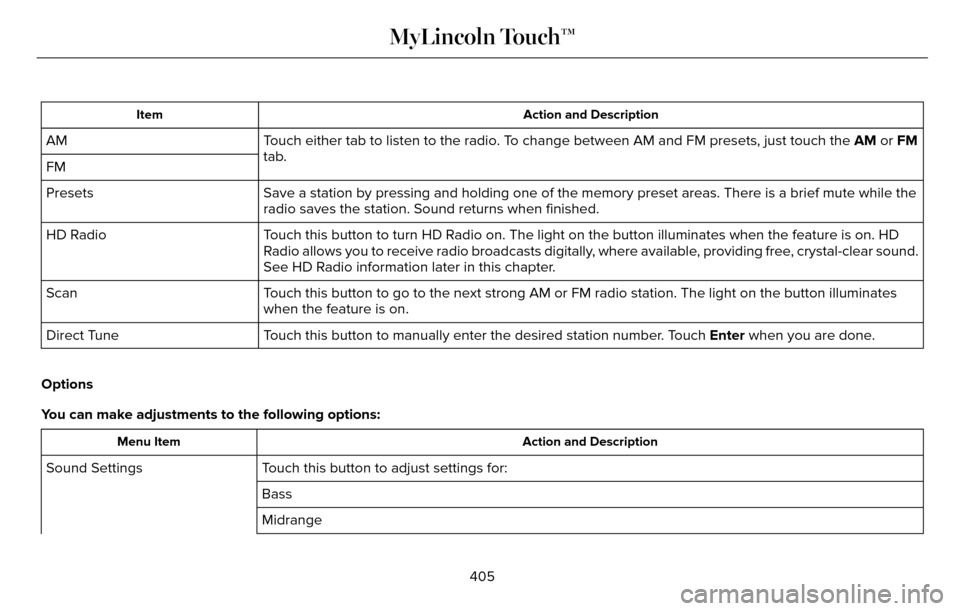
Action and Description
Item
Touch either tab to listen to the radio. To change between AM and FM presets, just touch the AM or FM
tab.
AM
FM
Save a station by pressing and holding one of the memory preset areas. T\
here is a brief mute while the
radio saves the station. Sound returns when finished.
Presets
Touch this button to turn HD Radio on. The light on the button illuminates when the feature is on. HD
Radio allows you to receive radio broadcasts digitally, where available, providing free, crystal-clear sound.
See HD Radio information later in this chapter.
HD Radio
Touch this button to go to the next strong AM or FM radio station. The li\
ght on the button illuminates
when the feature is on.
Scan
Touch this button to manually enter the desired station number. Touch Enter when you are done.
Direct Tune
Options
You can make adjustments to the following options:
Action and Description
Menu Item
Touch this button to adjust settings for:
Sound Settings
Bass
Midrange
405
MyLincoln Touch™
Page 410 of 544
HD Radio™ Information (If Available)
Note:HD Radio broadcasts are not available
in all markets.
HD Radio technology is the digital evolution
of analog AM/FM radio. Your system has a
special receiver that allows it to receive
digital broadcasts (where available) in
addition to the analog broadcasts, it already
receives. Digital broadcasts provide a better
sound quality than analog broadcasts with
free, crystal-clear audio and no static or
distortion. For more information, and a guide
to available stations and programming,
please visit www.hdradio.com.
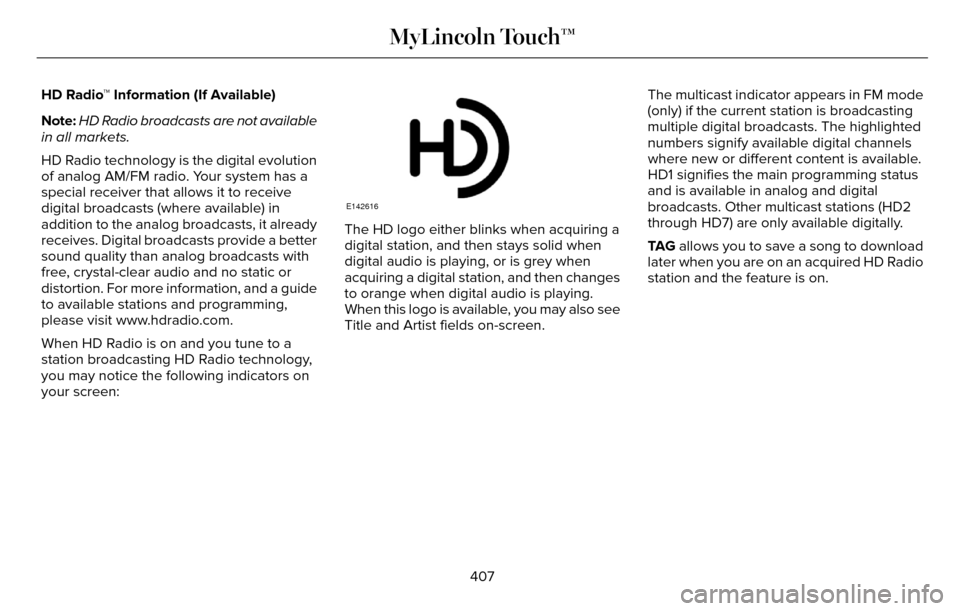
When HD Radio is on and you tune to a
station broadcasting HD Radio technology,
you may notice the following indicators on
your screen:
E142616
The HD logo either blinks when acquiring a
digital station, and then stays solid when
digital audio is playing, or is grey when
acquiring a digital station, and then changes
to orange when digital audio is playing.
When this logo is available, you may also see
Title and Artist fields on-screen. The multicast indicator appears in FM mode
(only) if the current station is broadcasting
multiple digital broadcasts. The highlighted
numbers signify available digital channels
where new or different content is available.
HD1 signifies the main programming status
and is available in analog and digital
broadcasts. Other multicast stations (HD2
through HD7) are only available digitally.
TA G
allows you to save a song to download
later when you are on an acquired HD Radio
station and the feature is on.
407
MyLincoln Touch™
Page 413 of 544

HD Radio Reception and Station Troubleshooting
Potential reception issues
If you are listening to a multicast station and you are on the fringe of\
the reception area, the station may
mute due to weak signal strength.
Reception area
If you are listening to HD1, the system switches back to the analog broa\
dcast until the digital broadcast
is available again. However, if you are listening to any of the possible HD2-HD7 multicast channels\
, the
station mutes and stays muted unless it is able to connect to the digita\
l signal again.
When the system first receives a station (aside from HD2-HD7 multicast \
stations), it first plays the station
in the analog version. Once the receiver verifies the station is an HD R\
adio station, it shifts to the digital
version. Depending on the station quality, you may hear a slight sound change when the station changes
from analog to digital. Blending is the shift from analog to digital sou\
nd or digital back to analog sound.
Station blending
In order to provide the best possible
experience, use the contact form to report
any station issues found while listening to a
station broadcasting with HD Radio
technology. Independent entities own and
operate each station. These stations are
responsible for ensuring all audio streams
and data fields are accurate.
410
MyLincoln Touch™
Page 457 of 544
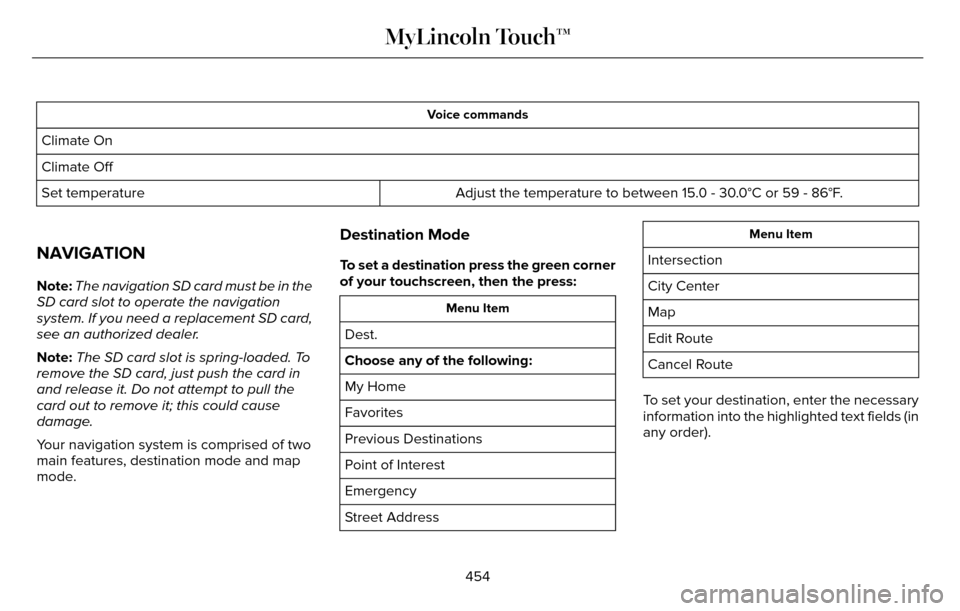
Voice commands
Climate On
Climate OffAdjust the temperature to between 15.0 - 30.0°C or 59 - 86°F.
Set temperature
NAVIGATION
Note: The navigation SD card must be in the
SD card slot to operate the navigation
system. If you need a replacement SD card,
see an authorized dealer.
Note: The SD card slot is spring-loaded. To
remove the SD card, just push the card in
and release it. Do not attempt to pull the
card out to remove it; this could cause
damage.
Your navigation system is comprised of two
main features, destination mode and map
mode.
Destination Mode
To set a destination press the green corner
of your touchscreen, then the press:
Menu Item
Dest.
Choose any of the following:
My Home
Favorites
Previous Destinations
Point of Interest
Emergency
Street Address
Menu Item
Intersection
City Center
Map
Edit Route
Cancel Route
To set your destination, enter the necessary
information into the highlighted text fields (in
any order).
454
MyLincoln Touch™
Page 466 of 544
E174016
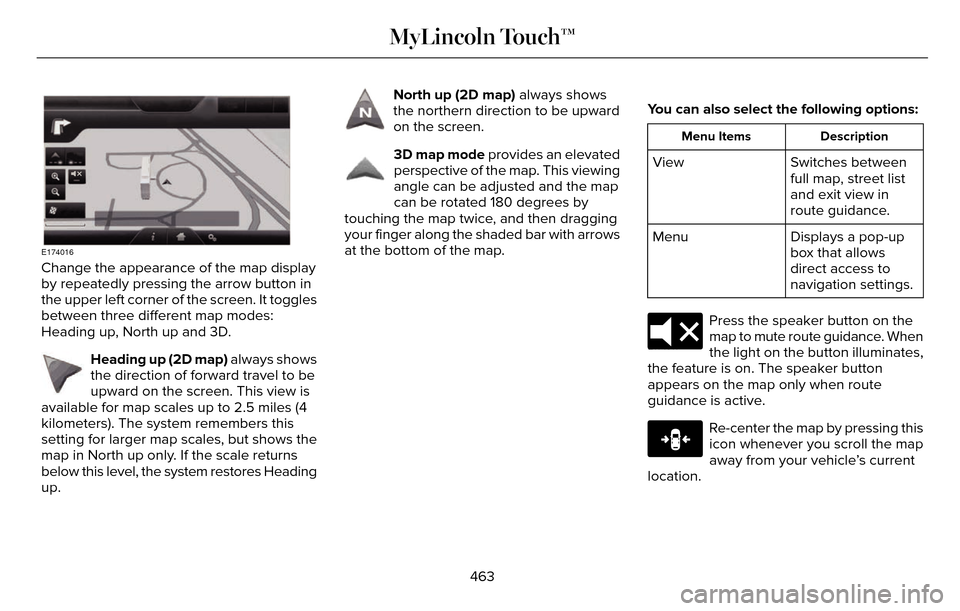
Change the appearance of the map display
by repeatedly pressing the arrow button in
the upper left corner of the screen. It toggles
between three different map modes:
Heading up, North up and 3D.
E142642
Heading up (2D map) always shows
the direction of forward travel to be
upward on the screen. This view is
available for map scales up to 2.5 miles (4
kilometers). The system remembers this
setting for larger map scales, but shows the
map in North up only. If the scale returns
below this level, the system restores Heading
up.
E142643
North up (2D map) always shows
the northern direction to be upward
on the screen.
E142644
3D map mode provides an elevated
perspective of the map. This viewing
angle can be adjusted and the map
can be rotated 180 degrees by
touching the map twice, and then dragging
your finger along the shaded bar with arrows
at the bottom of the map. You can also select the following options:
Description
Menu Items
Switches between
full map, street list
and exit view in
route guidance.
View
Displays a pop-up
box that allows
direct access to
navigation settings.
Menu
E174017
Press the speaker button on the
map to mute route guidance. When
the light on the button illuminates,
the feature is on. The speaker button
appears on the map only when route
guidance is active.
E146188
Re-center the map by pressing this
icon whenever you scroll the map
away from your vehicle’s current
location.
463
MyLincoln Touch™