ESP LINCOLN MKZ 2016 Workshop Manual
[x] Cancel search | Manufacturer: LINCOLN, Model Year: 2016, Model line: MKZ, Model: LINCOLN MKZ 2016Pages: 544, PDF Size: 5.77 MB
Page 417 of 544

Action and Description
Menu Item
Touch this button to hear a brief sampling of channels.
Scan
Touch this button to view a list of all available stations. Scroll to see\
more categories. Touch the station
you want to listen to.
Browse
Note: SIRIUS does not support the Alert feature on all channels. Ford Motor Co\
mpany shall not be responsible for Alert feature variation.
Browsing Controls
Action and Description
Message
Touch this button if you want to skip this channel.
Skip
Touch this button if you do not want anyone to listen to this channel.
Lock
Touch this button to see song titles being played on other stations.
Title
Touch this button to see artists being played on other stations.
Artist
Touch this button to see a list of all the channel names.
Channel
Options
Touch this button to view and adjust various
media settings.
414
MyLincoln Touch™
Page 419 of 544
SIRIUS Satellite Radio Information
Note:SIRIUS reserves the unrestricted right
to change, rearrange, add or delete
programming including canceling, moving
or adding particular channels, and its prices,
at any time, with or without notice to you.
Ford Motor Company shall not be
responsible for any such programming
changes.
E142593
SIRIUS satellite radio is a subscription-based
satellite radio service that broadcasts a
variety of music, sports, news, weather, traffic
and entertainment programming. Your
factory-installed SIRIUS satellite radio system
includes hardware and a limited subscription
term that begins on the date of sale or lease
of your vehicle. See an authorized dealer for
availability.
For more information on extended
subscription terms (a service fee is required),
the online media player and a list of SIRIUS
satellite radio channels, and other features,
please visit www.siriusxm.com in the United
States, www.sirius.ca in Canada, or call
SIRIUS at 1-888-539-7474. Note:
This receiver includes the eCos
real-time operating system. eCos is
published under the eCos License.
Satellite Radio Electronic Serial Number
(ESN)
You need your ESN to activate, modify or
track your satellite radio account. The ESN
is on the System Information Screen (SR
ESN:XXXXXXXXXXXX).
To access your ESN, touch the bottom left
corner of the touchscreen, then select:
Menu Item
SIRIUS
Options
416
MyLincoln Touch™
Page 430 of 544
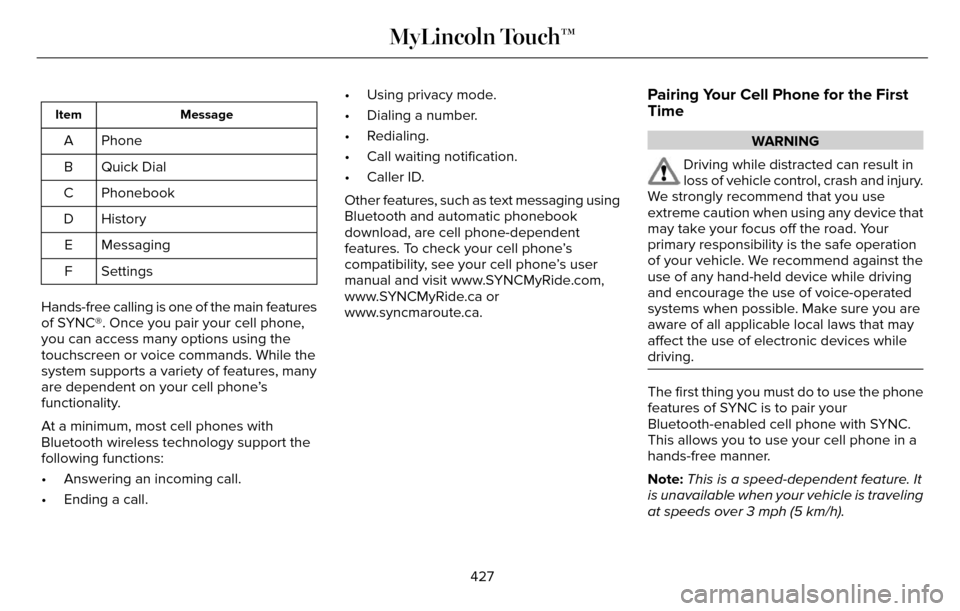
Message
Item
Phone
A
Quick Dial
B
Phonebook
C
History
D
Messaging
E
Settings
F
Hands-free calling is one of the main features
of SYNC®. Once you pair your cell phone,
you can access many options using the
touchscreen or voice commands. While the
system supports a variety of features, many
are dependent on your cell phone’s
functionality.
At a minimum, most cell phones with
Bluetooth wireless technology support the
following functions:
• Answering an incoming call.
• Ending a call. • Using privacy mode.
• Dialing a number.
• Redialing.
• Call waiting notification.
• Caller ID.
Other features, such as text messaging using
Bluetooth and automatic phonebook
download, are cell phone-dependent
features. To check your cell phone’s
compatibility, see your cell phone’s user
manual and visit www.SYNCMyRide.com,
www.SYNCMyRide.ca or
www.syncmaroute.ca.
Pairing Your Cell Phone for the First
Time
WARNING
Driving while distracted can result in
loss of vehicle control, crash and injury.
We strongly recommend that you use
extreme caution when using any device that
may take your focus off the road. Your
primary responsibility is the safe operation
of your vehicle. We recommend against the
use of any hand-held device while driving
and encourage the use of voice-operated
systems when possible. Make sure you are
aware of all applicable local laws that may
affect the use of electronic devices while
driving.
The first thing you must do to use the phone
features of SYNC is to pair your
Bluetooth-enabled cell phone with SYNC.
This allows you to use your cell phone in a
hands-free manner.
Note: This is a speed-dependent feature. It
is unavailable when your vehicle is traveling
at speeds over 3 mph (5 km/h).
427
MyLincoln Touch™
Page 440 of 544
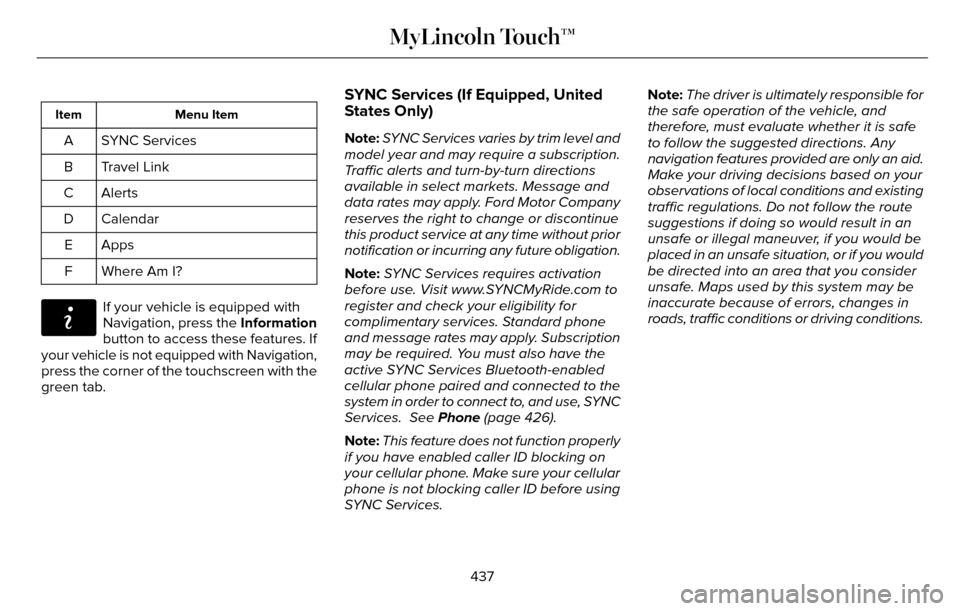
Menu Item
Item
SYNC Services
A
Travel Link
B
Alerts
C
Calendar
D
AppsE
Where Am I?
F
E142608
If your vehicle is equipped with
Navigation, press the Information
button to access these features. If
your vehicle is not equipped with Navigation,
press the corner of the touchscreen with the
green tab.
SYNC Services (If Equipped, United
States Only)
Note: SYNC Services varies by trim level and
model year and may require a subscription.
Traffic alerts and turn-by-turn directions
available in select markets. Message and
data rates may apply. Ford Motor Company
reserves the right to change or discontinue
this product service at any time without prior
notification or incurring any future obligation.
Note: SYNC Services requires activation
before use. Visit www.SYNCMyRide.com to
register and check your eligibility for
complimentary services. Standard phone
and message rates may apply. Subscription
may be required. You must also have the
active SYNC Services Bluetooth-enabled
cellular phone paired and connected to the
system in order to connect to, and use, SYNC
Services. See Phone (page 426).
Note: This feature does not function properly
if you have enabled caller ID blocking on
your cellular phone. Make sure your cellular
phone is not blocking caller ID before using
SYNC Services. Note:
The driver is ultimately responsible for
the safe operation of the vehicle, and
therefore, must evaluate whether it is safe
to follow the suggested directions. Any
navigation features provided are only an aid.
Make your driving decisions based on your
observations of local conditions and existing
traffic regulations. Do not follow the route
suggestions if doing so would result in an
unsafe or illegal maneuver, if you would be
placed in an unsafe situation, or if you would
be directed into an area that you consider
unsafe. Maps used by this system may be
inaccurate because of errors, changes in
roads, traffic conditions or driving conditions.
437
MyLincoln Touch™
Page 446 of 544
Sirius Travel Link (If Equipped)
WARNING
Driving while distracted can result in
loss of vehicle control, crash and injury.
We strongly recommend that you use
extreme caution when using any device that
may take your focus off the road. Your
primary responsibility is the safe operation
of your vehicle. We recommend against the
use of any handheld device while driving and
encourage the use of voice-operated
systems when possible. Make sure you are
aware of all applicable local laws that may
affect the use of electronic devices while
driving.
Note: In order to use Sirius Travel Link, your
vehicle must be equipped with navigation
and your navigation SD card must be in the
SD card slot.
Note: A paid subscription is required to
access and use these features. Go to
www.siriusxm.com/travellink for more
information.
Note: Visit www.siriusxm.com/traffic and click
on Coverage map and details for a complete
listing of all traffic areas covered by Sirius
Travel Link.
Note: Neither Sirius nor Ford is responsible
for any errors or inaccuracies in the Sirius
Travel Link services or its use in vehicles. When you subscribe to Sirius Travel Link, it
can help you locate the best gas prices, find
movie listings, get current traffic alerts, view
the current weather map, get accurate ski
conditions and see scores to current sports
games.
E142608
If your vehicle is equipped with
Navigation, touch the I
(Information) button to access
these features. If your vehicle is not
equipped with Navigation, touch the corner
of the touchscreen with the green tab.
Action and Description
Menu Item
Touch these buttons to identify traffic incidents on your route, nearby your vehicle’s current location
or near any of your favorite places, if programmed.
Traffic on Route
Traffic Nearby
Touch this button to view fuel prices at stations close to your vehicle’\
s location or on an active
navigation route
Fuel Prices
Touch this button to view nearby movie theaters and their show times, if \
available.
Movie Listings
443
MyLincoln Touch™
Page 448 of 544
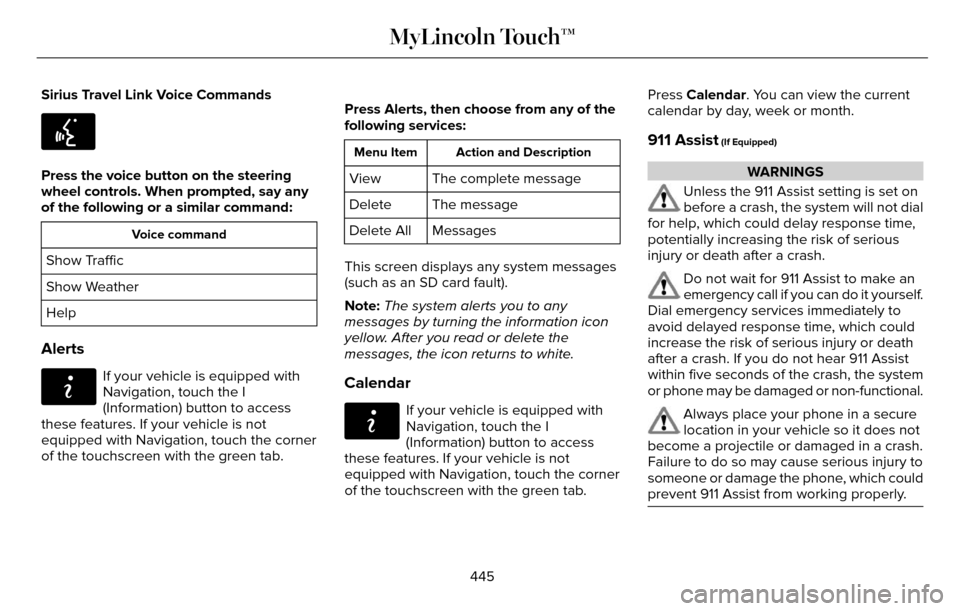
Sirius Travel Link Voice Commands
E142599
Press the voice button on the steering
wheel controls. When prompted, say any
of the following or a similar command:
Voice command
Show Traffic
Show Weather
Help
Alerts
E142608
If your vehicle is equipped with
Navigation, touch the I
(Information) button to access
these features. If your vehicle is not
equipped with Navigation, touch the corner
of the touchscreen with the green tab. Press Alerts, then choose from any of the
following services:
Action and Description
Menu Item
The complete message
View
The message
Delete
Messages
Delete All
This screen displays any system messages
(such as an SD card fault).
Note: The system alerts you to any
messages by turning the information icon
yellow. After you read or delete the
messages, the icon returns to white.
Calendar
E142608
If your vehicle is equipped with
Navigation, touch the I
(Information) button to access
these features. If your vehicle is not
equipped with Navigation, touch the corner
of the touchscreen with the green tab. Press Calendar. You can view the current
calendar by day, week or month.
911 Assist (If Equipped)
WARNINGS
Unless the 911 Assist setting is set on
before a crash, the system will not dial
for help, which could delay response time,
potentially increasing the risk of serious
injury or death after a crash.
Do not wait for 911 Assist to make an
emergency call if you can do it yourself.
Dial emergency services immediately to
avoid delayed response time, which could
increase the risk of serious injury or death
after a crash. If you do not hear 911 Assist
within five seconds of the crash, the system
or phone may be damaged or non-functional.
Always place your phone in a secure
location in your vehicle so it does not
become a projectile or damaged in a crash.
Failure to do so may cause serious injury to
someone or damage the phone, which could
prevent 911 Assist from working properly.
445
MyLincoln Touch™
Page 469 of 544
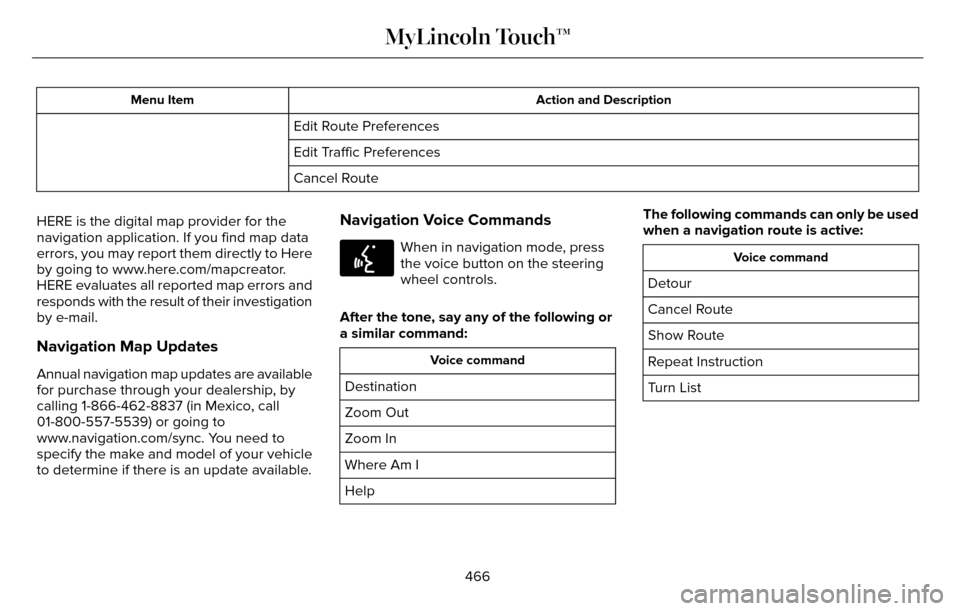
Action and Description
Menu Item
Edit Route Preferences
Edit Traffic Preferences
Cancel Route
HERE is the digital map provider for the
navigation application. If you find map data
errors, you may report them directly to Here
by going to www.here.com/mapcreator.
HERE evaluates all reported map errors and
responds with the result of their investigation
by e-mail.
Navigation Map Updates
Annual navigation map updates are available
for purchase through your dealership, by
calling 1-866-462-8837 (in Mexico, call
01-800-557-5539) or going to
www.navigation.com/sync. You need to
specify the make and model of your vehicle
to determine if there is an update available.
Navigation Voice Commands
E142599
When in navigation mode, press
the voice button on the steering
wheel controls.
After the tone, say any of the following or
a similar command:
Voice command
Destination
Zoom Out
Zoom In
Where Am I
Help The following commands can only be used
when a navigation route is active:
Voice command
Detour
Cancel Route
Show Route
Repeat Instruction
Turn List
466
MyLincoln Touch™
Page 471 of 544
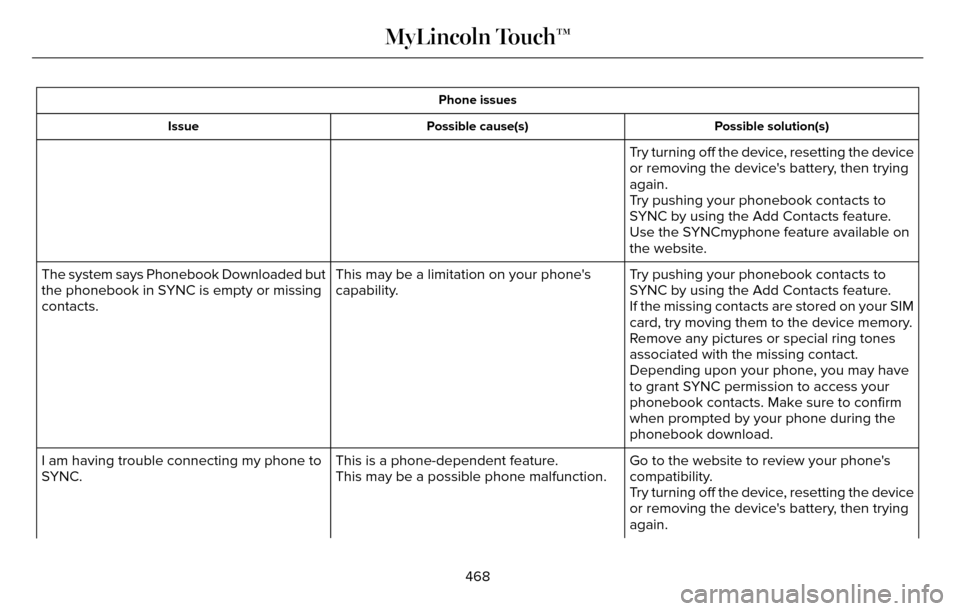
Phone issuesPossible solution(s)
Possible cause(s)
Issue
Try turning off the device, resetting the device
or removing the device's battery, then trying
again.
Try pushing your phonebook contacts to
SYNC by using the Add Contacts feature.
Use the SYNCmyphone feature available on
the website.
Try pushing your phonebook contacts to
SYNC by using the Add Contacts feature.
This may be a limitation on your phone's
capability.
The system says Phonebook Downloaded but
the phonebook in SYNC is empty or missing
contacts.
If the missing contacts are stored on your SIM
card, try moving them to the device memory.
Remove any pictures or special ring tones
associated with the missing contact.
Depending upon your phone, you may have
to grant SYNC permission to access your
phonebook contacts. Make sure to confirm
when prompted by your phone during the
phonebook download.
Go to the website to review your phone's
compatibility.
This is a phone-dependent feature.
This may be a possible phone malfunction.
I am having trouble connecting my phone to
SYNC.
Try turning off the device, resetting the device
or removing the device's battery, then trying
again.
468
MyLincoln Touch™
Page 472 of 544
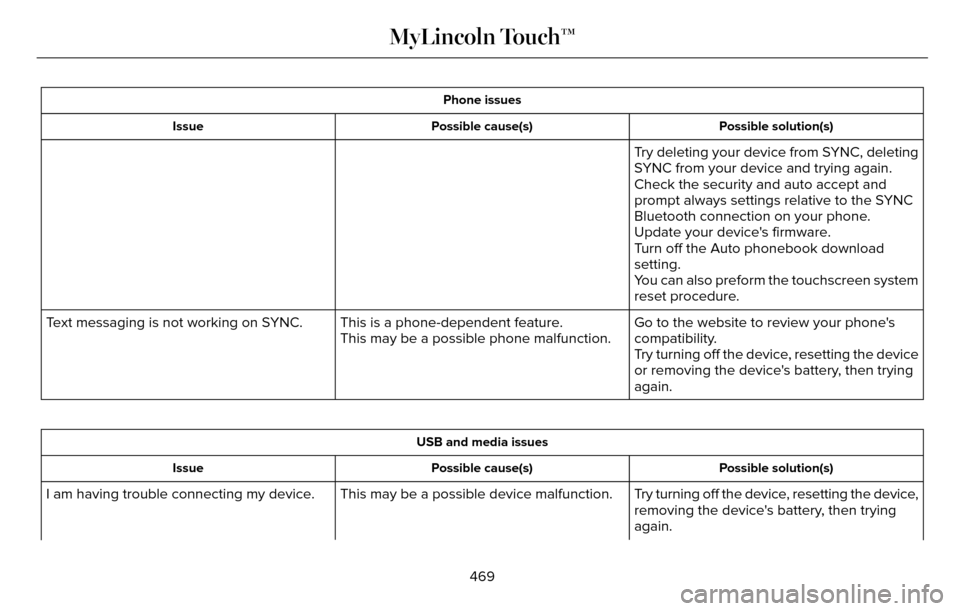
Phone issuesPossible solution(s)
Possible cause(s)
Issue
Try deleting your device from SYNC, deleting
SYNC from your device and trying again.
Check the security and auto accept and
prompt always settings relative to the SYNC
Bluetooth connection on your phone.
Update your device's firmware.
Turn off the Auto phonebook download
setting.
You can also preform the touchscreen system
reset procedure.
Go to the website to review your phone's
compatibility.
This is a phone-dependent feature.
This may be a possible phone malfunction.
Text messaging is not working on SYNC.
Try turning off the device, resetting the device
or removing the device's battery, then trying
again.
USB and media issuesPossible solution(s)
Possible cause(s)
Issue
Try turning off the device, resetting the device,
removing the device's battery, then trying
again.
This may be a possible device malfunction.
I am having trouble connecting my device.
469
MyLincoln Touch™
Page 473 of 544
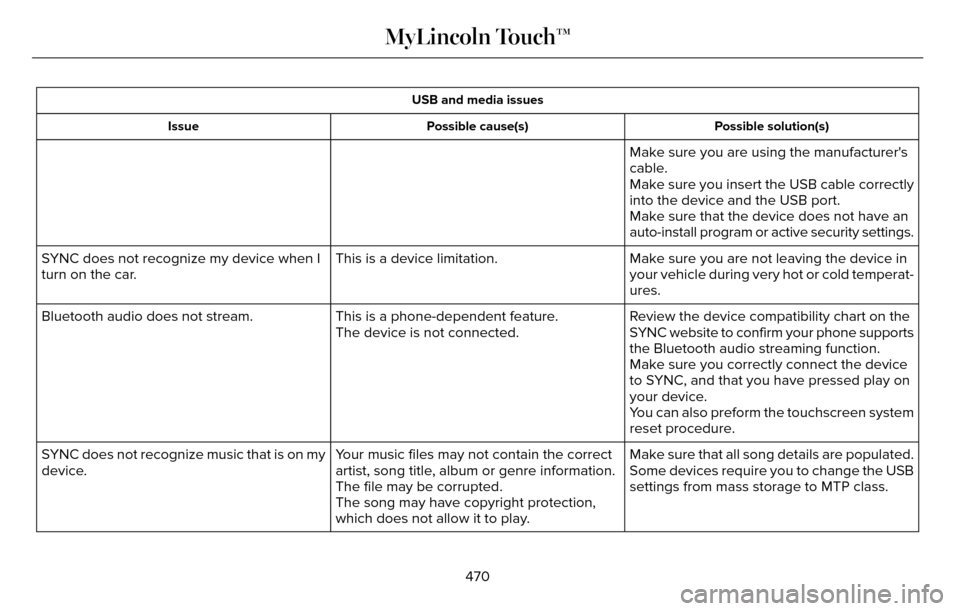
USB and media issuesPossible solution(s)
Possible cause(s)
Issue
Make sure you are using the manufacturer's
cable.
Make sure you insert the USB cable correctly
into the device and the USB port.
Make sure that the device does not have an
auto-install program or active security settings.
Make sure you are not leaving the device in
your vehicle during very hot or cold temperat-
ures.
This is a device limitation.
SYNC does not recognize my device when I
turn on the car.
Review the device compatibility chart on the
SYNC website to confirm your phone supports
the Bluetooth audio streaming function.
This is a phone-dependent feature.
The device is not connected.
Bluetooth audio does not stream.
Make sure you correctly connect the device
to SYNC, and that you have pressed play on
your device.
You can also preform the touchscreen system
reset procedure.
Make sure that all song details are populated.
Your music files may not contain the correct
artist, song title, album or genre information.
SYNC does not recognize music that is on my
device.
Some devices require you to change the USB
settings from mass storage to MTP class.
The file may be corrupted.
The song may have copyright protection,
which does not allow it to play.
470
MyLincoln Touch™