manual LINCOLN MKZ HYBRID 2013 Service Manual
[x] Cancel search | Manufacturer: LINCOLN, Model Year: 2013, Model line: MKZ HYBRID, Model: LINCOLN MKZ HYBRID 2013Pages: 475, PDF Size: 3.89 MB
Page 391 of 475
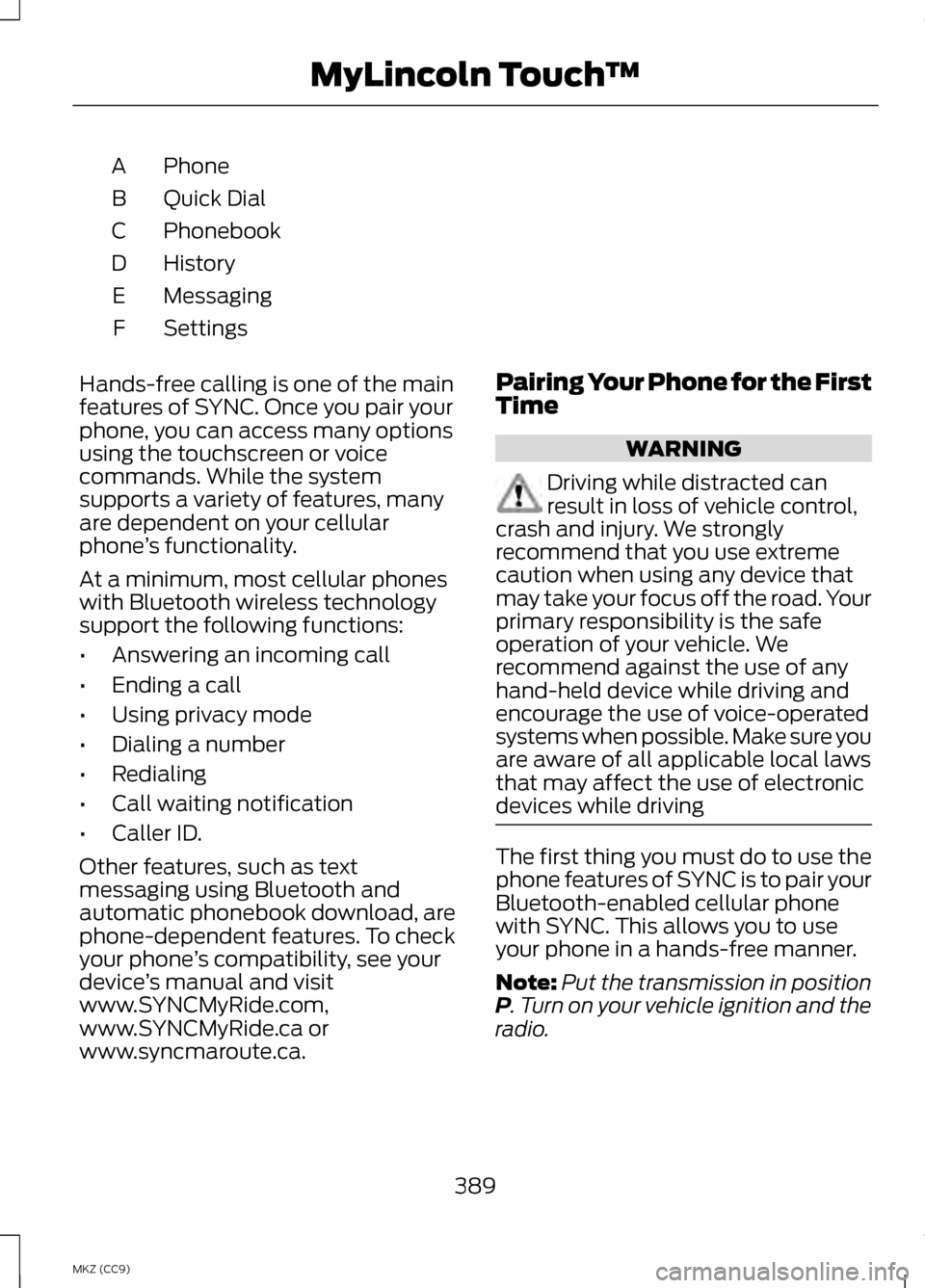
Phone
A
Quick Dial
B
Phonebook
C
History
D
Messaging
E
Settings
F
Hands-free calling is one of the main
features of SYNC. Once you pair your
phone, you can access many options
using the touchscreen or voice
commands. While the system
supports a variety of features, many
are dependent on your cellular
phone ’s functionality.
At a minimum, most cellular phones
with Bluetooth wireless technology
support the following functions:
• Answering an incoming call
• Ending a call
• Using privacy mode
• Dialing a number
• Redialing
• Call waiting notification
• Caller ID.
Other features, such as text
messaging using Bluetooth and
automatic phonebook download, are
phone-dependent features. To check
your phone ’s compatibility, see your
device ’s manual and visit
www.SYNCMyRide.com,
www.SYNCMyRide.ca or
www.syncmaroute.ca. Pairing Your Phone for the First
Time WARNING
Driving while distracted can
result in loss of vehicle control,
crash and injury. We strongly
recommend that you use extreme
caution when using any device that
may take your focus off the road. Your
primary responsibility is the safe
operation of your vehicle. We
recommend against the use of any
hand-held device while driving and
encourage the use of voice-operated
systems when possible. Make sure you
are aware of all applicable local laws
that may affect the use of electronic
devices while driving The first thing you must do to use the
phone features of SYNC is to pair your
Bluetooth-enabled cellular phone
with SYNC. This allows you to use
your phone in a hands-free manner.
Note:
Put the transmission in position
P. Turn on your vehicle ignition and the
radio.
389
MKZ (CC9) MyLincoln Touch
™
Page 392 of 475
1.
Touch Add Phone in the upper left
corner of the touchscreen. Find
SYNC appears on the screen, and
instructs you to begin the pairing
process from your device.
2. Make sure that Bluetooth is set to On
and that your cellular phone is
in the proper mode. See your
device ’s manual if necessary.
Note: Select SYNC, and a six-digit PIN
appears on your device.
3. If prompted to enter a PIN on your
device, it does not support Secure
Simple Pairing. To pair, enter the
PIN displayed on the touchscreen.
Skip the next step.
4. When prompted on your phone ’s
display, confirm that the PIN
provided by SYNC matches the
PIN displayed on your cellular
phone.
5. The display indicates when the pairing is successful.
SYNC may prompt you with more
phone options. For more information
on your phone's capability, see your
device's manual and visit the website.
Pairing Subsequent Phones
Note: Put the transmission in position
P
. Turn on your vehicle ignition and the
radio.
1. Press the
Phone corner of the
touchscreen > Settings > BT
Devices > Add Device.
2. Make sure that Bluetooth is set to On
and that your cellular phone is
in the proper mode. See your
device ’s manual if necessary. Note:
Select SYNC, and a six-digit PIN
appears on your device.
3. If prompted to enter a PIN on your
device, it does not support Secure
Simple Pairing. To pair, enter the
PIN displayed on the touchscreen.
Skip the next step.
4. When prompted on your phone ’s
display, confirm that the PIN
provided by SYNC matches the
PIN displayed on your cellular
phone.
5. The display indicates when the pairing is successful.
SYNC may prompt you with more
phone options. For more information
on your phone's capability, see your
device's manual and visit the website.
Making Calls Press the voice button on
your steering wheel controls.
When prompted, say, "Call
desired number. To end the call or exit phone
mode, press this phone
button.
Receiving Calls
During an incoming call, an audible
tone sounds. Call information appears
in the display if it is available. Accept the call by pressing
Accept
on the touchscreen
or by pressing this phone
button on your steering wheel
controls.
390
MKZ (CC9) MyLincoln Touch
™E142599 E142632
Page 416 of 475
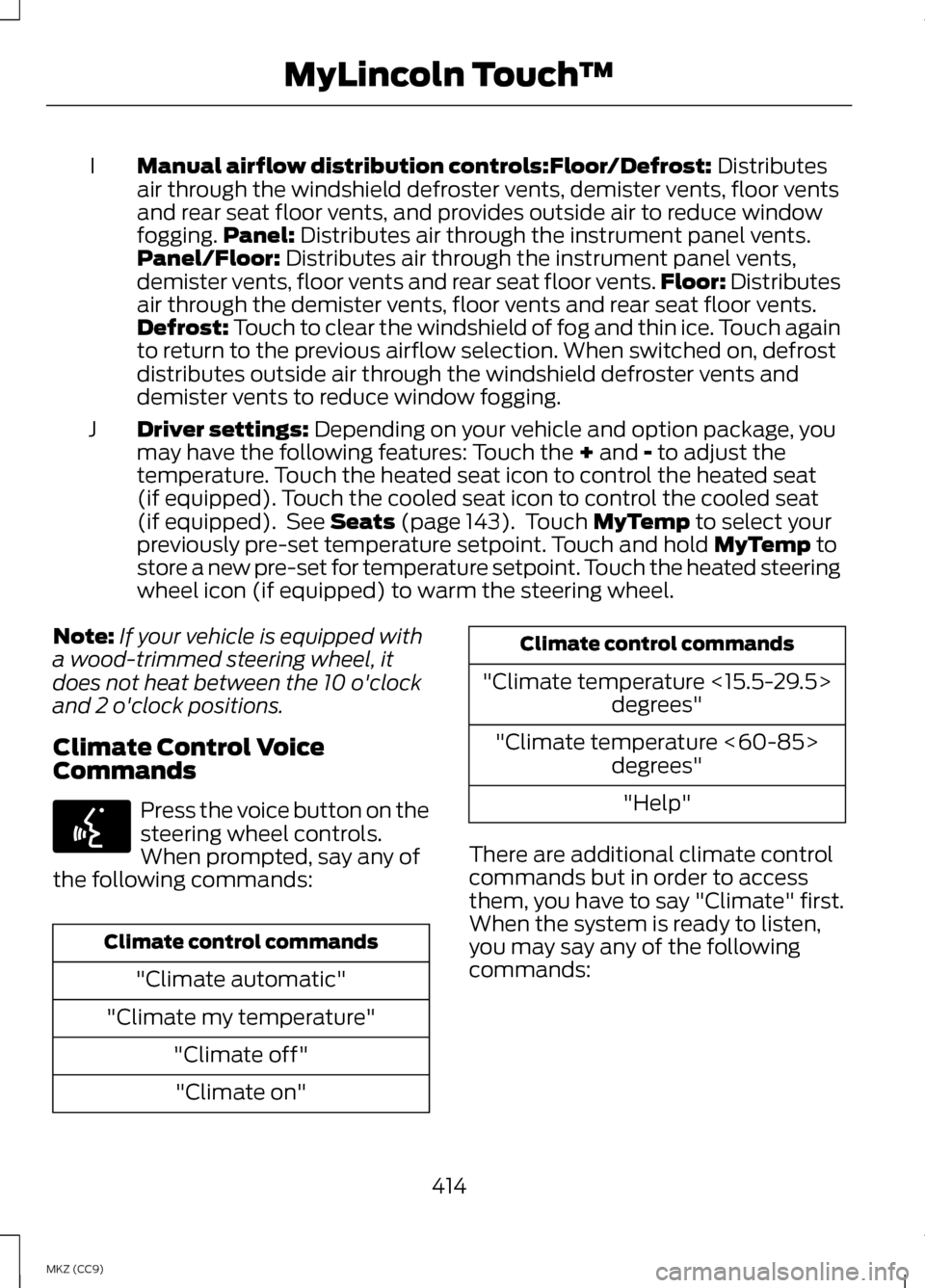
Manual airflow distribution controls:Floor/Defrost: Distributes
air through the windshield defroster vents, demister vents, floor vents
and rear seat floor vents, and provides outside air to reduce window
fogging. Panel:
Distributes air through the instrument panel vents.
Panel/Floor: Distributes air through the instrument panel vents,
demister vents, floor vents and rear seat floor vents. Floor: Distributes
air through the demister vents, floor vents and rear seat floor vents.
Defrost:
Touch to clear the windshield of fog and thin ice. Touch again
to return to the previous airflow selection. When switched on, defrost
distributes outside air through the windshield defroster vents and
demister vents to reduce window fogging.
I
Driver settings:
Depending on your vehicle and option package, you
may have the following features: Touch the + and - to adjust the
temperature. Touch the heated seat icon to control the heated seat
(if equipped). Touch the cooled seat icon to control the cooled seat
(if equipped). See
Seats (page 143). Touch MyTemp to select your
previously pre-set temperature setpoint. Touch and hold MyTemp to
store a new pre-set for temperature setpoint. Touch the heated steering
wheel icon (if equipped) to warm the steering wheel.
J
Note: If your vehicle is equipped with
a wood-trimmed steering wheel, it
does not heat between the 10 o'clock
and 2 o'clock positions.
Climate Control Voice
Commands Press the voice button on the
steering wheel controls.
When prompted, say any of
the following commands: Climate control commands
"Climate automatic"
"Climate my temperature" "Climate off""Climate on" Climate control commands
"Climate temperature <15.5-29.5> degrees"
"Climate temperature <60-85> degrees"
"Help"
There are additional climate control
commands but in order to access
them, you have to say "Climate" first.
When the system is ready to listen,
you may say any of the following
commands:
414
MKZ (CC9) MyLincoln Touch
™E142599
Page 422 of 475
Traffic Preferences
Avoid Traffic Problems
Choose how you want the system to
handle traffic problems along your
route.
•
Automatic: Have the system
reroute you to avoid traffic
incidents that develop and impact
the current route. The system does
not provide a traffic alert
notification.
• Manual:
Have the system always
provide a traffic alert notification
for traffic incidents along the
planned route. You have a choice
to accept or ignore the notification
before making the route deviation.
Traffic Alert Notification
Have the system display traffic alert
notifications.
Other traffic alert features allows you
to turn on certain, or all, traffic icons
on the map such as road work,
incident, accidents and closed roads.
Scroll down to view all the different
types of alerts. Turn these features
ON
or OFF.
Avoid Areas
Choose areas which you want the
system to avoid when calculating a
route for you. Press
Add to program an entry. Once
you make a selection, the system tries
to avoid the area(s) if possible for all
routes. To delete a selection, choose
the listing on the screen. When the
screen changes to Avoid Areas Edit,
you can press
Delete at the bottom
right of the screen.
Map Mode
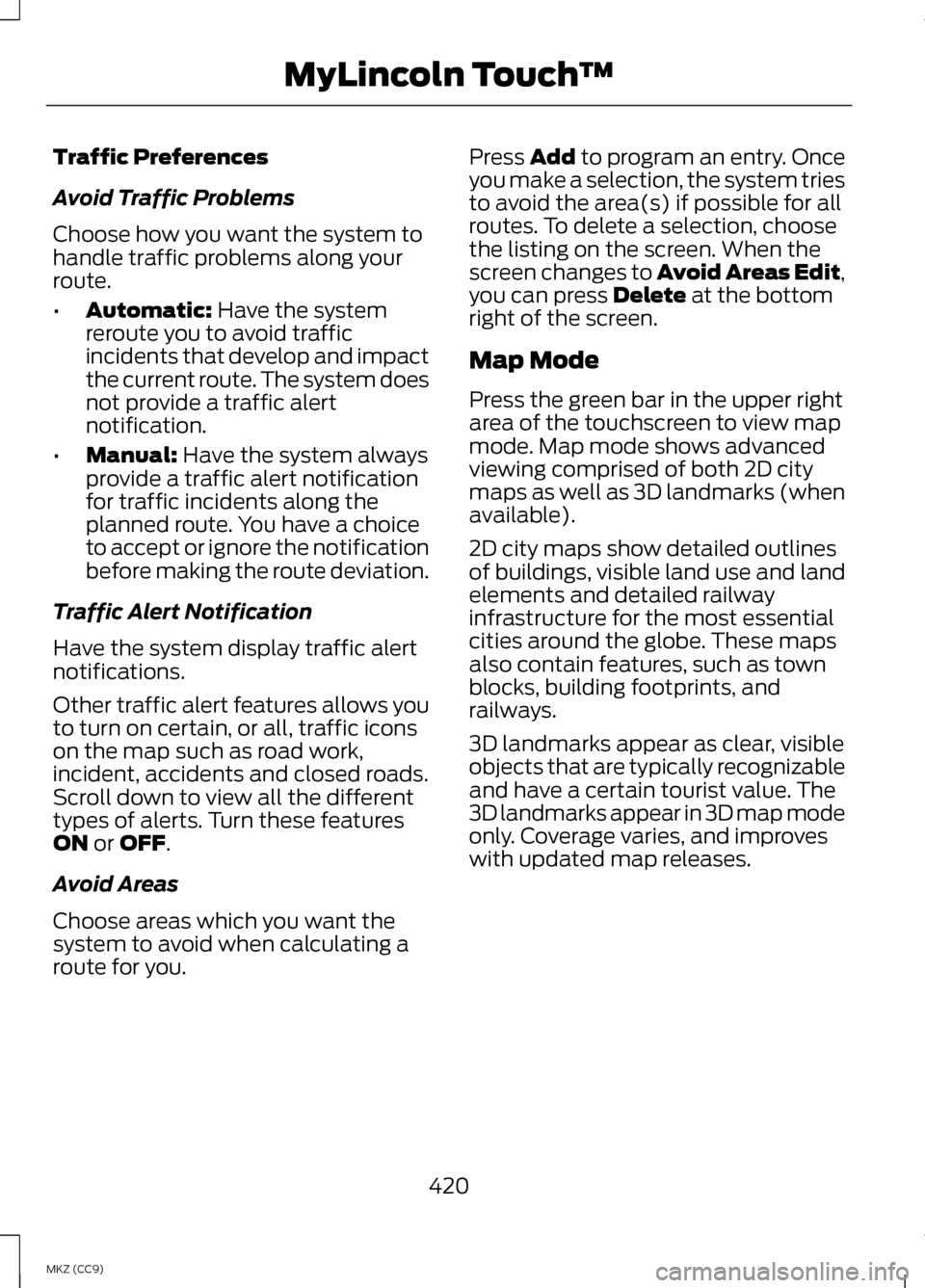
Press the green bar in the upper right
area of the touchscreen to view map
mode. Map mode shows advanced
viewing comprised of both 2D city
maps as well as 3D landmarks (when
available).
2D city maps show detailed outlines
of buildings, visible land use and land
elements and detailed railway
infrastructure for the most essential
cities around the globe. These maps
also contain features, such as town
blocks, building footprints, and
railways.
3D landmarks appear as clear, visible
objects that are typically recognizable
and have a certain tourist value. The
3D landmarks appear in 3D map mode
only. Coverage varies, and improves
with updated map releases.
420
MKZ (CC9) MyLincoln Touch
™
Page 433 of 475
Should you have any questions
concerning this EULA, or if you desire
to contact FORD MOTOR COMPANY
for any other reason, please refer to
the address provided in the
documentation for the DEVICE.
No Liability for Certain Damages:
EXCEPT AS PROHIBITED BY LAW,
FORD MOTOR COMPANY, ANY
THIRD PARTY SOFTWARE OR
SERVICES SUPPLIERS, MS,
MICROSOFT CORPORATION AND
THEIR AFFILIATES SHALL HAVE NO
LIABILITY FOR ANY INDIRECT,
SPECIAL, CONSEQUENTIAL OR
INCIDENTAL DAMAGES ARISING
FROM OR IN CONNECTION WITH THE
USE OR PERFORMANCE OF THE
SOFTWARE. THIS LIMITATION SHALL
APPLY EVEN IF ANY REMEDY FAILS
OF ITS ESSENTIAL PURPOSE. IN NO
EVENT SHALL MS, MICROSOFT
CORPORATION AND/OR THEIR
AFFILIATES BE LIABLE FOR ANY
AMOUNT IN EXCESS OF U.S. TWO
HUNDRED FIFTY DOLLARS (U.S.
$250.00).
•
THERE ARE NO WARRANTIES
OTHER THAN THOSE THAT MAY
EXPRESSLY BE PROVIDED FOR
YOUR NEW VEHICLE. Adobe
Contains Adobe® [Flash® Player] or
[AIR®] technology by Adobe Systems
Incorporated. This [Licensee Product]
contains [Adobe® Flash® Player]
[Adobe® AIR®] software under
license from Adobe Systems
Incorporated, Copyright ©1995-2009
Adobe Macromedia Software LLC. All
rights reserved. Adobe, Flash and AIR
are trademarks of Adobe Systems
Incorporated.
End User Notice
Microsoft® Windows® Mobile for
Automotive Important Safety
Information
This system Ford SYNC™ contains
software that is licensed to
Manufacturer FORD MOTOR
COMPANY by an affiliate of Microsoft
Corporation pursuant to a license
agreement. Any removal,
reproduction, reverse engineering or
other unauthorized use of the
software from this system in violation
of the license agreement is strictly
prohibited and may subject you to
legal action.
Read and follow instructions:
Before using your Windows
Automotive- based system, read and
follow all instructions and safety
information provided in this end user
manual ("User's Guide"). Not
following precautions found in this
User's Guide can lead to an accident
or other serious consequences.
431
MKZ (CC9) Appendices
Page 435 of 475
Distraction Hazard: Any navigation
features may require manual
(non-verbal) setup. Attempting to
perform such set-up or insert data
while driving can seriously distract
your attention and could cause an
accident or other serious
consequences. Stop the vehicle in a
safe and legal manner before
attempting these operations.
Let Your Judgment Prevail:
Any
navigation features are provided only
as an aid. Make your driving decisions
based on your observations of local
conditions and existing traffic
regulations. Any such feature is not a
substitute for your personal judgment.
Any route suggestions made by this
system should never replace any local
traffic regulations or your personal
judgment or knowledge of safe driving
practices.
Route Safety:
Do not follow the
route suggestions if doing so would
result in an unsafe or illegal maneuver,
if you would be placed in an unsafe
situation, or if you would be directed
into an area that you consider unsafe.
The driver is ultimately responsible for
the safe operation of the vehicle and
therefore, must evaluate whether it is
safe to follow the suggested
directions.
Potential Map Inaccuracy:
Maps
used by this system may be
inaccurate because of changes in
roads, traffic controls or driving
conditions. Always use good judgment
and common sense when following
the suggested routes. Emergency Services: Do not rely on
any navigation features included in
the system to route you to emergency
services. Ask local authorities or an
emergency services operator for these
locations. Not all emergency services
such as police, fire stations, hospitals
and clinics are likely to be contained
in the map database for such
navigation features.
TeleNav Software End User
License Agreement
Please read these terms and
conditions carefully before you use
the TeleNav Software. Your use of the
TeleNav Software indicates that you
accept these terms and conditions. If
you do not accept these terms and
conditions, do not break the seal of
the package, launch, or otherwise use
the TeleNav Software.
TeleNav may revise this Agreement
and the privacy policy at any time,
with or without notice to you. You
agree to visit http://www.telenav.com
from time to time to review the then
current version of this Agreement and
of the privacy policy.
1. Safe and Lawful Use
You acknowledge that devoting
attention to the TeleNav Software
may pose a risk of injury or death to
you and others in situations that
otherwise require your undivided
attention, and you therefore agree to
comply with the following when using
the TeleNav Software: (a) observe all
traffic laws and otherwise drive safely;
(b) use your own personal judgment
433
MKZ (CC9) Appendices
Page 441 of 475
otherwise reproduce, copy, modify,
decompile, disassemble or reverse
engineer any portion of this Data, and
may not transfer or distribute it in any
form, for any purpose, except to the
extent permitted by mandatory laws.
License Limitations on Transfer:
Your limited license does not allow
transfer or resale of the Data, except
on the condition that you may transfer
the Data and all accompanying
materials on a permanent basis if: (a)
you retain no copies of the Data; (b)
the recipient agrees to the terms of
this End User License Agreement; and
(c) you transfer the Data in the exact
same form as you purchased it by
physically transferring the original
media (e.g., the CD-ROM or DVD you
purchased), all original packaging, all
Manuals and other documentation.
Specifically, Multi-disc sets may only
be transferred or sold as a complete
set as provided to you and not as a
subset thereof.
Additional License Limitations:
Except where you have been
specifically licensed to do so by NT in
a separate written agreement, and
without limiting the preceding
paragraph, your license is conditioned
on use of the Data as prescribed in
this agreement, and you may not (a)
use this Data with any products,
systems, or applications installed or
otherwise connected to or in
communication with vehicles capable
of vehicle navigation, positioning,
dispatch, real time route guidance,
fleet management or similar
applications; or (b) with, or in
communication with, including
without limitation, cellular phones,
palmtop and handheld computers,
pagers, and personal digital assistants
or PDAs.
WARNING
This Data may contain
inaccurate or incomplete
information due to the passage of
time, changing circumstances,
sources used and the nature of
collecting comprehensive geographic
Data, any of which may lead to
incorrect results. No Warranty: This Data is provided
to you "as is" , and you agree to use it
at your own risk. NT and its licensors
(and their licensors and suppliers)
make no guarantees, representations
or warranties of any kind, express or
implied, arising by law or otherwise,
including but not limited to, content,
quality, accuracy, completeness,
effectiveness, reliability, fitness for a
particular purpose, usefulness, use or
results to be obtained from this Data,
or that the Data or server will be
uninterrupted or error free.
Disclaimer of Warranty:
NT AND
ITS LICENSORS (INCLUDING THEIR
LICENSORS AND SUPPLIERS)
DISCLAIM ANY WARRANTIES,
EXPRESS OR IMPLIED, OF QUALITY,
PERFORMANCE, MERCHANTABILITY,
FITNESS FOR A PARTICULAR
439
MKZ (CC9) Appendices
Page 446 of 475
General Maintenance
Information
Why Maintain Your Vehicle?
Carefully following the maintenance
schedule helps protect against major
repair expenses resulting from neglect
or inadequate maintenance and may
help to increase the value of your
vehicle when you sell or trade it. Keep
all receipts for completed
maintenance with your vehicle.
We have established regular
maintenance intervals for your vehicle
based upon rigorous testing. It is
important that you have your vehicle
serviced at the proper times. These
intervals serve two purposes; one is
to maintain the reliability of your
vehicle and the second is to keep your
cost of owning your vehicle down.
It is your responsibility to have all
scheduled maintenance performed
and to make sure that the materials
used meet the specifications
identified in this owner's manual. See
Capacities and Specifications
(page 330).
Failure to perform scheduled
maintenance invalidates warranty
coverage on parts affected by the lack
of maintenance. Why Maintain Your Vehicle at Your
Dealership?
Factory-Trained Technicians
Service technicians participate in
extensive factory-sponsored
certification training to help them
become experts on the operation of
your vehicle. Ask your dealership
about the training and certification
their technicians have received.
Genuine Ford and Motorcraft®
Replacement Parts
Dealerships stock Ford, Motorcraft
and Ford-authorized branded
re-manufactured replacement parts.
These parts meet or exceed our
specifications. Parts installed at your
dealership carry a nationwide
12-month or 12000-mile (20000
kilometers) parts and labor limited
warranty.
If you do not use Ford authorized parts
they may not meet our specifications
and depending on the part, it could
affect emissions compliance.
Convenience
Many dealerships have extended
evening and Saturday hours to make
your service visit more convenient and
they offer one stop shopping. They
can perform any services that are
required on your vehicle, from general
maintenance to collision repairs.
Note:
Not all dealers have extended
hours or body shops. Please contact
your dealer for details.
444
MKZ (CC9) Scheduled Maintenance
Page 447 of 475
Protecting Your Investment
Maintenance is an investment that
pays dividends in the form of
improved reliability, durability and
resale value. To maintain the proper
performance of your vehicle and its
emission control systems, make sure
you have scheduled maintenance
performed at the designated intervals.
Your vehicle is equipped with an
information display, which indicates
the proper oil change interval. This
interval may be up to one year or
10000 miles (16000 kilometers).
When ENGINE OIL CHANGE DUE or
OIL CHANGE REQUIRED appears in
the information display, it is time for
an oil change. Make sure you perform
the oil change within two weeks or
500 miles (800 kilometers) of the
ENGINE OIL CHANGE DUE
or OIL
CHANGE REQUIRED message
appearing. Make sure you reset the oil
monitoring system after each oil
change. See Engine Oil Check (page
280
).
If your information display resets
prematurely, becomes inoperative or
the vehicle battery becomes
discharged or disconnected, the oil
monitoring system resets to 100% oil
life. You should change your engine
oil one year or 10000 miles (16000
kilometers) from the previous oil
change. Never exceed one year or
10000 miles (16000 kilometers)
between oil change intervals. Your vehicle is very sophisticated and
built with multiple, complex,
performance systems. Every
manufacturer develops these systems
using different specifications and
performance features. That is why it
is important to rely upon your
dealership to properly diagnose and
repair your vehicle.
Ford Motor Company has
recommended maintenance intervals
for various parts and component
systems based upon engineering
testing. Ford Motor Company relies
upon this testing to determine the
most appropriate mileage for
replacement of oils and fluids to
protect your vehicle at the lowest
overall cost to you and recommends
against maintenance schedules that
deviate from the scheduled
maintenance information.
We strongly recommend the use of
only genuine Ford, Motorcraft or
Ford-authorized re-manufactured
replacement parts engineered for your
vehicle.
Additives and Chemicals
This owner's manual and the Ford
Workshop Manual list the
recommended additives and
chemicals for your vehicle. We do not
recommend using chemicals or
additives not approved by us as part
of your vehicle
’s normal maintenance.
Please consult your warranty
information.
445
MKZ (CC9) Scheduled Maintenance
Page 463 of 475
A
A/C
See: Climate Control...............................138
About This Manual..................................7
Protecting the Environment......................7
ABS See: Brakes.................................................. 191
ABS driving hints See: Hints on Driving With Anti-Lock
Brakes....................................................... 192
Accessories...........................................338 Exterior style.............................................. 338
Interior style............................................... 338
Lifestyle....................................................... 338
Peace of mind........................................... 338
Accessories See: Replacement Parts
Recommendation...................................12
ACC See: Using Adaptive Cruise Control.....211
Active Park Assist................................201 Automatic Steering into Parking
Space....................................................... 203
Deactivating the Park Assist Feature.................................................... 204
Troubleshooting the System..............204
Using Active Park Assist........................202
Adaptive Headlamps
..........................86
Adjusting the Headlamps................291
Horizontal Aim Adjustment.................292
Vertical Aim Adjustment.......................291
Adjusting the Steering Wheel...........75 Power Tilt and Telescope Steering
Column....................................................... 75
AFS See: Adaptive Headlamps.....................86
Airbag Disposal.......................................51
Air Conditioning See: Climate Control...............................138
Alarm See: Anti-Theft Alarm...............................73 Anti-Theft Alarm...................................73
Arming the Alarm.......................................74
Disarming the Alarm.................................74
Appendices..........................................426
Audible Warnings and Indicators.............................................102
Headlamps On Warning Chime..........102
Key in Ignition Warning Chime .............102
Keyless Warning Alert.............................102
Parking Brake On Warning Chime....................................................... 102
Audio Control..........................................76 Seek, Next or Previous..............................76
Audio System
.......................................134
General Information................................134
Audio unit - Vehicles With: Premium AM/FM/CD..........................................135
Autolamps...............................................82
Automatic Climate Control
.............138
Automatic High Beam Control........84
Activating the System..............................85
Manually Overriding the System..........85
Automatic Transmission
..................185
Brake-Shift Interlock Override............188
If Your Vehicle Gets Stuck In Mud or
Snow......................................................... 189
Push Button Shift Transmission.........185
Automatic Transmission Fluid Check...................................................286
Autowipers..............................................79
Auxiliary Power Points......................158 110 Volt AC Power Point.........................158
12 Volt DC Power Point...........................158
Locations..................................................... 158
B
Blind Spot Monitor.............................225 Blind Spot Information System
(BLIS®) with Cross Traffic
Alert.......................................................... 225
461
MKZ Hybrid (CC9) Index