display LINCOLN MKZ HYBRID 2016 Owners Manual
[x] Cancel search | Manufacturer: LINCOLN, Model Year: 2016, Model line: MKZ HYBRID, Model: LINCOLN MKZ HYBRID 2016Pages: 543, PDF Size: 5.04 MB
Page 451 of 543
Where Am I?
For information about your current location,
select:
Action and Descrip-
tion
Menu Item
View your vehicle's
current location, if
your vehicle is
equipped with
navigation. If your
vehicle is not
equipped with
Where Am I? Action and Descrip-
tion
Menu Item
navigation, nothing
displays.
CLIMATE
Touch the lower right corner on the
touchscreen to access your climate control
features. Depending on your vehicle line and
option package, your climate screen may
look different from this screen. Note:
You can switch temperature units
between Fahrenheit and Celsius. See
Settings (page 376).
448
MKZ Hybrid (CC9) Hybrid Electric Vehicle (HEV), Canada/United States of America, enUSA, First Printing MyLincoln Touch™
Page 454 of 543

Max Defrost: Touch the button to maximize defrosting. Outside air flows through the wi\
ndshield vents, fan automatically adjusts to
the highest speed and the temperature dial returns to the full heat posi\
tion. You can use this setting to defog or clear a thin covering
of ice from the windshield. The heated rear window also automatically tu\
rns on when you select Max Defrost.
I
Air distribution control:
Touch these buttons to switch airflow from the windshield, instrument pan\
el, or footwell vents on or off.
The system can distribute air through any combination of these vents.
J
Note:
To prevent window fogging, you cannot select recirculated air when MAX De\
frost is on.
Driver settings:
K
Touch the
+ or – to increase or decrease the air temperature on the driver side of the v\
ehicle.
Touch the heated seat icon to switch the heated seat off and on (if equi\
pped).
Touch the climate-controlled seat icon to switch the climate-controlled s\
eat off and on (if equipped).
Touch
MyTemp to select your preset temperature setpoint. Touch and hold MyTemp to save a new preset temperature setpoint.
Touch the heated steering wheel icon to switch the heated steering wheel \
on and off (if equipped).
Note: If your vehicle is equipped with a
wood-trimmed steering wheel, it does not
heat between the 10 o'clock and 2 o'clock
positions. Smart Zone Feature
Each time you start your vehicle and drive
without an occupant in the front passenger
seat, the climate control system may
automatically switch to single zone mode (if
it was previously in dual zone mode) in order
to improve fuel economy. When this occurs,
the DUAL button turns off and the passenger
temperature changes to agree with the
driver's temperature.Press the
DUAL button or adjust the
passenger temperature to start dual zone
mode without a passenger present. The
system remains in dual zone mode until the
start your vehicle again.
Turning the Feature On
Press and hold the
DUAL button for more
than four seconds. Only the driver's
temperature display flashes to signify that
the feature is on.
451
MKZ Hybrid (CC9) Hybrid Electric Vehicle (HEV), Canada/United States of America, enUSA, First Printing MyLincoln Touch™
Page 455 of 543
Turning the Feature Off
Press and hold the DUAL button for more
than four seconds. Both temperature displays
flash to signify that the feature is off. Climate Control Voice Commands Press the voice button on the
steering wheel controls. When
prompted, say any of the following
commands: Voice commands
Climate On
Climate Off Adjust the temperature to between 15.0 - 30.0°C or 59 - 86°F.
Set temperature
NAVIGATION
Note: The navigation SD card must be in the
SD card slot to operate the navigation
system. If you need a replacement SD card,
see an authorized dealer.
Note: The SD card slot is spring-loaded. To
remove the SD card, just push the card in
and release it. Do not attempt to pull the
card out to remove it; this could cause
damage. Your navigation system is comprised of two
main features, destination mode and map
mode.
Destination Mode
To set a destination press the green corner
of your touchscreen, then the press: Menu Item
Dest.
Choose any of the following:
My Home
Favorites
452
MKZ Hybrid (CC9) Hybrid Electric Vehicle (HEV), Canada/United States of America, enUSA, First Printing MyLincoln Touch™E142599
Page 459 of 543
For a longer review, a list of services and
facilities, the average room, meal price or
the website press:
Menu Item
More Information
This screen displays the point of interest icon
such as: Hotel
Coffeehouse
Food & Drink
Nightlife Attraction
This icon appears when your
selection exists in multiple
categories within the system.
When you are viewing more information
for hotels, cityseekr also tells you if the
hotel has certain services and facilities
using icons, such as:
• Restaurant
• Business center
• Handicap facilities
• Laundry
• Refrigerator
• 24 hour room service
• Fitness center
• Internet access
• Pool
• Wi-FI For restaurants, cityseekr can provide
information such as star rating, average cost,
review, handicap access, hours of operation,
and website address.
For hotels, cityseekr can provide information
such as star rating, price category, review,
check-in and checkout times, hotel service
icons and website address.
Setting Your Navigation Preferences
Select settings for the system to
take into account when planning
your route.
To access the settings options, press Menu Item
Settings
Navigation
Then select any of the following:
456
MKZ Hybrid (CC9) Hybrid Electric Vehicle (HEV), Canada/United States of America, enUSA, First Printing MyLincoln Touch™E143884 E142636 E142637 E142638 E142639 E142640 E142607
Page 460 of 543
Map Preferences
Second Level Messages, Actions and Descriptions
Menu Item
Map Preferences
Then select any of the following: Display your vehicle’s previously traveled route with white dots. You can switch this feature:
Breadcrumbs
Off
On
Have the system display your turn list
Turn List Format
Bottom to Top
Top to Bottom
When parking point of interest notification is on, the icons display on \
the map when you get close
to your destination. This may not be very useful in dense areas, and may\
clutter the map when other
points of interest display. Set the automatic parking point of interest notification. You can switch
this feature:
Parking POI Notification
Off
On
457
MKZ Hybrid (CC9) Hybrid Electric Vehicle (HEV), Canada/United States of America, enUSA, First Printing MyLincoln Touch™
Page 461 of 543
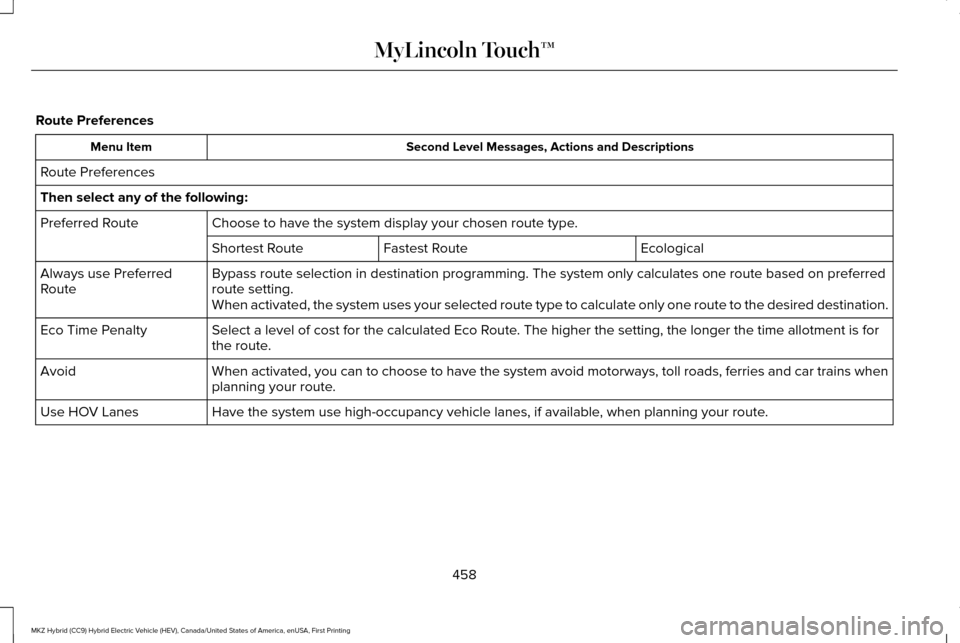
Route Preferences
Second Level Messages, Actions and Descriptions
Menu Item
Route Preferences
Then select any of the following: Choose to have the system display your chosen route type.
Preferred Route
Ecological
Fastest Route
Shortest Route
Bypass route selection in destination programming. The system only calcu\
lates one route based on preferred
route setting.
Always use Preferred
Route
When activated, the system uses your selected route type to calculate on\
ly one route to the desired destination.
Select a level of cost for the calculated Eco Route. The higher the setting, the longer the time allotment is for
the route.
Eco Time Penalty
When activated, you can to choose to have the system avoid motorways, to\
ll roads, ferries and car trains when
planning your route.
Avoid
Have the system use high-occupancy vehicle lanes, if available, when planning your route.
Use HOV Lanes
458
MKZ Hybrid (CC9) Hybrid Electric Vehicle (HEV), Canada/United States of America, enUSA, First Printing MyLincoln Touch™
Page 464 of 543
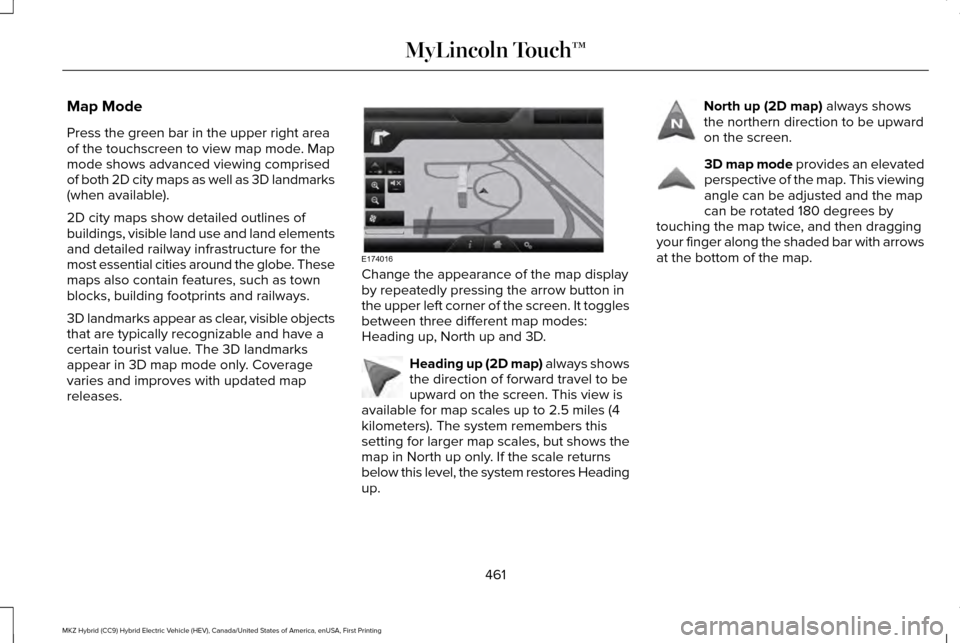
Map Mode
Press the green bar in the upper right area
of the touchscreen to view map mode. Map
mode shows advanced viewing comprised
of both 2D city maps as well as 3D landmarks
(when available).
2D city maps show detailed outlines of
buildings, visible land use and land elements
and detailed railway infrastructure for the
most essential cities around the globe. These
maps also contain features, such as town
blocks, building footprints and railways.
3D landmarks appear as clear, visible objects
that are typically recognizable and have a
certain tourist value. The 3D landmarks
appear in 3D map mode only. Coverage
varies and improves with updated map
releases.
Change the appearance of the map display
by repeatedly pressing the arrow button in
the upper left corner of the screen. It toggles
between three different map modes:
Heading up, North up and 3D.
Heading up (2D map) always shows
the direction of forward travel to be
upward on the screen. This view is
available for map scales up to 2.5 miles (4
kilometers). The system remembers this
setting for larger map scales, but shows the
map in North up only. If the scale returns
below this level, the system restores Heading
up. North up (2D map) always shows
the northern direction to be upward
on the screen. 3D map mode
provides an elevated
perspective of the map. This viewing
angle can be adjusted and the map
can be rotated 180 degrees by
touching the map twice, and then dragging
your finger along the shaded bar with arrows
at the bottom of the map.
461
MKZ Hybrid (CC9) Hybrid Electric Vehicle (HEV), Canada/United States of America, enUSA, First Printing MyLincoln Touch™E174016 E142642 E142643 E142644
Page 465 of 543
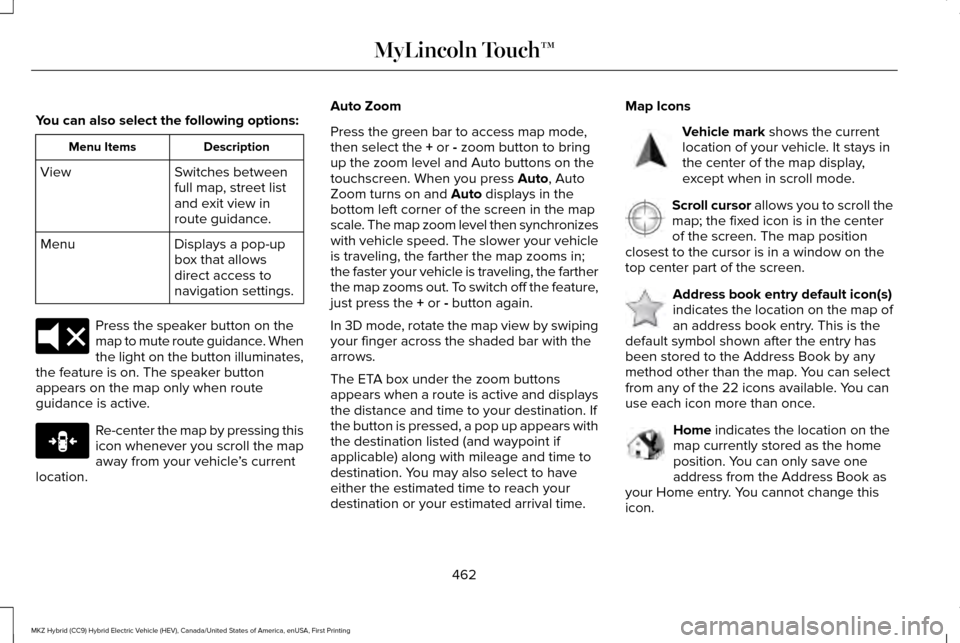
You can also select the following options:
Description
Menu Items
Switches between
full map, street list
and exit view in
route guidance.
View
Displays a pop-up
box that allows
direct access to
navigation settings.
Menu Press the speaker button on the
map to mute route guidance. When
the light on the button illuminates,
the feature is on. The speaker button
appears on the map only when route
guidance is active. Re-center the map by pressing this
icon whenever you scroll the map
away from your vehicle
’s current
location. Auto Zoom
Press the green bar to access map mode,
then select the + or - zoom button to bring
up the zoom level and Auto buttons on the
touchscreen. When you press
Auto, Auto
Zoom turns on and Auto displays in the
bottom left corner of the screen in the map
scale. The map zoom level then synchronizes
with vehicle speed. The slower your vehicle
is traveling, the farther the map zooms in;
the faster your vehicle is traveling, the farther
the map zooms out. To switch off the feature,
just press the
+ or - button again.
In 3D mode, rotate the map view by swiping
your finger across the shaded bar with the
arrows.
The ETA box under the zoom buttons
appears when a route is active and displays
the distance and time to your destination. If
the button is pressed, a pop up appears with
the destination listed (and waypoint if
applicable) along with mileage and time to
destination. You may also select to have
either the estimated time to reach your
destination or your estimated arrival time. Map Icons Vehicle mark
shows the current
location of your vehicle. It stays in
the center of the map display,
except when in scroll mode. Scroll cursor
allows you to scroll the
map; the fixed icon is in the center
of the screen. The map position
closest to the cursor is in a window on the
top center part of the screen. Address book entry default icon(s)
indicates the location on the map of
an address book entry. This is the
default symbol shown after the entry has
been stored to the Address Book by any
method other than the map. You can select
from any of the 22 icons available. You can
use each icon more than once. Home
indicates the location on the
map currently stored as the home
position. You can only save one
address from the Address Book as
your Home entry. You cannot change this
icon.
462
MKZ Hybrid (CC9) Hybrid Electric Vehicle (HEV), Canada/United States of America, enUSA, First Printing MyLincoln Touch™E174017 E146188 E142646 E142647 E142648 E142649
Page 466 of 543
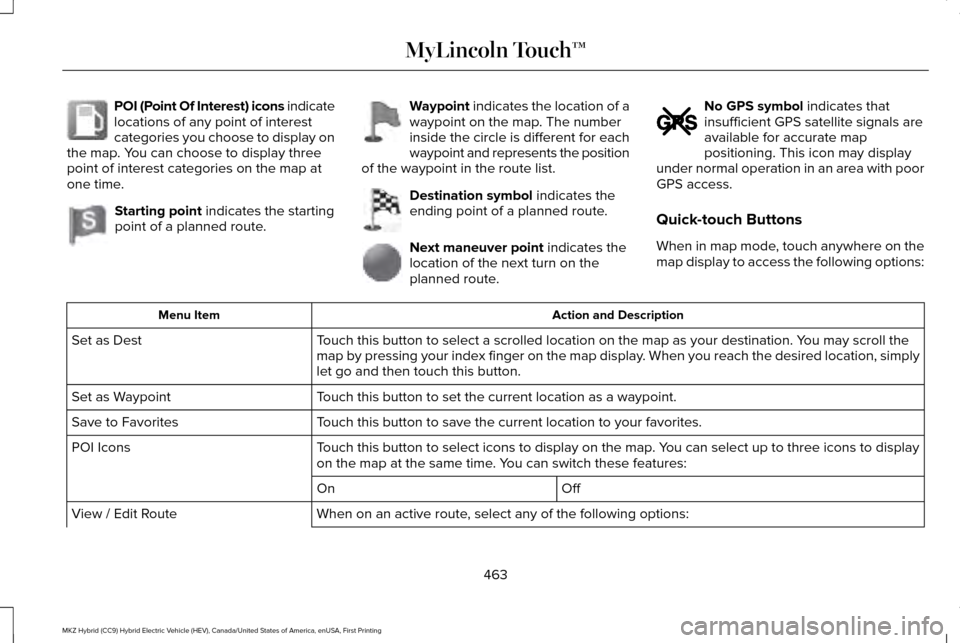
POI (Point Of Interest) icons indicate
locations of any point of interest
categories you choose to display on
the map. You can choose to display three
point of interest categories on the map at
one time. Starting point indicates the starting
point of a planned route. Waypoint
indicates the location of a
waypoint on the map. The number
inside the circle is different for each
waypoint and represents the position
of the waypoint in the route list. Destination symbol
indicates the
ending point of a planned route. Next maneuver point
indicates the
location of the next turn on the
planned route. No GPS symbol
indicates that
insufficient GPS satellite signals are
available for accurate map
positioning. This icon may display
under normal operation in an area with poor
GPS access.
Quick-touch Buttons
When in map mode, touch anywhere on the
map display to access the following options: Action and Description
Menu Item
Touch this button to select a scrolled location on the map as your destin\
ation. You may scroll the
map by pressing your index finger on the map display. When you reach the desired location, simply
let go and then touch this button.
Set as Dest
Touch this button to set the current location as a waypoint.
Set as Waypoint
Touch this button to save the current location to your favorites.
Save to Favorites
Touch this button to select icons to display on the map. You can select up to three icons to display
on the map at the same time. You can switch these features:
POI Icons
Off
On
When on an active route, select any of the following options:
View / Edit Route
463
MKZ Hybrid (CC9) Hybrid Electric Vehicle (HEV), Canada/United States of America, enUSA, First Printing MyLincoln Touch™E142650 E142651 E142652 E142653 E142654 E142655
Page 468 of 543
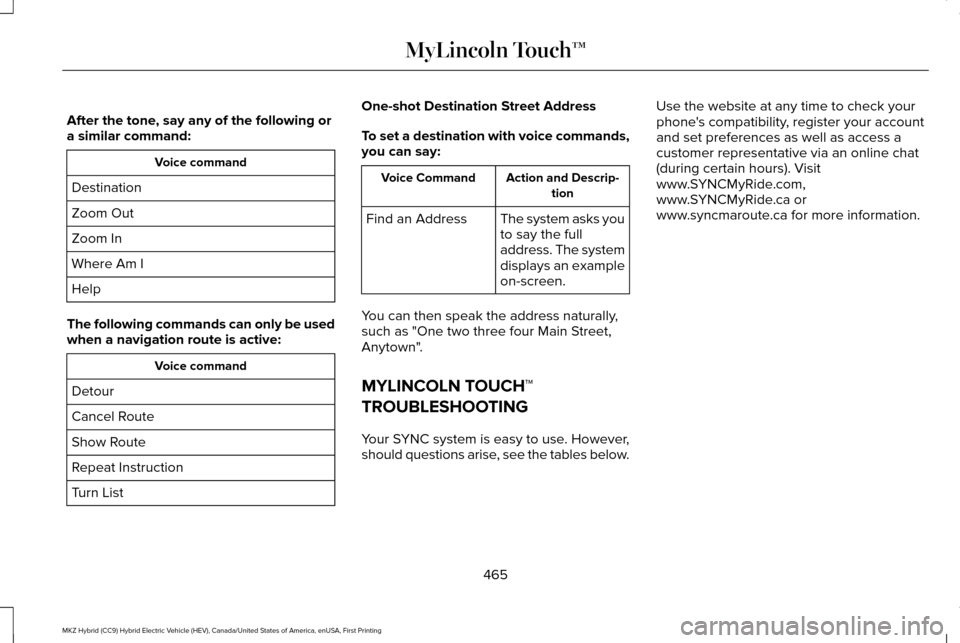
After the tone, say any of the following or
a similar command:
Voice command
Destination
Zoom Out
Zoom In
Where Am I
Help
The following commands can only be used
when a navigation route is active: Voice command
Detour
Cancel Route
Show Route
Repeat Instruction
Turn List One-shot Destination Street Address
To set a destination with voice commands,
you can say: Action and Descrip-
tion
Voice Command
The system asks you
to say the full
address. The system
displays an example
on-screen.
Find an Address
You can then speak the address naturally,
such as "One two three four Main Street,
Anytown".
MYLINCOLN TOUCH™
TROUBLESHOOTING
Your SYNC system is easy to use. However,
should questions arise, see the tables below. Use the website at any time to check your
phone's compatibility, register your account
and set preferences as well as access a
customer representative via an online chat
(during certain hours). Visit
www.SYNCMyRide.com,
www.SYNCMyRide.ca or
www.syncmaroute.ca for more information.
465
MKZ Hybrid (CC9) Hybrid Electric Vehicle (HEV), Canada/United States of America, enUSA, First Printing MyLincoln Touch™