wheel LINCOLN NAUTILUS 2020 Owners Manual
[x] Cancel search | Manufacturer: LINCOLN, Model Year: 2020, Model line: NAUTILUS, Model: LINCOLN NAUTILUS 2020Pages: 596, PDF Size: 5.88 MB
Page 410 of 596
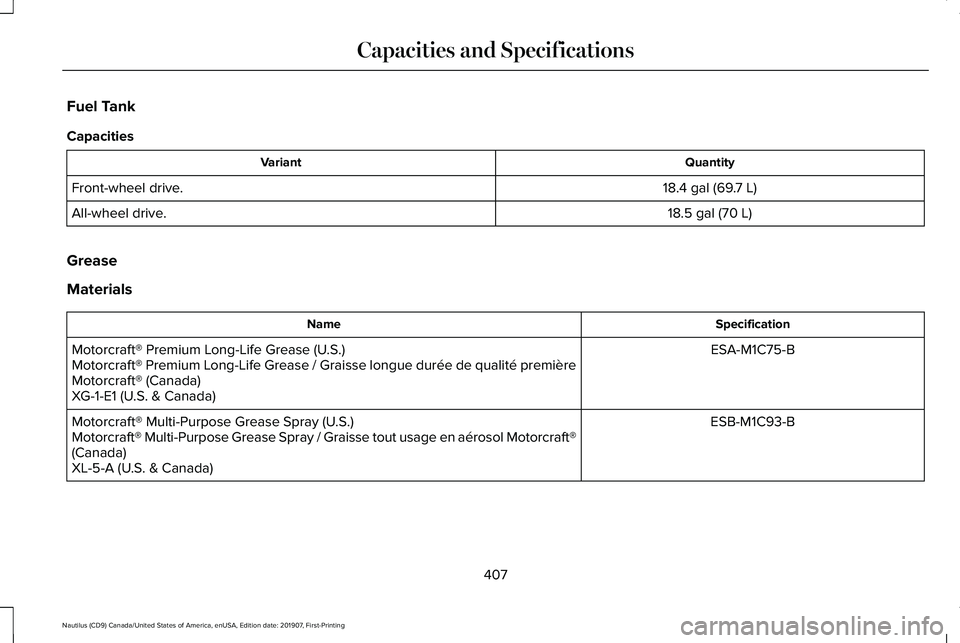
Fuel Tank
Capacities
Quantity
Variant
18.4 gal (69.7 L)
Front-wheel drive.
18.5 gal (70 L)
All-wheel drive.
Grease
Materials Specification
Name
ESA-M1C75-B
Motorcraft® Premium Long-Life Grease (U.S.)
Motorcraft® Premium Long-Life Grease / Graisse longue durée de qualité première
Motorcraft® (Canada)
XG-1-E1 (U.S. & Canada)
ESB-M1C93-B
Motorcraft® Multi-Purpose Grease Spray (U.S.)
Motorcraft® Multi-Purpose Grease Spray / Graisse tout usage en aér\
osol Motorcraft®
(Canada)
XL-5-A (U.S. & Canada)
407
Nautilus (CD9) Canada/United States of America, enUSA, Edition date: 201907, First-Printing Capacities and Specifications
Page 434 of 596
Note:
Installation starts automatically within
a few minutes.
Updating the System Using a Wi-Fi Network
Connection
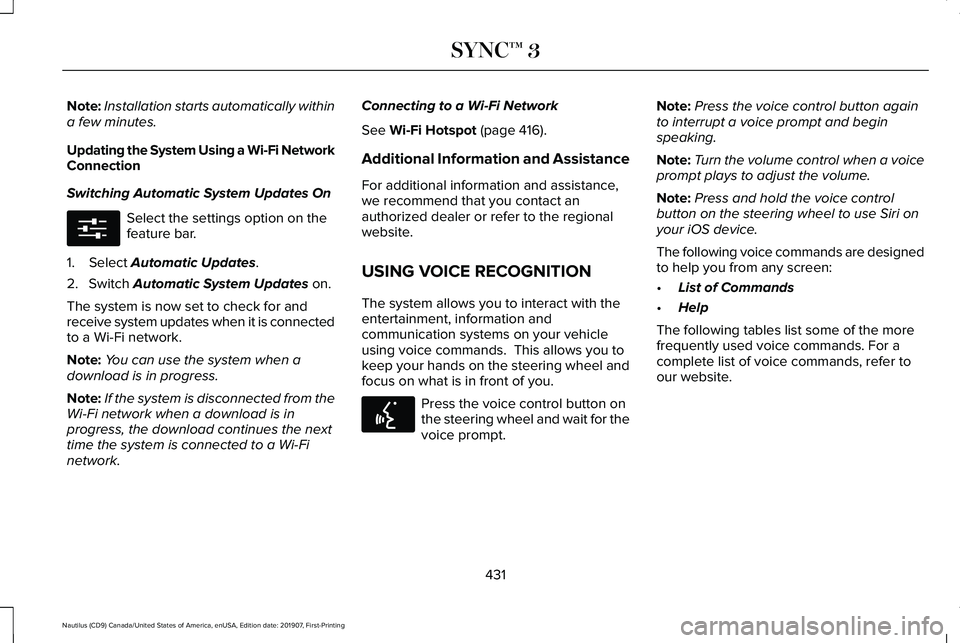
Switching Automatic System Updates On Select the settings option on the
feature bar.
1. Select Automatic Updates.
2. Switch
Automatic System Updates on.
The system is now set to check for and
receive system updates when it is connected
to a Wi-Fi network.
Note: You can use the system when a
download is in progress.
Note: If the system is disconnected from the
Wi-Fi network when a download is in
progress, the download continues the next
time the system is connected to a Wi-Fi
network. Connecting to a Wi-Fi Network
See
Wi-Fi Hotspot (page 416).
Additional Information and Assistance
For additional information and assistance,
we recommend that you contact an
authorized dealer or refer to the regional
website.
USING VOICE RECOGNITION
The system allows you to interact with the
entertainment, information and
communication systems on your vehicle
using voice commands. This allows you to
keep your hands on the steering wheel and
focus on what is in front of you. Press the voice control button on
the steering wheel and wait for the
voice prompt.Note:
Press the voice control button again
to interrupt a voice prompt and begin
speaking.
Note: Turn the volume control when a voice
prompt plays to adjust the volume.
Note: Press and hold the voice control
button on the steering wheel to use Siri on
your iOS device.
The following voice commands are designed
to help you from any screen:
• List of Commands
• Help
The following tables list some of the more
frequently used voice commands. For a
complete list of voice commands, refer to
our website.
431
Nautilus (CD9) Canada/United States of America, enUSA, Edition date: 201907, First-Printing SYNC™ 3E280315 E142599
Page 460 of 596
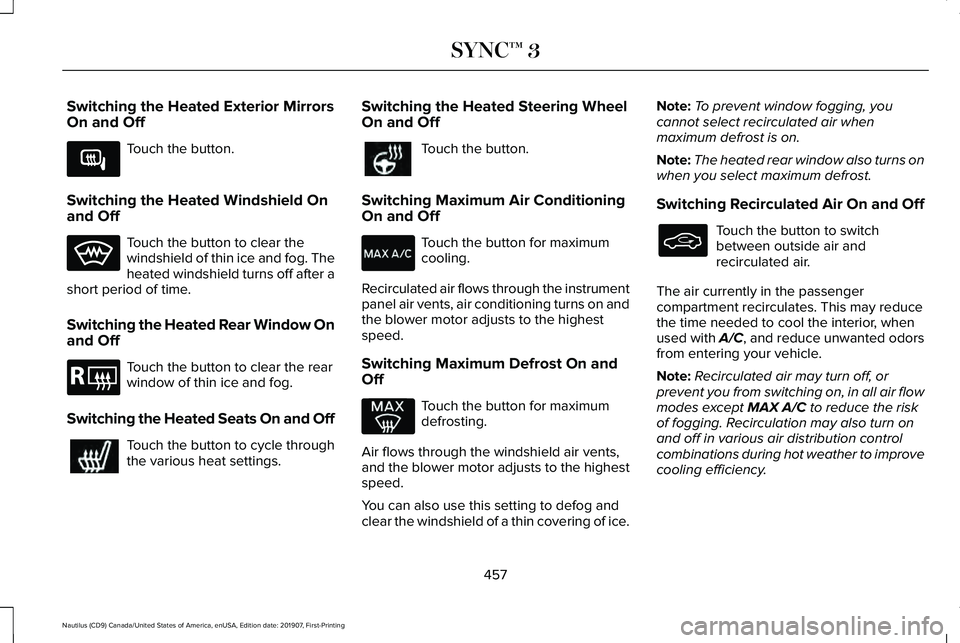
Switching the Heated Exterior Mirrors
On and Off
Touch the button.
Switching the Heated Windshield On
and Off Touch the button to clear the
windshield of thin ice and fog. The
heated windshield turns off after a
short period of time.
Switching the Heated Rear Window On
and Off Touch the button to clear the rear
window of thin ice and fog.
Switching the Heated Seats On and Off Touch the button to cycle through
the various heat settings. Switching the Heated Steering Wheel
On and Off Touch the button.
Switching Maximum Air Conditioning
On and Off Touch the button for maximum
cooling.
Recirculated air flows through the instrument
panel air vents, air conditioning turns on and
the blower motor adjusts to the highest
speed.
Switching Maximum Defrost On and
Off Touch the button for maximum
defrosting.
Air flows through the windshield air vents,
and the blower motor adjusts to the highest
speed.
You can also use this setting to defog and
clear the windshield of a thin covering of ice. Note:
To prevent window fogging, you
cannot select recirculated air when
maximum defrost is on.
Note: The heated rear window also turns on
when you select maximum defrost.
Switching Recirculated Air On and Off Touch the button to switch
between outside air and
recirculated air.
The air currently in the passenger
compartment recirculates. This may reduce
the time needed to cool the interior, when
used with A/C, and reduce unwanted odors
from entering your vehicle.
Note: Recirculated air may turn off, or
prevent you from switching on, in all air flow
modes except MAX A/C to reduce the risk
of fogging. Recirculation may also turn on
and off in various air distribution control
combinations during hot weather to improve
cooling efficiency.
457
Nautilus (CD9) Canada/United States of America, enUSA, Edition date: 201907, First-Printing SYNC™ 3E266189 E184884
Page 471 of 596
The navigation system map data may contain
inaccurate or incomplete information due to
the passage of time, changing
circumstances, sources used and the nature
of collecting comprehensive geographic
data, any of which may lead to incorrect
results. Inaccurate speed limit information,
turn restrictions and other road attributes
may affect the determined route and
associated guidance
Annual navigation map updates are available
for purchase through your dealership.
Depending on your purchase agreement,
you might be eligible for free Map update.
You can choose to download the Map data
update onto a USB, order a USB, or use Wi-Fi
to deliver automatic updates. To update your
Map data over Wi-Fi, your vehicle must be
connected to a Wi-Fi access point. Map Data
files are large, so it is highly recommended
to perform the update when free Wi-Fi is
available otherwise high data rates may
apply. For USB updates, free map update
eligibility, and other details, contact dealers
at 1-866-462-8837 in the United States and
Canada or 01-800-557-5539 in Mexico or
visit our local website for more information.
APPS
The system allows you interact with select
mobile apps while keeping your eyes on the
road. Voice commands, your steering wheel
buttons, or a quick tap on your touchscreen
give you advanced control of compatible
mobile apps. You can also stream your
favorite music or podcasts, share your time
of arrival with friends, and keep connected
safely.
When you start an app through the system
for the first time, you could be asked to grant
certain permissions. You can review and
change the permissions that you have
granted at any time when your vehicle is not
moving. We recommend that you check your
data plan before using your apps through
the system. Using them could result in
additional charges. We also recommend that
you check the app provider's terms and
conditions and privacy policy before using
their app. Make sure that you have an active
account for apps that you want to use
through the system. Some apps will work
with no setup. Others require you to
configure some personal settings before you
can use them.
Note:
For more information about available
apps, visit catalog.ford.com.
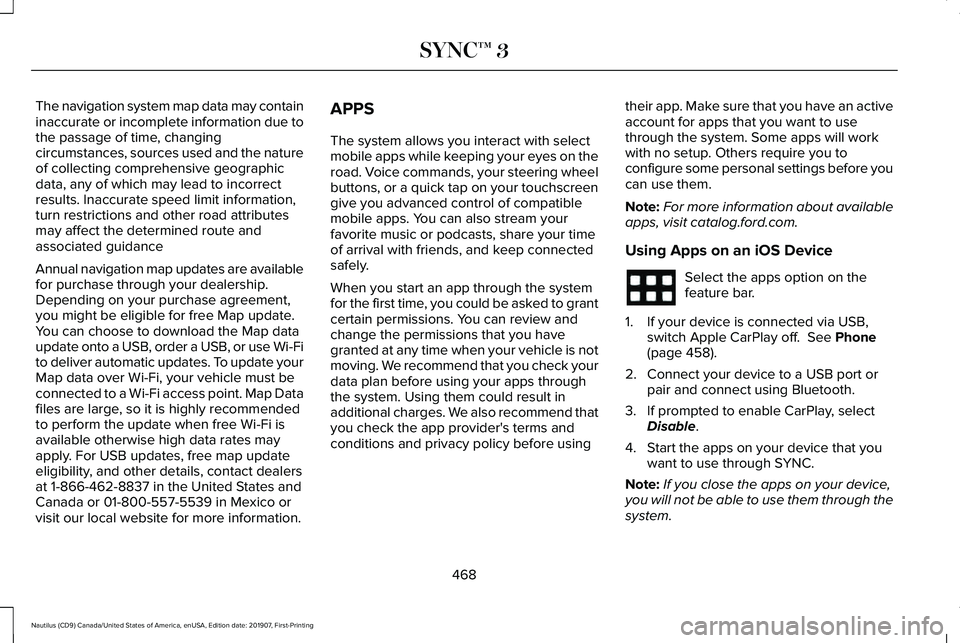
Using Apps on an iOS Device Select the apps option on the
feature bar.
1. If your device is connected via USB, switch Apple CarPlay off. See Phone
(page 458).
2. Connect your device to a USB port or pair and connect using Bluetooth.
3. If prompted to enable CarPlay, select Disable
.
4. Start the apps on your device that you want to use through SYNC.
Note: If you close the apps on your device,
you will not be able to use them through the
system.
468
Nautilus (CD9) Canada/United States of America, enUSA, Edition date: 201907, First-Printing SYNC™ 3
Page 477 of 596
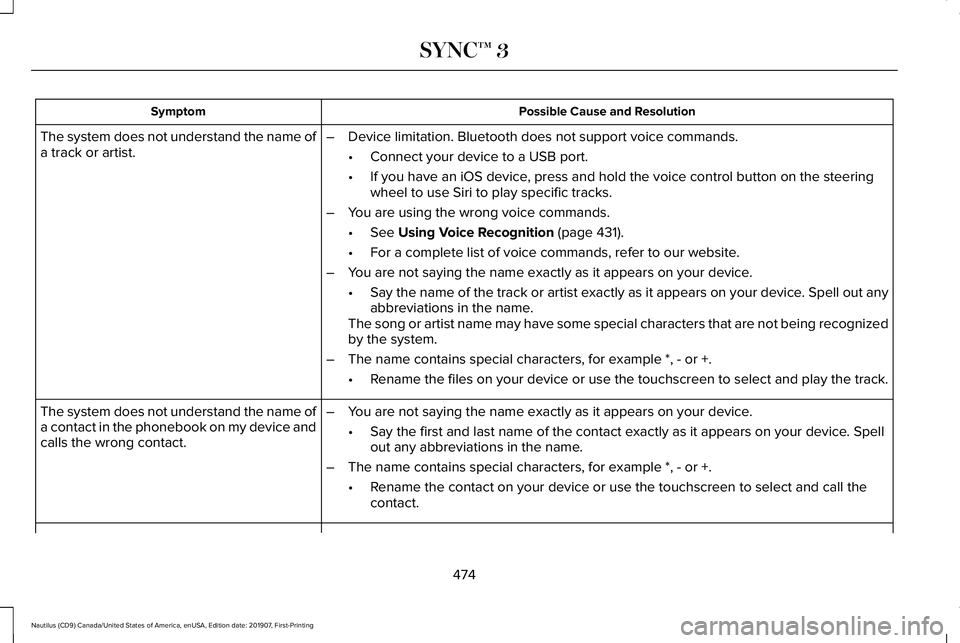
Possible Cause and Resolution
Symptom
–Device limitation. Bluetooth does not support voice commands.
•Connect your device to a USB port.
• If you have an iOS device, press and hold the voice control button on the steering
wheel to use Siri to play specific tracks.
– You are using the wrong voice commands.
•See Using Voice Recognition (page 431).
• For a complete list of voice commands, refer to our website.
– You are not saying the name exactly as it appears on your device.
•Say the name of the track or artist exactly as it appears on your device\
. Spell out any
abbreviations in the name.
The song or artist name may have some special characters that are not be\
ing recognized
by the system.
– The name contains special characters, for example *, - or +.
•Rename the files on your device or use the touchscreen to select and play\
the track.
The system does not understand the name of
a track or artist.
–You are not saying the name exactly as it appears on your device.
•Say the first and last name of the contact exactly as it appears on your\
device. Spell
out any abbreviations in the name.
– The name contains special characters, for example *, - or +.
•Rename the contact on your device or use the touchscreen to select and ca\
ll the
contact.
The system does not understand the name of
a contact in the phonebook on my device and
calls the wrong contact.
474
Nautilus (CD9) Canada/United States of America, enUSA, Edition date: 201907, First-Printing SYNC™ 3
Page 479 of 596

Possible Cause and Resolution
Symptom
–Incorrect device settings.
•Make sure that your device does not have an auto-install program or active \
security
settings.
• Check that your device is not set only to charge.
– Device lock screen enabled.
•Unlock your device before connecting it.
The system does not recognize my device. –Device limitation.
•Do not leave your device in your vehicle during very hot or very cold we\
ather condi-
tions.
– Cable connection issue.
•Correctly connect the cable to your device and the vehicle USB port.
– Incompatible cable.
•Use the cable recommended by the manufacturer of your device.
The system does not understand the name of
a track or artist. –
Device limitation. Bluetooth does not support voice commands.
•Connect your device to a USB port.
• If you have an iOS device, press and hold the voice control button on the steering
wheel to use Siri to play specific tracks.
476
Nautilus (CD9) Canada/United States of America, enUSA, Edition date: 201907, First-Printing SYNC™ 3
Page 505 of 596
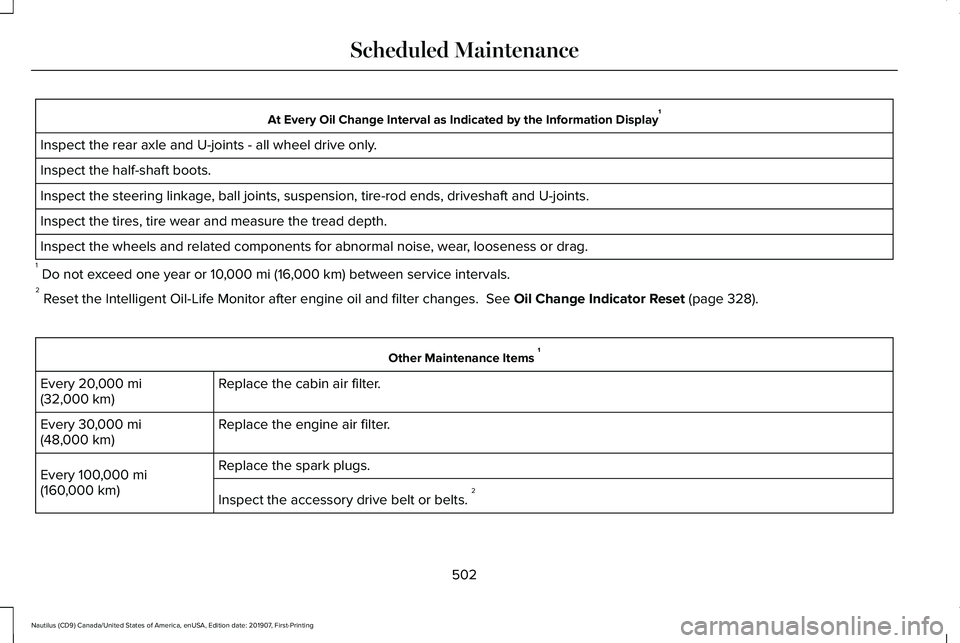
At Every Oil Change Interval as Indicated by the Information Display
1
Inspect the rear axle and U-joints - all wheel drive only.
Inspect the half-shaft boots.
Inspect the steering linkage, ball joints, suspension, tire-rod ends, driveshaft and U-joints.
Inspect the tires, tire wear and measure the tread depth.
Inspect the wheels and related components for abnormal noise, wear, looseness or drag.
1 Do not exceed one year or 10,000 mi (16,000 km) between service intervals.
2 Reset the Intelligent Oil-Life Monitor after engine oil and filter change\
s.
See Oil Change Indicator Reset (page 328). Other Maintenance Items
1
Replace the cabin air filter.
Every
20,000 mi
(32,000 km)
Replace the engine air filter.
Every
30,000 mi
(48,000 km)
Replace the spark plugs.
Every
100,000 mi
(160,000 km) Inspect the accessory drive belt or belts. 2
502
Nautilus (CD9) Canada/United States of America, enUSA, Edition date: 201907, First-Printing Scheduled Maintenance
Page 509 of 596
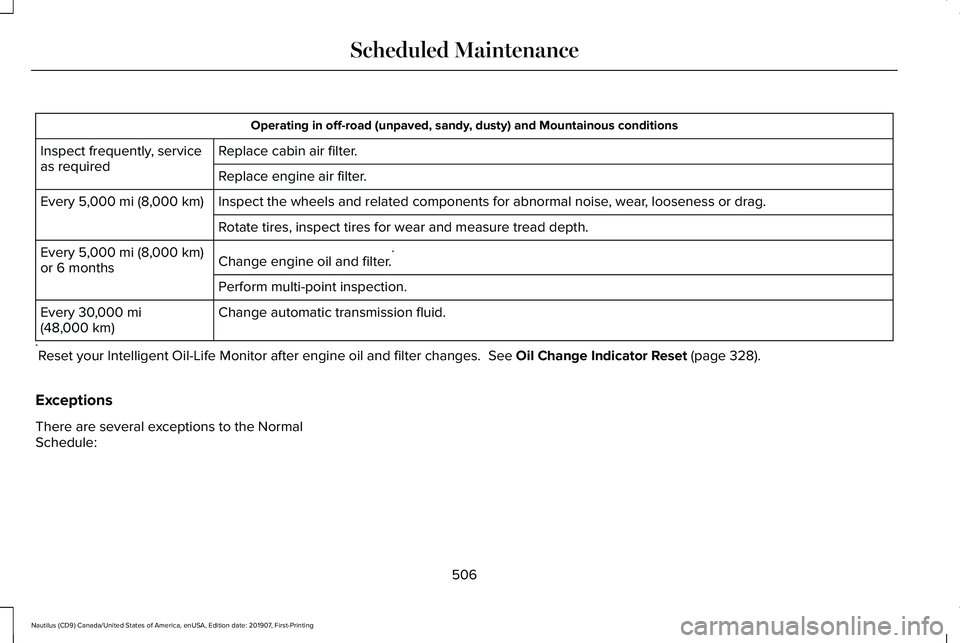
Operating in off-road (unpaved, sandy, dusty) and Mountainous conditions
Replace cabin air filter.
Inspect frequently, service
as required
Replace engine air filter.
Inspect the wheels and related components for abnormal noise, wear, looseness or drag.
Every 5,000 mi (8,000 km)
Rotate tires, inspect tires for wear and measure tread depth.
Change engine oil and filter. *
Every
5,000 mi (8,000 km)
or 6 months
Perform multi-point inspection.
Change automatic transmission fluid.
Every
30,000 mi
(48,000 km)
* Reset your Intelligent Oil-Life Monitor after engine oil and filter chang\
es.
See Oil Change Indicator Reset (page 328).
Exceptions
There are several exceptions to the Normal
Schedule:
506
Nautilus (CD9) Canada/United States of America, enUSA, Edition date: 201907, First-Printing Scheduled Maintenance
Page 540 of 596
EXPORT RESTRICTIONS: You acknowledge
that the SOFTWARE is subject to U.S. and
European Union export jurisdiction. You
agree to comply with all applicable
international and national laws that apply to
the SOFTWARE, including the U.S. Export
Administration Regulations, as well as
end-user, end-use and destination
restrictions issued by U.S. and other
governments.
TRADEMARKS: This EULA does not grant
you any rights in connection with any
trademarks or service marks of FORD
MOTOR COMPANY, its affiliates, and third
party software and service providers.
PRODUCT SUPPORT: Please refer to FORD
MOTOR COMPANY instructions provided in
the documentation for the DEVICES product
support, such as the vehicle owner guide.
Should you have any questions concerning
this EULA, or if you desire to contact FORD
MOTOR COMPANY for any other reason,
please refer to the address provided in the
documentation for the DEVICES. No Liability for Certain Damages:
EXCEPT
AS PROHIBITED BY LAW, FORD MOTOR
COMPANY, ANY THIRD PARTY SOFTWARE
OR SERVICES SUPPLIERS, AND THEIR
AFFILIATES SHALL HAVE NO LIABILITY FOR
ANY INDIRECT, SPECIAL, CONSEQUENTIAL
OR INCIDENTAL DAMAGES ARISING FROM
OR IN CONNECTION WITH THE USE OR
PERFORMANCE OF THE SOFTWARE. THIS
LIMITATION SHALL APPLY EVEN IF ANY
REMEDY FAILS OF ITS ESSENTIAL
PURPOSE. THERE ARE NO WARRANTIES
OTHER THAN THOSE THAT MAY BE
EXPRESSLY PROVIDED FOR YOUR NEW
VEHICLE.
SYNC® Automotive Important Safety
Information Read and follow instructions:
• Before using your SYNC® system, read
and follow all instructions and safety
information provided in this end user
manual ("Owner Guide".) Not following
precautions found in the Owner Guide
can lead to an accident or other serious
injuries. General Operation
•
Voice Command Control
: Certain
functions within the SYNC® system may
be accomplished using voice commands.
Using voice commands while driving
helps you to operate the system without
removing your hands from the wheel or
eyes from the road.
• Prolonged Views of Screen:
Do not
access any function requiring a
prolonged view of the screen while you
are driving. Pull over in a safe and legal
manner before attempting to access a
function of the system requiring
prolonged attention.
• Volume Setting: Do not raise the volume
excessively. Keep the volume at a level
where you can still hear outside traffic
and emergency signals while driving.
Driving while unable to hear these
sounds could cause an accident.
537
Nautilus (CD9) Canada/United States of America, enUSA, Edition date: 201907, First-Printing Appendices
Page 582 of 596
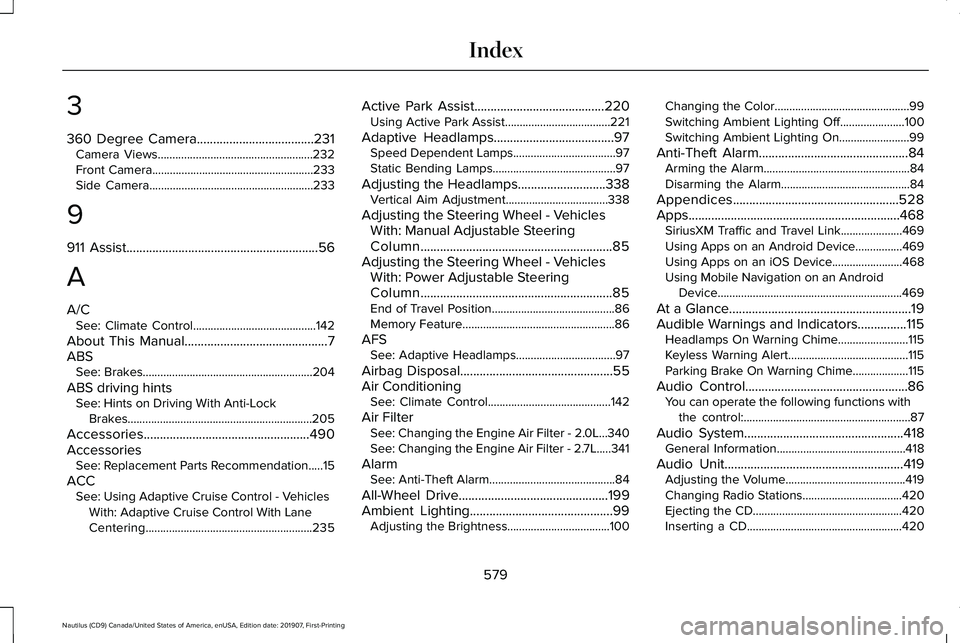
3
360 Degree Camera....................................231
Camera Views.....................................................232
Front Camera.......................................................233
Side Camera........................................................233
9
911 Assist...........................................................56
A
A/C See: Climate Control..........................................142
About This Manual
............................................7
ABS See: Brakes..........................................................204
ABS driving hints See: Hints on Driving With Anti-Lock
Brakes...............................................................205
Accessories...................................................490
Accessories See: Replacement Parts Recommendation.....15
ACC See: Using Adaptive Cruise Control - Vehicles
With: Adaptive Cruise Control With Lane
Centering.........................................................235 Active Park Assist........................................220
Using Active Park Assist....................................221
Adaptive Headlamps
.....................................97
Speed Dependent Lamps...................................97
Static Bending Lamps..........................................97
Adjusting the Headlamps...........................338 Vertical Aim Adjustment...................................338
Adjusting the Steering Wheel - Vehicles With: Manual Adjustable Steering
Column...........................................................85
Adjusting the Steering Wheel - Vehicles With: Power Adjustable Steering
Column...........................................................85
End of Travel Position..........................................86
Memory Feature....................................................86
AFS See: Adaptive Headlamps..................................97
Airbag Disposal
...............................................55
Air Conditioning See: Climate Control..........................................142
Air Filter See: Changing the Engine Air Filter - 2.0L...340
See: Changing the Engine Air Filter - 2.7L.....341
Alarm See: Anti-Theft Alarm...........................................84
All-Wheel Drive
..............................................199
Ambient Lighting............................................99 Adjusting the Brightness...................................100 Changing the Color..............................................99
Switching Ambient Lighting Off......................100
Switching Ambient Lighting On........................99
Anti-Theft Alarm
..............................................84
Arming the Alarm..................................................84
Disarming the Alarm............................................84
Appendices...................................................528
Apps .................................................................
468
SiriusXM Traffic and Travel Link.....................469
Using Apps on an Android Device................469
Using Apps on an iOS Device........................
468
Using Mobile Navigation on an Android Device...............................................................469
At a Glance
........................................................19
Audible Warnings and Indicators...............115 Headlamps On Warning Chime........................115
Keyless Warning Alert.........................................115
Parking Brake On Warning Chime...................115
Audio Control
..................................................86
You can operate the following functions with
the control:.........................................................87
Audio System
.................................................418
General Information............................................418
Audio Unit
.......................................................419
Adjusting the Volume.........................................419
Changing Radio Stations..................................420
Ejecting the CD...................................................420
Inserting a CD.....................................................420
579
Nautilus (CD9) Canada/United States of America, enUSA, Edition date: 201907, First-Printing Index