ad blue LINCOLN NAUTILUS 2020 User Guide
[x] Cancel search | Manufacturer: LINCOLN, Model Year: 2020, Model line: NAUTILUS, Model: LINCOLN NAUTILUS 2020Pages: 596, PDF Size: 5.88 MB
Page 462 of 596
1. Select Add Phone.
Note: A prompt alerts you to search for your
vehicle on your cell phone.
2. Select your vehicle on your cell phone.
Note: A number appears on your cell phone
and on the touchscreen.
3. Confirm that the number on your cell phone matches the number on the
touchscreen.
Note: The touchscreen indicates that you
have successfully paired your cell phone.
4. Download the phonebook from your cell
phone when you are prompted.
Note: If you pair more than one cell phone,
use the phone settings to specify the primary
phone. You can change this setting at any
time.
Using Your Cell Phone
Recent Call List
Display and select an entry from a list of
previous calls. Contacts
Display a smart search form to look up your
contacts. Use the List button to alphabetically
sort your contacts.
Change Device
Display the list of paired or connected
devices that you can select.
Phone Settings
Change ring tones, alerts or pair another
phone.
Do Not Disturb
Reject incoming calls and switch ring tones
and alerts off.
Phone Keypad
Directly dial a number.
Mute
Mute the microphone.
Text Messaging
Setting Text Message Notification
iOS
1. Go to the settings menu on your cell
phone.
2. Select Bluetooth.
3. Select the information icon to the right of
your vehicle.
4. Switch text message notification on.
Android
1. Go to the settings menu on your cell phone.
2. Select Bluetooth.
3. Select the profiles option.
4. Select the phone profile.
5. Switch text message notification on.
459
Nautilus (CD9) Canada/United States of America, enUSA, Edition date: 201907, First-Printing SYNC™ 3
Page 471 of 596
The navigation system map data may contain
inaccurate or incomplete information due to
the passage of time, changing
circumstances, sources used and the nature
of collecting comprehensive geographic
data, any of which may lead to incorrect
results. Inaccurate speed limit information,
turn restrictions and other road attributes
may affect the determined route and
associated guidance
Annual navigation map updates are available
for purchase through your dealership.
Depending on your purchase agreement,
you might be eligible for free Map update.
You can choose to download the Map data
update onto a USB, order a USB, or use Wi-Fi
to deliver automatic updates. To update your
Map data over Wi-Fi, your vehicle must be
connected to a Wi-Fi access point. Map Data
files are large, so it is highly recommended
to perform the update when free Wi-Fi is
available otherwise high data rates may
apply. For USB updates, free map update
eligibility, and other details, contact dealers
at 1-866-462-8837 in the United States and
Canada or 01-800-557-5539 in Mexico or
visit our local website for more information.
APPS
The system allows you interact with select
mobile apps while keeping your eyes on the
road. Voice commands, your steering wheel
buttons, or a quick tap on your touchscreen
give you advanced control of compatible
mobile apps. You can also stream your
favorite music or podcasts, share your time
of arrival with friends, and keep connected
safely.
When you start an app through the system
for the first time, you could be asked to grant
certain permissions. You can review and
change the permissions that you have
granted at any time when your vehicle is not
moving. We recommend that you check your
data plan before using your apps through
the system. Using them could result in
additional charges. We also recommend that
you check the app provider's terms and
conditions and privacy policy before using
their app. Make sure that you have an active
account for apps that you want to use
through the system. Some apps will work
with no setup. Others require you to
configure some personal settings before you
can use them.
Note:
For more information about available
apps, visit catalog.ford.com.
Using Apps on an iOS Device Select the apps option on the
feature bar.
1. If your device is connected via USB, switch Apple CarPlay off. See Phone
(page 458).
2. Connect your device to a USB port or pair and connect using Bluetooth.
3. If prompted to enable CarPlay, select Disable
.
4. Start the apps on your device that you want to use through SYNC.
Note: If you close the apps on your device,
you will not be able to use them through the
system.
468
Nautilus (CD9) Canada/United States of America, enUSA, Edition date: 201907, First-Printing SYNC™ 3
Page 474 of 596
SETTINGS
Press the button to enter the
settings menu.
Once you select a tile, press the
button next to a menu item to view
an explanation of the feature or
setting.
Sound
Select this tile to adjust the sound settings.
Clock
Select this tile to adjust the clock settings.
Bluetooth
Select this tile to switch Bluetooth on and off
and adjust settings.
Phone
Select this tile to connect, disconnect, and
manage the connected device settings. Audio
Select this tile to adjust the audio settings.
Driver Assist (If Equipped)
Select this tile to adjust Driver Assist features
like Parking Aids, Lane Keeping system,
Pedestrian Detection, and Auto-Start-Stop.
Vehicle
Select this tile to adjust vehicle settings like
windows, alarm, lighting, backup starting
passcode, and MyKey settings.
Lincoln Way
Select this tile to adjust the Lincoln Way
settings.
General
Select this tile to adjust settings like
language, measurement units, or to reset the
system.
911 Assist
(If Equipped)
Select this tile to switch 911 Assist on and off. Automatic Updates
Select this tile to adjust automatic update
settings.
Mobile Apps
Select this tile to adjust permissions, enable,
disable, and update mobile apps.
Display
Select this tile to adjust display settings like
brightness and auto dim.
Charge Settings
(If Equipped)
Select this tile to adjust the electric vehicle
charge setting.
Voice Control
Select this tile to adjust voice control settings
like command confirmations and displayed
lists.
Navigation
(If Equipped)
Select this tile to adjust navigation settings
like map preferences and route guidance.
471
Nautilus (CD9) Canada/United States of America, enUSA, Edition date: 201907, First-Printing SYNC™ 3E280315 E268570
Page 477 of 596
Possible Cause and Resolution
Symptom
–Device limitation. Bluetooth does not support voice commands.
•Connect your device to a USB port.
• If you have an iOS device, press and hold the voice control button on the steering
wheel to use Siri to play specific tracks.
– You are using the wrong voice commands.
•See Using Voice Recognition (page 431).
• For a complete list of voice commands, refer to our website.
– You are not saying the name exactly as it appears on your device.
•Say the name of the track or artist exactly as it appears on your device\
. Spell out any
abbreviations in the name.
The song or artist name may have some special characters that are not be\
ing recognized
by the system.
– The name contains special characters, for example *, - or +.
•Rename the files on your device or use the touchscreen to select and play\
the track.
The system does not understand the name of
a track or artist.
–You are not saying the name exactly as it appears on your device.
•Say the first and last name of the contact exactly as it appears on your\
device. Spell
out any abbreviations in the name.
– The name contains special characters, for example *, - or +.
•Rename the contact on your device or use the touchscreen to select and ca\
ll the
contact.
The system does not understand the name of
a contact in the phonebook on my device and
calls the wrong contact.
474
Nautilus (CD9) Canada/United States of America, enUSA, Edition date: 201907, First-Printing SYNC™ 3
Page 478 of 596
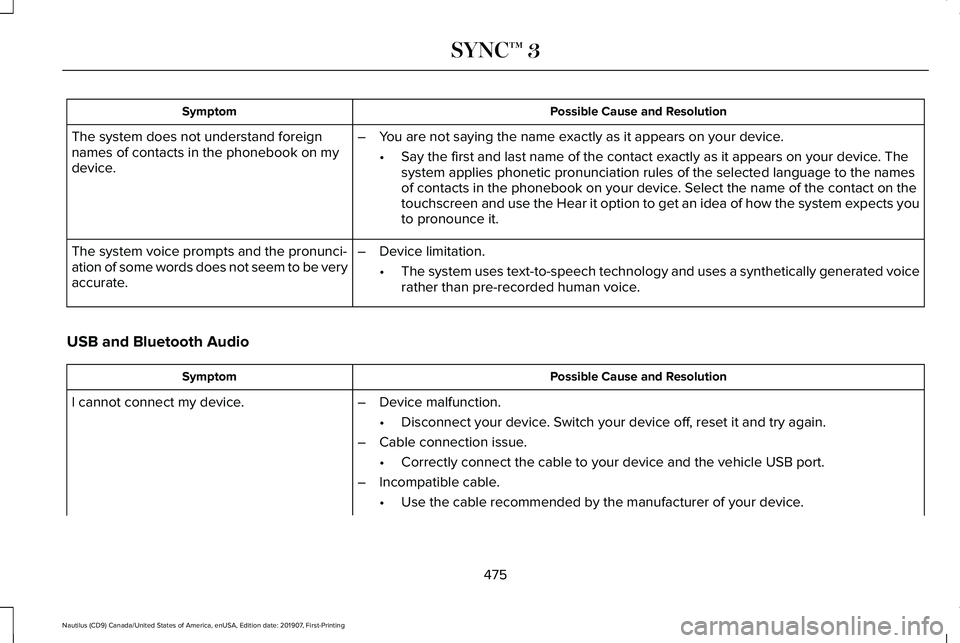
Possible Cause and Resolution
Symptom
The system does not understand foreign
names of contacts in the phonebook on my
device. –
You are not saying the name exactly as it appears on your device.
•Say the first and last name of the contact exactly as it appears on your\
device. The
system applies phonetic pronunciation rules of the selected language to \
the names
of contacts in the phonebook on your device. Select the name of the contact on the
touchscreen and use the Hear it option to get an idea of how the system \
expects you
to pronounce it.
– Device limitation.
•The system uses text-to-speech technology and uses a synthetically gener\
ated voice
rather than pre-recorded human voice.
The system voice prompts and the pronunci-
ation of some words does not seem to be very
accurate.
USB and Bluetooth Audio Possible Cause and Resolution
Symptom
I cannot connect my device. –Device malfunction.
•Disconnect your device. Switch your device off, reset it and try again.
– Cable connection issue.
•Correctly connect the cable to your device and the vehicle USB port.
– Incompatible cable.
•Use the cable recommended by the manufacturer of your device.
475
Nautilus (CD9) Canada/United States of America, enUSA, Edition date: 201907, First-Printing SYNC™ 3
Page 479 of 596

Possible Cause and Resolution
Symptom
–Incorrect device settings.
•Make sure that your device does not have an auto-install program or active \
security
settings.
• Check that your device is not set only to charge.
– Device lock screen enabled.
•Unlock your device before connecting it.
The system does not recognize my device. –Device limitation.
•Do not leave your device in your vehicle during very hot or very cold we\
ather condi-
tions.
– Cable connection issue.
•Correctly connect the cable to your device and the vehicle USB port.
– Incompatible cable.
•Use the cable recommended by the manufacturer of your device.
The system does not understand the name of
a track or artist. –
Device limitation. Bluetooth does not support voice commands.
•Connect your device to a USB port.
• If you have an iOS device, press and hold the voice control button on the steering
wheel to use Siri to play specific tracks.
476
Nautilus (CD9) Canada/United States of America, enUSA, Edition date: 201907, First-Printing SYNC™ 3
Page 480 of 596
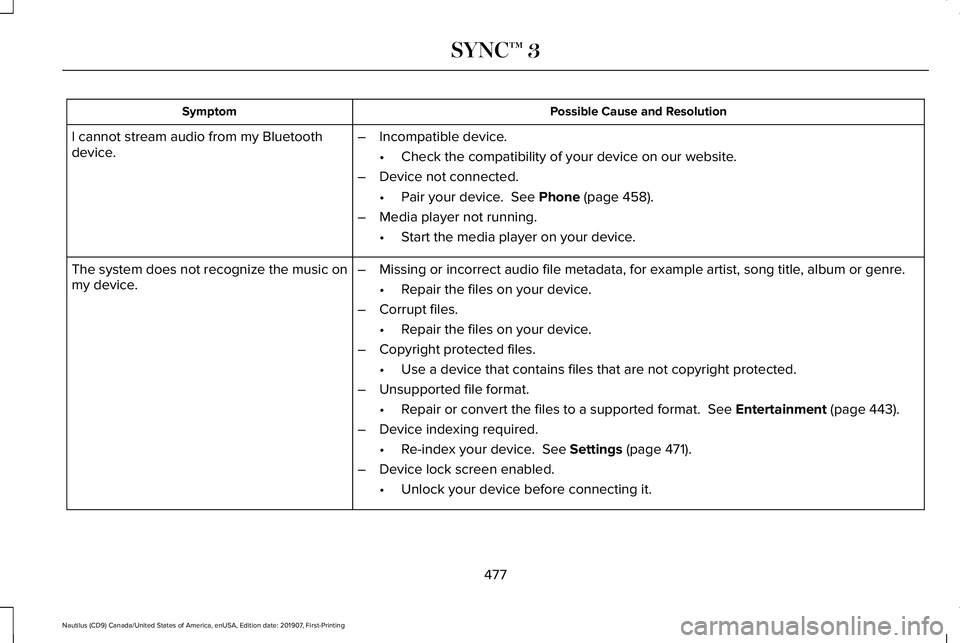
Possible Cause and Resolution
Symptom
I cannot stream audio from my Bluetooth
device. –
Incompatible device.
•Check the compatibility of your device on our website.
– Device not connected.
•Pair your device. See Phone (page 458).
– Media player not running.
•Start the media player on your device.
The system does not recognize the music on
my device. –
Missing or incorrect audio file metadata, for example artist, song title\
, album or genre.
•Repair the files on your device.
– Corrupt files.
•Repair the files on your device.
– Copyright protected files.
•Use a device that contains files that are not copyright protected.
– Unsupported file format.
•Repair or convert the files to a supported format.
See Entertainment (page 443).
– Device indexing required.
•Re-index your device.
See Settings (page 471).
– Device lock screen enabled.
•Unlock your device before connecting it.
477
Nautilus (CD9) Canada/United States of America, enUSA, Edition date: 201907, First-Printing SYNC™ 3
Page 486 of 596

Apps
Possible Cause and Resolution
Symptom
The system cannot find any apps. –Incompatible device.
•You will need an Android device with OS 4.3 or higher or an iOS device wi\
th iOS 8.0
or higher. Pair and connect your Android device to find AppLink compatible apps.
Connect your iOS device to a USB port or pair and connect using Bluetoot\
h.
I have a compatible device and it is correctly
connected but the system still cannot find any
apps. –
AppLink compatible apps not installed on your device.
•Download and install the latest version of the app.
– AppLink compatible apps not running on your device.
•Start the apps to allow the system to find them and make sure you sign in to any apps
if required.
– Incorrect app settings.
•Check and adjust the app settings on your device and allow SYNC to access the app
if required.
I have a compatible device, it is correctly
connected and my apps are running but the
system still cannot find any apps. –
Apps failed to fully close.
•Restart the apps and try again.
• If you have an Android device with apps that have an exit or quit option\
, use this and
then restart the apps. Alternatively, use the force stop option in the settings menu on
your device.
• If you have an iOS device with iOS 7.0 or higher, tap the home button on your device
twice and then swipe the app upward to close it.
483
Nautilus (CD9) Canada/United States of America, enUSA, Edition date: 201907, First-Printing SYNC™ 3
Page 487 of 596
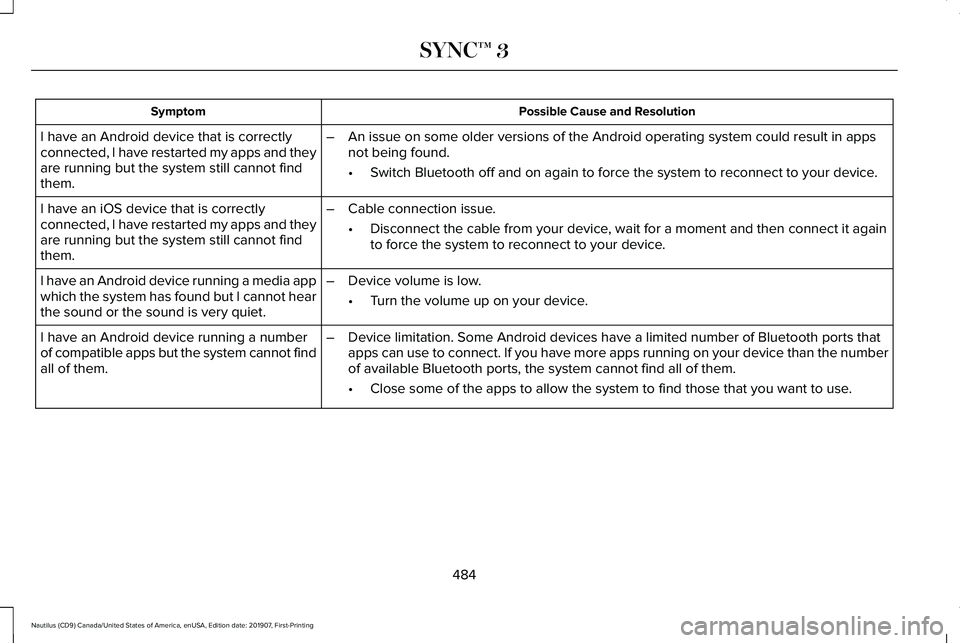
Possible Cause and Resolution
Symptom
I have an Android device that is correctly
connected, I have restarted my apps and they
are running but the system still cannot find
them. –
An issue on some older versions of the Android operating system could re\
sult in apps
not being found.
•Switch Bluetooth off and on again to force the system to reconnect to you\
r device.
I have an iOS device that is correctly
connected, I have restarted my apps and they
are running but the system still cannot find
them. –
Cable connection issue.
•Disconnect the cable from your device, wait for a moment and then connect it again
to force the system to reconnect to your device.
I have an Android device running a media app
which the system has found but I cannot hear
the sound or the sound is very quiet. –
Device volume is low.
•Turn the volume up on your device.
I have an Android device running a number
of compatible apps but the system cannot find
all of them. –
Device limitation. Some Android devices have a limited number of Bluetoo\
th ports that
apps can use to connect. If you have more apps running on your device th\
an the number
of available Bluetooth ports, the system cannot find all of them.
•Close some of the apps to allow the system to find those that you want t\
o use.
484
Nautilus (CD9) Canada/United States of America, enUSA, Edition date: 201907, First-Printing SYNC™ 3
Page 587 of 596
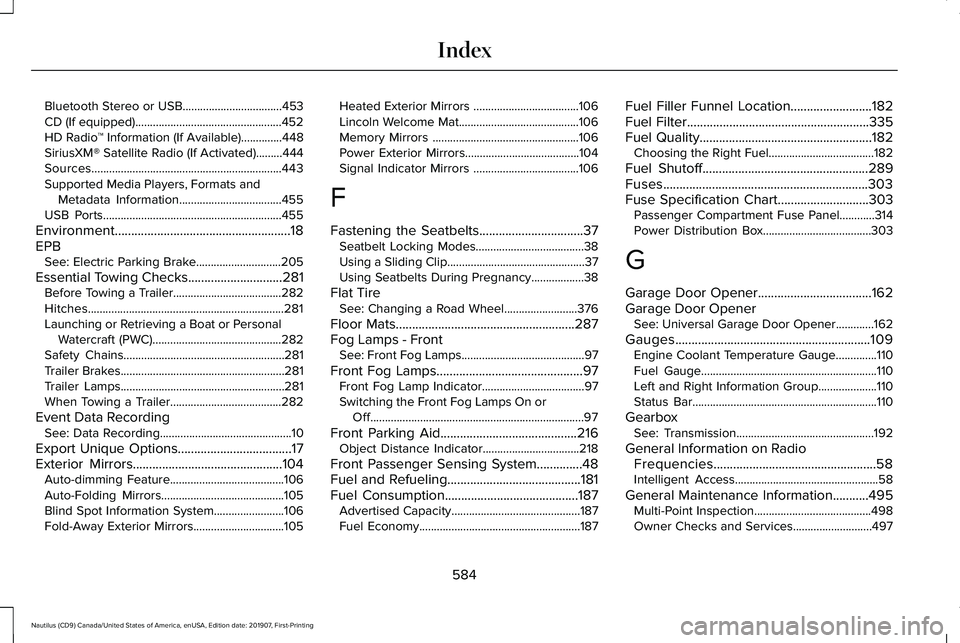
Bluetooth Stereo or USB..................................453
CD (If equipped)..................................................452
HD Radio
™ Information (If Available)..............448
SiriusXM® Satellite Radio (If Activated).........444
Sources.................................................................443
Supported Media Players, Formats and Metadata Information...................................
455
USB Ports.............................................................455
Environment......................................................18
EPB See: Electric Parking Brake.............................205
Essential Towing Checks.............................281 Before Towing a Trailer.....................................282
Hitches...................................................................281
Launching or Retrieving a Boat or Personal
Watercraft (PWC)............................................282
Safety Chains.......................................................281
Trailer Brakes........................................................281
Trailer Lamps........................................................281
When Towing a Trailer......................................282
Event Data Recording See: Data Recording.............................................10
Export Unique Options...................................17
Exterior Mirrors
..............................................104
Auto-dimming Feature.......................................106
Auto-Folding Mirrors..........................................105
Blind Spot Information System........................106
Fold-Away Exterior Mirrors...............................105 Heated Exterior Mirrors ....................................106
Lincoln Welcome Mat.........................................106
Memory Mirrors ..................................................106
Power Exterior Mirrors.......................................104
Signal Indicator Mirrors ....................................106
F
Fastening the Seatbelts................................37 Seatbelt Locking Modes.....................................38
Using a Sliding Clip...............................................37
Using Seatbelts During Pregnancy..................38
Flat Tire See: Changing a Road Wheel.........................376
Floor Mats
.......................................................287
Fog Lamps - Front See: Front Fog Lamps..........................................97
Front Fog Lamps.............................................97 Front Fog Lamp Indicator...................................97
Switching the Front Fog Lamps On or
Off........................................................................\
.97
Front Parking Aid..........................................216 Object Distance Indicator.................................218
Front Passenger Sensing System..............48
Fuel and Refueling
.........................................181
Fuel Consumption.........................................187
Advertised Capacity............................................187
Fuel Economy.......................................................187 Fuel Filler Funnel Location.........................182
Fuel Filter
........................................................335
Fuel Quality.....................................................182
Choosing the Right Fuel....................................182
Fuel Shutoff
...................................................289
Fuses...............................................................303
Fuse Specification Chart
............................303
Passenger Compartment Fuse Panel............314
Power Distribution Box.....................................303
G
Garage Door Opener...................................162
Garage Door Opener See: Universal Garage Door Opener.............162
Gauges............................................................109 Engine Coolant Temperature Gauge..............
110
Fuel Gauge............................................................110
Left and Right Information Group....................110
Status Bar...............................................................110
Gearbox See: Transmission...............................................192
General Information on Radio Frequencies..................................................58
Intelligent Access.................................................58
General Maintenance Information...........495 Multi-Point Inspection........................................498
Owner Checks and Services...........................497
584
Nautilus (CD9) Canada/United States of America, enUSA, Edition date: 201907, First-Printing Index