audio LINCOLN NAUTILUS 2020 User Guide
[x] Cancel search | Manufacturer: LINCOLN, Model Year: 2020, Model line: NAUTILUS, Model: LINCOLN NAUTILUS 2020Pages: 596, PDF Size: 5.88 MB
Page 137 of 596
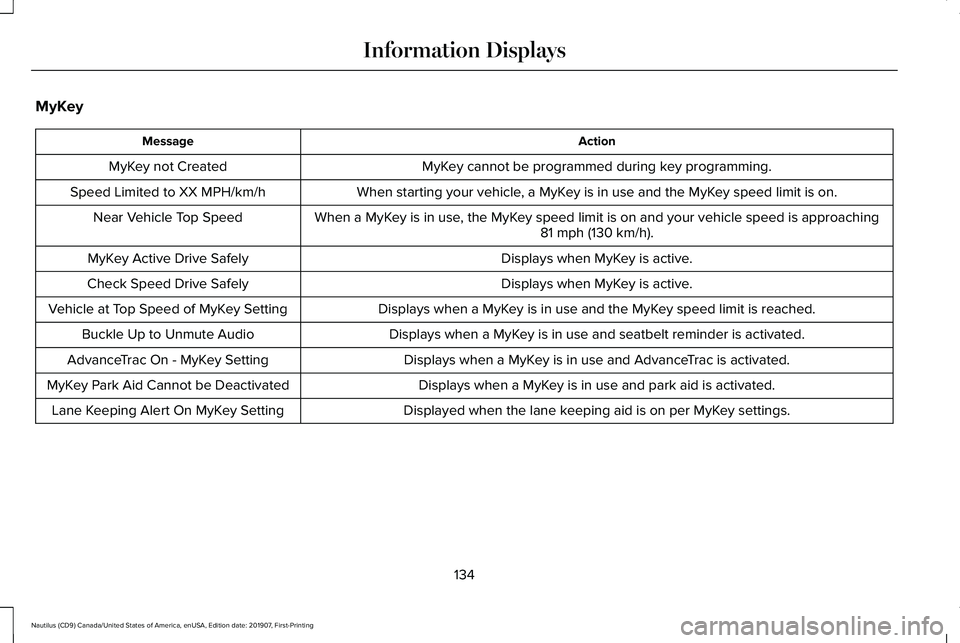
MyKey
Action
Message
MyKey cannot be programmed during key programming.
MyKey not Created
When starting your vehicle, a MyKey is in use and the MyKey speed limit is on.
Speed Limited to XX MPH/km/h
When a MyKey is in use, the MyKey speed limit is on and your vehicle speed is approaching81 mph (130 km/h).
Near Vehicle Top Speed
Displays when MyKey is active.
MyKey Active Drive Safely
Displays when MyKey is active.
Check Speed Drive Safely
Displays when a MyKey is in use and the MyKey speed limit is reached.
Vehicle at Top Speed of MyKey Setting
Displays when a MyKey is in use and seatbelt reminder is activated.
Buckle Up to Unmute Audio
Displays when a MyKey is in use and AdvanceTrac is activated.
AdvanceTrac On - MyKey Setting
Displays when a MyKey is in use and park aid is activated.
MyKey Park Aid Cannot be Deactivated
Displayed when the lane keeping aid is on per MyKey settings.
Lane Keeping Alert On MyKey Setting
134
Nautilus (CD9) Canada/United States of America, enUSA, Edition date: 201907, First-Printing Information Displays
Page 218 of 596
WARNING: The system may not
detect small or moving objects, particularly
those close to the ground. WARNING:
To help avoid personal
injury, always use caution when in reverse
(R) and when using the sensing system. WARNING:
The parking aid system
can only assist you to detect objects when
your vehicle is moving at parking speeds.
To help avoid personal injury you must
take care when using the parking aid
system.
Note: Keep the sensors free from snow, ice
and large accumulations of dirt.
Note: Do not cover up the sensors.
Note: Do not clean the sensors with sharp
objects.
Note: If your vehicle sustains damage
leaving the sensors misaligned, this may
cause inaccurate measurements or false
alerts. Note:
Some accessories, for example large
trailer hitches or bike or surfboard racks can
cause reduced performance or false alerts.
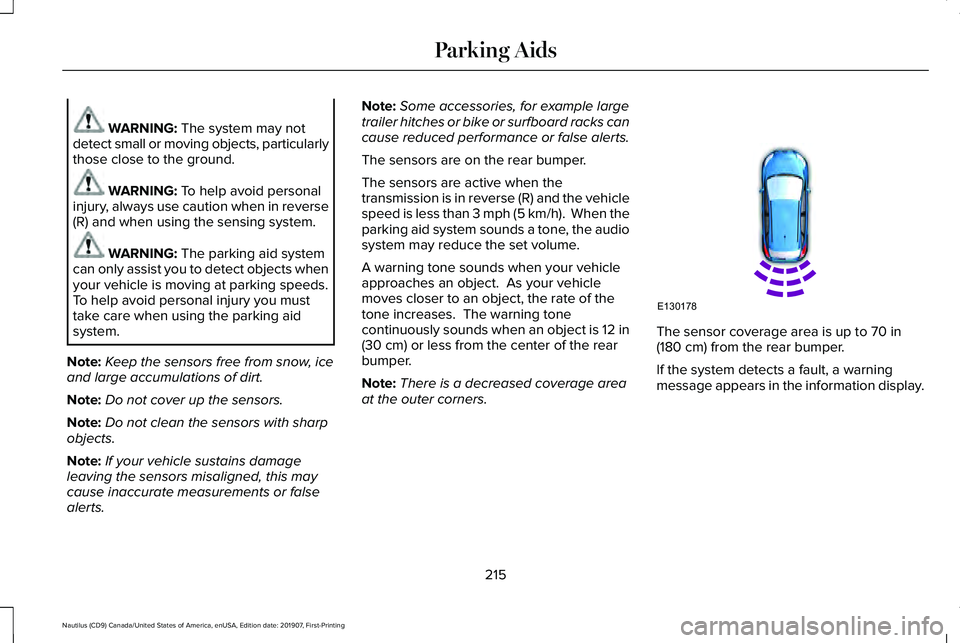
The sensors are on the rear bumper.
The sensors are active when the
transmission is in reverse (R) and the vehicle
speed is less than 3 mph (5 km/h). When the
parking aid system sounds a tone, the audio
system may reduce the set volume.
A warning tone sounds when your vehicle
approaches an object. As your vehicle
moves closer to an object, the rate of the
tone increases. The warning tone
continuously sounds when an object is 12 in
(30 cm)
or less from the center of the rear
bumper.
Note: There is a decreased coverage area
at the outer corners. The sensor coverage area is up to 70 in
(180 cm) from the rear bumper.
If the system detects a fault, a warning
message appears in the information display.
215
Nautilus (CD9) Canada/United States of America, enUSA, Edition date: 201907, First-Printing Parking AidsE130178
Page 220 of 596
WARNING: The parking aid system
can only assist you to detect objects when
your vehicle is moving at parking speeds.
To help avoid personal injury you must
take care when using the parking aid
system.
Note: Keep the sensors free from snow, ice
and large accumulations of dirt.
Note: Do not cover up the sensors.
Note: Do not clean the sensors with sharp
objects.
Note: If your vehicle sustains damage
leaving the sensors misaligned, this may
cause inaccurate measurements or false
alerts.
Note: Some accessories, for example large
trailer hitches or bike or surfboard racks can
cause reduced performance or false alerts.
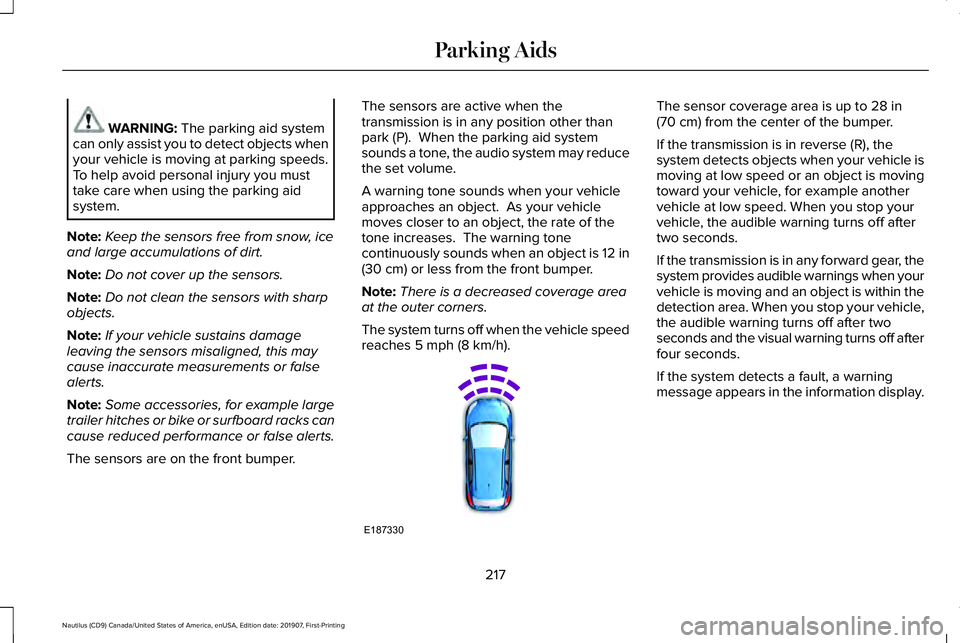
The sensors are on the front bumper. The sensors are active when the
transmission is in any position other than
park (P). When the parking aid system
sounds a tone, the audio system may reduce
the set volume.
A warning tone sounds when your vehicle
approaches an object. As your vehicle
moves closer to an object, the rate of the
tone increases. The warning tone
continuously sounds when an object is 12 in
(30 cm)
or less from the front bumper.
Note: There is a decreased coverage area
at the outer corners.
The system turns off when the vehicle speed
reaches
5 mph (8 km/h). The sensor coverage area is up to
28 in
(70 cm) from the center of the bumper.
If the transmission is in reverse (R), the
system detects objects when your vehicle is
moving at low speed or an object is moving
toward your vehicle, for example another
vehicle at low speed. When you stop your
vehicle, the audible warning turns off after
two seconds.
If the transmission is in any forward gear, the
system provides audible warnings when your
vehicle is moving and an object is within the
detection area. When you stop your vehicle,
the audible warning turns off after two
seconds and the visual warning turns off after
four seconds.
If the system detects a fault, a warning
message appears in the information display.
217
Nautilus (CD9) Canada/United States of America, enUSA, Edition date: 201907, First-Printing Parking AidsE187330
Page 340 of 596
5. Run the engine until it reaches normal
operating temperature. While the engine
is warming up, complete the following:
Reset the clock. See Audio Unit (page
419). Reset the power windows
bounce-back feature. See Power
Windows (page 103). Reset the radio
station presets. See Audio Unit (page
419).
6. Allow the engine to idle for at least one minute.
7. Drive the vehicle at least 10 mi (16 km) to
completely relearn the idle trim and fuel
trim strategy.
Note: If you do not allow the engine to
relearn the idle and fuel trim strategy, the
idle quality of your vehicle may be adversely
affected until the engine computer
eventually relearns the idle trim and fuel trim
strategy.
Note: Certain features may not operate if
the battery monitor system is not reset with
a scan tool following a jump start or battery
replacement. Normal electrical accessory
operation should resume after your vehicle
is left undisturbed for 8 hours. Make sure that you dispose of old batteries
in an environmentally friendly way. Seek
advice from your local authority about
recycling old batteries.
If storing your vehicle for more than 30 days
without recharging the battery, we
recommend that you disconnect the battery
cables to maintain battery charge for quick
starting.
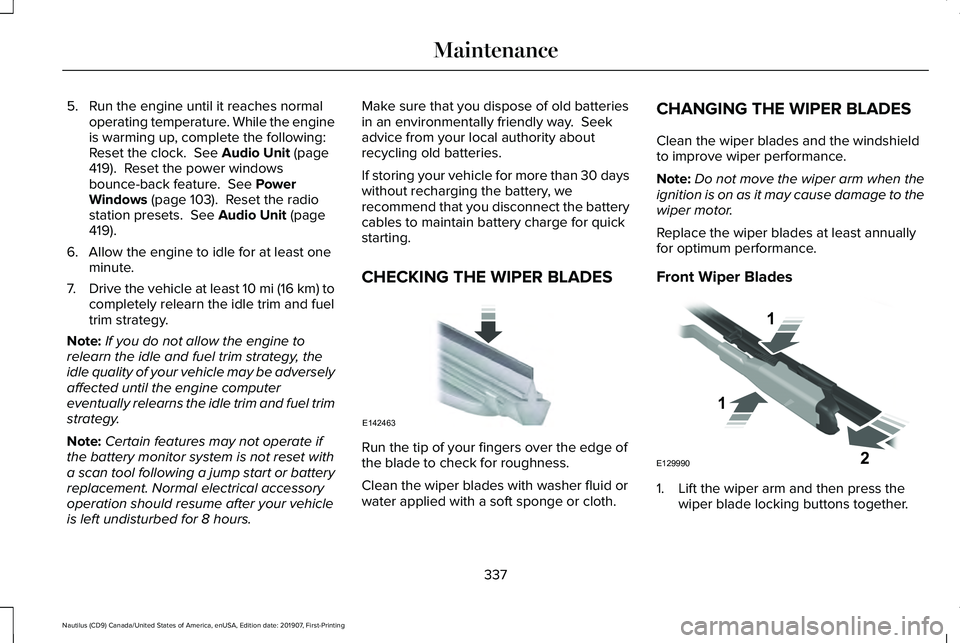
CHECKING THE WIPER BLADES
Run the tip of your fingers over the edge of
the blade to check for roughness.
Clean the wiper blades with washer fluid or
water applied with a soft sponge or cloth.CHANGING THE WIPER BLADES
Clean the wiper blades and the windshield
to improve wiper performance.
Note:
Do not move the wiper arm when the
ignition is on as it may cause damage to the
wiper motor.
Replace the wiper blades at least annually
for optimum performance.
Front Wiper Blades 1. Lift the wiper arm and then press the
wiper blade locking buttons together.
337
Nautilus (CD9) Canada/United States of America, enUSA, Edition date: 201907, First-Printing MaintenanceE142463 E129990
1
1 2
Page 421 of 596
GENERAL INFORMATION
Radio Frequencies and Reception
Factors
WARNING: Driving while distracted
can result in loss of vehicle control, crash
and injury. We strongly recommend that
you use extreme caution when using any device that may take your focus off the
road. Your primary responsibility is the safe
operation of your vehicle. We recommend
against the use of any hand-held device
while driving and encourage the use of
voice-operated systems when possible.
Make sure you are aware of all applicable
local laws that may affect the use of
electronic devices while driving.
Note:
Listening to loud audio for long
periods of time could damage your hearing. Radio Reception Factors
The further you travel from an AM or FM station, the weaker the signal and the weaker the reception.
Distance and strength
Hills, mountains, tall buildings, bridges, tunnels, freeway overpasses, \
parking garages, dense tree foliage and
thunderstorms can interfere with the reception.
Terrain
When you pass a ground-based broadcast repeating tower, a stronger signal may overtake a weaker one and
result in the audio system muting.
Station overload
418
Nautilus (CD9) Canada/United States of America, enUSA, Edition date: 201907, First-Printing Audio System
Page 422 of 596
AUDIO UNIT
WARNING: Driving while distracted
can result in loss of vehicle control, crash
and injury. We strongly recommend that
you use extreme caution when using any
device that may take your focus off the
road. Your primary responsibility is the safe
operation of your vehicle. We recommend
against the use of any hand-held device
while driving and encourage the use of
voice-operated systems when possible.
Make sure you are aware of all applicable
local laws that may affect the use of
electronic devices while driving. Note:
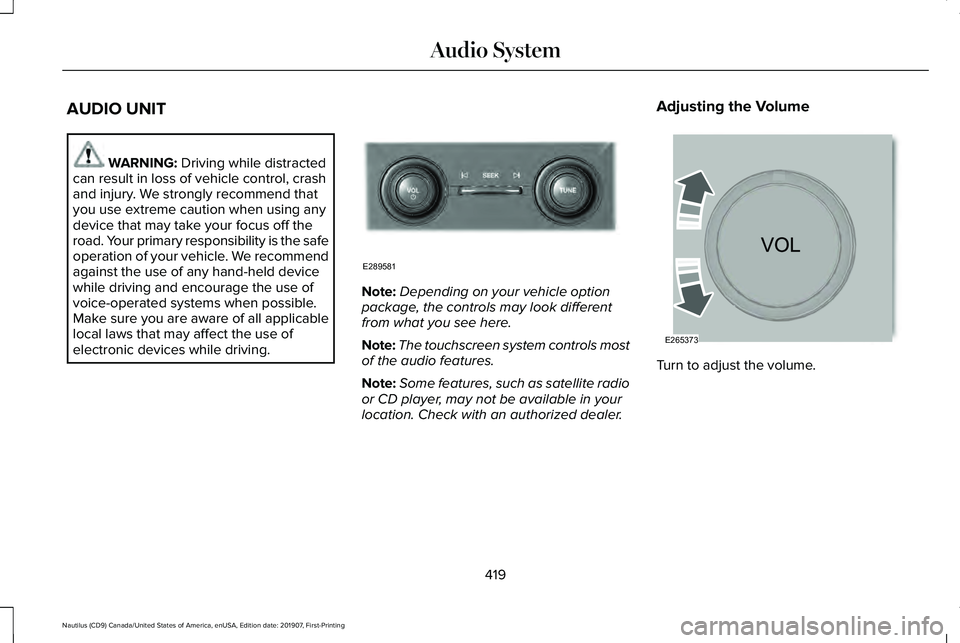
Depending on your vehicle option
package, the controls may look different
from what you see here.
Note: The touchscreen system controls most
of the audio features.
Note: Some features, such as satellite radio
or CD player, may not be available in your
location. Check with an authorized dealer. Adjusting the Volume
Turn to adjust the volume.
419
Nautilus (CD9) Canada/United States of America, enUSA, Edition date: 201907, First-Printing Audio SystemE289581 E265373
Page 423 of 596
Changing Radio Stations
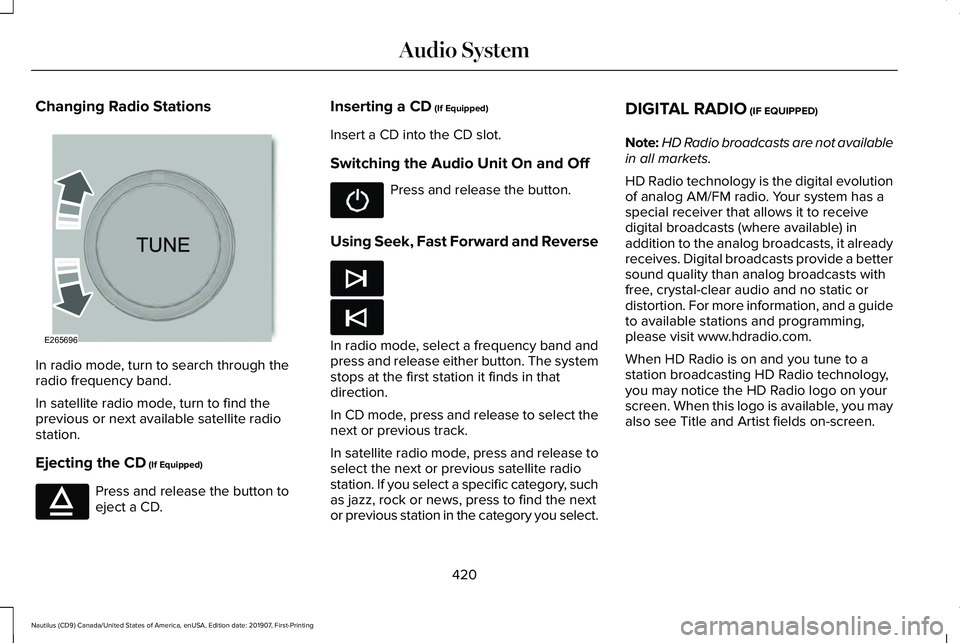
In radio mode, turn to search through the
radio frequency band.
In satellite radio mode, turn to find the
previous or next available satellite radio
station.
Ejecting the CD (If Equipped)
Press and release the button to
eject a CD. Inserting a CD
(If Equipped)
Insert a CD into the CD slot.
Switching the Audio Unit On and Off Press and release the button.
Using Seek, Fast Forward and Reverse In radio mode, select a frequency band and
press and release either button. The system
stops at the first station it finds in that
direction.
In CD mode, press and release to select the
next or previous track.
In satellite radio mode, press and release to
select the next or previous satellite radio
station. If you select a specific category, such
as jazz, rock or news, press to find the next
or previous station in the category you select.DIGITAL RADIO (IF EQUIPPED)
Note: HD Radio broadcasts are not available
in all markets.
HD Radio technology is the digital evolution
of analog AM/FM radio. Your system has a
special receiver that allows it to receive
digital broadcasts (where available) in
addition to the analog broadcasts, it already
receives. Digital broadcasts provide a better
sound quality than analog broadcasts with
free, crystal-clear audio and no static or
distortion. For more information, and a guide
to available stations and programming,
please visit www.hdradio.com.
When HD Radio is on and you tune to a
station broadcasting HD Radio technology,
you may notice the HD Radio logo on your
screen. When this logo is available, you may
also see Title and Artist fields on-screen.
420
Nautilus (CD9) Canada/United States of America, enUSA, Edition date: 201907, First-Printing Audio SystemE265696 E265032 E265044 E265045
Page 424 of 596
The multicast indicator appears in FM mode
(only) if the current station is broadcasting
multiple digital broadcasts. The highlighted
numbers signify available digital channels
where new or different content is available.
HD1 signifies the main programming status
and is available in analog and digital
broadcasts. Other multicast stations (HD2
through HD7) are only available digitally.
When HD Radio broadcasts are active, you
can access the following functions:
•
Scan allows you to hear a brief sampling
of all available stations. This feature still
works when HD Radio reception is on,
although it does not scan for HD2-HD7
channels. You may see the HD logo
appear if the station has a digital
broadcast.
• Memory presets
allow you to save an
active channel as a memory preset.
Touch and hold a memory preset slot
until the sound returns. There is a brief
mute while the radio saves the station.
Sound returns when finished. When
switching to an HD2 or HD3 memory
preset, the sound mutes before the
digital audio plays, because the system
has to reacquire the digital signal. Note:
As with any saved radio station, you
cannot access a station you save if your
vehicle is outside the station’ s reception
area.
421
Nautilus (CD9) Canada/United States of America, enUSA, Edition date: 201907, First-Printing Audio System
Page 425 of 596

HD Radio Reception and Station Troubleshooting
Potential Reception Issues
If you are listening to a multicast station and you are on the fringe of\
the reception area, the station may mute
due to weak signal strength.
Reception area
If you are listening to HD1, the system switches back to the analog broa\
dcast until the digital broadcast is
available again. However, if you are listening to any of the possible HD2-HD7 multicast channels\
, the station
mutes and stays muted unless it is able to connect to the digital signal\
again.
When the system first receives a station (aside from HD2-HD7 multicast \
stations), it first plays the station in the
analog version. Once the receiver verifies the station is an HD Radio station, it shifts to the digital version.
Depending on the station quality, you may hear a slight sound change when the station changes from analo\
g
to digital. Blending is the shift from analog to digital sound or digita\
l back to analog sound.
Station blending
In order to provide the best possible
experience, use the contact form to report
any station issues found while listening to a
station broadcasting with HD Radio
technology. Independent entities own and
operate each station. These stations are
responsible for ensuring all audio streams
and data fields are accurate.
422
Nautilus (CD9) Canada/United States of America, enUSA, Edition date: 201907, First-Printing Audio System
Page 426 of 596
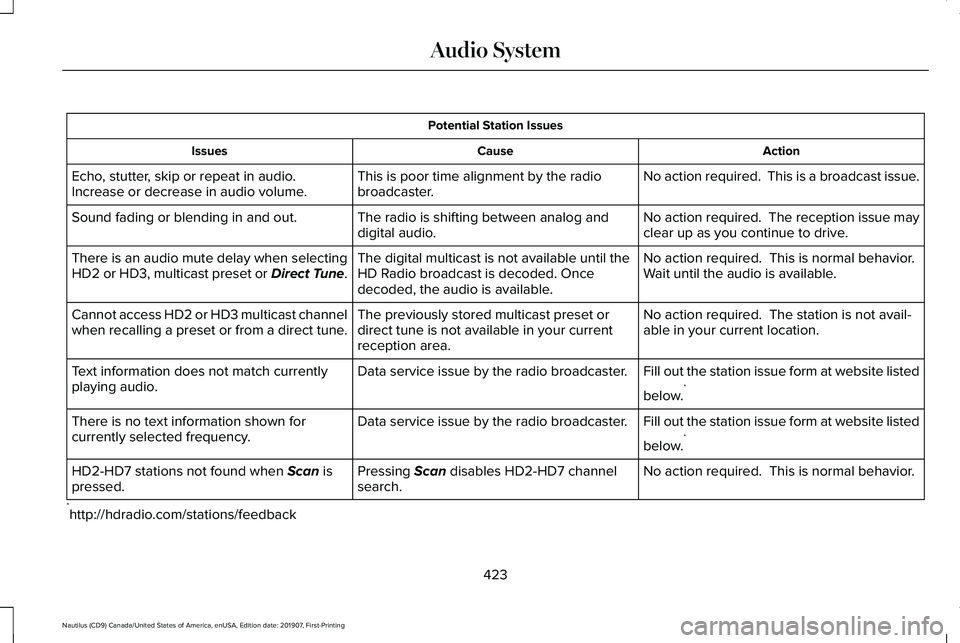
Potential Station Issues
Action
Cause
Issues
No action required. This is a broadcast issue.
This is poor time alignment by the radio
broadcaster.
Echo, stutter, skip or repeat in audio.
Increase or decrease in audio volume.
No action required. The reception issue may
clear up as you continue to drive.
The radio is shifting between analog and
digital audio.
Sound fading or blending in and out.
No action required. This is normal behavior.
Wait until the audio is available.
The digital multicast is not available until the
HD Radio broadcast is decoded. Once
decoded, the audio is available.
There is an audio mute delay when selecting
HD2 or HD3, multicast preset or Direct Tune.
No action required. The station is not avail-
able in your current location.
The previously stored multicast preset or
direct tune is not available in your current
reception area.
Cannot access HD2 or HD3 multicast channel
when recalling a preset or from a direct tune.
Fill out the station issue form at website listed
below.*
Data service issue by the radio broadcaster.
Text information does not match currently
playing audio.
Fill out the station issue form at website listed
below.*
Data service issue by the radio broadcaster.
There is no text information shown for
currently selected frequency.
No action required. This is normal behavior.
Pressing Scan disables HD2-HD7 channel
search.
HD2-HD7 stations not found when Scan is
pressed.
* http://hdradio.com/stations/feedback
423
Nautilus (CD9) Canada/United States of America, enUSA, Edition date: 201907, First-Printing Audio System