audio LINCOLN NAUTILUS 2023 User Guide
[x] Cancel search | Manufacturer: LINCOLN, Model Year: 2023, Model line: NAUTILUS, Model: LINCOLN NAUTILUS 2023Pages: 606, PDF Size: 13.57 MB
Page 438 of 606
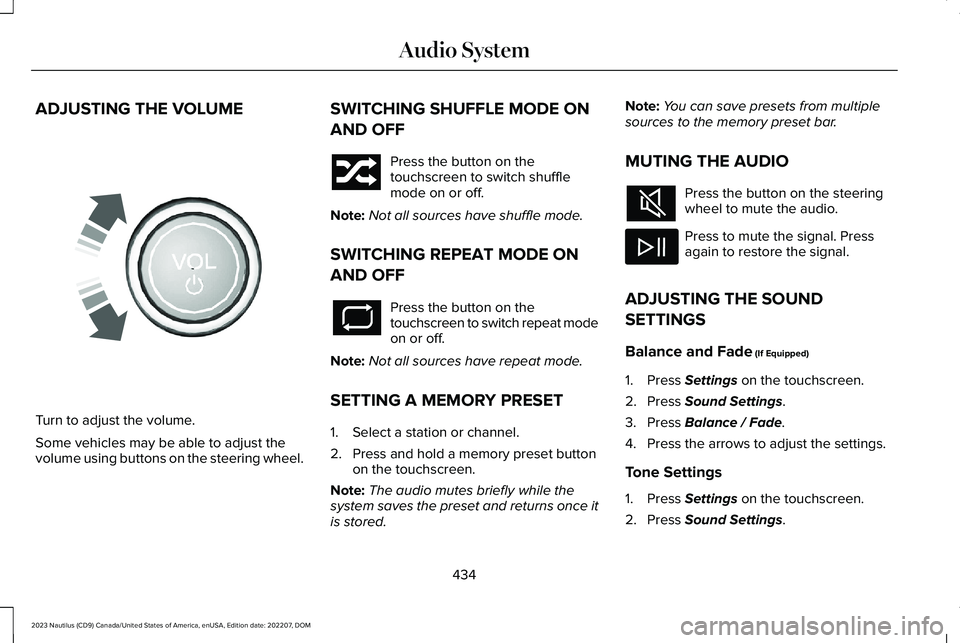
ADJUSTING THE VOLUME
Turn to adjust the volume.
Some vehicles may be able to adjust thevolume using buttons on the steering wheel.
SWITCHING SHUFFLE MODE ON
AND OFF
Press the button on thetouchscreen to switch shufflemode on or off.
Note:Not all sources have shuffle mode.
SWITCHING REPEAT MODE ON
AND OFF
Press the button on thetouchscreen to switch repeat modeon or off.
Note:Not all sources have repeat mode.
SETTING A MEMORY PRESET
1.Select a station or channel.
2.Press and hold a memory preset buttonon the touchscreen.
Note:The audio mutes briefly while thesystem saves the preset and returns once itis stored.
Note:You can save presets from multiplesources to the memory preset bar.
MUTING THE AUDIO
Press the button on the steeringwheel to mute the audio.
Press to mute the signal. Pressagain to restore the signal.
ADJUSTING THE SOUND
SETTINGS
Balance and Fade (If Equipped)
1.Press Settings on the touchscreen.
2.Press Sound Settings.
3.Press Balance / Fade.
4.Press the arrows to adjust the settings.
Tone Settings
1.Press Settings on the touchscreen.
2.Press Sound Settings.
434
2023 Nautilus (CD9) Canada/United States of America, enUSA, Edition date: 202207, DOMAudio SystemE248939
Page 439 of 606
3.Press Tone Settings.
4.Press the arrows or slider bar to adjustthe settings.
Speed Compensated Volume
1.Press Settings on the touchscreen.
2.Press Sound Settings.
3.Press Speed Compensated Volume.
4.Press a setting.
Occupancy Mode (If Equipped)
1.Press Settings on the touchscreen.
2.Press Sound Settings.
3.Press Occupancy Mode.
4.Press a setting.
Sound Mode (If Equipped)
1.Press Settings on the touchscreen.
2.Press Sound Settings.
3.Press Sound Mode.
4.Press a setting.
SETTING THE CLOCK AND DATE
1.Press Settings on the touchscreen.
2.Press Clock Settings.
3.Set the time.
Note:The AM and PM options are notavailable if 24-hour mode is on.
Switching Automatic Time Updates Onand Off
1.Press Settings on the touchscreen.
2.Press Clock Settings.
3.Switch Auto Time Update on or off.
AM/FM RADIO
AM/FM RADIO LIMITATIONS
The further you travel from an AM or FMstation, the weaker the signal and the weakerthe reception.
Hills, mountains, tall buildings, bridges,tunnels, freeway overpasses, parkinggarages, dense tree foliage andthunderstorms can interfere with thereception.
When you pass a ground-based broadcastrepeating tower, a stronger signal mayovertake a weaker one and result in theaudio system muting.
435
2023 Nautilus (CD9) Canada/United States of America, enUSA, Edition date: 202207, DOMAudio System
Page 440 of 606
SELECTING A RADIO STATION
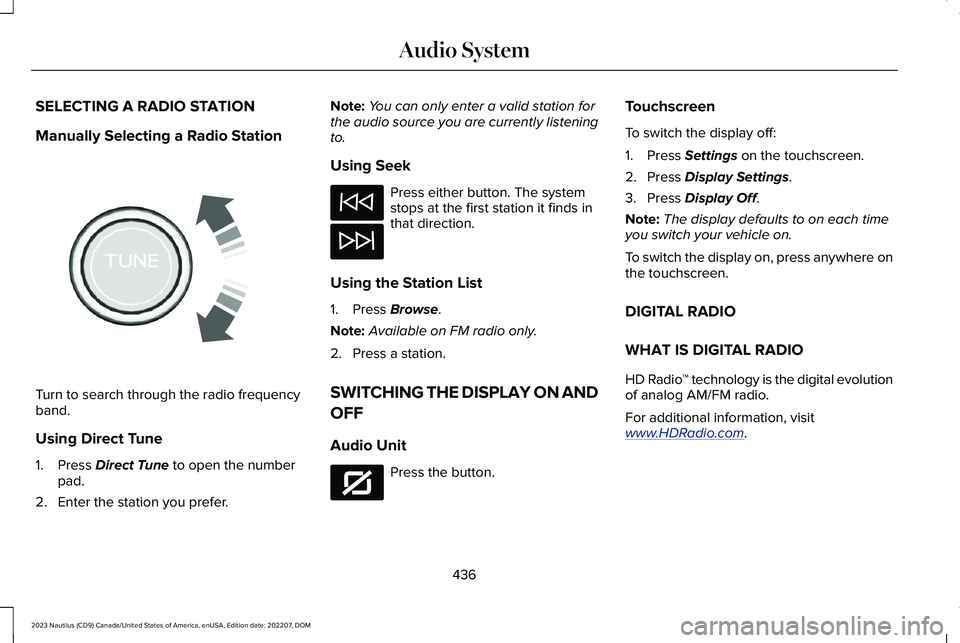
Manually Selecting a Radio Station
Turn to search through the radio frequencyband.
Using Direct Tune
1.Press Direct Tune to open the numberpad.
2.Enter the station you prefer.
Note:You can only enter a valid station forthe audio source you are currently listeningto.
Using Seek
Press either button. The systemstops at the first station it finds inthat direction.
Using the Station List
1.Press Browse.
Note:Available on FM radio only.
2.Press a station.
SWITCHING THE DISPLAY ON AND
OFF
Audio Unit
Press the button.
Touchscreen
To switch the display off:
1.Press Settings on the touchscreen.
2.Press Display Settings.
3.Press Display Off.
Note:The display defaults to on each timeyou switch your vehicle on.
To switch the display on, press anywhere onthe touchscreen.
DIGITAL RADIO
WHAT IS DIGITAL RADIO
HD Radio™ technology is the digital evolutionof analog AM/FM radio.
For additional information, visitwww.HDRadio.com.
436
2023 Nautilus (CD9) Canada/United States of America, enUSA, Edition date: 202207, DOMAudio SystemE270235 E272035
Page 441 of 606
HD Radio Technology is manufactured underlicense from iBiquity Digital Corporation andforeign patents. HD Radio and the HD andHD Radio logos are proprietary trademarksof XPERI. The vehicle manufacturer andXPERI are not responsible for the contentsent using HD Radio technology. Contentmay be changed, added or deleted at anytime at the station owner's discretion.
HOW DOES DIGITAL RADIO WORK
Your system has a special receiver thatallows it to receive digital broadcasts inaddition to analog broadcasts.
HD1 signifies the main programming statusand is available in both analog and digitalbroadcasts. Other multicast stations are onlyavailable digitally and could contain new ordifferent content.
Note:When the system first receives an HD1station, it plays the station in the analogversion until it verifies the station is an HDRadio station. Then it shifts to the digitalversion.
Note:There is an audio mute delay whenswitching to an HD2 or HD3 station becausethe system has to reacquire and decode thedigital signal.
DIGITAL RADIO LIMITATIONS
If you are outside the reception area, thesystem could not work.
If you are on the fringe of the reception area,the station could mute due to weak signalstrength.
Note:If you are listening to HD1, the systemchanges back to the analog broadcast untilthe digital broadcast is available again. Ifyou are listening to any other multicastchannels, the station mutes and stays mutedunless it is able to connect to the digitalsignal again.
Depending on the station quality, you couldhear a slight sound change when the stationchanges between analog and digital audio.
You cannot access a saved HD station if yourvehicle is outside the station’s receptionarea.
SWITCHING DIGITAL RADIORECEPTION ON AND OFF
1.Press Settings on the touchscreen.
2.Press Radio Settings.
3.Switch AM HD Radio or FM HD Radioon or off.
DIGITAL RADIO INDICATORS
HD Radio Indicator
The indicator appears when HD Radio is onand you tune to a station broadcasting HDRadio technology.
The color of the indicator changes to indicatethe system status.
437
2023 Nautilus (CD9) Canada/United States of America, enUSA, Edition date: 202207, DOMAudio SystemE142616
Page 442 of 606
Gray indicates the system is acquiring adigital station.
Orange indicates digital audio is playing.
Multicast Indicator
The multicast indicator appears if the currentstation is broadcasting multiple digitalbroadcasts. The highlighted numbersindicate additional digital channels available.
Note:For stations that have more than oneHD multicast, the HD indicator and radio textappears as a button. Press the button tocycle through all of the HD stations on thatspecific frequency.
SATELLITE RADIO
WHAT IS SATELLITE RADIO
Lincoln SiriusXM with 360L Video Link
Your factory-installed SiriusXM radio systemincludes a limited subscription term, whichbegins on the date of sale or lease of yourvehicle. See an authorized dealer foravailability.
For additional information about extendedsubscription terms, visit www.SiriusXM.comin the United States, www.SiriusXM.ca inCanada, or call SiriusXM at 1-888-539-7474.
Note:SiriusXM reserves the unrestrictedright to change, rearrange, add or deleteprogramming including canceling, movingor adding particular channels, and its prices,at any time, with or without notice to you.Neither SiriusXM and its affiliates nor FordMotor Company and its affiliates will beliable to you or any third party for any suchmodification, suspension or termination.
SATELLITE RADIO LIMITATIONS
For optimal reception performance, keep theantenna clear of snow and ice build-up andkeep luggage and other material as far awayfrom the antenna as possible. Placingluggage over the antenna may reduceperformance. Factory-installed andaftermarket vehicle structures including, butnot limited to, roof racks and soft top roofsin a partially open position could reducereception performance.
Hills, mountains, tall buildings, bridges,tunnels, freeway overpasses, parkinggarages, dense tree foliage andthunderstorms can interfere with yourreception.
When you pass a ground-basedbroadcast-repeating tower, a stronger signalmay overtake a weaker one and could resultin the audio system muting. Your displaycould show an error message to indicate theinterference.
LOCATING THE SATELLITE RADIOIDENTIFICATION NUMBER
1.Select SiriusXM as the audio source.
2.Tune to channel 0.
SELECTING A CHANNEL
Manually Selecting a Channel
Press the button to find theprevious or next available radiochannel.
438
2023 Nautilus (CD9) Canada/United States of America, enUSA, Edition date: 202207, DOMAudio SystemE328569 E328570
Page 443 of 606
Linear Tuner
The linear tuner is displayed when manuallyselecting a channel. You can swipe left orright on the linear tuner carousel to navigatethrough the channel list. Tap on a channeltitle to listen to it.
Using Direct Tune
1.Press the channel up or down button toopen the linear tuner screen.
2.Press Direct Tune to open the numberpad.
3.Enter the channel you prefer.
Using Seek
Press either button.
Using the Channel List
1.Press Browse.
2.Select a channel.
SATELLITE RADIO SETTINGS
Subscription
Your subscription status is displayed. Youcan subscribe or manage your subscriptiondirectly from the touchscreen.
SiriusXM Favorites
While you are listening to SiriusXM, you cansave favorites by:
•Tapping the currently tuned channel orshow logo on the SiriusXM audio screen.
•Tuning to a channel or show you want tosave as a favorite. Navigate to theSiriusXM Favorites screen and press theAdd Current button. The currently tunedchannel or show is saved as a favorite.
•Saving a radio preset. This saves thecurrently tuned SiriusXM channel or showas a favorite
Note:Requires a trial or active subscriptionto use.
Listening History
Listening history is a list of recently listenedto SiriusXM content. You can view, manageand reset the listening history using thecontrols on the touchscreen.
Note:Requires a trial or active subscriptionto use.
Help and Support
You can contact SiriusXM Customer Caredirectly from SYNC and view informationrequired to manage your SiriusXM account.
SETTING AN ALERT
Set a notification for the currentsong, artist, or sports team bypressing the icon. The systemalerts you when it plays again on anychannel. Selecting this button allows you toenable and edit alerts.
Note:Notifications can be switched on oroff and edited in the satellite radio settings.
439
2023 Nautilus (CD9) Canada/United States of America, enUSA, Edition date: 202207, DOMAudio System E343640
Page 444 of 606
CENTER DISPLAY PRECAUTIONS
WARNING: Driving while distractedcan result in loss of vehicle control, crashand injury. We strongly recommend thatyou use extreme caution when using anydevice that may take your focus off theroad. Your primary responsibility is the safeoperation of your vehicle. We recommendagainst the use of any hand-held devicewhile driving and encourage the use ofvoice-operated systems when possible.Make sure you are aware of all applicablelocal laws that may affect the use ofelectronic devices while driving.
CENTER DISPLAY LIMITATIONS
Speed-restricted Features
For your safety, some features are notavailable while the vehicle is in motion at orabove 5 mph (8 km/h). Settings that are notcritical while driving your vehicle are shownas restricted on your display. Some of thesesettings include:
•Software updates.
•Personal profiles setup.
•Valet mode setup.
•Driver assistance settings.
•MyKey setup.
•Door keypad code setup.
These restricted features become availablewhen your vehicle is no longer in motion.
STATUS BAR
The bar is on top of the display and indicatesthe status of your vehicle's features.
Audio System
Audio system muted.
Connected Device
Cell phone microphone muted.
Phone call in progress.
Media player connected usingBluetooth®.
Cell phone network signalstrength.
Cell phone roaming.
Text message received.
Unread email message.
Automatic crash notification systemoff.
Cell phone battery status.
Vehicle Data
Wi-Fi available.
Wi-Fi connected.
440
2023 Nautilus (CD9) Canada/United States of America, enUSA, Edition date: 202207, DOMCenter Display OverviewE353221 E353213 E353208 E335295 E353216 E335293 E353219
Page 445 of 606
Vehicle data sharing on.
Vehicle data sharing off.
Vehicle location sharing on.
Vehicle data and vehicle locationsharing on.
Vehicle Software Update
See Software Update Indicators (page 462).
Wireless Accessory Charger
Wireless accessory charger active.
FEATURE BAR
The feature bar is located on the bottom ofthe display and allows you to access vehiclefeatures.
Press to use the radio, a USB, amedia player or a Bluetooth®device.
Press to make calls and access thephonebook on your cell phone.
Press to use the navigation system.
Press to replace this button with ashortcut to a feature or setting.
Press to search for and usecompatible apps on your iOS orAndroid device.
Press to adjust system settings.
INFORMATION ON DEMAND
SCREEN
The information on demand screen displayscards on the side of the display and allowsyou to see information from differentfeatures.
Press the button to view the nextcard.
Press the button to view theprevious card.
Press the button to view availablecards.
You can swipe toward the main screen tomove the content into the main screen.
Note:This can only be done with someinformation on demand screens.
REBOOTING THE CENTER DISPLAY
You can reboot the center display using thecontrols on the steering wheel.
1.Simultaneously press and hold the seekforward and audio system power buttonfor 10 seconds.
441
2023 Nautilus (CD9) Canada/United States of America, enUSA, Edition date: 202207, DOMCenter Display Overview E335292 E353214 E100027 E358432 E353220 E280315 E353212 E353211 E353209
Page 453 of 606
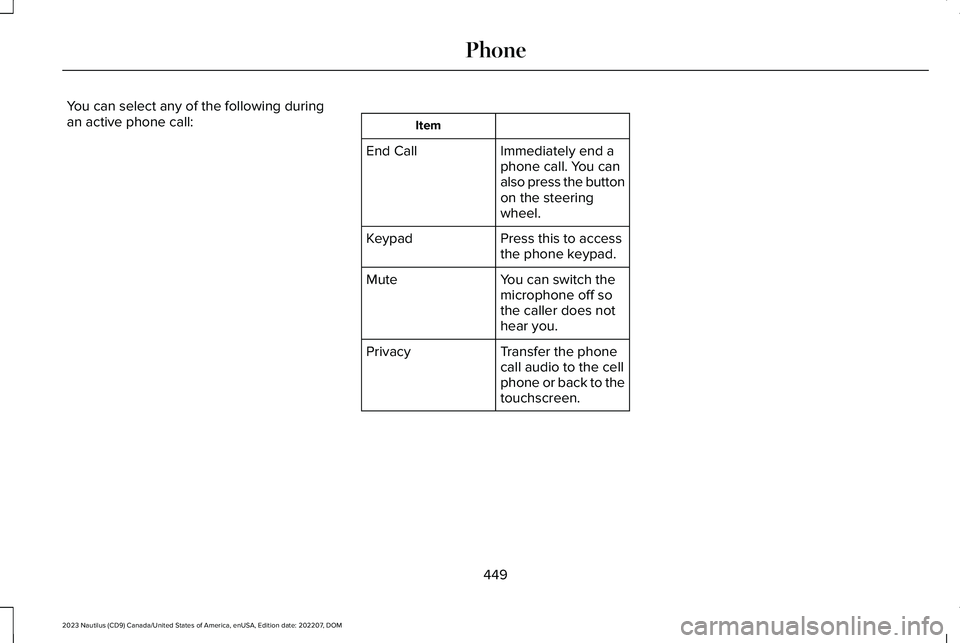
You can select any of the following duringan active phone call:Item
Immediately end aphone call. You canalso press the buttonon the steeringwheel.
End Call
Press this to accessthe phone keypad.Keypad
You can switch themicrophone off sothe caller does nothear you.
Mute
Transfer the phonecall audio to the cellphone or back to thetouchscreen.
Privacy
449
2023 Nautilus (CD9) Canada/United States of America, enUSA, Edition date: 202207, DOMPhone
Page 456 of 606
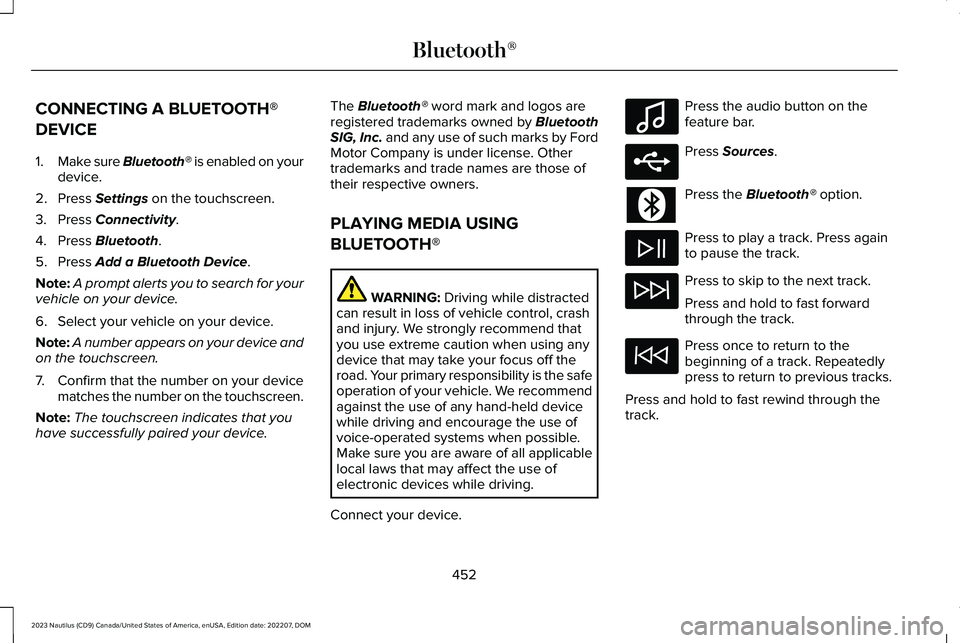
CONNECTING A BLUETOOTH®
DEVICE
1.Make sure Bluetooth® is enabled on yourdevice.
2.Press Settings on the touchscreen.
3.Press Connectivity.
4.Press Bluetooth.
5.Press Add a Bluetooth Device.
Note:A prompt alerts you to search for yourvehicle on your device.
6.Select your vehicle on your device.
Note:A number appears on your device andon the touchscreen.
7.Confirm that the number on your devicematches the number on the touchscreen.
Note:The touchscreen indicates that youhave successfully paired your device.
The Bluetooth® word mark and logos areregistered trademarks owned by BluetoothSIG, Inc. and any use of such marks by FordMotor Company is under license. Othertrademarks and trade names are those oftheir respective owners.
PLAYING MEDIA USING
BLUETOOTH®
WARNING: Driving while distractedcan result in loss of vehicle control, crashand injury. We strongly recommend thatyou use extreme caution when using anydevice that may take your focus off theroad. Your primary responsibility is the safeoperation of your vehicle. We recommendagainst the use of any hand-held devicewhile driving and encourage the use ofvoice-operated systems when possible.Make sure you are aware of all applicablelocal laws that may affect the use ofelectronic devices while driving.
Connect your device.
Press the audio button on thefeature bar.
Press Sources.
Press the Bluetooth® option.
Press to play a track. Press againto pause the track.
Press to skip to the next track.
Press and hold to fast forwardthrough the track.
Press once to return to thebeginning of a track. Repeatedlypress to return to previous tracks.
Press and hold to fast rewind through thetrack.
452
2023 Nautilus (CD9) Canada/United States of America, enUSA, Edition date: 202207, DOMBluetooth®E100027 E250655