phone LINCOLN NAUTILUS 2023 Owner's Manual
[x] Cancel search | Manufacturer: LINCOLN, Model Year: 2023, Model line: NAUTILUS, Model: LINCOLN NAUTILUS 2023Pages: 606, PDF Size: 13.57 MB
Page 210 of 606
2.Fully insert the fuel filler funnel into thefuel filler inlet.
3.Add fuel to your vehicle from the fuelcontainer.
4.Remove the fuel filler funnel.
5.Fully close the fuel filler door.
6.Clean the fuel filler funnel and place itback in your vehicle or correctly disposeof it.
Note:If your vehicle runs out of fuel add aminimum of 1.3 gal (5 L) of fuel to restart theengine.
Note:You may need to switch the ignitionfrom off to on several times after refuelingto allow the fuel system to pump the fuelfrom the tank to the engine. When restarting,cranking time takes a few seconds longerthan normal.
Note:Extra funnels can be purchased froman authorized dealer if you choose todispose of the funnel.
REFUELING
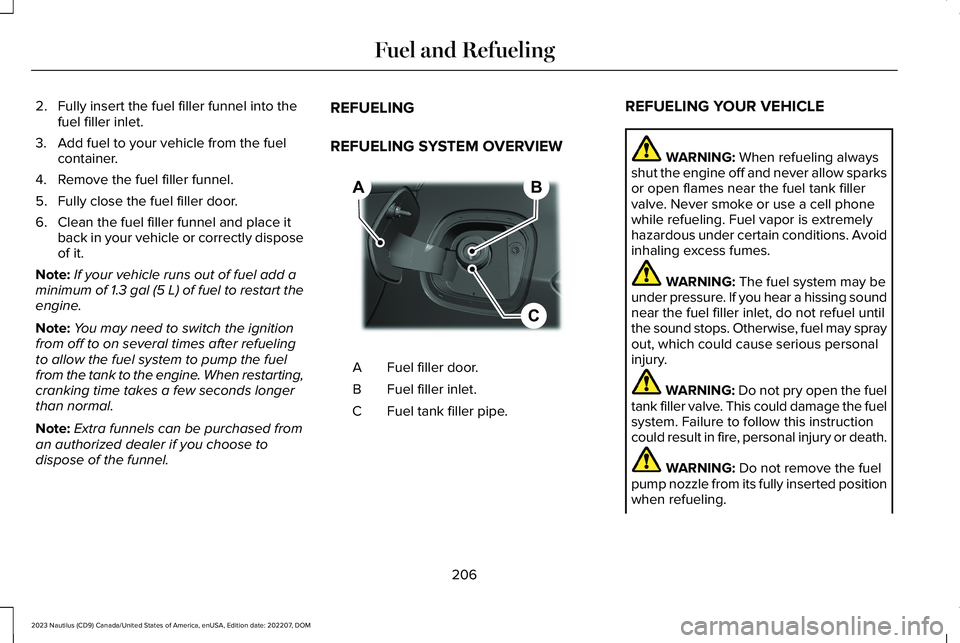
REFUELING SYSTEM OVERVIEW
Fuel filler door.A
Fuel filler inlet.B
Fuel tank filler pipe.C
REFUELING YOUR VEHICLE
WARNING: When refueling alwaysshut the engine off and never allow sparksor open flames near the fuel tank fillervalve. Never smoke or use a cell phonewhile refueling. Fuel vapor is extremelyhazardous under certain conditions. Avoidinhaling excess fumes.
WARNING: The fuel system may beunder pressure. If you hear a hissing soundnear the fuel filler inlet, do not refuel untilthe sound stops. Otherwise, fuel may sprayout, which could cause serious personalinjury.
WARNING: Do not pry open the fueltank filler valve. This could damage the fuelsystem. Failure to follow this instructioncould result in fire, personal injury or death.
WARNING: Do not remove the fuelpump nozzle from its fully inserted positionwhen refueling.
206
2023 Nautilus (CD9) Canada/United States of America, enUSA, Edition date: 202207, DOMFuel and RefuelingBCA E267248
Page 434 of 606
Possible Cause and ResolutionSymptom
If your vehicle is in a garage and you have the garage door closed, open the garagedoor.•
I cannot see a network in the list of availablenetworks that I expect to see.–Hidden network.
•Make the network visible and try again.
I cannot see the Wi-Fi hotspot name when Isearch for Wi-Fi networks on my cell phoneor other device.
–System limitation.
•Make sure Wi-Fi hotspot visibility is on.
•The system does not provide a Wi-Fi hotspot at this time.
–Weak network signal.
•Move your vehicle closer to the Wi-Fi hotspot or to a place where the network signalis not obstructed.
–Wi-Fi hotspot in high demand or has a slow Internet connection.
•Use a more reliable Wi-Fi hotspot.
Software downloads take too long.
–No software update available.
–Wi-Fi network requires a subscription or acceptance of terms and conditions.
•Test the connection using another device. If the network requires a subscription oracceptance of terms and conditions, contact the network service provider.
The system seems to connect to a Wi-Finetwork and the signal strength is excellentbut the software does not update.
430
2023 Nautilus (CD9) Canada/United States of America, enUSA, Edition date: 202207, DOMConnected Vehicle
Page 436 of 606
2.Press Settings.
3.Press Edit.
4.Press Change Network Name.
5.Enter your required network name.
6.Press Done.
7.Press Change Password.
8.Enter your required password.
9.Press Done.
Changing the Wi-Fi Hotspot Frequency
Note:The vehicle hotspot frequency bandis selectable depending upon your devicecapabilities. You will not be able to connectyour device to the vehicle hotspot if it doesnot support the selected frequency band.
Select the settings option on thefeature bar.
1.Press Vehicle Hotspot.
2.Press Settings.
3.Press Edit.
4.Select a frequency.
VEHICLE WI-FI HOTSPOT –
TROUBLESHOOTING
VEHICLE WI-FI HOTSPOT –FREQUENTLY ASKED QUESTIONS
Why can I not see the Wi-Fi hotspotname when I search for Wi-Fi networkson my cell phone or other device?
•Make sure Wi-Fi hotspot visibility is on.
•The system does not provide a Wi-Fihotspot at this time.
•Check what frequency the hotspot istransmitting in the vehicle hotspotsettings menu. If the frequency is 5 GHzand your device cannot see the network,change the frequency to 2.4 GHz.
432
2023 Nautilus (CD9) Canada/United States of America, enUSA, Edition date: 202207, DOMVehicle Wi-Fi HotspotE280315
Page 444 of 606
CENTER DISPLAY PRECAUTIONS
WARNING: Driving while distractedcan result in loss of vehicle control, crashand injury. We strongly recommend thatyou use extreme caution when using anydevice that may take your focus off theroad. Your primary responsibility is the safeoperation of your vehicle. We recommendagainst the use of any hand-held devicewhile driving and encourage the use ofvoice-operated systems when possible.Make sure you are aware of all applicablelocal laws that may affect the use ofelectronic devices while driving.
CENTER DISPLAY LIMITATIONS
Speed-restricted Features
For your safety, some features are notavailable while the vehicle is in motion at orabove 5 mph (8 km/h). Settings that are notcritical while driving your vehicle are shownas restricted on your display. Some of thesesettings include:
•Software updates.
•Personal profiles setup.
•Valet mode setup.
•Driver assistance settings.
•MyKey setup.
•Door keypad code setup.
These restricted features become availablewhen your vehicle is no longer in motion.
STATUS BAR
The bar is on top of the display and indicatesthe status of your vehicle's features.
Audio System
Audio system muted.
Connected Device
Cell phone microphone muted.
Phone call in progress.
Media player connected usingBluetooth®.
Cell phone network signalstrength.
Cell phone roaming.
Text message received.
Unread email message.
Automatic crash notification systemoff.
Cell phone battery status.
Vehicle Data
Wi-Fi available.
Wi-Fi connected.
440
2023 Nautilus (CD9) Canada/United States of America, enUSA, Edition date: 202207, DOMCenter Display OverviewE353221 E353213 E353208 E335295 E353216 E335293 E353219
Page 445 of 606
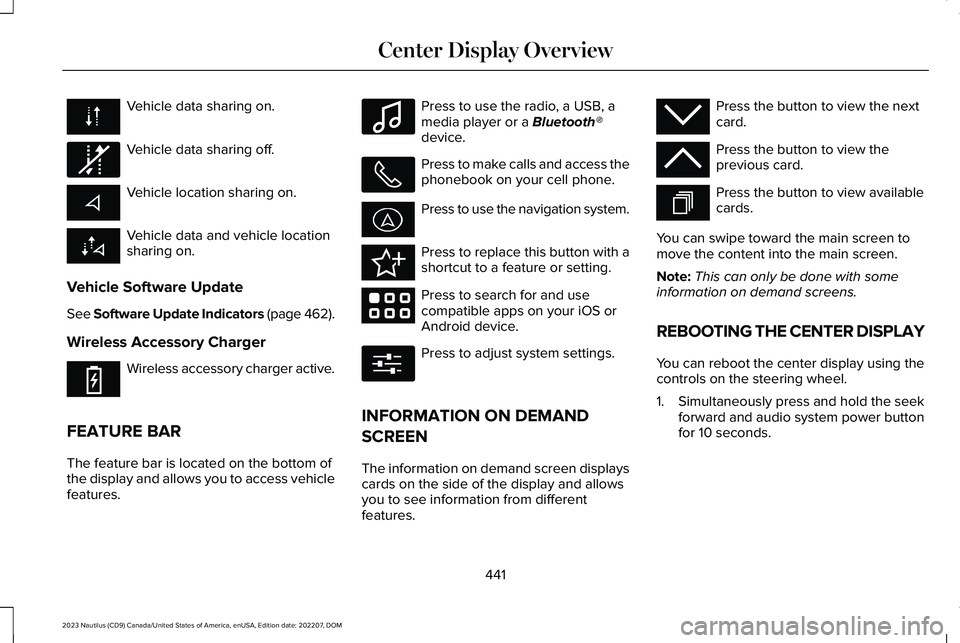
Vehicle data sharing on.
Vehicle data sharing off.
Vehicle location sharing on.
Vehicle data and vehicle locationsharing on.
Vehicle Software Update
See Software Update Indicators (page 462).
Wireless Accessory Charger
Wireless accessory charger active.
FEATURE BAR
The feature bar is located on the bottom ofthe display and allows you to access vehiclefeatures.
Press to use the radio, a USB, amedia player or a Bluetooth®device.
Press to make calls and access thephonebook on your cell phone.
Press to use the navigation system.
Press to replace this button with ashortcut to a feature or setting.
Press to search for and usecompatible apps on your iOS orAndroid device.
Press to adjust system settings.
INFORMATION ON DEMAND
SCREEN
The information on demand screen displayscards on the side of the display and allowsyou to see information from differentfeatures.
Press the button to view the nextcard.
Press the button to view theprevious card.
Press the button to view availablecards.
You can swipe toward the main screen tomove the content into the main screen.
Note:This can only be done with someinformation on demand screens.
REBOOTING THE CENTER DISPLAY
You can reboot the center display using thecontrols on the steering wheel.
1.Simultaneously press and hold the seekforward and audio system power buttonfor 10 seconds.
441
2023 Nautilus (CD9) Canada/United States of America, enUSA, Edition date: 202207, DOMCenter Display Overview E335292 E353214 E100027 E358432 E353220 E280315 E353212 E353211 E353209
Page 446 of 606
LINCOLN PERSONAL ASSISTANT
USING LINCOLN PERSONALASSISTANT
The digital assistant allows you to controlvehicle features using conversationalrequests.
To begin a voice interaction using the wakeword, say the selected wake word, then sayyour command.
Press the voice interaction buttonon the steering wheel. A tonesounds before you can say yourcommand.
Note:You may need to enable your vehicle'smodem to use certain voice commands. SeeEnabling and Disabling the Modem (page427).
Note:When you are not driving, additionalcommands are available by using popularchat applications. Use LincolnWay to setupa conversation with your Lincoln assistant.
Voice Command Examples
To see examples of what voice commandsyou can use with different features:
Press the button on thetouchscreen.
1.Press Lincoln Assistant.
2.Press Voice Command Help.
3.Select a feature.
LINCOLN PERSONAL ASSISTANTSETTINGS
To access the settings menu:
Press the button on thetouchscreen.
1.Press Lincoln Assistant.
From the settings menu you can do thefollowing:
•Switch listen for wake word on or off.
•Set the preferred wake word.
•Switch advance mode on or off.
•Switch phone confirmation on or off.
•Switch the commands list on or off.
•View the commands help menu.
Press the button next to a menuoption for more information.
LINCOLN PERSONAL ASSISTANT –FREQUENTLY ASKED QUESTIONS
Why does the system not understandwhat I am saying?
•You are speaking too soon. When usingthe button of the steering wheel, wait forthe tone before you speak.
442
2023 Nautilus (CD9) Canada/United States of America, enUSA, Edition date: 202207, DOMVoice InteractionE142599 E280315 E280315 E366956
Page 447 of 606
Why does the system not understandthe name of a track or artist?
•Bluetooth® does not support voicecommands.Connect your device to a USBport.
•You are not saying the name exactly asit appears on your device. Say the nameof the track or artist exactly as it appearson your device. Spell out anyabbreviations in the name.
•The system does not recognize somespecial characters contained in the nameof a song or artist, for example *, - or +.Rename the files on your device or usethe touchscreen to select and play thetrack.
Why does the system not understandthe name of a contact in thephonebook on my device and calls thewrong contact?
•You are not saying the name exactly asit appears on your device. Say the firstand last name of the contact exactly asit appears on your device. Spell out anyabbreviations in the name.
•The name contains special characters,for example *, - or +. Rename the contacton your device or use the touchscreento select and call the contact.
Why does the system not understandforeign names of contacts in thephonebook on my device?
•The system applies phoneticpronunciation rules of the selectedlanguage to the names of contacts in thephonebook on your device. Select thename of the contact on the touchscreenand use the Hear it option to get an ideaof how the system expects you topronounce it.
Why do the system voice prompts andthe pronunciation of some words notseem accurate?
•The system uses text-to-speechtechnology and a synthetically generatedvoice rather than a pre-recorded humanvoice.
443
2023 Nautilus (CD9) Canada/United States of America, enUSA, Edition date: 202207, DOMVoice Interaction
Page 448 of 606
WHAT IS ALEXA BUILT-IN
Allows you to use Alexa in your vehicle forauto specific use cases on the road andgives you access to an ever evolving numberof skills that help to make your life moreproductive, entertaining, and connectedwhile using your vehicle.
ALEXA BUILT-IN REQUIREMENTS
To use Alexa, all of the following must occur:
•Your vehicle modem is enabled.
•You are logged into an existing Amazonaccount.
•Vehicle location services are enabled.
•Vehicle connectivity and vehicle datasharing is enabled.
SIGNING INTO YOUR ACCOUNT
Press the button in the status barand follow the on-screen prompts.
To sign in using the settings menu:
1.Press Settings on the touchscreen.
2.Press Amazon Alexa.
3.Press Get Started.
4.Sign into your account by either scanningthe QR code or entering the on-screencode into the Amazon website.
5.Once logged in, follow the on-screenprompts.
6.When complete, the vehicle informs youthat Alexa is ready to be used in thevehicle.
Signing Out of Your Account
1.Press Settings on the touchscreen.
2.Press Amazon Alexa.
3.Press Sign Out.
USING ALEXA BUILT-IN
To use Alexa, say “Alexa” or press the voiceinteraction button on the steering wheel andthen say “Alexa” to invoke Alexa to startlistening.
Note:If the wake word is not enabled, youcan only use the voice interaction button.
You can use Alexa for the following andmore:
•Entertainment.
•Hands-free calling.
•Traffic and navigation.
•Vehicle controls.
•Smart home device control.
•Weather and news information.
ALEXA BUILT-IN SETTINGS
Enabling the Wake Word
1.Press Settings on the touchscreen.
2.Press Amazon Alexa.
3.Switch Listen for Wake Word on or off.
Note:If the wake word is not enabled, youcan only use the voice interaction button.
Contact List
Displays a list of connected phones andcontact sharing status for each phone.
444
2023 Nautilus (CD9) Canada/United States of America, enUSA, Edition date: 202207, DOMAlexa Built-InE368039
Page 449 of 606
To change the contact sharing status:
1.Press Settings on the touchscreen.
2.Press Amazon Alexa.
3.Press Contact List.
4.Enable or disable sharing for each phone.
Note:You can share contacts from morethan one phone at a time.
Note:If a contact list is not shared,hands-free calling does not work via Alexa.
Things to Try
Learn more about what you can do withAlexa by browsing the things to try.
1.Press Settings on the touchscreen.
2.Press Amazon Alexa.
3.Press Things to Try.
445
2023 Nautilus (CD9) Canada/United States of America, enUSA, Edition date: 202207, DOMAlexa Built-In
Page 450 of 606
PHONE PRECAUTIONS
WARNING: Driving while distractedcan result in loss of vehicle control, crashand injury. We strongly recommend thatyou use extreme caution when using anydevice that may take your focus off theroad. Your primary responsibility is the safeoperation of your vehicle. We recommendagainst the use of any hand-held devicewhile driving and encourage the use ofvoice-operated systems when possible.Make sure you are aware of all applicablelocal laws that may affect the use ofelectronic devices while driving.
CONNECTING YOUR PHONE
Go to the settings menu on your device andswitch Bluetooth® on.
Press the phone option on thefeature bar.
1.Press Add Phone.
Note:A prompt alerts you to search for yourvehicle on your cell phone.
2.Select your vehicle on your cell phone.
Note:A number appears on your cell phoneand on the touchscreen.
3.Confirm the number on your cell phonematches the number on the touchscreen.
Note:The touchscreen indicates that youhave successfully paired your cell phone.
4.Approve phonebook download requeston your cell phone.
PHONE MENU
This menu becomes available after pairinga phone.
Recent Call List
Display and select an entry from a list ofprevious calls.
Contacts
Display a smart search form to look up yourcontacts. Use the List button to alphabeticallysort your contacts.
Favorites
Display the list of favorite contacts that areset up on your phone.
Messaging
Displays the list of text messages to read,listen to, or respond to.
Email
Displays the list of emails to read, listen to,or respond to.
Phone List
Display the list of paired or connecteddevices that you can select.
Note:Up to 12 devices can be stored.
446
2023 Nautilus (CD9) Canada/United States of America, enUSA, Edition date: 202207, DOMPhone