reset LINCOLN NAVIGATOR 2010 Owner's Manual
[x] Cancel search | Manufacturer: LINCOLN, Model Year: 2010, Model line: NAVIGATOR, Model: LINCOLN NAVIGATOR 2010Pages: 385, PDF Size: 2.96 MB
Page 57 of 385
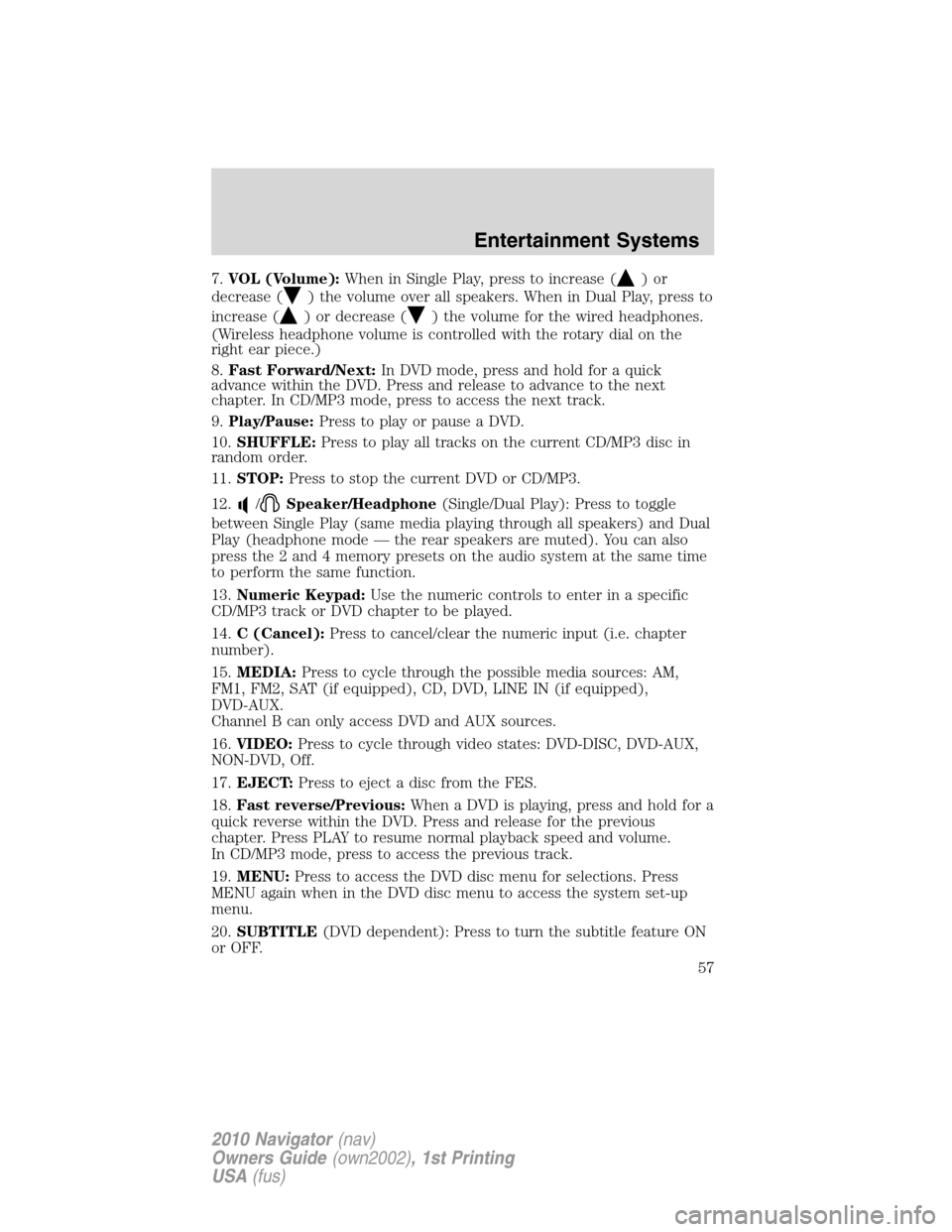
7.VOL (Volume):When in Single Play, press to increase ()or
decrease (
) the volume over all speakers. When in Dual Play, press to
increase (
) or decrease () the volume for the wired headphones.
(Wireless headphone volume is controlled with the rotary dial on the
right ear piece.)
8.Fast Forward/Next:In DVD mode, press and hold for a quick
advance within the DVD. Press and release to advance to the next
chapter. In CD/MP3 mode, press to access the next track.
9.Play/Pause:Press to play or pause a DVD.
10.SHUFFLE:Press to play all tracks on the current CD/MP3 disc in
random order.
11.STOP:Press to stop the current DVD or CD/MP3.
12.
/Speaker/Headphone(Single/Dual Play): Press to toggle
between Single Play (same media playing through all speakers) and Dual
Play (headphone mode — the rear speakers are muted). You can also
press the 2 and 4 memory presets on the audio system at the same time
to perform the same function.
13.Numeric Keypad:Use the numeric controls to enter in a specific
CD/MP3 track or DVD chapter to be played.
14.C (Cancel):Press to cancel/clear the numeric input (i.e. chapter
number).
15.MEDIA:Press to cycle through the possible media sources: AM,
FM1, FM2, SAT (if equipped), CD, DVD, LINE IN (if equipped),
DVD-AUX.
Channel B can only access DVD and AUX sources.
16.VIDEO:Press to cycle through video states: DVD-DISC, DVD-AUX,
NON-DVD, Off.
17.EJECT:Press to eject a disc from the FES.
18.Fast reverse/Previous:When a DVD is playing, press and hold for a
quick reverse within the DVD. Press and release for the previous
chapter. Press PLAY to resume normal playback speed and volume.
In CD/MP3 mode, press to access the previous track.
19.MENU:Press to access the DVD disc menu for selections. Press
MENU again when in the DVD disc menu to access the system set-up
menu.
20.SUBTITLE(DVD dependent): Press to turn the subtitle feature ON
or OFF.
Entertainment Systems
57
2010 Navigator(nav)
Owners Guide(own2002), 1st Printing
USA(fus)
Page 63 of 385
Single Play:Single play consists of all occupants in the vehicle listening
to the same playing media over the front and rear speakers. When the
DVD system is on, and the same source is playing through the front and
rear speakers, SINGLE PLAY will appear in the front radio display.
Dual Play (navigation-based radio systems only):Dual play is when
the rear seat passengers choose to listen to a different playing media
than the front seat passengers. With the DVD and rear seat controls
turned ON, the rear seat passengers may choose to listen to the radio,
CD, MP3, SYNC, DVD, or DVD-AUX media sources over headphones
while the front speakers play the chosen selection for the front audio
system, they may listen to another over the headphones. DUAL PLAY
will appear in the radio display.
When both the front seat passengers and the rear seat passengers listen
to the same audio source, SHARED MODE will appear on the radio.
Note:If the front seat passengers are listening to the radio, the rear seat
passengers can also listen to the radio; however, they will be limited to
listening to the same radio channel.
There are two ways to get into dual play mode:
1. After initially turning ignition on, when a disc is inserted, the FES
immediately switches to dual-play mode.
2. Press
the
/headphone/speaker
button on the DVD player or
navigation radio touch screen.
3. Press the 2 and 4 memory presets on the radio at the same time.
Repeating each of these actions will switch back to single play mode, all
speakers playing and headphones off.
The headphone control will now be active and a green light next to the
A or B headphone control buttons will illuminate. The system can output
two different audio sources over the headphones. These are called
Channel A and Channel B. Both Channel A and Channel B can be
listened to on the wired headphones (not included) or on the infrared
(IR) wireless headphones.
Entertainment Systems
63
2010 Navigator(nav)
Owners Guide(own2002), 1st Printing
USA(fus)
Page 73 of 385
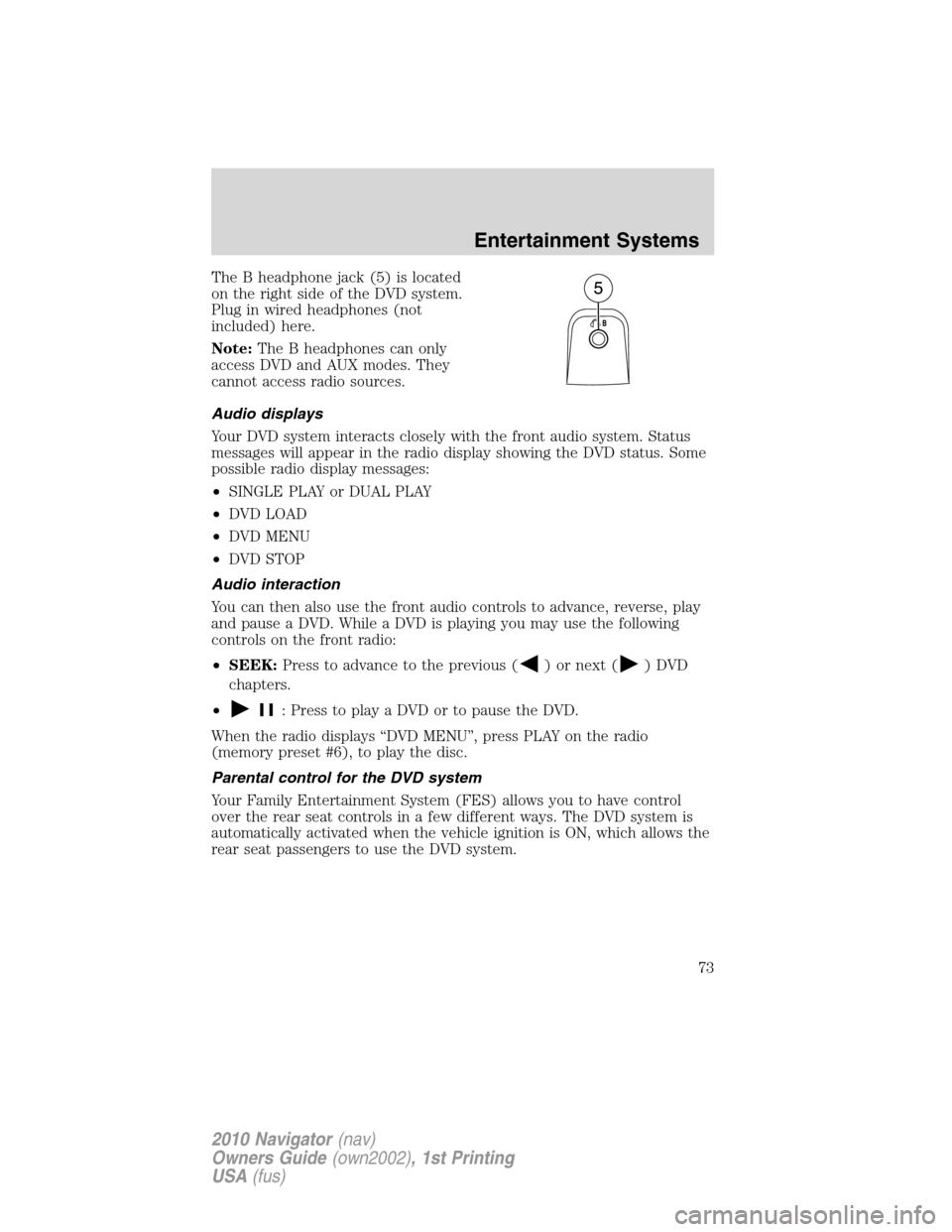
The B headphone jack (5) is located
on the right side of the DVD system.
Plug in wired headphones (not
included) here.
Note:The B headphones can only
access DVD and AUX modes. They
cannot access radio sources.
Audio displays
Your DVD system interacts closely with the front audio system. Status
messages will appear in the radio display showing the DVD status. Some
possible radio display messages:
•SINGLE PLAY or DUAL PLAY
•DVD LOAD
•DVD MENU
•DVD STOP
Audio interaction
You can then also use the front audio controls to advance, reverse, play
and pause a DVD. While a DVD is playing you may use the following
controls on the front radio:
•SEEK:Press to advance to the previous (
) or next () DVD
chapters.
•
: Press to play a DVD or to pause the DVD.
When the radio displays “DVD MENU”, press PLAY on the radio
(memory preset #6), to play the disc.
Parental control for the DVD system
Your Family Entertainment System (FES) allows you to have control
over the rear seat controls in a few different ways. The DVD system is
automatically activated when the vehicle ignition is ON, which allows the
rear seat passengers to use the DVD system.
Entertainment Systems
73
2010 Navigator(nav)
Owners Guide(own2002), 1st Printing
USA(fus)
Page 74 of 385
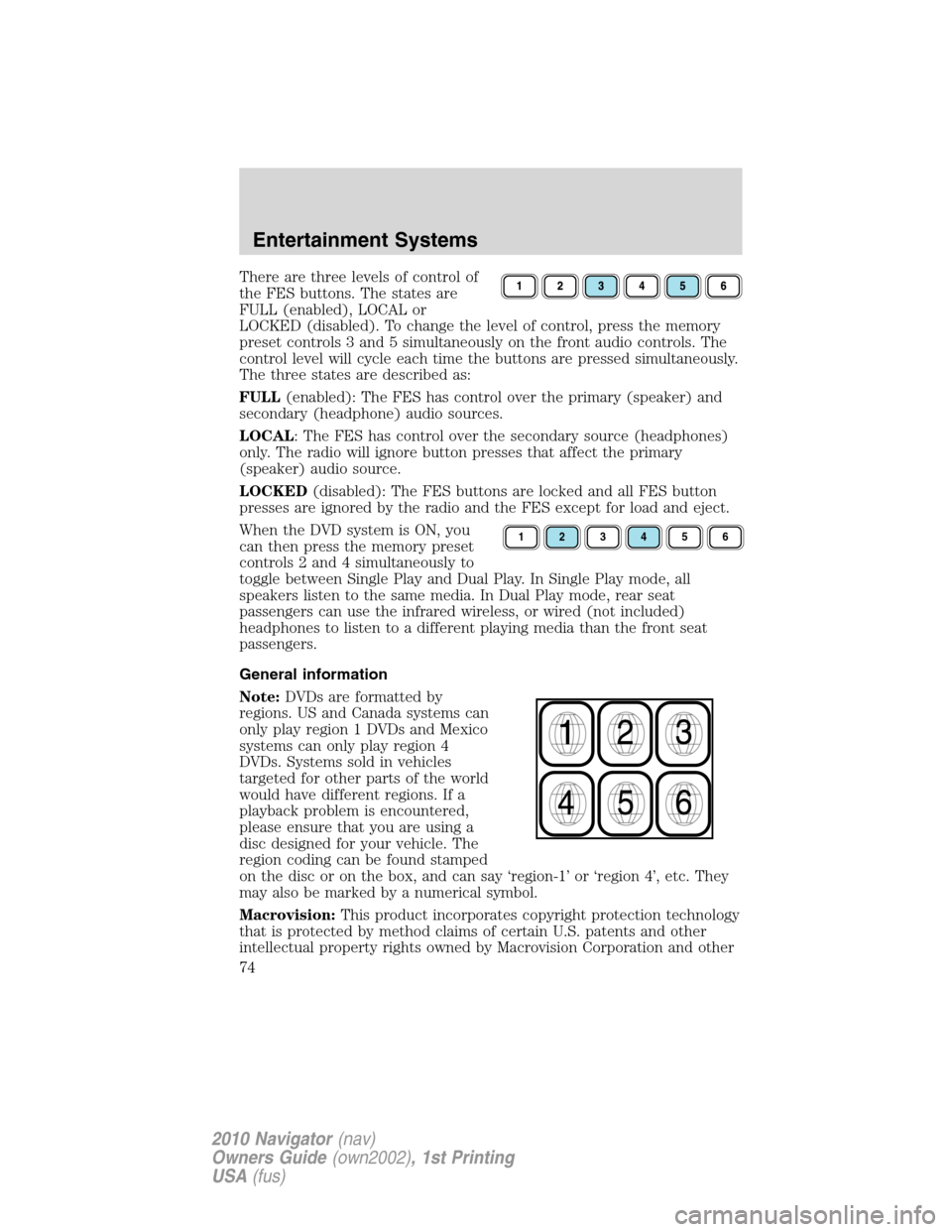
There are three levels of control of
the FES buttons. The states are
FULL (enabled), LOCAL or
LOCKED (disabled). To change the level of control, press the memory
preset controls 3 and 5 simultaneously on the front audio controls. The
control level will cycle each time the buttons are pressed simultaneously.
The three states are described as:
FULL(enabled): The FES has control over the primary (speaker) and
secondary (headphone) audio sources.
LOCAL: The FES has control over the secondary source (headphones)
only. The radio will ignore button presses that affect the primary
(speaker) audio source.
LOCKED(disabled): The FES buttons are locked and all FES button
presses are ignored by the radio and the FES except for load and eject.
When the DVD system is ON, you
can then press the memory preset
controls 2 and 4 simultaneously to
toggle between Single Play and Dual Play. In Single Play mode, all
speakers listen to the same media. In Dual Play mode, rear seat
passengers can use the infrared wireless, or wired (not included)
headphones to listen to a different playing media than the front seat
passengers.
General information
Note:DVDs are formatted by
regions. US and Canada systems can
only play region 1 DVDs and Mexico
systems can only play region 4
DVDs. Systems sold in vehicles
targeted for other parts of the world
would have different regions. If a
playback problem is encountered,
please ensure that you are using a
disc designed for your vehicle. The
region coding can be found stamped
on the disc or on the box, and can say ‘region-1’ or ‘region 4’, etc. They
may also be marked by a numerical symbol.
Macrovision:This product incorporates copyright protection technology
that is protected by method claims of certain U.S. patents and other
intellectual property rights owned by Macrovision Corporation and other
123456
Entertainment Systems
74
2010 Navigator(nav)
Owners Guide(own2002), 1st Printing
USA(fus)
Page 88 of 385
WARNING:Always remember to turn on your headlamps at
dusk or during inclement weather. The Daytime Running Lamp
(DRL) system does not activate the tail lamps and generally may not
provide adequate lighting during these conditions. Failure to activate
your headlamps under these conditions may result in a collision.
PANEL DIMMER CONTROL
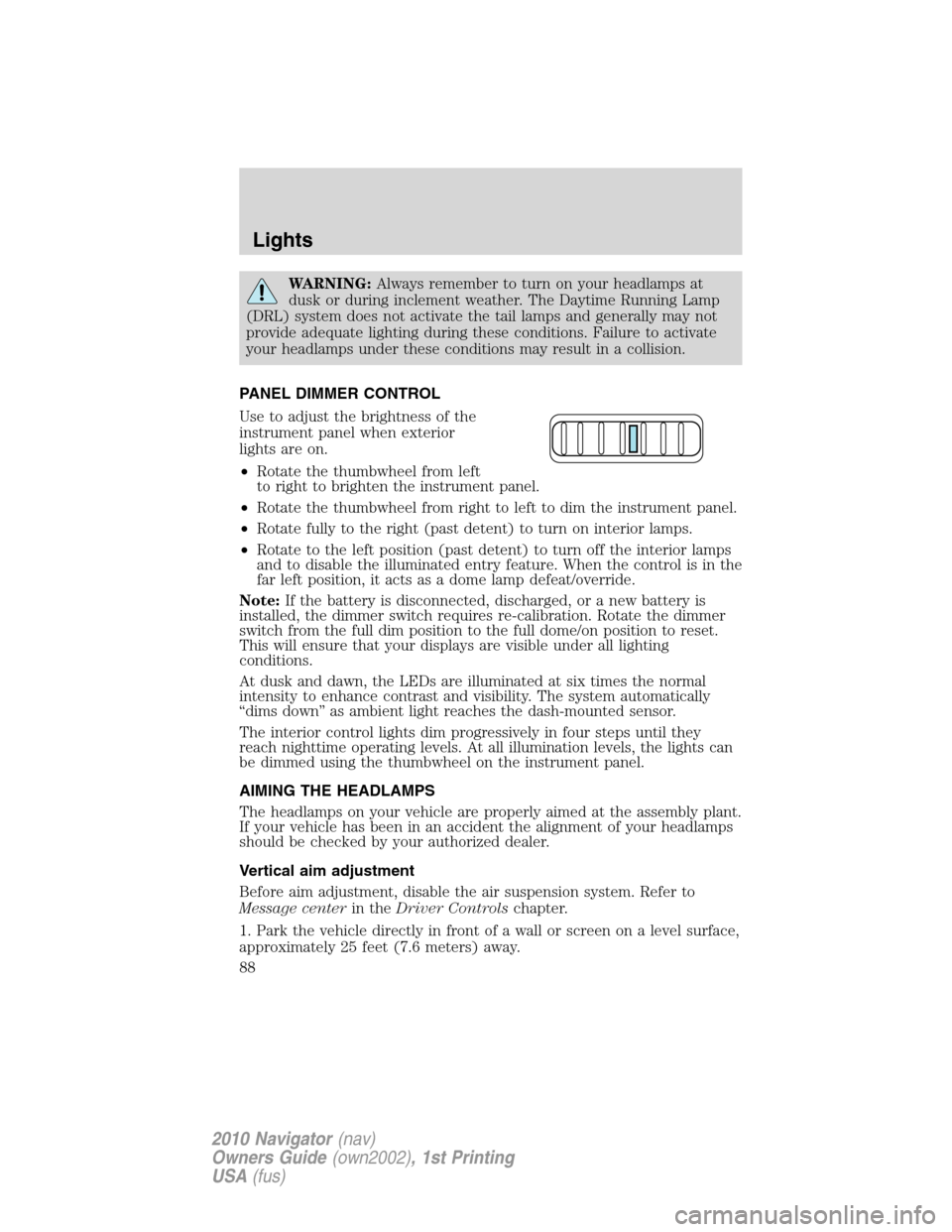
Use to adjust the brightness of the
instrument panel when exterior
lights are on.
•Rotate the thumbwheel from left
to right to brighten the instrument panel.
•Rotate the thumbwheel from right to left to dim the instrument panel.
•Rotate fully to the right (past detent) to turn on interior lamps.
•Rotate to the left position (past detent) to turn off the interior lamps
and to disable the illuminated entry feature. When the control is in the
far left position, it acts as a dome lamp defeat/override.
Note:If the battery is disconnected, discharged, or a new battery is
installed, the dimmer switch requires re-calibration. Rotate the dimmer
switch from the full dim position to the full dome/on position to reset.
This will ensure that your displays are visible under all lighting
conditions.
At dusk and dawn, the LEDs are illuminated at six times the normal
intensity to enhance contrast and visibility. The system automatically
“dims down” as ambient light reaches the dash-mounted sensor.
The interior control lights dim progressively in four steps until they
reach nighttime operating levels. At all illumination levels, the lights can
be dimmed using the thumbwheel on the instrument panel.
AIMING THE HEADLAMPS
The headlamps on your vehicle are properly aimed at the assembly plant.
If your vehicle has been in an accident the alignment of your headlamps
should be checked by your authorized dealer.
Vertical aim adjustment
Before aim adjustment, disable the air suspension system. Refer to
Message centerin theDriver Controlschapter.
1. Park the vehicle directly in front of a wall or screen on a level surface,
approximately 25 feet (7.6 meters) away.
Lights
88
2010 Navigator(nav)
Owners Guide(own2002), 1st Printing
USA(fus)
Page 100 of 385
On vehicles with memory feature, to prevent damage to the steering
column, the steering column is designed to set a stopping position just
short of the end of the column position. If the steering column
encounters an object while moving up or down, a new stopping position
will be set. To reset the steering column to its normal stopping position:
•After encountering the new stopping position, press the steering
column control again to override.
•Continue pressing the control until it reaches the end of the column
position.
•A new soft stop will be automatically set. The next time the steering
column is tilted it will stop just short of the end of the column
position.
ILLUMINATED VISOR MIRROR (IF EQUIPPED)
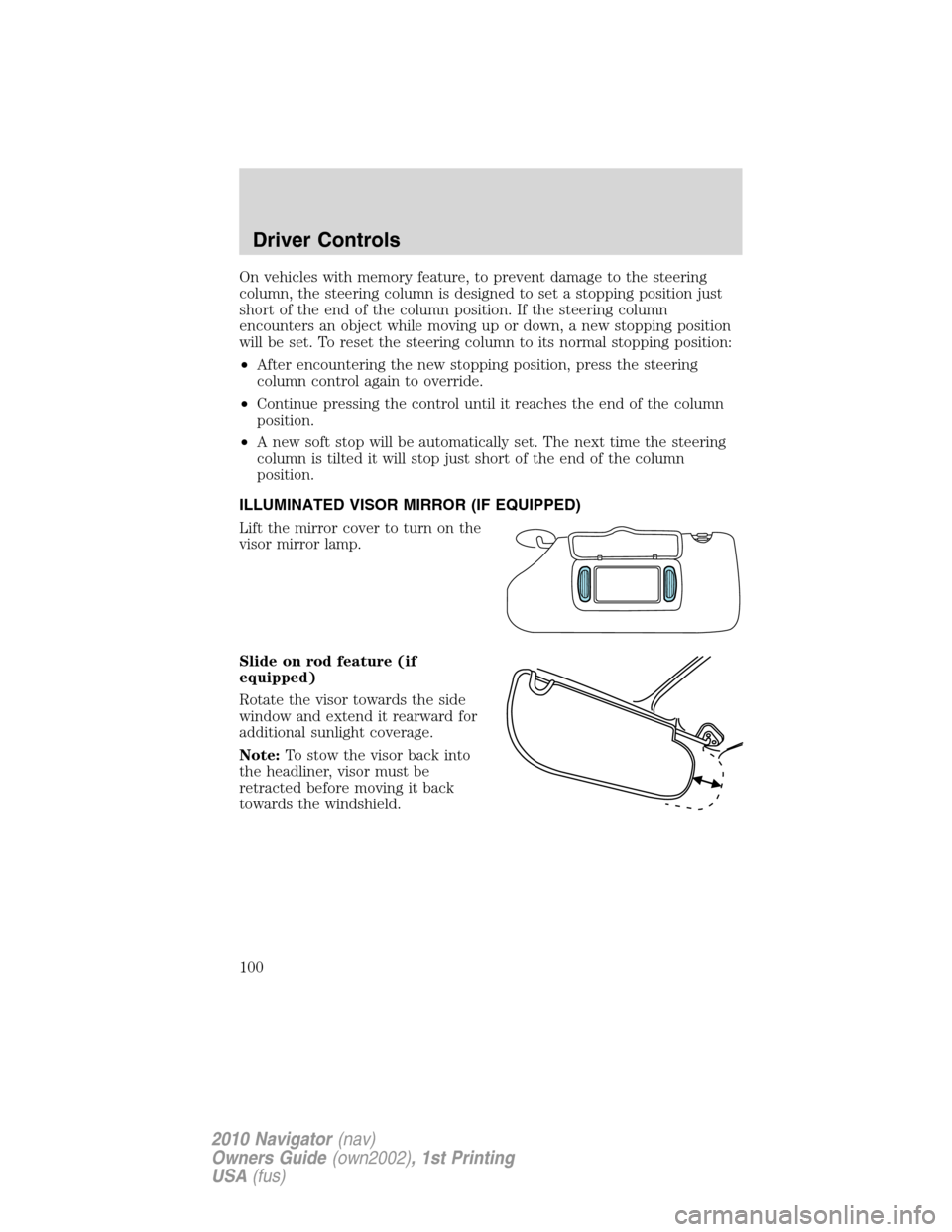
Lift the mirror cover to turn on the
visor mirror lamp.
Slide on rod feature (if
equipped)
Rotate the visor towards the side
window and extend it rearward for
additional sunlight coverage.
Note:To stow the visor back into
the headliner, visor must be
retracted before moving it back
towards the windshield.
Driver Controls
100
2010 Navigator(nav)
Owners Guide(own2002), 1st Printing
USA(fus)
Page 107 of 385
EXTERIOR MIRRORS
Power side view mirrors
The ignition can be in any position to adjust the power side view mirrors.
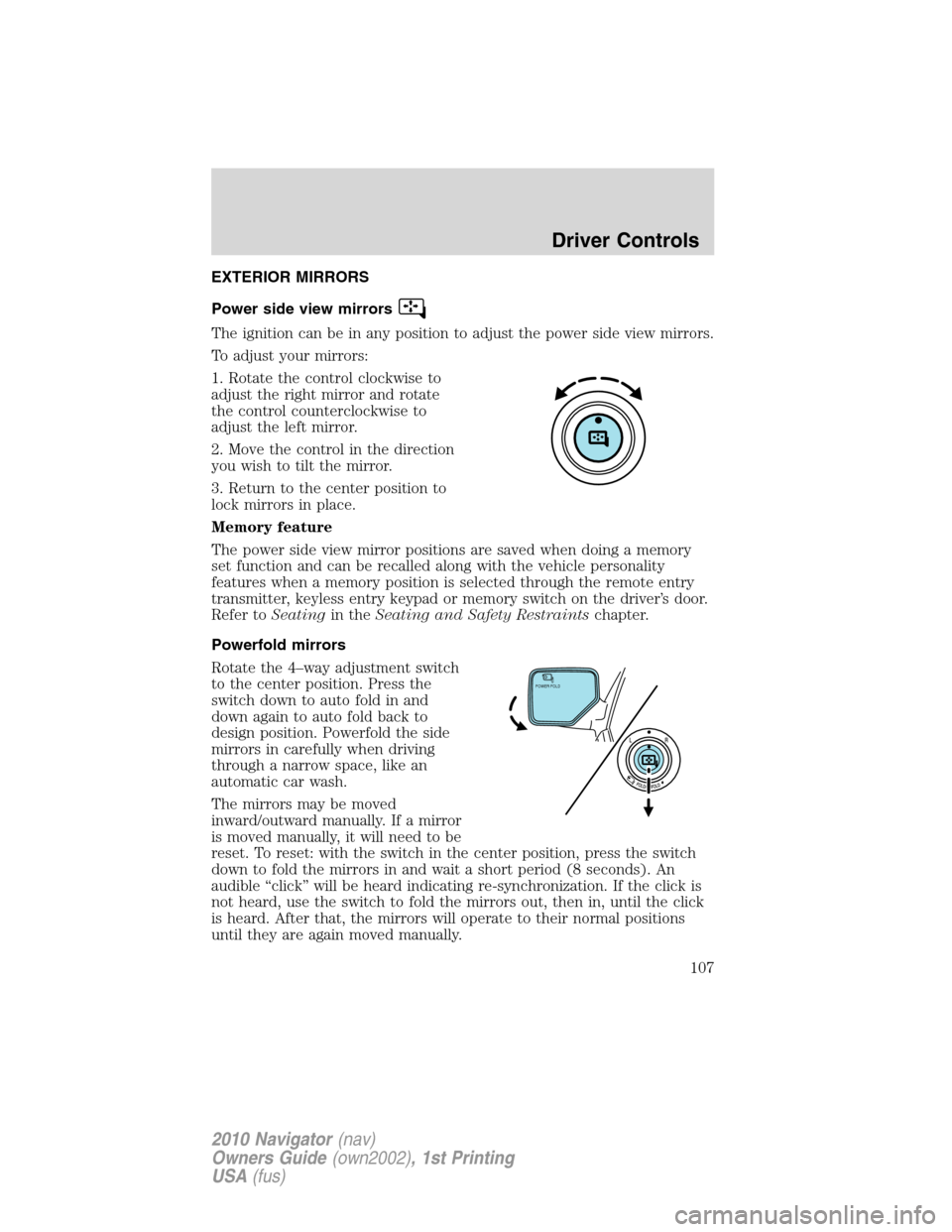
To adjust your mirrors:
1. Rotate the control clockwise to
adjust the right mirror and rotate
the control counterclockwise to
adjust the left mirror.
2. Move the control in the direction
you wish to tilt the mirror.
3. Return to the center position to
lock mirrors in place.
Memory feature
The power side view mirror positions are saved when doing a memory
set function and can be recalled along with the vehicle personality
features when a memory position is selected through the remote entry
transmitter, keyless entry keypad or memory switch on the driver’s door.
Refer toSeatingin theSeating and Safety Restraintschapter.
Powerfold mirrors
Rotate the 4–way adjustment switch
to the center position. Press the
switch down to auto fold in and
down again to auto fold back to
design position. Powerfold the side
mirrors in carefully when driving
through a narrow space, like an
automatic car wash.
The mirrors may be moved
inward/outward manually. If a mirror
is moved manually, it will need to be
reset. To reset: with the switch in the center position, press the switch
down to fold the mirrors in and wait a short period (8 seconds). An
audible “click” will be heard indicating re-synchronization. If the click is
not heard, use the switch to fold the mirrors out, then in, until the click
is heard. After that, the mirrors will operate to their normal positions
until they are again moved manually.
POWER FOLD
Driver Controls
107
2010 Navigator(nav)
Owners Guide(own2002), 1st Printing
USA(fus)
Page 108 of 385
Note:10 or more switch activations within one minute, or repeated
folding/unfolding of the mirrors while holding the switch rearward during
full travel, may cause the system to disable the fold/unfold function to
protect motors from overheating. Should this occur, wait approximately
three minutes with the vehicle running and up to 10 minutes with the
vehicle off, for the system to reset and for function to return to normal.
Heated outside mirrors
Both mirrors are heated automatically to remove ice, mist and fog when
the rear window defrost is activated.
Do not remove ice from the mirrors with a scraper or attempt to
readjust the mirror glass if it is frozen in place. These actions
could cause damage to the glass and mirrors.
Do not clean the housing or glass of any mirror with harsh
abrasives, fuel or other petroleum-based cleaning products.
Signal indicator mirrors
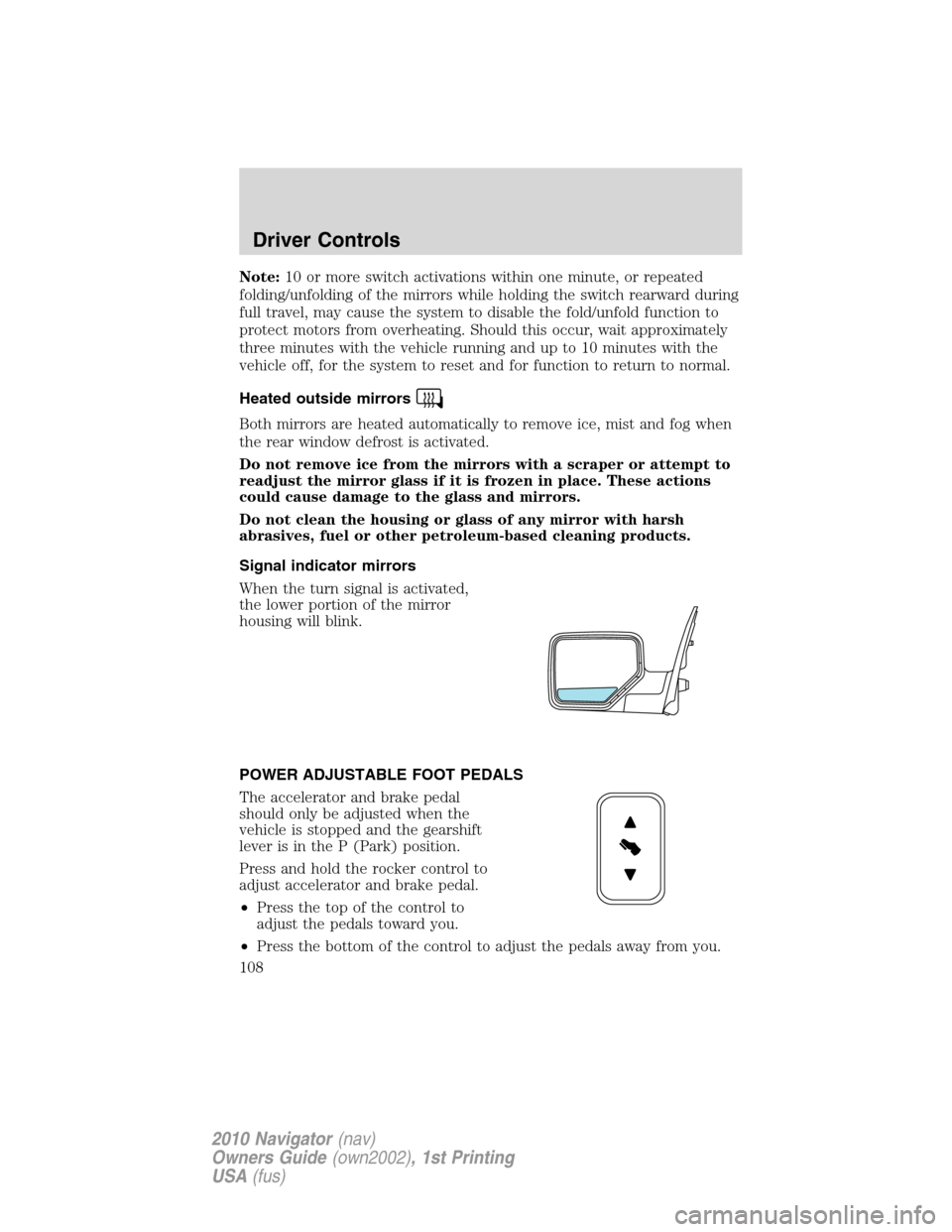
When the turn signal is activated,
the lower portion of the mirror
housing will blink.
POWER ADJUSTABLE FOOT PEDALS
The accelerator and brake pedal
should only be adjusted when the
vehicle is stopped and the gearshift
lever is in the P (Park) position.
Press and hold the rocker control to
adjust accelerator and brake pedal.
•Press the top of the control to
adjust the pedals toward you.
•Press the bottom of the control to adjust the pedals away from you.
Driver Controls
108
2010 Navigator(nav)
Owners Guide(own2002), 1st Printing
USA(fus)
Page 112 of 385
Increasing speed while using speed control
To set a higher speed:
•Press and hold SET + until you get to the desired speed, then release.
You can also use SET + to operate the tap-up function. Press and
release SET + to increase the vehicle set speed in 1 mph (1.6 km/h)
increments.
•Use the accelerator pedal to get to the desired speed then press and
release SET +.
Reducing speed while using speed control
To reduce a set speed:
•Press and hold SET – until you get to the desired speed, then release.
You can also use SET – to operate the tap-down function. Press and
release SET – to decrease the vehicle set speed in 1 mph (1.6 km/h)
increments.
•Press the brake pedal until the desired vehicle speed is reached then
press SET –.
Turning off speed control
To turn off the speed control, Press OFF or turn off the ignition.
Note:When you turn off the speed control or the ignition, your speed
control set speed memory is erased.
STEERING WHEEL CONTROLS
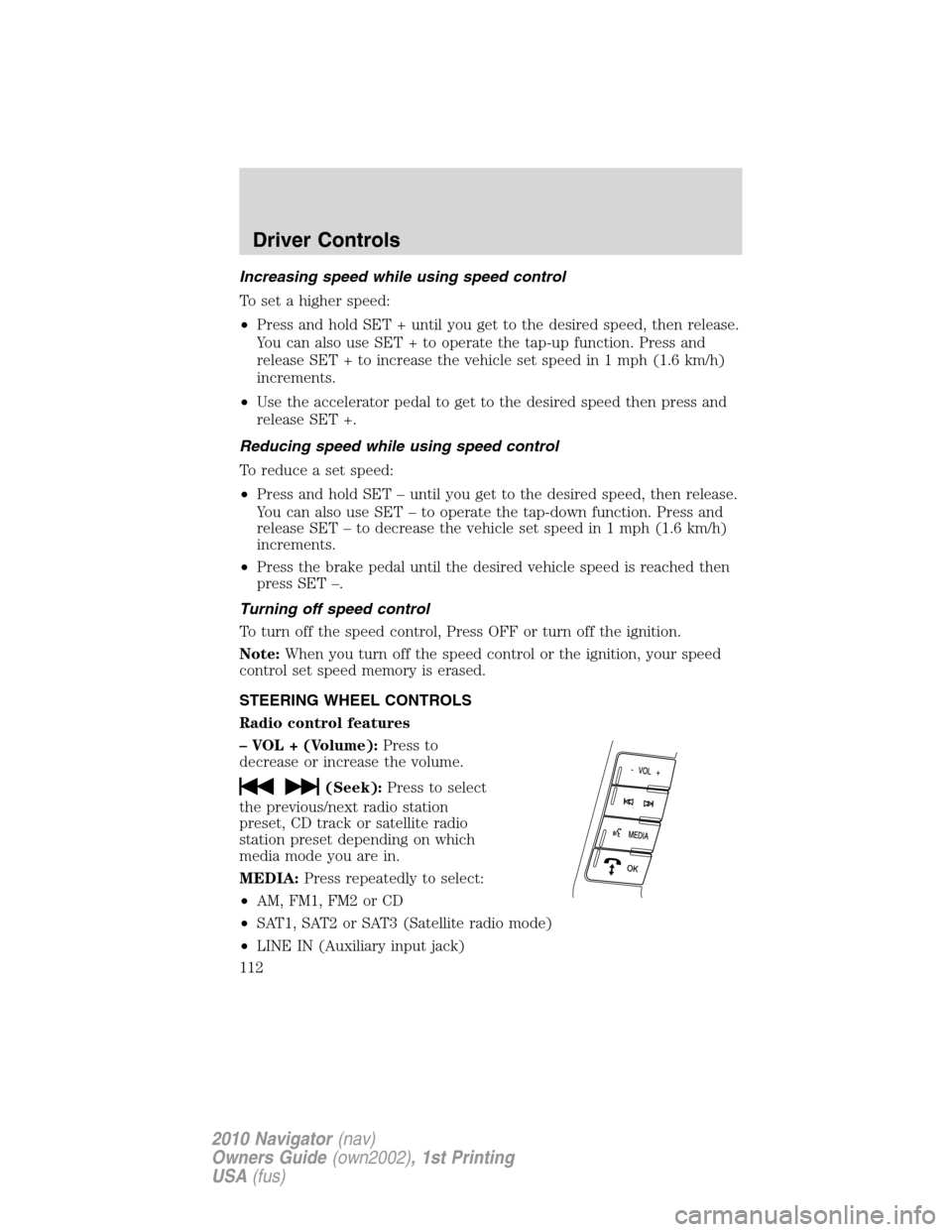
Radio control features
– VOL + (Volume):Press to
decrease or increase the volume.
(Seek):Press to select
the previous/next radio station
preset, CD track or satellite radio
station preset depending on which
media mode you are in.
MEDIA:Press repeatedly to select:
•AM, FM1, FM2 or CD
•SAT1, SAT2 or SAT3 (Satellite radio mode)
•LINE IN (Auxiliary input jack)
Driver Controls
112
2010 Navigator(nav)
Owners Guide(own2002), 1st Printing
USA(fus)
Page 128 of 385
Note:In case of operation in extreme cold -40° F (-40° C), or on
extreme inclines, manual operation of the liftgate is suggested.
Obstacle detection
The power liftgate system is equipped with an obstacle detection feature.
If the power liftgate is closing, the system is designed to reverse to full
open when it encounters a solid obstacle. A three second chime is also
sounded when an obstacle is detected. Once the obstacle is removed, the
liftgate can be closed under power.
If the power liftgate is opening, the system is designed to stop when it
encounters a solid obstacle. A chime will sound for three seconds while
the obstacle is present.
Resetting the power liftgate:
The power liftgate may not operate under these conditions. If any of
these conditions occur, the power liftgate must be reset:
•A low voltage or dead battery
•Disconnected battery
•The liftgate is manually closed and left ajar (unlatched)
To reset the power liftgate:
1. Disconnect the battery for 20 seconds then, reconnect the battery.
2. Manually close and fully latch the liftgate.
3. Power open the liftgate by using the remote entry transmitter or
instrument panel button.
Note:If the power liftgate system is turned off in the message center,
the system cannot be activated with the outside release handle or rear
cargo area control button. The system will need to be turned on to
resume operation with the outside release handle or rear cargo area
control button. The power liftgate is still operational through the use of
the remote entry transmitter and instrument panel button when the
power liftgate is turned off in the message center.
Liftgate ajar signal
If the liftgate or liftgate glass are not fully latched, you will receive a
message on the instrument panel. If you see this message, check both
the liftgate glass and liftgate door to ensure they are fully latched.
WARNING:Make sure the liftgate is closed to prevent exhaust
fumes from being drawn into the vehicle. If you must drive with
the liftgate open, keep the vents open so outside air comes into the
vehicle.
Driver Controls
128
2010 Navigator(nav)
Owners Guide(own2002), 1st Printing
USA(fus)