light LINCOLN NAVIGATOR 2014 Owners Manual
[x] Cancel search | Manufacturer: LINCOLN, Model Year: 2014, Model line: NAVIGATOR, Model: LINCOLN NAVIGATOR 2014Pages: 506, PDF Size: 5.72 MB
Page 347 of 506
Safety Precaution
For safety reasons:
•Do not change discs while your vehicle is moving.
•Do not allow children to unfasten their safety belts to change discs or
make changes to the system.
•Make changes with the remote control, while safety belts remain
fastened.
Enjoy your entertainment system, but remember that safety of your
passengers is the highest priority.
Wireless Headphones
This unit includes a built-in dual channel infrared transmitter for use with
your wireless headphones. You can change headphone volume using the
individual controls on each headset. To use wireless headphones effectively,
you must maintain line-of-sight between headphones and transmitter.
Allowing obstructions to come between headphone and transmitter, or body
motions that allow the user to conceal the headphone from the transmitter
(like reaching or bending), adversely affect audio performance. Infrared
transmission, like visible light, travels only in a straight line.
Wired Headphones
You can use any standard stereo headphones by plugging them into the
1/8–inch (3.5 millimeter) headphone jack on each of the headrest DVD
systems. Remove and save the protective plastic cover to access the
jacks. Remember to replace the cover when the jacks are not in use.
A/V Input
You can connect an external audio/video device that uses common RCA
interface cables to the Ford DVD system, such as a video game device or
VCR. Connect the device RCA cables to the AV RCA INPUT jacks according
to color: yellow for video, red for right audio and white for left audio.
The signal from the external audio/video source overrides other video
sources for that monitor.
346Audio System
2014 Navigator(nav)
Owners Guide gf, 1st Printing, June 2013
USA(fus)
Page 348 of 506
Wireless FM Transmitter
Your device has an internal FM transmitter. This allows you to listen to
the DVD player audio signal by tuning your vehicle FM radio to a radio
frequency that you select, then accessing the SOUND-AROUND feature
by using the remote control. SOUND-AROUND allows the user to choose
from a number of pre-programmed frequencies to play back the rear-seat
entertainment system audio over the radio. When you engage
SOUND-AROUND, as long as the DVD player is active, it adversely
affects the FM radio reception of other stations, especially neighboring
stations nearest to whichever station is in use for the DVD player.
Performance of SOUND-AROUND varies based on geographic location.
You may need to change the SOUND-AROUND frequency periodically
when travelling long distances. This helps maintain the best performance
when listening to DVD system content over the radio. Audio heard
through wireless headphones remains unaffected by SOUND-AROUND.
There may also be a reduction in AM radio performance as well. AM and
FM radio performance can be expected to return to normal when the
DVD system is turned off.
How to use the FM Transmitter
1. Switch on the system and place a disc in Monitor A.
2. Point the remote control at the monitor, and then press DVD A.
3.
PressSOUND AROUND ON/OFFto turn FM transmission off and on.
4. Select a radio frequency (88.3, 88.7, 89.1, 89.5, 89.9, and 90.3MHz) by
pressingSOUND AROUND SELECT.
5. Select a frequency, and then tune your radio to the corresponding
frequency. Try each station frequency until you achieve a clear audio
signal.
Console Controls
Note:Do not use any solvents or cleaning materials when cleaning the
video device.
Note:Do not use any abrasive cleaners, which may scratch the screen.
Use only a lightly dampened lint free cloth to wipe the screen if it is
dirty.
Note:Lock the LCD screen in the fully closed position when not in use.
Note:Do not put pressure on the screen.
Note:Caution children against touching or scratching the screen, as it
may become dirty or damaged.
Audio System347
2014 Navigator(nav)
Owners Guide gf, 1st Printing, June 2013
USA(fus)
Page 350 of 506
J.USB port (optional):Listen to music or view images you stored on a
USB device such as a USB memory stick or a memory card reader.
K.SOURCE:Press this button to select Monitor A, Monitor B, AUX/TV
(if available), and AUX 2 (if available).
L.POWER:Press this button to turn the system off and on.
M.TFT LCD panel:Seven-inch TFT LCD panel.
N.Level lock and release latch:Use this latch to change the viewing
angle of the LCD panel or lock the panel into the secured position.
O.Infrared sensor - forward sensor eye:This allows the remote
control to navigate the on-screen display.
Remote Control
Note:The remote control uses infrared light to send commands to the
DVD player, just as many home video systems do. Just point the remote
control at the DVD player infrared window located above each screen in
order to control that DVD player. While you can connect a second device
such as a VCR through the auxiliary inputs, and view the playback on
the screen, you cannot control that device by aiming its remote control
at the Ford DVD player. The Ford DVD system remote control is the
only remote control you can use with the system. For example, if you
connect a VCR to the DVD system, you must point the VCR remote
control at the VCR to control it.
Installing the Battery
Before using your remote control, install the batteries as follows:
1. Turn the remote control face down. Press down on the ridged area of
the battery cover and slide it off.
2. Install two AAA batteries. Make sure you install the batteries
properly, with the + and – facing the correct way, as shown in the
battery compartment.
3. Slide the cover back until it clicks.
Note:Different types of batteries have different characteristics. Do not
mix different types.
Note:Do not mix old and new batteries. Mixing old and new batteries
can shorten battery life and cause chemical leaks from the old batteries.
Note:Keep the batteries out of the reach of children. If someone
swallows a battery, immediately consult a doctor. When you dispose of
used batteries, keep to governmental regulations or environmental public
institution rules that apply in your area.
Audio System349
2014 Navigator(nav)
Owners Guide gf, 1st Printing, June 2013
USA(fus)
Page 358 of 506
Playing an Audio CD
When playing an audio CD, the DISPLAY banner appears automatically.
It displays the current track and the amount of time the track has been
playing, the total amount of time on the disc and the current time
running on the disc.
PressDISPLAYon the remote control to see the DISPLAY banner.
•PressDISPLAYonce: Single Elapsed appears along with the current
track playing and the time of that track.
•PressDISPLAYtwice: Single Remain appears along with the current
track playing and the amount of time left.
•PressDISPLAYthree times: Total Elapsed appears along with the
current track playing and the total time playing on CD.
•PressDISPLAYfour times: Total Remain appears along with the
current track playing and the amount of time left on CD.
Press theREPEATon the remote control to repeat either the currently
playing track or the entire CD.
Playing an MP3 Disc
MP3 is a format for storing digital audio. An audio CD-quality song
compressed into the MP3 format has very little loss of quality, while
taking up much less space. You can play CD-R discs encoded in MP3
format in your DVD player.
Selecting Folders and Songs
When you insert an MP3 disc in the player, an MP3 audio-navigation
screen appears automatically. You can change folders and songs by
navigating the file system. The DVD player plays the songs in the order
you burned them to the disc.
1. If a disc is playing, pressDISPLAYon the remote control, and then
pressCH +andCH -to go through the folder list on the left side of
the navigation screen.
2. Highlight the folder you want, and then pressENTER.
3. PressCH +andCH -to go through the song list and highlight the
song you want. PressENTERto begin playing the highlighted song.
Skipping Songs
PressNEXTon the remote control to move to the next song. Press
PREVto move to the beginning of the currently playing song. Press
PREVtwice to move to the previous song.
Audio System357
2014 Navigator(nav)
Owners Guide gf, 1st Printing, June 2013
USA(fus)
Page 418 of 506
Using the Touch-sensitive Controls on Your System
To turn a feature on and off, just touch the graphic with your finger.
To get the best performance from the touch-sensitive controls:
•Make sure your hands are clean and dry.
•Since the touchscreen operates based on the touch of a finger, you
may have trouble using it if you are wearing gloves.
•Use your bare finger to touch the center of a touch-control graphic.
Touching off-center of the graphic may affect operation of a nearby
control.
•Do not press hard on the controls. They are sensitive to light touch.
•
Keep metal and other conductive material away from the surface of the
touchscreen as this may cause electronic interference (for example,
inadvertently turning on a feature other than the one you meant to turn
on).
Cleaning the Touchscreen Display
Use a clean, soft cloth such as one used for cleaning glasses. If dirt or
fingerprints are still visible, apply a small amount of alcohol to the cloth.
Do not pour or spray alcohol onto the display. Do not use detergent or
any type of solvent to clean the display.
USING VOICE RECOGNITION
This system helps you control many features using voice commands.
This allows you to keep your hands on the wheel and focus on what
is in front of you. The system provides feedback through audible tones,
prompts, questions and spoken confirmations depending on the situation
and the chosen level of interaction (voice settings).
The system also asks short questions (confirmation prompts) when it is
not sure of your request or when there are multiple possible responses
to your request.
When using voice commands, words and icons may appear in the lower
left status bar indicating the status of the voice session (such as
Listening, Success, Failed, Paused or Try Again).
Navigation System (If Equipped)417
2014 Navigator(nav)
Owners Guide gf, 1st Printing, June 2013
USA(fus)
Page 420 of 506
Voice Settings
Voice settings allow you to customize the level of system interaction,
help and feedback. The system defaults to standard interaction, which
uses candidate lists, and confirmation prompts as these provide the
highest level of guidance and feedback.
Interaction Mode:Novice mode provides detailed interaction and
guidance while the advanced mode has less audible interaction and more
tone prompts.
Confirmation Prompts:The system uses these short questions to
confirm your voice request. If turned off, the system simply makes a best
guess as to what you requested. The system may still occasionally ask
you to confirm settings.
SYSTEM MENU FEATURES
Your system offers many menu features, such as allowing you to adjust
the touchscreen brightness, time and language, feedback and system
settings. You can access these options by pressing the MENU hard
button.
If you select: You can:
Display Brightnessallows you to adjust screen
brightness by touching + or -.
Contrastallows you to adjust screen contrast
by touching + or -.
Day/Night Modeallows you to select Day
mode, Night mode or have the system
automatically switch for you by selecting Auto
mode.
Daytime Colorallows you to select a light or
dark color for daytime screen lighting.
Note:When the headlamps are on under very
bright outdoor light conditions, the system
remains in day mode, even if you select night.
Navigation System (If Equipped)419
2014 Navigator(nav)
Owners Guide gf, 1st Printing, June 2013
USA(fus)
Page 421 of 506
If you select: You can:
Clock Display Clockallows you to turn the clock
off and on.
Note:If your vehicle is equipped with an
in-dash analog clock, you can set the time on
this screen, but it may not appear in the
status bar for viewing purposes.
Formatallows you to switch between
12– and 24–hour clock displays.
Auto Time Zoneallows you to have the
system automatically switch the time
whenever you enter a new time zone.
Note:The system does not implement
daylight savings time.
Restore Defaultsallows you to restore
system defaults.
420Navigation System (If Equipped)
2014 Navigator(nav)
Owners Guide gf, 1st Printing, June 2013
USA(fus)
Page 427 of 506
HD Radio™ Information (If Available)
Note:HD Radio broadcasts are not available in all markets.
HD Radio technology is the digital evolution of analog AM/FM radio. Your
system has a special receiver that allows it to receive digital broadcasts
(where available) in addition to the analog broadcasts, it already
receives. Digital broadcasts provide a better sound quality than analog
broadcasts with free, crystal-clear audio and no static or distortion. For
more information, and a guide to available stations and programming,
please visit www.hdradio.com.
When HD Radio is on and you tune to a station broadcasting HD Radio
technology, you may notice the following indicators on your screen:
HD) logoblinks when acquiring a digital station and stays solid
when digital audio is playing. When this logo is available, you
may also see Title and Artist fields on-screen.
Multicast indicatorappears in FM mode (only) if the current station is
broadcasting multiple digital broadcasts. The highlighted numbers signify
available digital channels where new or different content is available.
HD1 signifies the main programming status and is available in analog and
digital broadcasts. Other multicast stations (HD2 through HD7) are only
available digitally.
When HD Radio broadcasts are active, you can access the following
functions:
When you select: You can:
ScanHear a brief sampling of all available stations.
This feature still works when HD Radio
reception is on, although it does not scan for
HD2-HD7 channels. You may see the HD logo
appear if the station has a digital broadcast.
SeekHear the next strong radio station.
If the current station has multiple digital
broadcasts, the multicast indicator appears.
Press Seek repeatedly to advance through all
available broadcasts. If you are on the last
multicast channel, press Seek to advance to
the next strong station.
426Navigation System (If Equipped)
2014 Navigator(nav)
Owners Guide gf, 1st Printing, June 2013
USA(fus)
Page 429 of 506
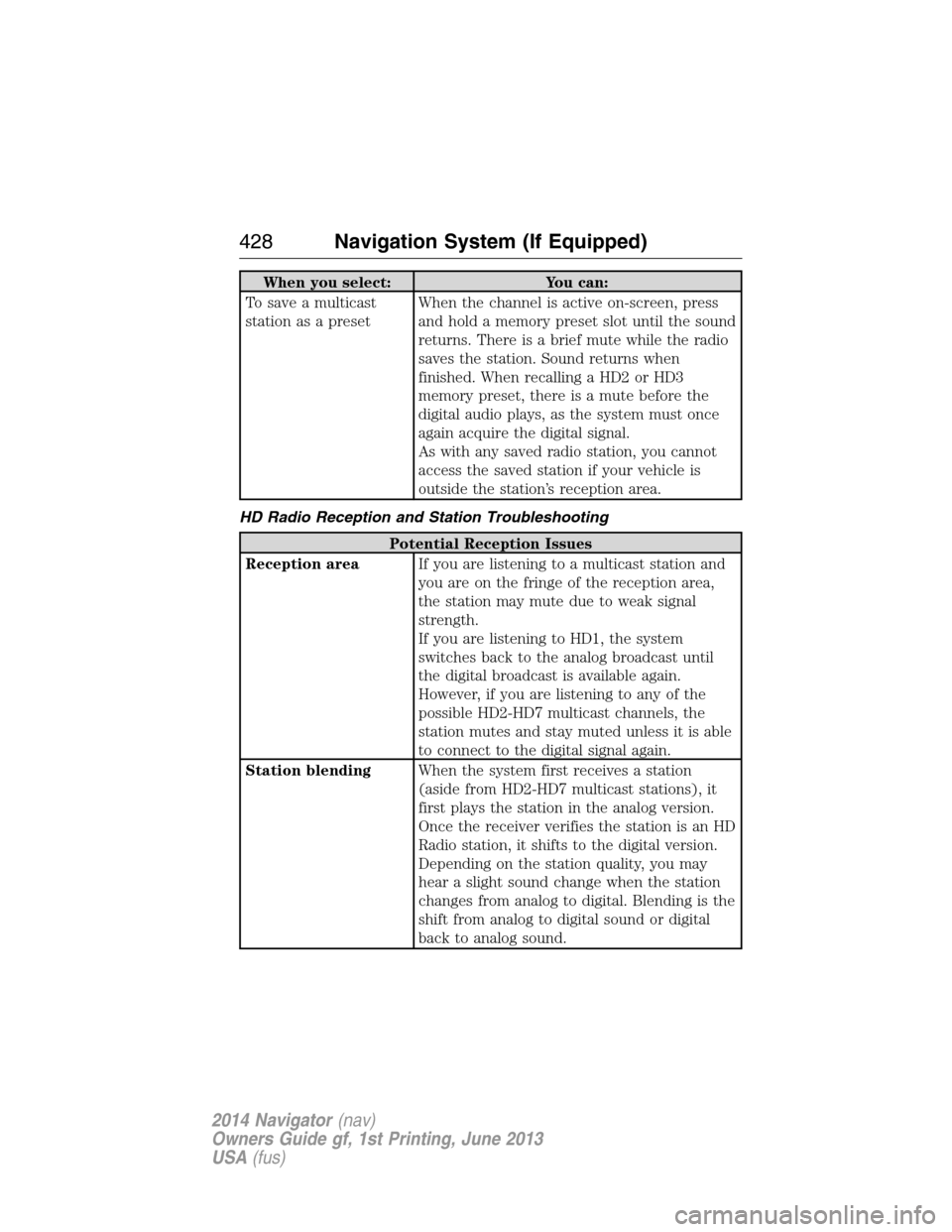
When you select: You can:
To save a multicast
station as a presetWhen the channel is active on-screen, press
and hold a memory preset slot until the sound
returns. There is a brief mute while the radio
saves the station. Sound returns when
finished. When recalling a HD2 or HD3
memory preset, there is a mute before the
digital audio plays, as the system must once
again acquire the digital signal.
As with any saved radio station, you cannot
access the saved station if your vehicle is
outside the station’s reception area.
HD Radio Reception and Station Troubleshooting
Potential Reception Issues
Reception areaIf you are listening to a multicast station and
you are on the fringe of the reception area,
the station may mute due to weak signal
strength.
If you are listening to HD1, the system
switches back to the analog broadcast until
the digital broadcast is available again.
However, if you are listening to any of the
possible HD2-HD7 multicast channels, the
station mutes and stay muted unless it is able
to connect to the digital signal again.
Station blendingWhen the system first receives a station
(aside from HD2-HD7 multicast stations), it
first plays the station in the analog version.
Once the receiver verifies the station is an HD
Radio station, it shifts to the digital version.
Depending on the station quality, you may
hear a slight sound change when the station
changes from analog to digital. Blending is the
shift from analog to digital sound or digital
back to analog sound.
428Navigation System (If Equipped)
2014 Navigator(nav)
Owners Guide gf, 1st Printing, June 2013
USA(fus)
Page 450 of 506
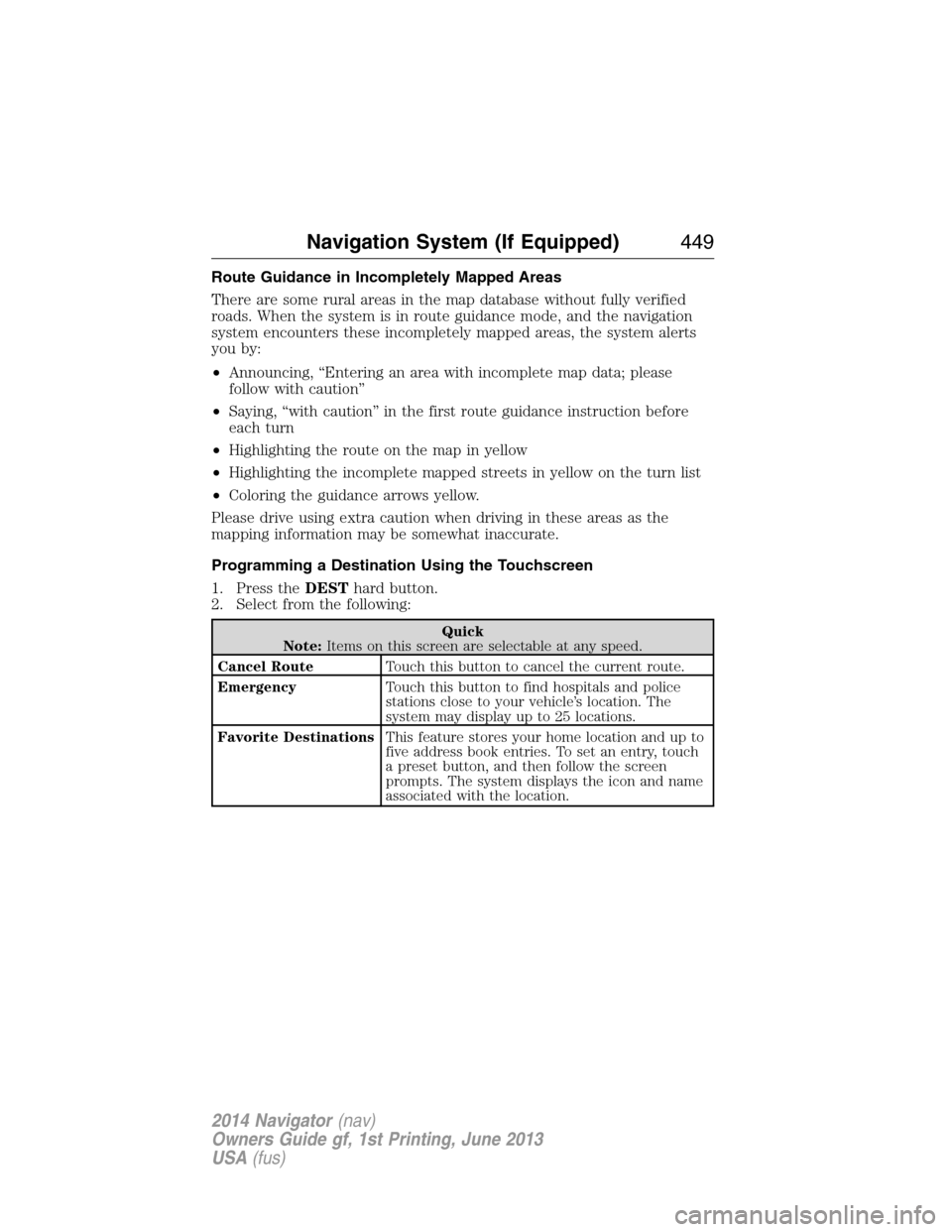
Route Guidance in Incompletely Mapped Areas
There are some rural areas in the map database without fully verified
roads. When the system is in route guidance mode, and the navigation
system encounters these incompletely mapped areas, the system alerts
you by:
•Announcing, “Entering an area with incomplete map data; please
follow with caution”
•Saying, “with caution” in the first route guidance instruction before
each turn
•Highlighting the route on the map in yellow
•Highlighting the incomplete mapped streets in yellow on the turn list
•Coloring the guidance arrows yellow.
Please drive using extra caution when driving in these areas as the
mapping information may be somewhat inaccurate.
Programming a Destination Using the Touchscreen
1. Press theDESThard button.
2. Select from the following:
Quick
Note:Items on this screen are selectable at any speed.
Cancel RouteTouch this button to cancel the current route.
EmergencyTouch this button to find hospitals and police
stations close to your vehicle’s location. The
system may display up to 25 locations.
Favorite DestinationsThis feature stores your home location and up to
five address book entries. To set an entry, touch
a preset button, and then follow the screen
prompts. The system displays the icon and name
associated with the location.
Navigation System (If Equipped)449
2014 Navigator(nav)
Owners Guide gf, 1st Printing, June 2013
USA(fus)