lock LINCOLN NAVIGATOR 2014 Owners Manual
[x] Cancel search | Manufacturer: LINCOLN, Model Year: 2014, Model line: NAVIGATOR, Model: LINCOLN NAVIGATOR 2014Pages: 506, PDF Size: 5.72 MB
Page 350 of 506
J.USB port (optional):Listen to music or view images you stored on a
USB device such as a USB memory stick or a memory card reader.
K.SOURCE:Press this button to select Monitor A, Monitor B, AUX/TV
(if available), and AUX 2 (if available).
L.POWER:Press this button to turn the system off and on.
M.TFT LCD panel:Seven-inch TFT LCD panel.
N.Level lock and release latch:Use this latch to change the viewing
angle of the LCD panel or lock the panel into the secured position.
O.Infrared sensor - forward sensor eye:This allows the remote
control to navigate the on-screen display.
Remote Control
Note:The remote control uses infrared light to send commands to the
DVD player, just as many home video systems do. Just point the remote
control at the DVD player infrared window located above each screen in
order to control that DVD player. While you can connect a second device
such as a VCR through the auxiliary inputs, and view the playback on
the screen, you cannot control that device by aiming its remote control
at the Ford DVD player. The Ford DVD system remote control is the
only remote control you can use with the system. For example, if you
connect a VCR to the DVD system, you must point the VCR remote
control at the VCR to control it.
Installing the Battery
Before using your remote control, install the batteries as follows:
1. Turn the remote control face down. Press down on the ridged area of
the battery cover and slide it off.
2. Install two AAA batteries. Make sure you install the batteries
properly, with the + and – facing the correct way, as shown in the
battery compartment.
3. Slide the cover back until it clicks.
Note:Different types of batteries have different characteristics. Do not
mix different types.
Note:Do not mix old and new batteries. Mixing old and new batteries
can shorten battery life and cause chemical leaks from the old batteries.
Note:Keep the batteries out of the reach of children. If someone
swallows a battery, immediately consult a doctor. When you dispose of
used batteries, keep to governmental regulations or environmental public
institution rules that apply in your area.
Audio System349
2014 Navigator(nav)
Owners Guide gf, 1st Printing, June 2013
USA(fus)
Page 353 of 506
25.PIX:Press this button to access settings for BRIGHTNESS, CONTRAST,
SATURATION, HUE, SHARPNESS, IR HEADPHONE, and RESET. When
you find the desired setting, useCH +andCH -to change the setting.
The bar display automatically disappears if no changes are made within
six seconds, or if any button is pressed.
26.REPEAT:Press this button to switch the repeat mode by ALL, TITLE,
CHAPTER and cancel the repeat mode while playing DVD-video. Other
disc types such as VCD, CD, and SVCD only have two repeat modes
that you can select: TRACK and ALL.Note:Both repeat functions of
VCD and SVCD need the PBC status set to ON, when available.
27.AUDIO:Press this button if a disc has different language options. Press
this button repeatedly until you reach your desired option.
28.ANGLE:Press this button to view with a different camera angle. Press
this button repeatedly until you have reached your desired viewing
angle. This feature is only available on DVDs that support frames with
multiple angles.
29.DISPLAY:Press this button display information on the screen including
title, chapter or track, time elapsed and time remaining. You can also
press this button to turn off the display.
30.RANDOM:Press this button to play titles in a random order
31.INT:Press this button to play each audio file for 10 seconds as a review
or scan.
32.NEXT:When a disc has more than one chapter, track or file, press this
button to move to the next chapter, track or file. Press the button
briefly during play to select the next chapter for DVD-video or track
and file for media such as VCD, SVCD, MP3 and CD.
33.PREV:When a disc has more than one chapter, track or file, press this
button to move to the previous chapter, track or file. Press the button
briefly during play to select the next chapter for DVD-video or track
and file for media such as VCD, SVCD, MP3 and CD.
*If available
Turning the Device On and Off
1. Pivot the screen downward until you reach a comfortable viewing
angle.
2. PressPOWERon the lower-left corner of the front panel or on the
remote control. The controls illuminate when the system is in use.
3. When the device is on and is displaying a picture, pivot the screen to
change the viewing angle to optimize the picture quality.
4. Remember to turn the device off and pivot the LCD panel to the
locked position when not in use.
352Audio System
2014 Navigator(nav)
Owners Guide gf, 1st Printing, June 2013
USA(fus)
Page 360 of 506
Connecting an MP3 Device
Using a USB Cable
Plug the MP3 Dock Connector to USB cable into a high-power USB port
on your DVD-headrest module, and then connect the other end to the
player.
See the documentation that came with your device for more information.
Charging the MP3 Player Battery
After you turn the DVD-headrest module on, connect the device to the
USB port on your DVD-headrest module
Note:Not all devices are able to charge when connected to the USB
port.
Using an A/V Cable
1. Connect the device to the headphone port using an A/V cable.Note:
Use the A/V cable made specifically for the device. Other similar
RCA-type cables might not work.
2. Connect the video and audio connectors to the AV-IN ports on
your DVD-headrest module, matching the yellow, red and white
connectors to the appropriate jacks.
Troubleshooting
Symptom Possible cause
The device does not
power on.Your vehicle ignition is not on.
The remote control does not have batteries
installed.
The infrared sensor is
inoperative.The batteries in the remote control are not
working.
The remote sensor eye is blocked.
The infrared transmitter is blocking the sensor
eye of the component to be controlled
The disc does not play. You inserted the disc backward.
The disc is defective. Try another disc.
The disc is not compatible with the
entertainment system.
The device code and disc region code do not
match. This device is set to Region 1.
Audio System359
2014 Navigator(nav)
Owners Guide gf, 1st Printing, June 2013
USA(fus)
Page 361 of 506
Symptom Possible cause
The disc plays, but
then immediately
stops.The disc is dirty and needs cleaning.
Condensation has formed inside the device.
Allow the player to dry out.
There is no picture. The signal source is not connected.
The setting may be in the wrong status. Match
the monitor mode with the source correctly.
There is a distorted
picture.The disc may be dirty. Check the disc for
fingerprints and clean with a soft cloth, wiping
from center to edge.
Sometimes a small amount of picture
distortion may appear. This is not a
malfunction.
I cannot advance
through a movie.You cannot advance through the opening
credits and warning information that appears
at the beginning of movies because the disc
prohibits that action.
There is no sound, or
there is distorted
sound.You did not connect the DVD player properly.
You did not attach the cables securely into the
appropriate jacks.
If you are using the wireless headphones,
make sure you turn them on.
The headphone volume is too low.
Something may be blocking the signal between
the monitor and the headphones.
The device feels warm. If the device is in use for a long time, it does
become warm. This is normal.
The player does not
respond to all
commands during
playback.The disc prohibits some operations.
Refer to the instructions in the disc inlay.
360Audio System
2014 Navigator(nav)
Owners Guide gf, 1st Printing, June 2013
USA(fus)
Page 387 of 506
If the call is not cancelled and a successful call is made, a pre-recorded
message is played for the 911 operator, then the occupant(s) in the
vehicle is able to talk with the operator. Be prepared to provide your
name, phone number and location immediately, because not all 911
systems are capable of receiving this information electronically.
911 Assist May Not Work If
•Your cellular phone or 911 Assist hardware was damaged in a crash.
•The vehicle’s battery or SYNC system has no power.
•The phone(s) paired and connected to the system was thrown from
the vehicle.
911 Assist Privacy Notice
Once 911 Assist is set on, it may disclose to emergency services that the
vehicle has been in a crash involving the deployment of an airbag or
activation of the fuel pump shut-off. Certain versions or updates to 911
Assist may also be capable of electronically or verbally disclosing to 911
operators the vehicle location, and/or other details about the vehicle or
crash to assist 911 operators to provide the most appropriate emergency
services. If you do not want to disclose this information, do not turn the
feature on.
Vehicle Health Report
WARNING:Always follow scheduled maintenance instructions,
regularly inspect your vehicle, and seek repair for any damage or
problem you suspect. Vehicle Health Report supplements, but cannot
replace normal maintenance and vehicle inspection. Vehicle Health
Report only monitors certain systems that are electronically monitored
by the vehicle and will not monitor or report the status of any other
system, (i.e., brake lining wear). Failure to perform scheduled
maintenance and regularly inspect your vehicle may result in vehicle
damage and serious injury.
Note:Your Vehicle Health Report feature requires activation prior to
use. Visit www.SYNCMyRide.com to register. There is no fee or
subscription associated with Vehicle Health Report, but you must register
to use this feature.
Note:This feature may not function properly if you have enabled caller
ID blocking on your mobile phone. Before running a report, review the
Vehicle Health Report privacy notice.
386SYNC®
2014 Navigator(nav)
Owners Guide gf, 1st Printing, June 2013
USA(fus)
Page 389 of 506
Vehicle Health Report options
Run Report?Press OK for SYNC to run a health report of
your vehicle’s diagnostic systems and send the
results to Ford where it is combined with
scheduled maintenance information, open
recalls and other field service actions and
unserviced vehicle inspection items from your
authorized dealer.
Vehicle Health Report Privacy Notice
When you run a Vehicle Health Report, Ford Motor Company may collect
your cellular phone number (to process your report request) and
diagnostic information about your vehicle. Certain versions or updates to
Vehicle Health Report may also collect additional vehicle information.
Ford may use the vehicle information it collects for any purpose.
If you do not want to disclose your cellular phone number or vehicle
information, do not run the feature or set up your Vehicle Health Report
profile at www.SYNCMyRide.com. See www.SYNCMyRide.com - Vehicle
Health Report Terms and Conditions, and Privacy Statement - for more
information.
SYNC Services: Traffic, Directions & Information (TDI)
Note:SYNC Services requires activation prior to use. Visit
www.SYNCMyRide.com to register and check your eligibility for
complimentary services. Standard phone and message rates may apply.
Subscription may be required. You must also have the active SYNC
Services Bluetooth-enabled cellular phone paired and connected to the
system in order to connect to, and use, SYNC Services. See theUsing
SYNC with your phonefor pairing instructions.
Note:This feature does not function properly if you have enabled caller
ID blocking on your mobile phone. Make sure your mobile phone is not
blocking caller ID before using SYNC Services.
388SYNC®
2014 Navigator(nav)
Owners Guide gf, 1st Printing, June 2013
USA(fus)
Page 393 of 506
SYNC AppLink™
Note:This feature is only available in the United States.
Note:Your smartphone must be paired and connected to SYNC to access
AppLink.
Note:iPhone users need to connect the phone to the USB port in order
to start the application. It is recommended to lock your iPhone after
starting an application.
Note:The AppLink feature is not available if your vehicle is equipped
with the MyFord Touch or MyLincoln Touch system.
Depending on your display type, you can access AppLink from the media
menu, the phone menu, or by using voice commands. Once an app is
running through AppLink, you can control main features of the app
through voice commands and steering wheel controls.
To Access Using the Phone Menu
1. Press the Phone button.
2. Browse to Mobile Applications and pressOK.
3. Browse to your desired app and pressOK.
4. Once an app is running through SYNC, you can access an app’s menu
by pressing theMENUbutton to first access the SYNC menu.
5. Scroll until “
Menu), then pressOK.From here, you can access an application’s
features, such as Thumbs up, Thumbs down, etc. For more
information, please visit www.SYNCMyRide.com.
To Access Using the Media Menu
1. Press theAUXbutton to access the SYNC menu.
2. Press the Menu button to access the SYNC Media menu.
3. Browse to Mobile Applications and pressOK.
4. Browse to your desired app and pressOK.
5. Once an app is running through SYNC, you can access an app’s menu
by pressing theMENUbutton to first access the SYNC menu.
6. Scroll until “
Menu), then pressOK.From here, you can access an application’s
features, such as Thumbs up, Thumbs down, etc. For more
information, please visit www.SYNCMyRide.com.
To Access Using the Navigation Screen (If Equipped)
1. Press the Phone button.
2. Press the SYNC Apps tab.
3. Press Mobile Apps.
4. Select the app to start it.
392SYNC®
2014 Navigator(nav)
Owners Guide gf, 1st Printing, June 2013
USA(fus)
Page 409 of 506
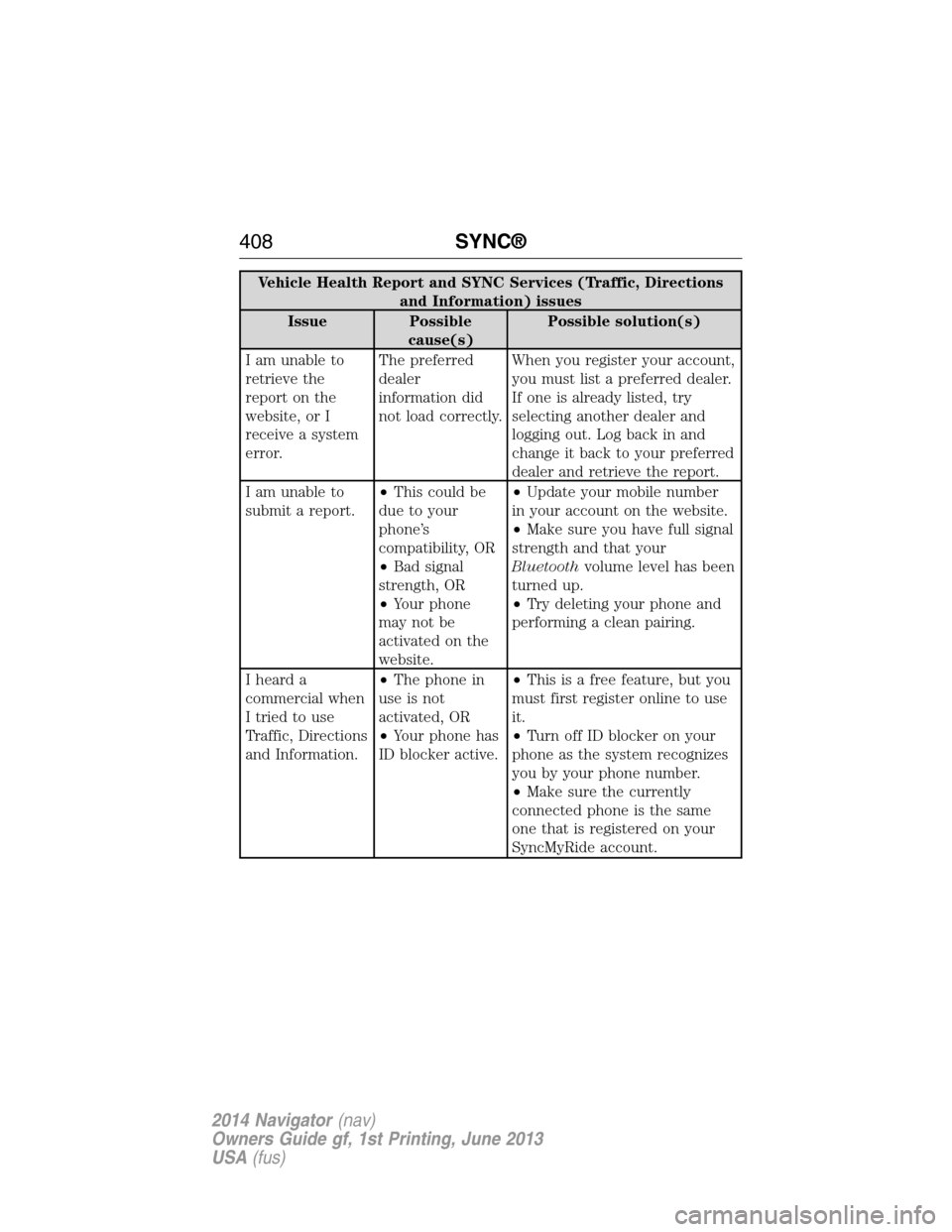
Vehicle Health Report and SYNC Services (Traffic, Directions
and Information) issues
Issue Possible
cause(s)Possible solution(s)
I am unable to
retrieve the
report on the
website, or I
receive a system
error.The preferred
dealer
information did
not load correctly.When you register your account,
you must list a preferred dealer.
If one is already listed, try
selecting another dealer and
logging out. Log back in and
change it back to your preferred
dealer and retrieve the report.
I am unable to
submit a report.•This could be
due to your
phone’s
compatibility, OR
•Bad signal
strength, OR
•Your phone
may not be
activated on the
website.•Update your mobile number
in your account on the website.
•Make sure you have full signal
strength and that your
Bluetoothvolume level has been
turned up.
•Try deleting your phone and
performing a clean pairing.
I heard a
commercial when
I tried to use
Traffic, Directions
and Information.•The phone in
use is not
activated, OR
•Your phone has
ID blocker active.•This is a free feature, but you
must first register online to use
it.
•Turn off ID blocker on your
phone as the system recognizes
you by your phone number.
•Make sure the currently
connected phone is the same
one that is registered on your
SyncMyRide account.
408SYNC®
2014 Navigator(nav)
Owners Guide gf, 1st Printing, June 2013
USA(fus)
Page 413 of 506
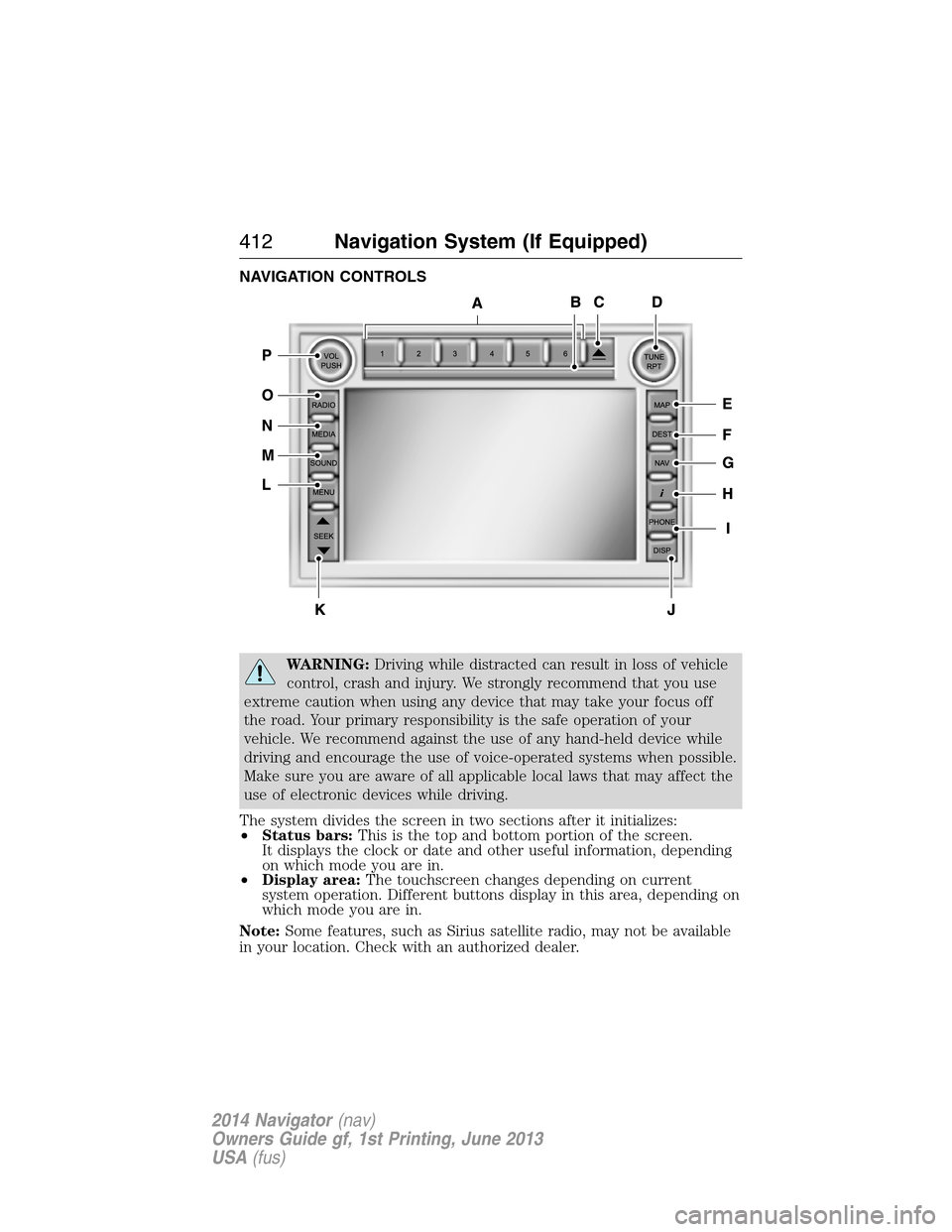
NAVIGATION CONTROLS
WARNING:Driving while distracted can result in loss of vehicle
control, crash and injury. We strongly recommend that you use
extreme caution when using any device that may take your focus off
the road. Your primary responsibility is the safe operation of your
vehicle. We recommend against the use of any hand-held device while
driving and encourage the use of voice-operated systems when possible.
Make sure you are aware of all applicable local laws that may affect the
use of electronic devices while driving.
The system divides the screen in two sections after it initializes:
•Status bars:This is the top and bottom portion of the screen.
It displays the clock or date and other useful information, depending
on which mode you are in.
•Display area:The touchscreen changes depending on current
system operation. Different buttons display in this area, depending on
which mode you are in.
Note:Some features, such as Sirius satellite radio, may not be available
in your location. Check with an authorized dealer.
412Navigation System (If Equipped)
2014 Navigator(nav)
Owners Guide gf, 1st Printing, June 2013
USA(fus)
Page 415 of 506
L.MENU:
•Press this button to access the system menu.
•Press while the system menu is active to access the menu tabs of
Display, Clock, Feedback Settings, System Settings and Valet Mode.
M.SOUND:
•Press this button to access the sound menu.
•Press while the sound menu is active to access the menu tabs of
Bass/Treble, Balance/Fade, SCV (Speed Compensated Volume), DSP
(Digital Signal Processing) and Visualizer.
N.MEDIA:
•Press this button to access the media menu.
•Press while the media menu is active to access the available sources
of CD/DVD, Jukebox and User Device.
O.RADIO:
•Press this button to access the radio menu.
•Press while the radio menu is active to access the available sources of
AM, FM1, FM2, SAT1, SAT2, and SAT3.
P.VOL:Press and hold this button to turn the system off and on. Turn
the control to adjust the volume.
Note:If a navigation route is active when the navigation system is off,
the system resumes the route when you turn the system on.
DISPLAY MODE
You can choose to turn your screen on or off and if you would like to
view the status bars on the top and bottom of the screen. Press DISP to
see the options.
Display Mode Voice Commands
The following voice commands are available in display mode.
If you are not in display mode, press the voice button on the
steering wheel. When prompted, say “Display mode” and then
any of the following commands.
Display mode voice commands
“Display on”
“Display off”
“Status bar”
“Brighter”
“Dimmer”
“Day”
414Navigation System (If Equipped)
2014 Navigator(nav)
Owners Guide gf, 1st Printing, June 2013
USA(fus)