warning LINCOLN NAVIGATOR 2014 Owners Manual
[x] Cancel search | Manufacturer: LINCOLN, Model Year: 2014, Model line: NAVIGATOR, Model: LINCOLN NAVIGATOR 2014Pages: 506, PDF Size: 5.72 MB
Page 335 of 506
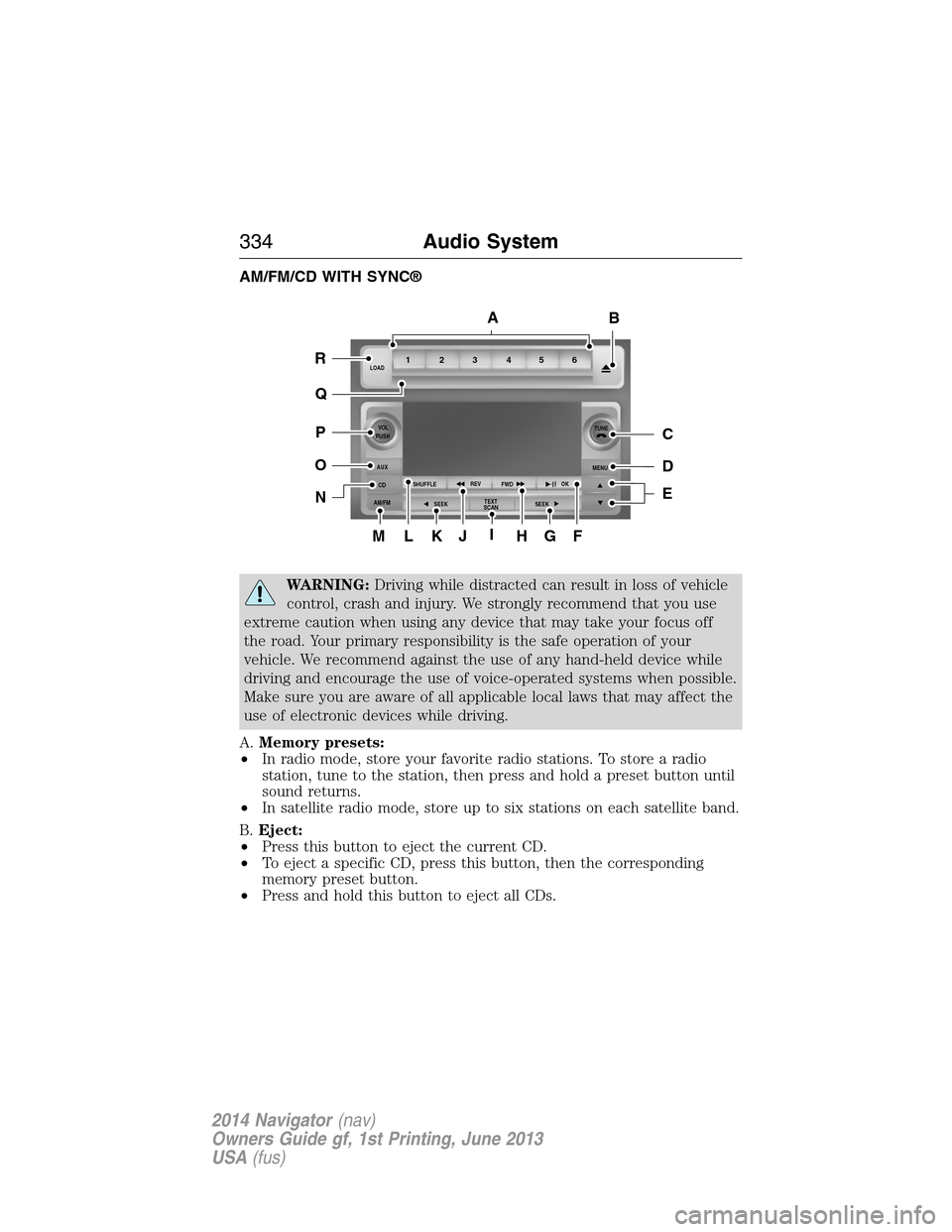
AM/FM/CD WITH SYNC®
WARNING:Driving while distracted can result in loss of vehicle
control, crash and injury. We strongly recommend that you use
extreme caution when using any device that may take your focus off
the road. Your primary responsibility is the safe operation of your
vehicle. We recommend against the use of any hand-held device while
driving and encourage the use of voice-operated systems when possible.
Make sure you are aware of all applicable local laws that may affect the
use of electronic devices while driving.
A.Memory presets:
•In radio mode, store your favorite radio stations. To store a radio
station, tune to the station, then press and hold a preset button until
sound returns.
•In satellite radio mode, store up to six stations on each satellite band.
B.Eject:
•Press this button to eject the current CD.
•To eject a specific CD, press this button, then the corresponding
memory preset button.
•Press and hold this button to eject all CDs.
ML
R
P
O
N
Q
KJIHGF
BA
C
D
E
1LOAD
VOL
PUSH
AUX
CD
AM/FMSHUFFLEREV
FWDOK
SEEKMENUTUNE
SEEKTEXT
SCAN23 456
334Audio System
2014 Navigator(nav)
Owners Guide gf, 1st Printing, June 2013
USA(fus)
Page 340 of 506
Switching Dual Play Mode On
You can switch Dual Play mode on by simultaneously pressing the 2 and
4 memory preset buttons on the audio or by doing the following:
1. Press the headphone/speaker control. The headphone icon
illuminates in both front and rear audio displays indicating the rear
seat speakers are off and the headphones are on.
2. Press MEDIA to change audio sources (as heard in the headphones
only).
3. Use the other controls to adjust the playing media.
Switching Off Dual Play Mode
Use any one of the following to switch off Dual Play mode:
•Press the 2 and 4 memory preset buttons simultaneously again.
•Press the 3 and 5 memory preset buttons simultaneously to LOCK
the rear seat controls.
•Press the headphone/speaker button again.
Using Dual Play Mode with Headphones
WARNING:Do not leave children unattended in your vehicle
and do not let children operate the system while unsupervised.
If wired headphones or auxiliary systems are used, children may
become entangled in the cords and seriously injure themselves.
Plug a 1/8–inch (3.5 millimeter) headphone (not included) into the
headphone jack. Press the speaker button, or the 2 and 4 memory preset
buttons simultaneously on the radio to switch on the headphones. DUAL
PLAY illuminates in the audio display, there is no sound from the rear
speakers and the fade control is inactive, signaling that Dual Play is on.
The front speakers remain on for the front passengers. Press the speaker
button, or the 2 and 4 memory preset buttons simultaneously on the
radio again to switch off the headphones and Dual Play mode. SINGLE
PLAY illuminates in the audio display; fade control is active and there is
sound from rear speakers, signaling that Single Play is on.
You need to switch the rear seat controls on to use any rear controls
(whether in Single Play or Dual Play mode). To use Dual Play, switch
on the rear seat controls; the headphone icon illuminates in the audio
display. SeeSwitching the rear audio controls onpreviously.
Audio System339
2014 Navigator(nav)
Owners Guide gf, 1st Printing, June 2013
USA(fus)
Page 343 of 506
Radio display Condition Possible action
Unsubscribed Channel Your subscription does
not include this
channel.Contact Sirius at
1–888–539–7474 to
subscribe to the
channel, or tune to
another channel.
No Signal The signal is lost from
the Sirius satellite or
Sirius tower to your
vehicle antenna.The signal is blocked.
When you move into
an open area, the
signal should return.
Updating Update of channel
programming in
progress.No action required.
The process may take
up to three minutes.
Call SIRIUS
1–888–539–7474Your satellite service is
no longer available.Call Sirius at
1–888–539–7474 to
resolve subscription
issues.
None Found. Check
Channel Guide.All the channels in the
selected category are
either skipped or
locked.Use the channel guide
to turn off the Lock or
Skip function on that
station.
Subscription Updated Sirius has updated the
channels available for
your vehicle.No action required.
AUXILIARY INPUT JACK
WARNING:Driving while distracted can result in loss of vehicle
control, crash and injury. We strongly recommend that you use
extreme caution when using any device that may take your focus off
the road. Your primary responsibility is the safe operation of your
vehicle. We recommend against the use of any hand-held device while
driving and encourage the use of voice-operated systems when possible.
Make sure you are aware of all applicable local laws that may affect the
use of electronic devices while driving.
342Audio System
2014 Navigator(nav)
Owners Guide gf, 1st Printing, June 2013
USA(fus)
Page 344 of 506
WARNING:For safety reasons, do not connect or adjust the
settings on your portable music player while your vehicle is
moving.
WARNING:Store the portable music player in a secure location,
such as the center console or the glove box, when your vehicle is
moving. Hard objects may become projectiles in a crash or sudden stop,
which may increase the risk of serious injury. The audio extension cable
must be long enough to allow the portable music player to be safely
stored while your vehicle is moving.
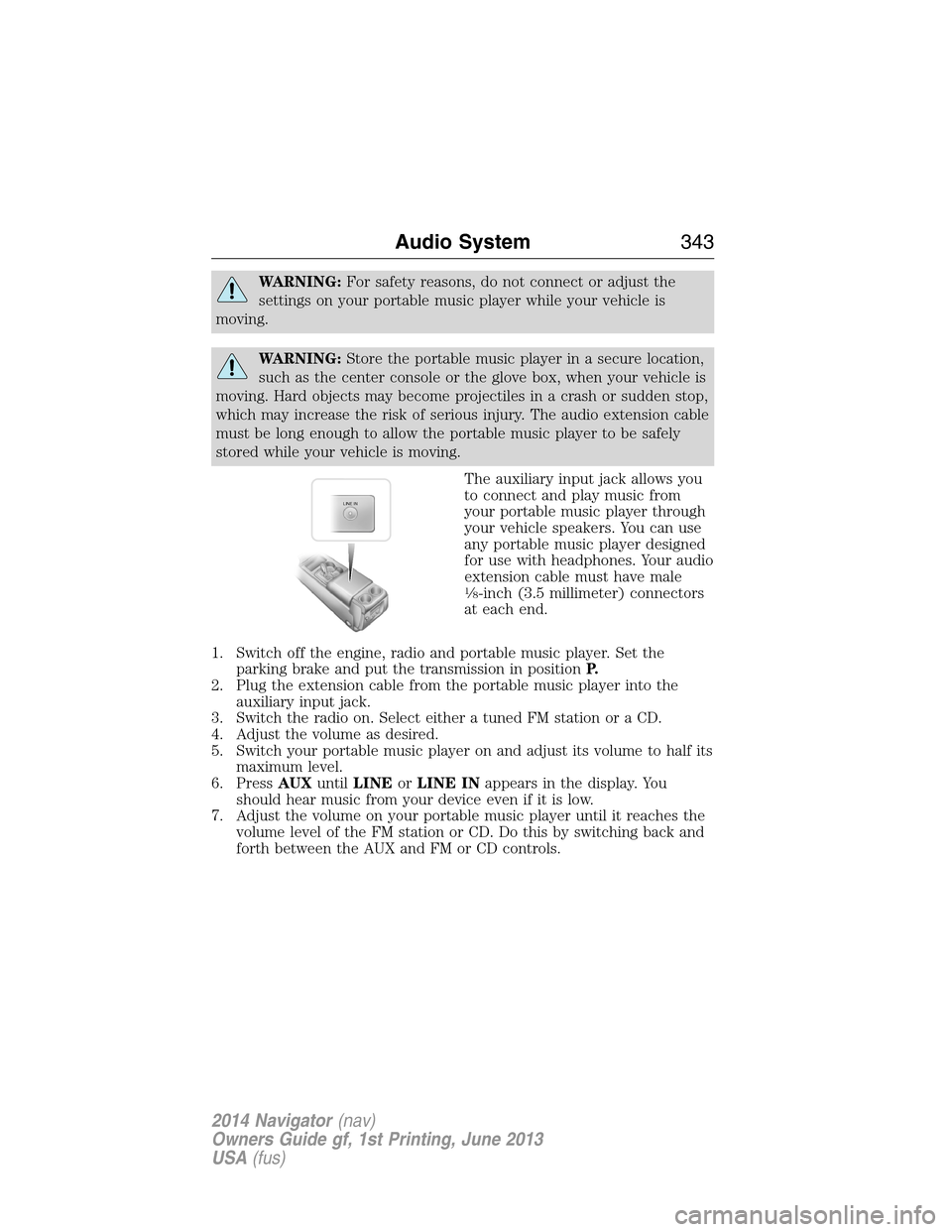
The auxiliary input jack allows you
to connect and play music from
your portable music player through
your vehicle speakers. You can use
any portable music player designed
for use with headphones. Your audio
extension cable must have male
18-inch (3.5 millimeter) connectors
at each end.
1. Switch off the engine, radio and portable music player. Set the
parking brake and put the transmission in positionP.
2. Plug the extension cable from the portable music player into the
auxiliary input jack.
3. Switch the radio on. Select either a tuned FM station or a CD.
4. Adjust the volume as desired.
5. Switch your portable music player on and adjust its volume to half its
maximum level.
6. PressAUXuntilLINEorLINE INappears in the display. You
should hear music from your device even if it is low.
7. Adjust the volume on your portable music player until it reaches the
volume level of the FM station or CD. Do this by switching back and
forth between the AUX and FM or CD controls.
LINE IN
Audio System343
2014 Navigator(nav)
Owners Guide gf, 1st Printing, June 2013
USA(fus)
Page 345 of 506
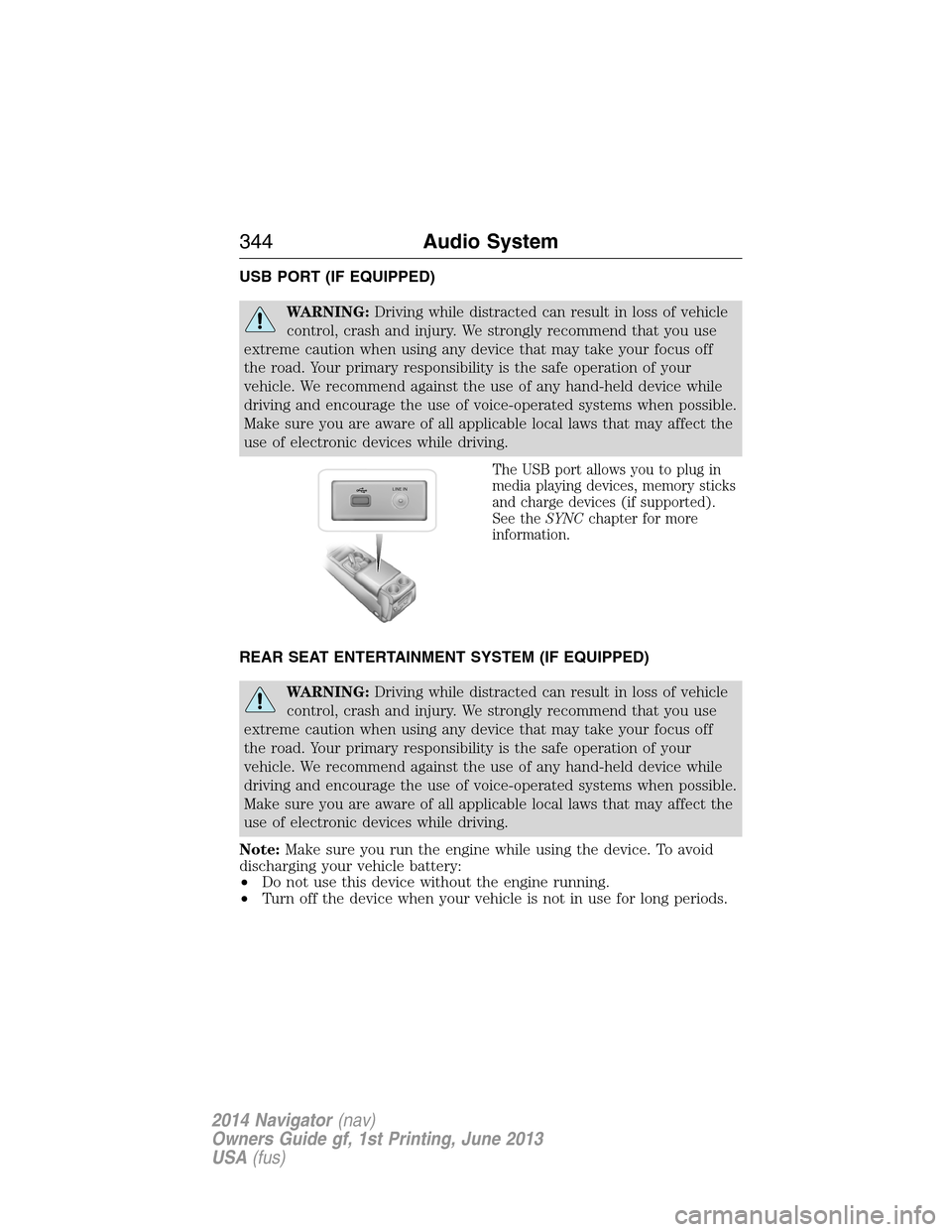
USB PORT (IF EQUIPPED)
WARNING:Driving while distracted can result in loss of vehicle
control, crash and injury. We strongly recommend that you use
extreme caution when using any device that may take your focus off
the road. Your primary responsibility is the safe operation of your
vehicle. We recommend against the use of any hand-held device while
driving and encourage the use of voice-operated systems when possible.
Make sure you are aware of all applicable local laws that may affect the
use of electronic devices while driving.
The USB port allows you to plug in
media playing devices, memory sticks
and charge devices (if supported).
See theSYNCchapter for more
information.
REAR SEAT ENTERTAINMENT SYSTEM (IF EQUIPPED)
WARNING:Driving while distracted can result in loss of vehicle
control, crash and injury. We strongly recommend that you use
extreme caution when using any device that may take your focus off
the road. Your primary responsibility is the safe operation of your
vehicle. We recommend against the use of any hand-held device while
driving and encourage the use of voice-operated systems when possible.
Make sure you are aware of all applicable local laws that may affect the
use of electronic devices while driving.
Note:Make sure you run the engine while using the device. To avoid
discharging your vehicle battery:
•Do not use this device without the engine running.
•Turn off the device when your vehicle is not in use for long periods.
LINE IN
344Audio System
2014 Navigator(nav)
Owners Guide gf, 1st Printing, June 2013
USA(fus)
Page 361 of 506
Symptom Possible cause
The disc plays, but
then immediately
stops.The disc is dirty and needs cleaning.
Condensation has formed inside the device.
Allow the player to dry out.
There is no picture. The signal source is not connected.
The setting may be in the wrong status. Match
the monitor mode with the source correctly.
There is a distorted
picture.The disc may be dirty. Check the disc for
fingerprints and clean with a soft cloth, wiping
from center to edge.
Sometimes a small amount of picture
distortion may appear. This is not a
malfunction.
I cannot advance
through a movie.You cannot advance through the opening
credits and warning information that appears
at the beginning of movies because the disc
prohibits that action.
There is no sound, or
there is distorted
sound.You did not connect the DVD player properly.
You did not attach the cables securely into the
appropriate jacks.
If you are using the wireless headphones,
make sure you turn them on.
The headphone volume is too low.
Something may be blocking the signal between
the monitor and the headphones.
The device feels warm. If the device is in use for a long time, it does
become warm. This is normal.
The player does not
respond to all
commands during
playback.The disc prohibits some operations.
Refer to the instructions in the disc inlay.
360Audio System
2014 Navigator(nav)
Owners Guide gf, 1st Printing, June 2013
USA(fus)
Page 362 of 506
Compliance Information
FCC Notice
This device has been tested and found to comply with the limits for a Class
B digital device, pursuant to part 15 of the FCC Rules. These limits are
designed to provide reasonable protection against harmful interference in a
residential installation. This device generates, uses, and can radiate radio
frequency energy, and if not installed and used in accordance with the
instructions, may cause harmful interference to radio communications.
However, there is no guarantee that interference will not occur in a
particular installation. If this device does cause unacceptable interference to
radio or television reception, which can be determined by turning the device
off and on, the user is encouraged to try to correct the interference by one
or more of the following measures:
•Reorient or relocate the receiving antenna.
•Increase the separation between the device and receiver.
•Connect the device into an outlet on a circuit different from that to
which the receiver is connected.
•Consult your dealer or an experienced radio or TV technician for help.
FCC Warning:
To assure continued FCC compliance, the user must use the provided
grounded power supply cord and the shielded video interface cable with
bonded ferrite cores. Also, any unauthorized change or modifications to
this device would void the user’s authority to operate this device.
Macrovision Notice
This product incorporates copyright protection technology that is
protected by U.S. patents and other intellectual property rights. Use of
this copyright protection technology must be authorized by Macrovision,
and is intended for home and other limited viewing uses only unless
otherwise authorized by Macrovision. Reverse engineering or disassembly
is prohibited.
Audio System361
2014 Navigator(nav)
Owners Guide gf, 1st Printing, June 2013
USA(fus)
Page 366 of 506
GENERAL INFORMATION
Make sure you review your device’s manual before using it with SYNC.
Support
The SYNC support team is available to help you with any questions you
cannot answer on your own.
Monday-Saturday, 8:30am-9:00pm EST.
Sunday, 10:30am-7:30pm EST.
In the United States, call: 1–800–392–3673.
In Canada, call: 1–800–565–3673.
Times are subject to change due to holidays.
SYNC Owner Account
Why do I need a SYNC owner account?
•Required to activate Vehicle Health Report and to view the reports
online.
•Required to activate the subscription-based SYNC Services and to
personalize your Saved Points and Favorites.
•Essential for keeping up with the latest software downloads available
for SYNC.
•Access to customer support for any questions you may have.
Driving Restrictions
For your safety, certain features are speed-dependent and restricted
when your vehicle is traveling over 3 mph (5 km/h).
Safety Information
WARNING:Driving while distracted can result in loss of vehicle
control, crash and injury. We strongly recommend that you use
extreme caution when using any device that may take your focus off
the road. Your primary responsibility is the safe operation of your
vehicle. We recommend against the use of any handheld device while
driving and encourage the use of voice-operated systems when possible.
Make sure you are aware of all applicable local laws that may affect the
use of electronic devices while driving.
SYNC®365
2014 Navigator(nav)
Owners Guide gf, 1st Printing, June 2013
USA(fus)
Page 385 of 506
911 Assist®
WARNING:Unless the 911 Assist setting is set on prior to a
crash, the system will not dial for help which could delay
response time, potentially increasing the risk of serious injury or death
after a crash.
WARNING:Do not wait for 911 Assist to make an emergency
call if you can do it yourself. Dial emergency services
immediately to avoid delayed response time which could increase the
risk of serious injury or death after a crash. If you do not hear 911
Assist within five seconds of the crash, the system or phone may be
damaged or non-functional.
WARNING:Always place your phone in a secure location in the
vehicle so it does not become a projectile or get damaged in a
crash. Failure to do so may cause serious injury to someone or damage
the phone which could prevent 911 Assist from working properly.
Note:SYNC 911 Assist feature must be set on prior to the incident.
Note:Before setting this feature on, ensure that you read the 911 Assist
privacy notice later in this section for important information.
Note:If 911 Assist is turned on or off by any user, that setting applies
for all paired phones. If 911 Assist is turned off, a voice message plays
and/or a display message/icon comes on when the vehicle is started after
a previously paired phone connects.
Note:Every phone operates differently. While SYNC 911 Assist works
with most cellular phones, some may have trouble using this feature.
If a crash deploys an airbag (excludes knee airbags and rear inflatable
safety belts [if equipped]) or activates the fuel pump shut-off, your SYNC
equipped vehicle may be able to contact emergency services by dialing
911 through a paired and connected Bluetooth-enabled phone. For more
information about 911 Assist, visit www.SYNCMyRide.com,
www.SYNCMyRide.ca or www.syncmaroute.ca.
•For information on airbag deployment, see theSupplementary
Restraints Systemchapter.
•For information on the fuel pump shut-off, see theRoadside
Emergencieschapter.
384SYNC®
2014 Navigator(nav)
Owners Guide gf, 1st Printing, June 2013
USA(fus)
Page 387 of 506
If the call is not cancelled and a successful call is made, a pre-recorded
message is played for the 911 operator, then the occupant(s) in the
vehicle is able to talk with the operator. Be prepared to provide your
name, phone number and location immediately, because not all 911
systems are capable of receiving this information electronically.
911 Assist May Not Work If
•Your cellular phone or 911 Assist hardware was damaged in a crash.
•The vehicle’s battery or SYNC system has no power.
•The phone(s) paired and connected to the system was thrown from
the vehicle.
911 Assist Privacy Notice
Once 911 Assist is set on, it may disclose to emergency services that the
vehicle has been in a crash involving the deployment of an airbag or
activation of the fuel pump shut-off. Certain versions or updates to 911
Assist may also be capable of electronically or verbally disclosing to 911
operators the vehicle location, and/or other details about the vehicle or
crash to assist 911 operators to provide the most appropriate emergency
services. If you do not want to disclose this information, do not turn the
feature on.
Vehicle Health Report
WARNING:Always follow scheduled maintenance instructions,
regularly inspect your vehicle, and seek repair for any damage or
problem you suspect. Vehicle Health Report supplements, but cannot
replace normal maintenance and vehicle inspection. Vehicle Health
Report only monitors certain systems that are electronically monitored
by the vehicle and will not monitor or report the status of any other
system, (i.e., brake lining wear). Failure to perform scheduled
maintenance and regularly inspect your vehicle may result in vehicle
damage and serious injury.
Note:Your Vehicle Health Report feature requires activation prior to
use. Visit www.SYNCMyRide.com to register. There is no fee or
subscription associated with Vehicle Health Report, but you must register
to use this feature.
Note:This feature may not function properly if you have enabled caller
ID blocking on your mobile phone. Before running a report, review the
Vehicle Health Report privacy notice.
386SYNC®
2014 Navigator(nav)
Owners Guide gf, 1st Printing, June 2013
USA(fus)