radio LINCOLN NAVIGATOR 2014 Owner's Guide
[x] Cancel search | Manufacturer: LINCOLN, Model Year: 2014, Model line: NAVIGATOR, Model: LINCOLN NAVIGATOR 2014Pages: 506, PDF Size: 5.72 MB
Page 362 of 506
Compliance Information
FCC Notice
This device has been tested and found to comply with the limits for a Class
B digital device, pursuant to part 15 of the FCC Rules. These limits are
designed to provide reasonable protection against harmful interference in a
residential installation. This device generates, uses, and can radiate radio
frequency energy, and if not installed and used in accordance with the
instructions, may cause harmful interference to radio communications.
However, there is no guarantee that interference will not occur in a
particular installation. If this device does cause unacceptable interference to
radio or television reception, which can be determined by turning the device
off and on, the user is encouraged to try to correct the interference by one
or more of the following measures:
•Reorient or relocate the receiving antenna.
•Increase the separation between the device and receiver.
•Connect the device into an outlet on a circuit different from that to
which the receiver is connected.
•Consult your dealer or an experienced radio or TV technician for help.
FCC Warning:
To assure continued FCC compliance, the user must use the provided
grounded power supply cord and the shielded video interface cable with
bonded ferrite cores. Also, any unauthorized change or modifications to
this device would void the user’s authority to operate this device.
Macrovision Notice
This product incorporates copyright protection technology that is
protected by U.S. patents and other intellectual property rights. Use of
this copyright protection technology must be authorized by Macrovision,
and is intended for home and other limited viewing uses only unless
otherwise authorized by Macrovision. Reverse engineering or disassembly
is prohibited.
Audio System361
2014 Navigator(nav)
Owners Guide gf, 1st Printing, June 2013
USA(fus)
Page 371 of 506
Pairing a Phone for the First Time
Note:SYNC can support downloading up to approximately 1000 entries
per Bluetooth-enabled cellular phone.
Note:Make sure the vehicle ignition and radio are turned on and the
transmission is in positionP.
Note:To scroll through the menus, press the up and down arrows on
your audio system.
Wirelessly pairing your phone with SYNC allows you to make and receive
hands-free calls.
1. Press the phone button; when the display indicates no phone is
paired, pressOK.
2. WhenFind SYNCappears in the display, pressOK.
3. Put your phone into Bluetooth discovery mode. See your phone’s
user guide if necessary.
4. When prompted on your phone’s display, enter the six-digit PIN
provided by SYNC in the radio display.
5. The display indicates when the pairing is successful.
Depending on your phone’s capability and your market, the system may
prompt you with questions such as setting the current phone as the
primary phone (the phone SYNC automatically tries to connect with
first upon vehicle start-up), downloading your phone book, etc.
Pairing Subsequent Phones
Note:To scroll through the menus, press the up and down arrows on
your audio system.
Note:Make sure the vehicle ignition and radio are turned on and that
the transmission is in positionP.
1. Press the phone button and scroll until System Settings is selected.
2. Press OK and scroll until Bluetooth Devices is selected and press OK.
3. Scroll until Add Bluetooth Device is selected and press OK.
4. When Find SYNC appears in the display, press OK.
5. Put your phone into Bluetooth discovery mode. See your phone’s
user guide if necessary.
6. When prompted on your phone’s display, enter the six-digit PIN
provided by SYNC in the radio display. The display indicates when
the pairing is successful.
7. The system then prompts with questions such as if you would like
to set the current phone as the primary phone (the phone SYNC
automatically tries to connect with first upon vehicle start-up),
download your phone book, etc.
370SYNC®
2014 Navigator(nav)
Owners Guide gf, 1st Printing, June 2013
USA(fus)
Page 383 of 506
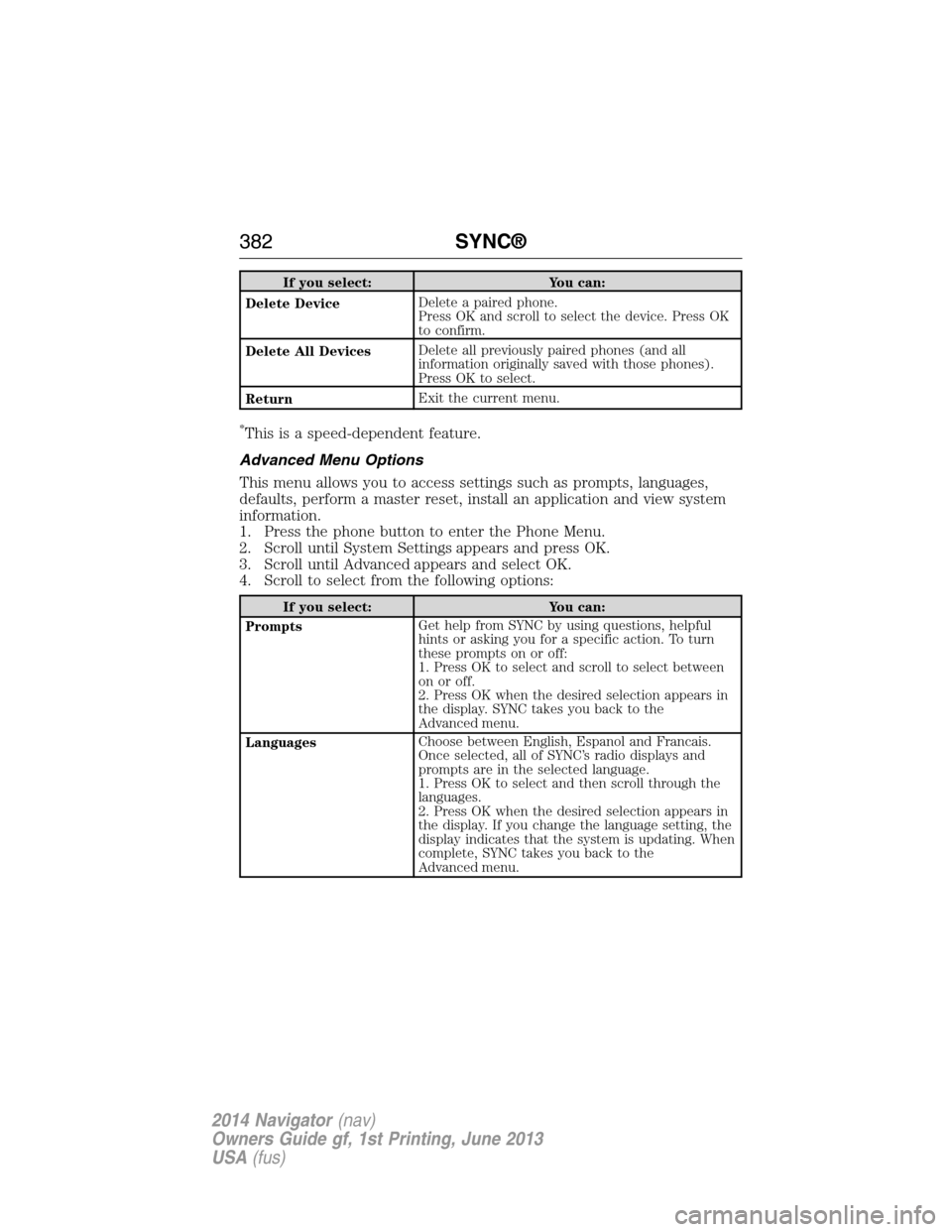
If you select: You can:
Delete DeviceDelete a paired phone.
Press OK and scroll to select the device. Press OK
to confirm.
Delete All DevicesDelete all previously paired phones (and all
information originally saved with those phones).
Press OK to select.
ReturnExit the current menu.
*This is a speed-dependent feature.
Advanced Menu Options
This menu allows you to access settings such as prompts, languages,
defaults, perform a master reset, install an application and view system
information.
1. Press the phone button to enter the Phone Menu.
2. Scroll until System Settings appears and press OK.
3. Scroll until Advanced appears and select OK.
4. Scroll to select from the following options:
If you select: You can:
PromptsGet help from SYNC by using questions, helpful
hints or asking you for a specific action. To turn
these prompts on or off:
1. Press OK to select and scroll to select between
on or off.
2. Press OK when the desired selection appears in
the display. SYNC takes you back to the
Advanced menu.
LanguagesChoose between English, Espanol and Francais.
Once selected, all of SYNC’s radio displays and
prompts are in the selected language.
1. Press OK to select and then scroll through the
languages.
2. Press OK when the desired selection appears in
the display. If you change the language setting, the
display indicates that the system is updating. When
complete, SYNC takes you back to the
Advanced menu.
382SYNC®
2014 Navigator(nav)
Owners Guide gf, 1st Printing, June 2013
USA(fus)
Page 386 of 506
Setting 911 Assist On
Perform the following:
1. Press the phone button to enter the Phone Menu.
2. Scroll until 911 Assist is selected.
3. Press OK to confirm and enter the 911 Assist menu.
4. Scroll to select between On and Off selections.
5. Press OK when the desired option appears in the radio display.
Set On or Set Off appears in the display as confirmation.
Off selections include: Off with reminder and Off without reminder.
Off with reminder provides a display and voice reminder at phone
connection at vehicle start. Off without reminder provides a display
reminder only without a voice reminder at phone connection.
To make sure that 911 Assist works properly:
•SYNC must be powered and working properly at the time of the
incident and throughout feature activation and use.
•SYNC 911 Assist feature must be set on prior to the incident.
•A Bluetooth-enabled and compatible phone has to be paired and
connected to SYNC.
•A connected Bluetooth-enabled phone must have the ability to make
and maintain an outgoing call at the time of the incident.
•A connected Bluetooth-enabled phone must have adequate network
coverage, battery power and signal strength.
•The vehicle must have battery power and be located in the United
States, Canada or in a territory in which 911 is the emergency
number.
In the Event of a Crash
Not all crashes deploy an airbag or activate the fuel pump shut-off
(which would activate 911 Assist); however, if 911 Assist is triggered,
SYNC tries to contact emergency services. If a connected phone is
damaged or loses connection to SYNC, SYNC searches for, and tries to
connect to, any available previously paired phone and tries to make the
call to 911.
Before making the call:
•
SYNC provides a short window of time (about 10 seconds) to cancel the
call. Failure to cancel the call results in SYNC attempting to dial 911.
•SYNC says the following, or a similar message: “SYNC will attempt to call
911, to cancel the call, press Cancel on your screen or press and hold the
phone button on your steering wheel.”
SYNC®385
2014 Navigator(nav)
Owners Guide gf, 1st Printing, June 2013
USA(fus)
Page 394 of 506
To Access Using Voice Commands
1. Press the voice icon.
2. When prompted, say “Mobile Apps”.
3. Say the name of the application after the tone.
4. The app should start. While an app is running through SYNC, you can
press the voice button and speak commands specific to the app, such
as “Play Station Quickmix”. Say “Help” to discover available voice
commands.
USING SYNC WITH YOUR MEDIA PLAYER
You can access and play music from your digital music player over the
vehicle’s speaker system using the system’s media menu or voice
commands. You can also sort and play your music by specific categories,
such as artists, albums, etc.
SYNC is capable of hosting nearly any digital media player including:
iPod, Zune™, Plays from device players, and most USB drives. SYNC also
supports audio formats such as MP3, WMA, WAV and ACC.
Connecting Your Digital Media Player via the USB Port
Note:If your digital media player has a power switch, ensure that the
device is turned on.
To connect using voice commands:
1. Plug the device into the vehicle’s USB port.
2. Press the voice icon and when prompted, say “USB”.
3. You can now play music by saying any of the appropriate voice
commands. See the media voice commands.
To connect using the system menu:
1. Plug the device into the vehicle’s USB port.
2. Press AUX and then MENU to enter the Media Menu.
3. Scroll until Select Source appears and press OK.
4. Scroll to select USB and press OK.
5. Depending on how many digital media files are on your connected
device, Indexing may appear in the radio display. When indexing is
complete, the screen returns to the Play Menu.
6. Press OK and scroll through selections of:
•Play All
•Artists
•Albums
•Genres
•Playlists
•Tracks
SYNC®393
2014 Navigator(nav)
Owners Guide gf, 1st Printing, June 2013
USA(fus)
Page 413 of 506
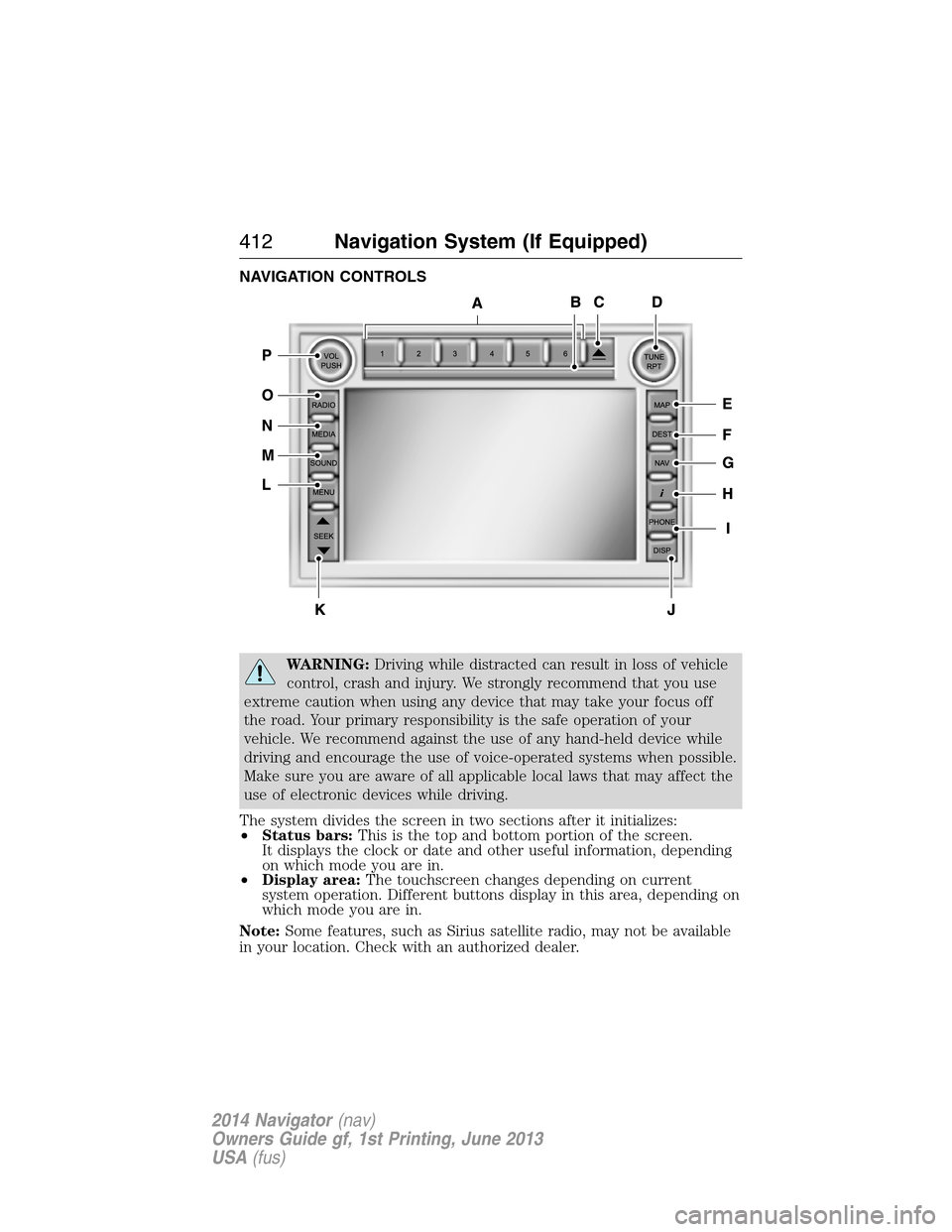
NAVIGATION CONTROLS
WARNING:Driving while distracted can result in loss of vehicle
control, crash and injury. We strongly recommend that you use
extreme caution when using any device that may take your focus off
the road. Your primary responsibility is the safe operation of your
vehicle. We recommend against the use of any hand-held device while
driving and encourage the use of voice-operated systems when possible.
Make sure you are aware of all applicable local laws that may affect the
use of electronic devices while driving.
The system divides the screen in two sections after it initializes:
•Status bars:This is the top and bottom portion of the screen.
It displays the clock or date and other useful information, depending
on which mode you are in.
•Display area:The touchscreen changes depending on current
system operation. Different buttons display in this area, depending on
which mode you are in.
Note:Some features, such as Sirius satellite radio, may not be available
in your location. Check with an authorized dealer.
412Navigation System (If Equipped)
2014 Navigator(nav)
Owners Guide gf, 1st Printing, June 2013
USA(fus)
Page 414 of 506
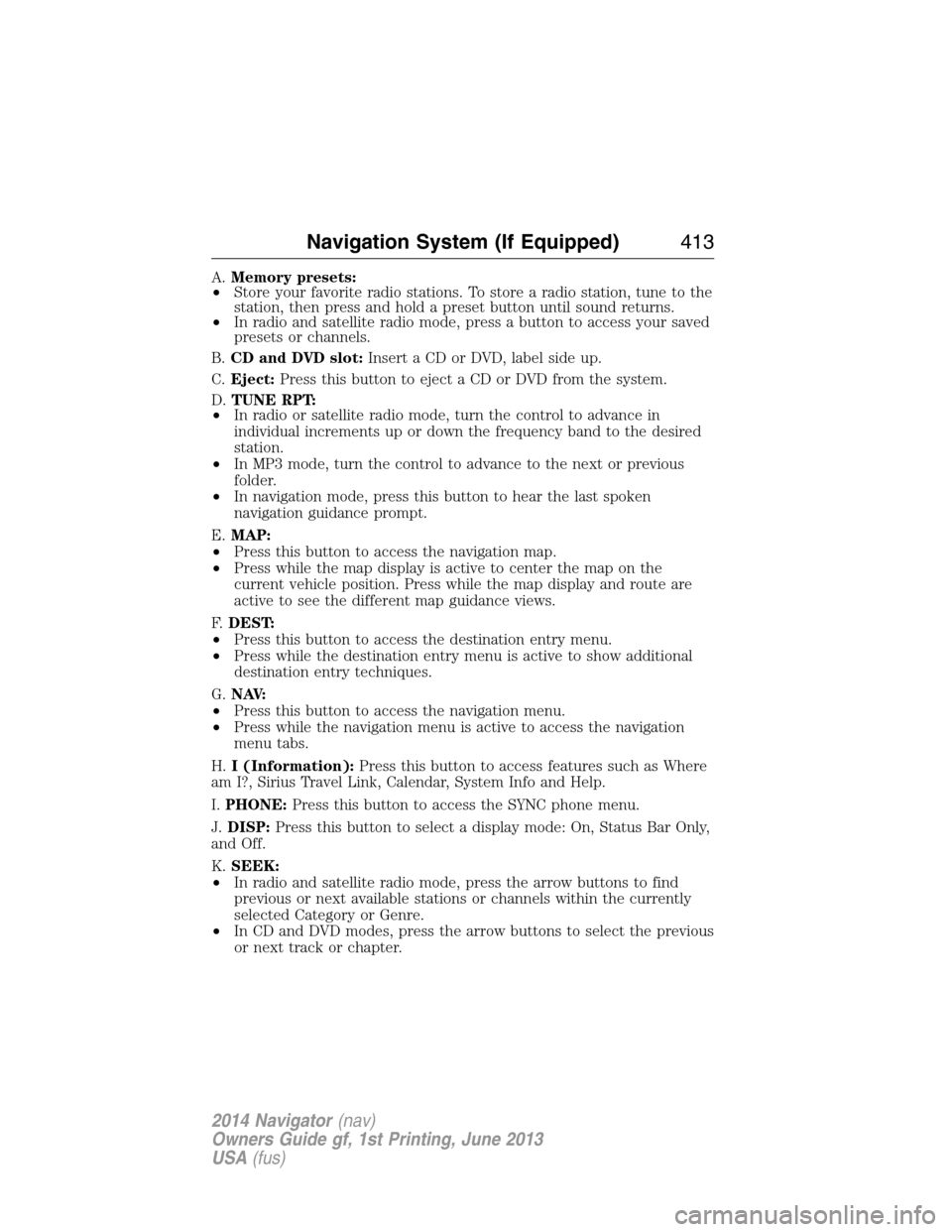
A.Memory presets:
•Store your favorite radio stations. To store a radio station, tune to the
station, then press and hold a preset button until sound returns.
•In radio and satellite radio mode, press a button to access your saved
presets or channels.
B.CD and DVD slot:Insert a CD or DVD, label side up.
C.Eject:Press this button to eject a CD or DVD from the system.
D.TUNE RPT:
•In radio or satellite radio mode, turn the control to advance in
individual increments up or down the frequency band to the desired
station.
•In MP3 mode, turn the control to advance to the next or previous
folder.
•In navigation mode, press this button to hear the last spoken
navigation guidance prompt.
E.MAP:
•Press this button to access the navigation map.
•Press while the map display is active to center the map on the
current vehicle position. Press while the map display and route are
active to see the different map guidance views.
F.DEST:
•Press this button to access the destination entry menu.
•Press while the destination entry menu is active to show additional
destination entry techniques.
G.N AV:
•Press this button to access the navigation menu.
•Press while the navigation menu is active to access the navigation
menu tabs.
H.I (Information):Press this button to access features such as Where
am I?, Sirius Travel Link, Calendar, System Info and Help.
I.PHONE:Press this button to access the SYNC phone menu.
J.DISP:Press this button to select a display mode: On, Status Bar Only,
and Off.
K.SEEK:
•In radio and satellite radio mode, press the arrow buttons to find
previous or next available stations or channels within the currently
selected Category or Genre.
•In CD and DVD modes, press the arrow buttons to select the previous
or next track or chapter.
Navigation System (If Equipped)413
2014 Navigator(nav)
Owners Guide gf, 1st Printing, June 2013
USA(fus)
Page 415 of 506
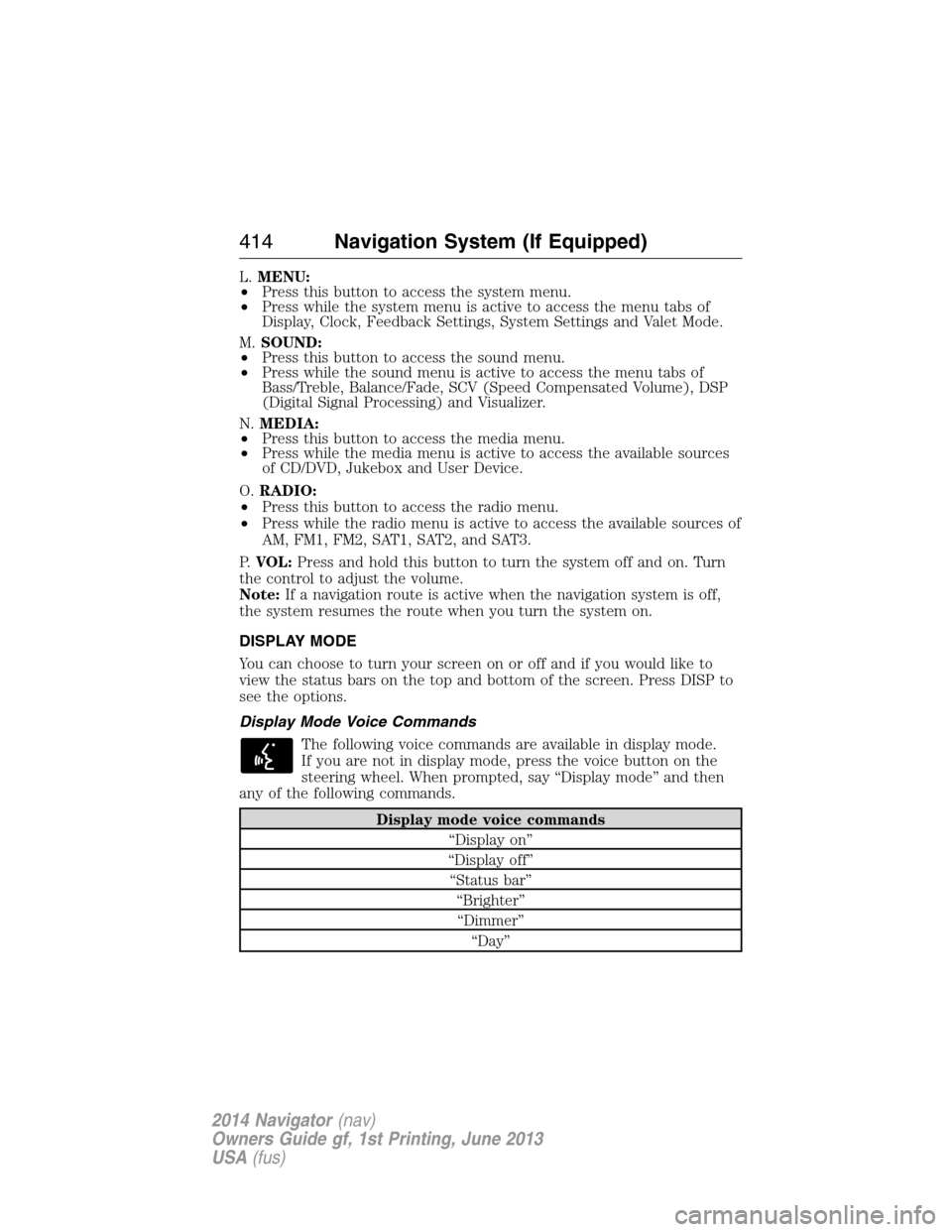
L.MENU:
•Press this button to access the system menu.
•Press while the system menu is active to access the menu tabs of
Display, Clock, Feedback Settings, System Settings and Valet Mode.
M.SOUND:
•Press this button to access the sound menu.
•Press while the sound menu is active to access the menu tabs of
Bass/Treble, Balance/Fade, SCV (Speed Compensated Volume), DSP
(Digital Signal Processing) and Visualizer.
N.MEDIA:
•Press this button to access the media menu.
•Press while the media menu is active to access the available sources
of CD/DVD, Jukebox and User Device.
O.RADIO:
•Press this button to access the radio menu.
•Press while the radio menu is active to access the available sources of
AM, FM1, FM2, SAT1, SAT2, and SAT3.
P.VOL:Press and hold this button to turn the system off and on. Turn
the control to adjust the volume.
Note:If a navigation route is active when the navigation system is off,
the system resumes the route when you turn the system on.
DISPLAY MODE
You can choose to turn your screen on or off and if you would like to
view the status bars on the top and bottom of the screen. Press DISP to
see the options.
Display Mode Voice Commands
The following voice commands are available in display mode.
If you are not in display mode, press the voice button on the
steering wheel. When prompted, say “Display mode” and then
any of the following commands.
Display mode voice commands
“Display on”
“Display off”
“Status bar”
“Brighter”
“Dimmer”
“Day”
414Navigation System (If Equipped)
2014 Navigator(nav)
Owners Guide gf, 1st Printing, June 2013
USA(fus)
Page 416 of 506
Display mode voice commands
“Night”
“Auto”
“Help”
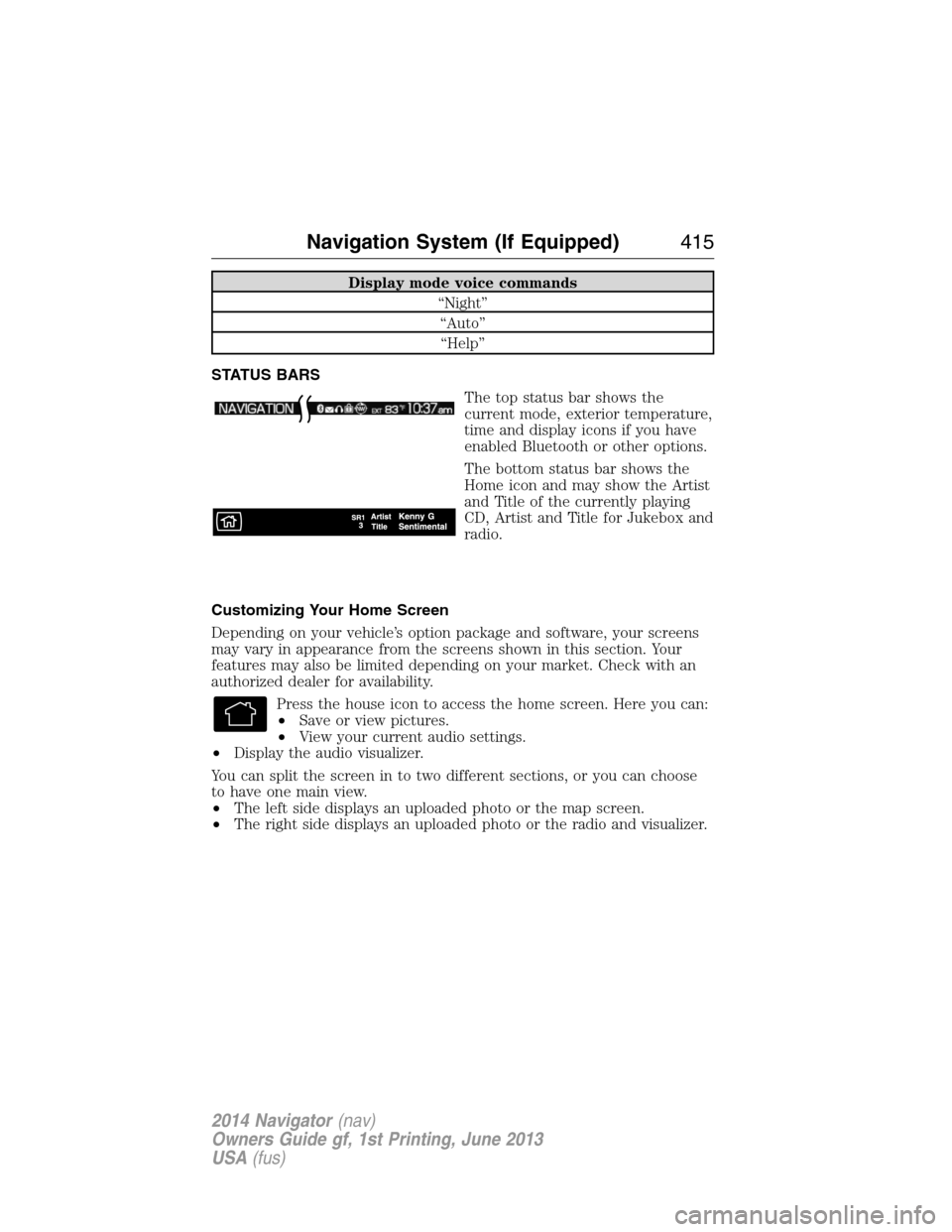
STATUS BARS
The top status bar shows the
current mode, exterior temperature,
time and display icons if you have
enabled Bluetooth or other options.
The bottom status bar shows the
Home icon and may show the Artist
and Title of the currently playing
CD, Artist and Title for Jukebox and
radio.
Customizing Your Home Screen
Depending on your vehicle’s option package and software, your screens
may vary in appearance from the screens shown in this section. Your
features may also be limited depending on your market. Check with an
authorized dealer for availability.
Press the house icon to access the home screen. Here you can:
•Save or view pictures.
•View your current audio settings.
•Display the audio visualizer.
You can split the screen in to two different sections, or you can choose
to have one main view.
•The left side displays an uploaded photo or the map screen.
•The right side displays an uploaded photo or the radio and visualizer.
Navigation System (If Equipped)415
2014 Navigator(nav)
Owners Guide gf, 1st Printing, June 2013
USA(fus)
Page 419 of 506
How To Use Voice Commands with Your System
Press the voice icon; after the tone, speak your command
clearly.
You can say these commands at any time.
“Audio” “Navigation”
“CD” “Radio”
“Disc” “SYNC”
*
“Display mode” “Tutorial”
“DVD” “User profile”
“Jukebox” “Video CD”
“Line in” “Voice settings”
“Mobile apps” “Help”
*See theSYNCchapter for more information on these features.
To access a list of all available voice commands, press the I hard button.
Select the Help tab on the touchscreen, then the Voice Commands tab
and choose the desired category.
Helpful Hints
•Make sure the interior of your vehicle is as quiet as possible. Wind
noise from open windows and road vibrations may prevent the system
from correctly recognizing spoken commands.
•After pressing the voice icon, wait until after the tone sounds and
Listening appears before saying a command. Any command spoken
prior to this does not register with the system.
•Speak naturally, without long pauses between words.
•At any time, you can interrupt the system while it is speaking by
pressing the voice icon.
418Navigation System (If Equipped)
2014 Navigator(nav)
Owners Guide gf, 1st Printing, June 2013
USA(fus)