remote control LINCOLN NAVIGATOR 2014 Owner's Guide
[x] Cancel search | Manufacturer: LINCOLN, Model Year: 2014, Model line: NAVIGATOR, Model: LINCOLN NAVIGATOR 2014Pages: 506, PDF Size: 5.72 MB
Page 358 of 506
Playing an Audio CD
When playing an audio CD, the DISPLAY banner appears automatically.
It displays the current track and the amount of time the track has been
playing, the total amount of time on the disc and the current time
running on the disc.
PressDISPLAYon the remote control to see the DISPLAY banner.
•PressDISPLAYonce: Single Elapsed appears along with the current
track playing and the time of that track.
•PressDISPLAYtwice: Single Remain appears along with the current
track playing and the amount of time left.
•PressDISPLAYthree times: Total Elapsed appears along with the
current track playing and the total time playing on CD.
•PressDISPLAYfour times: Total Remain appears along with the
current track playing and the amount of time left on CD.
Press theREPEATon the remote control to repeat either the currently
playing track or the entire CD.
Playing an MP3 Disc
MP3 is a format for storing digital audio. An audio CD-quality song
compressed into the MP3 format has very little loss of quality, while
taking up much less space. You can play CD-R discs encoded in MP3
format in your DVD player.
Selecting Folders and Songs
When you insert an MP3 disc in the player, an MP3 audio-navigation
screen appears automatically. You can change folders and songs by
navigating the file system. The DVD player plays the songs in the order
you burned them to the disc.
1. If a disc is playing, pressDISPLAYon the remote control, and then
pressCH +andCH -to go through the folder list on the left side of
the navigation screen.
2. Highlight the folder you want, and then pressENTER.
3. PressCH +andCH -to go through the song list and highlight the
song you want. PressENTERto begin playing the highlighted song.
Skipping Songs
PressNEXTon the remote control to move to the next song. Press
PREVto move to the beginning of the currently playing song. Press
PREVtwice to move to the previous song.
Audio System357
2014 Navigator(nav)
Owners Guide gf, 1st Printing, June 2013
USA(fus)
Page 359 of 506
Selecting a Play Mode
You can choose what order the songs play on a disc temporarily. The
FOLDER play mode is the default. To access the play mode operations,
pressREPEATon the remote control. The play mode options are:
•Single:Play a selected song.
•Repeat One:Repeat the song that is playing.
•Folder:Play the folder in the order you recorded the songs.
•Folder Repeat:Repeat the folder that is playing.
•Random:Play the songs in the random order.
•Shuffle:Play the songs within the selected folder in random order.
Order of Tracks
The DVD-headrest module plays the files in the order that you added
them to the USB drive. Therefore, the playback order may not be the
same as what appears on the screen. To access the file structure and
menus, for the USB device, you need the remote control set to the
appropriate systems (A or B).
When you insert the USB device, the system may begin playing files
automatically, returning to the previous position, if it was unplugged
during a previous playback. To return to the menus, pressMENUor
VOL -,depending on the type of file you are playing. The current
directory appears, listing all file types.
Controls
•MENU:Press this button to return to the menu structure.
•CH + and CH -:Press these buttons to move the select bar up and
down within the selected menu or file list.
•VOL -:Press this button to move the menu up one level. Pressing
this button in some menu functions returns you to the menu
structure.
•VOL +:Press this button to select a menu item.
•ENTER:Press this button to make a selection or begin file playback.
•P L AY:Press this button to play a file.
•STOP:Press this button to stop the playing media.
•PAUSE:Press this button to stop the media playback temporarily.
•FR (Fast Rewind):Press this button to reverse through the file
continuously. There are five speed options to choose: 2X, 4X, 8X,
16X, and 32X.
•FF (Fast Forward):Press this button to fast forward through the
file continuously. There are five speed options to choose: 2X, 4X, 8X,
16X, and 32X.
•PREV:Press this button to go to the previous file.
•NEXT:Press this button to go to the next file.
358Audio System
2014 Navigator(nav)
Owners Guide gf, 1st Printing, June 2013
USA(fus)
Page 360 of 506
Connecting an MP3 Device
Using a USB Cable
Plug the MP3 Dock Connector to USB cable into a high-power USB port
on your DVD-headrest module, and then connect the other end to the
player.
See the documentation that came with your device for more information.
Charging the MP3 Player Battery
After you turn the DVD-headrest module on, connect the device to the
USB port on your DVD-headrest module
Note:Not all devices are able to charge when connected to the USB
port.
Using an A/V Cable
1. Connect the device to the headphone port using an A/V cable.Note:
Use the A/V cable made specifically for the device. Other similar
RCA-type cables might not work.
2. Connect the video and audio connectors to the AV-IN ports on
your DVD-headrest module, matching the yellow, red and white
connectors to the appropriate jacks.
Troubleshooting
Symptom Possible cause
The device does not
power on.Your vehicle ignition is not on.
The remote control does not have batteries
installed.
The infrared sensor is
inoperative.The batteries in the remote control are not
working.
The remote sensor eye is blocked.
The infrared transmitter is blocking the sensor
eye of the component to be controlled
The disc does not play. You inserted the disc backward.
The disc is defective. Try another disc.
The disc is not compatible with the
entertainment system.
The device code and disc region code do not
match. This device is set to Region 1.
Audio System359
2014 Navigator(nav)
Owners Guide gf, 1st Printing, June 2013
USA(fus)
Page 440 of 506
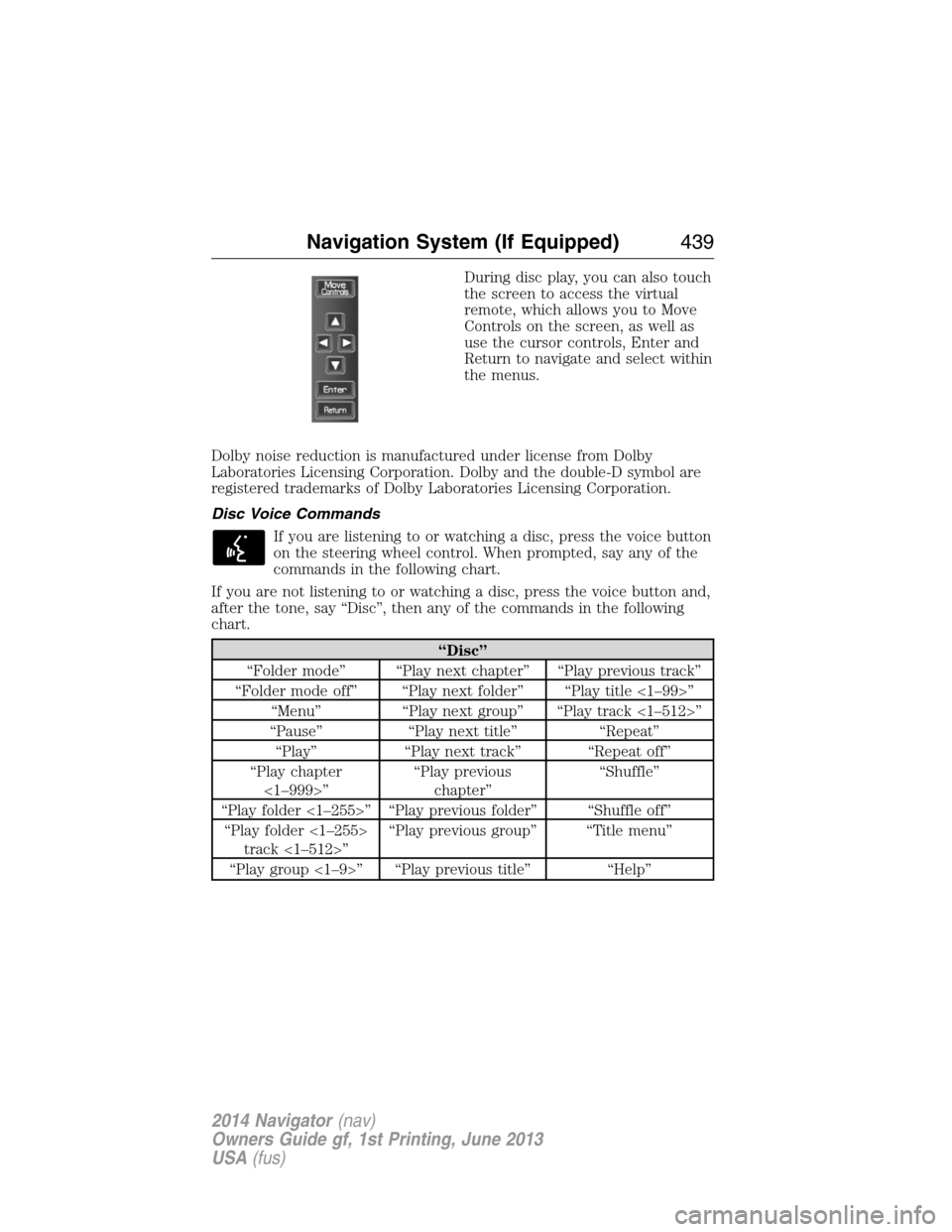
During disc play, you can also touch
the screen to access the virtual
remote, which allows you to Move
Controls on the screen, as well as
use the cursor controls, Enter and
Return to navigate and select within
the menus.
Dolby noise reduction is manufactured under license from Dolby
Laboratories Licensing Corporation. Dolby and the double-D symbol are
registered trademarks of Dolby Laboratories Licensing Corporation.
Disc Voice Commands
If you are listening to or watching a disc, press the voice button
on the steering wheel control. When prompted, say any of the
commands in the following chart.
If you are not listening to or watching a disc, press the voice button and,
after the tone, say “Disc”, then any of the commands in the following
chart.
“Disc”
“Folder mode” “Play next chapter” “Play previous track”
“Folder mode off” “Play next folder” “Play title <1–99>”
“Menu” “Play next group” “Play track <1–512>”
“Pause” “Play next title” “Repeat”
“Play” “Play next track” “Repeat off”
“Play chapter
<1–999>”“Play previous
chapter”“Shuffle”
“Play folder <1–255>” “Play previous folder” “Shuffle off”
“Play folder <1–255>
track <1–512>”“Play previous group” “Title menu”
“Play group <1–9>” “Play previous title” “Help”
Navigation System (If Equipped)439
2014 Navigator(nav)
Owners Guide gf, 1st Printing, June 2013
USA(fus)
Page 504 of 506
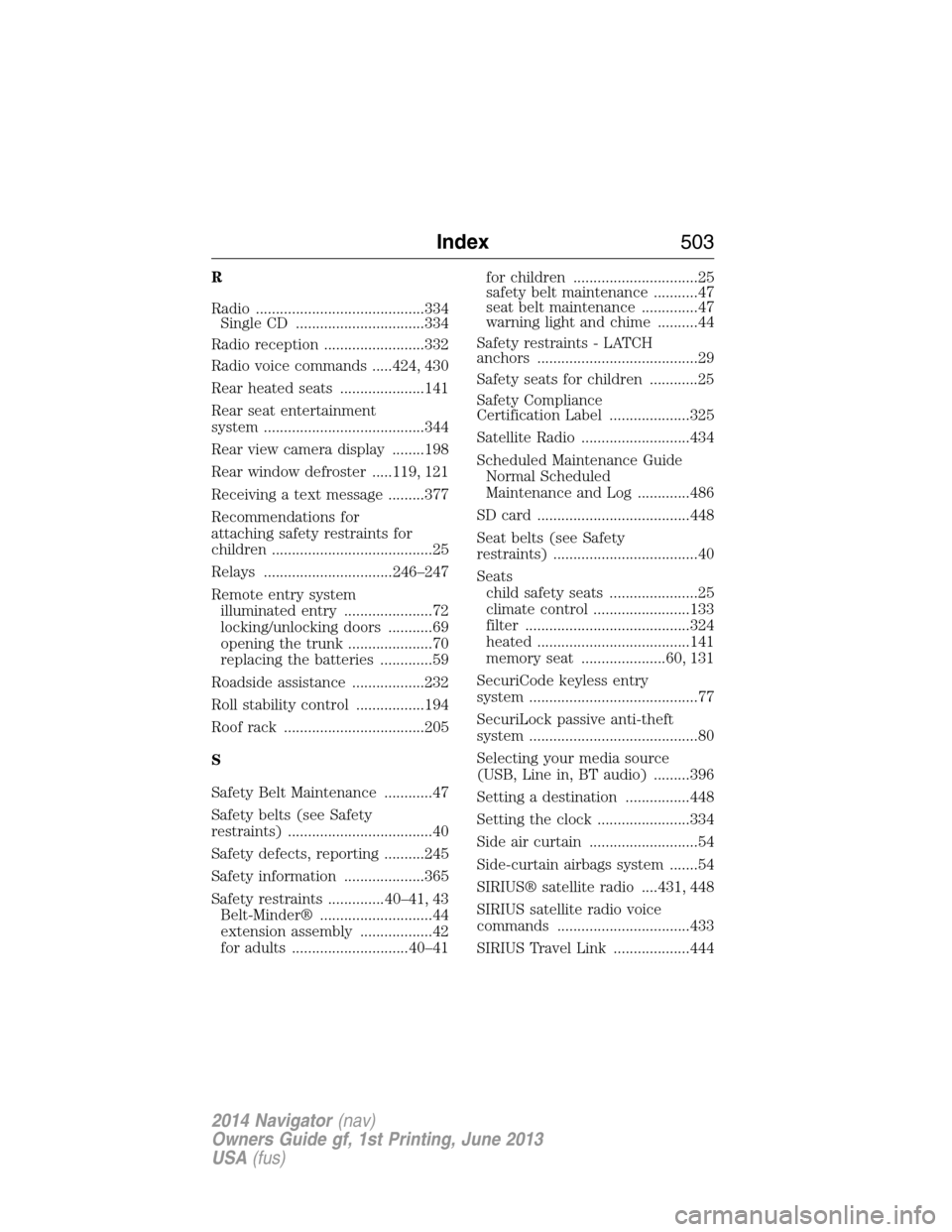
R
Radio ..........................................334
Single CD ................................334
Radio reception .........................332
Radio voice commands .....424, 430
Rear heated seats .....................141
Rear seat entertainment
system ........................................344
Rear view camera display ........198
Rear window defroster .....119, 121
Receiving a text message .........377
Recommendations for
attaching safety restraints for
children ........................................25
Relays ................................246–247
Remote entry system
illuminated entry ......................72
locking/unlocking doors ...........69
opening the trunk .....................70
replacing the batteries .............59
Roadside assistance ..................232
Roll stability control .................194
Roof rack ...................................205
S
Safety Belt Maintenance ............47
Safety belts (see Safety
restraints) ....................................40
Safety defects, reporting ..........245
Safety information ....................365
Safety restraints ..............40–41, 43
Belt-Minder® ............................44
extension assembly ..................42
for adults .............................40–41for children ...............................25
safety belt maintenance ...........47
seat belt maintenance ..............47
warning light and chime ..........44
Safety restraints - LATCH
anchors ........................................29
Safety seats for children ............25
Safety Compliance
Certification Label ....................325
Satellite Radio ...........................434
Scheduled Maintenance Guide
Normal Scheduled
Maintenance and Log .............486
SD card ......................................448
Seat belts (see Safety
restraints) ....................................40
Seats
child safety seats ......................25
climate control ........................133
filter .........................................324
heated ......................................141
memory seat .....................60, 131
SecuriCode keyless entry
system ..........................................77
SecuriLock passive anti-theft
system ..........................................80
Selecting your media source
(USB, Line in, BT audio) .........396
Setting a destination ................448
Setting the clock .......................334
Side air curtain ...........................54
Side-curtain airbags system .......54
SIRIUS® satellite radio ....431, 448
SIRIUS satellite radio voice
commands .................................433
SIRIUS Travel Link ...................444
Index503
2014 Navigator(nav)
Owners Guide gf, 1st Printing, June 2013
USA(fus)