steering wheel LINCOLN NAVIGATOR 2014 Owner's Guide
[x] Cancel search | Manufacturer: LINCOLN, Model Year: 2014, Model line: NAVIGATOR, Model: LINCOLN NAVIGATOR 2014Pages: 506, PDF Size: 5.72 MB
Page 426 of 506
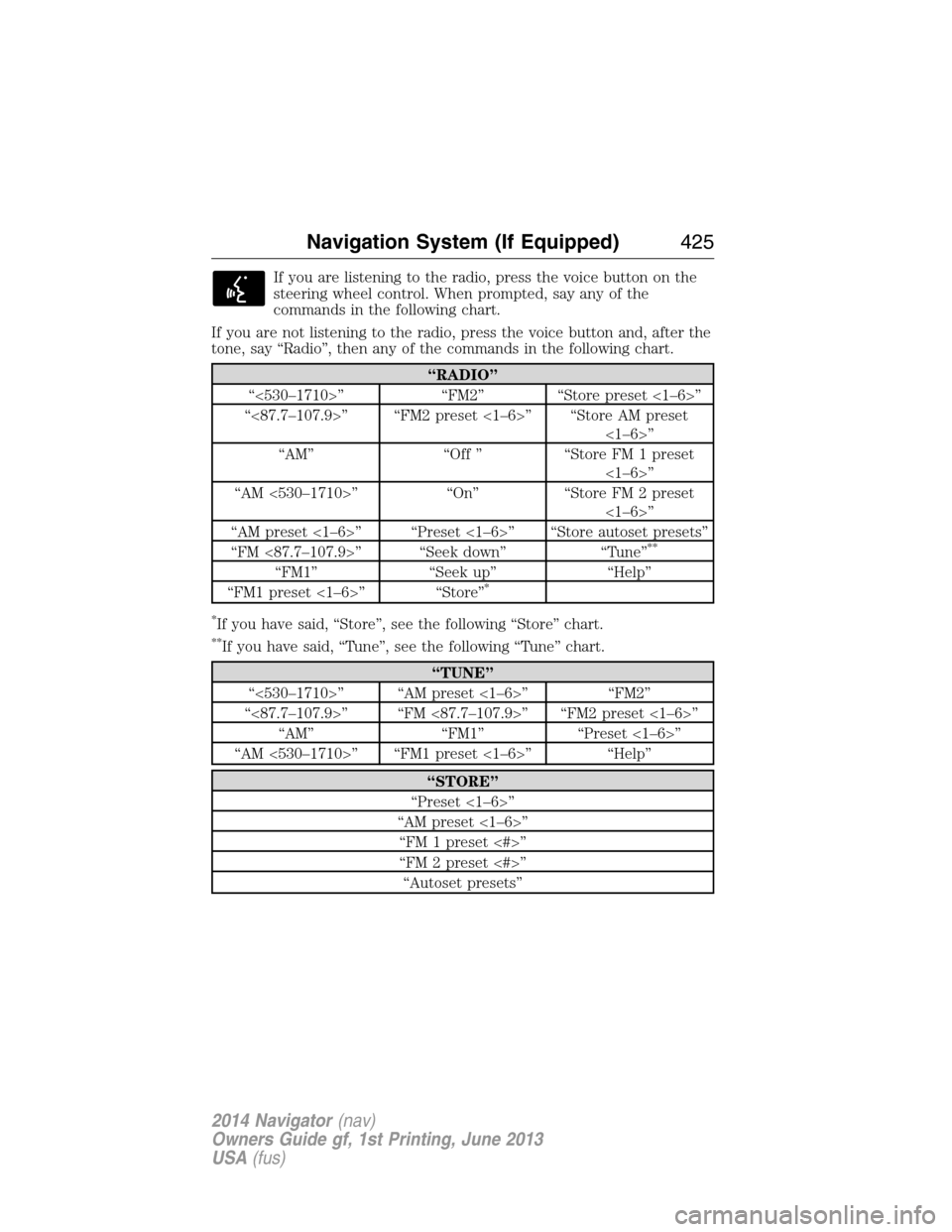
If you are listening to the radio, press the voice button on the
steering wheel control. When prompted, say any of the
commands in the following chart.
If you are not listening to the radio, press the voice button and, after the
tone, say “Radio”, then any of the commands in the following chart.
“RADIO”
“<530–1710>” “FM2” “Store preset <1–6>”
“<87.7–107.9>” “FM2 preset <1–6>” “Store AM preset
<1–6>”
“AM” “Off ” “Store FM 1 preset
<1–6>”
“AM <530–1710>” “On” “Store FM 2 preset
<1–6>”
“AM preset <1–6>” “Preset <1–6>” “Store autoset presets”
“FM <87.7–107.9>” “Seek down” “Tune”
**
“FM1” “Seek up” “Help”
“FM1 preset <1–6>” “Store”*
*
If you have said, “Store”, see the following “Store” chart.
**If you have said, “Tune”, see the following “Tune” chart.
“TUNE”
“<530–1710>” “AM preset <1–6>” “FM2”
“<87.7–107.9>” “FM <87.7–107.9>” “FM2 preset <1–6>”
“AM” “FM1” “Preset <1–6>”
“AM <530–1710>” “FM1 preset <1–6>” “Help”
“STORE”
“Preset <1–6>”
“AM preset <1–6>”
“FM 1 preset <#>”
“FM 2 preset <#>”
“Autoset presets”
Navigation System (If Equipped)425
2014 Navigator(nav)
Owners Guide gf, 1st Printing, June 2013
USA(fus)
Page 431 of 506
*http://www.ibiquity.com/automotive/report_radio_station_experiences
HD Radio Technology manufactured under license from iBiquity Digital
Corp. U.S. and foreign patents. HD Radio and the HD and HD Radio
logos are proprietary trademarks of iBiquity Digital Corp. Ford Motor
Company and iBiquity Digital Corp. are not responsible for the content
sent using HD Radio technology. Content may be changed, added or
deleted at any time at the station owner’s discretion.
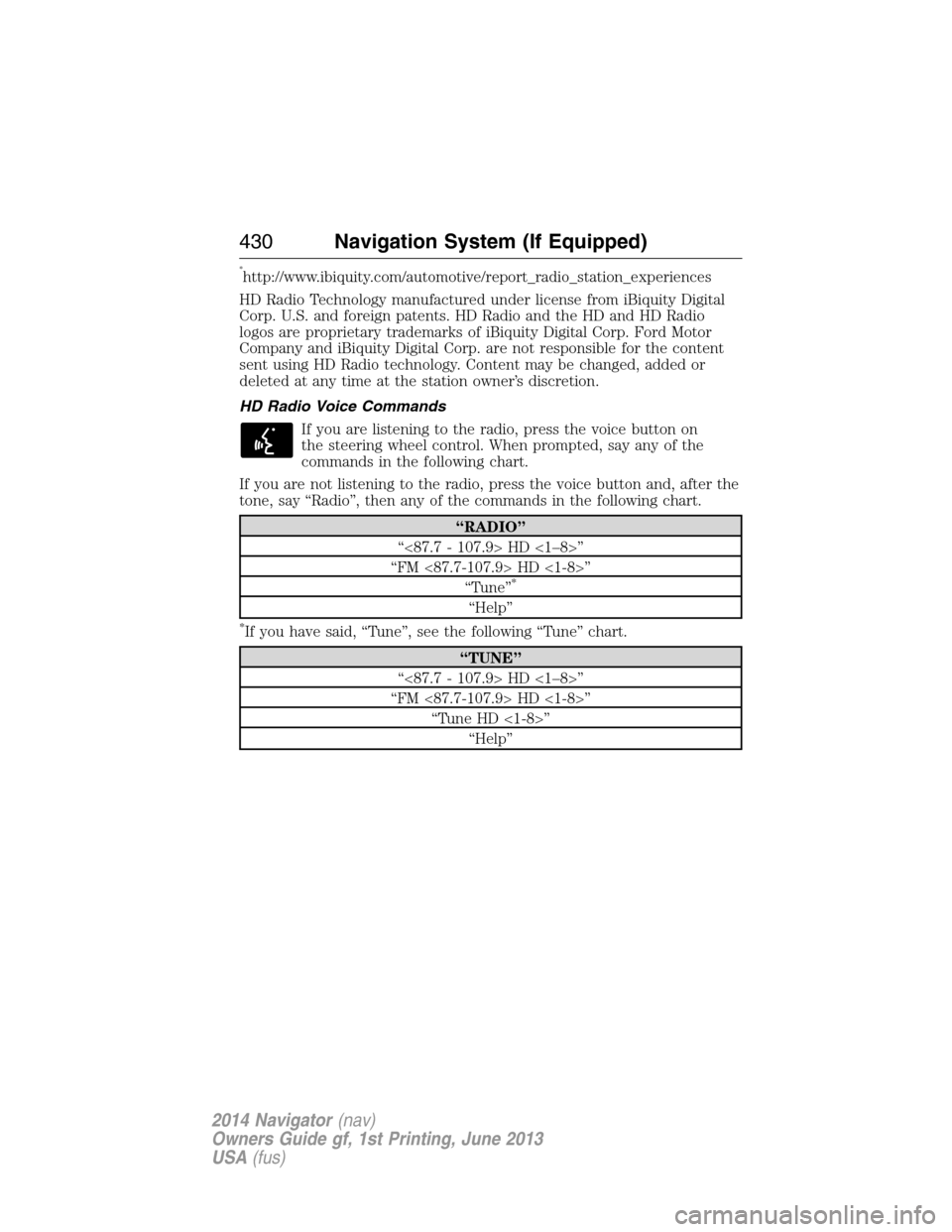
HD Radio Voice Commands
If you are listening to the radio, press the voice button on
the steering wheel control. When prompted, say any of the
commands in the following chart.
If you are not listening to the radio, press the voice button and, after the
tone, say “Radio”, then any of the commands in the following chart.
“RADIO”
“<87.7 - 107.9> HD <1–8>”
“FM <87.7-107.9> HD <1-8>”
“Tune”
*
“Help”
*If you have said, “Tune”, see the following “Tune” chart.
“TUNE”
“<87.7 - 107.9> HD <1–8>”
“FM <87.7-107.9> HD <1-8>”
“Tune HD <1-8>”
“Help”
430Navigation System (If Equipped)
2014 Navigator(nav)
Owners Guide gf, 1st Printing, June 2013
USA(fus)
Page 434 of 506
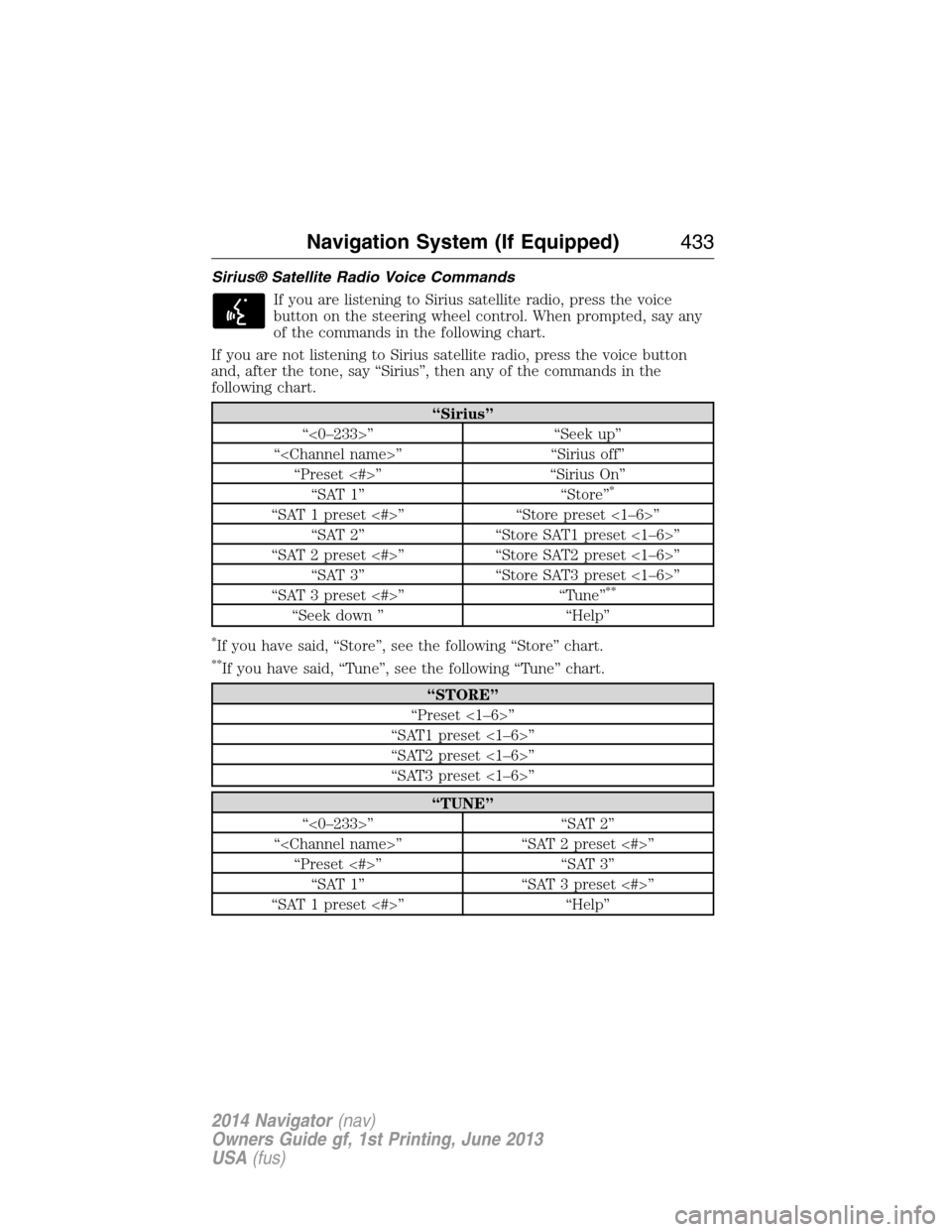
Sirius® Satellite Radio Voice Commands
If you are listening to Sirius satellite radio, press the voice
button on the steering wheel control. When prompted, say any
of the commands in the following chart.
If you are not listening to Sirius satellite radio, press the voice button
and, after the tone, say “Sirius”, then any of the commands in the
following chart.
“Sirius”
“<0–233>” “Seek up”
“
“Preset <#>” “Sirius On”
“SAT 1” “Store”
*
“SAT 1 preset <#>” “Store preset <1–6>”
“SAT 2” “Store SAT1 preset <1–6>”
“SAT 2 preset <#>” “Store SAT2 preset <1–6>”
“SAT 3” “Store SAT3 preset <1–6>”
“SAT 3 preset <#>” “Tune”
**
“Seek down ” “Help”
*If you have said, “Store”, see the following “Store” chart.
**If you have said, “Tune”, see the following “Tune” chart.
“STORE”
“Preset <1–6>”
“SAT1 preset <1–6>”
“SAT2 preset <1–6>”
“SAT3 preset <1–6>”
“TUNE”
“<0–233>” “SAT 2”
“
“Preset <#>” “SAT 3”
“SAT 1” “SAT 3 preset <#>”
“SAT 1 preset <#>” “Help”
Navigation System (If Equipped)433
2014 Navigator(nav)
Owners Guide gf, 1st Printing, June 2013
USA(fus)
Page 438 of 506
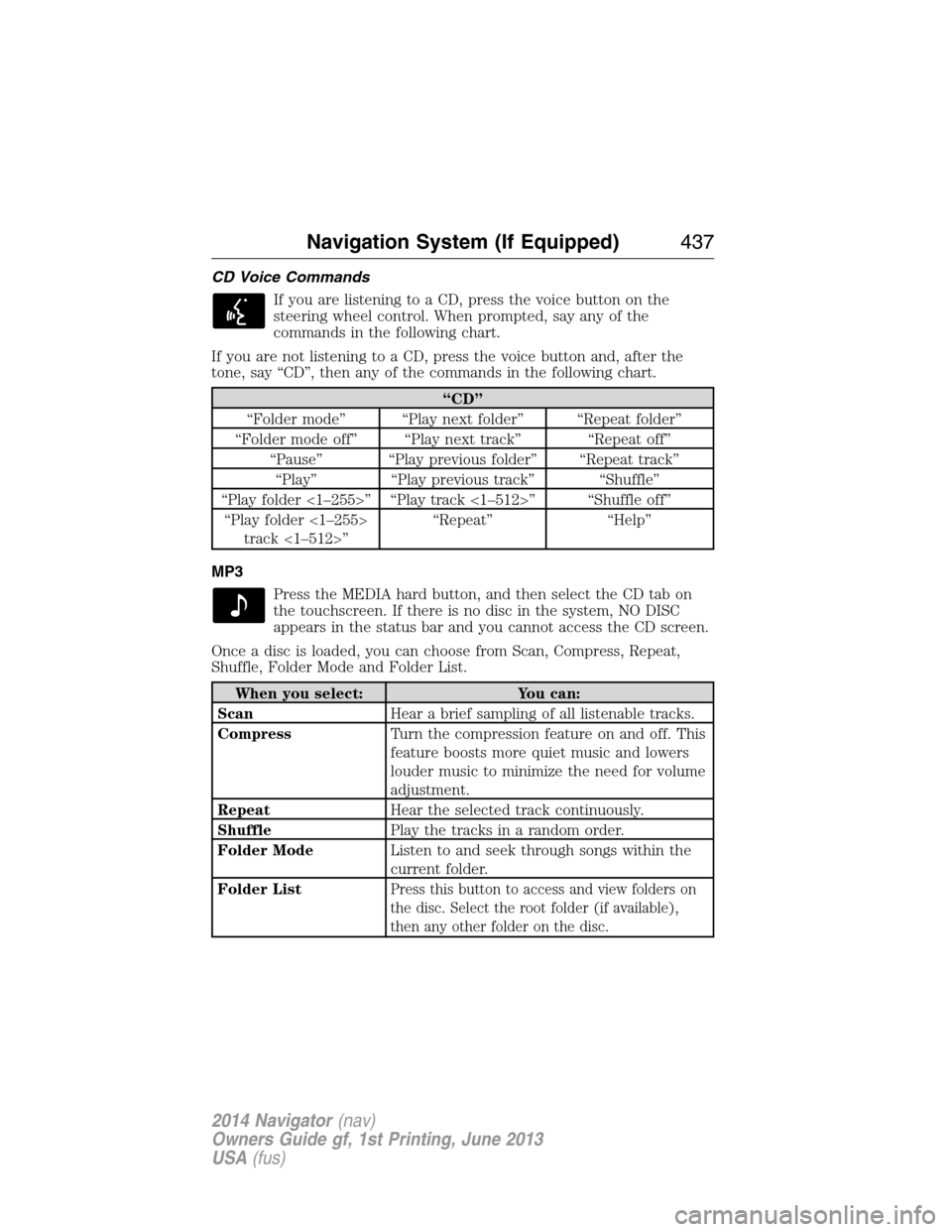
CD Voice Commands
If you are listening to a CD, press the voice button on the
steering wheel control. When prompted, say any of the
commands in the following chart.
If you are not listening to a CD, press the voice button and, after the
tone, say “CD”, then any of the commands in the following chart.
“CD”
“Folder mode” “Play next folder” “Repeat folder”
“Folder mode off” “Play next track” “Repeat off”
“Pause” “Play previous folder” “Repeat track”
“Play” “Play previous track” “Shuffle”
“Play folder <1–255>” “Play track <1–512>” “Shuffle off”
“Play folder <1–255>
track <1–512>”“Repeat” “Help”
MP3
Press the MEDIA hard button, and then select the CD tab on
the touchscreen. If there is no disc in the system, NO DISC
appears in the status bar and you cannot access the CD screen.
Once a disc is loaded, you can choose from Scan, Compress, Repeat,
Shuffle, Folder Mode and Folder List.
When you select: You can:
ScanHear a brief sampling of all listenable tracks.
CompressTurn the compression feature on and off. This
feature boosts more quiet music and lowers
louder music to minimize the need for volume
adjustment.
RepeatHear the selected track continuously.
ShufflePlay the tracks in a random order.
Folder ModeListen to and seek through songs within the
current folder.
Folder List
Press this button to access and view folders on
the disc. Select the root folder (if available),
then any other folder on the disc.
Navigation System (If Equipped)437
2014 Navigator(nav)
Owners Guide gf, 1st Printing, June 2013
USA(fus)
Page 440 of 506
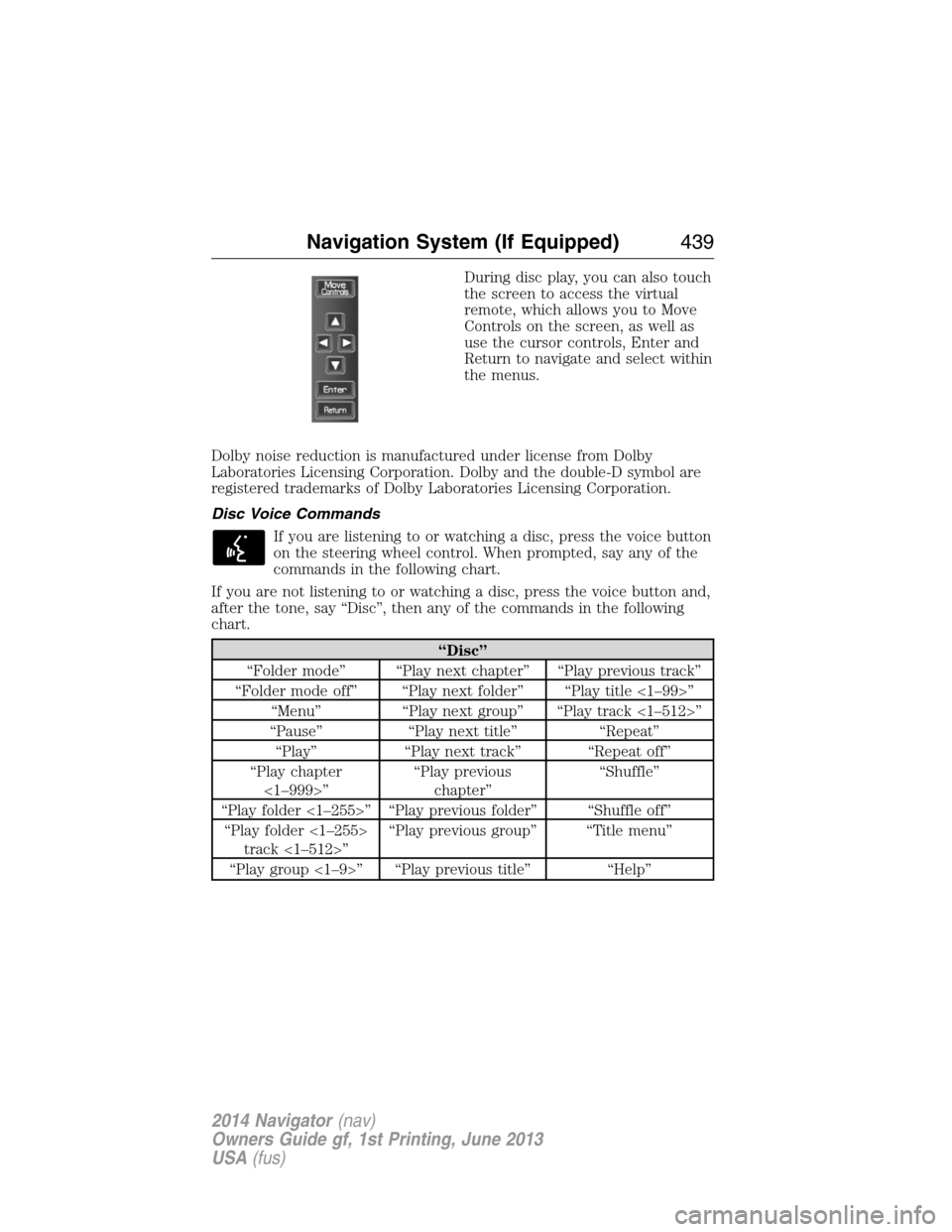
During disc play, you can also touch
the screen to access the virtual
remote, which allows you to Move
Controls on the screen, as well as
use the cursor controls, Enter and
Return to navigate and select within
the menus.
Dolby noise reduction is manufactured under license from Dolby
Laboratories Licensing Corporation. Dolby and the double-D symbol are
registered trademarks of Dolby Laboratories Licensing Corporation.
Disc Voice Commands
If you are listening to or watching a disc, press the voice button
on the steering wheel control. When prompted, say any of the
commands in the following chart.
If you are not listening to or watching a disc, press the voice button and,
after the tone, say “Disc”, then any of the commands in the following
chart.
“Disc”
“Folder mode” “Play next chapter” “Play previous track”
“Folder mode off” “Play next folder” “Play title <1–99>”
“Menu” “Play next group” “Play track <1–512>”
“Pause” “Play next title” “Repeat”
“Play” “Play next track” “Repeat off”
“Play chapter
<1–999>”“Play previous
chapter”“Shuffle”
“Play folder <1–255>” “Play previous folder” “Shuffle off”
“Play folder <1–255>
track <1–512>”“Play previous group” “Title menu”
“Play group <1–9>” “Play previous title” “Help”
Navigation System (If Equipped)439
2014 Navigator(nav)
Owners Guide gf, 1st Printing, June 2013
USA(fus)
Page 441 of 506
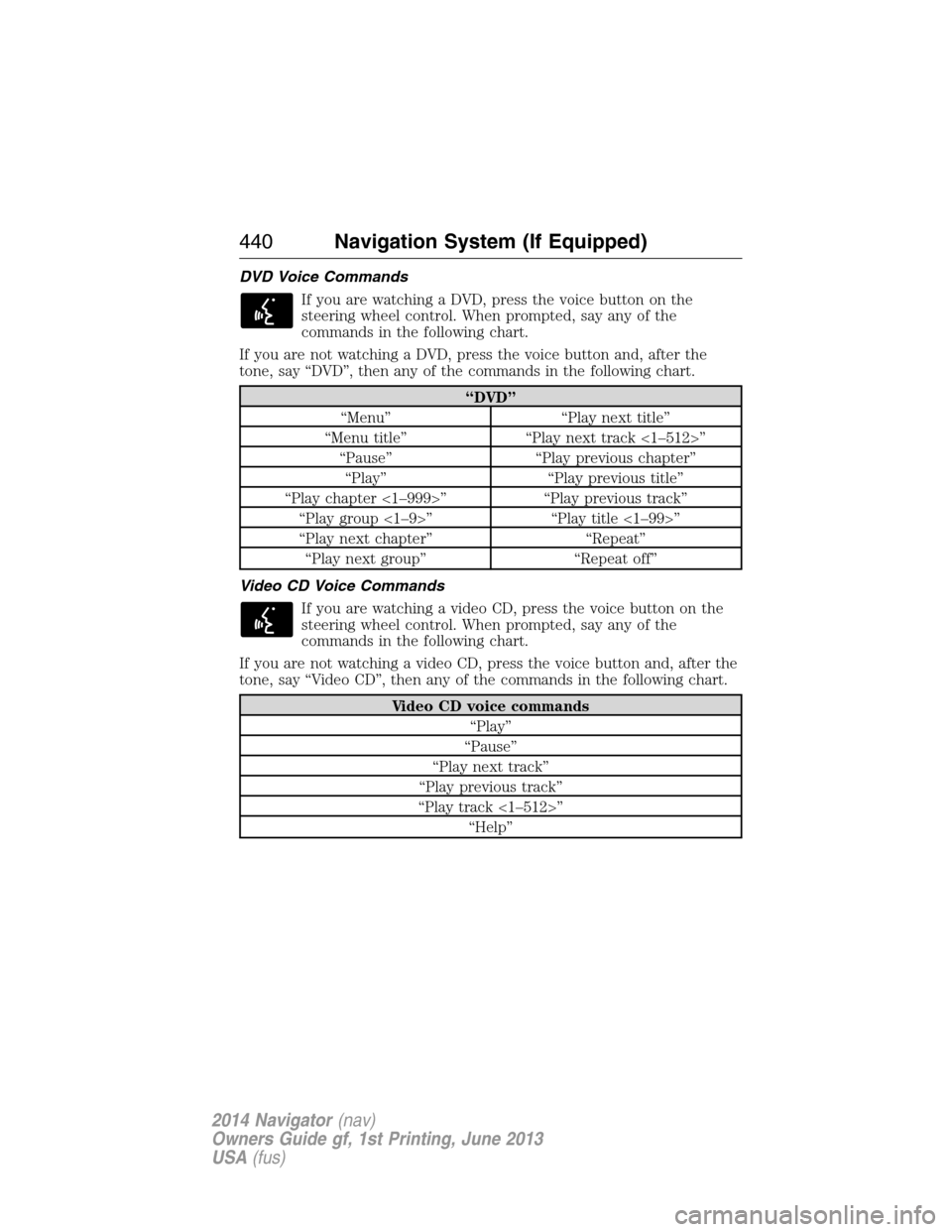
DVD Voice Commands
If you are watching a DVD, press the voice button on the
steering wheel control. When prompted, say any of the
commands in the following chart.
If you are not watching a DVD, press the voice button and, after the
tone, say “DVD”, then any of the commands in the following chart.
“DVD”
“Menu” “Play next title”
“Menu title” “Play next track <1–512>”
“Pause” “Play previous chapter”
“Play” “Play previous title”
“Play chapter <1–999>” “Play previous track”
“Play group <1–9>” “Play title <1–99>”
“Play next chapter” “Repeat”
“Play next group” “Repeat off”
Video CD Voice Commands
If you are watching a video CD, press the voice button on the
steering wheel control. When prompted, say any of the
commands in the following chart.
If you are not watching a video CD, press the voice button and, after the
tone, say “Video CD”, then any of the commands in the following chart.
Video CD voice commands
“Play”
“Pause”
“Play next track”
“Play previous track”
“Play track <1–512>”
“Help”
440Navigation System (If Equipped)
2014 Navigator(nav)
Owners Guide gf, 1st Printing, June 2013
USA(fus)
Page 444 of 506
Creating a Playlist
Press the MEDIA hard button, and then select the Jukebox tab on the
touchscreen.
1. Select Options.
2. Select Edit Playlists, then which playlist you would like to create.
3.
Select which category you would like to access from your saved music.
4. Select the desired songs and then press Add. The system shows you the
currently selected songs. You can choose to Edit Name to change the
name of the playlist, Delete Playlist to remove it, Add Tracks to the
playlist or Sort Playlist.
5. After you change the playlist, select Edit Name to rename your playlist.
Jukebox Voice Commands
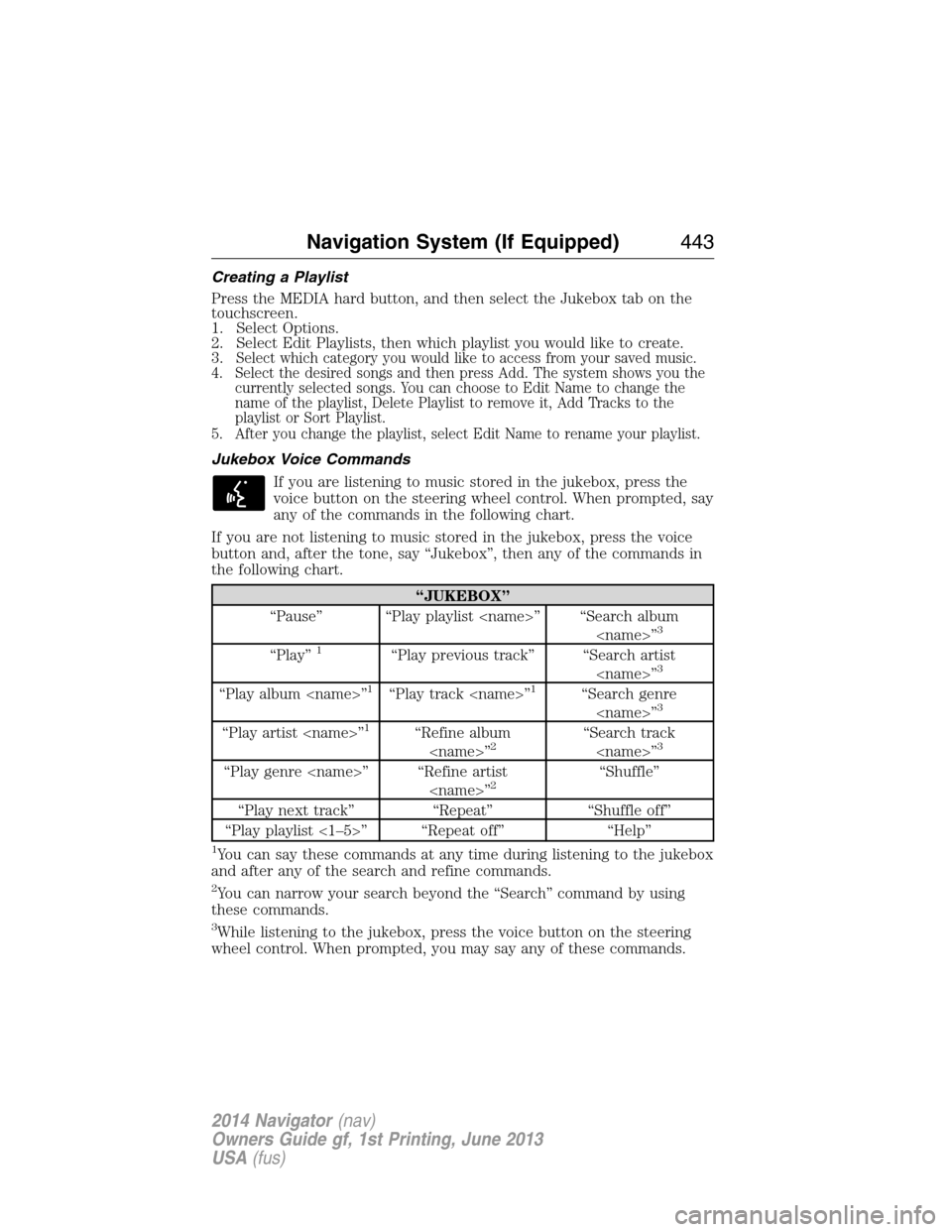
If you are listening to music stored in the jukebox, press the
voice button on the steering wheel control. When prompted, say
any of the commands in the following chart.
If you are not listening to music stored in the jukebox, press the voice
button and, after the tone, say “Jukebox”, then any of the commands in
the following chart.
“JUKEBOX”
“Pause” “Play playlist
3
“Play”1“Play previous track” “Search artist
“Play album
“Play artist
“Play genre
“Play next track” “Repeat” “Shuffle off”
“Play playlist <1–5>” “Repeat off” “Help”
1You can say these commands at any time during listening to the jukebox
and after any of the search and refine commands.
2You can narrow your search beyond the “Search” command by using
these commands.
3While listening to the jukebox, press the voice button on the steering
wheel control. When prompted, you may say any of these commands.
Navigation System (If Equipped)443
2014 Navigator(nav)
Owners Guide gf, 1st Printing, June 2013
USA(fus)
Page 457 of 506
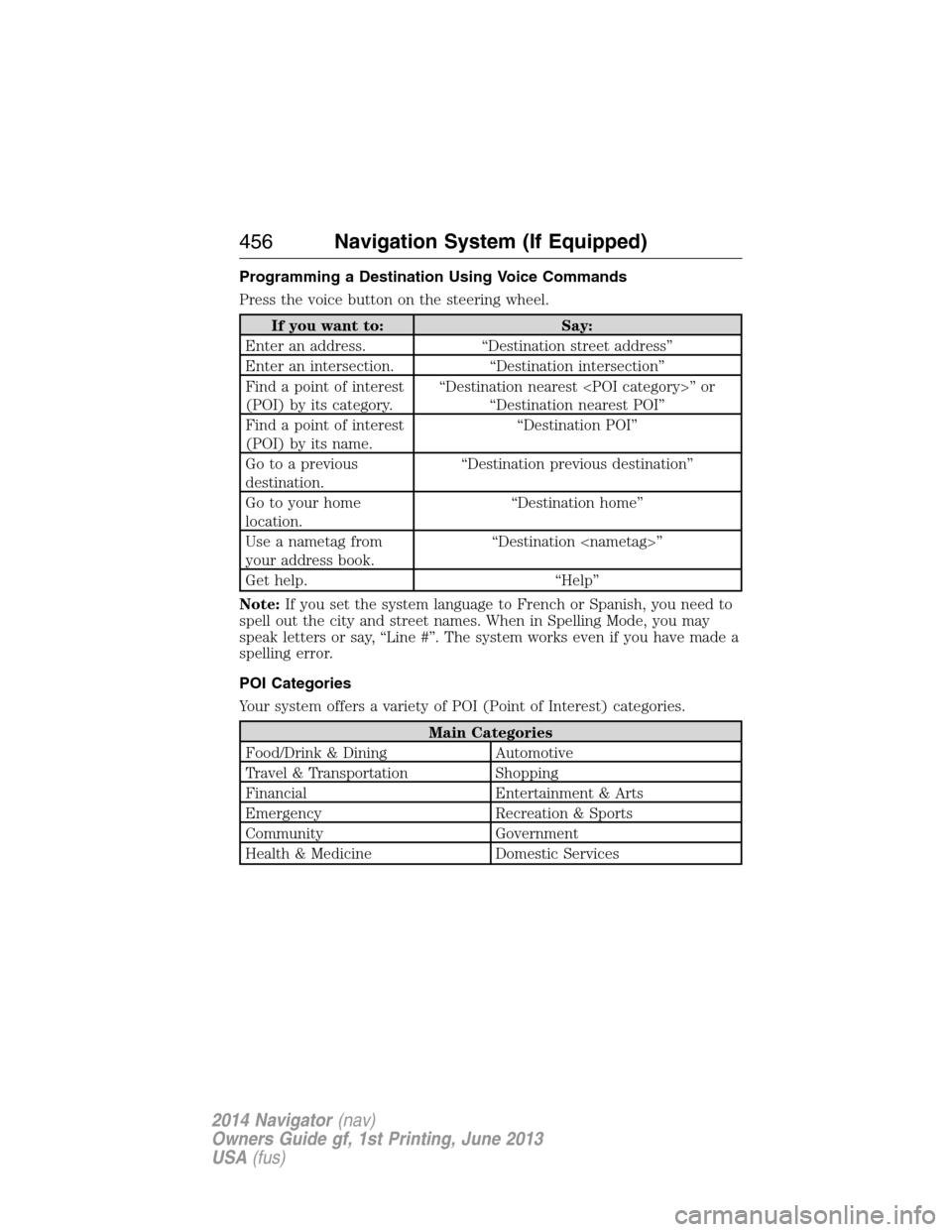
Programming a Destination Using Voice Commands
Press the voice button on the steering wheel.
If you want to: Say:
Enter an address. “Destination street address”
Enter an intersection. “Destination intersection”
Find a point of interest
(POI) by its category.“Destination nearest
“Destination nearest POI”
Find a point of interest
(POI) by its name.“Destination POI”
Go to a previous
destination.“Destination previous destination”
Go to your home
location.“Destination home”
Use a nametag from
your address book.“Destination
Get help. “Help”
Note:If you set the system language to French or Spanish, you need to
spell out the city and street names. When in Spelling Mode, you may
speak letters or say, “Line #”. The system works even if you have made a
spelling error.
POI Categories
Your system offers a variety of POI (Point of Interest) categories.
Main Categories
Food/Drink & Dining Automotive
Travel & Transportation Shopping
Financial Entertainment & Arts
Emergency Recreation & Sports
Community Government
Health & Medicine Domestic Services
456Navigation System (If Equipped)
2014 Navigator(nav)
Owners Guide gf, 1st Printing, June 2013
USA(fus)
Page 466 of 506
Navigation Map Updates
Annual navigation map updates are available for purchase through your
dealership, by calling 1-800-NAVMAPS (in Mexico, call 01–800–557–5539) or
going to www.navigation.com/ford. You need to specify the make and model
of your vehicle to determine if there is an update available.
Navigation Voice Commands
When in navigation mode, press the voice button on the
steering wheel control. After the tone, say “Navigation”, then
any of the following commands:
“NAVIGATION”
“Cancel next waypoint” “Show destination”
“Cancel route” “Show heading up”
“Destination”
*“Show map”
“Destination
“Destination
“Destination home” “Show route”
“Destination intersection” “Show turn list”
“Destination nearest
“Destination nearest POI” “Voice on”
“Destination POI” “Voice volume decrease”
“Destination previous
destination”“Voice volume increase”
“Destination street address” “Zoom in”
“Detour” “Zoom out”
“Play nametags” “Help”
“Repeat instruction”
*If you have said the command, “Destination”, you may say any of the
above commands or commands in the following Destination chart.
“DESTINATION”
“
“
“Home”
Navigation System (If Equipped)465
2014 Navigator(nav)
Owners Guide gf, 1st Printing, June 2013
USA(fus)
Page 487 of 506
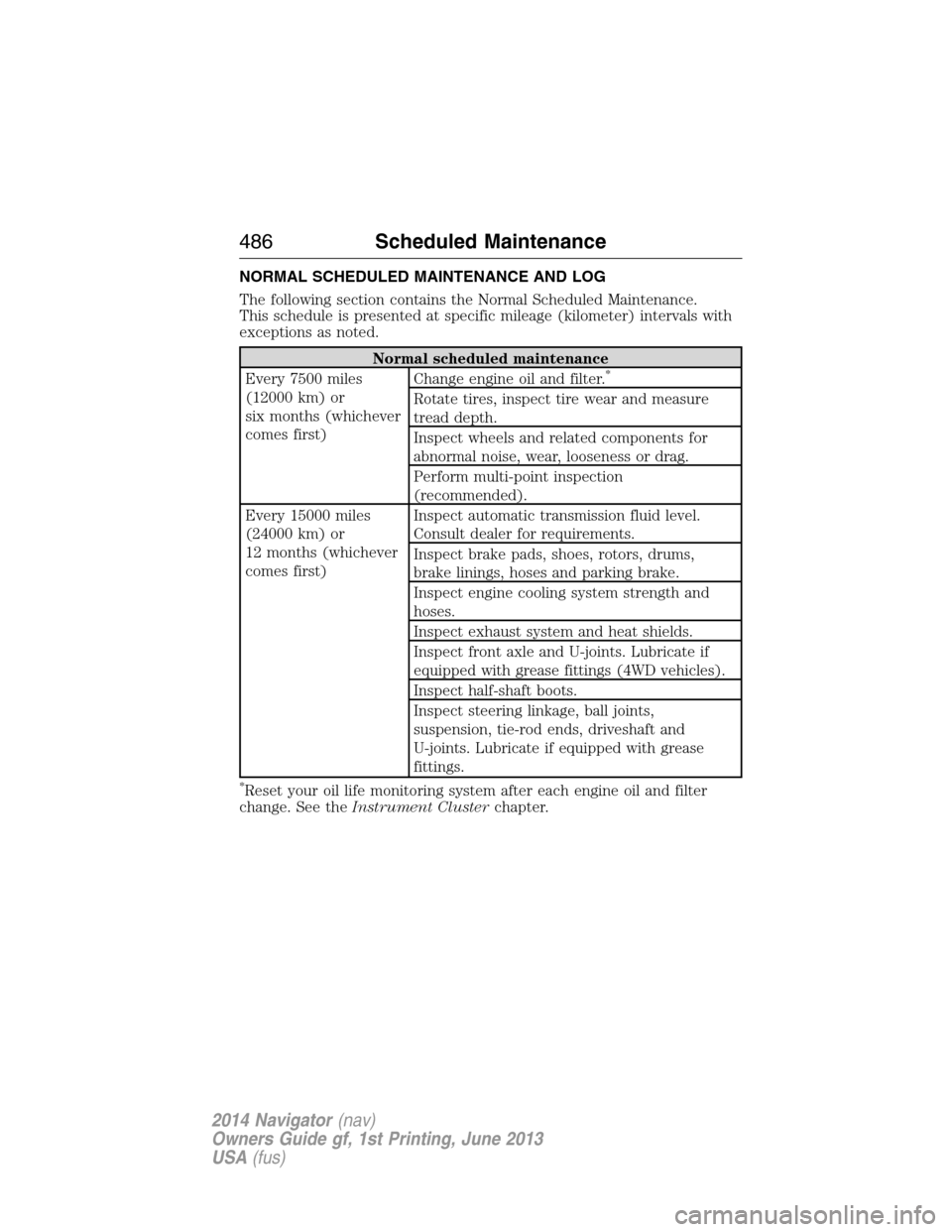
NORMAL SCHEDULED MAINTENANCE AND LOG
The following section contains the Normal Scheduled Maintenance.
This schedule is presented at specific mileage (kilometer) intervals with
exceptions as noted.
Normal scheduled maintenance
Every 7500 miles
(12000 km) or
six months (whichever
comes first)Change engine oil and filter.*
Rotate tires, inspect tire wear and measure
tread depth.
Inspect wheels and related components for
abnormal noise, wear, looseness or drag.
Perform multi-point inspection
(recommended).
Every 15000 miles
(24000 km) or
12 months (whichever
comes first)Inspect automatic transmission fluid level.
Consult dealer for requirements.
Inspect brake pads, shoes, rotors, drums,
brake linings, hoses and parking brake.
Inspect engine cooling system strength and
hoses.
Inspect exhaust system and heat shields.
Inspect front axle and U-joints. Lubricate if
equipped with grease fittings (4WD vehicles).
Inspect half-shaft boots.
Inspect steering linkage, ball joints,
suspension, tie-rod ends, driveshaft and
U-joints. Lubricate if equipped with grease
fittings.
*Reset your oil life monitoring system after each engine oil and filter
change. See theInstrument Clusterchapter.
486Scheduled Maintenance
2014 Navigator(nav)
Owners Guide gf, 1st Printing, June 2013
USA(fus)