reset LINCOLN NAVIGATOR 2015 Owner's Manual
[x] Cancel search | Manufacturer: LINCOLN, Model Year: 2015, Model line: NAVIGATOR, Model: LINCOLN NAVIGATOR 2015Pages: 475, PDF Size: 5.13 MB
Page 345 of 475
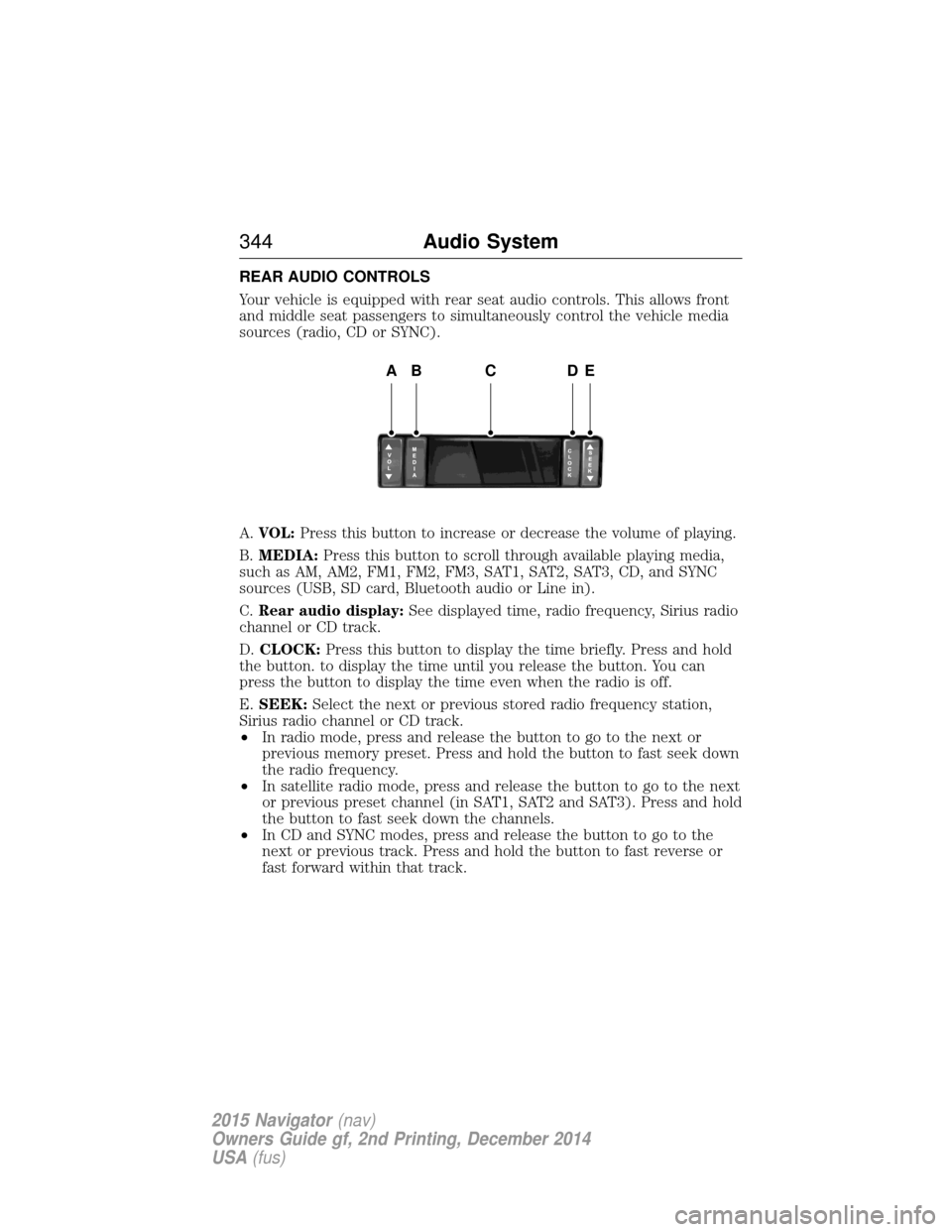
REAR AUDIO CONTROLS
Your vehicle is equipped with rear seat audio controls. This allows front
and middle seat passengers to simultaneously control the vehicle media
sources (radio, CD or SYNC).
A.VOL: Press this button to increase or decrease the volume of playing.
B. MEDIA: Press this button to scroll through available playing media,
such as AM, AM2, FM1, FM2, FM3, SAT1, SAT2, SAT3, CD, and SYNC
sources (USB, SD card, Bluetooth audio or Line in).
C. Rear audio display: See displayed time, radio frequency, Sirius radio
channel or CD track.
D. CLOCK: Press this button to display the time briefly. Press and hold
the button. to display the time until you release the button. You can
press the button to display the time even when the radio is off.
E. SEEK: Select the next or previous stored radio frequency station,
Sirius radio channel or CD track.
• In radio mode, press and release the button to go to the next or
previous memory preset. Press and hold the button to fast seek down
the radio frequency.
• In satellite radio mode, press and release the button to go to the next
or previous preset channel (in SAT1, SAT2 and SAT3). Press and hold
the button to fast seek down the channels.
• In CD and SYNC modes, press and release the button to go to the
next or previous track. Press and hold the button to fast reverse or
fast forward within that track.
ABCDE
344 Audio System
2015 Navigator(nav)
Owners Guide gf, 2nd Printing, December 2014
USA (fus)
Page 346 of 475
HD RADIO™ INFORMATION (IF AVAILABLE)
Note:HD Radio broadcasts are not available in all markets.
HD Radio technology is the digital evolution of analog AM/FM radio. Your
system has a special receiver that allows it to receive digital broadcasts
(where available) in addition to the analog broadcasts, it already
receives. Digital broadcasts provide a better sound quality than analog
broadcasts with free, crystal-clear audio and no static or distortion. For
more information, and a guide to available stations and programming,
please visit www.hdradio.com.
When HD Radio is on and you tune to a station broadcasting HD Radio
technology, you may notice the HD Radio logo on your screen. When this
logo is available, you may also see Title and Artist fields on-screen.
The multicast indicator appears in FM mode (only) if the current station
is broadcasting multiple digital broadcasts. The highlighted numbers
signify available digital channels where new or different content is
available. HD1 signifies the main programming status and is available in
analog and digital broadcasts. Other multicast stations (HD2 through
HD7) are only available digitally.
When HD Radio broadcasts are active, you can access the following
functions:
When you select: You can:
Scan Hear a brief sampling of all available stations.
This feature still works when HD Radio
reception is on, although it does not scan for
HD2-HD7 channels. You may see the HD logo
appear if the station has a digital broadcast.
To save a multicast
station as a preset When the channel is active on-screen, press
and hold a memory preset slot until the sound
returns. There is a brief mute while the radio
saves the station. Sound returns when
finished. When recalling a HD2 or HD3
memory preset, there is a mute before the
digital audio plays, as the system must once
again acquire the digital signal.
As with any saved radio station, you cannot
access the saved station if your vehicle is
outside the station’s reception area.
Audio System
345
2015 Navigator(nav)
Owners Guide gf, 2nd Printing, December 2014
USA (fus)
Page 348 of 475
Potential station issues
Issue Cause Action
Sound fading or
blending in and out. The radio is shifting
between analog and
digital audio.No action required.
The reception issue
may clear up as you
continue to drive.
There is an audio
mute delay when
selecting HD2 or HD3,
multicast preset or
Direct Tune. The digital multicast is
not available until the
HD Radio broadcast is
decoded. Once
decoded, the audio is
available.No action required.
This is normal
behavior. Wait until
the audio is available.
Cannot access HD2 or
HD3 multicast channel
when recalling a
preset or from a direct
tune. The previously stored
multicast preset or
direct tune is not
available in your
current reception area.No action required.
The station is not
available in your
current location.
Text information does
not match currently
playing audio. Data service issue by
the radio broadcaster.
Fill out the station
issue form at website
listed below.
*
There is no text
information shown for
currently selected
frequency.Data service issue by
the radio broadcaster.
Fill out the station
issue form at website
listed below.
*
HD2-HD7 stations not
found when
Scanis
pressed. Pressing
Scandisables
HD2-HD7 channel
search. No action required.
This is normal
behavior.
*http://www.ibiquity.com/automotive/report_radio_station_experiences
HD Radio™ Technology manufactured under license from iBiquity Digital
Corp. U.S. and foreign patents. HD Radio™ and the HD and HD Radio
logos are proprietary trademarks of iBiquity Digital Corp. Ford Motor
Company and iBiquity Digital Corp. are not responsible for the content
sent using HD Radio technology. Content may be changed, added or
deleted at any time at the station owner’s discretion.
Audio System 347
2015 Navigator(nav)
Owners Guide gf, 2nd Printing, December 2014
USA (fus)
Page 350 of 475
Sirius satellite radio is a
subscription-based satellite radio
service that broadcasts a variety of
music, sports, news, weather, traffic
and entertainment programming.
Your factory-installed Sirius satellite
radio system includes hardware and
a limited subscription term which begins on the date of sale or lease of
your vehicle. See an authorized dealer for availability.
For more information on extended subscription terms (a service fee is
required), the online media player and a complete list of Sirius satellite
radio channels, and other features, please visit www.siriusxm.com in the
United States, www.sirius.ca in Canada, or call Sirius at 1–888–539–7474.
Satellite Radio Electronic Serial Number (ESN)
You need your ESN to activate, modify or track your satellite radio
account. When in satellite radio mode, you can view this number by
pressing SIRIUSand memory preset 1 at the same time. To access your
ESN, press the bottom left corner of the touchscreen, then SIRIUS>
Options.
Troubleshooting
Radio display Condition Possible action
Acquiring Radio requires more
than two seconds to
produce audio for the
selected channel. No action required.
This message should
disappear shortly.
Sat Fault/SIRIUS
system failure There is an internal
module or system
failure present.If this message does
not clear shortly, or
with an ignition key
cycle, your receiver
may have a fault. See
an authorized dealer
for service.
Invalid Channel The channel is no longer available.Tune to another
channel or choose
another preset.
Audio System
349
2015 Navigator(nav)
Owners Guide gf, 2nd Printing, December 2014
USA (fus)
Page 357 of 475
•Seek andTune: Use as you normally would in media modes.
• PRESETS: Press and hold a numbered button to store a radio or
Sirius station. Press to recall the stored station.
• Eject: Eject a CD from the entertainment system.
• Climate control: Control the temperature, fan speed and settings of
the climate control system.
• MEDIA: Touch repeatedly to see all available media sources. If not
on an audio screen, the media change appears in the lower left status
bar.
Using Your Steering Wheel Controls
Depending on your vehicle and option package, you can use your
steering wheel controls to interact with the touchscreen system.
• VOL: Control the volume of audio output.
• VOICE: Press to start a voice session. Press again and hold to end a
voice session.
• SEEK andPHONE SEND:
• While in radio mode, press to seek between presets or press and
hold to seek between stations.
• While in USB or CD mode, press to seek between stations or press
and hold to fast seek.
• While in phone mode, press to answer a call or switch between
calls.
• SEEK andPHONE END:
• While in radio mode, press to seek between presets or press and
hold to seek between stations.
• While in USB or CD mode, press to seek between stations or press
and hold to fast seek.
• While in phone mode, press to end a call or reject an incoming
call.
See the Steering Wheel chapter for more information.
Cleaning the Touchscreen Display
Use a clean, soft cloth such as one used for cleaning glasses. If dirt or
fingerprints are still visible, apply a small amount of alcohol to the cloth.
Do not pour or spray alcohol onto the display. Do not use detergent or
any type of solvent to clean the display.
Support
The SYNC support team is available to help you with any questions you
cannot answer on your own.
Monday-Saturday, 8:30am-9:00pm EST.
356 MyLincoln Touch™
2015 Navigator(nav)
Owners Guide gf, 2nd Printing, December 2014
USA (fus)
Page 359 of 475
•Any action that requires you to use a keyboard is restricted, such as
entering a navigation destination or editing information.
• All lists are limited so the user can view fewer entries (such as phone
contacts or recent phone call entries).
See the following chart for more specific examples:
Restricted Features
Cellular Phone Pairing a Bluetooth phone Adding phonebook contacts or uploading
phonebook contacts (from a USB)
List entries are limited for phone contacts and
recent phone call entries
System Functionality Editing the keypad code Enabling Valet Mode
Editing settings while the rear view camera or
Active Park Assist are active
Wi-Fi and Wireless Editing wireless settings Editing the list of wireless networks
Videos, Photos and
Graphics Playing video
Editing the screen’s wallpaper or adding new
wallpaper
Text Messages Composing text messages Viewing received text messages
Editing preset text messages
Navigation Using the keyboard to enter a destination Demo navigation route
Adding or Editing Address Book entries or
Avoid Areas
Privacy Information
When a cellular phone is connected to SYNC, the system creates a
profile within your vehicle that is linked to that cellular phone. This
profile is created in order to offer you more cellular features and to
operate more efficiently. Among other things, this profile may contain
data about your cellular phone book, text messages (read and unread),
and call history, including history of calls when your cell phone was not
connected to the system. In addition, if you connect a media device, the
358 MyLincoln Touch™
2015 Navigator(nav)
Owners Guide gf, 2nd Printing, December 2014
USA (fus)
Page 360 of 475
system creates and retains an index of supported media content. The
system also records a short development log of approximately
10 minutes of all recent system activity. The log profile and other system
data may be used to improve the system and help diagnose any problems
that may occur.
The cellular profile, media device index, and development log remain in
the vehicle unless you delete them and are generally accessible only in
the vehicle when the cellular phone or media player is connected. If you
no longer plan to use the system or the vehicle, we recommend you
perform a Master Reset to erase all stored information.
System data cannot be accessed without special equipment and access to
the vehicle’s SYNC module. Ford Motor Company and Ford of Canada do
not access the system data for any purpose other than as described
absent consent, a court order, or where required by law enforcement,
other government authorities, or other third parties acting with lawful
authority. Other parties may seek to access the information
independently of Ford Motor Company and Ford of Canada. For further
privacy information, see the sections on 911 Assist, Vehicle Health
Report, and Traffic, Directions and Information.
Privacy Notice for GPS Mapping with MyLincoln Mobile in the
United States and Canada
MyLincoln Mobile allows for GPS mapping when a vehicle is registered to
a MyLincoln Mobile account. To remove the vehicle from the account,
thereby removing GPS mapping ability, a Master Reset can be performed
in the vehicle. SeeSettingsin the MyLincoln Touch chapter.
Prior to transferring ownership of a vehicle, owners may choose to
execute a Master Reset or Factory Reset (completed via the MyLincoln
Mobile website). Either method will remove the vehicle from all
MyLincoln Mobile accounts.
It is recommended that new owners conduct a Master Reset upon taking
possession of the vehicle to remove it from any existing MyLincoln
Mobile accounts. The new owner can activate a MyLincoln Mobile
account by going to
http://support.lincoln.com/owner-services/mylincoln-mobile-app and
following the registration process.
MyLincoln Touch™ 359
2015 Navigator(nav)
Owners Guide gf, 2nd Printing, December 2014
USA (fus)
Page 361 of 475
ACCESSING AND ADJUSTING MODES THROUGH YOUR RIGHT
VEHICLE INFORMATION DISPLAY
The display is located on the right side of your instrument cluster. You
can use your steering wheel controls to view and make minor
adjustments to active modes without taking your hands off the wheel.
For example:
•In Entertainment mode, you can view what is now playing, change
the audio source (such as AM, FM and CD) and scroll through
memory presets.
• In Phone mode, you can accept or reject an incoming call, or make a
call by choosing from select menus within the Phone menu.
• If your vehicle is equipped with Navigation, you can view the current
route or cancel a route.
Note: If your vehicle is not equipped with Navigation, Compass appears
in the display instead of Navigation. If you press the right arrow to go
into the Compass menu, you can see the compass graphic. The compass
displays the direction in which the vehicle is traveling, not true direction.
(For example, if the vehicle is traveling west, the middle of the compass
graphic displays west; north displays to the left of west though its true
direction is to the right of west).
Audio Sources and Memory Presets
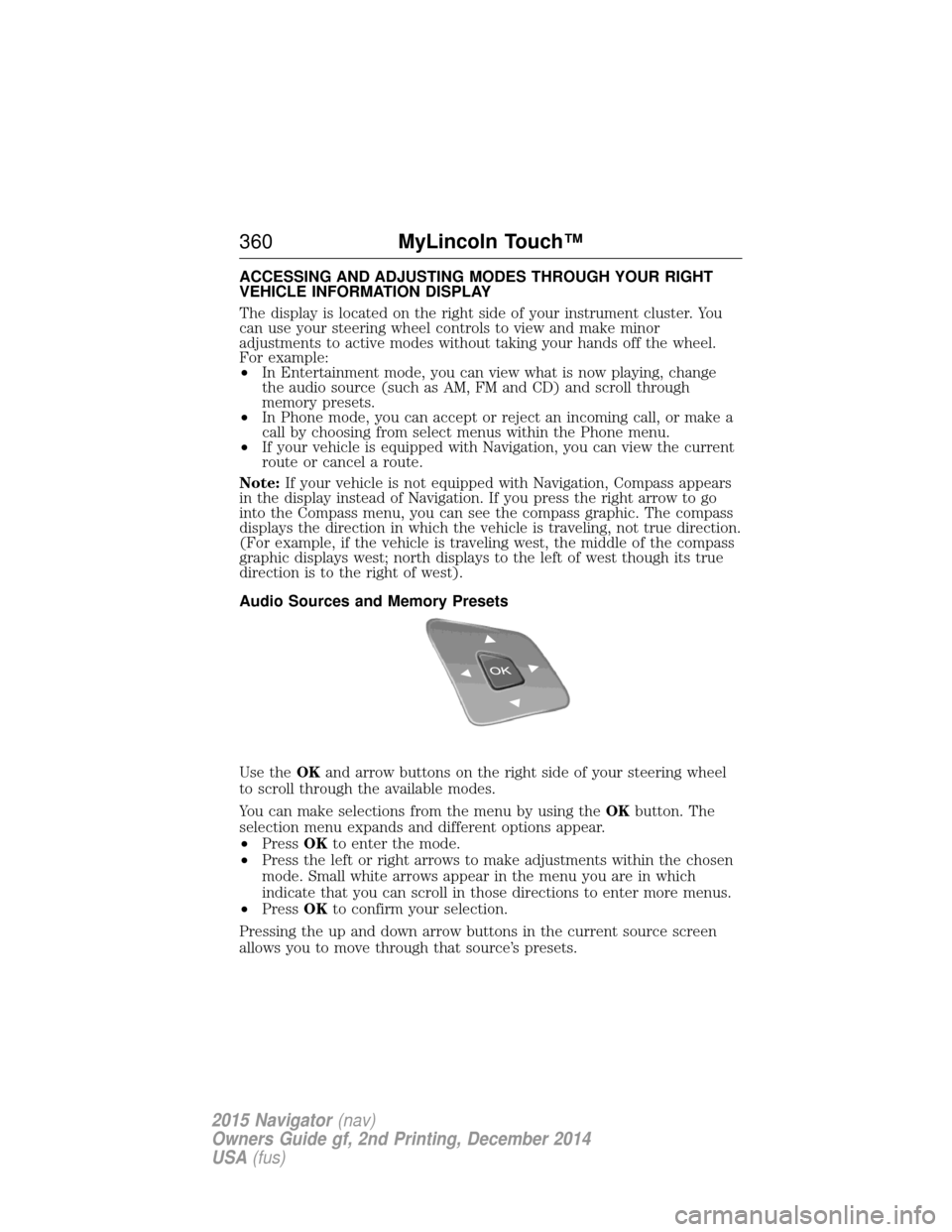
Use the OKand arrow buttons on the right side of your steering wheel
to scroll through the available modes.
You can make selections from the menu by using the OKbutton. The
selection menu expands and different options appear.
• Press OKto enter the mode.
• Press the left or right arrows to make adjustments within the chosen
mode. Small white arrows appear in the menu you are in which
indicate that you can scroll in those directions to enter more menus.
• Press OKto confirm your selection.
Pressing the up and down arrow buttons in the current source screen
allows you to move through that source’s presets.
360 MyLincoln Touch™
2015 Navigator(nav)
Owners Guide gf, 2nd Printing, December 2014
USA (fus)
Page 365 of 475
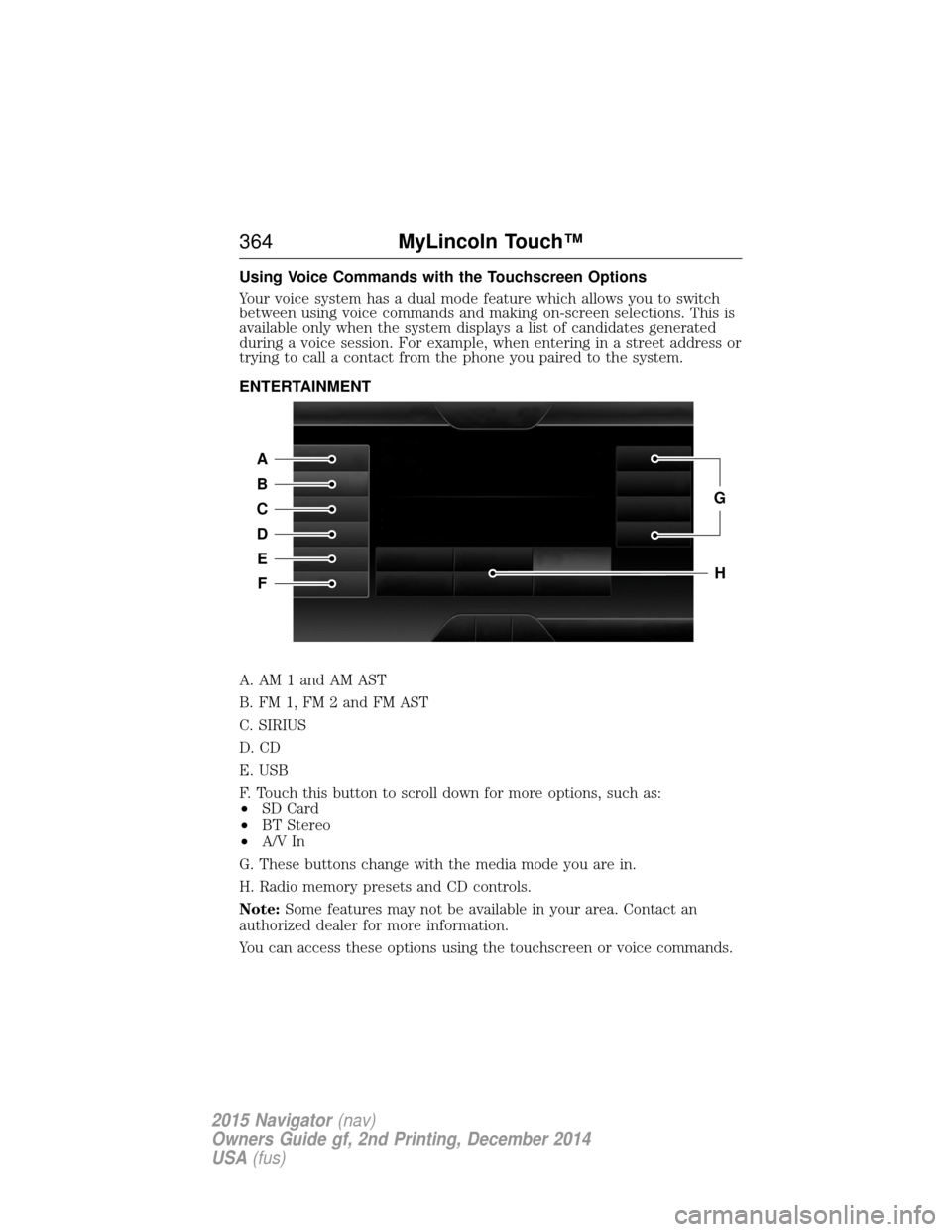
Using Voice Commands with the Touchscreen Options
Your voice system has a dual mode feature which allows you to switch
between using voice commands and making on-screen selections. This is
available only when the system displays a list of candidates generated
during a voice session. For example, when entering in a street address or
trying to call a contact from the phone you paired to the system.
ENTERTAINMENT
A. AM 1 and AM AST
B. FM 1, FM 2 and FM AST
C. SIRIUS
D. CD
E. USB
F. Touch this button to scroll down for more options, such as:
•SD Card
• BT Stereo
• A/V In
G. These buttons change with the media mode you are in.
H. Radio memory presets and CD controls.
Note: Some features may not be available in your area. Contact an
authorized dealer for more information.
You can access these options using the touchscreen or voice commands.
A
B
C
D
E
F
G
H
364 MyLincoln Touch™
2015 Navigator(nav)
Owners Guide gf, 2nd Printing, December 2014
USA (fus)
Page 367 of 475
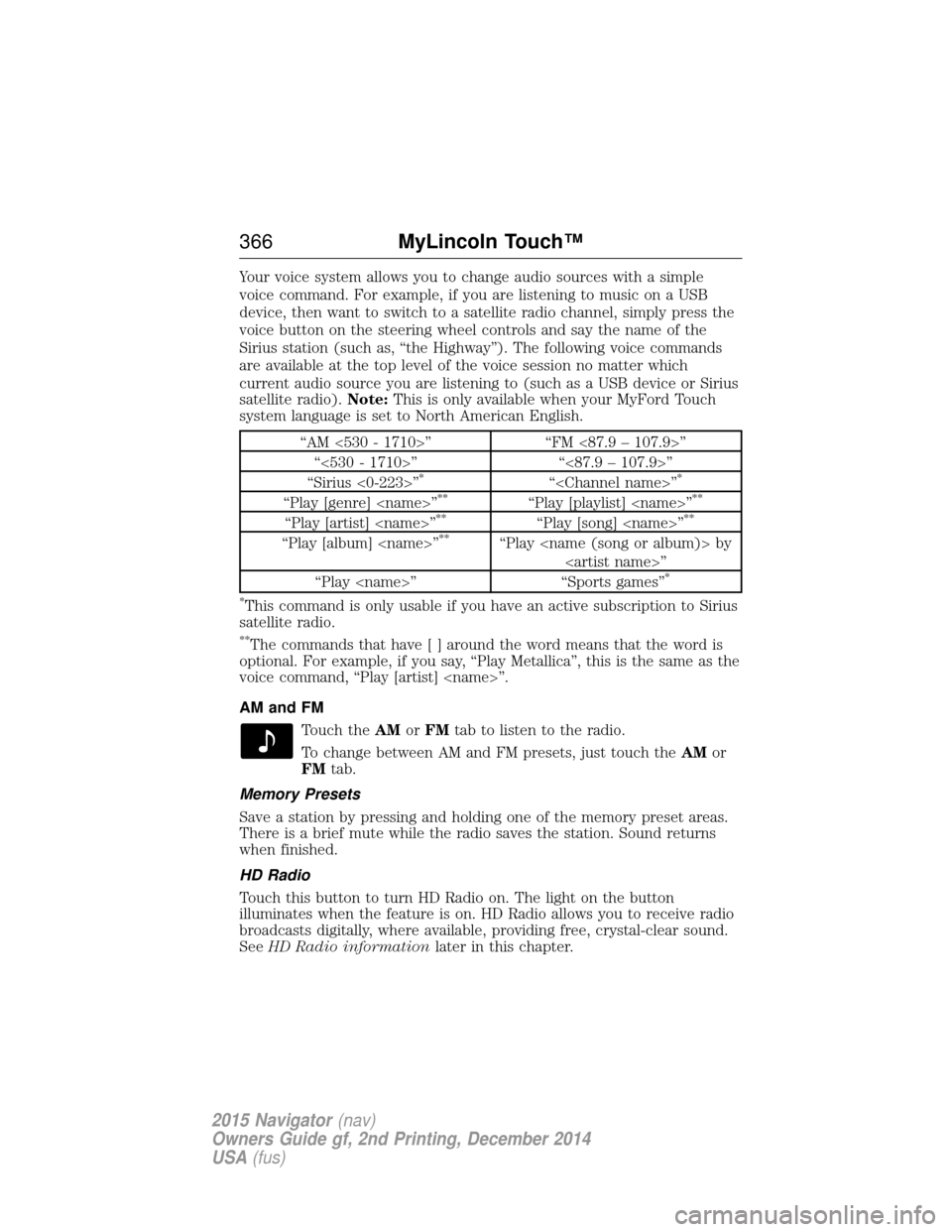
Your voice system allows you to change audio sources with a simple
voice command. For example, if you are listening to music on a USB
device, then want to switch to a satellite radio channel, simply press the
voice button on the steering wheel controls and say the name of the
Sirius station (such as, “the Highway”). The following voice commands
are available at the top level of the voice session no matter which
current audio source you are listening to (such as a USB device or Sirius
satellite radio).Note:This is only available when your MyFord Touch
system language is set to North American English.
“AM <530 - 1710>” “FM <87.9 – 107.9>”
“<530 - 1710>” “<87.9 – 107.9>”
“Sirius <0-223>”
*“
“Play [genre]
“Play [artist]
“Play [album]
“Play
*
*
This command is only usable if you have an active subscription to Sirius
satellite radio.
**The commands that have [ ] around the word means that the word is
optional. For example, if you say, “Play Metallica”, this is the same as the
voice command, “Play [artist]
AM and FM
Touch the AMorFM tab to listen to the radio.
To change between AM and FM presets, just touch the AMor
FM tab.
Memory Presets
Save a station by pressing and holding one of the memory preset areas.
There is a brief mute while the radio saves the station. Sound returns
when finished.
HD Radio
Touch this button to turn HD Radio on. The light on the button
illuminates when the feature is on. HD Radio allows you to receive radio
broadcasts digitally, where available, providing free, crystal-clear sound.
See HD Radio information later in this chapter.
366MyLincoln Touch™
2015 Navigator(nav)
Owners Guide gf, 2nd Printing, December 2014
USA (fus)