audio LINCOLN NAVIGATOR 2015 Owners Manual
[x] Cancel search | Manufacturer: LINCOLN, Model Year: 2015, Model line: NAVIGATOR, Model: LINCOLN NAVIGATOR 2015Pages: 475, PDF Size: 5.13 MB
Page 8 of 475
Accessories336
Accessories .........................................336
Extended Service Plan 338
Audio System 341
Rear seat controls .....................................344
Satellite radio information ...............................348
MyLincoln Touch™ 352
Voice recognition .....................................361
Listening to music ....................................364
Phone features .......................................384
Information Menu .....................................391
Settings............................................403
Climatefeatures......................................415
Navigation system .....................................418
Appendices 431
Scheduled Maintenance 450
Normal scheduled maintenance and log .....................455
Index 468
The information contained in this publication was correct at the time of going to
print. In the interest of continuous development, we reserve the right to change
specifications, design or equipment at any time without notice or obligation. No
part of this publication may be reproduced, transmitted, stored in a retrieval
system or translated into any language in any form by any means without our
written permission. Errors and omissions excepted.
© Ford Motor Company 2014
Table of Contents 7
2015 Navigator(nav)
Owners Guide gf, 2nd Printing, December 2014
USA (fus)
Page 61 of 475
PRINCIPLES OF OPERATION
MyKey allows you to program keys with restricted driving modes to
promote good driving habits. All but one of the keys programmed to the
vehicle can be activated with these restricted modes.
Any keys that have not been programmed are referred to as
administrator keys or admin keys. These can be used to:
•Create a MyKey.
• Program configurable MyKey settings.
• Clear all MyKey features.
When you have programmed a MyKey, you can access the following
information using the information display:
• How many admin keys and MyKeys are programmed to your vehicle.
• The total distance your vehicle has traveled using a MyKey.
Note: All MyKeys are programmed to the same settings. You cannot
program them individually.
Note: For vehicles with intelligent access (push-button start), when both
a MyKey and an admin transmitter are present, the admin transmitter
will be recognized to start the vehicle.
Non-configurable Settings
The following settings cannot be changed by an admin key user:
• Belt-Minder. You cannot disable this feature. The audio system will
mute when the front seat occupants’ safety belts are not fastened.
• Early low fuel. The low-fuel warning activates earlier, giving the
MyKey user more time to refuel.
• Driver assist features, if equipped on your vehicle, are forced on:
traction control, parking aid, blind spot information system (BLIS)
with cross traffic alert, lane departure warning and the forward
collision warning system.
Configurable Settings
With an admin key, you can configure certain MyKey settings when you
first create a MyKey and before you recycle the key or restart the
vehicle. You can also change the settings afterward with an admin key.
• A vehicle speed limit can be set. Warnings will be shown in the display
followed by an audible tone when your vehicle reaches the set speed.
You cannot override the set speed by fully depressing the accelerator
pedal or by setting cruise control.
• Various vehicle speed minders can be set. Once you select a speed, it
will be shown in the display, followed by an audible tone when the
preselected vehicle speed is exceeded.
60 MyKey
2015 Navigator(nav)
Owners Guide gf, 2nd Printing, December 2014
USA (fus)
Page 62 of 475
WARNING:Do not set MyKey maximum speed limit to a limit
that will prevent the driver from maintaining a safe speed
considering posted speed limits and prevailing road conditions. The
driver is always responsible to drive in accordance with local laws and
prevailing conditions. Failure to do so could result in accident or injury.
• Audio system maximum volume of 45% for some audio systems. A
message will be shown in the display when you attempt to exceed the
limited volume. Also, the speed-sensitive or compensated automatic
volume control will be disabled.
• Always on setting. When this is selected, you will not be able to turn
off certain features.
CREATING A MYKEY
Use the information display to create a MyKey.
1. Insert the key you want to program into the ignition.
2. Switch the ignition on.
3. Access the main menu on the information display. Press SETUP
using the information display buttons until PRESS RESET TO
CREATE MYKEY is displayed.
4. Press and release the RESETbutton.HOLD RESET TO
CONFIRM MYKEY will be displayed.
5. Press and hold the RESETbutton for two seconds until MARK
THIS AS RESTRICTED is displayed Wait untilKEY
RESTRICTED AT NEXT START is displayed.
MyKey is successfully created. Make sure you label it so you can
distinguish it from the admin keys.
You can also program configurable settings for the key(s). Refer to
Programming/Changing Configurable Settings .
Programming/Changing Configurable Settings
Use the Information display to access your configurable MyKey settings:
1. Switch the ignition on with an admin key. If your vehicle has keyless start, place the intelligent access transmitter into the backup slot.
The location of your backup slot is in another chapter. See Starting
and Stopping the Engine .
2. Access the main menu on the information display controls and press SETUP until you see RESET FOR MYKEY SETTINGS in the
display.
MyKey 61
2015 Navigator(nav)
Owners Guide gf, 2nd Printing, December 2014
USA (fus)
Page 81 of 475
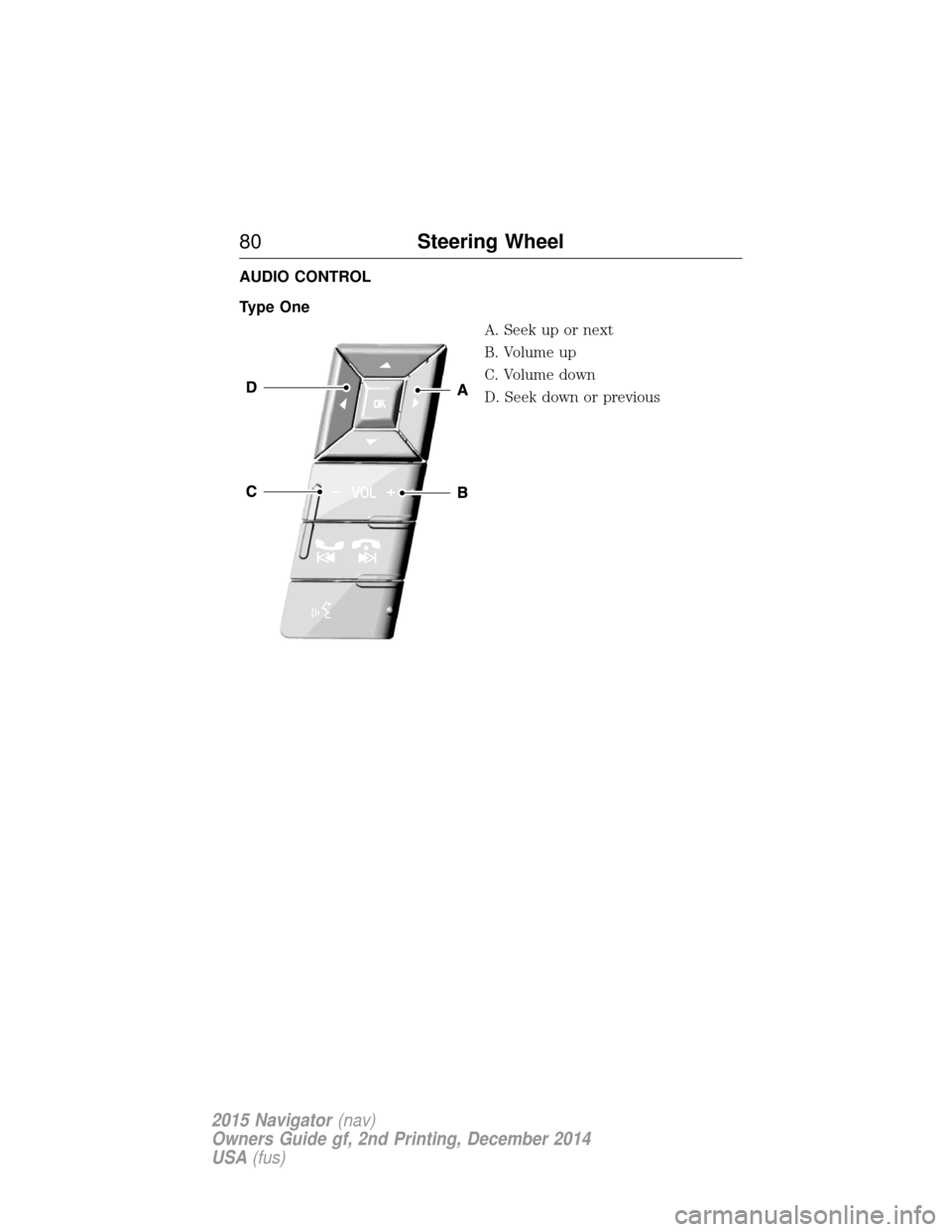
AUDIO CONTROL
Type OneA. Seek up or next
B. Volume up
C. Volume down
D. Seek down or previous
80Steering Wheel
2015 Navigator(nav)
Owners Guide gf, 2nd Printing, December 2014
USA (fus)
Page 82 of 475
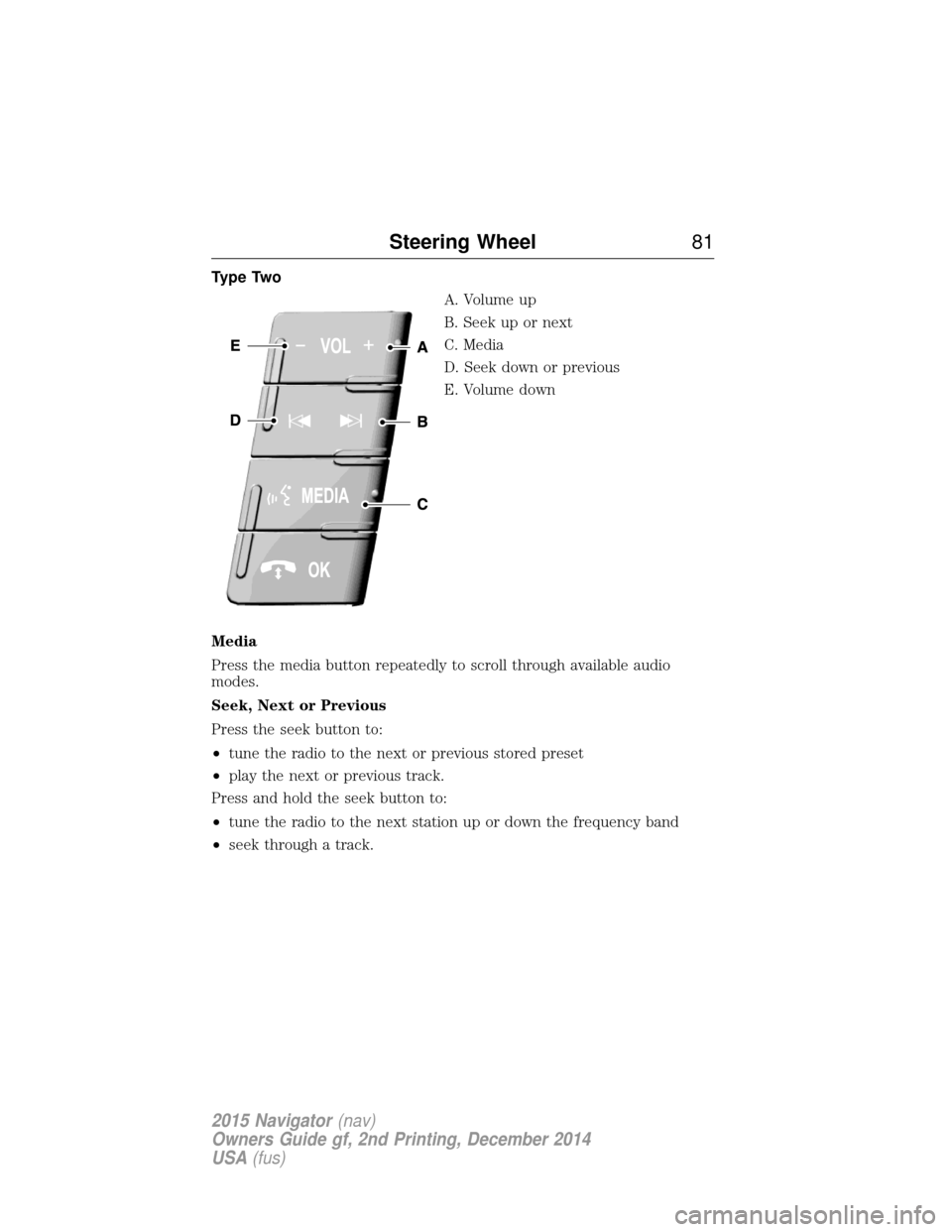
Type TwoA. Volume up
B. Seek up or next
C. Media
D. Seek down or previous
E. Volume down
Media
Press the media button repeatedly to scroll through available audio
modes.
Seek, Next or Previous
Press the seek button to:
• tune the radio to the next or previous stored preset
• play the next or previous track.
Press and hold the seek button to:
• tune the radio to the next station up or down the frequency band
• seek through a track.
Steering Wheel 81
2015 Navigator(nav)
Owners Guide gf, 2nd Printing, December 2014
USA (fus)
Page 117 of 475
Maintenance MessagesAction / Description
See Manual The powertrain needs service due
to a powertrain malfunction.
Washer Fluid Level LOW Displays when the washer fluid is
low and needs to be refilled.
Factory Mode Contact Dealer Your vehicle is still in Factory mode. This may not allow some
features to operate properly. See
an authorized dealer.
Transport Mode Contact Dealer Your vehicle is still in Transport mode. This may not allow some
features to operate properly. See
an authorized dealer.
MyKey® MessagesAction / Description
MyKey active Drive Safely Displays when MyKey is active.
Speed Limited to xx MPH/km/h Displays when starting the vehicle and MyKey is in use and the
MyKey speed limit is on.
Near Vehicle Top Speed Displays when a MyKey is in use
and the MyKey speed limit is on
and the vehicle speed is
approaching 80 mph (130 km/h).
Check Speed Drive Safely Displayed when a MyKey is in use and the optional setting is on and
the vehicle exceeds a preselected
speed.
Buckle Up to Unmute Audio Displays when a MyKey is in use and Belt-Minder® is activated.
Could Not Program Integrated Key Displays when an attempt is made to program a spare key using two
existing MyKeys.
Vehicle at Top Speed of MyKey
Setting You have reached the speed limit
set for your MyKey.
11 6
Information Displays
2015 Navigator (nav)
Owners Guide gf, 2nd Printing, December 2014
USA (fus)
Page 156 of 475
CENTER CONSOLE
Stow items in the cupholder carefully as items may become loose during
hard braking, acceleration or collisions, including hot drinks which may
spill.
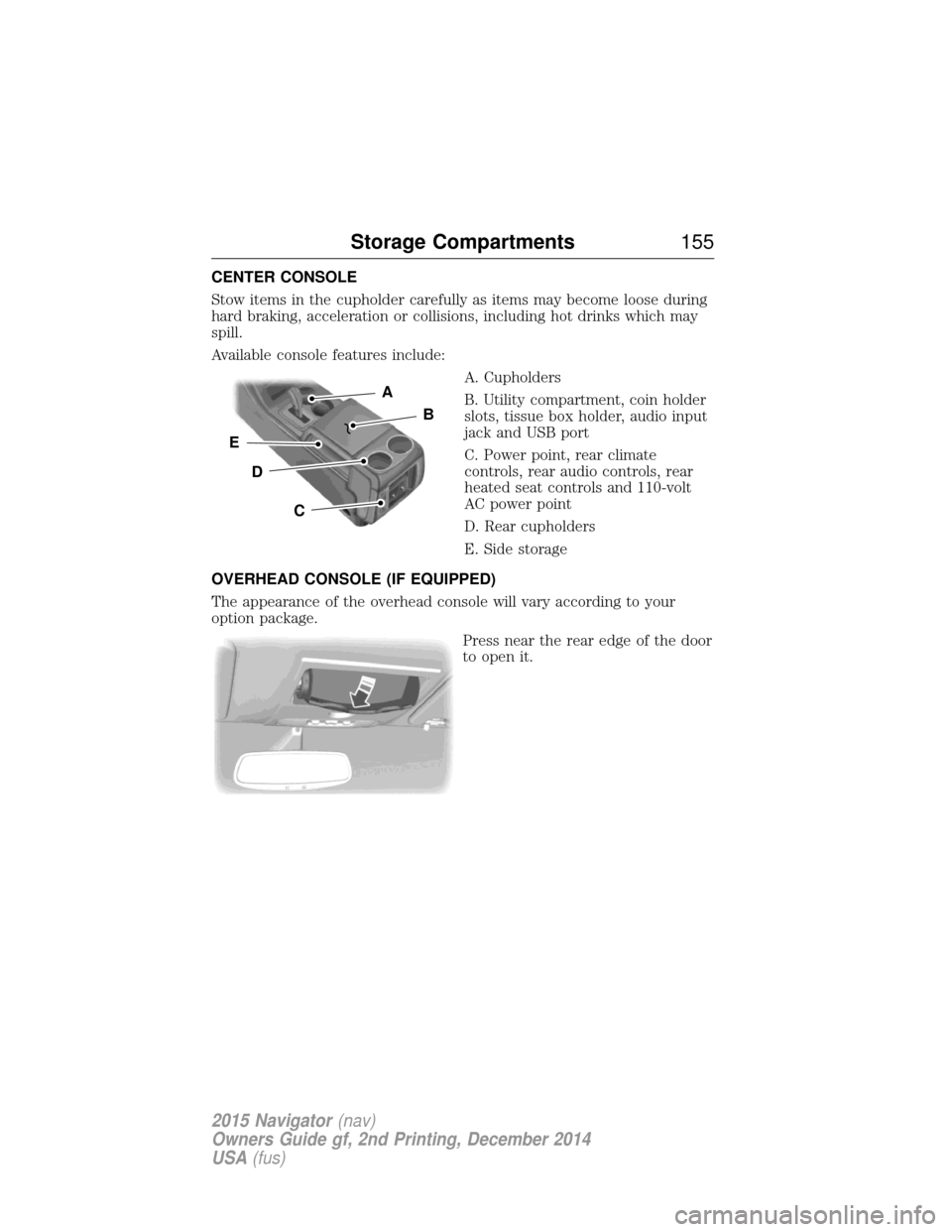
Available console features include:A. Cupholders
B. Utility compartment, coin holder
slots, tissue box holder, audio input
jack and USB port
C. Power point, rear climate
controls, rear audio controls, rear
heated seat controls and 110-volt
AC power point
D. Rear cupholders
E. Side storage
OVERHEAD CONSOLE (IF EQUIPPED)
The appearance of the overhead console will vary according to your
option package. Press near the rear edge of the door
to open it.
A
B
C
D
E
Storage Compartments 155
2015 Navigator(nav)
Owners Guide gf, 2nd Printing, December 2014
USA (fus)
Page 342 of 475
GENERAL INFORMATION
Radio Frequencies and Reception Factors
AM and FM frequencies are established by the Federal Communications
Commission (FCC) and the Canadian Radio and Telecommunications
Commission (CRTC). Those frequencies are:
AM: 530, 540–1700, 1710 kHz
FM: 87.9–107.7, 107.9 MHz
Radio reception factors
Distance and
strength The further you travel from an FM station,
the weaker the signal and the weaker the
reception.
Terrain Hills, mountains, tall buildings, bridges,
tunnels, freeway overpasses, parking garages,
dense tree foliage and thunderstorms can
interfere with the reception.
Station overload When you pass a ground-based broadcast
repeating tower, a stronger signal may
overtake a weaker one and result in the audio
system muting.
CD and CD Player Information
Note: CD units play commercially pressed 4.75-inch (12 centimeter)
audio compact discs only. Due to technical incompatibility, certain
recordable and re-recordable compact discs may not function correctly
when used in Ford CD players.
Note: Do not insert CDs with homemade paper (adhesive) labels into
the CD player as the label may peel and cause the CD to become
jammed. You should use a permanent felt tip marker rather than
adhesive labels on your homemade CDs. Ballpoint pens may damage
CDs. Please contact your authorized dealer for further information.
Note: Do not use any irregularly shaped discs or discs with a scratch
protection film attached.
Always handle discs by their edges only. Clean the disc with an approved
CD cleaner only. Wipe it from the center of the disc toward the edge. Do
not clean in a circular motion.
Do not expose discs to direct sunlight or heat sources for extended
periods.
Audio System 341
2015 Navigator(nav)
Owners Guide gf, 2nd Printing, December 2014
USA (fus)
Page 343 of 475
MP3 Track and Folder Structure
Audio systems capable of recognizing and playing MP3 individual tracks
and folder structures work as follows:
•There are two different modes for MP3 disc playback: MP3 track
mode (system default) and MP3 folder mode.
• MP3 track mode ignores any folder structure on the MP3 disc. The
player numbers each MP3 track on the disc (noted by the .mp3 file
extension) from T001 to a maximum of T255. Note:The maximum
number of playable MP3 files may be less depending on the structure
of the CD and exact model of radio present.
• MP3 folder mode represents a folder structure consisting of one level
of folders. The CD player numbers all MP3 tracks on the disc (noted
by the .mp3 file extension) and all folders containing MP3 files, from
F001 (folder) T001 (track) to F253 T255.
• Creating discs with only one level of folders helps with navigation
through the disc files.
If you are burning your own MP3 discs, it is important to understand
how the system reads the structures you create. While various files may
be present, (files with extensions other than mp3), only files with the
.mp3 extension are played; other files are ignored by the system. This
enables you to use the same MP3 disc for a variety of tasks on your work
computer, home computer and your in-vehicle system.
In track mode, the system displays and plays the structure as if it were
only one level deep (all .mp3 files play, regardless of being in a specific
folder). In folder mode, the system only plays the .mp3 files in the
current folder.
342 Audio System
2015 Navigator(nav)
Owners Guide gf, 2nd Printing, December 2014
USA (fus)
Page 344 of 475
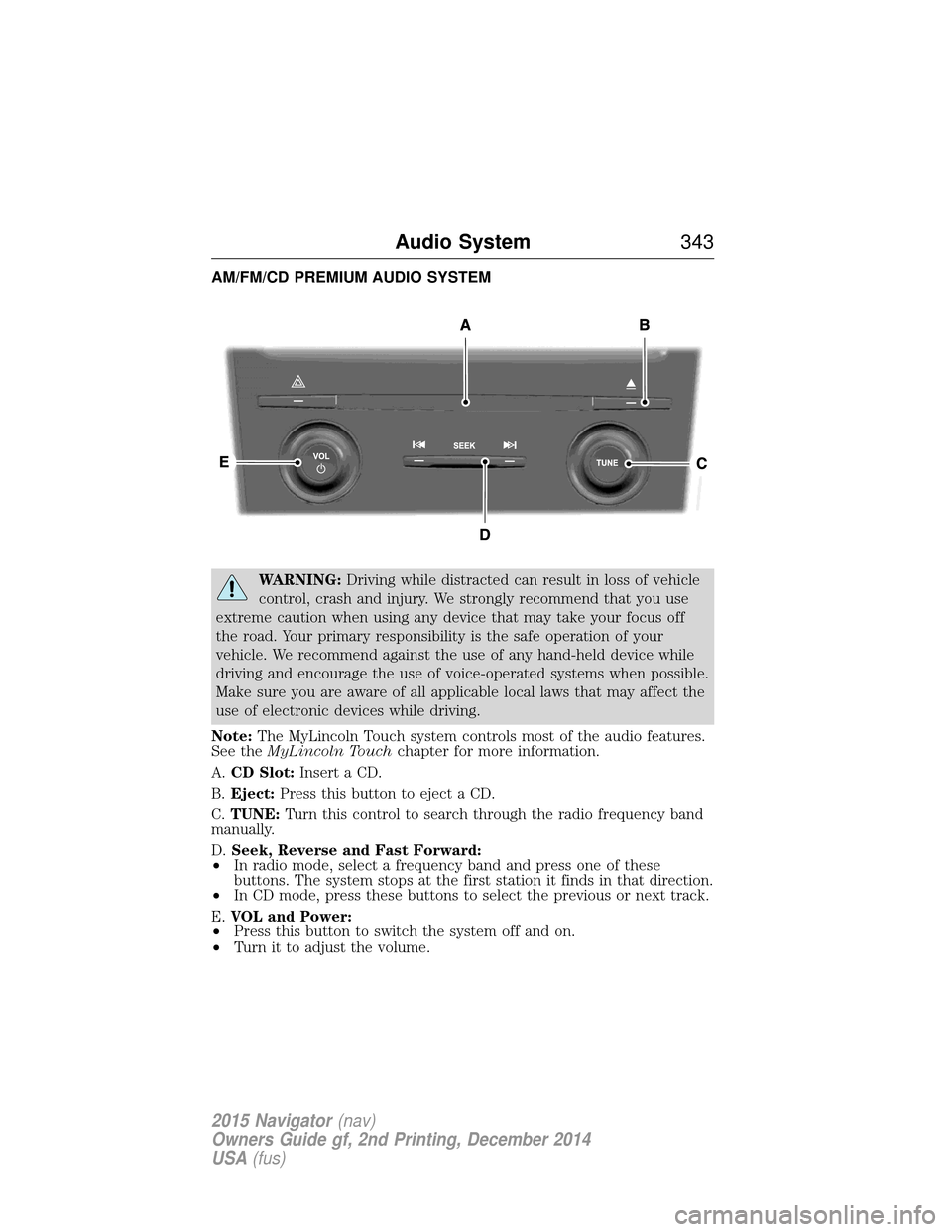
AM/FM/CD PREMIUM AUDIO SYSTEM
WARNING:Driving while distracted can result in loss of vehicle
control, crash and injury. We strongly recommend that you use
extreme caution when using any device that may take your focus off
the road. Your primary responsibility is the safe operation of your
vehicle. We recommend against the use of any hand-held device while
driving and encourage the use of voice-operated systems when possible.
Make sure you are aware of all applicable local laws that may affect the
use of electronic devices while driving.
Note: The MyLincoln Touch system controls most of the audio features.
See the MyLincoln Touch chapter for more information.
A. CD Slot: Insert a CD.
B. Eject: Press this button to eject a CD.
C. TUNE: Turn this control to search through the radio frequency band
manually.
D. Seek, Reverse and Fast Forward:
• In radio mode, select a frequency band and press one of these
buttons. The system stops at the first station it finds in that direction.
• In CD mode, press these buttons to select the previous or next track.
E. VOL and Power:
• Press this button to switch the system off and on.
• Turn it to adjust the volume.
Audio System 343
2015 Navigator(nav)
Owners Guide gf, 2nd Printing, December 2014
USA (fus)