audio LINCOLN NAVIGATOR 2015 Owner's Manual
[x] Cancel search | Manufacturer: LINCOLN, Model Year: 2015, Model line: NAVIGATOR, Model: LINCOLN NAVIGATOR 2015Pages: 475, PDF Size: 5.13 MB
Page 357 of 475
•Seek andTune: Use as you normally would in media modes.
• PRESETS: Press and hold a numbered button to store a radio or
Sirius station. Press to recall the stored station.
• Eject: Eject a CD from the entertainment system.
• Climate control: Control the temperature, fan speed and settings of
the climate control system.
• MEDIA: Touch repeatedly to see all available media sources. If not
on an audio screen, the media change appears in the lower left status
bar.
Using Your Steering Wheel Controls
Depending on your vehicle and option package, you can use your
steering wheel controls to interact with the touchscreen system.
• VOL: Control the volume of audio output.
• VOICE: Press to start a voice session. Press again and hold to end a
voice session.
• SEEK andPHONE SEND:
• While in radio mode, press to seek between presets or press and
hold to seek between stations.
• While in USB or CD mode, press to seek between stations or press
and hold to fast seek.
• While in phone mode, press to answer a call or switch between
calls.
• SEEK andPHONE END:
• While in radio mode, press to seek between presets or press and
hold to seek between stations.
• While in USB or CD mode, press to seek between stations or press
and hold to fast seek.
• While in phone mode, press to end a call or reject an incoming
call.
See the Steering Wheel chapter for more information.
Cleaning the Touchscreen Display
Use a clean, soft cloth such as one used for cleaning glasses. If dirt or
fingerprints are still visible, apply a small amount of alcohol to the cloth.
Do not pour or spray alcohol onto the display. Do not use detergent or
any type of solvent to clean the display.
Support
The SYNC support team is available to help you with any questions you
cannot answer on your own.
Monday-Saturday, 8:30am-9:00pm EST.
356 MyLincoln Touch™
2015 Navigator(nav)
Owners Guide gf, 2nd Printing, December 2014
USA (fus)
Page 361 of 475
ACCESSING AND ADJUSTING MODES THROUGH YOUR RIGHT
VEHICLE INFORMATION DISPLAY
The display is located on the right side of your instrument cluster. You
can use your steering wheel controls to view and make minor
adjustments to active modes without taking your hands off the wheel.
For example:
•In Entertainment mode, you can view what is now playing, change
the audio source (such as AM, FM and CD) and scroll through
memory presets.
• In Phone mode, you can accept or reject an incoming call, or make a
call by choosing from select menus within the Phone menu.
• If your vehicle is equipped with Navigation, you can view the current
route or cancel a route.
Note: If your vehicle is not equipped with Navigation, Compass appears
in the display instead of Navigation. If you press the right arrow to go
into the Compass menu, you can see the compass graphic. The compass
displays the direction in which the vehicle is traveling, not true direction.
(For example, if the vehicle is traveling west, the middle of the compass
graphic displays west; north displays to the left of west though its true
direction is to the right of west).
Audio Sources and Memory Presets
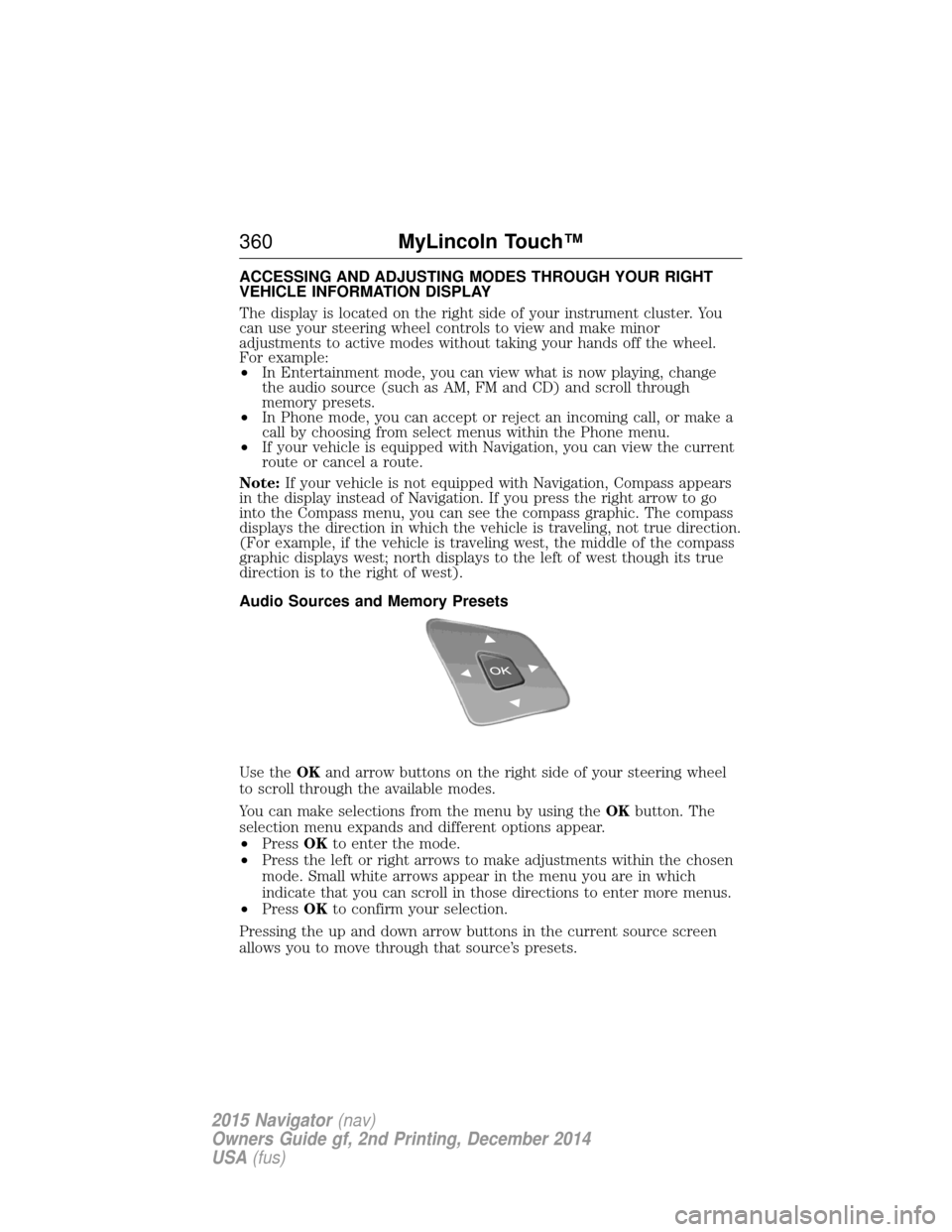
Use the OKand arrow buttons on the right side of your steering wheel
to scroll through the available modes.
You can make selections from the menu by using the OKbutton. The
selection menu expands and different options appear.
• Press OKto enter the mode.
• Press the left or right arrows to make adjustments within the chosen
mode. Small white arrows appear in the menu you are in which
indicate that you can scroll in those directions to enter more menus.
• Press OKto confirm your selection.
Pressing the up and down arrow buttons in the current source screen
allows you to move through that source’s presets.
360 MyLincoln Touch™
2015 Navigator(nav)
Owners Guide gf, 2nd Printing, December 2014
USA (fus)
Page 363 of 475
Helpful Hints
•Make sure the interior of your vehicle is as quiet as possible. Wind
noise from open windows and road vibrations may prevent the system
from correctly recognizing spoken commands.
• After pressing the voice icon, wait until after the tone sounds and
Listening appears before saying a command. Any command spoken
prior to this does not register with the system.
• Speak naturally, without long pauses between words.
• At any time, you can interrupt the system while it is speaking by
pressing the voice icon.
Accessing a List of Available Commands
• If you use the touchscreen, press the Settings icon > Help>Voice
Command List.
• If you use the steering wheel control, press the voice icon. After the
tone, speak your command clearly.
Voice command list
“Audio list of commands”
“Bluetooth audio list of commands” “Browse list of commands”“CD list of commands”
“Climate control list of commands” “List of commands”
“Navigation list of commands”
*
“Phone list of commands” “Radio list of commands”
“SD card list of commands”
“Sirius satellite list of commands”
**
“Travel link list of commands”*
“USB list of commands”
“Voice instructions list of commands” “Voice settings list of commands” “Help”
*This command is only available when your vehicle is equipped with the
navigation system, and the navigation system SD card is in the card slot.
**This command is only available when you have an active Sirius satellite
radio subscription.
362 MyLincoln Touch™
2015 Navigator(nav)
Owners Guide gf, 2nd Printing, December 2014
USA (fus)
Page 366 of 475
Browsing Device Content
When listening to audio on a device, you can browse through other
devices without having to change sources. For example, if you are
currently listening to audio on an SD card, you can browse all the artists
that are stored on your USB device.Press the voice icon on the steering wheel. When prompted,
you can say:
“BROWSE” within devices “Browse”*
“Browse
“Browse
“Browse Sirius channel guide”**
“Browse SD card”“Browse USB” “Help”
*If you have said “Browse”, you can then say any commands in the
following chart.
**This command is only usable if you have an active subscription to
Sirius satellite radio.
“BROWSE”
“
”
“SD card”**
“Sirius channel guide”*
“USB”**
“Help”
*This command is only usable if you have an active subscription to Sirius
satellite radio.
**For more commands in SD card or USB mode, see the “SD card and
USB Port” section of this chapter.
For a complete list of “Browse” voice commands, see USB and SD card
voice commands andBluetooth audio voice commands in the
following sections.
MyLincoln Touch™ 365
2015 Navigator(nav)
Owners Guide gf, 2nd Printing, December 2014
USA (fus)
Page 367 of 475
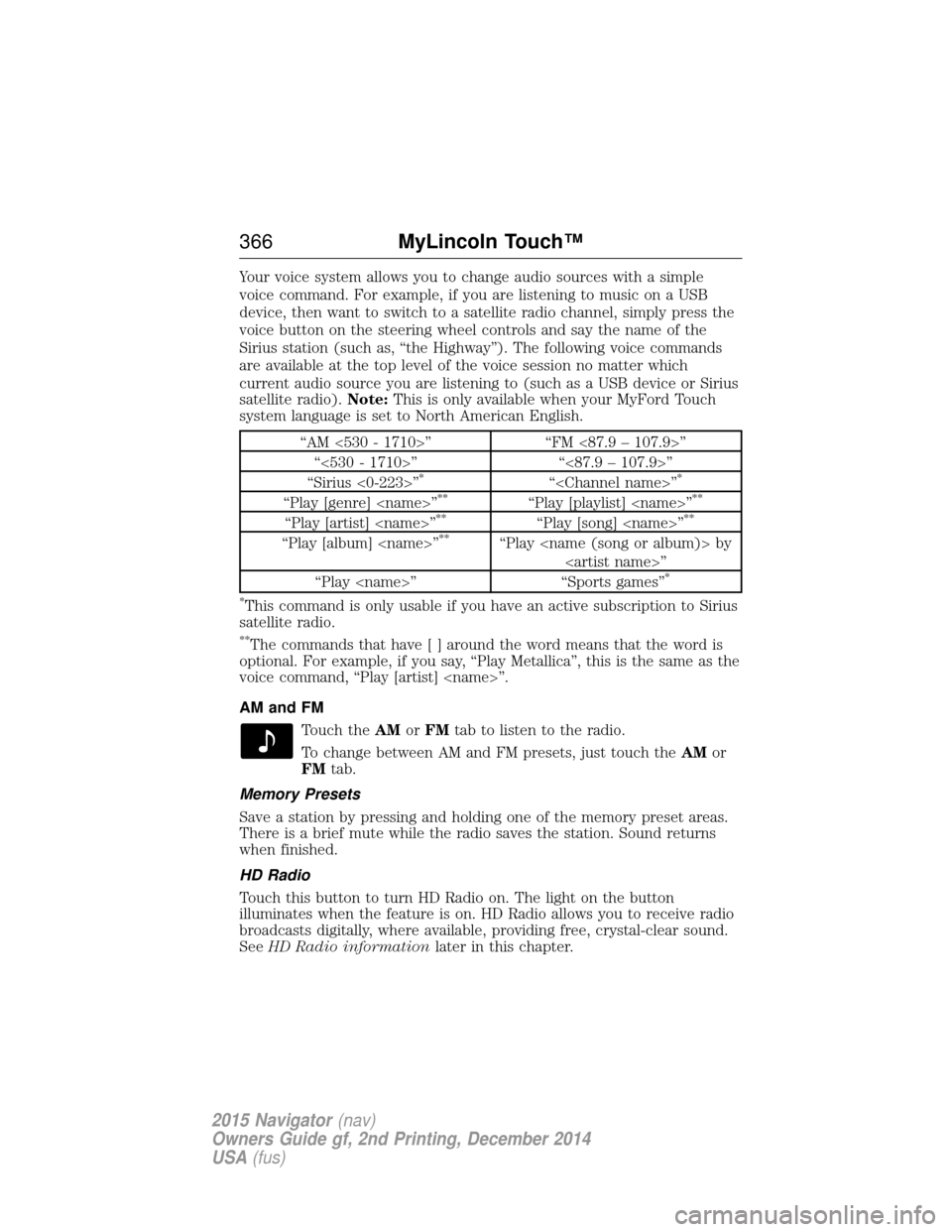
Your voice system allows you to change audio sources with a simple
voice command. For example, if you are listening to music on a USB
device, then want to switch to a satellite radio channel, simply press the
voice button on the steering wheel controls and say the name of the
Sirius station (such as, “the Highway”). The following voice commands
are available at the top level of the voice session no matter which
current audio source you are listening to (such as a USB device or Sirius
satellite radio).Note:This is only available when your MyFord Touch
system language is set to North American English.
“AM <530 - 1710>” “FM <87.9 – 107.9>”
“<530 - 1710>” “<87.9 – 107.9>”
“Sirius <0-223>”
*“
“Play [genre]
“Play [artist]
“Play [album]
“Play
*
*
This command is only usable if you have an active subscription to Sirius
satellite radio.
**The commands that have [ ] around the word means that the word is
optional. For example, if you say, “Play Metallica”, this is the same as the
voice command, “Play [artist]
AM and FM
Touch the AMorFM tab to listen to the radio.
To change between AM and FM presets, just touch the AMor
FM tab.
Memory Presets
Save a station by pressing and holding one of the memory preset areas.
There is a brief mute while the radio saves the station. Sound returns
when finished.
HD Radio
Touch this button to turn HD Radio on. The light on the button
illuminates when the feature is on. HD Radio allows you to receive radio
broadcasts digitally, where available, providing free, crystal-clear sound.
See HD Radio information later in this chapter.
366MyLincoln Touch™
2015 Navigator(nav)
Owners Guide gf, 2nd Printing, December 2014
USA (fus)
Page 368 of 475
Scan
Touch this button to go to the next strong AM or FM radio station. The
light on the button illuminates when the feature is on.
Options
Sound Settingsallows you to adjust settings for:
• Bass
• Midrange
• Treble
• Balance and Fade
• DSP (Digital Signal Processing)
• Occupancy Mode
• Speed Compensated Volume.
Note: Your vehicle may not have all these sound settings.
Set PTY for Seek/Scan allows you to select a category of music you
would like to search for. You can then choose to either seek or scan for
the stations playing that category.
RDS Text Display allows you to view the information broadcast by FM
stations.
AST allows you to have the system automatically store the six strongest
stations in your current location.
TAG Button is available when HD Radio is on, and allows you to tag a
song to download later. When you select On,TAG appears on-screen
when HD Radio is active. You can touch TA Gto save the information of
the song that is playing. When you plug in your portable music player,
the information transfers, if supported by your device. When you are
connected to iTunes, the tags appear to remind you of the songs you
would like to download. See HD Radio informationlater in this chapter.
Direct Tune
Touch this button to manually enter the desired station number. Touch
Enter when you are done.
HD Radio™ Information (If Available)
Note: HD Radio broadcasts are not available in all markets.
HD Radio technology is the digital evolution of analog AM/FM radio. Your
system has a special receiver that allows it to receive digital broadcasts
(where available) in addition to the analog broadcasts, it already
receives. Digital broadcasts provide a better sound quality than analog
broadcasts with free, crystal-clear audio and no static or distortion. For
MyLincoln Touch™ 367
2015 Navigator(nav)
Owners Guide gf, 2nd Printing, December 2014
USA (fus)
Page 369 of 475
more information, and a guide to available stations and programming,
please visit www.hdradio.com.
When HD Radio is on and you tune to a station broadcasting HD Radio
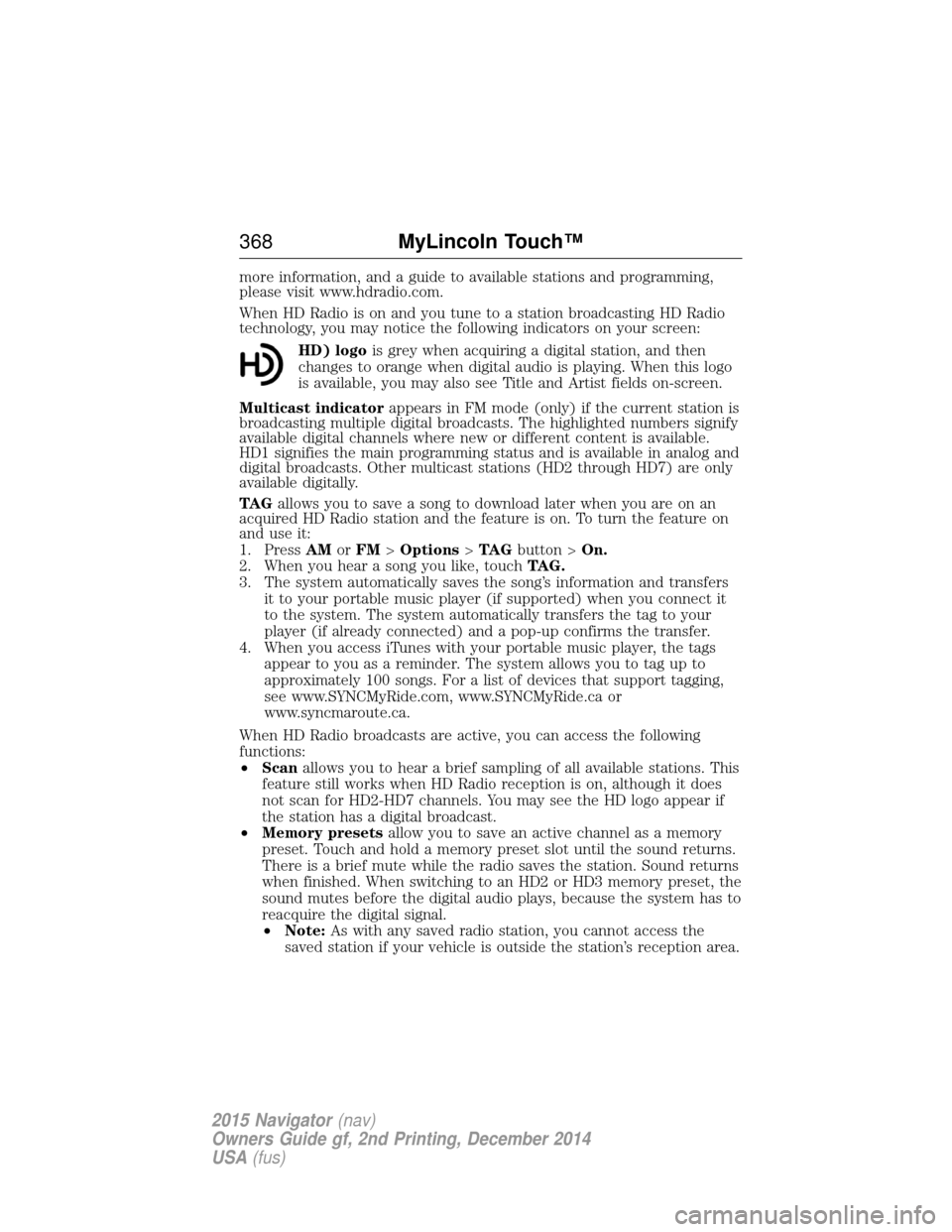
technology, you may notice the following indicators on your screen:HD) logo is grey when acquiring a digital station, and then
changes to orange when digital audio is playing. When this logo
is available, you may also see Title and Artist fields on-screen.
Multicast indicator appears in FM mode (only) if the current station is
broadcasting multiple digital broadcasts. The highlighted numbers signify
available digital channels where new or different content is available.
HD1 signifies the main programming status and is available in analog and
digital broadcasts. Other multicast stations (HD2 through HD7) are only
available digitally.
TA G allows you to save a song to download later when you are on an
acquired HD Radio station and the feature is on. To turn the feature on
and use it:
1. Press AMorFM >Options >TA G button > On.
2. When you hear a song you like, touch TAG.
3. The system automatically saves the song’s information and transfers it to your portable music player (if supported) when you connect it
to the system. The system automatically transfers the tag to your
player (if already connected) and a pop-up confirms the transfer.
4. When you access iTunes with your portable music player, the tags appear to you as a reminder. The system allows you to tag up to
approximately 100 songs. For a list of devices that support tagging,
see www.SYNCMyRide.com, www.SYNCMyRide.ca or
www.syncmaroute.ca.
When HD Radio broadcasts are active, you can access the following
functions:
• Scan allows you to hear a brief sampling of all available stations. This
feature still works when HD Radio reception is on, although it does
not scan for HD2-HD7 channels. You may see the HD logo appear if
the station has a digital broadcast.
• Memory presets allow you to save an active channel as a memory
preset. Touch and hold a memory preset slot until the sound returns.
There is a brief mute while the radio saves the station. Sound returns
when finished. When switching to an HD2 or HD3 memory preset, the
sound mutes before the digital audio plays, because the system has to
reacquire the digital signal.
• Note: As with any saved radio station, you cannot access the
saved station if your vehicle is outside the station’s reception area.
368 MyLincoln Touch™
2015 Navigator(nav)
Owners Guide gf, 2nd Printing, December 2014
USA (fus)
Page 370 of 475
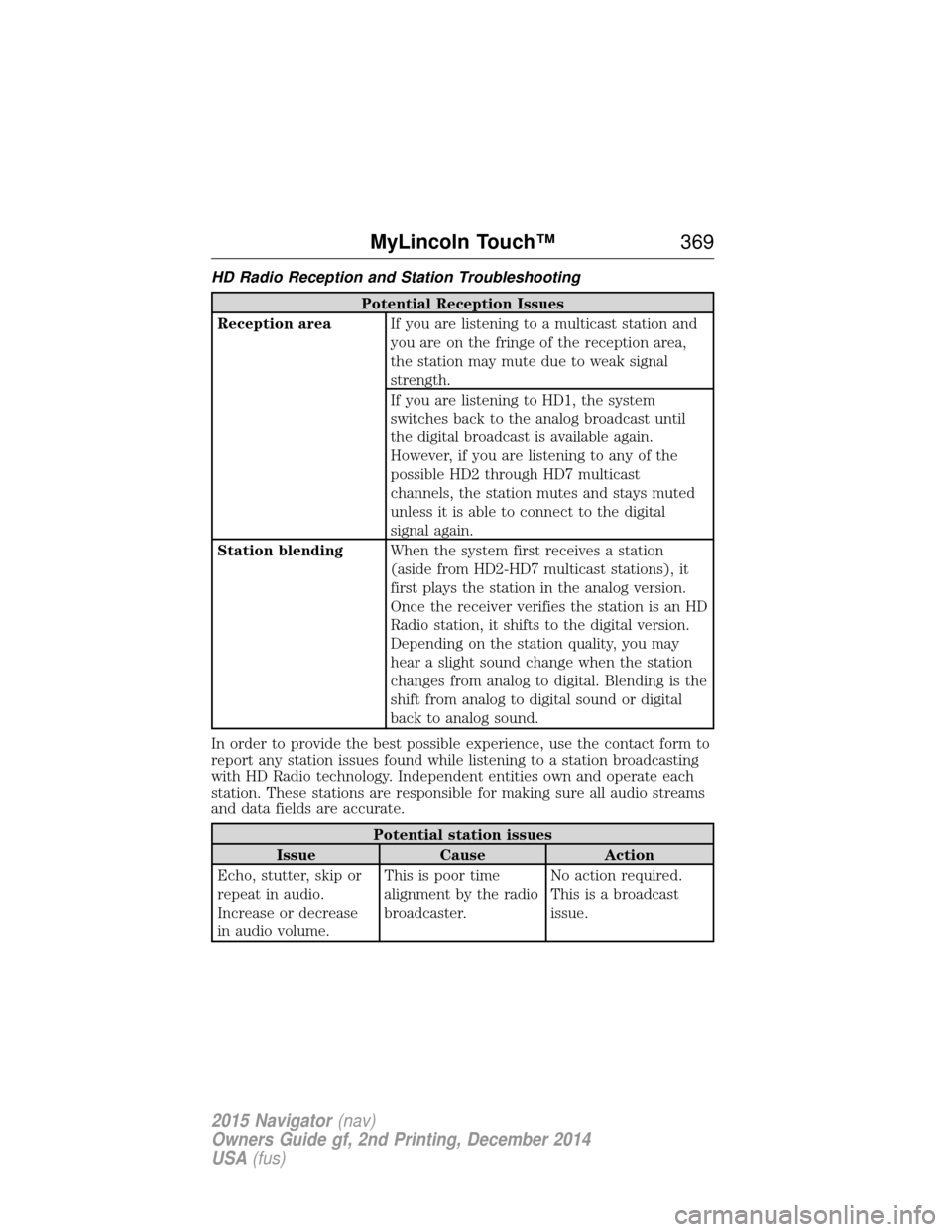
HD Radio Reception and Station Troubleshooting
Potential Reception Issues
Reception area If you are listening to a multicast station and
you are on the fringe of the reception area,
the station may mute due to weak signal
strength.
If you are listening to HD1, the system
switches back to the analog broadcast until
the digital broadcast is available again.
However, if you are listening to any of the
possible HD2 through HD7 multicast
channels, the station mutes and stays muted
unless it is able to connect to the digital
signal again.
Station blending When the system first receives a station
(aside from HD2-HD7 multicast stations), it
first plays the station in the analog version.
Once the receiver verifies the station is an HD
Radio station, it shifts to the digital version.
Depending on the station quality, you may
hear a slight sound change when the station
changes from analog to digital. Blending is the
shift from analog to digital sound or digital
back to analog sound.
In order to provide the best possible experience, use the contact form to
report any station issues found while listening to a station broadcasting
with HD Radio technology. Independent entities own and operate each
station. These stations are responsible for making sure all audio streams
and data fields are accurate.
Potential station issues
Issue Cause Action
Echo, stutter, skip or
repeat in audio.
Increase or decrease
in audio volume. This is poor time
alignment by the radio
broadcaster.
No action required.
This is a broadcast
issue.
MyLincoln Touch™
369
2015 Navigator(nav)
Owners Guide gf, 2nd Printing, December 2014
USA (fus)
Page 371 of 475
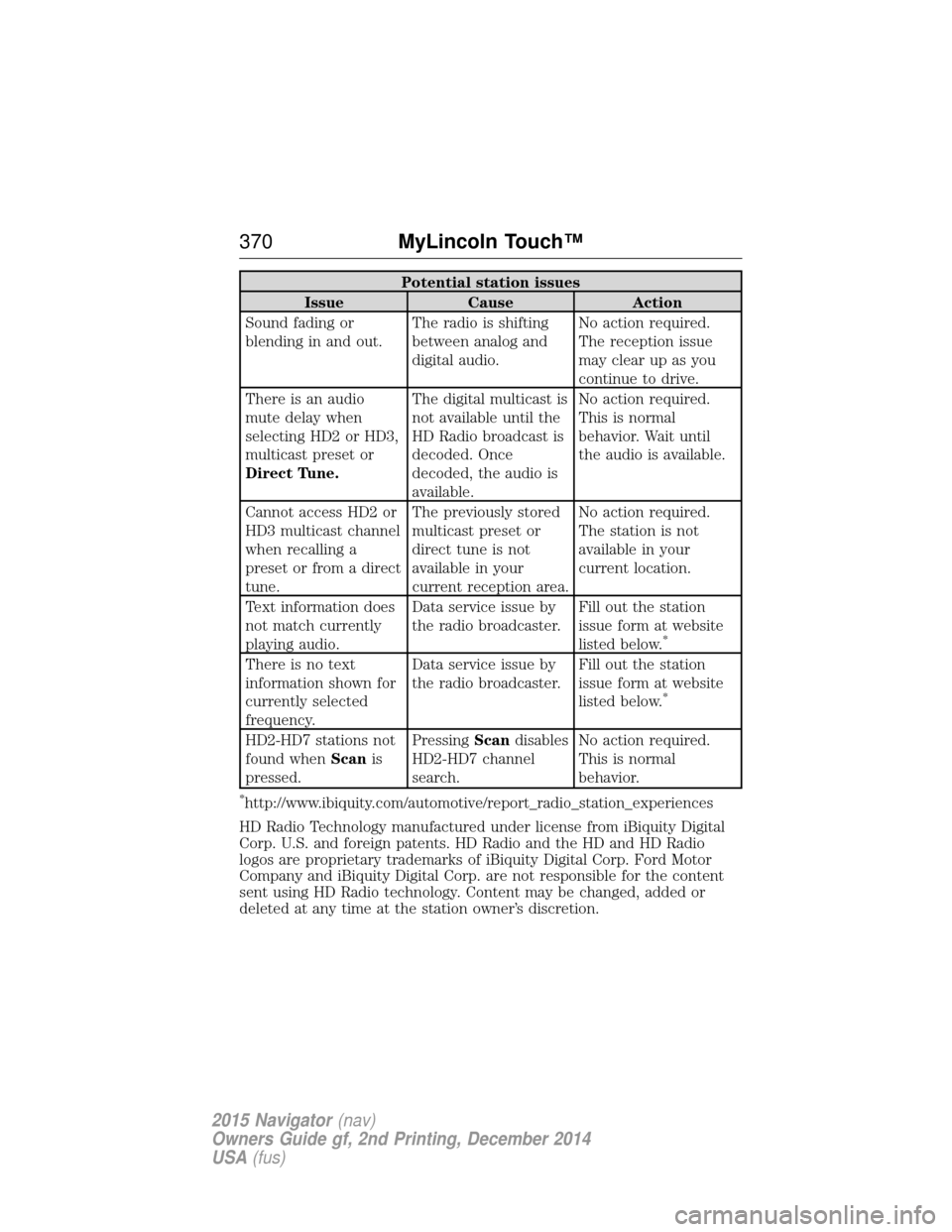
Potential station issues
Issue Cause Action
Sound fading or
blending in and out. The radio is shifting
between analog and
digital audio.No action required.
The reception issue
may clear up as you
continue to drive.
There is an audio
mute delay when
selecting HD2 or HD3,
multicast preset or
Direct Tune. The digital multicast is
not available until the
HD Radio broadcast is
decoded. Once
decoded, the audio is
available.No action required.
This is normal
behavior. Wait until
the audio is available.
Cannot access HD2 or
HD3 multicast channel
when recalling a
preset or from a direct
tune. The previously stored
multicast preset or
direct tune is not
available in your
current reception area.No action required.
The station is not
available in your
current location.
Text information does
not match currently
playing audio. Data service issue by
the radio broadcaster.
Fill out the station
issue form at website
listed below.
*
There is no text
information shown for
currently selected
frequency.Data service issue by
the radio broadcaster.
Fill out the station
issue form at website
listed below.
*
HD2-HD7 stations not
found when
Scanis
pressed. Pressing
Scandisables
HD2-HD7 channel
search. No action required.
This is normal
behavior.
*http://www.ibiquity.com/automotive/report_radio_station_experiences
HD Radio Technology manufactured under license from iBiquity Digital
Corp. U.S. and foreign patents. HD Radio and the HD and HD Radio
logos are proprietary trademarks of iBiquity Digital Corp. Ford Motor
Company and iBiquity Digital Corp. are not responsible for the content
sent using HD Radio technology. Content may be changed, added or
deleted at any time at the station owner’s discretion.
370 MyLincoln Touch™
2015 Navigator(nav)
Owners Guide gf, 2nd Printing, December 2014
USA (fus)
Page 373 of 475
Sirius Satellite Radio (If Activated)Press the lower left corner of the touchscreen, then select the
SIRIUStab.
Presets
Save a channel by pressing and holding one of the memory preset areas.
There is a brief mute while the radio saves the channel. Sound returns
when finished.
ALERT
Save the current song, artist, or team as a favorite. The system alerts
you when it plays again on any channel.
Replay
Replay audio on the current channel. You can replay approximately
45 minutes of audio as long as you have remained tuned to the current
station. Changing stations erases the previous audio.
While in replay mode:
• Press and release the seek buttons to hear the previous or next song.
• Press and hold the seek buttons to reverse or fast forward in the
current track.
• Press play or pause to play or pause the audio.
• Press Replay to return to live audio if you have been using the
feature to replay audio.
Scan
Touch this button to hear a brief sampling of channels.
Options
Sound Settings allows you to adjust settings for:
• Bass
• Midrange
• Treble
• Balance and Fade
• DSP (Digital Signal Processing)
• Occupancy Mode
• Speed Compensated Volume.
Note: Your vehicle may not have all these sound settings.
Set Category for Seek/Scan allows you to select a category of music
you would like to search for. You can then choose to either seek or scan
for the stations playing that category.
372 MyLincoln Touch™
2015 Navigator(nav)
Owners Guide gf, 2nd Printing, December 2014
USA (fus)