radio controls LINCOLN NAVIGATOR 2015 Owners Manual
[x] Cancel search | Manufacturer: LINCOLN, Model Year: 2015, Model line: NAVIGATOR, Model: LINCOLN NAVIGATOR 2015Pages: 475, PDF Size: 5.13 MB
Page 8 of 475
Accessories336
Accessories .........................................336
Extended Service Plan 338
Audio System 341
Rear seat controls .....................................344
Satellite radio information ...............................348
MyLincoln Touch™ 352
Voice recognition .....................................361
Listening to music ....................................364
Phone features .......................................384
Information Menu .....................................391
Settings............................................403
Climatefeatures......................................415
Navigation system .....................................418
Appendices 431
Scheduled Maintenance 450
Normal scheduled maintenance and log .....................455
Index 468
The information contained in this publication was correct at the time of going to
print. In the interest of continuous development, we reserve the right to change
specifications, design or equipment at any time without notice or obligation. No
part of this publication may be reproduced, transmitted, stored in a retrieval
system or translated into any language in any form by any means without our
written permission. Errors and omissions excepted.
© Ford Motor Company 2014
Table of Contents 7
2015 Navigator(nav)
Owners Guide gf, 2nd Printing, December 2014
USA (fus)
Page 15 of 475
SPECIAL NOTICES
New Vehicle Limited Warranty
For a detailed description of what is covered and what is not covered by
your vehicle’s New Vehicle Limited Warranty, see the warranty
information that is provided to you along with your owner’s manual.
Special Instructions
For your added safety, your vehicle is fitted with sophisticated electronic
controls.
WARNING:Please read the Supplementary Restraints System
chapter. Failure to follow the specific warnings and instructions
could result in personal injury.
WARNING: Front seat mounted rear-facing child or infant seats
should NEVER be placed in front of an active passenger airbag.
Using your vehicle with a snowplow
Do not use this vehicle for snowplowing.
Your vehicle is not equipped with a snowplowing package.
Using your vehicle as an ambulance
Do not use this vehicle as an ambulance.
Your vehicle is not equipped with the Ford Ambulance Preparation
Package.
MOBILE COMMUNICATIONS EQUIPMENT
Using mobile communications equipment is becoming increasingly
important in the conduct of business and personal affairs. However, you
must not compromise your own or others’ safety when using such
equipment. Mobile communications can enhance personal safety and
security when appropriately used, particularly in emergency situations.
Safety must be paramount when using mobile communications
equipment to avoid negating these benefits.
Mobile communication equipment includes, but is not limited to, cellular
phones, pagers, portable email devices, text messaging devices and
portable two-way radios.
14 Introduction
2015 Navigator(nav)
Owners Guide gf, 2nd Printing, December 2014
USA (fus)
Page 54 of 475
PRINCIPLE OF OPERATION
The remote control allows you to:
•remotely lock or unlock the vehicle doors.
• remotely open the power liftgate.
• remotely start or stop the engine.
• arm and disarm the anti-theft system.
• activate the panic alarm.
GENERAL INFORMATION ON RADIO FREQUENCIES
This device complies with part 15 of the FCC Rules and with Industry
Canada license-exempt RSS standard(s). Operation is subject to the
following two conditions: (1) This device may not cause harmful
interference, and (2) This device must accept any interference received,
including interference that may cause undesired operation.
Note: Changes or modifications not expressly approved by the party
responsible for compliance could void the user’s authority to operate the
equipment. The term ICbefore the radio certification number only
signifies that Industry Canada technical specifications were met.
The typical operating range for your transmitter is approximately 33 feet
(10 meters). Vehicles with the remote start feature will have a greater
range. A decrease in operating range could be caused by:
• weather conditions
• nearby radio towers
• structures around your vehicle
• other vehicles parked next to your vehicle.
The radio frequency used by your remote control can also be used by
other short-distance radio transmissions, for example amateur radios,
medical equipment, wireless headphones, remote controls and alarm
systems. If the frequencies are jammed, you will not be able to use your
remote control. You can lock and unlock the doors with the key.
Note: Make sure your vehicle is locked before leaving it unattended.
Note: If you are in range, the remote control will operate if you press
any button unintentionally.
Keys and Remote Control 53
2015 Navigator(nav)
Owners Guide gf, 2nd Printing, December 2014
USA (fus)
Page 157 of 475
GENERAL INFORMATION
WARNING:Extended idling at high engine speeds can produce
very high temperatures in the engine and exhaust system,
creating the risk of fire or other damage.
WARNING: Do not park, idle, or drive your vehicle on dry grass
or other dry ground cover. The emission system heats up the
engine compartment and exhaust system, which can start a fire.
WARNING: Do not start your vehicle in a closed garage or in
other enclosed areas. Exhaust fumes can be toxic. Always open
the garage door before you start the engine.
WARNING: If you smell exhaust fumes inside your vehicle, have
your vehicle checked by an authorized dealer immediately. Do
not drive if you smell exhaust fumes.
If you disconnect the battery, your vehicle may exhibit some unusual
driving characteristics for approximately 5 miles (8 kilometers) after you
connect it. This is because the engine management system must realign
itself with the engine. You may disregard any unusual driving
characteristics during this period.
The powertrain control system meets all Canadian interference-causing
equipment standard requirements regulating the impulse electrical field
or radio noise.
Do not press the accelerator pedal while starting the engine. If you have
difficulty starting the engine, see Failure to startlater in this section.
KEYLESS STARTING
Note: The keyless starting system may not function if the key is close to
metal objects or electronic devices such as cellular phones.
Note: A valid key must be located inside your vehicle to switch the
ignition on and start the engine.
Note: When locking your vehicle, any remote controls left inside the
vehicle may become disabled. A message may appear in the information
display indicating that there is no key detected if you try to start the
engine. Press the unlock button on the remote control to enable it, and
then start the engine.
156 Starting and Stopping the Engine
2015 Navigator (nav)
Owners Guide gf, 2nd Printing, December 2014
USA (fus)
Page 344 of 475
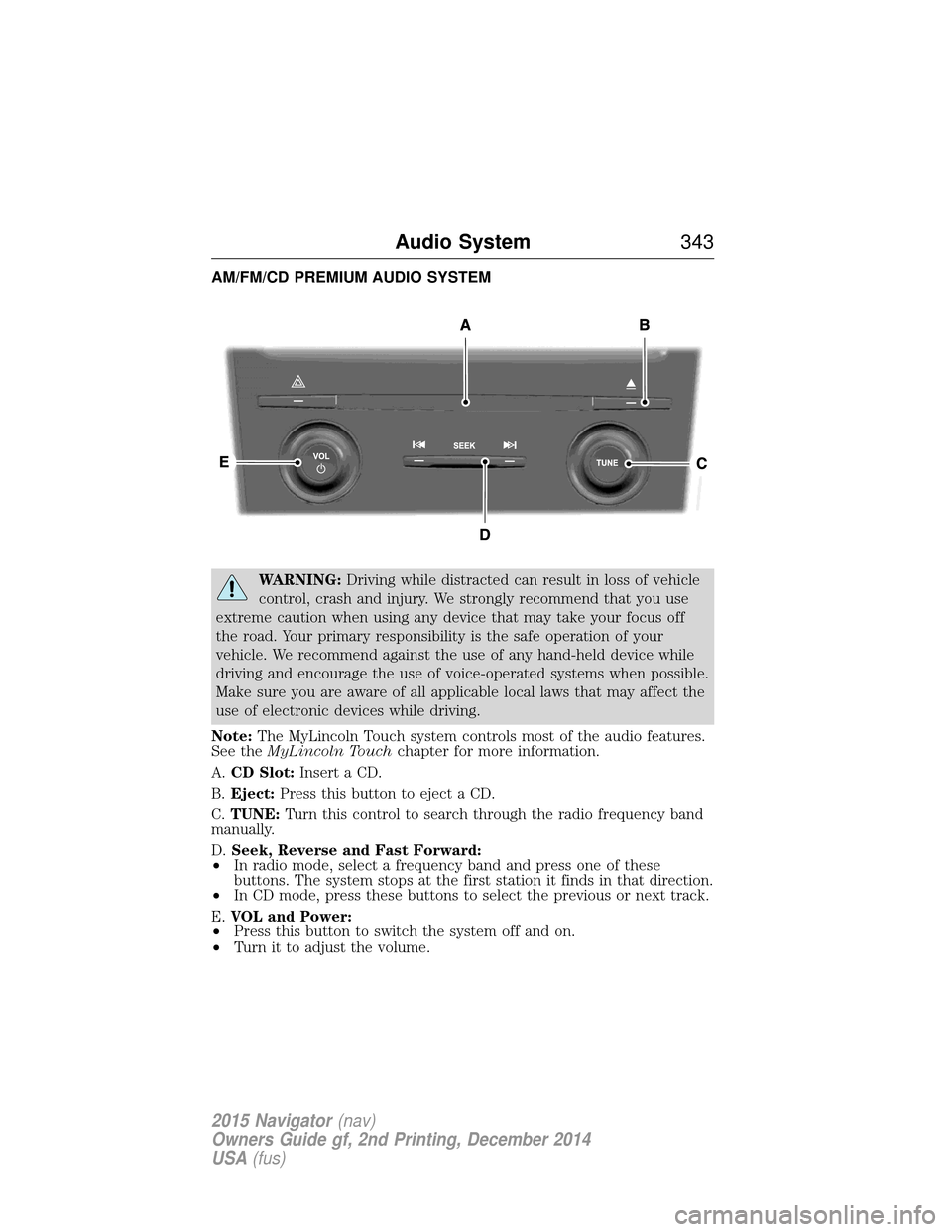
AM/FM/CD PREMIUM AUDIO SYSTEM
WARNING:Driving while distracted can result in loss of vehicle
control, crash and injury. We strongly recommend that you use
extreme caution when using any device that may take your focus off
the road. Your primary responsibility is the safe operation of your
vehicle. We recommend against the use of any hand-held device while
driving and encourage the use of voice-operated systems when possible.
Make sure you are aware of all applicable local laws that may affect the
use of electronic devices while driving.
Note: The MyLincoln Touch system controls most of the audio features.
See the MyLincoln Touch chapter for more information.
A. CD Slot: Insert a CD.
B. Eject: Press this button to eject a CD.
C. TUNE: Turn this control to search through the radio frequency band
manually.
D. Seek, Reverse and Fast Forward:
• In radio mode, select a frequency band and press one of these
buttons. The system stops at the first station it finds in that direction.
• In CD mode, press these buttons to select the previous or next track.
E. VOL and Power:
• Press this button to switch the system off and on.
• Turn it to adjust the volume.
Audio System 343
2015 Navigator(nav)
Owners Guide gf, 2nd Printing, December 2014
USA (fus)
Page 345 of 475
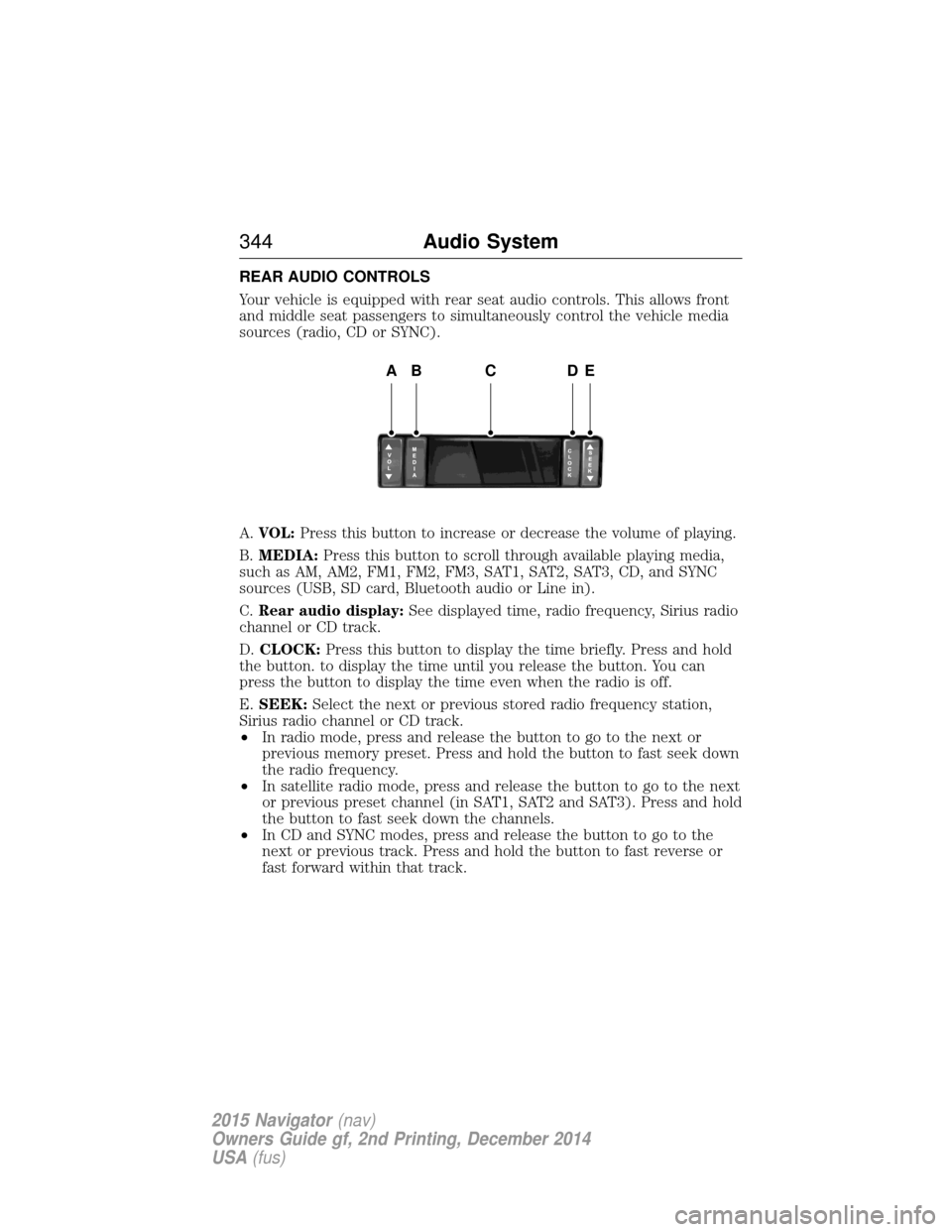
REAR AUDIO CONTROLS
Your vehicle is equipped with rear seat audio controls. This allows front
and middle seat passengers to simultaneously control the vehicle media
sources (radio, CD or SYNC).
A.VOL: Press this button to increase or decrease the volume of playing.
B. MEDIA: Press this button to scroll through available playing media,
such as AM, AM2, FM1, FM2, FM3, SAT1, SAT2, SAT3, CD, and SYNC
sources (USB, SD card, Bluetooth audio or Line in).
C. Rear audio display: See displayed time, radio frequency, Sirius radio
channel or CD track.
D. CLOCK: Press this button to display the time briefly. Press and hold
the button. to display the time until you release the button. You can
press the button to display the time even when the radio is off.
E. SEEK: Select the next or previous stored radio frequency station,
Sirius radio channel or CD track.
• In radio mode, press and release the button to go to the next or
previous memory preset. Press and hold the button to fast seek down
the radio frequency.
• In satellite radio mode, press and release the button to go to the next
or previous preset channel (in SAT1, SAT2 and SAT3). Press and hold
the button to fast seek down the channels.
• In CD and SYNC modes, press and release the button to go to the
next or previous track. Press and hold the button to fast reverse or
fast forward within that track.
ABCDE
344 Audio System
2015 Navigator(nav)
Owners Guide gf, 2nd Printing, December 2014
USA (fus)
Page 357 of 475
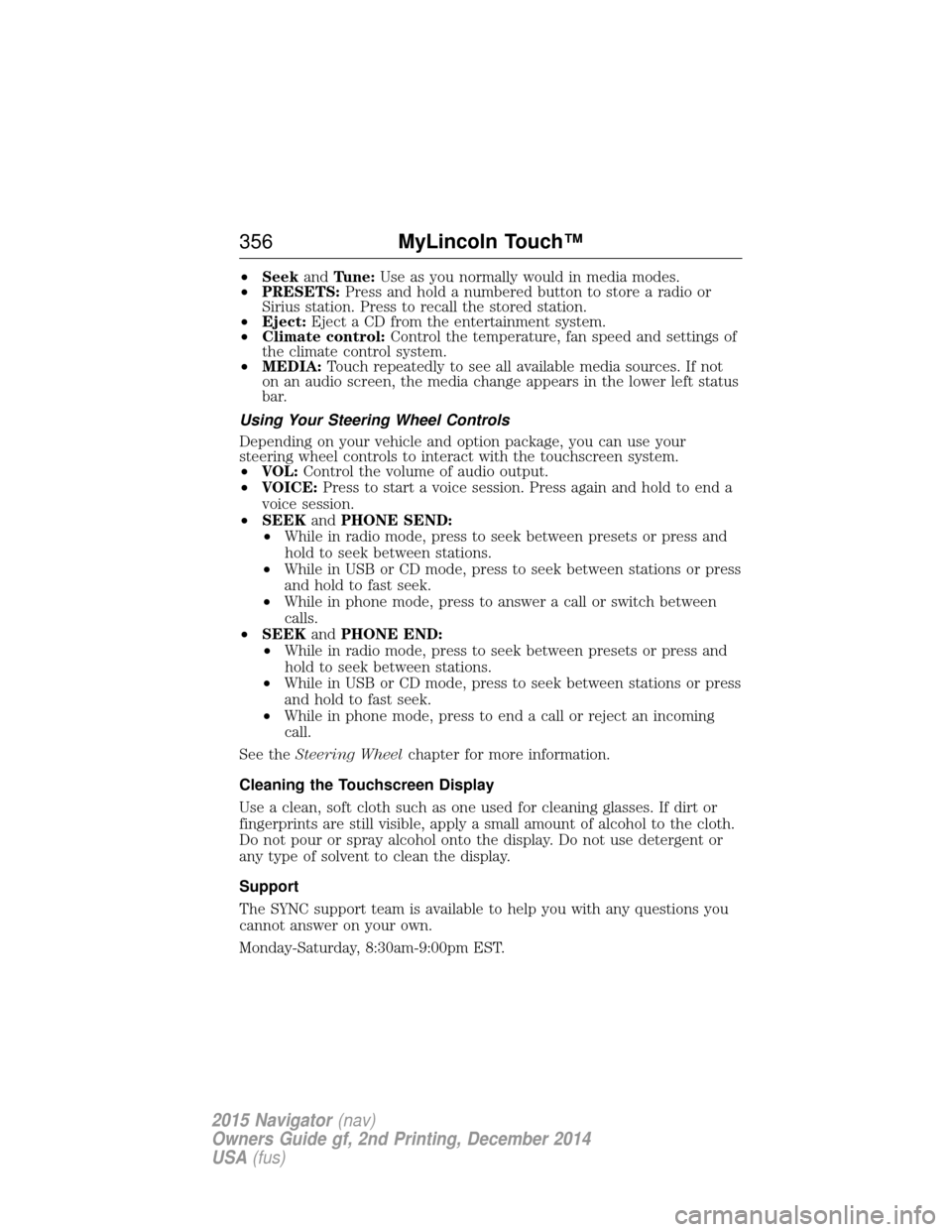
•Seek andTune: Use as you normally would in media modes.
• PRESETS: Press and hold a numbered button to store a radio or
Sirius station. Press to recall the stored station.
• Eject: Eject a CD from the entertainment system.
• Climate control: Control the temperature, fan speed and settings of
the climate control system.
• MEDIA: Touch repeatedly to see all available media sources. If not
on an audio screen, the media change appears in the lower left status
bar.
Using Your Steering Wheel Controls
Depending on your vehicle and option package, you can use your
steering wheel controls to interact with the touchscreen system.
• VOL: Control the volume of audio output.
• VOICE: Press to start a voice session. Press again and hold to end a
voice session.
• SEEK andPHONE SEND:
• While in radio mode, press to seek between presets or press and
hold to seek between stations.
• While in USB or CD mode, press to seek between stations or press
and hold to fast seek.
• While in phone mode, press to answer a call or switch between
calls.
• SEEK andPHONE END:
• While in radio mode, press to seek between presets or press and
hold to seek between stations.
• While in USB or CD mode, press to seek between stations or press
and hold to fast seek.
• While in phone mode, press to end a call or reject an incoming
call.
See the Steering Wheel chapter for more information.
Cleaning the Touchscreen Display
Use a clean, soft cloth such as one used for cleaning glasses. If dirt or
fingerprints are still visible, apply a small amount of alcohol to the cloth.
Do not pour or spray alcohol onto the display. Do not use detergent or
any type of solvent to clean the display.
Support
The SYNC support team is available to help you with any questions you
cannot answer on your own.
Monday-Saturday, 8:30am-9:00pm EST.
356 MyLincoln Touch™
2015 Navigator(nav)
Owners Guide gf, 2nd Printing, December 2014
USA (fus)
Page 365 of 475
Using Voice Commands with the Touchscreen Options
Your voice system has a dual mode feature which allows you to switch
between using voice commands and making on-screen selections. This is
available only when the system displays a list of candidates generated
during a voice session. For example, when entering in a street address or
trying to call a contact from the phone you paired to the system.
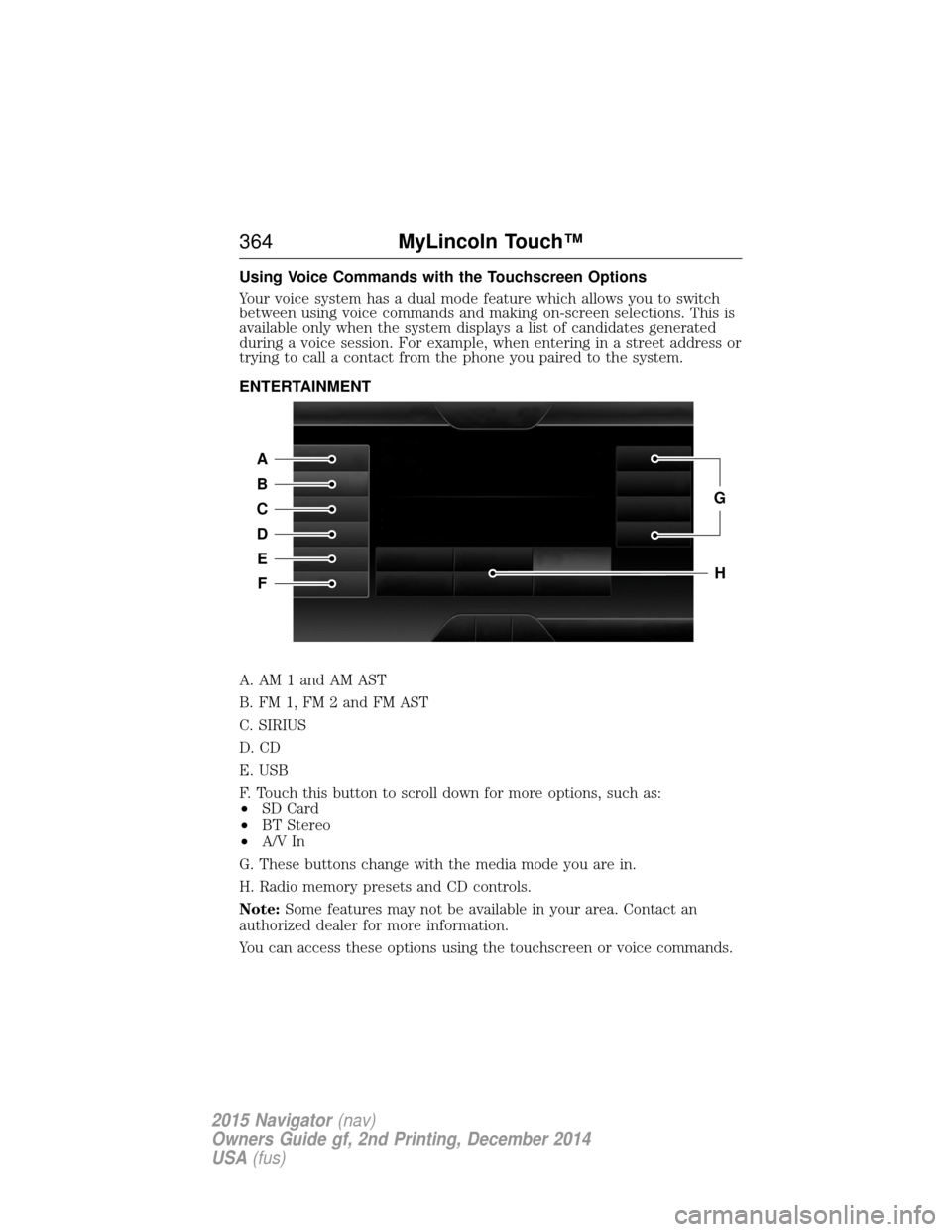
ENTERTAINMENT
A. AM 1 and AM AST
B. FM 1, FM 2 and FM AST
C. SIRIUS
D. CD
E. USB
F. Touch this button to scroll down for more options, such as:
•SD Card
• BT Stereo
• A/V In
G. These buttons change with the media mode you are in.
H. Radio memory presets and CD controls.
Note: Some features may not be available in your area. Contact an
authorized dealer for more information.
You can access these options using the touchscreen or voice commands.
A
B
C
D
E
F
G
H
364 MyLincoln Touch™
2015 Navigator(nav)
Owners Guide gf, 2nd Printing, December 2014
USA (fus)
Page 367 of 475
Your voice system allows you to change audio sources with a simple
voice command. For example, if you are listening to music on a USB
device, then want to switch to a satellite radio channel, simply press the
voice button on the steering wheel controls and say the name of the
Sirius station (such as, “the Highway”). The following voice commands
are available at the top level of the voice session no matter which
current audio source you are listening to (such as a USB device or Sirius
satellite radio).Note:This is only available when your MyFord Touch
system language is set to North American English.
“AM <530 - 1710>” “FM <87.9 – 107.9>”
“<530 - 1710>” “<87.9 – 107.9>”
“Sirius <0-223>”
*“
“Play [genre]
“Play [artist]
“Play [album]
“Play
*
*
This command is only usable if you have an active subscription to Sirius
satellite radio.
**The commands that have [ ] around the word means that the word is
optional. For example, if you say, “Play Metallica”, this is the same as the
voice command, “Play [artist]
AM and FM
Touch the AMorFM tab to listen to the radio.
To change between AM and FM presets, just touch the AMor
FM tab.
Memory Presets
Save a station by pressing and holding one of the memory preset areas.
There is a brief mute while the radio saves the station. Sound returns
when finished.
HD Radio
Touch this button to turn HD Radio on. The light on the button
illuminates when the feature is on. HD Radio allows you to receive radio
broadcasts digitally, where available, providing free, crystal-clear sound.
See HD Radio information later in this chapter.
366MyLincoln Touch™
2015 Navigator(nav)
Owners Guide gf, 2nd Printing, December 2014
USA (fus)
Page 384 of 475
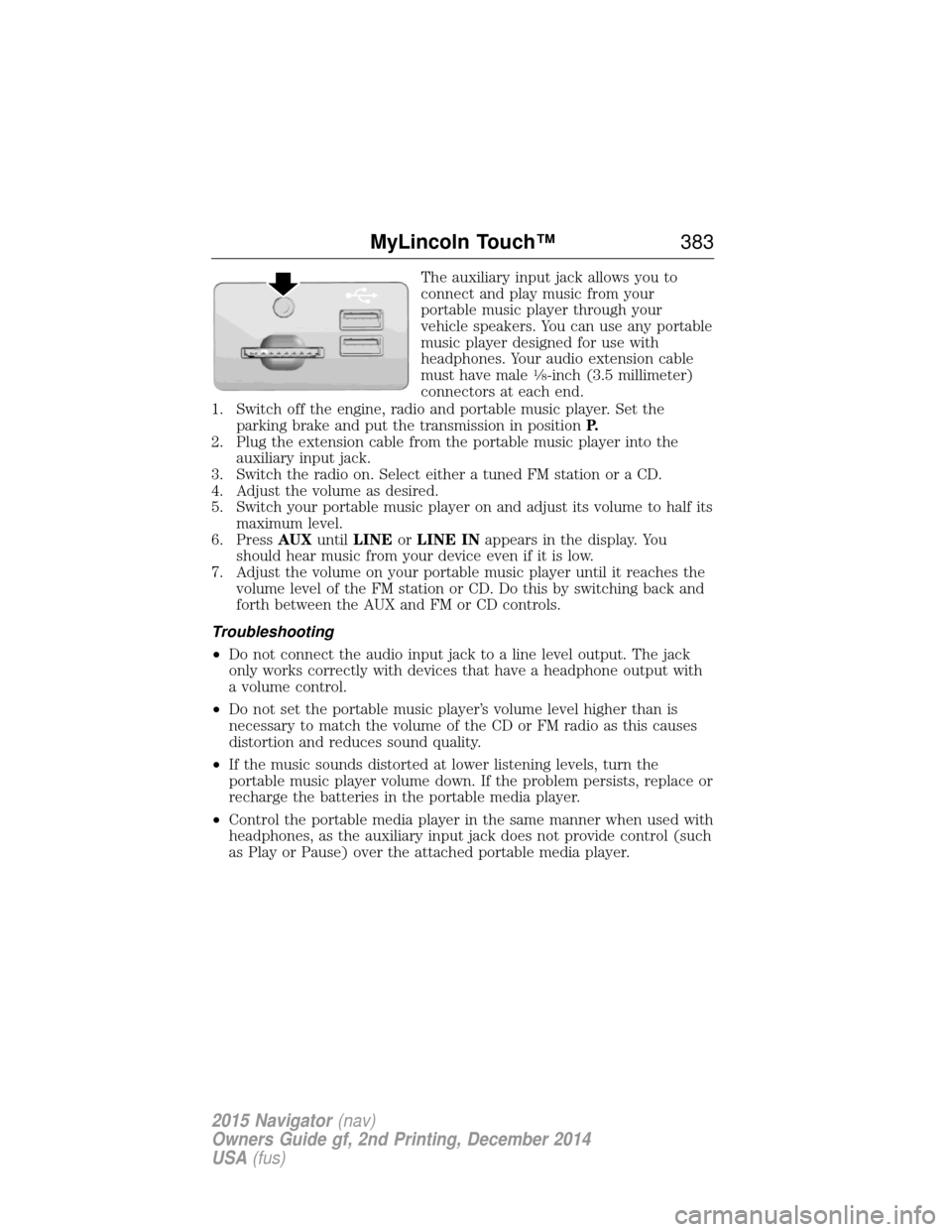
The auxiliary input jack allows you to
connect and play music from your
portable music player through your
vehicle speakers. You can use any portable
music player designed for use with
headphones. Your audio extension cable
must have male
18-inch (3.5 millimeter)
connectors at each end.
1. Switch off the engine, radio and portable music player. Set the parking brake and put the transmission in position P.
2. Plug the extension cable from the portable music player into the auxiliary input jack.
3. Switch the radio on. Select either a tuned FM station or a CD.
4. Adjust the volume as desired.
5. Switch your portable music player on and adjust its volume to half its maximum level.
6. Press AUXuntilLINE orLINE IN appears in the display. You
should hear music from your device even if it is low.
7. Adjust the volume on your portable music player until it reaches the volume level of the FM station or CD. Do this by switching back and
forth between the AUX and FM or CD controls.
Troubleshooting
• Do not connect the audio input jack to a line level output. The jack
only works correctly with devices that have a headphone output with
a volume control.
• Do not set the portable music player’s volume level higher than is
necessary to match the volume of the CD or FM radio as this causes
distortion and reduces sound quality.
• If the music sounds distorted at lower listening levels, turn the
portable music player volume down. If the problem persists, replace or
recharge the batteries in the portable media player.
• Control the portable media player in the same manner when used with
headphones, as the auxiliary input jack does not provide control (such
as Play or Pause) over the attached portable media player.
MyLincoln Touch™ 383
2015 Navigator(nav)
Owners Guide gf, 2nd Printing, December 2014
USA (fus)