change time LINCOLN NAVIGATOR 2017 Owner's Manual
[x] Cancel search | Manufacturer: LINCOLN, Model Year: 2017, Model line: NAVIGATOR, Model: LINCOLN NAVIGATOR 2017Pages: 532, PDF Size: 3.9 MB
Page 325 of 532
Tire Change Procedure
WARNINGS
When one of the front wheels is off the
ground, the transmission alone will not
prevent the vehicle from moving or slipping
off the jack. To help prevent the vehicle from
moving when you change a tire, be
sure to place the transmission in park (P), set
the parking brake and block (in both
directions) the wheel that is diagonally
opposite (other side and end of the vehicle)
to the tire being changed. Never get underneath a vehicle that is
supported only by a jack. If the vehicle
slips off the jack, you or someone else could
be seriously injured. Do not attempt to change a tire on the
side of the vehicle close to moving
traffic. Pull far enough off the road to avoid
the danger of being hit when operating the
jack or changing the wheel. WARNINGS
Always use the jack provided as
original equipment with your vehicle.
If using a jack other than the one provided
as original equipment with your vehicle,
make sure the jack capacity is adequate for
the vehicle weight, including any vehicle
cargo or modifications. Disable the power running boards
before jacking, lifting, or placing any
object under the vehicle. Never place your
hand between the power running board and
the vehicle as extended power running
boards will retract when the doors are
closed. Failure to follow these instructions
may result in personal injury. Failure to follow these instructions
when using the spare tire carrier could
cause loss of the wheel and tire and lead to
personal injury: Only use the spare tire carrier
to stow the tire and wheel combination
specified on the Tire Label or Safety
Compliance Certification Label on the B-Pillar
or the edge of the driver door. Other tire and
wheel combinations could cause the carrier
to fail if it does not fit securely or is too
heavy. Do not use impact tools or power WARNINGS
tools operating over 200 RPM, which may
cause winch malfunction and prevent a
secure fit. Override the winch at least three
times (there will be an audible click each
time) to ensure a tight secure fit of the wheel
and tire. Note:
Passengers should not remain in the
vehicle when the vehicle is being jacked.
Park on a level surface, activate the hazard
flashers and set the parking brake. Then,
place the transmission in park (P) and turn
the engine off.
Removing the Jack and Tools
Note: Pay close attention to the orientation
of the bag, because it will have to be
reinstalled after changing the tire.
1. Open the liftgate, then locate the access
panel on the floor behind the third row
seat. Unlatch and remove the panel.
322
Navigator (TB5) Canada/United States of America, enUSA, First Printing Wheels and Tires
Page 347 of 532
Satellite Radio Reception Factors
Potential satellite radio reception issues
For optimal reception performance, keep the antenna clear of snow and ice build-up and keep luggage and
other material as far away from the antenna as possible.
Antenna obstructions
Hills, mountains, tall buildings, bridges, tunnels, freeway overpasses, \
parking garages, dense tree foliage and
thunderstorms can interfere with your reception.
Terrain
When you pass a ground-based broadcast-repeating tower, a stronger signal may overtake a weaker one and
the audio system may mute.
Station overload
Your display may show ACQUIRING . . . to indicate the interference and th\
e audio system may mute.
Satellite radio signal interfer-
ence
SIRIUS® Satellite Radio Service
Note: SIRIUS reserves the unrestricted right
to change, rearrange, add or delete
programming including canceling, moving
or adding particular channels, and its prices,
at any time, with or without notice to you.
Ford Motor Company shall not be
responsible for any such programming
changes. SIRIUS satellite radio is a subscription-based
satellite radio service that broadcasts a
variety of music, sports, news, weather, traffic
and entertainment programming. Your
factory-installed SIRIUS satellite radio system
includes hardware and a limited subscription
term, which begins on the date of sale or
lease of your vehicle. See an authorized
dealer for availability.
344
Navigator (TB5) Canada/United States of America, enUSA, First Printing Audio SystemE208625
Page 351 of 532
GENERAL INFORMATION
WARNING
Driving while distracted can result in
loss of vehicle control, crash and injury.
We strongly recommend that you use
extreme caution when using any device that
may take your focus off the road. Your
primary responsibility is the safe operation
of your vehicle. We recommend against the
use of any hand-held device while driving
and encourage the use of voice-operated
systems when possible. Make sure you are
aware of all applicable local laws that may
affect the use of electronic devices while
driving. Getting to Know Your System
The SYNC 3 system allows you to interact
with a variety of features using the
touchscreen and voice commands. By
integrating with your Bluetooth-enabled
phone, the touchscreen provides easy
interaction with audio, multimedia, climate
control, navigation, and your phone's SYNC
3 compatible apps.
Using the Touchscreen
To operate the touchscreen, you can simply
touch the item or option that you want to
select. The button changes color when you
select it.
The SYNC 3 layout allows you to quickly
select the feature you wish to use.
348
Navigator (TB5) Canada/United States of America, enUSA, First Printing SYNC™ 3
Page 368 of 532
download continues where it left off at the
next Wi-Fi connected opportunity. Upon
activation of an update, a banner displays
on the touchscreen indicating the system
update. Select the icon to see more detail.
This icon displays for two ignition cycles.
To switch this feature off:
Menu Item
Settings
General In this menu selection, you
can change the selection for
automatic updates to OFF.
Automatic
System
Updates
Support
The SYNC support team is available to help
you with any questions you are not able to
answer on your own.
Monday-Saturday, 8:30am-8:00pm EST. United States: 1-800-521-4140.
Canada: 1-800-387-9333.
Times are subject to change due to holidays.
Privacy Information
When you connect a cellular phone to SYNC
3, the system creates a profile within your
vehicle that links to that cellular phone. This
profile helps in offering you more cellular
features and operating more efficiently.
Among other things, this profile may contain
data about your cellular phone book, text
messages (read and unread), and call history,
including history of calls when your cell
phone was not connected to the system. In
addition, if you connect a media device, the
system creates and retains an index of
supported media content. The system also
records a short diagnostic log of
approximately 10 minutes of all recent system
activity. The log profile and other system data
may be used to improve the system and help
diagnose any problems that may occur.The cellular profile, media device index, and
diagnostic log remain in your vehicle unless
you delete them and are generally accessible
only in your vehicle when the cellular phone
or media player is connected.
If you no longer plan to use the system or
your vehicle, we recommend you perform a
Master Reset to erase all stored information.
You can find more information about the
Master Reset in General Settings. See
Settings (page 417). System data cannot be
accessed without special equipment and
access to your vehicle's SYNC 3 module. The
Lincoln Motor Company does not access the
system data for any purpose other than as
described absent consent, a court order, or
where required by law enforcement, other
government authorities, or other third parties
acting with lawful authority. Other parties
may seek to access the information
independently of The Lincoln Motor
Company.
365
Navigator (TB5) Canada/United States of America, enUSA, First Printing SYNC™ 3
Page 384 of 532
For more information on extended
subscription terms (a service fee is required),
the online media player and a list of SIRIUS
satellite radio channels, and other features,
please visit www.siriusxm.com in the United
States, www.siriusxm.ca in Canada, or call
SIRIUS at 1-888-539-7474.
Note:
SIRIUS reserves the unrestricted right
to change, rearrange, add or delete
programming. This includes canceling,
moving or adding particular channels, and
its prices, at any time, with or without notice
to you. Ford Motor Company shall not be
responsible for any such programming
changes. Note:
This receiver includes the eCos
real-time operating system. eCos is
published under the eCos License.
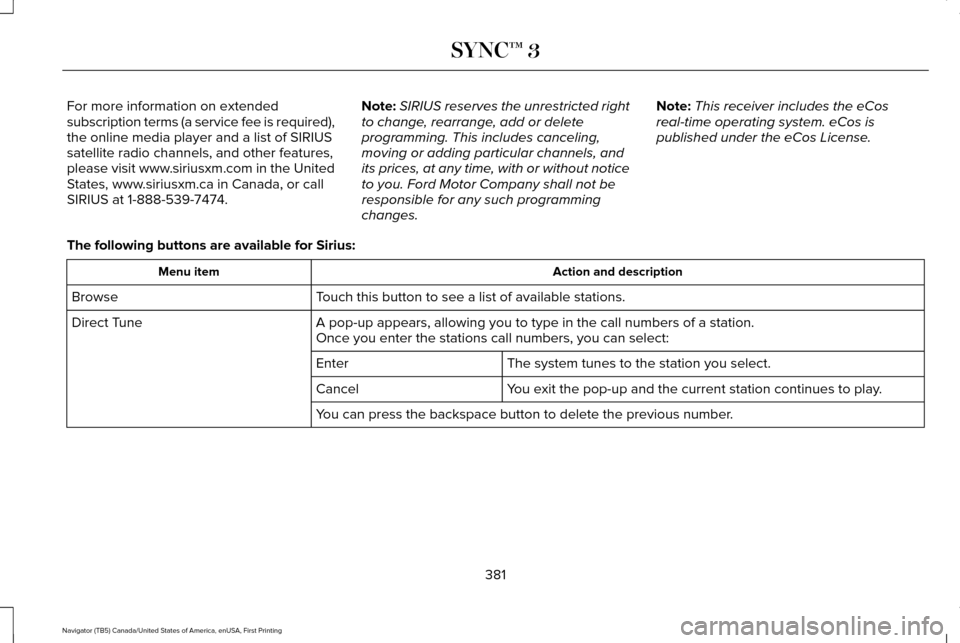
The following buttons are available for Sirius: Action and description
Menu item
Touch this button to see a list of available stations.
Browse
A pop-up appears, allowing you to type in the call numbers of a station.\
Direct Tune
Once you enter the stations call numbers, you can select:
The system tunes to the station you select.
Enter
You exit the pop-up and the current station continues to play.
Cancel
You can press the backspace button to delete the previous number.
381
Navigator (TB5) Canada/United States of America, enUSA, First Printing SYNC™ 3
Page 391 of 532
HD Radio Technology manufactured under
license from iBiquity Digital Corp. U.S. and
foreign patents. HD Radio and the HD and
HD Radio logos are proprietary trademarks
of iBiquity Digital Corp. Ford Motor Company
and iBiquity Digital Corp. are not responsible
for the content sent using HD Radio
technology. Content may be changed, added
or deleted at any time at the station owner's
discretion.
* You can find the form here: Website
http://www.ibiquity.com/automotive/
report_radio_station_experiences
CD (If equipped)
Once you select this option, the system
returns you to the main audio screen. The current audio information appears on
the screen.
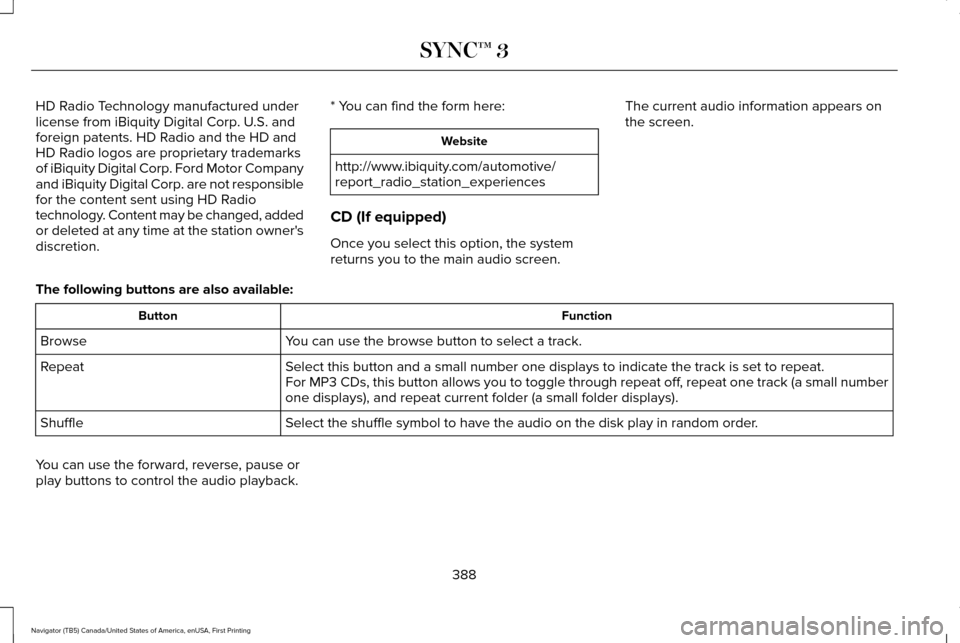
The following buttons are also available: Function
Button
You can use the browse button to select a track.
Browse
Select this button and a small number one displays to indicate the track\
is set to repeat.
Repeat
For MP3 CDs, this button allows you to toggle through repeat off, repeat one track (a small number
one displays), and repeat current folder (a small folder displays).
Select the shuffle symbol to have the audio on the disk play in random o\
rder.
Shuffle
You can use the forward, reverse, pause or
play buttons to control the audio playback.
388
Navigator (TB5) Canada/United States of America, enUSA, First Printing SYNC™ 3
Page 418 of 532
Note:
In order to use an app with SYNC 3,
the App needs to be running in the
background of your phone. If you shut down
the app on your phone, it shuts down the
app on SYNC 3 as well.
Note: If a SYNC 3 AppLink compatible app
is not shown in the Apps Domain, make sure
the required app is running on the mobile
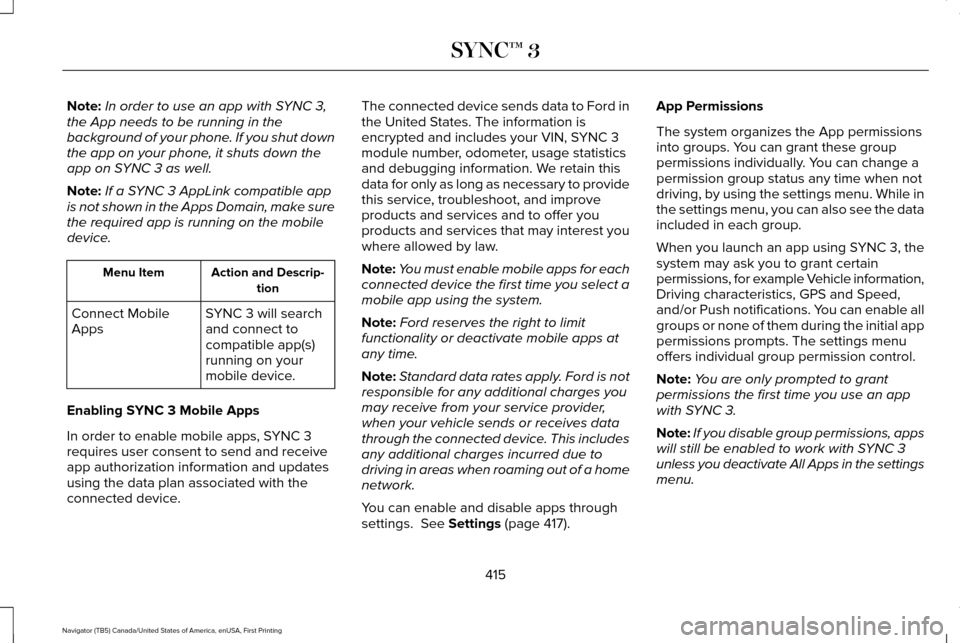
device. Action and Descrip-
tion
Menu Item
SYNC 3 will search
and connect to
compatible app(s)
running on your
mobile device.
Connect Mobile
Apps
Enabling SYNC 3 Mobile Apps
In order to enable mobile apps, SYNC 3
requires user consent to send and receive
app authorization information and updates
using the data plan associated with the
connected device. The connected device sends data to Ford in
the United States. The information is
encrypted and includes your VIN, SYNC 3
module number, odometer, usage statistics
and debugging information. We retain this
data for only as long as necessary to provide
this service, troubleshoot, and improve
products and services and to offer you
products and services that may interest you
where allowed by law.
Note:
You must enable mobile apps for each
connected device the first time you select a
mobile app using the system.
Note: Ford reserves the right to limit
functionality or deactivate mobile apps at
any time.
Note: Standard data rates apply. Ford is not
responsible for any additional charges you
may receive from your service provider,
when your vehicle sends or receives data
through the connected device. This includes
any additional charges incurred due to
driving in areas when roaming out of a home
network.
You can enable and disable apps through
settings. See Settings (page 417). App Permissions
The system organizes the App permissions
into groups. You can grant these group
permissions individually. You can change a
permission group status any time when not
driving, by using the settings menu. While in
the settings menu, you can also see the data
included in each group.
When you launch an app using SYNC 3, the
system may ask you to grant certain
permissions, for example Vehicle information,
Driving characteristics, GPS and Speed,
and/or Push notifications. You can enable all
groups or none of them during the initial app
permissions prompts. The settings menu
offers individual group permission control.
Note:
You are only prompted to grant
permissions the first time you use an app
with SYNC 3.
Note: If you disable group permissions, apps
will still be enabled to work with SYNC 3
unless you deactivate All Apps in the settings
menu.
415
Navigator (TB5) Canada/United States of America, enUSA, First Printing SYNC™ 3
Page 423 of 532
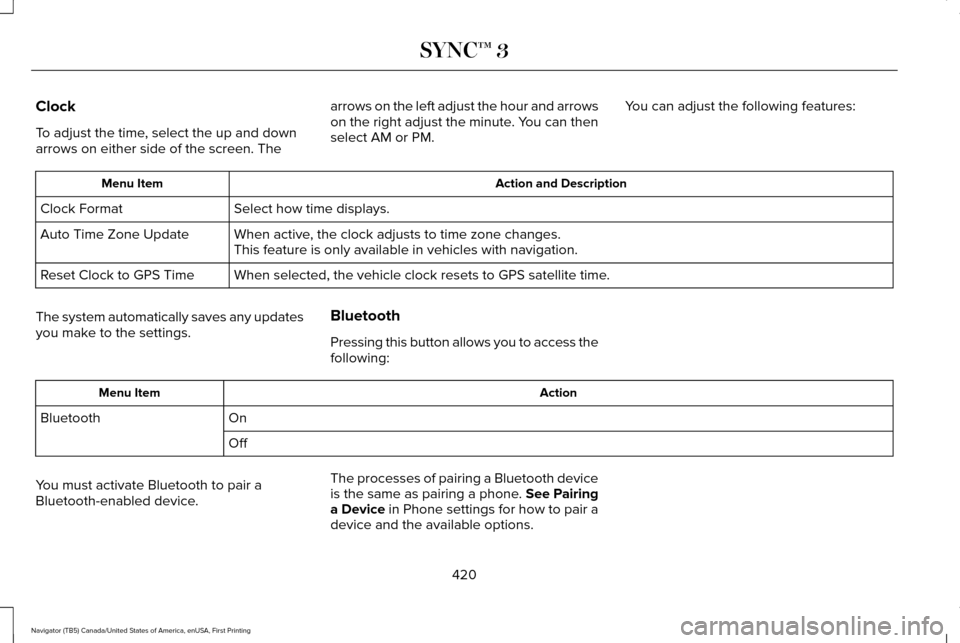
Clock
To adjust the time, select the up and down
arrows on either side of the screen. The
arrows on the left adjust the hour and arrows
on the right adjust the minute. You can then
select AM or PM.
You can adjust the following features: Action and Description
Menu Item
Select how time displays.
Clock Format
When active, the clock adjusts to time zone changes.
Auto Time Zone Update
This feature is only available in vehicles with navigation.
When selected, the vehicle clock resets to GPS satellite time.
Reset Clock to GPS Time
The system automatically saves any updates
you make to the settings. Bluetooth
Pressing this button allows you to access the
following: Action
Menu Item
On
Bluetooth
Off
You must activate Bluetooth to pair a
Bluetooth-enabled device. The processes of pairing a Bluetooth device
is the same as pairing a phone. See Pairing
a Device in Phone settings for how to pair a
device and the available options.
420
Navigator (TB5) Canada/United States of America, enUSA, First Printing SYNC™ 3
Page 460 of 532
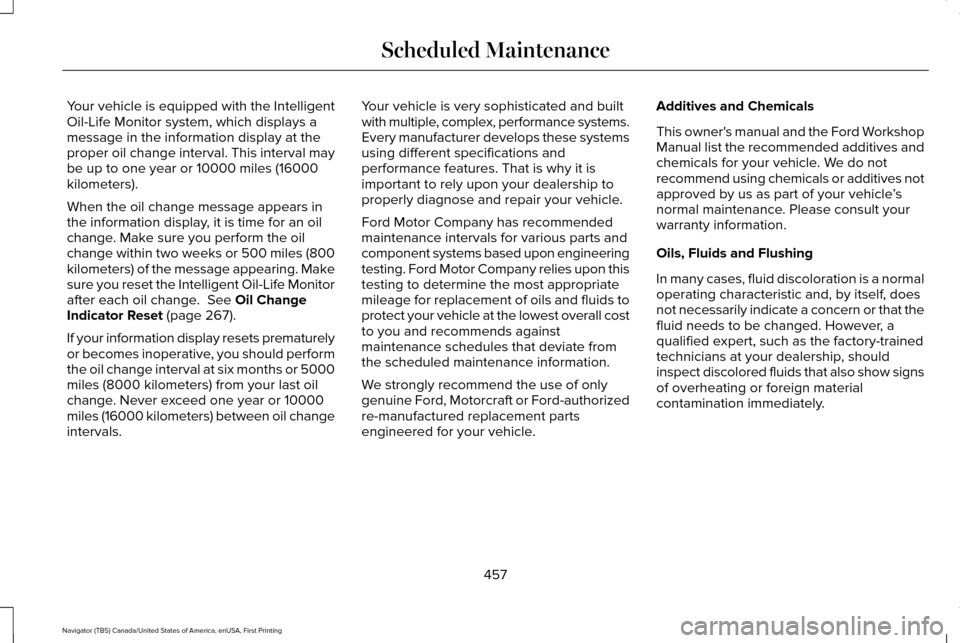
Your vehicle is equipped with the Intelligent
Oil-Life Monitor system, which displays a
message in the information display at the
proper oil change interval. This interval may
be up to one year or 10000 miles (16000
kilometers).
When the oil change message appears in
the information display, it is time for an oil
change. Make sure you perform the oil
change within two weeks or 500 miles (800
kilometers) of the message appearing. Make
sure you reset the Intelligent Oil-Life Monitor
after each oil change. See Oil Change
Indicator Reset (page 267).
If your information display resets prematurely
or becomes inoperative, you should perform
the oil change interval at six months or 5000
miles (8000 kilometers) from your last oil
change. Never exceed one year or 10000
miles (16000 kilometers) between oil change
intervals. Your vehicle is very sophisticated and built
with multiple, complex, performance systems.
Every manufacturer develops these systems
using different specifications and
performance features. That is why it is
important to rely upon your dealership to
properly diagnose and repair your vehicle.
Ford Motor Company has recommended
maintenance intervals for various parts and
component systems based upon engineering
testing. Ford Motor Company relies upon this
testing to determine the most appropriate
mileage for replacement of oils and fluids to
protect your vehicle at the lowest overall cost
to you and recommends against
maintenance schedules that deviate from
the scheduled maintenance information.
We strongly recommend the use of only
genuine Ford, Motorcraft or Ford-authorized
re-manufactured replacement parts
engineered for your vehicle.Additives and Chemicals
This owner's manual and the Ford Workshop
Manual list the recommended additives and
chemicals for your vehicle. We do not
recommend using chemicals or additives not
approved by us as part of your vehicle
’s
normal maintenance. Please consult your
warranty information.
Oils, Fluids and Flushing
In many cases, fluid discoloration is a normal
operating characteristic and, by itself, does
not necessarily indicate a concern or that the
fluid needs to be changed. However, a
qualified expert, such as the factory-trained
technicians at your dealership, should
inspect discolored fluids that also show signs
of overheating or foreign material
contamination immediately.
457
Navigator (TB5) Canada/United States of America, enUSA, First Printing Scheduled Maintenance
Page 463 of 532
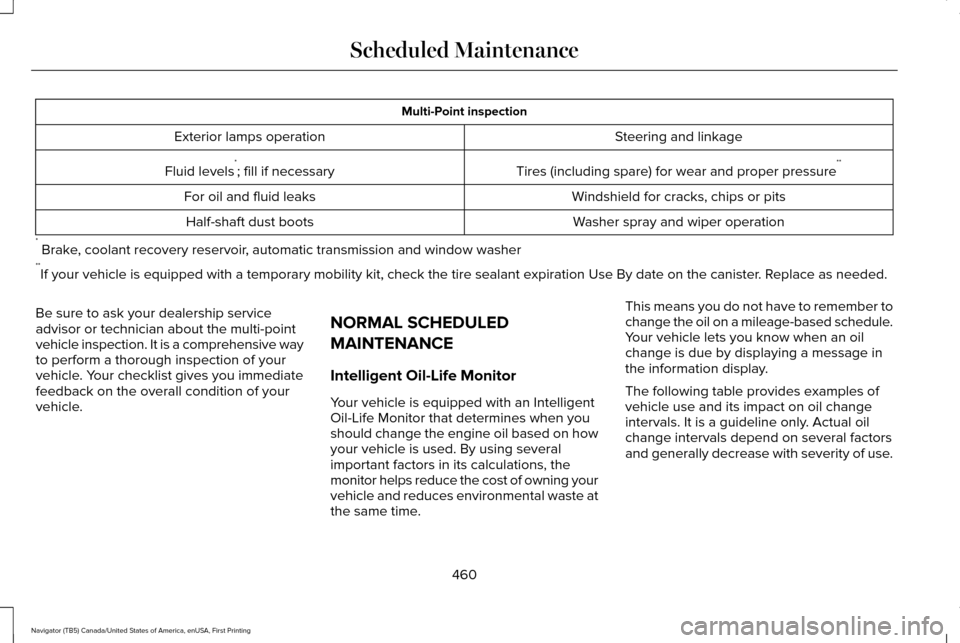
Multi-Point inspection
Steering and linkage
Exterior lamps operation
Tires (including spare) for wear and proper pressure**
Fluid levels *
; fill if necessary
Windshield for cracks, chips or pits
For oil and fluid leaks
Washer spray and wiper operation
Half-shaft dust boots
* Brake, coolant recovery reservoir, automatic transmission and window washer
** If your vehicle is equipped with a temporary mobility kit, check the tir\
e sealant expiration Use By date on the canister. Replace as needed.
Be sure to ask your dealership service
advisor or technician about the multi-point
vehicle inspection. It is a comprehensive way
to perform a thorough inspection of your
vehicle. Your checklist gives you immediate
feedback on the overall condition of your
vehicle. NORMAL SCHEDULED
MAINTENANCE
Intelligent Oil-Life Monitor
Your vehicle is equipped with an Intelligent
Oil-Life Monitor that determines when you
should change the engine oil based on how
your vehicle is used. By using several
important factors in its calculations, the
monitor helps reduce the cost of owning your
vehicle and reduces environmental waste at
the same time.This means you do not have to remember to
change the oil on a mileage-based schedule.
Your vehicle lets you know when an oil
change is due by displaying a message in
the information display.
The following table provides examples of
vehicle use and its impact on oil change
intervals. It is a guideline only. Actual oil
change intervals depend on several factors
and generally decrease with severity of use.
460
Navigator (TB5) Canada/United States of America, enUSA, First Printing Scheduled Maintenance