reset LINCOLN NAVIGATOR 2017 Service Manual
[x] Cancel search | Manufacturer: LINCOLN, Model Year: 2017, Model line: NAVIGATOR, Model: LINCOLN NAVIGATOR 2017Pages: 532, PDF Size: 3.9 MB
Page 410 of 532
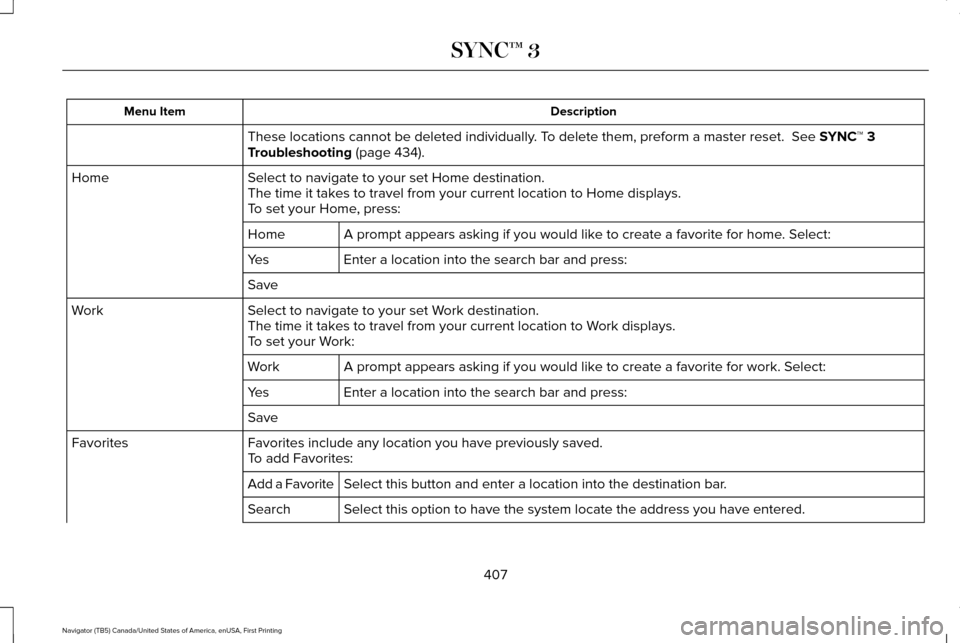
Description
Menu Item
These locations cannot be deleted individually. To delete them, preform a master reset. See SYNC™ 3
Troubleshooting (page 434).
Select to navigate to your set Home destination.
Home
The time it takes to travel from your current location to Home displays.
To set your Home, press:
A prompt appears asking if you would like to create a favorite for home. Select:
Home
Enter a location into the search bar and press:
Yes
Save
Select to navigate to your set Work destination.
Work
The time it takes to travel from your current location to Work displays.
To set your Work:
A prompt appears asking if you would like to create a favorite for work. Select:
Work
Enter a location into the search bar and press:
Yes
Save
Favorites include any location you have previously saved.
Favorites
To add Favorites:
Select this button and enter a location into the destination bar.
Add a Favorite
Select this option to have the system locate the address you have entere\
d.
Search
407
Navigator (TB5) Canada/United States of America, enUSA, First Printing SYNC™ 3
Page 421 of 532
Sound Settings
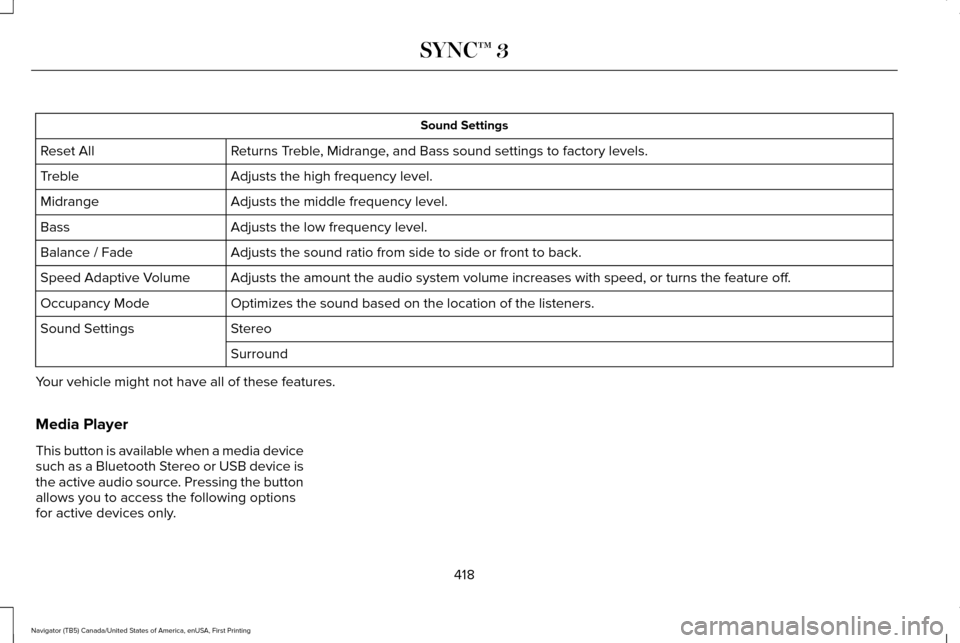
Returns Treble, Midrange, and Bass sound settings to factory levels.
Reset All
Adjusts the high frequency level.
Treble
Adjusts the middle frequency level.
Midrange
Adjusts the low frequency level.
Bass
Adjusts the sound ratio from side to side or front to back.
Balance / Fade
Adjusts the amount the audio system volume increases with speed, or turn\
s the feature off.
Speed Adaptive Volume
Optimizes the sound based on the location of the listeners.
Occupancy Mode
Stereo
Sound Settings
Surround
Your vehicle might not have all of these features.
Media Player
This button is available when a media device
such as a Bluetooth Stereo or USB device is
the active audio source. Pressing the button
allows you to access the following options
for active devices only.
418
Navigator (TB5) Canada/United States of America, enUSA, First Printing SYNC™ 3
Page 422 of 532

Action and Description
Menu Item
For some Apple devices, SYNC 3 can adjust the playback speed of podcasts. When a podcast is playi\
ng,
you can choose:
Podcast Speed
Faster
Normal
Slower
For some Apple devices, SYNC 3 can adjust the playback speed of audiobooks. When an audiobook is
playing, you can choose:
Audiobook Speed
Faster
Normal
Slower
Cover art displays from your device ’s music files. If no cover art for the files
exists on the device, then the Gracenote Database provides cover art.
Media Player
Cover Art Priority
The Gracenote Database supplied cover art is used for your music files.
This overrides any cover art from your device.
Gracenote®
Erase the stored media information in order to re-index.
Reset Media
This allows you to view the version level of the Gracenote Database.
Gracenote® Database Info
This allows you to view the manufacturer and model number of your media \
device.
Device Information
419
Navigator (TB5) Canada/United States of America, enUSA, First Printing SYNC™ 3
Page 423 of 532
Clock
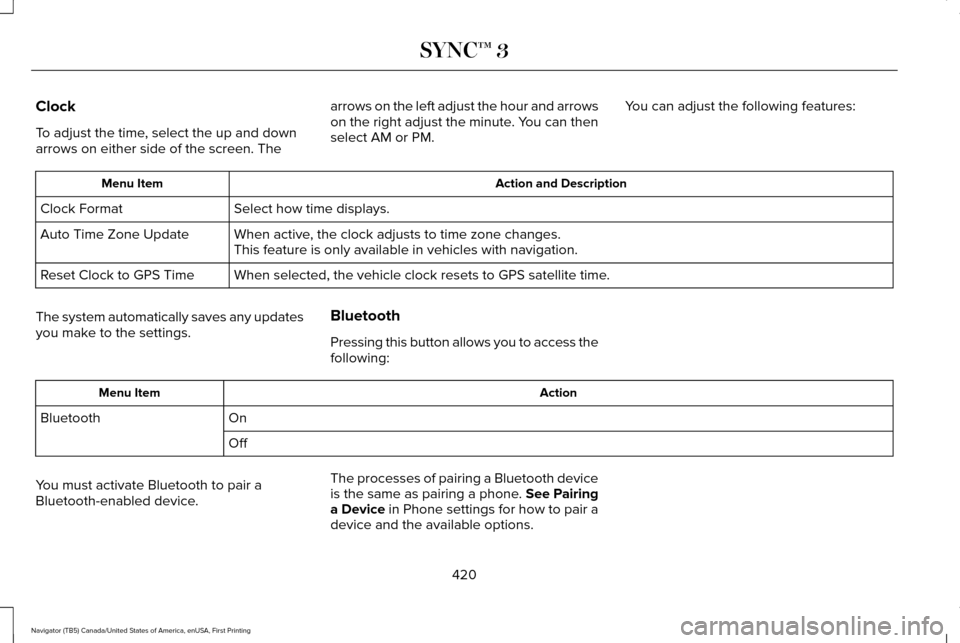
To adjust the time, select the up and down
arrows on either side of the screen. The
arrows on the left adjust the hour and arrows
on the right adjust the minute. You can then
select AM or PM.
You can adjust the following features: Action and Description
Menu Item
Select how time displays.
Clock Format
When active, the clock adjusts to time zone changes.
Auto Time Zone Update
This feature is only available in vehicles with navigation.
When selected, the vehicle clock resets to GPS satellite time.
Reset Clock to GPS Time
The system automatically saves any updates
you make to the settings. Bluetooth
Pressing this button allows you to access the
following: Action
Menu Item
On
Bluetooth
Off
You must activate Bluetooth to pair a
Bluetooth-enabled device. The processes of pairing a Bluetooth device
is the same as pairing a phone. See Pairing
a Device in Phone settings for how to pair a
device and the available options.
420
Navigator (TB5) Canada/United States of America, enUSA, First Printing SYNC™ 3
Page 428 of 532
Action and Description
Menu Item
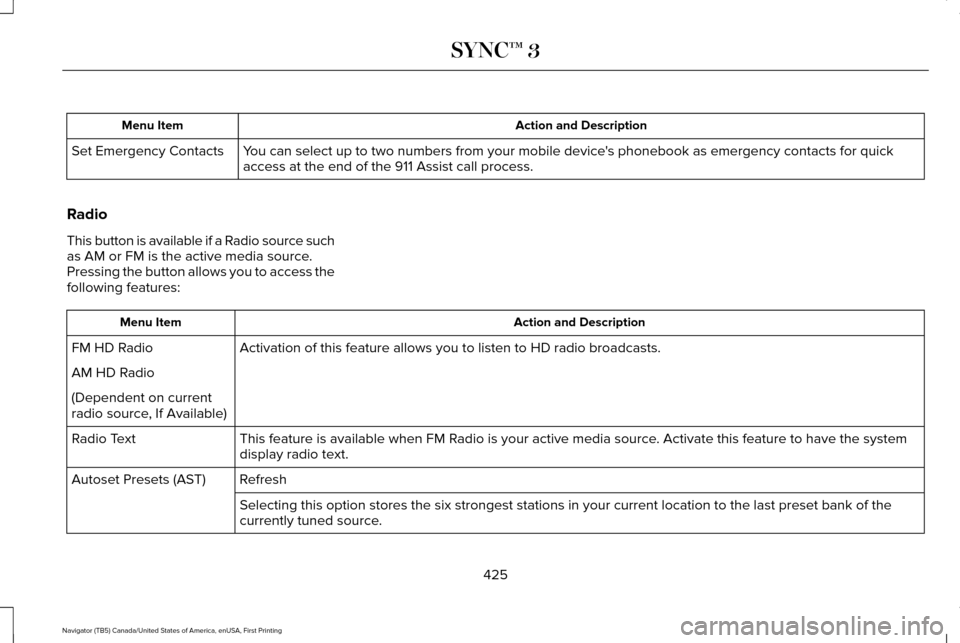
You can select up to two numbers from your mobile device's phonebook as emergency contacts for quick
access at the end of the 911 Assist call process.
Set Emergency Contacts
Radio
This button is available if a Radio source such
as AM or FM is the active media source.
Pressing the button allows you to access the
following features: Action and Description
Menu Item
Activation of this feature allows you to listen to HD radio broadcasts.
FM HD Radio
AM HD Radio
(Dependent on current
radio source, If Available)
This feature is available when FM Radio is your active media source. Activate this feature to have the system
display radio text.
Radio Text
Refresh
Autoset Presets (AST)
Selecting this option stores the six strongest stations in your current \
location to the last preset bank of the
currently tuned source.
425
Navigator (TB5) Canada/United States of America, enUSA, First Printing SYNC™ 3
Page 434 of 532
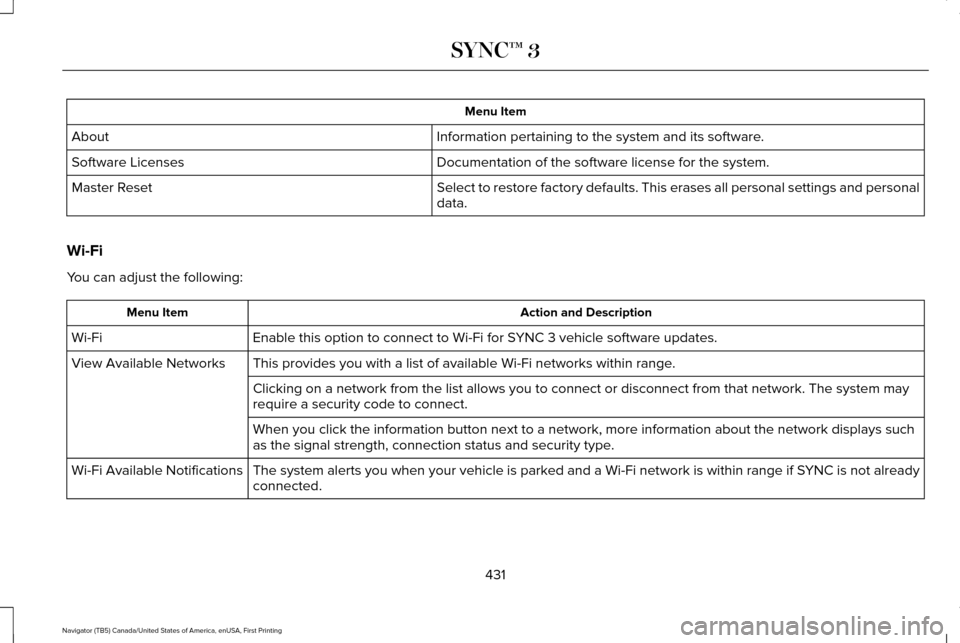
Menu Item
Information pertaining to the system and its software.
About
Documentation of the software license for the system.
Software Licenses
Select to restore factory defaults. This erases all personal settings an\
d personal
data.
Master Reset
Wi-Fi
You can adjust the following: Action and Description
Menu Item
Enable this option to connect to Wi-Fi for SYNC 3 vehicle software updates.
Wi-Fi
This provides you with a list of available Wi-Fi networks within range.
View Available Networks
Clicking on a network from the list allows you to connect or disconnect \
from that network. The system may
require a security code to connect.
When you click the information button next to a network, more informatio\
n about the network displays such
as the signal strength, connection status and security type.
The system alerts you when your vehicle is parked and a Wi-Fi network is within range if SYNC is not already
connected.
Wi-Fi Available Notifications
431
Navigator (TB5) Canada/United States of America, enUSA, First Printing SYNC™ 3
Page 438 of 532
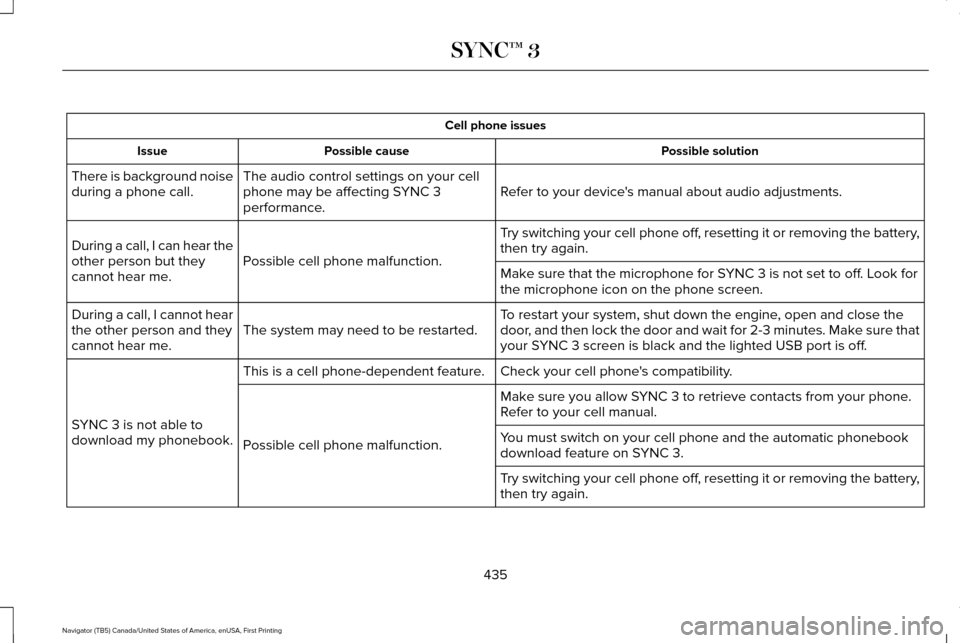
Cell phone issues
Possible solution
Possible cause
Issue
Refer to your device's manual about audio adjustments.
The audio control settings on your cell
phone may be affecting SYNC 3
performance.
There is background noise
during a phone call.
Try switching your cell phone off, resetting it or removing the battery,
then try again.
Possible cell phone malfunction.
During a call, I can hear the
other person but they
cannot hear me.
Make sure that the microphone for SYNC 3 is not set to off. Look for
the microphone icon on the phone screen.
To restart your system, shut down the engine, open and close the
door, and then lock the door and wait for 2-3 minutes. Make sure that
your SYNC 3 screen is black and the lighted USB port is off.
The system may need to be restarted.
During a call, I cannot hear
the other person and they
cannot hear me.
Check your cell phone's compatibility.
This is a cell phone-dependent feature.
SYNC 3 is not able to
download my phonebook. Make sure you allow SYNC 3 to retrieve contacts from your phone.
Refer to your cell manual.
Possible cell phone malfunction. You must switch on your cell phone and the automatic phonebook
download feature on SYNC 3.
Try switching your cell phone off, resetting it or removing the battery,
then try again.
435
Navigator (TB5) Canada/United States of America, enUSA, First Printing SYNC™ 3
Page 439 of 532
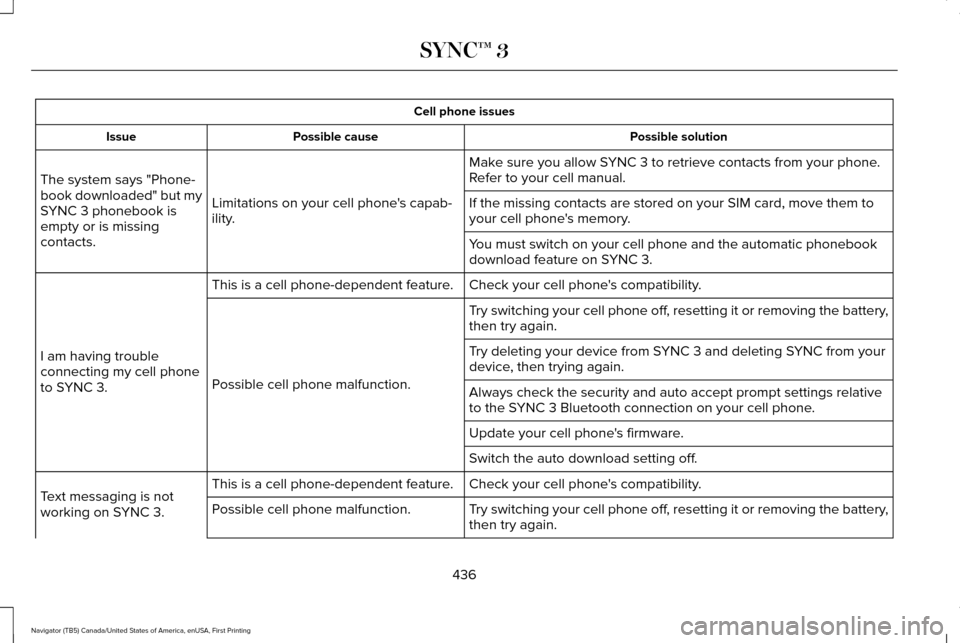
Cell phone issues
Possible solution
Possible cause
Issue
Make sure you allow SYNC 3 to retrieve contacts from your phone.
Refer to your cell manual.
Limitations on your cell phone's capab-
ility.
The system says "Phone-
book downloaded" but my
SYNC 3 phonebook is
empty or is missing
contacts. If the missing contacts are stored on your SIM card, move them to
your cell phone's memory.
You must switch on your cell phone and the automatic phonebook
download feature on SYNC 3.
Check your cell phone's compatibility.
This is a cell phone-dependent feature.
I am having trouble
connecting my cell phone
to SYNC 3. Try switching your cell phone off, resetting it or removing the battery,
then try again.
Possible cell phone malfunction. Try deleting your device from SYNC 3 and deleting SYNC from your
device, then trying again.
Always check the security and auto accept prompt settings relative
to the SYNC 3 Bluetooth connection on your cell phone.
Update your cell phone's firmware.
Switch the auto download setting off.
Check your cell phone's compatibility.
This is a cell phone-dependent feature.
Text messaging is not
working on SYNC 3. Try switching your cell phone off, resetting it or removing the battery,
then try again.
Possible cell phone malfunction.
436
Navigator (TB5) Canada/United States of America, enUSA, First Printing SYNC™ 3
Page 441 of 532
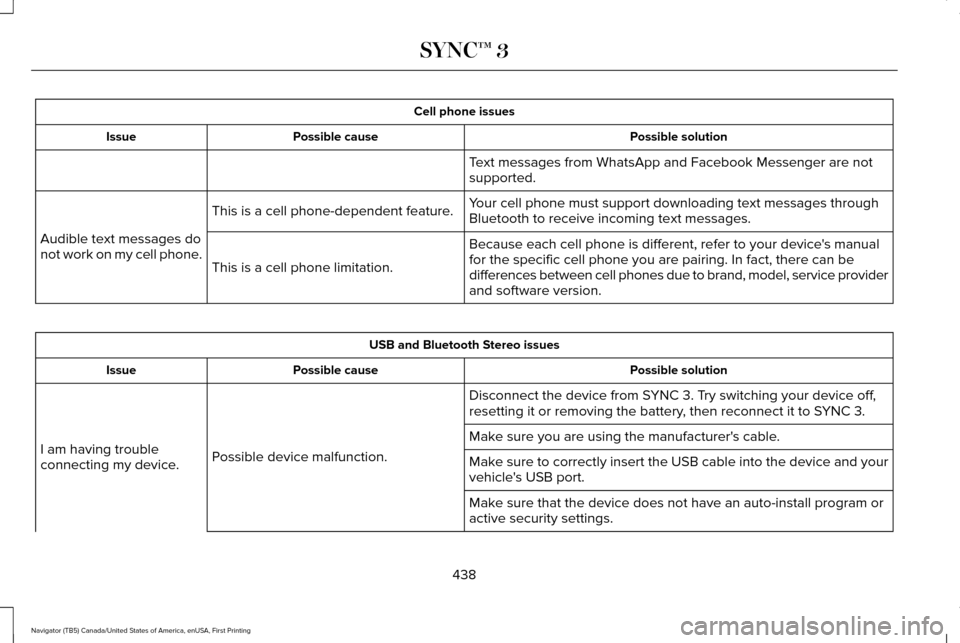
Cell phone issues
Possible solution
Possible cause
Issue
Text messages from WhatsApp and Facebook Messenger are not
supported.
Your cell phone must support downloading text messages through
Bluetooth to receive incoming text messages.
This is a cell phone-dependent feature.
Audible text messages do
not work on my cell phone. Because each cell phone is different, refer to your device's manual
for the specific cell phone you are pairing. In fact, there can be
differences between cell phones due to brand, model, service provider
and software version.
This is a cell phone limitation. USB and Bluetooth Stereo issues
Possible solution
Possible cause
Issue
Disconnect the device from SYNC 3. Try switching your device off,
resetting it or removing the battery, then reconnect it to SYNC 3.
Possible device malfunction.
I am having trouble
connecting my device. Make sure you are using the manufacturer's cable.
Make sure to correctly insert the USB cable into the device and your
vehicle's USB port.
Make sure that the device does not have an auto-install program or
active security settings.
438
Navigator (TB5) Canada/United States of America, enUSA, First Printing SYNC™ 3
Page 442 of 532
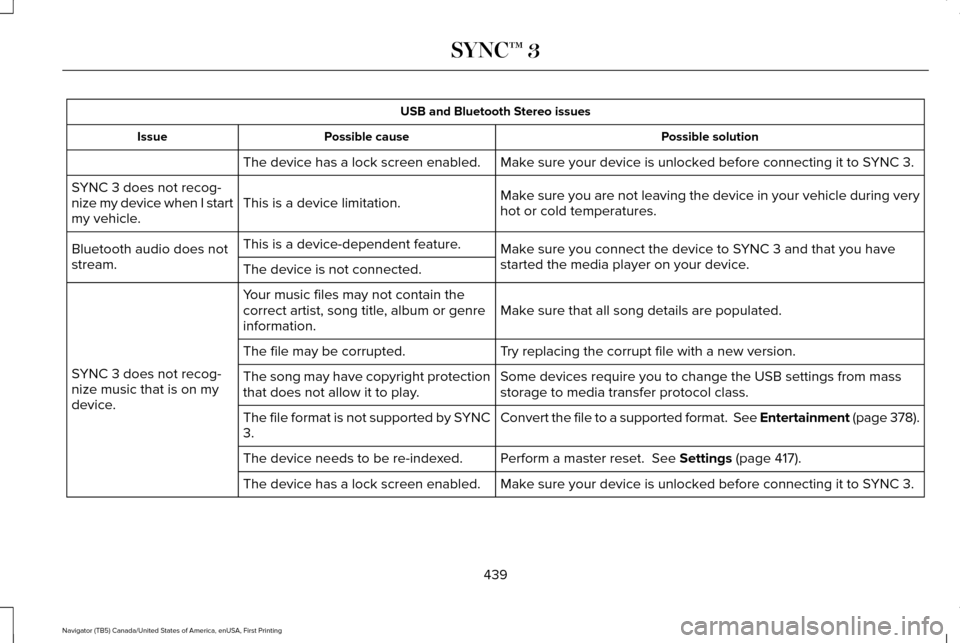
USB and Bluetooth Stereo issues
Possible solution
Possible cause
Issue
Make sure your device is unlocked before connecting it to SYNC 3.
The device has a lock screen enabled.
Make sure you are not leaving the device in your vehicle during very
hot or cold temperatures.
This is a device limitation.
SYNC 3 does not recog-
nize my device when I start
my vehicle.
Make sure you connect the device to SYNC 3 and that you have
started the media player on your device.
This is a device-dependent feature.
Bluetooth audio does not
stream. The device is not connected.
Make sure that all song details are populated.
Your music files may not contain the
correct artist, song title, album or genre
information.
SYNC 3 does not recog-
nize music that is on my
device. Try replacing the corrupt file with a new version.
The file may be corrupted.
Some devices require you to change the USB settings from mass
storage to media transfer protocol class.
The song may have copyright protection
that does not allow it to play.
Convert the file to a supported format. See Entertainment (page 378).
The file format is not supported by SYNC
3.
Perform a master reset. See Settings (page 417).
The device needs to be re-indexed.
Make sure your device is unlocked before connecting it to SYNC 3.
The device has a lock screen enabled.
439
Navigator (TB5) Canada/United States of America, enUSA, First Printing SYNC™ 3