wheel LINCOLN NAVIGATOR 2019 Workshop Manual
[x] Cancel search | Manufacturer: LINCOLN, Model Year: 2019, Model line: NAVIGATOR, Model: LINCOLN NAVIGATOR 2019Pages: 645, PDF Size: 5.02 MB
Page 254 of 645
Fixed guideline: Yellow zoneD
Fixed guideline: Red zoneE
Rear bumperF
Active guidelines are only shown with fixedguidelines. To use active guidelines, turnthe steering wheel to point the guidelinestoward an intended path. If you change thesteering wheel position while reversing, yourvehicle might deviate from the originalintended path.
The fixed and active guidelines fade in andout depending on the steering wheelposition. The active guidelines do notdisplay when the steering wheel position isstraight.
Always use caution while reversing. Objectsin the red zone are closest to your vehicleand objects in the green zone are fartheraway. Objects are getting closer to yourvehicle as they move from the green zoneto the yellow or red zones. Use the side viewmirrors and rear view mirror to get bettercoverage on both sides and rear of thevehicle.
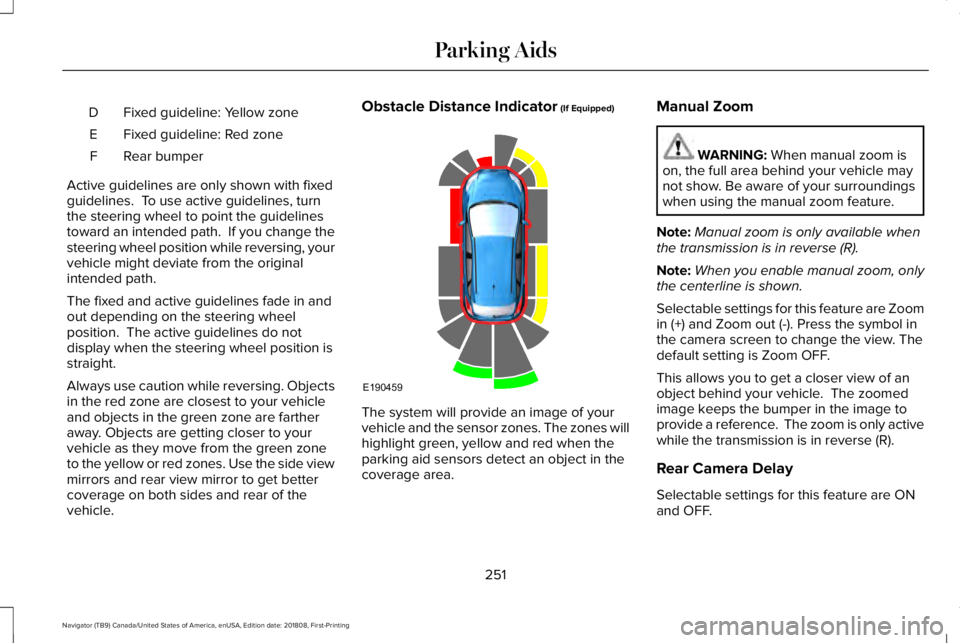
Obstacle Distance Indicator (If Equipped)
The system will provide an image of yourvehicle and the sensor zones. The zones willhighlight green, yellow and red when theparking aid sensors detect an object in thecoverage area.
Manual Zoom
WARNING: When manual zoom ison, the full area behind your vehicle maynot show. Be aware of your surroundingswhen using the manual zoom feature.
Note:Manual zoom is only available whenthe transmission is in reverse (R).
Note:When you enable manual zoom, onlythe centerline is shown.
Selectable settings for this feature are Zoomin (+) and Zoom out (-). Press the symbol inthe camera screen to change the view. Thedefault setting is Zoom OFF.
This allows you to get a closer view of anobject behind your vehicle. The zoomedimage keeps the bumper in the image toprovide a reference. The zoom is only activewhile the transmission is in reverse (R).
Rear Camera Delay
Selectable settings for this feature are ONand OFF.
251
Navigator (TB9) Canada/United States of America, enUSA, Edition date: 201808, First-Printing
Parking AidsE190459
Page 258 of 645
PRINCIPLE OF OPERATION
Cruise control lets you maintain a set speedwithout keeping your foot on the acceleratorpedal. You can use cruise control when yourvehicle speed is greater than 20 mph(30 km/h).
USING CRUISE CONTROL (IF EQUIPPED)
WARNING: Do not use cruise controlon winding roads, in heavy traffic or whenthe road surface is slippery. This couldresult in loss of vehicle control, seriousinjury or death.
WARNING: When you are goingdownhill, your vehicle speed couldincrease above the set speed. The systemdoes not apply the brakes.
To help the system to maintain the set speedwhen going downhill, downshift to a lowergear.
Your vehicle speed could decrease belowthe set speed when driving uphill.
Note:The system cancels if your vehiclespeed drops below 10 mph (16 km/h) underthe set speed when driving uphill.
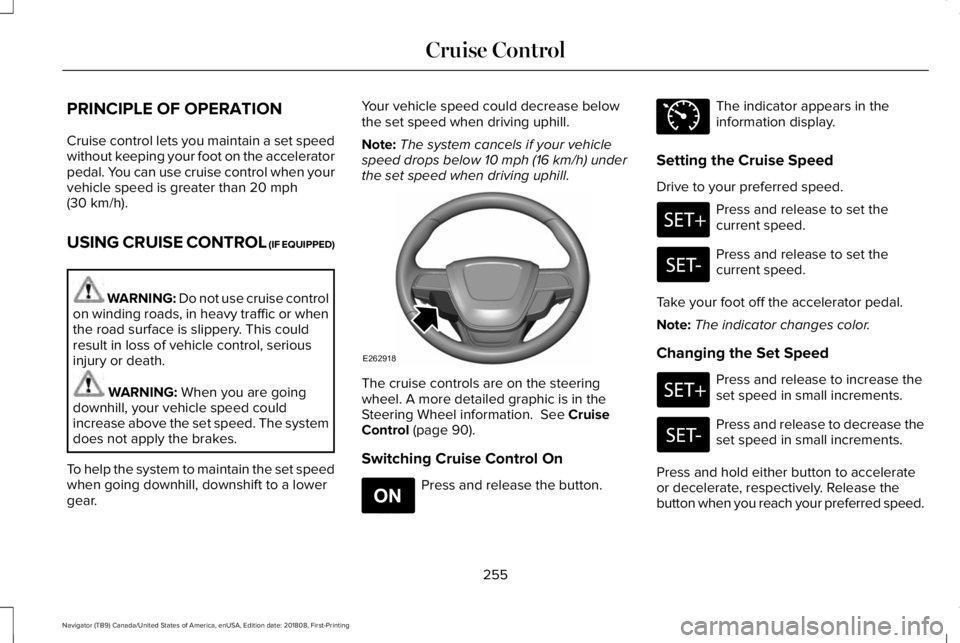
The cruise controls are on the steeringwheel. A more detailed graphic is in theSteering Wheel information. See CruiseControl (page 90).
Switching Cruise Control On
Press and release the button.
The indicator appears in theinformation display.
Setting the Cruise Speed
Drive to your preferred speed.
Press and release to set thecurrent speed.
Press and release to set thecurrent speed.
Take your foot off the accelerator pedal.
Note:The indicator changes color.
Changing the Set Speed
Press and release to increase theset speed in small increments.
Press and release to decrease theset speed in small increments.
Press and hold either button to accelerateor decelerate, respectively. Release thebutton when you reach your preferred speed.
255
Navigator (TB9) Canada/United States of America, enUSA, Edition date: 201808, First-Printing
Cruise ControlE262918 E265296 E71340
Page 260 of 645
WARNING: Adaptive cruise controlis not a crash warning or avoidancesystem.
The system adjusts your vehicle speed tomaintain the set gap between you and thevehicle in front of you in the same lane. Youcan select four gap settings.
The system uses a radar sensor whichprojects a beam directly in front of yourvehicle.
Note:It is your responsibility to stay alert,drive safely and be in control of the vehicleat all times.
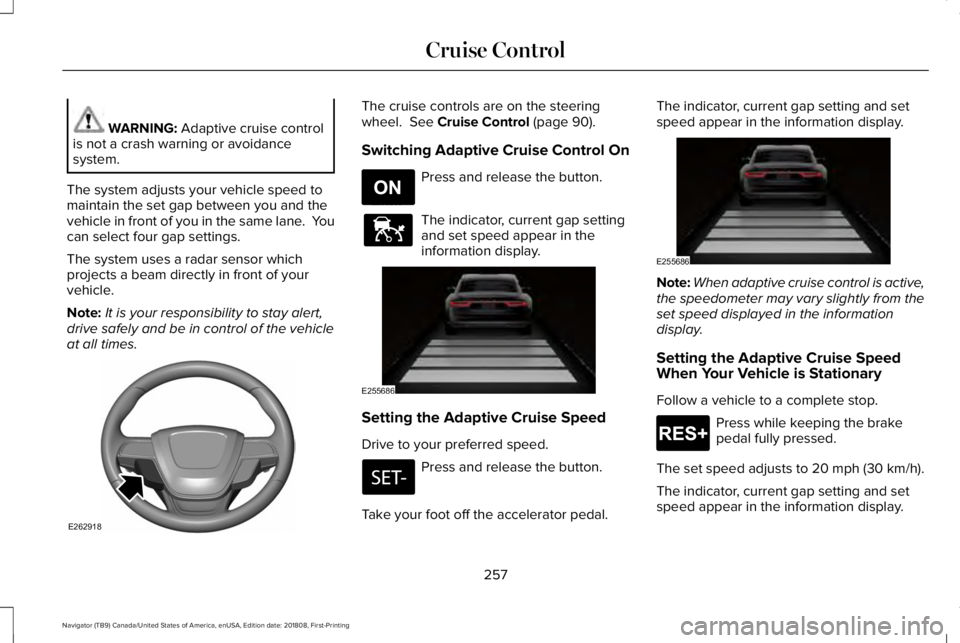
The cruise controls are on the steeringwheel. See Cruise Control (page 90).
Switching Adaptive Cruise Control On
Press and release the button.
The indicator, current gap settingand set speed appear in theinformation display.
Setting the Adaptive Cruise Speed
Drive to your preferred speed.
Press and release the button.
Take your foot off the accelerator pedal.
The indicator, current gap setting and setspeed appear in the information display.
Note:When adaptive cruise control is active,the speedometer may vary slightly from theset speed displayed in the informationdisplay.
Setting the Adaptive Cruise SpeedWhen Your Vehicle is Stationary
Follow a vehicle to a complete stop.
Press while keeping the brakepedal fully pressed.
The set speed adjusts to 20 mph (30 km/h).
The indicator, current gap setting and setspeed appear in the information display.
257
Navigator (TB9) Canada/United States of America, enUSA, Edition date: 201808, First-Printing
Cruise ControlE262918 E265296 E144529 E255686 E255686 E265299
Page 268 of 645
Using Driver Alert
Switching the system on and off
You may switch the system on or off throughthe information display. See GeneralInformation (page 120). When activated, thesystem monitors your alertness level basedupon your driving behavior in relation to thelane markings, and other factors.
System Warnings
Note: The system does not issue warningsbelow approximately 40 mph (64 km/h).
The warning system is in two stages. At firstthe system issues a temporary warning thatyou need to take a rest. This message willonly appear for a short time. If the systemdetects further reduction in driving alertness,another warning may be issued which willremain in the information display for a longertime. Press OK on the steering wheel controlto clear the warning. When active the systemwill run automatically in the background andonly issue a warning if required.
Resetting the System
You can reset the system by either:
•Switching the ignition off and on.
•Stopping your vehicle and then openingand closing the driver’s door.
LANE KEEPING SYSTEM (IF EQUIPPED)
WARNING: You are responsible forcontrolling your vehicle at all times. Thesystem is designed to be an aid and doesnot relieve you of your responsibility todrive with due care and attention. Failureto follow this instruction could result in theloss of control of your vehicle, personalinjury or death.
WARNING: Always drive with duecare and attention when using andoperating the controls and features on yourvehicle.
WARNING: In cold and severeweather conditions the system may notfunction. Rain, snow and spray can all limitsensor performance.
WARNING: The system will notoperate if the sensor cannot track the roadlane markings.
WARNING: The sensor mayincorrectly track lane markings as otherstructures or objects. This can result in afalse or missed warning.
WARNING: Large contrasts in outsidelighting can limit sensor performance.
WARNING: The system may notoperate properly if the sensor is blocked.Keep the windshield free from obstruction.
WARNING: If damage occurs in theimmediate area surrounding the sensor,have your vehicle checked as soon aspossible.
265
Navigator (TB9) Canada/United States of America, enUSA, Edition date: 201808, First-Printing
Driving Aids
Page 269 of 645
WARNING: The system may notcorrectly operate if your vehicle is fittedwith a suspension kit not approved by us.
Note:The system works above 40 mph(64 km/h).
Note:The system works as long as thecamera can detect one lane marking.
Note:When you select aid or alert and aidmode and the system detects no steeringactivity for a short period, the system alertsyou to put your hands on the steering wheel.The system may detect a light grip or touchon the steering wheel as hands off driving.
Note:The system may not function if thecamera is blocked, or if the windshield isdamaged or dirty.
When you switch the system on and itdetects an unintentional drift out of your laneis likely to occur, the system notifies orassists you to stay in your lane through thesteering system and information display. InAlert mode, the system provides a warningby vibrating the steering wheel. In Aid mode,the system provides steering assistance bygently counter steering your vehicle backinto the lane.
When the system is functioning in thecombined Alert and Aid mode, the systemfirst provides steering assistance by gentlycounter steering your vehicle back into thelane, followed by a warning that vibrates thesteering wheel if the vehicle is still out of thelane markings.
Switching the System On and Off
Note:The system on or off setting is storeduntil it is manually changed, unless a MyKey™is detected. If the system detects a MyKey™,it defaults to on and the mode is set to alert.
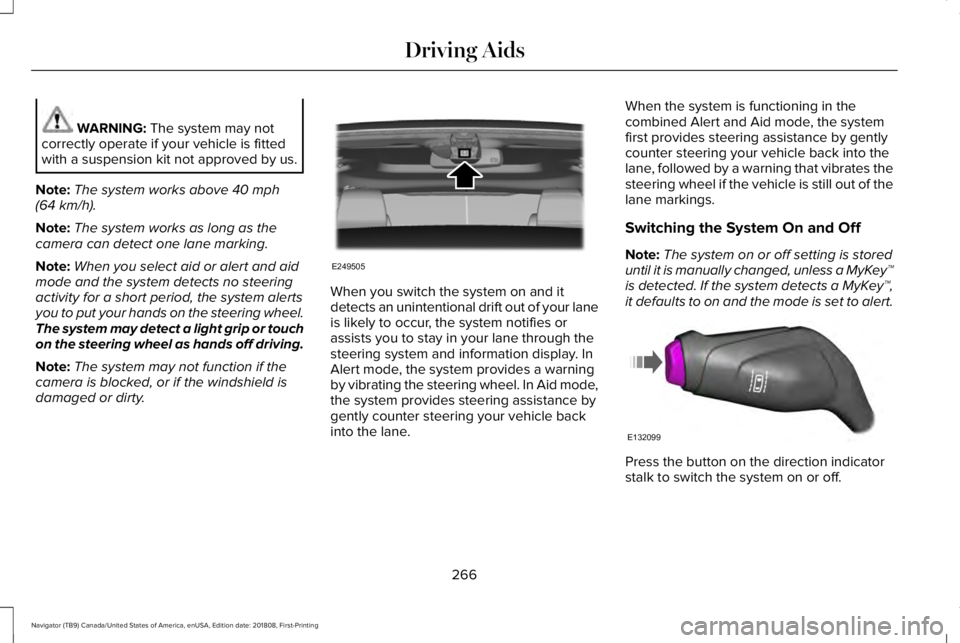
Press the button on the direction indicatorstalk to switch the system on or off.
266
Navigator (TB9) Canada/United States of America, enUSA, Edition date: 201808, First-Printing
Driving AidsE249505 E132099
Page 270 of 645
System Settings
The system has optional menu settingsavailable. See General Information (page120). The system stores the last knownselection for each of these settings. You donot need to readjust your settings each timeyou switch the system on.
Adjust the settings to enable one of the threemodes:
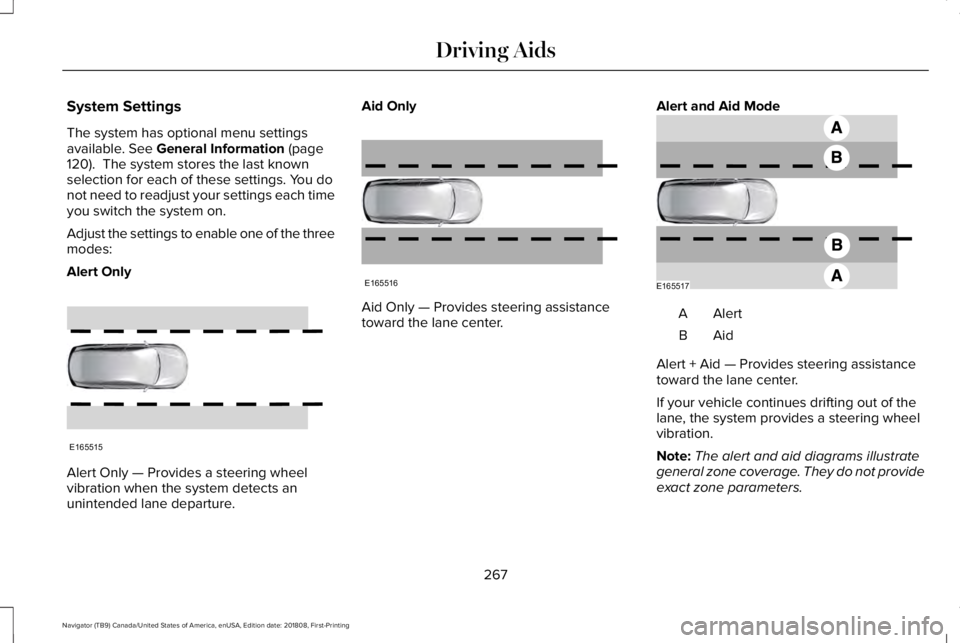
Alert Only
Alert Only — Provides a steering wheelvibration when the system detects anunintended lane departure.
Aid Only
Aid Only — Provides steering assistancetoward the lane center.
Alert and Aid Mode
AlertA
AidB
Alert + Aid — Provides steering assistancetoward the lane center.
If your vehicle continues drifting out of thelane, the system provides a steering wheelvibration.
Note:The alert and aid diagrams illustrategeneral zone coverage. They do not provideexact zone parameters.
267
Navigator (TB9) Canada/United States of America, enUSA, Edition date: 201808, First-Printing
Driving AidsE165515 E165516 E165517
Page 271 of 645
Intensity: This setting affects the intensity ofthe steering wheel vibration used for the alertand alert and aid modes. This setting doesnot affect the aid mode.
•Low.
•Medium.
•High.
System Display
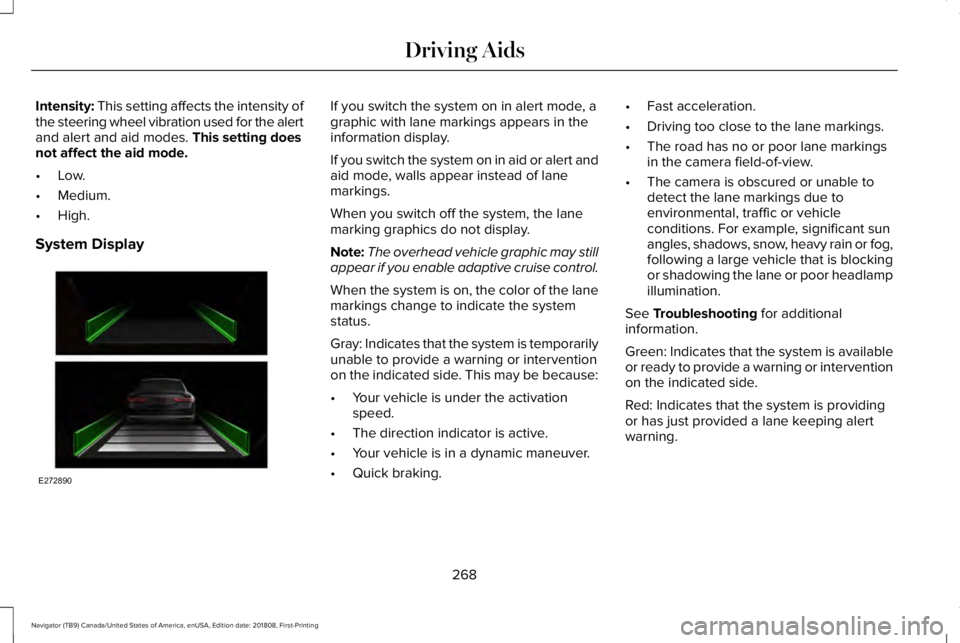
If you switch the system on in alert mode, agraphic with lane markings appears in theinformation display.
If you switch the system on in aid or alert andaid mode, walls appear instead of lanemarkings.
When you switch off the system, the lanemarking graphics do not display.
Note:The overhead vehicle graphic may stillappear if you enable adaptive cruise control.
When the system is on, the color of the lanemarkings change to indicate the systemstatus.
Gray: Indicates that the system is temporarilyunable to provide a warning or interventionon the indicated side. This may be because:
•Your vehicle is under the activationspeed.
•The direction indicator is active.
•Your vehicle is in a dynamic maneuver.
•Quick braking.
•Fast acceleration.
•Driving too close to the lane markings.
•The road has no or poor lane markingsin the camera field-of-view.
•The camera is obscured or unable todetect the lane markings due toenvironmental, traffic or vehicleconditions. For example, significant sunangles, shadows, snow, heavy rain or fog,following a large vehicle that is blockingor shadowing the lane or poor headlampillumination.
See Troubleshooting for additionalinformation.
Green: Indicates that the system is availableor ready to provide a warning or interventionon the indicated side.
Red: Indicates that the system is providingor has just provided a lane keeping alertwarning.
268
Navigator (TB9) Canada/United States of America, enUSA, Edition date: 201808, First-Printing
Driving AidsE272890
Page 276 of 645
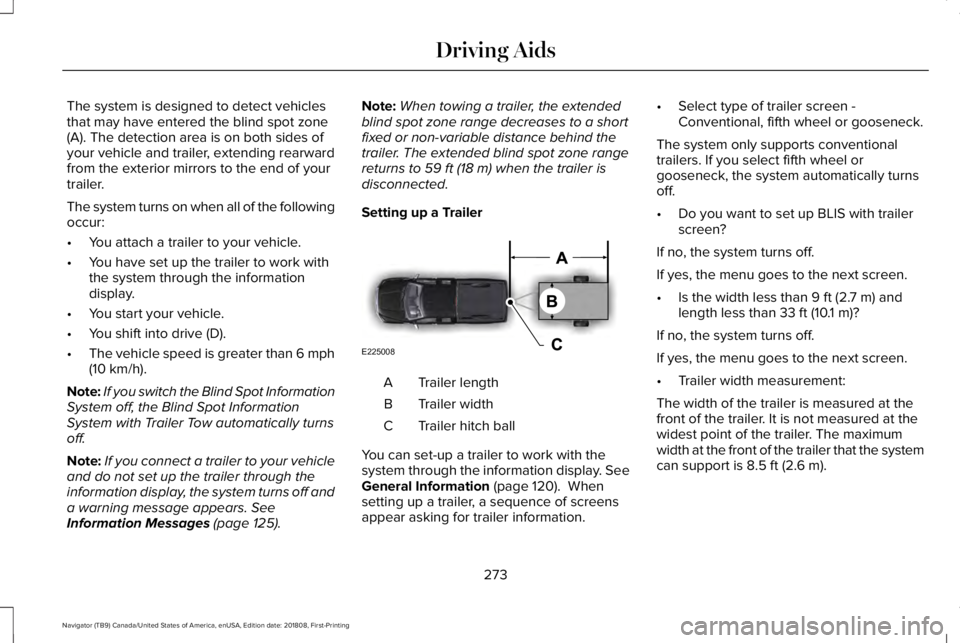
The system is designed to detect vehiclesthat may have entered the blind spot zone(A). The detection area is on both sides ofyour vehicle and trailer, extending rearwardfrom the exterior mirrors to the end of yourtrailer.
The system turns on when all of the followingoccur:
•You attach a trailer to your vehicle.
•You have set up the trailer to work withthe system through the informationdisplay.
•You start your vehicle.
•You shift into drive (D).
•The vehicle speed is greater than 6 mph(10 km/h).
Note:If you switch the Blind Spot InformationSystem off, the Blind Spot InformationSystem with Trailer Tow automatically turnsoff.
Note:If you connect a trailer to your vehicleand do not set up the trailer through theinformation display, the system turns off anda warning message appears. SeeInformation Messages (page 125).
Note:When towing a trailer, the extendedblind spot zone range decreases to a shortfixed or non-variable distance behind thetrailer. The extended blind spot zone rangereturns to 59 ft (18 m) when the trailer isdisconnected.
Setting up a Trailer
Trailer lengthA
Trailer widthB
Trailer hitch ballC
You can set-up a trailer to work with thesystem through the information display. SeeGeneral Information (page 120). Whensetting up a trailer, a sequence of screensappear asking for trailer information.
•Select type of trailer screen -Conventional, fifth wheel or gooseneck.
The system only supports conventionaltrailers. If you select fifth wheel orgooseneck, the system automatically turnsoff.
•Do you want to set up BLIS with trailerscreen?
If no, the system turns off.
If yes, the menu goes to the next screen.
•Is the width less than 9 ft (2.7 m) andlength less than 33 ft (10.1 m)?
If no, the system turns off.
If yes, the menu goes to the next screen.
•Trailer width measurement:
The width of the trailer is measured at thefront of the trailer. It is not measured at thewidest point of the trailer. The maximumwidth at the front of the trailer that the systemcan support is 8.5 ft (2.6 m).
273
Navigator (TB9) Canada/United States of America, enUSA, Edition date: 201808, First-Printing
Driving AidsE225008
Page 288 of 645
Changing the drive mode automaticallychanges the functionality of the followingsystems:
•Electronically power-assisted steeringsystem adjusts steering effort and feelbased on the mode you select. SeeSteering (page 279).
•Electronic stability control and tractioncontrol maintain your vehicle control inadverse conditions or high performancedriving. See Stability Control (page 232).
•Electronic throttle control enhances thepowertrain response to your inputs.
•Transmission controls optimize with shiftschedules tuned to each mode.
•Driveline settings optimize for eachmode.
Using the System
The system automatically tailors your vehicleconfiguration for each mode you select.
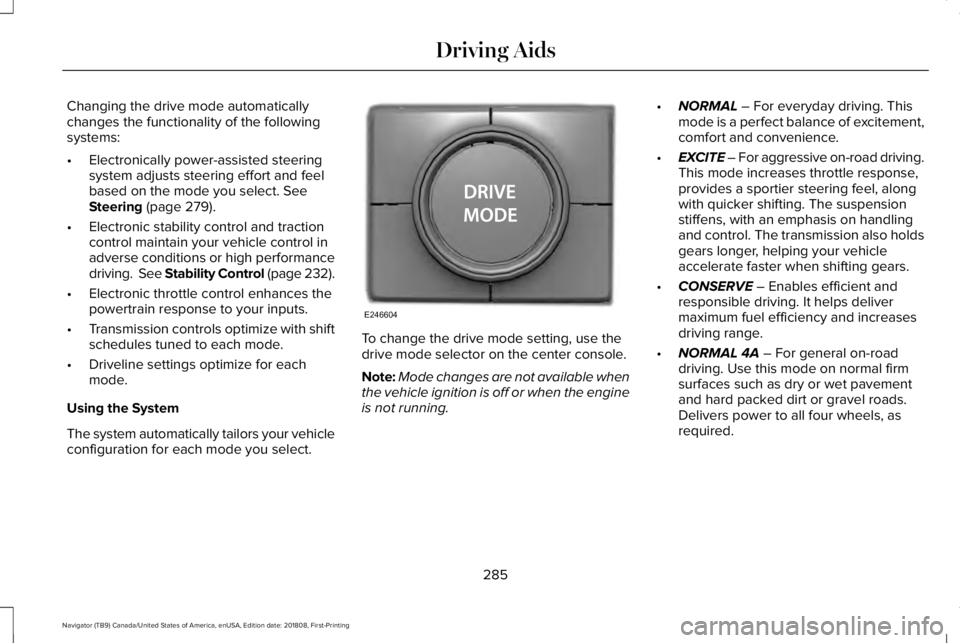
To change the drive mode setting, use thedrive mode selector on the center console.
Note:Mode changes are not available whenthe vehicle ignition is off or when the engineis not running.
•NORMAL – For everyday driving. Thismode is a perfect balance of excitement,comfort and convenience.
•EXCITE – For aggressive on-road driving.This mode increases throttle response,provides a sportier steering feel, alongwith quicker shifting. The suspensionstiffens, with an emphasis on handlingand control. The transmission also holdsgears longer, helping your vehicleaccelerate faster when shifting gears.
•CONSERVE – Enables efficient andresponsible driving. It helps delivermaximum fuel efficiency and increasesdriving range.
•NORMAL 4A – For general on-roaddriving. Use this mode on normal firmsurfaces such as dry or wet pavementand hard packed dirt or gravel roads.Delivers power to all four wheels, asrequired.
285
Navigator (TB9) Canada/United States of America, enUSA, Edition date: 201808, First-Printing
Driving AidsE246604
Page 290 of 645
REAR UNDER FLOOR STORAGE
Cargo Management System
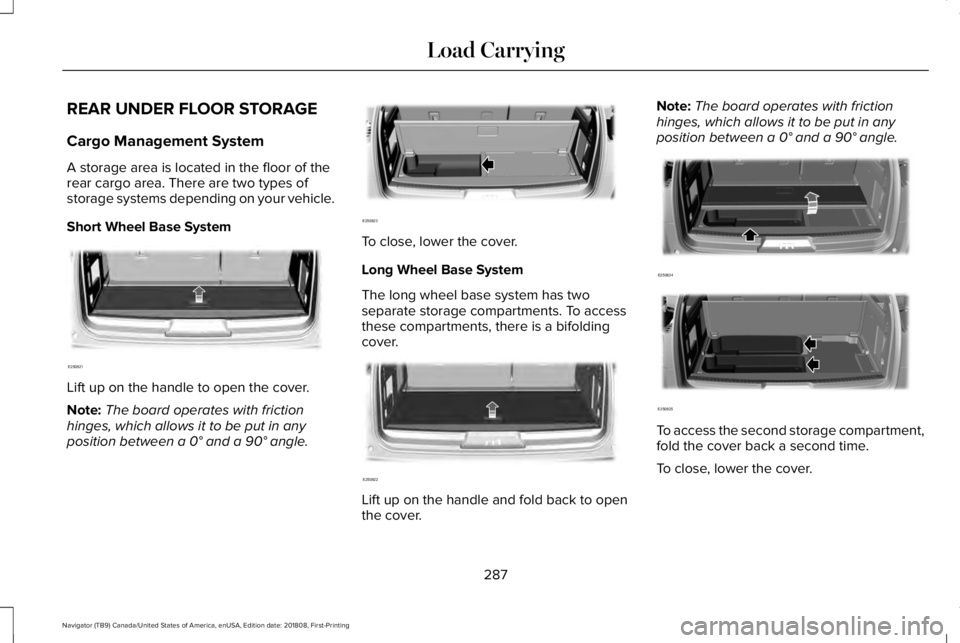
A storage area is located in the floor of therear cargo area. There are two types ofstorage systems depending on your vehicle.
Short Wheel Base System
Lift up on the handle to open the cover.
Note:The board operates with frictionhinges, which allows it to be put in anyposition between a 0° and a 90° angle.
To close, lower the cover.
Long Wheel Base System
The long wheel base system has twoseparate storage compartments. To accessthese compartments, there is a bifoldingcover.
Lift up on the handle and fold back to openthe cover.
Note:The board operates with frictionhinges, which allows it to be put in anyposition between a 0° and a 90° angle.
To access the second storage compartment,fold the cover back a second time.
To close, lower the cover.
287
Navigator (TB9) Canada/United States of America, enUSA, Edition date: 201808, First-Printing
Load CarryingE250821 E250823 E250822 E250824 E250825