page 32 LINCOLN NAVIGATOR 2020 Owners Manual
[x] Cancel search | Manufacturer: LINCOLN, Model Year: 2020, Model line: NAVIGATOR, Model: LINCOLN NAVIGATOR 2020Pages: 622, PDF Size: 6.47 MB
Page 268 of 622
WARNING: Use caution when turning
camera features on or off when the
transmission is not in park (P). Make sure
your vehicle is not moving.
Note: The 360 degree camera system turns
off when your vehicle is in motion at low
speed, except when in reverse (R).
The 360 degree camera system consists of
front, side and rear cameras. The system:
• Allows you to see what is directly in front
or behind your vehicle.
• Provides cross traffic view in front and
behind your vehicle.
• Allows you to see a top-down view of the
area outside your vehicle, including the
blind spots.
• Provides visibility around your vehicle in
parking maneuvers such as:
•Centering in a parking space.
• Obstacles near vehicle.
• Parallel parking. Camera Views The front camera enable button is
near the display screen and turns
on the front camera when your
vehicle is not in reverse (R).
When in park (P), neutral (N) or drive (D), only
images from the front cameras are displayed.
Press the camera button to display the front
camera image on the display screen.
When in reverse (R), only images from the
rear cameras are displayed. When you shift
into reverse (R), the rear view camera image
automatically shows on the display screen.
Automatic 360 Degree Camera
Activation
The system activates the 360 degree camera
view when the front parking aid detects an
object. The system displays the
corresponding view when the object
distance indicator detects an object.
See
Front Parking Aid (page 250). When the front parking aid system emits an
audible tone, the 360 degree camera views
are active and deactivates a few seconds
after the tone stops. The camera view stays
active for objects detected in the red parking
aid zone regardless of tone. You can turn
the view off by pressing the physical camera
button.
Switching Automatic 360 Degree Camera
Activation On and Off
You can turn the automatic 360 degree
camera activation on and off through the
parking aid button.
The automatic 360 degree camera activation
is only available when you shift into drive (D)
or neutral (N) and if your vehicle speed is
below
6 mph (10 km/h).
The automatic 360 degree camera activation
is not available when you shift into park (P)
or reach speeds over
6 mph (10 km/h).
Note: The rear camera and 360 degree
camera operate normally regardless of
object detection.
265
Navigator (TB9) Canada/United States of America, enUSA, Edition date: 201907, Second-Printing Parking AidsE205884
Page 269 of 622
Advanced Camera Views (If Equipped)
Additional camera views may be
available for vehicles with specific
features. Press the small camera
icon shown on the top left corner of the
display screen to open the camera view
menu.
The following camera views can be accessed
in park (P), neutral (N) or drive (D) when you
press the camera button:
• Front 360 + Normal: Contains the normal
front camera view next to a 360 degree
camera view.
• Front Normal View:
Provides an image
of what is directly in front of your vehicle.
• Front Split View:
Provides an extended
view of what is in front of your vehicle. The following camera views can be accessed
when you shift into reverse (R):
•
Rear 360 + Normal: Contains the normal
rear camera view next to a 360 degree
camera view. Press the zoom (+) button
to quickly access Rear Normal View from
this screen.
• Rear Normal View:
Provides an image
of what is directly behind your vehicle.
• Rear Split View:
Provides an extended
view of what is behind your vehicle.
Keep Out Zone
The Keep Out Zone is represented by the
yellow dotted lines running parallel to your
vehicle. It is designed to give you the
indication on the ground of the fully
extended outside mirror position.
Front Camera WARNING:
The front camera system
still requires the driver to use it in
conjunction with looking out of your
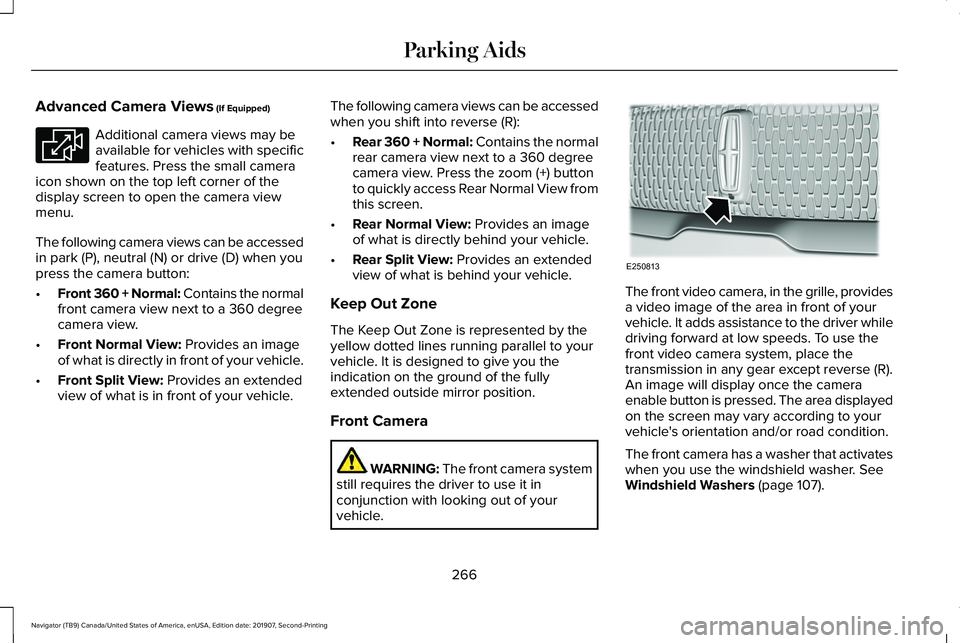
vehicle. The front video camera, in the grille, provides
a video image of the area in front of your
vehicle. It adds assistance to the driver while
driving forward at low speeds. To use the
front video camera system, place the
transmission in any gear except reverse (R).
An image will display once the camera
enable button is pressed. The area displayed
on the screen may vary according to your
vehicle's orientation and/or road condition.
The front camera has a washer that activates
when you use the windshield washer. See
Windshield Washers (page 107).
266
Navigator (TB9) Canada/United States of America, enUSA, Edition date: 201907, Second-Printing Parking AidsE233726 E250813
Page 271 of 622
WHAT IS CRUISE CONTROL
Cruise control lets you maintain a set speed
without keeping your foot on the accelerator
pedal. You can use cruise control when your
vehicle speed is greater than 20 mph
(30 km/h).
SWITCHING CRUISE CONTROL ON
AND OFF WARNING:
Do not use cruise control
on winding roads, in heavy traffic or when
the road surface is slippery. This could
result in loss of vehicle control, serious
injury or death.
The cruise controls are on the steering
wheel.
See Cruise Control (page 102).
Switching Cruise Control On Press the button. Switching Cruise Control Off Press the button when the system
is in standby mode.
The system also turns off when you switch
the ignition off.
Note: The set speed erases when you switch
the system off.
SETTING THE CRUISE CONTROL
SPEED WARNING:
When you are going
downhill, your vehicle speed could
increase above the set speed. The system
does not apply the brakes.
Drive to the speed you prefer. Press either button to set the
current speed.Take your foot off the accelerator pedal.
Note:
The indicator changes color in the
information display.
Changing the Set Speed Press and release the button to
increase the set speed in small
increments.
Press and hold the button to accelerate.
Release the button when you reach your
preferred speed. Press and release the button to
decrease the set speed in small
increments.
Press and hold the button to decelerate.
Release the button when you reach your
preferred speed.
Note: If you accelerate by pressing the
accelerator pedal, the set speed does not
change. When you release the accelerator
pedal, your vehicle returns to the speed that
you previously set.
268
Navigator (TB9) Canada/United States of America, enUSA, Edition date: 201907, Second-Printing Cruise ControlE265296 E265297
Page 273 of 622
WARNING: Adaptive cruise control
is not a crash warning or avoidance
system.
The system adjusts your vehicle speed to
maintain the set gap between you and the
vehicle in front of you in the same lane. You
can select four gap settings.
The system uses a radar sensor which
projects a beam directly in front of your
vehicle.
Note: It is your responsibility to stay alert,
drive safely and be in control of the vehicle
at all times. The cruise controls are on the steering
wheel. See Cruise Control (page 102).
Switching Adaptive Cruise Control On Press and release the button.
The indicator, current gap setting
and set speed appear in the
information display.
Setting the Adaptive Cruise Speed
Drive to your preferred speed.
Press and release the button.
Take your foot off the accelerator pedal. The indicator, current gap setting and set
speed appear in the information display.
Note:
When adaptive cruise control is active,
the speedometer may vary slightly from the
set speed displayed in the information
display.
Setting the Adaptive Cruise Speed
When Your Vehicle is Stationary
Follow a vehicle to a complete stop. Press while keeping the brake
pedal fully pressed.
The set speed adjusts to 20 mph (30 km/h).
The indicator, current gap setting and set
speed appear in the information display.
270
Navigator (TB9) Canada/United States of America, enUSA, Edition date: 201907, Second-Printing Cruise ControlE262918 E265296 E144529 E255686 E255686 E265299
Page 279 of 622
Action
Cause
Do not use the system in these conditions because it may not detect
any vehicles ahead.
Water, snow or ice on the surface of the road may interfere with the
radar signals.
Wait a short time or switch to normal cruise control.
You are in a desert or remote area with no other vehicles and no
roadside objects.
Due to the nature of radar technology, it is possible to get a blockage warning with no actual block. A false\
blocked condition either self
clears, or clears after you restart your vehicle.
Switching to Normal Cruise Control WARNING: Normal cruise control will
not brake when your vehicle is
approaching slower vehicles. Always be
aware of which mode you have selected
and apply the brakes when necessary. The cruise control indicator light
replaces the adaptive cruise
control indicator light if you select
normal cruise control. The gap setting does
not display, and the system does not respond
to lead vehicles. Automatic braking remains
active to maintain set speed. You can change from adaptive cruise control
to normal cruise control through the
information display.
See General
Information (page 133).
276
Navigator (TB9) Canada/United States of America, enUSA, Edition date: 201907, Second-Printing Cruise ControlE71340
Page 281 of 622
Using Driver Alert
Switching the system on and off
You may switch the system on or off through
the information display. See General
Information (page 133). When activated, the
system monitors your alertness level based
upon your driving behavior in relation to the
lane markings, and other factors.
System Warnings
Note: The system does not issue warnings
below approximately
40 mph (64 km/h).
The warning system is in two stages. At first
the system issues a temporary warning that
you need to take a rest. This message will
only appear for a short time. If the system
detects further reduction in driving alertness,
another warning may be issued which will
remain in the information display for a longer
time. Press OK on the steering wheel control
to clear the warning. When active the system
will run automatically in the background and
only issue a warning if required. Resetting the System
You can reset the system by either:
•
Switching the ignition off and on.
• Stopping your vehicle and then opening
and closing the driver’ s door.
LANE KEEPING SYSTEM WARNING:
You are responsible for
controlling your vehicle at all times. The
system is designed to be an aid and does
not relieve you of your responsibility to
drive with due care and attention. Failure
to follow this instruction could result in the
loss of control of your vehicle, personal
injury or death. WARNING:
Always drive with due
care and attention when using and
operating the controls and features on your
vehicle. WARNING:
In cold and severe
weather conditions the system may not
function. Rain, snow and spray can all limit
sensor performance. WARNING:
The system will not
operate if the sensor cannot track the road
lane markings. WARNING:
The sensor may
incorrectly track lane markings as other
structures or objects. This can result in a
false or missed warning. WARNING: Large contrasts in outside
lighting can limit sensor performance. WARNING:
The system may not
operate properly if the sensor is blocked.
Keep the windshield free from obstruction. WARNING:
If damage occurs in the
immediate area surrounding the sensor,
have your vehicle checked as soon as
possible.
278
Navigator (TB9) Canada/United States of America, enUSA, Edition date: 201907, Second-Printing Driving Aids
Page 283 of 622
System Settings
The system has optional menu settings
available. See General Information (page
133). The system stores the last known
selection for each of these settings. You do
not need to readjust your settings each time
you switch the system on.
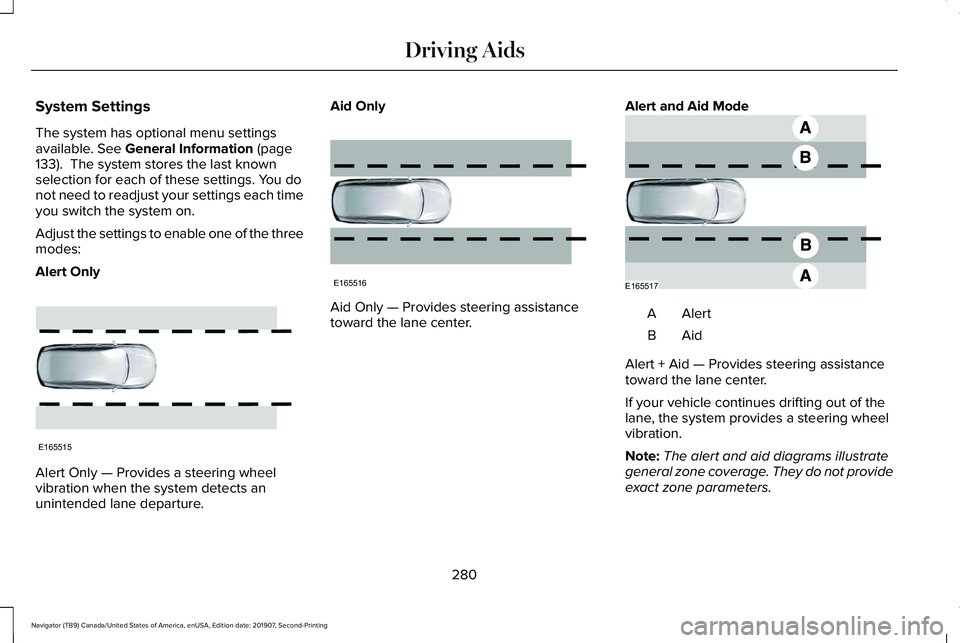
Adjust the settings to enable one of the three
modes:
Alert Only Alert Only — Provides a steering wheel
vibration when the system detects an
unintended lane departure. Aid Only
Aid Only — Provides steering assistance
toward the lane center.
Alert and Aid Mode AlertA
AidB
Alert + Aid — Provides steering assistance
toward the lane center.
If your vehicle continues drifting out of the
lane, the system provides a steering wheel
vibration.
Note: The alert and aid diagrams illustrate
general zone coverage. They do not provide
exact zone parameters.
280
Navigator (TB9) Canada/United States of America, enUSA, Edition date: 201907, Second-Printing Driving AidsE165515 E165516 E165517
Page 288 of 622
Note:
The system does not operate in park
(P) or reverse (R).
Vehicles with Manual Transmission
The system turns on when all of the following
occur:
• You start your vehicle.
• The vehicle speed is greater than 6 mph
(10 km/h).
Note: The system does not operate in
reverse (R).
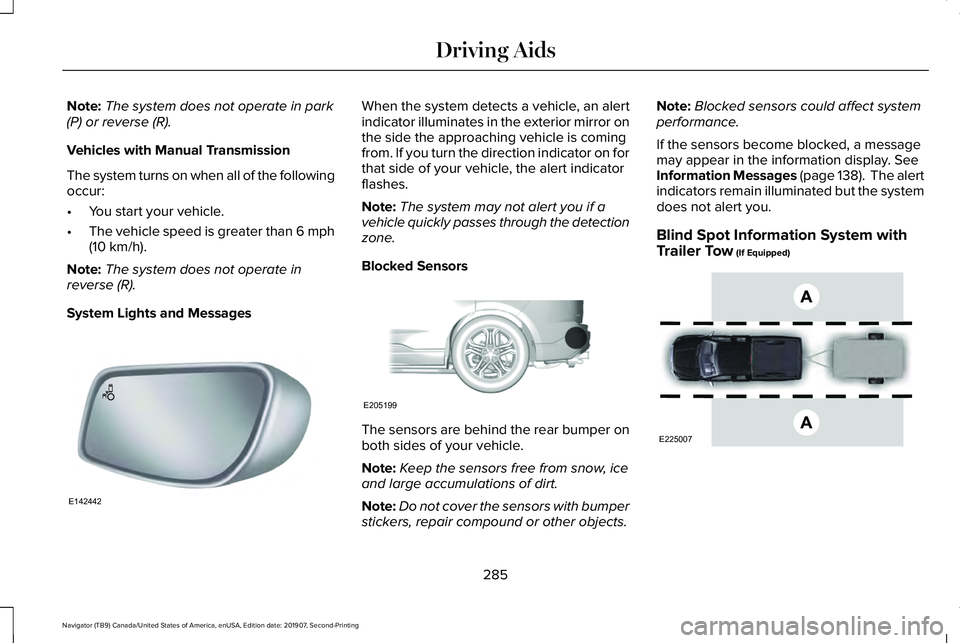
System Lights and Messages When the system detects a vehicle, an alert
indicator illuminates in the exterior mirror on
the side the approaching vehicle is coming
from. If you turn the direction indicator on for
that side of your vehicle, the alert indicator
flashes.
Note:
The system may not alert you if a
vehicle quickly passes through the detection
zone.
Blocked Sensors The sensors are behind the rear bumper on
both sides of your vehicle.
Note:
Keep the sensors free from snow, ice
and large accumulations of dirt.
Note: Do not cover the sensors with bumper
stickers, repair compound or other objects. Note:
Blocked sensors could affect system
performance.
If the sensors become blocked, a message
may appear in the information display.
See
Information Messages (page 138). The alert
indicators remain illuminated but the system
does not alert you.
Blind Spot Information System with
Trailer Tow
(If Equipped) 285
Navigator (TB9) Canada/United States of America, enUSA, Edition date: 201907, Second-Printing Driving AidsE142442 E205199 E225007
Page 289 of 622
The system is designed to detect vehicles
that may have entered the blind spot zone
(A). The detection area is on both sides of
your vehicle and trailer, extending rearward
from the exterior mirrors to the end of your
trailer.
The system turns on when all of the following
occur:
•
You attach a trailer to your vehicle.
• You have set up the trailer to work with
the system through the information
display.
• You start your vehicle.
• You shift into drive (D).
• The vehicle speed is greater than 6 mph
(10 km/h).
Note: If you switch the Blind Spot Information
System off, the Blind Spot Information
System with Trailer Tow automatically turns
off.
Note: If you connect a trailer to your vehicle
and do not set up the trailer through the
information display, the system turns off and
a warning message appears.
See
Information Messages (page 138). Note:
When towing a trailer, the extended
blind spot zone range decreases to a short
fixed or non-variable distance behind the
trailer. The extended blind spot zone range
returns to
59 ft (18 m) when the trailer is
disconnected.
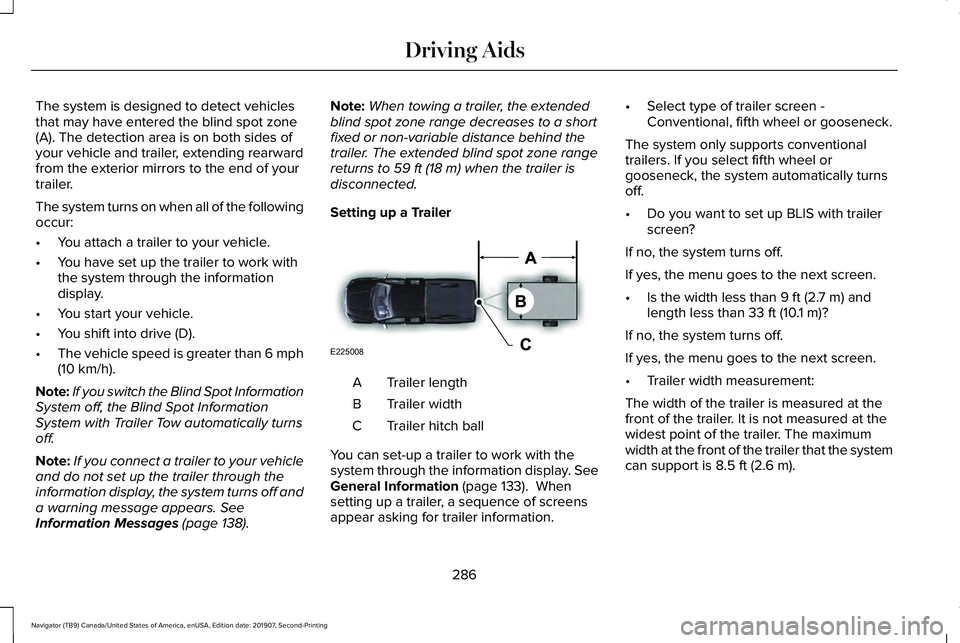
Setting up a Trailer Trailer length
A
Trailer width
B
Trailer hitch ball
C
You can set-up a trailer to work with the
system through the information display.
See
General Information (page 133). When
setting up a trailer, a sequence of screens
appear asking for trailer information. •
Select type of trailer screen -
Conventional, fifth wheel or gooseneck.
The system only supports conventional
trailers. If you select fifth wheel or
gooseneck, the system automatically turns
off.
• Do you want to set up BLIS with trailer
screen?
If no, the system turns off.
If yes, the menu goes to the next screen.
• Is the width less than
9 ft (2.7 m) and
length less than 33 ft (10.1 m)?
If no, the system turns off.
If yes, the menu goes to the next screen.
• Trailer width measurement:
The width of the trailer is measured at the
front of the trailer. It is not measured at the
widest point of the trailer. The maximum
width at the front of the trailer that the system
can support is
8.5 ft (2.6 m).
286
Navigator (TB9) Canada/United States of America, enUSA, Edition date: 201907, Second-Printing Driving AidsE225008
Page 291 of 622
•
Box trailers that have a width greater than
8.5 ft (2.6 m) at the front may cause early
alerts when you pass a vehicle.
• Clam shell or V-Nose box trailers with a
width greater than
8.5 ft (2.6 m) at the
front may cause delayed alerts when a
vehicle traveling the same speed as your
vehicle merges lanes.
System Errors
If the system detects a fault, a warning lamp
illuminates and a message displays.
See
Information Messages (page 138).
Switching the System On and Off
You can switch the system off using the
information display. See General Information
(page 133). When you switch the system off,
a warning lamp illuminates and a message
displays. When you switch the system on or
off, the alert indicators flash twice.
Note: The system remembers the last setting
when you start your vehicle. Note:
The system may not correctly operate
when towing a trailer. For vehicles with a
trailer tow module and tow bar approved by
us, the system turns off when you attach a
trailer. For vehicles with an aftermarket
trailer tow module or tow bar, we
recommend that you switch the system off
when you attach a trailer.
To permanently switch the system off,
contact an authorized dealer.
CROSS TRAFFIC ALERT WARNING:
Do not use the cross
traffic alert system as a replacement for
using the interior and exterior mirrors or
looking over your shoulder before
reversing out of a parking space. The cross
traffic alert system is not a replacement for
careful driving. WARNING:
The system may not
operate properly during severe weather
conditions, for example snow, ice, heavy
rain and spray. Always drive with due care
and attention. Failure to take care may
result in a crash.
The system alerts you of vehicles
approaching from the sides behind your
vehicle when you shift into reverse (R).
Using Cross Traffic Alert
The system detects vehicles that approach
at a speed between
4 mph (6 km/h) and
37 mph (60 km/h). Coverage decreases when
the sensors are partially, mostly or fully
obstructed. Slowly reversing helps increase
the coverage area and effectiveness.
The system turns on when you start the
engine and you shift into reverse (R). The
system turns off when you shift out of reverse
(R).
288
Navigator (TB9) Canada/United States of America, enUSA, Edition date: 201907, Second-Printing Driving Aids