ECO mode LINCOLN NAVIGATOR 2020 User Guide
[x] Cancel search | Manufacturer: LINCOLN, Model Year: 2020, Model line: NAVIGATOR, Model: LINCOLN NAVIGATOR 2020Pages: 622, PDF Size: 6.47 MB
Page 52 of 622
length of webbing back toward the stowed
position. For rear seatbelts, recline the rear
seat backrest or push the seat backrest
cushion away from the seatbelt. Feed a small
length of webbing back toward the stowed
position.
Automatic Locking Mode
In this mode, the shoulder belt automatically
pre-locks. The belt still retracts to remove
any slack in the shoulder belt. The automatic
locking mode is not available on the driver
seatbelt.
When to Use the Automatic Locking Mode
Use this mode when you install a child safety
seat, except a booster, in the passenger front
or rear seating positions. Properly restrain
children 12 years old and under in a rear
seating position whenever possible. See
Seatbelts (page 45).
How to Use the Automatic Locking Mode
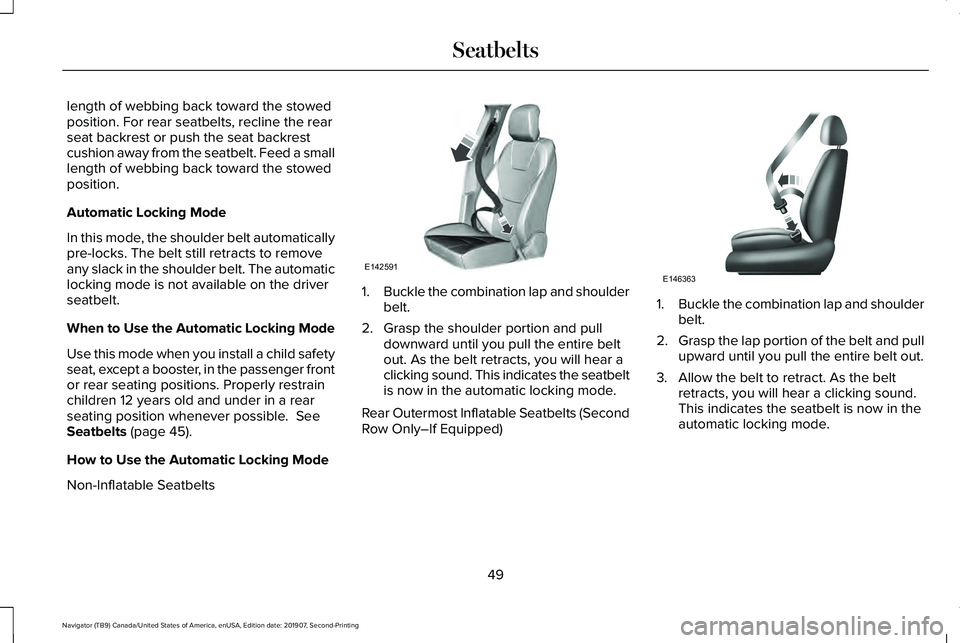
Non-Inflatable Seatbelts 1.
Buckle the combination lap and shoulder
belt.
2. Grasp the shoulder portion and pull downward until you pull the entire belt
out. As the belt retracts, you will hear a
clicking sound. This indicates the seatbelt
is now in the automatic locking mode.
Rear Outermost Inflatable Seatbelts (Second
Row Only–If Equipped) 1.
Buckle the combination lap and shoulder
belt.
2. Grasp the lap portion of the belt and pull
upward until you pull the entire belt out.
3. Allow the belt to retract. As the belt retracts, you will hear a clicking sound.
This indicates the seatbelt is now in the
automatic locking mode.
49
Navigator (TB9) Canada/United States of America, enUSA, Edition date: 201907, Second-Printing SeatbeltsE142591 E146363
Page 53 of 622
How to Disengage the Automatic Locking
Mode
Unbuckle the combination lap and shoulder
belt and allow it to retract completely to
disengage the automatic locking mode and
activate the vehicle sensitive (emergency)
locking mode.
Rear Inflatable Seatbelt (If Equipped)
WARNING: Do not attempt to service,
repair, or modify the supplementary
restraint system or associated components.
Failure to follow this instruction could result
in personal injury or death.
The rear inflatable seatbelts are in the
shoulder portion of the seatbelts of the
second-row outermost seating positions. Note:
The rear inflatable seatbelts are
compatible with most infant and child safety
car seats and belt positioning booster seats
when you properly install them. This is
because they are designed to fill with a
cooled gas at a lower pressure and at a
slower rate than traditional airbags. After
inflation, the shoulder portion of the seatbelt
remains cool to the touch.
The rear inflatable seatbelt consists of the
following:
• An inflatable bag in the shoulder seatbelt
webbing.
• Lap seatbelt webbing with automatic
locking mode.
• The same warning light, electronic
control and diagnostic unit as used for
the front seatbelts.
• Impact sensors in various parts of the
vehicle. How does the rear inflatable seatbelt
system work? WARNING:
If a supplementary
restraint system component has deployed,
it will not function again. Have the system
and associated components inspected as
soon as possible. Failure to follow this
instruction could result in personal injury
or death.
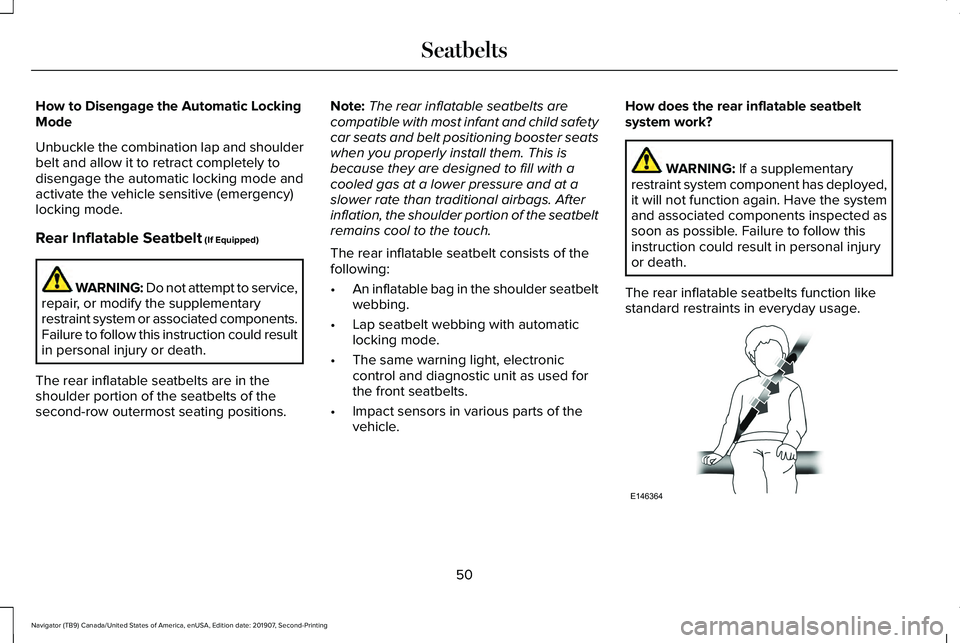
The rear inflatable seatbelts function like
standard restraints in everyday usage. 50
Navigator (TB9) Canada/United States of America, enUSA, Edition date: 201907, Second-Printing SeatbeltsE146364
Page 57 of 622
Note:
The driver and front passenger
warnings switch on and off independently.
When you perform this procedure for one
seating position, do not buckle the other
position as this terminates the process.
Read Steps 1 - 4 before starting the
procedure.
Make sure that:
• You set the parking brake.
• The transmission is in park (P).
• The ignition is off.
• You close all vehicle doors.
• You unbuckle the driver and front
passenger seatbelts.
1. Switch the ignition on. Do not start the engine.
2. Wait until the seatbelt warning lamp turns
off (about one minute). After Step 2, wait
an additional five seconds before
proceeding with Step 3. Once you start
Step 3, you must complete the procedure
within 60 seconds. 3.
For the seating position you are switching
off, buckle then unbuckle the seatbelt
three times at a moderate speed, ending
in the unbuckled state. After Step 3, the
seatbelt warning lamp turns on.
4. When the seatbelt warning lamp is on, buckle then unbuckle the seatbelt. After
Step 4, the seatbelt warning lamp flashes
for confirmation.
• This switches the feature off if it is
currently on.
• This switches the feature on if it is
currently off.
CHILD RESTRAINT AND SEATBELT
MAINTENANCE
Inspect the vehicle seatbelts and child safety
seat systems periodically to make sure they
work properly and are not damaged. Inspect
the vehicle and child restraint seatbelts to
make sure there are no nicks, tears or cuts.
Replace if necessary. All vehicle seatbelt
assemblies, including retractors, buckles,
front seatbelt buckle assemblies, buckle
support assemblies (slide bar-if equipped), shoulder belt height adjusters (if equipped),
shoulder belt guide on seat backrest (if
equipped), child safety seat LATCH and
tether anchors, and attaching hardware,
should be inspected after a crash. Read the
child restraint manufacturer's instructions for
additional inspection and maintenance
information specific to the child restraint.
We recommend that all seatbelt assemblies
in use in vehicles involved in a crash be
replaced. However, if the crash was minor
and an authorized dealer finds that the belts
do not show damage and continue to
operate properly, they do not need to be
replaced. Seatbelt assemblies not in use
during a crash should also be inspected and
replaced if either damage or improper
operation is noted.
Properly care for seatbelts. See Vehicle
Care (page 393).
54
Navigator (TB9) Canada/United States of America, enUSA, Edition date: 201907, Second-Printing Seatbelts
Page 58 of 622
SEATBELT EXTENSIONS
WARNING: Persons who fit into the
vehicle's seatbelt should not use an
extension. Unnecessary use could result
in serious personal injury in the event of a
crash. WARNING:
Only use extensions
provided free of charge by Lincoln Motor
Company dealers. The dealer will provide
an extension designed specifically for this
vehicle, model year and seating position.
The use of an extension intended for
another vehicle, model year or seating
position may not offer you the full
protection of your vehicle ’s seatbelt
restraint system. WARNING:
Never use seatbelt
extensions to install child restraints. WARNING:
Do not use a seatbelt
extension with an inflatable seatbelt. WARNING:
Do not use extensions
to change the fit of the belt across the
torso, over the lap or to make the seatbelt
buckle easier to reach.
If, because of body size or driving position,
it is not possible to properly fasten the
seatbelt over your lap and shoulder, an
extension that is compatible with the
seatbelts is available free of charge from
Lincoln Motor Company dealers. Only Lincoln
seatbelt extensions made by the same
company which made the original equipment
seatbelts, should be used with Lincoln
seatbelts. Ask your authorized dealer if your
extension is compatible with your Lincoln
vehicle restraint system.
55
Navigator (TB9) Canada/United States of America, enUSA, Edition date: 201907, Second-Printing Seatbelts
Page 78 of 622
WHAT IS PHONE AS A KEY
Phone as a key allows you to use your phone
in place of a remote control.
You can use your phone for the following
functions:
•
Remote locking and unlocking.
• Passive entry and exit.
• Passive start.
• Remote start.
• Memory function recall.
PHONE AS A KEY LIMITATIONS
Limitations can vary based on the make and
model of your phone, phone location and
physical obstructions.
The following items could cause your phone
as a key to stop working:
• The approximate phone as a key range
is 131 ft (40 m).
• Your Bluetooth connection is not
enabled, is disrupted, or out of range. •
Your phone as a key is not active or
enabled on at least one phone.
• Your vehicle battery has depleted.
• Your phone battery has depleted.
• Your phone frequencies have jammed.
• Your phone is too close to metal objects
or other electronic devices.
PROGRAMMING YOUR PHONE
Refer to the Lincoln Way app for instructions
on registering your vehicle and programming
your phone as a key.
USING THE VALET MODE
1. Press Settings on the touchscreen.
2. Press Valet Mode.
Note: Have your backup start passcode
completely setup before using valet mode. Note:
Once the system detects a valid phone
as a key, the temporary passcode displays
in both the touchscreen and mobile app. If
the system does not detect a valid phone as
a key, it prompts you to enter your backup
start passcode. Once validated, the
temporary passcode displays on the
touchscreen.
3. Enter the first five digits of the passcode
on the keyless entry keypad to lock or
unlock your vehicle.
4. Enter the eight-digit passcode on the touchscreen to start and drive your
vehicle.
To disable valet mode, press Exit Valet Mode
on the touchscreen. Once the system detects
an authorized phone as a key, it disables. If
the system does not detect a valid phone as
a key, it prompts you to enter your backup
start passcode. Once validated, valet mode
disables.
75
Navigator (TB9) Canada/United States of America, enUSA, Edition date: 201907, Second-Printing Phone as a Key
Page 80 of 622
How does a valet drive my car if I only use
my phone as a key?
Have the valet use the temporary valet
passcode that you created when using
valet mode. See Using the Valet Mode
(page 75).
How do I delete a phone as a key
programmed to my vehicle? If the phone as a key belongs to your
account, you can delete it from your
phone. If not, reset phone as a key from
the touchscreen display menu.
I uninstalled my Lincoln Way app and
reinstalled it. Why am I not able to get a
new phone as a key? Remove the phone as a key that was
previously associated with your phone
or reset phone as a key from your
vehicle, and then request a new phone
as a key. Why can I not remotely start the vehicle
with my phone as a key?
Using the Lincoln Way app, verify your
phone as a key to be active and enabled
via Bluetooth connection on at least one
phone. If Bluetooth has connected but
phone as a key is not active, activate
your phone as a key where prompted
from the Lincoln Way app.
See Using
the Backup Starting Passcode (page
76).
77
Navigator (TB9) Canada/United States of America, enUSA, Edition date: 201907, Second-Printing Phone as a Key
Page 81 of 622
PRINCIPLE OF OPERATION
MyKey allows you to program keys with
restricted driving modes to promote good
driving habits. You can program the
restrictions to all keys except one. Any keys
that you did not program are administrator
keys or admin keys.
You can use admin keys to:
•
Create a MyKey with certain vehicle
restrictions.
• Program certain MyKey settings.
• Clear all MyKey restrictions.
After you program a MyKey, you can view
the following information through the
information display:
• The total number of admin keys and
MyKeys for your vehicle.
• The total distance a MyKey driver
traveled with your vehicle.
Note: Every MyKey receives the same
restrictions and settings. You cannot
program them individually. Note:
For vehicles equipped with a
push-button start switch: When both a MyKey
and an admin key are present when you
start your vehicle, the system recognizes the
admin key only.
Standard Settings
Not every vehicle includes the features listed
below. If your vehicle has this equipment,
then you cannot change the following
settings when using a MyKey:
• Seatbelt reminder or Belt-Minder™. MyKey
mutes the audio system until drivers, and
in some instances, passengers, fasten
their seatbelts. Note: If your vehicle
includes an AM/FM radio or a very basic
audio system, then the radio may not
mute.
• Earlier low-fuel warning. The low-fuel
warning activates earlier for MyKey
drivers, giving them more time to refuel. •
Certain driver alerts, stability systems or
parking aids turn on automatically when
you use the MyKey system. For example,
Blind Spot Information System (BLIS),
cross traffic alert, lane departure warning
or forward collision warning. Note: MyKey
drivers may be able to turn the lane
departure warning feature off, but this
feature turns back on automatically with
every new key cycle.
• Restricted touchscreen operation in some
markets. For example, MyKey may
prevent manual navigation destination
input while the vehicle is in any gear
other than park (P) or when the vehicle
reaches a certain rate of speed.
• Satellite radio adult content restrictions,
if this feature is available in your market.
Optional Settings
You can configure certain vehicle feature
settings when you first create a MyKey. You
can also change the settings afterward with
an admin key.
78
Navigator (TB9) Canada/United States of America, enUSA, Edition date: 201907, Second-Printing MyKey™
Page 84 of 622
Number of MyKeys
Indicates the number of MyKeys
programmed to your vehicle. Use this feature
to detect how many MyKeys you have for
your vehicle and determine when all MyKeys
have been deleted.
Number of Admin Keys
Indicates how many admin keys are
programmed to your vehicle. Use this feature
to determine how many admin keys you have
for your vehicle, and detect if an additional
MyKey has been programmed.
USING MYKEY WITH REMOTE
START SYSTEMS
MyKey is not compatible with non
Ford-approved, aftermarket remote start
systems. If you choose to install a remote
start system, see an authorized dealer for a
Ford-approved remote start system.
MYKEY – TROUBLESHOOTING Potential causes
Condition
· The key or transmitter used to start the vehicle does not have admin
privileges.
I cannot create a MyKey.
· Vehicles with keyless start: Make sure you place the transmitter into
the backup slot. See Passive Anti-Theft System (page 94).
· The key or transmitter used to start the vehicle is the only admin key.
There always has to be at least one admin key.
· SecuriLock passive anti-theft system is disabled or in unlimited mode.
· The key or transmitter used to start the vehicle does not have admin
privileges.
I cannot program the configurable settings.
81
Navigator (TB9) Canada/United States of America, enUSA, Edition date: 201907, Second-Printing MyKey™
Page 86 of 622
LOCKING AND UNLOCKING
You can use the power door lock control or
the remote control to lock and unlock your
vehicle.
Power Door Locks
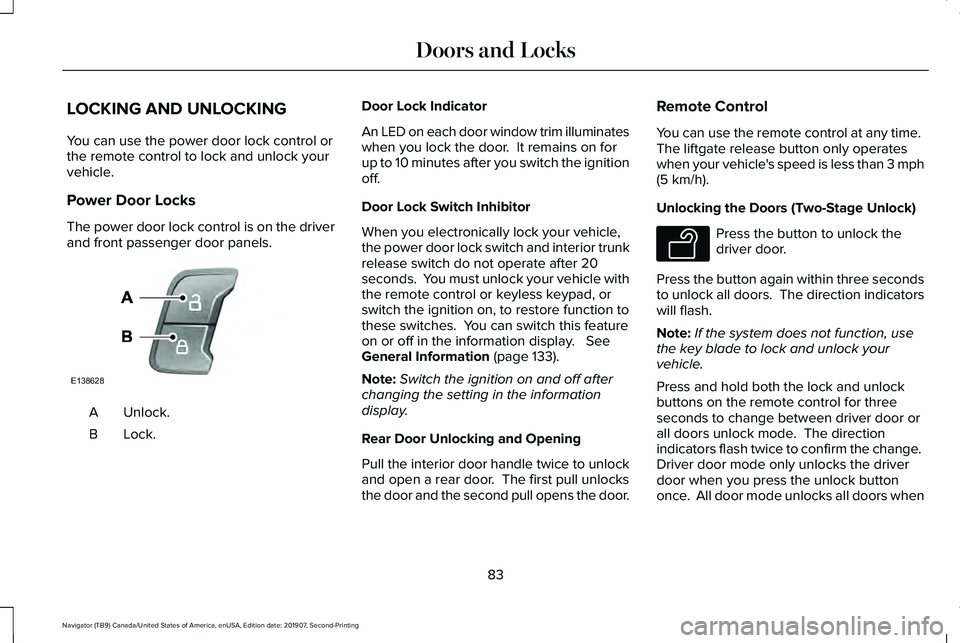
The power door lock control is on the driver
and front passenger door panels.
Unlock.
A
Lock.B Door Lock Indicator
An LED on each door window trim illuminates
when you lock the door. It remains on for
up to 10 minutes after you switch the ignition
off.
Door Lock Switch Inhibitor
When you electronically lock your vehicle,
the power door lock switch and interior trunk
release switch do not operate after 20
seconds. You must unlock your vehicle with
the remote control or keyless keypad, or
switch the ignition on, to restore function to
these switches. You can switch this feature
on or off in the information display. See
General Information (page 133).
Note: Switch the ignition on and off after
changing the setting in the information
display.
Rear Door Unlocking and Opening
Pull the interior door handle twice to unlock
and open a rear door. The first pull unlocks
the door and the second pull opens the door. Remote Control
You can use the remote control at any time.
The liftgate release button only operates
when your vehicle's speed is less than 3 mph
(5 km/h)
.
Unlocking the Doors (Two-Stage Unlock) Press the button to unlock the
driver door.
Press the button again within three seconds
to unlock all doors. The direction indicators
will flash.
Note: If the system does not function, use
the key blade to lock and unlock your
vehicle.
Press and hold both the lock and unlock
buttons on the remote control for three
seconds to change between driver door or
all doors unlock mode. The direction
indicators flash twice to confirm the change.
Driver door mode only unlocks the driver
door when you press the unlock button
once. All door mode unlocks all doors when
83
Navigator (TB9) Canada/United States of America, enUSA, Edition date: 201907, Second-Printing Doors and LocksE138628 E138629
Page 87 of 622
you press the unlock button once. The
unlocking mode applies to the remote
control, keyless entry keypad and intelligent
access. You can also change between the
unlocking modes using the information
display. See General Information (page 133).
Reprogramming the Unlocking Function
Note:
When you press the unlock button,
either all the doors are unlocked or only the
driver door is unlocked. Pressing the unlock
button again unlocks all the doors.
Press and hold the unlock and lock buttons
on the remote control simultaneously for at
least four seconds with the ignition off. The
direction indicators flash twice to confirm the
change.
To return to the original unlocking function,
repeat the process.
Locking the Doors Press the button to lock all doors.
The direction indicators will flash. Press the button again within three seconds
to confirm that all the doors are closed. The
door lock again, the horn sounds and the
direction indicators flash if all the doors and
the liftgate are closed.
Note:
If the system does not function, use
the key blade to lock and unlock your
vehicle.
Mislock
If any door or the liftgate is open, or if
the hood is open on vehicles with an
anti-theft alarm or remote start, the horn
sounds twice and the direction
indicators do not flash. You can switch
this feature on or off in the information
display. See General Information (page
133).
Opening the Liftgate Press twice within three seconds
to open the liftgate.Activating Intelligent Access
General Information
You can unlock and lock the vehicle without
taking the keys out of your pocket or purse
when your intelligent access key is within
3 ft (1 m)
of your vehicle. Intelligent access
uses a sensor on the back of the door handle
for unlocking and a separate sensor on the
face of each door handle for locking.
The system does not function if:
• Your vehicle battery has no charge.
• The key battery has no charge.
• The key frequencies are jammed.
Note: The system may not function if the key
is close to metal objects or electronic
devices, for example keys or a cell phone.
Note: If the system does not function, use
the key blade to lock and unlock your
vehicle.
See Remote Control (page 69).
84
Navigator (TB9) Canada/United States of America, enUSA, Edition date: 201907, Second-Printing Doors and LocksE138623 E267940