warning LINCOLN NAVIGATOR 2020 Owners Manual
[x] Cancel search | Manufacturer: LINCOLN, Model Year: 2020, Model line: NAVIGATOR, Model: LINCOLN NAVIGATOR 2020Pages: 622, PDF Size: 6.47 MB
Page 464 of 622
AUDIO UNIT
WARNING: Driving while distracted
can result in loss of vehicle control, crash
and injury. We strongly recommend that
you use extreme caution when using any
device that may take your focus off the
road. Your primary responsibility is the safe
operation of your vehicle. We recommend
against the use of any hand-held device
while driving and encourage the use of
voice-operated systems when possible.
Make sure you are aware of all applicable
local laws that may affect the use of
electronic devices while driving. Note:
Depending on your vehicle option
package, the controls may look different
from what you see here.
Note: Some features, such as satellite radio,
may not be available in your location. Check
with an authorized dealer.
Note: The touchscreen system controls most
of the audio features.
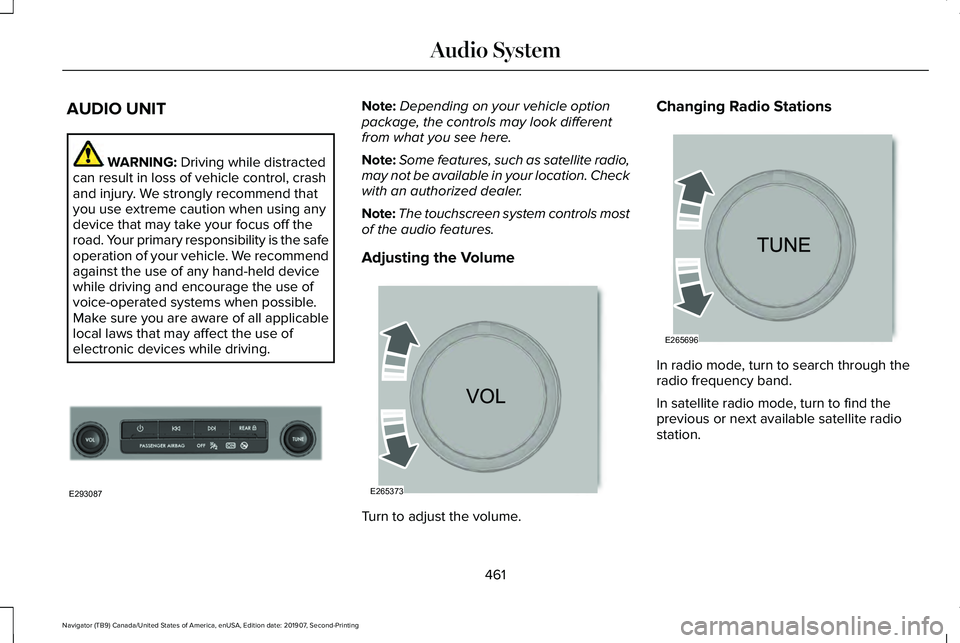
Adjusting the Volume Turn to adjust the volume.Changing Radio Stations
In radio mode, turn to search through the
radio frequency band.
In satellite radio mode, turn to find the
previous or next available satellite radio
station.
461
Navigator (TB9) Canada/United States of America, enUSA, Edition date: 201907, Second-Printing Audio SystemE293087 E265373 E265696
Page 473 of 622
Action
Condition
Message
Use the channel guide to turn off the Lock or
Skip function on that station.
All the channels in the selected category are
either skipped or locked.
None found
Check Channel Guide
No action required.
SiriusXM has updated the channels available
for your vehicle.
Subscription Updated
USB PORT WARNING: Driving while distracted
can result in loss of vehicle control, crash
and injury. We strongly recommend that
you use extreme caution when using any
device that may take your focus off the
road. Your primary responsibility is the safe
operation of your vehicle. We recommend
against the use of any hand-held device
while driving and encourage the use of
voice-operated systems when possible.
Make sure you are aware of all applicable
local laws that may affect the use of
electronic devices while driving. USB A USB C
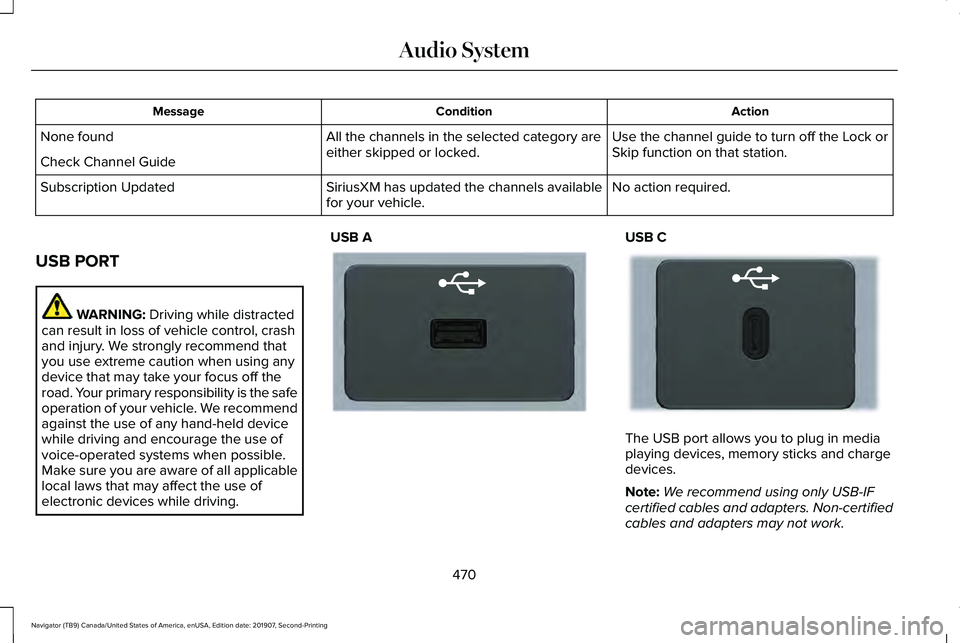
The USB port allows you to plug in media
playing devices, memory sticks and charge
devices.
Note:
We recommend using only USB-IF
certified cables and adapters. Non-certified
cables and adapters may not work.
470
Navigator (TB9) Canada/United States of America, enUSA, Edition date: 201907, Second-Printing Audio SystemE201595 E301114
Page 475 of 622
GENERAL INFORMATION
WARNING: Driving while distracted
can result in loss of vehicle control, crash
and injury. We strongly recommend that
you use extreme caution when using any
device that may take your focus off the
road. Your primary responsibility is the safe
operation of your vehicle. We recommend
against the use of any hand-held device
while driving and encourage the use of
voice-operated systems when possible.
Make sure you are aware of all applicable
local laws that may affect the use of
electronic devices while driving.
About SYNC
The system allows you to interact with the
entertainment, information and
communication systems on your vehicle
using voice commands and a touchscreen.
The system provides easy interaction with
audio, phone, navigation, mobile apps and
settings. Note:
You can switch the system on and use
it for up to an hour without switching the
ignition on.
Note: You can use the system after you
switch the ignition off for up to 10 minutes or
until you open a door.
Note: For your safety, some features are
speed-dependent. Their use is limited to
when your vehicle speed is less than 3 mph
(5 km/h)
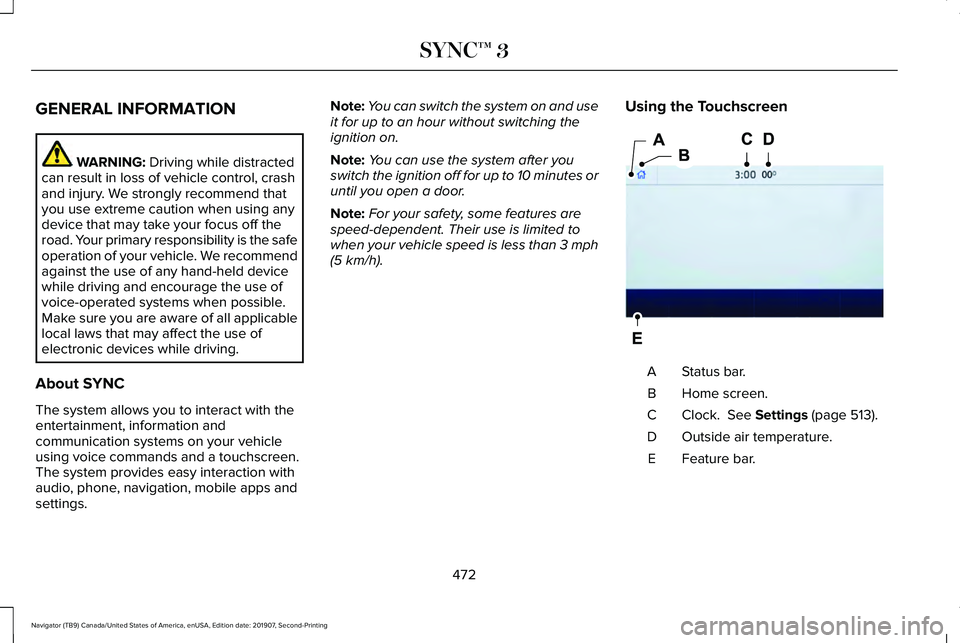
. Using the Touchscreen Status bar.
A
Home screen.
B
Clock.
See Settings (page 513).
C
Outside air temperature.
D
Feature bar.
E
472
Navigator (TB9) Canada/United States of America, enUSA, Edition date: 201907, Second-Printing SYNC™ 3E293823
Page 503 of 622
Switching the Ventilated Seats On and
Off
Touch the button to cycle through
the various ventilated seat settings.
Accessing Rear Climate Controls Touch the button to access
additional controls for the rear
climate system.
Rear Climate Control Lock Indicator Touch the button.
When on, you can only operate the
rear passenger settings through
the front controls.
Switching Rear Auto Mode On and Off Touch the button to switch on rear
automatic operation, then set the
temperature. Switching the Rear Climate Controlled
Seats On and Off Touch the button to cycle through
the various climate controlled seat
settings.
Switching the Rear Heated Seats On
and Off Touch the button to cycle through
the various heat settings.
Switching the Rear Ventilated Seats
On and Off Touch the button to cycle through
the various ventilated seat settings.PHONE WARNING: Driving while distracted
can result in loss of vehicle control, crash
and injury. We strongly recommend that
you use extreme caution when using any
device that may take your focus off the
road. Your primary responsibility is the safe
operation of your vehicle. We recommend
against the use of any hand-held device
while driving and encourage the use of
voice-operated systems when possible.
Make sure you are aware of all applicable
local laws that may affect the use of
electronic devices while driving.
Check the compatibility of your device on
the regional website.
Pairing Your Cell Phone for the First
Time
Go to the settings menu on your cell phone
and switch Bluetooth on. Select the phone option on the
feature bar.
500
Navigator (TB9) Canada/United States of America, enUSA, Edition date: 201907, Second-Printing SYNC™ 3E268558 E270447 E265289 E265282 E268558
Page 514 of 622
5. Select the app that you want to use on
the touchscreen.
Note: Connect your device to a USB port if
you want to use a navigation app. When
using a navigation app, keep your device
unlocked and the app open.
Using Apps on an Android Device Select the apps option on the
feature bar.
1. If your device is connected via USB, switch Android Auto off. See Phone
(page 500).
2. Pair your device. See
Phone (page 500).
3. Start the apps on your device that you want to use through SYNC.
Note: If you close the apps on your device,
you will not be able to use them through the
system.
4. Select
Find Mobile Apps.
Note: The system searches and connects to
compatible apps that are running on your
device. 5. Select the app that you want to use on
the touchscreen.
Note: Mobile Apps on your device use the
USB port to establish a connection with
SYNC. Some devices may lose the ability to
play music over USB when Mobile Apps are
enabled.
Using Mobile Navigation on an Android
Device
1. Connect your device to a USB port.
2. Switch Android Auto off.
See Phone
(page 500).
3. Switch on
Enable Mobile Apps via USB
in the Mobile Apps Settings tile.
4. Select the apps option on the feature bar.
5. Select the navigation app that you want to use on the touchscreen.
Note: When using a navigation app, keep
your device unlocked and the app open. SiriusXM Traffic and Travel Link
(If
Equipped) WARNING:
Driving while distracted
can result in loss of vehicle control, crash
and injury. We strongly recommend that
you use extreme caution when using any
device that may take your focus off the
road. Your primary responsibility is the safe
operation of your vehicle. We recommend
against the use of any hand-held device
while driving and encourage the use of
voice-operated systems when possible.
Make sure you are aware of all applicable
local laws that may affect the use of
electronic devices while driving.
Note: SiriusXM Traffic and Travel Link may
not be available in all markets.
Note: In order to use SiriusXM Traffic and
Travel Link, your vehicle must have
navigation.
Note: A paid subscription is required to
access and use these features. Go to
www.siriusxm.com/travellink for more
information.
511
Navigator (TB9) Canada/United States of America, enUSA, Edition date: 201907, Second-Printing SYNC™ 3
Page 543 of 622
Check Every Six Months
Safety belts and seat latches for wear and function.
Safety warning lamps (brake, ABS, airbag and safety belt) for operation.
Washer spray and wiper operation. Clean or replace blades as necessary.
Multi-Point Inspection
In order to keep your vehicle running right,
it is important to have the systems on your
vehicle checked regularly. This can help
identify potential issues and prevent major
problems. We recommend having the
following multi-point inspection performed
at every scheduled maintenance interval to
help make sure your vehicle keeps running
great. Multi-Point Inspection
Hazard warning system operation
Accessory drive belt(s)
Horn operation
Battery performance
Radiator, cooler, heater and air conditioning hoses
Engine air filter
Suspension components for leaks or damage
Exhaust system
540
Navigator (TB9) Canada/United States of America, enUSA, Edition date: 201907, Second-Printing Scheduled Maintenance
Page 572 of 622
ELECTROMAGNETIC
COMPATIBILITY
WARNING: Do not place objects or
mount equipment on or near the airbag
cover, on the side of the front or rear
seatbacks, or in areas that may come into
contact with a deploying airbag. Failure to
follow these instructions may increase the
risk of personal injury in the event of a
crash. WARNING:
Do not fasten antenna
cables to vehicle wiring, fuel pipes and
brake pipes. WARNING: Keep antenna and power
cables at least
4 in (10 cm) from any
electronic modules and airbags.
Note: We test and certify your vehicle to
meet electromagnetic compatibility
legislation. It is your responsibility to make
sure that any equipment an authorized
dealer installs on your vehicle complies with
applicable local legislation and other
requirements. Installation of some
aftermarket electronic devices could
degrade the performance of vehicle
functions, which use radio frequency signals
such as broadcast radio receiver, tire
pressure monitoring system, push button
start, Bluetooth connectivity or satellite
navigation. Note:
Any radio frequency transmitter
equipment in your vehicle (such as cellular
telephones and amateur radio transmitters)
must keep to the parameters in the following
illustrations and table. We do not provide
any other special provisions or conditions
for installations or use.
569
Navigator (TB9) Canada/United States of America, enUSA, Edition date: 201907, Second-Printing Appendices
Page 593 of 622
communication with any positioning devices
or any mobile or wireless-connected
electronic or computer devices, including
without limitation cellular phones, palmtop
and handheld computers, pagers, and
personal digital assistants or PDAs.
Warning. The Data may contain inaccurate
or incomplete information due to the
passage of time, changing circumstances,
sources used and the nature of collecting
comprehensive geographic data, any of
which may lead to incorrect results.
No Warranty.
This Data is provided to you
“as is, ” and you agree to use it at your own
risk. Telenav and its licensors (and their
licensors and suppliers) make no guarantees,
representations or warranties of any kind,
express or implied, arising by law or
otherwise, including but not limited to,
content, quality, accuracy, completeness,
effectiveness, reliability, fitness for a
particular purpose, usefulness, use or results
to be obtained from this Data, or that the
Data or server will be uninterrupted or
error-free. Disclaimer of Warranty: TELENAV AND ITS
LICENSORS (INCLUDING THEIR LICENSORS
AND SUPPLIERS) DISCLAIM ANY
WARRANTIES, EXPRESS OR IMPLIED, OF
QUALITY, PERFORMANCE,
MERCHANTABILITY, FITNESS FOR A
PARTICULAR PURPOSE OR
NON-INFRINGEMENT. Some States,
Territories and Countries do not allow certain
warranty exclusions, so to that extent the
above exclusion may not apply to you.
Disclaimer of Liability:
TELENAV AND ITS
LICENSORS (INCLUDING THEIR LICENSORS
AND SUPPLIERS) SHALL NOT BE LIABLE TO
YOU: IN RESPECT OF ANY CLAIM, DEMAND
OR ACTION, IRRESPECTIVE OF THE
NATURE OF THE CAUSE OF THE CLAIM,
DEMAND OR ACTION ALLEGING ANY LOSS,
INJURY OR DAMAGES, DIRECT OR
INDIRECT, WHICH MAY RESULT FROM THE
USE OR POSSESSION OF THE
INFORMATION; OR FOR ANY LOSS OF
PROFIT, REVENUE, CONTRACTS OR
SAVINGS, OR ANY OTHER DIRECT,
INDIRECT, INCIDENTAL, SPECIAL OR
CONSEQUENTIAL DAMAGES ARISING OUT
OF YOUR USE OF OR INABILITY TO USE THIS INFORMATION, ANY DEFECT IN THE
INFORMATION, OR THE BREACH OF THESE
TERMS OR CONDITIONS, WHETHER IN AN
ACTION IN CONTRACT OR TORT OR BASED
ON A WARRANTY, EVEN IF TELENAV OR
ITS LICENSORS HAVE BEEN ADVISED OF
THE POSSIBILITY OF SUCH DAMAGES.
Some States, Territories and Countries do
not allow certain liability exclusions or
damages limitations, so to that extent the
above may not apply to you.
Export Control. You shall not export from
anywhere any part of the Data or any direct
product thereof except in compliance with,
and with all licenses and approvals required
under, applicable export laws, rules and
regulations, including but not limited to the
laws, rules and regulations administered by
the Office of Foreign Assets Control of the
U.S. Department of Commerce and the
Bureau of Industry and Security of the U.S.
Department of Commerce. To the extent that
any such export laws, rules or regulations
prohibit HERE from complying with any of its
obligations hereunder to deliver or distribute
Data, such failure shall be excused and shall
not constitute a breach of this Agreement.
590
Navigator (TB9) Canada/United States of America, enUSA, Edition date: 201907, Second-Printing Appendices
Page 605 of 622
Gracenote uses a unique identifier to track
queries for statistical purposes. The purpose
of a randomly assigned numeric identifier is
to allow Gracenote to count queries without
knowing anything about who you are. For
more information, see the web page at
www.gracenote.com for the Gracenote
Privacy Policy.
THE GRACENOTE SOFTWARE, EACH ITEM
OF GRACENOTE DATA AND THE
GRACENOTE CONTENT ARE LICENSED TO
YOU "AS IS". NEITHER GRACENOTE MAKES
ANY REPRESENTATIONS OR WARRANTIES,
EXPRESS OR IMPLIED, REGARDING THE
ACCURACY OF ANY GRACENOTE DATA
FROM THE GRACENOTE SERVERS OR
GRACENOTE CONTENT. GRACENOTE
COLLECTIVELY AND SEPARATELY RESERVE
THE RIGHT TO DELETE DATA AND/OR
CONTENT FROM THE COMPANIES'
RESPECTIVE SERVERS OR, IN THE CASE OF
GRACENOTE, CHANGE DATA CATEGORIES
FOR ANY CAUSE THAT GRACENOTE
DEEMS SUFFICIENT. NO WARRANTY IS
MADE THAT EITHER GRACENOTE
CONTENT OR THE GRACENOTE SOFTWARE
OR GRACENOTE SERVERS ARE
ERROR-FREE OR THAT THE FUNCTIONING
OF THE GRACENOTE SOFTWARE OR
GRACENOTE SERVERS WILL BE
UNINTERRUPTED. GRACENOTE IS NOT
OBLIGATED TO PROVIDE YOU WITH ANY
ENHANCED OR ADDITIONAL DATA TYPES
THAT GRACENOTE MAY CHOOSE TO
PROVIDE IN THE FUTURE AND IS FREE TO
DISCONTINUE ITS ONLINE SERVICES AT
ANY TIME. GRACENOTE DISCLAIM ALL
WARRANTIES EXPRESS OR IMPLIED,
INCLUDING, BUT NOT LIMITED TO, IMPLIED
WARRANTIES OF MERCHANTABILITY,
FITNESS FOR A PARTICULAR PURPOSE,
TITLE, AND NON-INFRINGEMENT. NEITHER
GRACENOTE WARRANTS THE RESULTS
THAT WILL BE OBTAINED BY YOUR USE
OF THE GRACENOTE SOFTWARE OR ANY
GRACENOTE SERVER. IN NO CASE WILL
GRACENOTE BE LIABLE FOR ANY
CONSEQUENTIAL OR INCIDENTAL
DAMAGES OR FOR ANY LOST PROFITS OR
LOST REVENUES FOR ANY REASON
WHATSOEVER. © Gracenote 2007.
Radio Frequency Statement
FCC ID: ACJ-SYNCG3-L
IC: 216B-SYNCG3-L
This device complies with Part 15 of the FCC
Rules and with RSS-210 of Industry Canada.
Operation is subject to the following two
conditions:
(1) This device may not cause harmful
interference, and
(2)
this device must accept any interference
received, including interference that may
cause undesired operation. WARNING: Changes or modifications
not expressively approved by the party
responsible for compliance could void the
user's authority to operate the equipment.
The term "IC:" before the radio certification
number only signifies that Industry Canada
technical specifications were met.
The antenna used for this transmitter must
not be co-located or operating in conjunction
with any other antenna or transmitter.
602
Navigator (TB9) Canada/United States of America, enUSA, Edition date: 201907, Second-Printing Appendices
Page 608 of 622
3
360 Degree Camera...................................264
Advanced Camera Views................................266
Automatic 360 Degree Camera
Activation.........................................................265
Camera Views.....................................................265
Front Camera......................................................266
Keep Out Zone...................................................266
Side Camera........................................................267
4
4WD See: Four-Wheel Drive......................................228
9
911 Assist...........................................................67
A
A/C See: Climate Control..........................................165
About This Manual
............................................9
ABS See: Brakes..........................................................237 ABS driving hints
See: Hints on Driving With Anti-Lock
Brakes...............................................................238
Accessories...................................................532
Accessories See: Replacement Parts Recommendation......17
ACC See: Using Adaptive Cruise Control.............269
Active Park Assist
.........................................253
Using Active Park Assist...................................255
Adaptive Headlamps
.....................................112
Speed Dependent Lamps..................................112
Adjustable Pedals.........................................104
Adjusting the Headlamps
..........................389
Horizontal Aim Adjustment..............................390
Vertical Aim Adjustment...................................389
Adjusting the Pedals....................................104
Adjusting the Steering Wheel....................100 End of Travel Position........................................100
Memory Feature..................................................100
AFS See: Adaptive Headlamps.................................112
Airbag Disposal
...............................................66
Air Conditioning See: Climate Control..........................................165
Air Filter See: Changing the Engine Air Filter..............
379 Alarm
See: Anti-Theft Alarm..........................................96
Ambient Lighting
............................................114
Adjusting the Brightness....................................115
Changing the Color.............................................115
Switching Ambient Lighting Off........................115
Switching Ambient Lighting On........................115
Anti-Theft Alarm..............................................96 Arming the Alarm..................................................96
Disarming the Alarm.............................................97
Using the System..................................................96
Appendices...................................................569
Apps.................................................................510 SiriusXM Traffic and Travel Link........................511
Using Apps on an Android Device..................
511
Using Apps on an iOS Device.........................510
Using Mobile Navigation on an Android Device.................................................................511
At a Glance........................................................21
Audible Warnings and Indicators..............132 Headlamps On Warning Chime
.......................132
Keyless Warning Alert........................................132
Parking Brake On Warning Chime..................132
Audio Control
..................................................101
You can operate the following functions with
the control:........................................................101
Audio System................................................460 General Information...........................................460
605
Navigator (TB9) Canada/United States of America, enUSA, Edition date: 201907, Second-Printing Index