warning light LINCOLN NAVIGATOR 2020 Service Manual
[x] Cancel search | Manufacturer: LINCOLN, Model Year: 2020, Model line: NAVIGATOR, Model: LINCOLN NAVIGATOR 2020Pages: 622, PDF Size: 6.47 MB
Page 281 of 622
Using Driver Alert
Switching the system on and off
You may switch the system on or off through
the information display. See General
Information (page 133). When activated, the
system monitors your alertness level based
upon your driving behavior in relation to the
lane markings, and other factors.
System Warnings
Note: The system does not issue warnings
below approximately
40 mph (64 km/h).
The warning system is in two stages. At first
the system issues a temporary warning that
you need to take a rest. This message will
only appear for a short time. If the system
detects further reduction in driving alertness,
another warning may be issued which will
remain in the information display for a longer
time. Press OK on the steering wheel control
to clear the warning. When active the system
will run automatically in the background and
only issue a warning if required. Resetting the System
You can reset the system by either:
•
Switching the ignition off and on.
• Stopping your vehicle and then opening
and closing the driver’ s door.
LANE KEEPING SYSTEM WARNING:
You are responsible for
controlling your vehicle at all times. The
system is designed to be an aid and does
not relieve you of your responsibility to
drive with due care and attention. Failure
to follow this instruction could result in the
loss of control of your vehicle, personal
injury or death. WARNING:
Always drive with due
care and attention when using and
operating the controls and features on your
vehicle. WARNING:
In cold and severe
weather conditions the system may not
function. Rain, snow and spray can all limit
sensor performance. WARNING:
The system will not
operate if the sensor cannot track the road
lane markings. WARNING:
The sensor may
incorrectly track lane markings as other
structures or objects. This can result in a
false or missed warning. WARNING: Large contrasts in outside
lighting can limit sensor performance. WARNING:
The system may not
operate properly if the sensor is blocked.
Keep the windshield free from obstruction. WARNING:
If damage occurs in the
immediate area surrounding the sensor,
have your vehicle checked as soon as
possible.
278
Navigator (TB9) Canada/United States of America, enUSA, Edition date: 201907, Second-Printing Driving Aids
Page 282 of 622
WARNING: The system may not
correctly operate if your vehicle is fitted
with a suspension kit not approved by us.
Note: The system works above
40 mph
(64 km/h).
Note: The system works as long as the
camera can detect one lane marking.
Note: When you select aid or alert and aid
mode and the system detects no steering
activity for a short period, the system alerts
you to put your hands on the steering wheel.
The system may detect a light grip or touch
on the steering wheel as hands off driving.
Note: The system may not function if the
camera is blocked, or if the windshield is
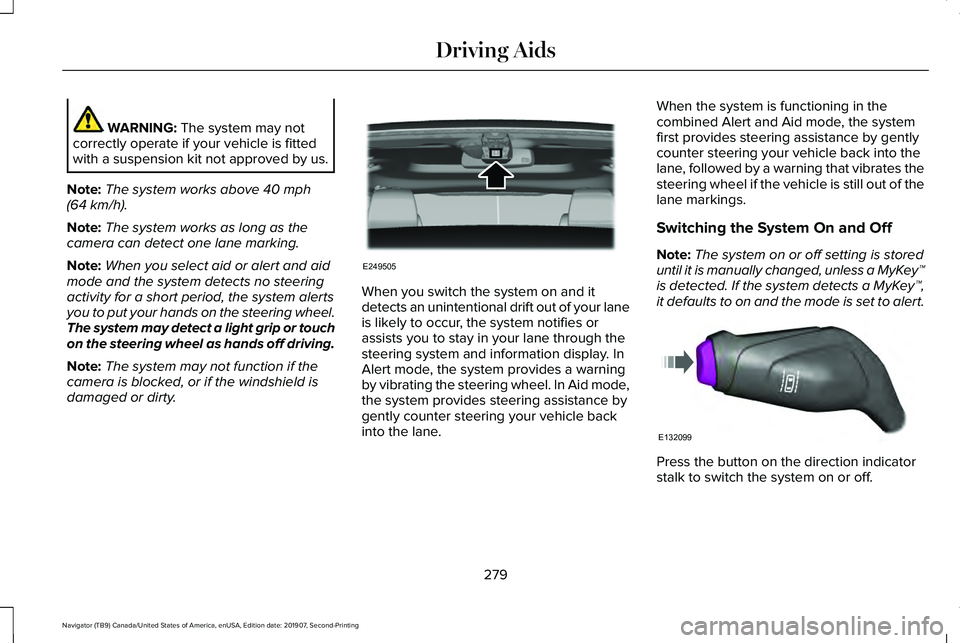
damaged or dirty. When you switch the system on and it
detects an unintentional drift out of your lane
is likely to occur, the system notifies or
assists you to stay in your lane through the
steering system and information display. In
Alert mode, the system provides a warning
by vibrating the steering wheel. In Aid mode,
the system provides steering assistance by
gently counter steering your vehicle back
into the lane.When the system is functioning in the
combined Alert and Aid mode, the system
first provides steering assistance by gently
counter steering your vehicle back into the
lane, followed by a warning that vibrates the
steering wheel if the vehicle is still out of the
lane markings.
Switching the System On and Off
Note:
The system on or off setting is stored
until it is manually changed, unless a MyKey™
is detected. If the system detects a MyKey™,
it defaults to on and the mode is set to alert. Press the button on the direction indicator
stalk to switch the system on or off.
279
Navigator (TB9) Canada/United States of America, enUSA, Edition date: 201907, Second-Printing Driving AidsE249505 E132099
Page 285 of 622
 when I can s\
ee the lane markings on the road?
Your vehicle speed is outside the operational range of the feature.
The sun is")
Troubleshooting
Why is the feature not available (line markings are gray) when I can s\
ee the lane markings on the road?
Your vehicle speed is outside the operational range of the feature.
The sun is shining directly into the camera lens.
A quick intentional lane change has occurred.
Your vehicle stays too close to the lane markings.
Driving at high speeds in curves.
The last alert warning or aid intervention occurred a short time ago.
Ambiguous lane markings, for example in construction zones.
Rapid transition from light to dark, or from dark to light.
Sudden offset in lane markings.
ABS or AdvanceTrac ™ is active.
There is a camera blockage due to dirt, grime, fog, frost or water on the windshield.
You are driving too close to the vehicle in front of you.
Transitioning between no lane markings to lane markings or vice versa.
There is standing water on the road.
Faint lane markings, for example partial yellow lane markings on concret\
e roads.
282
Navigator (TB9) Canada/United States of America, enUSA, Edition date: 201907, Second-Printing Driving Aids
Page 290 of 622
Note:
You do not need to enter an exact
trailer width measurement. You only need
to confirm that the width of the trailer is 8.5 ft
(2.6 m) or less.
• Trailer length measurement:
The trailer length is the distance between
the trailer hitch ball and the rear of the trailer.
The maximum length that the system can
support is
33 ft (10.1 m).
• Enter length of trailer:
The default setting is
18 ft (5.5 m). Toggling
up or down using the menu buttons
increases or decreases the measurement by
3 ft (1 m)
. Select a length that is equal to or
within 3 ft (1 m) of the actual measured
length. For example, if the actual measured
length is
25 ft (7.6 m), toggle the length in
the menu to 27 ft (8.2 m). When you enter
the length of the trailer, the system setup is
saved.
Note: If the trailer is actually a bike rack or
cargo rack with electrical lighting, enter a
length of 3 ft (1 m)
. Cross Traffic Alert remains
on for trailers with a length of 3 ft (1 m) or
less. Note:
Proper measurement and
measurement entry is required for the
system to function as designed.
System Operation
When you connect a trailer to your vehicle,
the trailer set up menu appears in the
information display. This menu allows you to
set up a new trailer or choose from a
previously set up trailer. A warning message
appears and the system turns off if you do
not choose or add a new trailer.
Note: The warning message may not appear
until your vehicle speed reaches
22 mph
(35 km/h).
If you select a trailer in the information
display before connecting a trailer to your
vehicle, the system loads the configuration
for the selected trailer. When a trailer is
connected, a warning message appears.
Note: A second warning message may
appear stating that the Cross Traffic Alert
system has turned off. The Blind Spot
Information System with Trailer Tow
continues to function normally in this
situation. Note:
The system remembers the last
selected trailer set up when you start your
vehicle.
Trailer Considerations
The system is designed to work with a trailer
with a front width of 8.5 ft (2.6 m) or less, and
a total length from the trailer hitch ball to the
rear of the trailer of
33 ft (10.1 m) or less.
Some trailers may cause a slight change in
system performance:
• Large box trailers may cause false alerts
to occur when driving next to
infrastructures or near parked cars. A
false alert may also occur while making
a 90-degree turn.
• Trailers that have a width greater than
8.5 ft (2.6 m)
at the front and have a total
length greater than 20 ft (6 m) may cause
delayed alerts when a vehicle is passing
at high speed.
287
Navigator (TB9) Canada/United States of America, enUSA, Edition date: 201907, Second-Printing Driving Aids
Page 297 of 622
PRE-COLLISION ASSIST
WARNING: You are responsible for
controlling your vehicle at all times. The
system is designed to be an aid and does
not relieve you of your responsibility to
drive with due care and attention. Failure
to follow this instruction could result in the
loss of control of your vehicle, personal
injury or death. WARNING:
The system does not
detect vehicles moving in a different
direction or animals. Apply the brakes
when necessary. Failure to follow this
instruction could result in the loss of
control of your vehicle, personal injury or
death. WARNING:
The system does not
detect vehicles that are driving in a
different direction, cyclists or animals.
Apply the brakes when necessary. Failure
to follow this instruction could result in the
loss of control of your vehicle, personal
injury or death. WARNING:
The system does not
operate during hard acceleration or
steering. Failure to take care may lead to
a crash or personal injury. WARNING:
The system may fail or
operate with reduced function during cold
and severe weather conditions. Snow, ice,
rain, spray and fog can adversely affect the
system. Keep the front camera and radar
free of snow and ice. Failure to take care
may result in the loss of control of your
vehicle, serious personal injury or death. WARNING:
Some situations and
objects prevent hazard detection. For
example low or direct sunlight, inclement
weather, unconventional vehicle types, and
pedestrians. Apply the brakes when
necessary. Failure to follow this instruction
could result in the loss of control of your
vehicle, personal injury or death. WARNING:
The system cannot help
prevent all crashes. Do not rely on this
system to replace driver judgment and the
need to maintain a safe distance and
speed.
Using the Pre-Collision Assist System
The Pre-Collision Assist system is active at
speeds above approximately 3 mph (5 km/h)
and pedestrian detection is active at speeds
up to
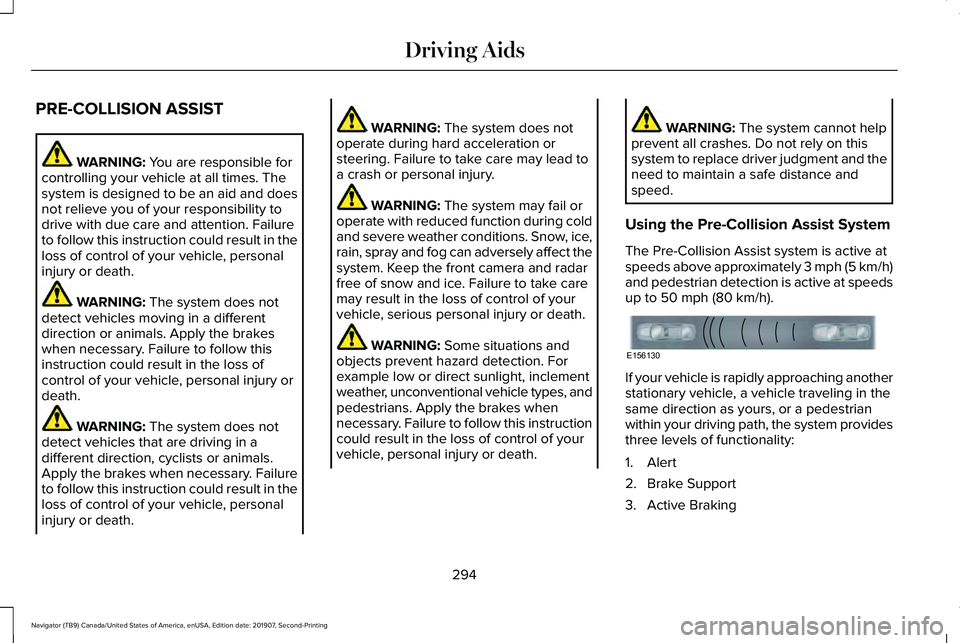
50 mph (80 km/h). If your vehicle is rapidly approaching another
stationary vehicle, a vehicle traveling in the
same direction as yours, or a pedestrian
within your driving path, the system provides
three levels of functionality:
1. Alert
2. Brake Support
3. Active Braking
294
Navigator (TB9) Canada/United States of America, enUSA, Edition date: 201907, Second-Printing Driving AidsE156130
Page 298 of 622
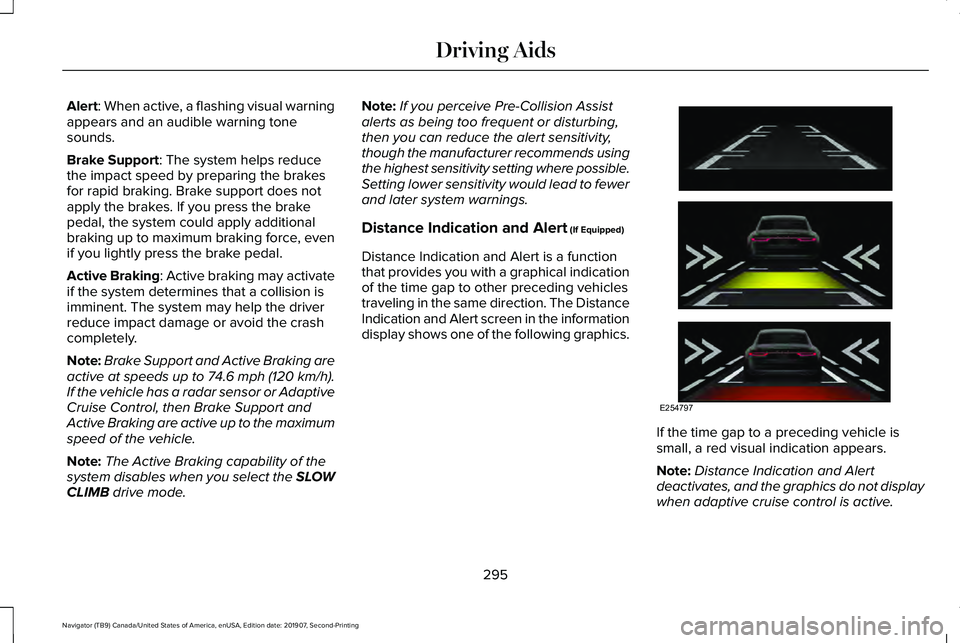
Alert: When active, a flashing visual warning
appears and an audible warning tone
sounds.
Brake Support
: The system helps reduce
the impact speed by preparing the brakes
for rapid braking. Brake support does not
apply the brakes. If you press the brake
pedal, the system could apply additional
braking up to maximum braking force, even
if you lightly press the brake pedal.
Active Braking
: Active braking may activate
if the system determines that a collision is
imminent. The system may help the driver
reduce impact damage or avoid the crash
completely.
Note: Brake Support and Active Braking are
active at speeds up to 74.6 mph (120 km/h).
If the vehicle has a radar sensor or Adaptive
Cruise Control, then Brake Support and
Active Braking are active up to the maximum
speed of the vehicle.
Note: The Active Braking capability of the
system disables when you select the SLOW
CLIMB
drive mode. Note:
If you perceive Pre-Collision Assist
alerts as being too frequent or disturbing,
then you can reduce the alert sensitivity,
though the manufacturer recommends using
the highest sensitivity setting where possible.
Setting lower sensitivity would lead to fewer
and later system warnings.
Distance Indication and Alert
(If Equipped)
Distance Indication and Alert is a function
that provides you with a graphical indication
of the time gap to other preceding vehicles
traveling in the same direction. The Distance
Indication and Alert screen in the information
display shows one of the following graphics. If the time gap to a preceding vehicle is
small, a red visual indication appears.
Note:
Distance Indication and Alert
deactivates, and the graphics do not display
when adaptive cruise control is active.
295
Navigator (TB9) Canada/United States of America, enUSA, Edition date: 201907, Second-Printing Driving AidsE254797
Page 306 of 622
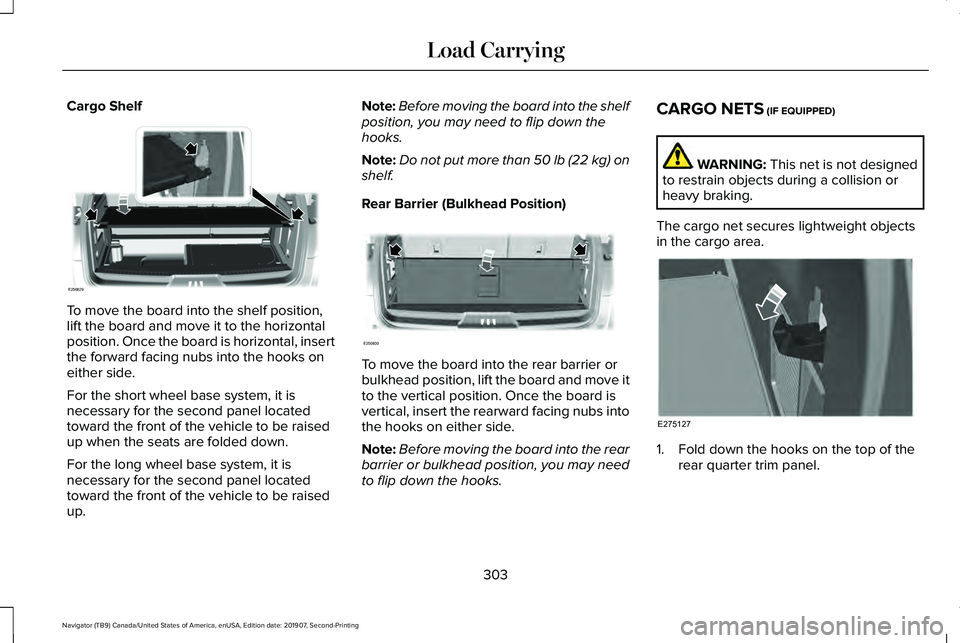
Cargo Shelf
To move the board into the shelf position,
lift the board and move it to the horizontal
position. Once the board is horizontal, insert
the forward facing nubs into the hooks on
either side.
For the short wheel base system, it is
necessary for the second panel located
toward the front of the vehicle to be raised
up when the seats are folded down.
For the long wheel base system, it is
necessary for the second panel located
toward the front of the vehicle to be raised
up. Note:
Before moving the board into the shelf
position, you may need to flip down the
hooks.
Note: Do not put more than 50 lb (22 kg) on
shelf.
Rear Barrier (Bulkhead Position) To move the board into the rear barrier or
bulkhead position, lift the board and move it
to the vertical position. Once the board is
vertical, insert the rearward facing nubs into
the hooks on either side.
Note:
Before moving the board into the rear
barrier or bulkhead position, you may need
to flip down the hooks. CARGO NETS (IF EQUIPPED) WARNING:
This net is not designed
to restrain objects during a collision or
heavy braking.
The cargo net secures lightweight objects
in the cargo area. 1. Fold down the hooks on the top of the
rear quarter trim panel.
303
Navigator (TB9) Canada/United States of America, enUSA, Edition date: 201907, Second-Printing Load CarryingE250829 E250830 E275127
Page 314 of 622
TOWING A TRAILER
WARNING: Towing trailers
beyond the maximum recommended
gross trailer weight exceeds the limit
of your vehicle and could result in
engine damage, transmission damage,
structural damage, loss of vehicle
control, vehicle rollover and personal
injury. WARNING:
Do not exceed the
GVWR or the GAWR specified on the
certification label.
Note: See
Recommended Towing
Weights (page 323).
Your vehicle may have electrical items,
such as fuses or relays, related to
towing.
See Fuses (page 356). Your vehicle's load capacity designation
is by weight, not by volume, so you
cannot necessarily use all available
space when loading a vehicle or trailer.
Towing a trailer places an extra load on
your vehicle's engine, transmission, axle,
brakes, tires and suspension. Inspect
these components periodically during,
and after, any towing operation.
Load Placement
To help minimize how trailer movement
affects your vehicle when driving:
•
Load the heaviest items closest to
the trailer floor.
• Load the heaviest items centered
between the left and right side trailer
tires. •
Load the heaviest items above the
trailer axles or just slightly forward
toward the trailer tongue. Do not
allow the final trailer tongue weight
to go above or below 10-15% of the
loaded trailer weight.
• Select a ball mount with the correct
rise or drop and load capacity. When
both the loaded vehicle and trailer
are connected, the trailer frame
should be level, or slightly angled
down toward your vehicle, when
viewed from the side.
When driving with a trailer or payload, a
slight takeoff vibration or shudder may
be present due to the increased payload
weight. Additional information regarding
proper trailer loading and setting your
vehicle up for towing is located in
another chapter of this manual.
See
Load Limit (page 305).
You can also find information in the
RV
& Trailer Towing Guide available at your
authorized dealer, or online.
311
Navigator (TB9) Canada/United States of America, enUSA, Edition date: 201907, Second-Printing Towing
Page 323 of 622
Calibration
The system monitors various vehicle
parameters to ensure your vehicle is being
driven straight and the trailer straight behind
your vehicle. Any steering input or trailer
movement will pause the calibration.
For best results:
•
Use a long, straight, smooth and level
road when attempting to calibrate.
• Drive straight forward.
• Drive between 4 mph (6 km/h) and
24 mph (39 km/h).
System Operation
The following warnings or difficulties may
occur during feature operation. Tips to
resolve them are listed below. The system is not available:
•
The system relies on many sub-systems
in your vehicle to operate correctly. If
those sub-systems are not operating
correctly the system may not be
available.
• Low battery voltage is a condition which
will prevent the system from operating.
Please make sure the battery is correctly
charged if the system is not available.
• You may need to drive your vehicle
straight forward above 25 mph (40 km/h)
before the system is available again.
• If the message still displays take your
vehicle to an authorized dealer for
service.
Sticker lost:
• If the system cannot initially find the
sticker, it may be necessary for you to
change the lighting conditions by moving
the vehicle and trailer or waiting until
conditions change.
• Check for the following if you receive the
lost sticker message while using the
system. •
Stop your vehicle as soon as the
message displays.
• Make sure the sticker is visible and the
pattern is discernable in the rear view
camera image.
• Clean the sticker and camera to make
sure they are unobstructed.
• Clean the lens with a soft, lint-free cloth
and water.
• Clean the sticker with isopropyl rubbing
alcohol sprayed directly onto the sticker,
and then wipe clean with a soft cloth.
• Remove any items that may be blocking
the view of the sticker. Depending on
your trailer configuration and any
equipment mounted to your trailer it is
possible for the sticker to be blocked
from view of the camera as it rotates on
the hitch ball but not be blocked during
setup. Remove the obstruction if
possible. It will be necessary to remove
the sticker from it’ s current location if the
obstruction cannot be cleared and place
a new sticker that will be visible to the
camera in all positions of the trailer
behind your vehicle.
320
Navigator (TB9) Canada/United States of America, enUSA, Edition date: 201907, Second-Printing Towing
Page 326 of 622
TRAILER SWAY CONTROL (IF EQUIPPED)
WARNING: Turning off trailer sway
control increases the risk of loss of vehicle
control, serious injury or death. Ford does
not recommend disabling this feature
except in situations where speed reduction
may be detrimental (such as hill climbing),
the driver has significant trailer towing
experience, and can control trailer sway
and maintain safe operation.
Note: This feature does not prevent trailer
sway, but reduces it once it begins.
Note: This feature cannot stop all trailers
from swaying.
Note: In some cases, if vehicle speed is too
high, the system may activate multiple times,
gradually reducing vehicle speed. This feature applies your vehicle brakes at
individual wheels and, if necessary, reduces
engine power. If the trailer begins to sway,
the stability control light flashes and the
message TRAILER SWAY REDUCE SPEED
appears in the information display. The first
thing to do is slow your vehicle down, then
pull safely to the side of the road and check
for proper tongue load and trailer load
distribution.
See Load Carrying (page 301).
RECOMMENDED TOWING
WEIGHTS
Note: Do not exceed the trailer weight
for your vehicle configuration listed in
the chart below.
Note: Make sure to take into
consideration trailer frontal area. Do not
exceed 55 ft² (5.11 m²) if your vehicle has
the standard towing package, or 60 ft²
(5.57 m²) if your vehicle has the heavy
duty package. Note:
Exceeding this limitation may
significantly reduce the performance of
your towing vehicle. Selecting a trailer
with a low aerodynamic drag and
rounded front design helps optimize
performance and fuel economy.
Note: For high altitude operation,
reduce the gross combined weight by
2% per 1,000 ft (300 m) starting at the
1,000 ft (300 m) elevation point.
Note: Certain states require electric
trailer brakes for trailers over a specified
weight. Be sure to check state
regulations for this specified weight. The
maximum trailer weights listed may be
limited to this specified weight, as the
vehicle ’s electrical system may not
include the wiring connector needed to
activate electric trailer brakes.
Your vehicle may tow a trailer provided
the maximum trailer weight is less than
or equal to the maximum trailer weight
listed for your vehicle configuration on
the following chart.
323
Navigator (TB9) Canada/United States of America, enUSA, Edition date: 201907, Second-Printing Towing