transmission LINCOLN NAVIGATOR 2020 Workshop Manual
[x] Cancel search | Manufacturer: LINCOLN, Model Year: 2020, Model line: NAVIGATOR, Model: LINCOLN NAVIGATOR 2020Pages: 622, PDF Size: 6.47 MB
Page 266 of 622
The camera may not operate correctly under
the following conditions:
•
Nighttime or dark areas if one or both
reverse lamps are not operating.
• Mud, water or debris obstructs the
camera's view. Clean the lens with a soft,
lint-free cloth and non-abrasive cleaner.
The rear view camera has a washer that
activates when you use the rear window
washer. See Rear Window Wiper and
Washers (page 107).
• The rear of your vehicle is hit or
damaged, causing the camera to become
misaligned.
Camera System Settings
The rear view camera system settings can
be accessed through the display screen.
See
General Information (page 133).
Camera Guidelines
Note: Active guidelines are only available
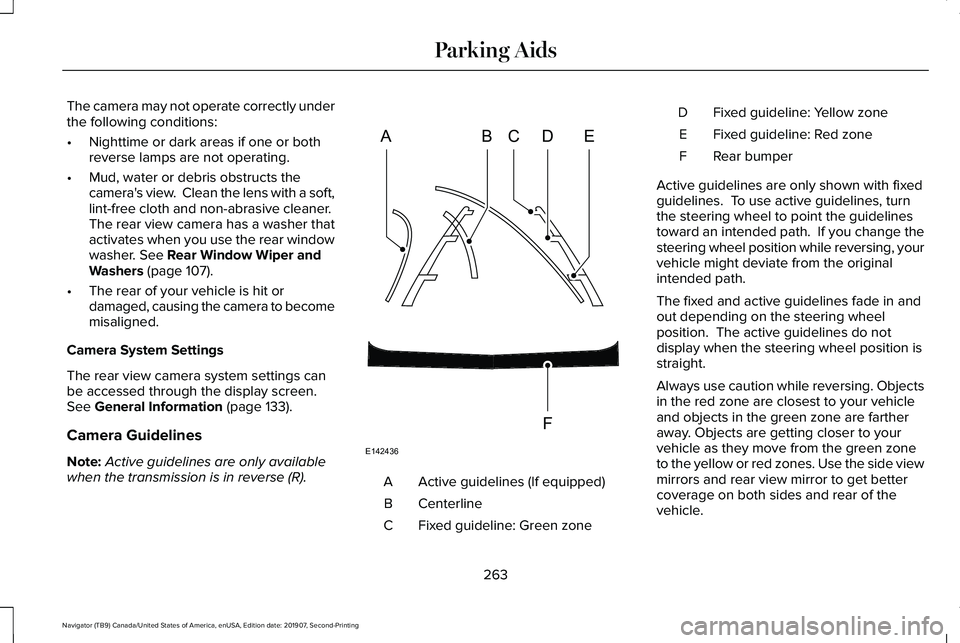
when the transmission is in reverse (R). Active guidelines (If equipped)
A
Centerline
B
Fixed guideline: Green zone
C Fixed guideline: Yellow zone
D
Fixed guideline: Red zone
E
Rear bumper
F
Active guidelines are only shown with fixed
guidelines. To use active guidelines, turn
the steering wheel to point the guidelines
toward an intended path. If you change the
steering wheel position while reversing, your
vehicle might deviate from the original
intended path.
The fixed and active guidelines fade in and
out depending on the steering wheel
position. The active guidelines do not
display when the steering wheel position is
straight.
Always use caution while reversing. Objects
in the red zone are closest to your vehicle
and objects in the green zone are farther
away. Objects are getting closer to your
vehicle as they move from the green zone
to the yellow or red zones. Use the side view
mirrors and rear view mirror to get better
coverage on both sides and rear of the
vehicle.
263
Navigator (TB9) Canada/United States of America, enUSA, Edition date: 201907, Second-Printing Parking AidsABCD
F
E
E142436
Page 267 of 622
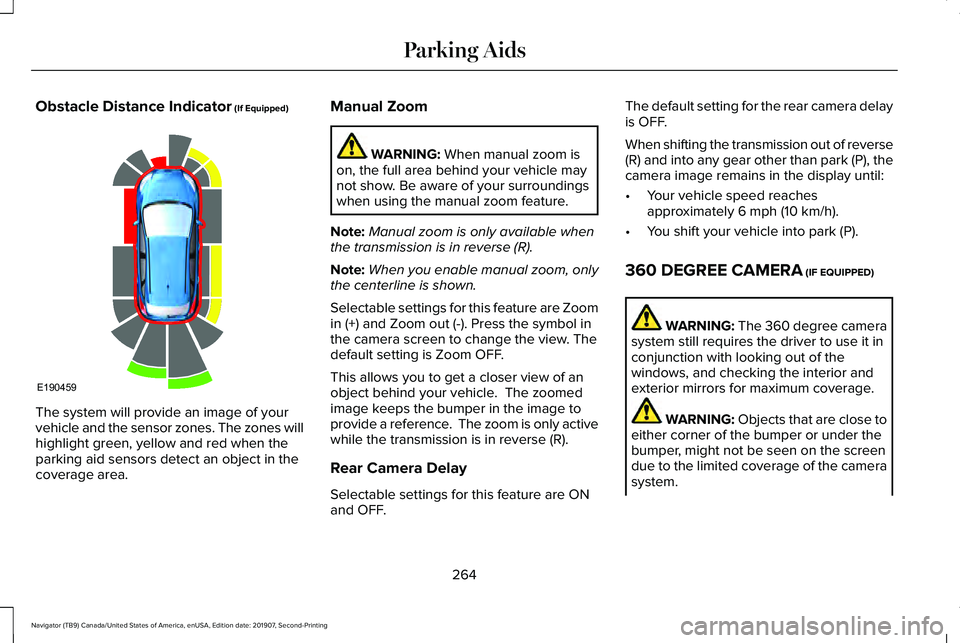
Obstacle Distance Indicator (If Equipped)
The system will provide an image of your
vehicle and the sensor zones. The zones will
highlight green, yellow and red when the
parking aid sensors detect an object in the
coverage area. Manual Zoom WARNING:
When manual zoom is
on, the full area behind your vehicle may
not show. Be aware of your surroundings
when using the manual zoom feature.
Note: Manual zoom is only available when
the transmission is in reverse (R).
Note: When you enable manual zoom, only
the centerline is shown.
Selectable settings for this feature are Zoom
in (+) and Zoom out (-). Press the symbol in
the camera screen to change the view. The
default setting is Zoom OFF.
This allows you to get a closer view of an
object behind your vehicle. The zoomed
image keeps the bumper in the image to
provide a reference. The zoom is only active
while the transmission is in reverse (R).
Rear Camera Delay
Selectable settings for this feature are ON
and OFF. The default setting for the rear camera delay
is OFF.
When shifting the transmission out of reverse
(R) and into any gear other than park (P), the
camera image remains in the display until:
•
Your vehicle speed reaches
approximately
6 mph (10 km/h).
• You shift your vehicle into park (P).
360 DEGREE CAMERA
(IF EQUIPPED) WARNING: The 360 degree camera
system still requires the driver to use it in
conjunction with looking out of the
windows, and checking the interior and
exterior mirrors for maximum coverage. WARNING:
Objects that are close to
either corner of the bumper or under the
bumper, might not be seen on the screen
due to the limited coverage of the camera
system.
264
Navigator (TB9) Canada/United States of America, enUSA, Edition date: 201907, Second-Printing Parking AidsE190459
Page 268 of 622
WARNING: Use caution when turning
camera features on or off when the
transmission is not in park (P). Make sure
your vehicle is not moving.
Note: The 360 degree camera system turns
off when your vehicle is in motion at low
speed, except when in reverse (R).
The 360 degree camera system consists of
front, side and rear cameras. The system:
• Allows you to see what is directly in front
or behind your vehicle.
• Provides cross traffic view in front and
behind your vehicle.
• Allows you to see a top-down view of the
area outside your vehicle, including the
blind spots.
• Provides visibility around your vehicle in
parking maneuvers such as:
•Centering in a parking space.
• Obstacles near vehicle.
• Parallel parking. Camera Views The front camera enable button is
near the display screen and turns
on the front camera when your
vehicle is not in reverse (R).
When in park (P), neutral (N) or drive (D), only
images from the front cameras are displayed.
Press the camera button to display the front
camera image on the display screen.
When in reverse (R), only images from the
rear cameras are displayed. When you shift
into reverse (R), the rear view camera image
automatically shows on the display screen.
Automatic 360 Degree Camera
Activation
The system activates the 360 degree camera
view when the front parking aid detects an
object. The system displays the
corresponding view when the object
distance indicator detects an object.
See
Front Parking Aid (page 250). When the front parking aid system emits an
audible tone, the 360 degree camera views
are active and deactivates a few seconds
after the tone stops. The camera view stays
active for objects detected in the red parking
aid zone regardless of tone. You can turn
the view off by pressing the physical camera
button.
Switching Automatic 360 Degree Camera
Activation On and Off
You can turn the automatic 360 degree
camera activation on and off through the
parking aid button.
The automatic 360 degree camera activation
is only available when you shift into drive (D)
or neutral (N) and if your vehicle speed is
below
6 mph (10 km/h).
The automatic 360 degree camera activation
is not available when you shift into park (P)
or reach speeds over
6 mph (10 km/h).
Note: The rear camera and 360 degree
camera operate normally regardless of
object detection.
265
Navigator (TB9) Canada/United States of America, enUSA, Edition date: 201907, Second-Printing Parking AidsE205884
Page 269 of 622
Advanced Camera Views (If Equipped)
Additional camera views may be
available for vehicles with specific
features. Press the small camera
icon shown on the top left corner of the
display screen to open the camera view
menu.
The following camera views can be accessed
in park (P), neutral (N) or drive (D) when you
press the camera button:
• Front 360 + Normal: Contains the normal
front camera view next to a 360 degree
camera view.
• Front Normal View:
Provides an image
of what is directly in front of your vehicle.
• Front Split View:
Provides an extended
view of what is in front of your vehicle. The following camera views can be accessed
when you shift into reverse (R):
•
Rear 360 + Normal: Contains the normal
rear camera view next to a 360 degree
camera view. Press the zoom (+) button
to quickly access Rear Normal View from
this screen.
• Rear Normal View:
Provides an image
of what is directly behind your vehicle.
• Rear Split View:
Provides an extended
view of what is behind your vehicle.
Keep Out Zone
The Keep Out Zone is represented by the
yellow dotted lines running parallel to your
vehicle. It is designed to give you the
indication on the ground of the fully
extended outside mirror position.
Front Camera WARNING:
The front camera system
still requires the driver to use it in
conjunction with looking out of your
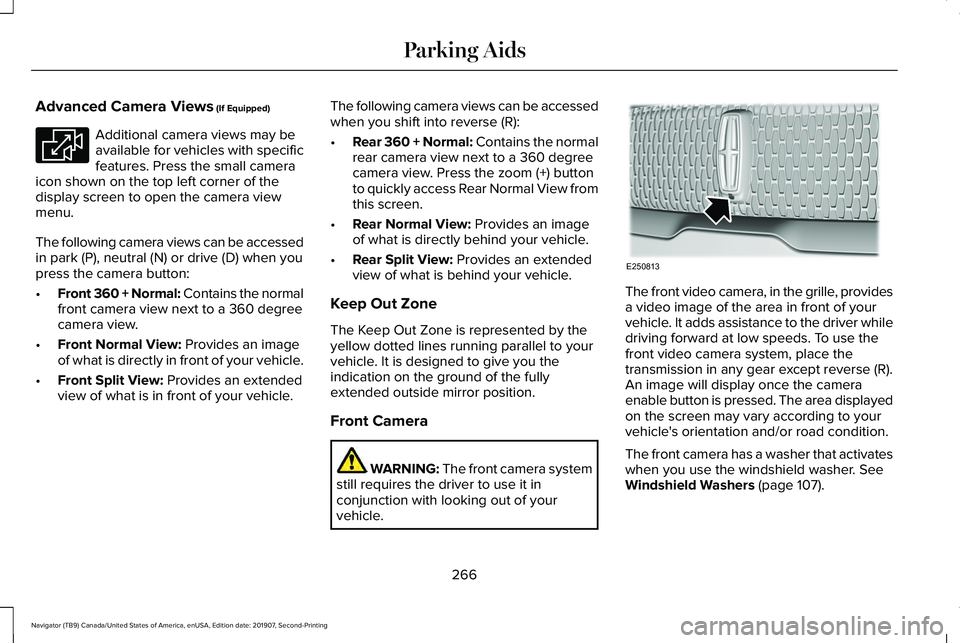
vehicle. The front video camera, in the grille, provides
a video image of the area in front of your
vehicle. It adds assistance to the driver while
driving forward at low speeds. To use the
front video camera system, place the
transmission in any gear except reverse (R).
An image will display once the camera
enable button is pressed. The area displayed
on the screen may vary according to your
vehicle's orientation and/or road condition.
The front camera has a washer that activates
when you use the windshield washer. See
Windshield Washers (page 107).
266
Navigator (TB9) Canada/United States of America, enUSA, Edition date: 201907, Second-Printing Parking AidsE233726 E250813
Page 287 of 622
BLIND SPOT INFORMATION
SYSTEM
WARNING: Do not use the blind spot
information system as a replacement for
using the interior and exterior mirrors or
looking over your shoulder before
changing lanes. The blind spot information
system is not a replacement for careful
driving. WARNING:
The system may not
operate properly during severe weather
conditions, for example snow, ice, heavy
rain and spray. Always drive with due care
and attention. Failure to take care may
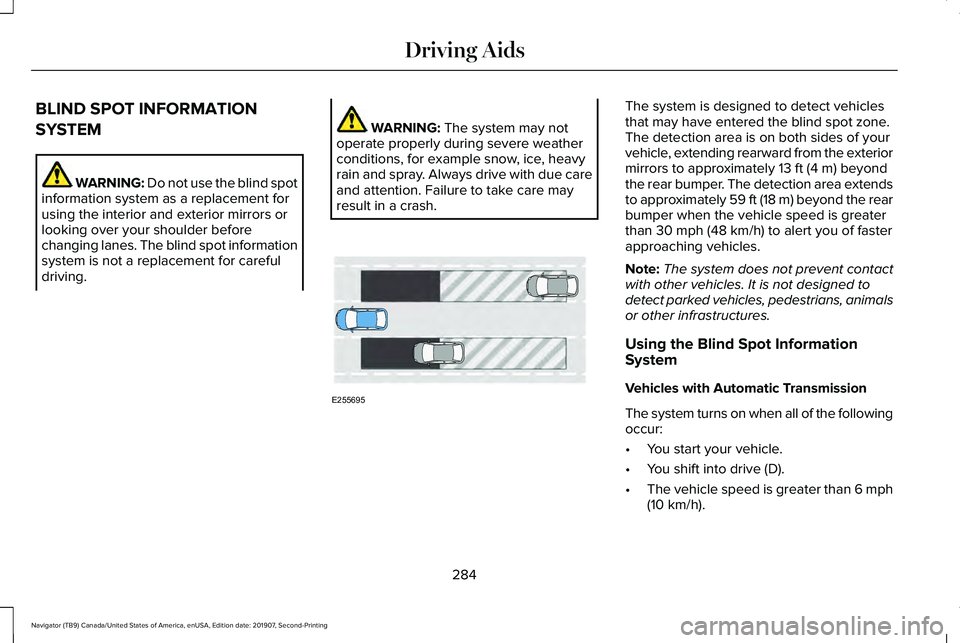
result in a crash. The system is designed to detect vehicles
that may have entered the blind spot zone.
The detection area is on both sides of your
vehicle, extending rearward from the exterior
mirrors to approximately
13 ft (4 m) beyond
the rear bumper. The detection area extends
to approximately 59 ft (18 m) beyond the rear
bumper when the vehicle speed is greater
than
30 mph (48 km/h) to alert you of faster
approaching vehicles.
Note: The system does not prevent contact
with other vehicles. It is not designed to
detect parked vehicles, pedestrians, animals
or other infrastructures.
Using the Blind Spot Information
System
Vehicles with Automatic Transmission
The system turns on when all of the following
occur:
• You start your vehicle.
• You shift into drive (D).
• The vehicle speed is greater than
6 mph
(10 km/h).
284
Navigator (TB9) Canada/United States of America, enUSA, Edition date: 201907, Second-Printing Driving AidsE255695
Page 288 of 622
Note:
The system does not operate in park
(P) or reverse (R).
Vehicles with Manual Transmission
The system turns on when all of the following
occur:
• You start your vehicle.
• The vehicle speed is greater than 6 mph
(10 km/h).
Note: The system does not operate in
reverse (R).
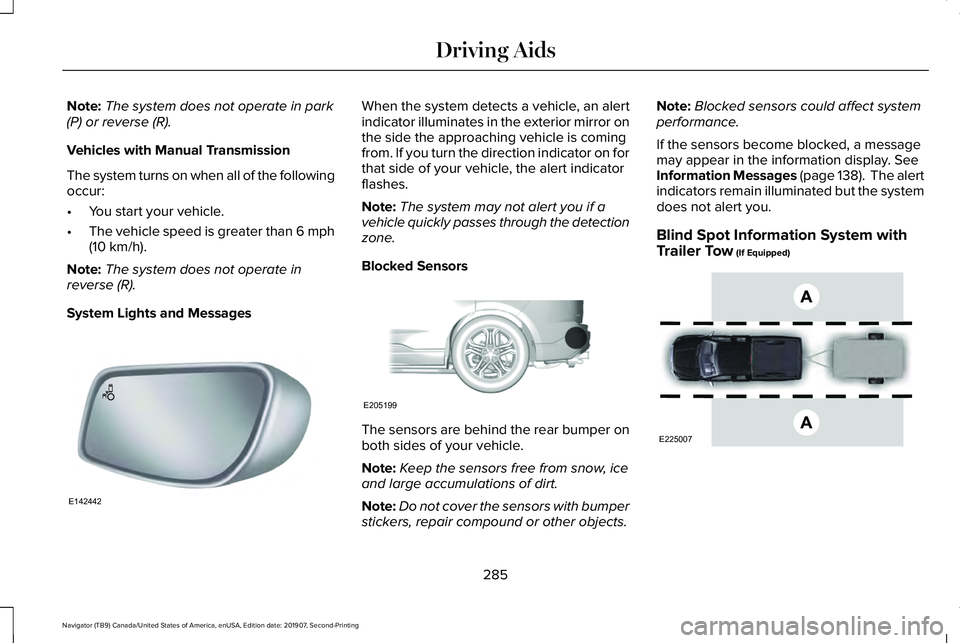
System Lights and Messages When the system detects a vehicle, an alert
indicator illuminates in the exterior mirror on
the side the approaching vehicle is coming
from. If you turn the direction indicator on for
that side of your vehicle, the alert indicator
flashes.
Note:
The system may not alert you if a
vehicle quickly passes through the detection
zone.
Blocked Sensors The sensors are behind the rear bumper on
both sides of your vehicle.
Note:
Keep the sensors free from snow, ice
and large accumulations of dirt.
Note: Do not cover the sensors with bumper
stickers, repair compound or other objects. Note:
Blocked sensors could affect system
performance.
If the sensors become blocked, a message
may appear in the information display.
See
Information Messages (page 138). The alert
indicators remain illuminated but the system
does not alert you.
Blind Spot Information System with
Trailer Tow
(If Equipped) 285
Navigator (TB9) Canada/United States of America, enUSA, Edition date: 201907, Second-Printing Driving AidsE142442 E205199 E225007
Page 302 of 622

Note:
If your vehicle detects excessive heat
at the camera or a potential misalignment
condition, a message may display in the
information display indicating temporary
sensor unavailability. When operational
conditions are correct, the message
deactivates. For example, when the ambient
temperature around the sensor decreases
or the sensor automatically recalibrates
successfully.
DRIVE MODE CONTROL
Lincoln Drive Modes
Lincoln Drive Modes deliver a driving
experience through a suite of sophisticated
electronic vehicle systems. These systems
optimize steering, handling and powertrain
response. You can control performance
settings for multiple systems from this single
location.
Changing the drive mode automatically
changes the functionality of the following
systems: •
Electronically power-assisted steering
system adjusts steering effort and feel
based on the mode you select. See
Steering (page 293).
• Electronic stability control and traction
control maintain your vehicle control in
adverse conditions or high performance
driving. See Stability Control (page
244).
• Electronic throttle control enhances the
powertrain response to your inputs.
• Transmission controls optimize with shift
schedules tuned to each mode.
• Driveline settings optimize for each
mode.
Using the System
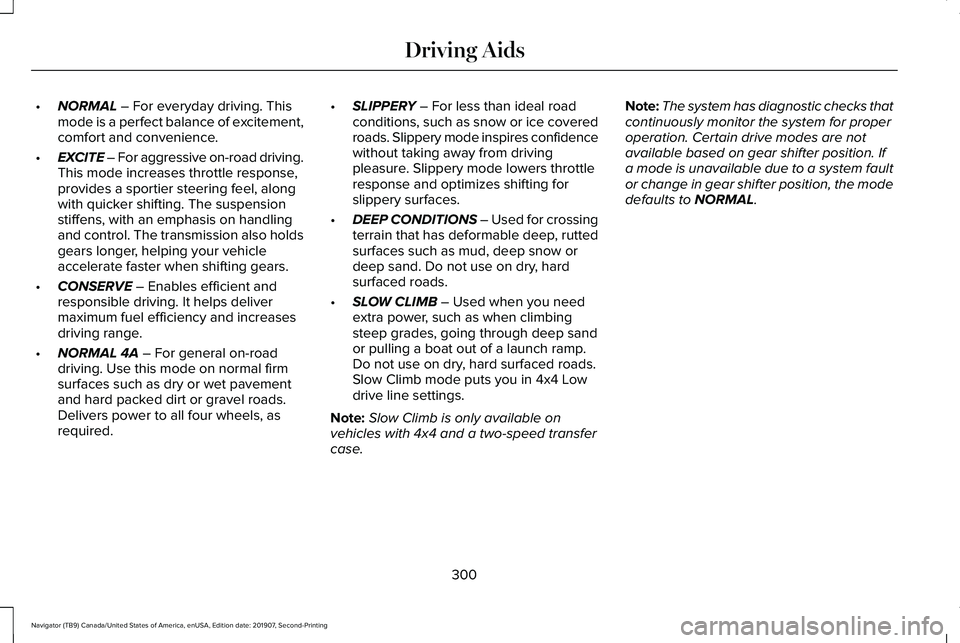
The system automatically tailors your vehicle
configuration for each mode you select. To change the drive mode setting, use the
drive mode selector on the center console.
Note:
Mode changes are not available when
the vehicle ignition is off or when the engine
is not running.
Note: Not all settings may be available.
299
Navigator (TB9) Canada/United States of America, enUSA, Edition date: 201907, Second-Printing Driving AidsE246604
Page 303 of 622
•
NORMAL – For everyday driving. This
mode is a perfect balance of excitement,
comfort and convenience.
• EXCITE – For aggressive on-road driving.
This mode increases throttle response,
provides a sportier steering feel, along
with quicker shifting. The suspension
stiffens, with an emphasis on handling
and control. The transmission also holds
gears longer, helping your vehicle
accelerate faster when shifting gears.
• CONSERVE
– Enables efficient and
responsible driving. It helps deliver
maximum fuel efficiency and increases
driving range.
• NORMAL 4A
– For general on-road
driving. Use this mode on normal firm
surfaces such as dry or wet pavement
and hard packed dirt or gravel roads.
Delivers power to all four wheels, as
required. •
SLIPPERY
– For less than ideal road
conditions, such as snow or ice covered
roads. Slippery mode inspires confidence
without taking away from driving
pleasure. Slippery mode lowers throttle
response and optimizes shifting for
slippery surfaces.
• DEEP CONDITIONS
– Used for crossing
terrain that has deformable deep, rutted
surfaces such as mud, deep snow or
deep sand. Do not use on dry, hard
surfaced roads.
• SLOW CLIMB
– Used when you need
extra power, such as when climbing
steep grades, going through deep sand
or pulling a boat out of a launch ramp.
Do not use on dry, hard surfaced roads.
Slow Climb mode puts you in 4x4 Low
drive line settings.
Note: Slow Climb is only available on
vehicles with 4x4 and a two-speed transfer
case. Note:
The system has diagnostic checks that
continuously monitor the system for proper
operation. Certain drive modes are not
available based on gear shifter position. If
a mode is unavailable due to a system fault
or change in gear shifter position, the mode
defaults to
NORMAL.
300
Navigator (TB9) Canada/United States of America, enUSA, Edition date: 201907, Second-Printing Driving Aids
Page 314 of 622
TOWING A TRAILER
WARNING: Towing trailers
beyond the maximum recommended
gross trailer weight exceeds the limit
of your vehicle and could result in
engine damage, transmission damage,
structural damage, loss of vehicle
control, vehicle rollover and personal
injury. WARNING:
Do not exceed the
GVWR or the GAWR specified on the
certification label.
Note: See
Recommended Towing
Weights (page 323).
Your vehicle may have electrical items,
such as fuses or relays, related to
towing.
See Fuses (page 356). Your vehicle's load capacity designation
is by weight, not by volume, so you
cannot necessarily use all available
space when loading a vehicle or trailer.
Towing a trailer places an extra load on
your vehicle's engine, transmission, axle,
brakes, tires and suspension. Inspect
these components periodically during,
and after, any towing operation.
Load Placement
To help minimize how trailer movement
affects your vehicle when driving:
•
Load the heaviest items closest to
the trailer floor.
• Load the heaviest items centered
between the left and right side trailer
tires. •
Load the heaviest items above the
trailer axles or just slightly forward
toward the trailer tongue. Do not
allow the final trailer tongue weight
to go above or below 10-15% of the
loaded trailer weight.
• Select a ball mount with the correct
rise or drop and load capacity. When
both the loaded vehicle and trailer
are connected, the trailer frame
should be level, or slightly angled
down toward your vehicle, when
viewed from the side.
When driving with a trailer or payload, a
slight takeoff vibration or shudder may
be present due to the increased payload
weight. Additional information regarding
proper trailer loading and setting your
vehicle up for towing is located in
another chapter of this manual.
See
Load Limit (page 305).
You can also find information in the
RV
& Trailer Towing Guide available at your
authorized dealer, or online.
311
Navigator (TB9) Canada/United States of America, enUSA, Edition date: 201907, Second-Printing Towing
Page 330 of 622
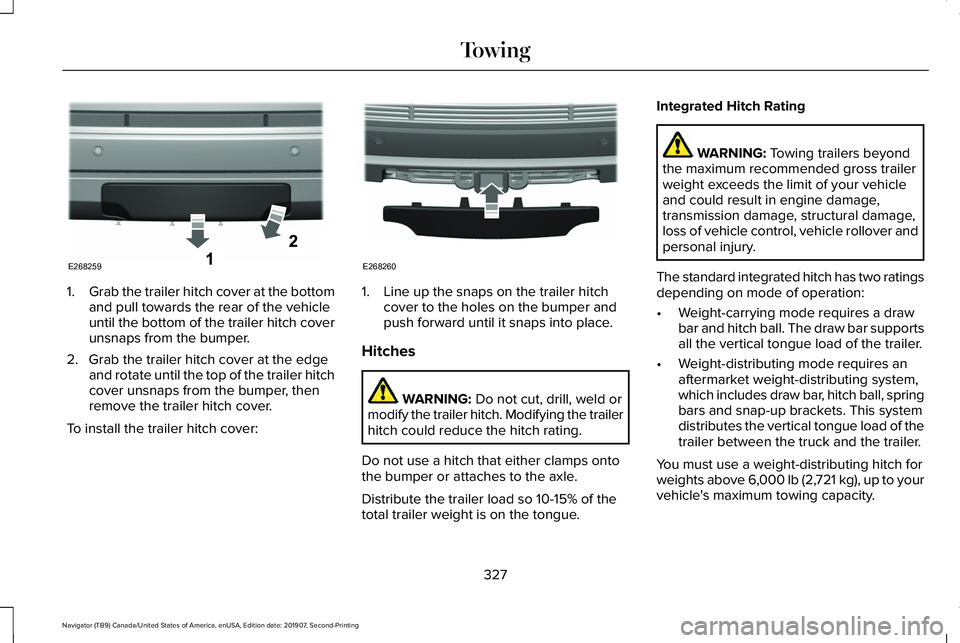
1.
Grab the trailer hitch cover at the bottom
and pull towards the rear of the vehicle
until the bottom of the trailer hitch cover
unsnaps from the bumper.
2. Grab the trailer hitch cover at the edge and rotate until the top of the trailer hitch
cover unsnaps from the bumper, then
remove the trailer hitch cover.
To install the trailer hitch cover: 1. Line up the snaps on the trailer hitch
cover to the holes on the bumper and
push forward until it snaps into place.
Hitches WARNING: Do not cut, drill, weld or
modify the trailer hitch. Modifying the trailer
hitch could reduce the hitch rating.
Do not use a hitch that either clamps onto
the bumper or attaches to the axle.
Distribute the trailer load so 10-15% of the
total trailer weight is on the tongue. Integrated Hitch Rating WARNING:
Towing trailers beyond
the maximum recommended gross trailer
weight exceeds the limit of your vehicle
and could result in engine damage,
transmission damage, structural damage,
loss of vehicle control, vehicle rollover and
personal injury.
The standard integrated hitch has two ratings
depending on mode of operation:
• Weight-carrying mode requires a draw
bar and hitch ball. The draw bar supports
all the vertical tongue load of the trailer.
• Weight-distributing mode requires an
aftermarket weight-distributing system,
which includes draw bar, hitch ball, spring
bars and snap-up brackets. This system
distributes the vertical tongue load of the
trailer between the truck and the trailer.
You must use a weight-distributing hitch for
weights above 6,000 lb (2,721 kg), up to your
vehicle's maximum towing capacity.
327
Navigator (TB9) Canada/United States of America, enUSA, Edition date: 201907, Second-Printing TowingE268259 E268260