light LINCOLN NAVIGATOR 2021 Owners Manual
[x] Cancel search | Manufacturer: LINCOLN, Model Year: 2021, Model line: NAVIGATOR, Model: LINCOLN NAVIGATOR 2021Pages: 639, PDF Size: 6.09 MB
Page 496 of 639
HD Radio technology is the digital evolution
of analog AM/FM radio. Your system has a
special receiver that allows it to receive
digital broadcasts (where available) in
addition to the analog broadcasts, it already
receives. Digital broadcasts provide a better
sound quality than analog broadcasts with
free, crystal-clear audio and no static or
distortion. For more information, and a guide
to available stations and programming,
please visit:
Website
www.hdradio.com
When HD Radio is on and you tune to a
station broadcasting HD Radio technology,
you may notice the following indicators on
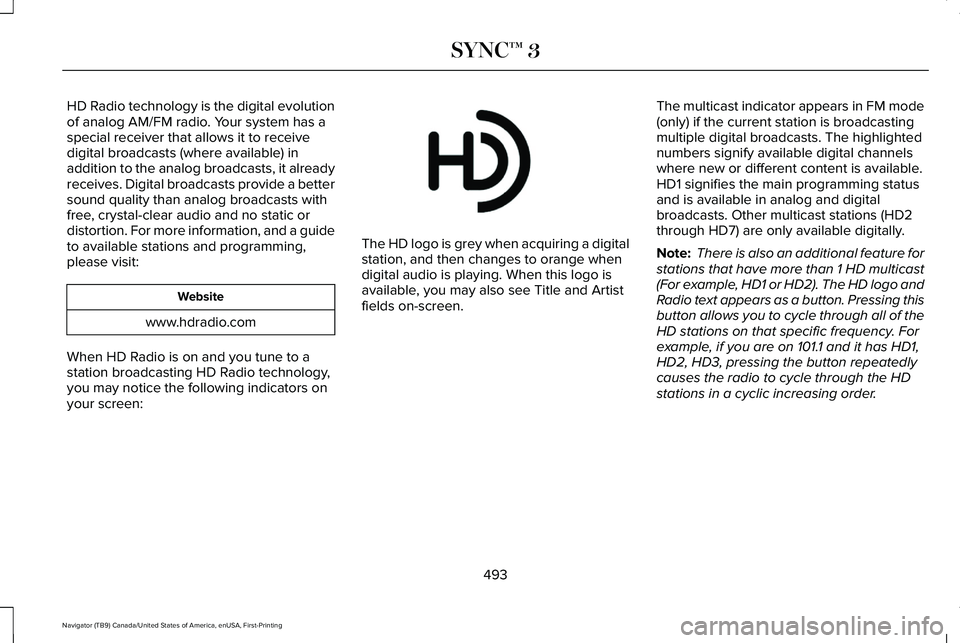
your screen: The HD logo is grey when acquiring a digital
station, and then changes to orange when
digital audio is playing. When this logo is
available, you may also see Title and Artist
fields on-screen.
The multicast indicator appears in FM mode
(only) if the current station is broadcasting
multiple digital broadcasts. The highlighted
numbers signify available digital channels
where new or different content is available.
HD1 signifies the main programming status
and is available in analog and digital
broadcasts. Other multicast stations (HD2
through HD7) are only available digitally.
Note:
There is also an additional feature for
stations that have more than 1 HD multicast
(For example, HD1 or HD2). The HD logo and
Radio text appears as a button. Pressing this
button allows you to cycle through all of the
HD stations on that specific frequency. For
example, if you are on 101.1 and it has HD1,
HD2, HD3, pressing the button repeatedly
causes the radio to cycle through the HD
stations in a cyclic increasing order.
493
Navigator (TB9) Canada/United States of America, enUSA, First-Printing SYNC™ 3E142616
Page 497 of 639
When HD Radio broadcasts are active, you can access the following functions:
Action and Description
Message
Allows you to save an active channel as a memory preset. Touch and hold a memory preset slot
until the sound returns. There is a brief mute while the radio saves the\
station. Sound returns
when the channel saves. When switching to an HD2 or HD3 memory preset, t\
he sound mutes
before the digital audio plays, because the system has to reacquire the \
digital signal.
Presets
Note: As with any station you save, you cannot access the saved station if your vehicle is outside the sta\
tion’ s reception area.
HD Radio Reception and Station Troubleshooting Potential Reception Issues
If you are listening to a multicast station and you are on the fringe of\
the reception area, the station
may mute due to weak signal strength.
Reception area
If you are listening to HD1, the system changes back to the analog broad\
cast until the digital
broadcast is available again. However, if you are listening to any of the possible HD2-HD7 multicast
channels, the station mutes and stays muted unless it is able to connect\
to the digital signal again.
When the system first receives a station (aside from HD2-HD7 multicast \
stations), it first plays the
station in the analog version. Once the receiver verifies the station is\
an HD Radio station, it shifts
to the digital version. Depending on the station quality, you may hear a slight sound change when
the station changes from analog to digital. Blending is the shift from a\
nalog to digital sound or
digital back to analog sound.
Station blending
494
Navigator (TB9) Canada/United States of America, enUSA, First-Printing SYNC™ 3
Page 500 of 639
You can use the forward, reverse, pause or
play buttons to control the audio playback.
Bluetooth Stereo or USB
Bluetooth Stereo and USB allow you to
access media that you store on your
Bluetooth device or USB device such as
music, audio books or podcasts.
The following buttons are available for Bluetooth and USB: Function
Button
Pressing the repeat button toggles the repeat setting through three mode\
s: repeat off (button not
highlighted), repeat all (button highlighted) and repeat track (butt\
on highlighted with a small number
one).
Repeat
Play the tracks in random order.
Shuffle
You can use the forward, reverse, pause or
play buttons to control the audio playback.
To get more information about the currently
playing track, press the cover art or Info
button. For some devices, SYNC 3 is able to provide
30-second skip buttons when you listen to
audio books or podcasts. These buttons
allow you to skip forward or backward within
a track.
While playing audio from a USB device you
can look for certain music by selecting the
following:
497
Navigator (TB9) Canada/United States of America, enUSA, First-Printing SYNC™ 3
Page 514 of 639
For restaurants, cityseeker can provide
information such as star rating, average cost,
review, handicap access, hours of operation,
and website address.
For hotels, cityseeker can provide
information such as star rating, price
category, review, check-in and checkout
times, hotel service icons and website
address. Hotel service icons include:
•
Restaurant
• Business center
• Handicap facilities
• Laundry
• Refrigerator
• 24 hour room service
• Fitness center
• Internet access
• Pool
• Wi-Fi
Attractions include nearby landmarks,
amusement parks, historic buildings and
more. cityseeker can provide information
such as star rating, reviews, hour of operation
and admission price. SiriusXM Traffic and Travel Link (If
Equipped)
SiriusXM Traffic and Travel Link is available
on vehicles equipped with navigation and
only in select markets. You must activate and
subscribe to receive SiriusXM Traffic and
Travel Link information. It helps you locate
the best gas prices, find movie listings, get
current traffic alerts, view the weather map,
get accurate ski conditions and see current
sports scores.
The system calculates a reasonable efficient
route based on available speed limits, traffic,
and road conditions. You may know a local
short cut that is more efficient at a given time
than the route provided by SYNC 3, but you
should expect a slight difference in minutes
or miles with the SYNC 3 route. Michelin Travel Guide (If Equipped)
The Michelin travel guide is a service which
provides additional information about certain
places of interest, for example restaurants,
hotels and tourist sites. Points of interest that
have Michelin travel guide information
display a button to show you more
information. Push the button to see the
additional information. If you have paired
your phone with the system, you can press
the phone button to directly establish a call
with the selected point of interest.
Navigation Map Accuracy and Updates
HERE is the digital map provider for the
navigation application. If you find map data
errors, you may report them directly to HERE
by going to www.here.com. HERE evaluates
all reported map errors and responds with
the result of their investigation by e-mail.
511
Navigator (TB9) Canada/United States of America, enUSA, First-Printing SYNC™ 3
Page 518 of 639
SETTINGS
Press the button to enter the
settings menu.
Once you select a tile, press the
button next to a menu item to view
an explanation of the feature or
setting.
Sound
Select this tile to adjust the sound settings.
Clock
Select this tile to adjust the clock settings.
Bluetooth
Select this tile to switch Bluetooth on and off
and adjust settings.
Phone
Select this tile to connect, disconnect, and
manage the connected device settings. Audio
Select this tile to adjust the audio settings.
Driver Assist (If Equipped)
Select this tile to adjust Driver Assist features
like Parking Aids, Lane Keeping system,
Pedestrian Detection, and Auto-Start-Stop.
Vehicle
Select this tile to adjust vehicle settings like
windows, alarm, lighting, backup starting
passcode, and MyKey settings.
Lincoln Way
Select this tile to adjust the Lincoln Way
settings.
General
Select this tile to adjust settings like
language, measurement units, or to reset the
system.
911 Assist
(If Equipped)
Select this tile to switch 911 Assist on and off. Automatic Updates
Select this tile to adjust automatic update
settings.
Mobile Apps
Select this tile to adjust permissions, enable,
disable, and update mobile apps.
Display
Select this tile to adjust display settings like
brightness and auto dim.
Charge Settings
(If Equipped)
Select this tile to adjust the electric vehicle
charge setting.
Voice Control
Select this tile to adjust voice control settings
like command confirmations and displayed
lists.
Navigation
(If Equipped)
Select this tile to adjust navigation settings
like map preferences and route guidance.
515
Navigator (TB9) Canada/United States of America, enUSA, First-Printing SYNC™ 3E280315 E268570
Page 519 of 639
Multi Contour Seats (If Equipped)
Select this tile to adjust the position and
massage function of your multi contour seats.
Seats
(If Equipped)
Select this tile to adjust the lumbar function
of your seat. Message Center
(If Equipped)
Select this tile to view vehicle messages.
Personal Profiles
(If Equipped)
Select this tile to adjust recalled memory
features when using personal profiles. Valet Mode
(If Equipped)
Select this tile to enable and disable valet
mode.
Ambient Lighting
(If Equipped)
Select this tile to change the color or
intensity of the interior lighting.
516
Navigator (TB9) Canada/United States of America, enUSA, First-Printing SYNC™ 3
Page 544 of 639
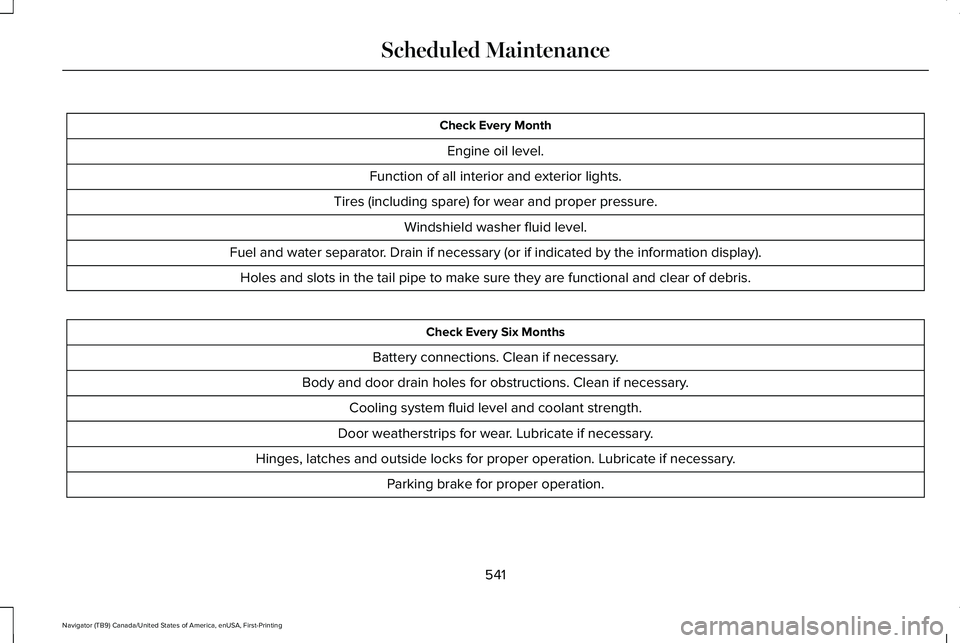
Check Every Month
Engine oil level.
Function of all interior and exterior lights.
Tires (including spare) for wear and proper pressure. Windshield washer fluid level.
Fuel and water separator. Drain if necessary (or if indicated by the information display). Holes and slots in the tail pipe to make sure they are functional and clear of debris. Check Every Six Months
Battery connections. Clean if necessary.
Body and door drain holes for obstructions. Clean if necessary. Cooling system fluid level and coolant strength.
Door weatherstrips for wear. Lubricate if necessary.
Hinges, latches and outside locks for proper operation. Lubricate if necessary. Parking brake for proper operation.
541
Navigator (TB9) Canada/United States of America, enUSA, First-Printing Scheduled Maintenance
Page 622 of 639
SUNA Products and/or Services are intended
as an aid to personal motoring and travel
planning, and do not provide comprehensive
or accurate information on all occasions. On
occasions, you may experience additional
delay as a result of using SUNA Products
and/or Services. You acknowledge that it is
not intended, or suitable, for use in
applications where time of arrival or driving
directions may impact the safety of the public
or yourself.
4. Use of SUNA Products and Services
while driving
You, and other authorised drivers of the
vehicle in which SUNA Products and/or
Services are available or installed and active,
remain at all times responsible for observing
all relevant laws and codes of safe driving.
In particular, you agree to only actively
operate SUNA Products and/or Services
when the Vehicle is at a complete stop and
it is safe to do so.
5. Service Continuity and Reception of the
SUNA Traffic Channel
We will use reasonable endeavours to
provide the SUNA Traffic Channel 24 hours
a day, 365 days a year. The SUNA Traffic
Channel may occasionally be unavailable for
technical reasons or for planned
maintenance. We will try to perform
maintenance at times when congestion is
light. We reserve the right to withdraw SUNA
Products and/or Services at any time.
Also, we cannot assure the uninterrupted
reception of the SUNA Traffic Channel
RDS-TMC signal at any particular location.
6. Limitation of Liability
Neither Intelematics (nor its suppliers or the
manufacturer of your device (the
“Suppliers”)) shall be liable to you or to any
third party for any damages either direct,
indirect, incidental, consequential or
otherwise arising out of the use of or inability to use SUNA Products and/or Services even
if Intelematics or a Supplier has been advised
of the possibility of such damages. You also
acknowledge that the neither Intelematics
nor any Supplier guarantees nor make any
warranties that relate to the availability,
accuracy or completeness of SUNA Products
and/or Services, and to the extent which it
is lawful to do so, both Intelematics and each
Supplier excludes any warranties which
might otherwise be implied by any State or
Federal legislation in relation to SUNA
Products and/or Services.
7. Please Note
Great care has been taken in preparing this
manual. Constant product development may
mean that some information is not entirely
up-to-date. The information in this document
is subject to change without notice.
619
Navigator (TB9) Canada/United States of America, enUSA, First-Printing Appendices
Page 624 of 639
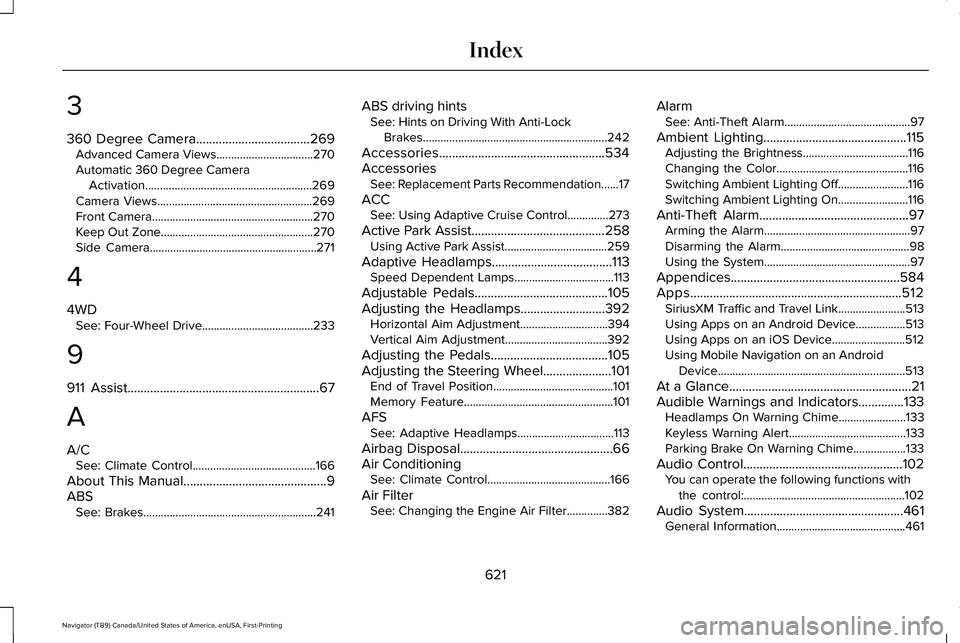
3
360 Degree Camera...................................269
Advanced Camera Views.................................270
Automatic 360 Degree Camera
Activation.........................................................269
Camera Views.....................................................269
Front Camera.......................................................270
Keep Out Zone....................................................270
Side Camera.........................................................271
4
4WD See: Four-Wheel Drive......................................233
9
911 Assist...........................................................67
A
A/C See: Climate Control..........................................166
About This Manual
............................................9
ABS See: Brakes...........................................................241 ABS driving hints
See: Hints on Driving With Anti-Lock
Brakes...............................................................242
Accessories...................................................534
Accessories See: Replacement Parts Recommendation......17
ACC See: Using Adaptive Cruise Control..............
273
Active Park Assist
.........................................258
Using Active Park Assist...................................259
Adaptive Headlamps.....................................113 Speed Dependent Lamps..................................113
Adjustable Pedals
.........................................105
Adjusting the Headlamps..........................392
Horizontal Aim Adjustment..............................394
Vertical Aim Adjustment...................................392
Adjusting the Pedals....................................105
Adjusting the Steering Wheel.....................101 End of Travel Position.........................................101
Memory Feature...................................................101
AFS See: Adaptive Headlamps.................................113
Airbag Disposal
...............................................66
Air Conditioning See: Climate Control..........................................166
Air Filter See: Changing the Engine Air Filter..............382 Alarm
See: Anti-Theft Alarm...........................................97
Ambient Lighting
............................................115
Adjusting the Brightness....................................116
Changing the Color.............................................116
Switching Ambient Lighting Off........................116
Switching Ambient Lighting On........................116
Anti-Theft Alarm
..............................................97
Arming the Alarm..................................................97
Disarming the Alarm............................................98
Using the System..................................................97
Appendices....................................................584
Apps.................................................................512 SiriusXM Traffic and Travel Link.......................513
Using Apps on an Android Device.................513
Using Apps on an iOS Device.........................512
Using Mobile Navigation on an Android
Device................................................................513
At a Glance........................................................21
Audible Warnings and Indicators
..............133
Headlamps On Warning Chime.......................133
Keyless Warning Alert........................................133
Parking Brake On Warning Chime..................133
Audio Control
.................................................102
You can operate the following functions with
the control:.......................................................102
Audio System
.................................................461
General Information............................................461
621
Navigator (TB9) Canada/United States of America, enUSA, First-Printing Index
Page 631 of 639
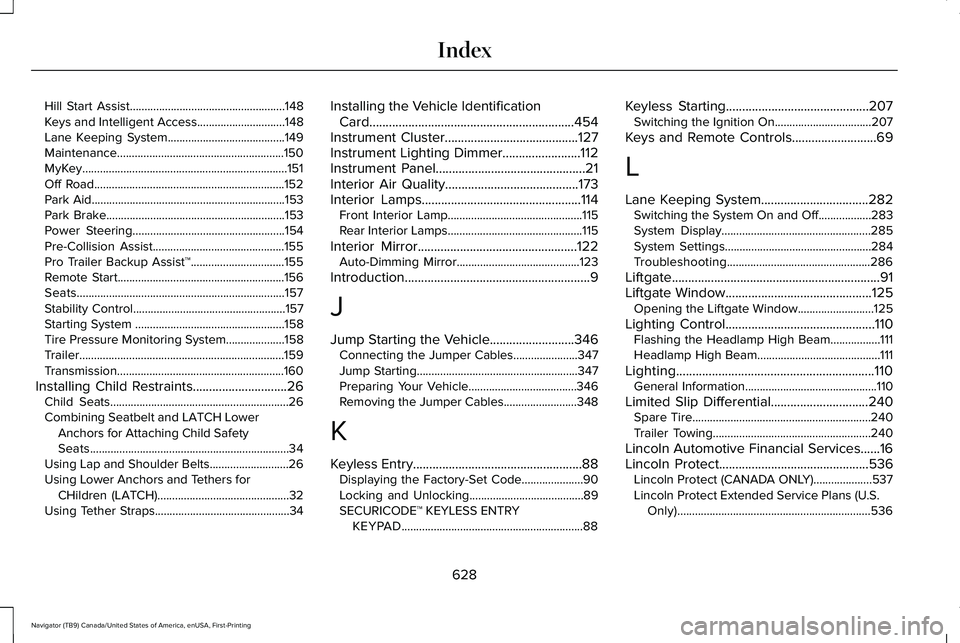
Hill Start Assist.....................................................148
Keys and Intelligent Access..............................148
Lane Keeping System........................................149
Maintenance.........................................................150
MyKey......................................................................151
Off Road.................................................................152
Park Aid..................................................................153
Park Brake.............................................................153
Power Steering....................................................154
Pre-Collision Assist.............................................155
Pro Trailer Backup Assist™................................155
Remote Start.........................................................156
Seats.......................................................................157
Stability Control....................................................157
Starting System ...................................................158
Tire Pressure Monitoring System....................158
Trailer......................................................................159
Transmission.........................................................160
Installing Child Restraints.............................26 Child Seats.............................................................26
Combining Seatbelt and LATCH Lower
Anchors for Attaching Child Safety
Seats....................................................................34
Using Lap and Shoulder Belts...........................26
Using Lower Anchors and Tethers for CHildren (LATCH).............................................32
Using Tether Straps..............................................34 Installing the Vehicle Identification
Card...............................................................454
Instrument Cluster.........................................127
Instrument Lighting Dimmer........................112
Instrument Panel
..............................................21
Interior Air Quality.........................................173
Interior Lamps
.................................................114
Front Interior Lamp..............................................115
Rear Interior Lamps..............................................115
Interior Mirror
.................................................122
Auto-Dimming Mirror..........................................123
Introduction.........................................................9
J
Jump Starting the Vehicle..........................346 Connecting the Jumper Cables......................347
Jump Starting.......................................................347
Preparing Your Vehicle.....................................346
Removing the Jumper Cables.........................348
K
Keyless Entry
....................................................88
Displaying the Factory-Set Code.....................90
Locking and Unlocking.......................................89
SECURICODE™ KEYLESS ENTRY
KEYPAD..............................................................88 Keyless Starting............................................207
Switching the Ignition On.................................207
Keys and Remote Controls
..........................69
L
Lane Keeping System.................................282 Switching the System On and Off..................283
System Display...................................................285
System Settings..................................................284
Troubleshooting.................................................286
Liftgate................................................................91
Liftgate Window
.............................................125
Opening the Liftgate Window..........................125
Lighting Control..............................................110 Flashing the Headlamp High Beam.................111
Headlamp High Beam..........................................111
Lighting.............................................................110 General Information.............................................110
Limited Slip Differential..............................240 Spare Tire.............................................................240
Trailer Towing......................................................240
Lincoln Automotive Financial Services......16
Lincoln Protect..............................................536 Lincoln Protect (CANADA ONLY)....................537
Lincoln Protect Extended Service Plans (U.S.
Only)..................................................................536
628
Navigator (TB9) Canada/United States of America, enUSA, First-Printing Index