display LINCOLN NAVIGATOR 2021 Owners Manual
[x] Cancel search | Manufacturer: LINCOLN, Model Year: 2021, Model line: NAVIGATOR, Model: LINCOLN NAVIGATOR 2021Pages: 639, PDF Size: 6.09 MB
Page 323 of 639
Distance D
The horizontal distance from the bumper to
the center of the trailer axle (single axle
trailers), or the center of the axles (trailers
with dual axles or more).
Note:
If the distance ends in anything less
than one half of an inch, round down to the
current whole inch. If a distance ends in one
half or greater of an inch, round up to the
next whole inch. For example, 12.3 in
(31.12 cm) would be rounded down to 12 in
(30.48 cm). 12.5 in (31.75 cm) would be
rounded up to 13 in (33 cm).
Step 5: Enter Measurements Using the
Information Display
Using the recorded measurements, enter the
required data into the system. Follow the on
screen prompts to enter each of the
measurements taken in step 4. When all four
distances have been entered, a confirmation
display will appear. Check the values are
correct before proceeding, or go back to
change any if required. Step 6: Confirming the Sticker Location
Check the rear view camera display to see
if the sticker is identified by the system and
marked with a red circle.
Confirm that the red circle is correctly located
over the sticker image in the display. The on
screen prompt will ask you to confirm this.
Note:
If the system cannot locate the sticker
try cleaning the camera lens, and also make
sure the sticker is within the green zone as
indicated in step 3.
Calibrating the System
To complete setup, drive your vehicle
straight forward between 4 mph (6 km/h) and
24 mph (39 km/h)
following the on screen
prompt.
Note: Check your measurements to make
sure you measured from the correct points.
Note: If you move the steering wheel during
this procedure, the calibration pauses.
Note: We recommend that you do not do
this at night. A message will be displayed during
calibration and after calibration is complete.
Using Pro Trailer Backup Assist
To use the system press the button and
select the required trailer from the display.
320
Navigator (TB9) Canada/United States of America, enUSA, First-Printing Towing
Page 324 of 639
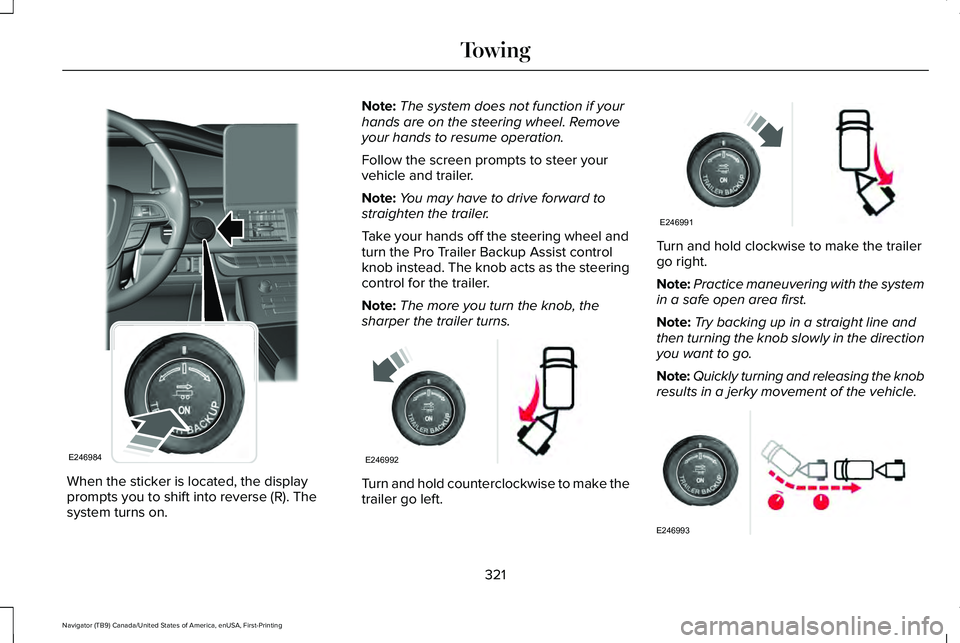
When the sticker is located, the display
prompts you to shift into reverse (R). The
system turns on. Note:
The system does not function if your
hands are on the steering wheel. Remove
your hands to resume operation.
Follow the screen prompts to steer your
vehicle and trailer.
Note: You may have to drive forward to
straighten the trailer.
Take your hands off the steering wheel and
turn the Pro Trailer Backup Assist control
knob instead. The knob acts as the steering
control for the trailer.
Note: The more you turn the knob, the
sharper the trailer turns. Turn and hold counterclockwise to make the
trailer go left. Turn and hold clockwise to make the trailer
go right.
Note:
Practice maneuvering with the system
in a safe open area first.
Note: Try backing up in a straight line and
then turning the knob slowly in the direction
you want to go.
Note: Quickly turning and releasing the knob
results in a jerky movement of the vehicle. 321
Navigator (TB9) Canada/United States of America, enUSA, First-Printing TowingE246984 E246992 E246991 E246993
Page 326 of 639
Measurement B has reached maximum or
minimum value:
•
Make sure that the sticker placement
instruction in step 3 of the setup has
been followed. Stickers placed outside
the allowed zone will adversely affect the
system performance and could cause
improper feature function.
• Make sure that the measurement being
made is the horizontal distance only from
center of sticker to the hitch ball center.
A straight line distance that includes any
vertical rise or drop will increase the
measurement and cause an inaccurate
value to be entered into the system. See
step 4 of the setup for additional
measurement instructions.
Measurement C has reached maximum or
minimum value:
• Make sure that the sticker placement
instructions in step 3 of the setup have
been followed. Stickers placed outside
the allowed zone will adversely affect the
system performance and could cause
improper feature function. If you have
met all the criteria for sticker placement
and you see this message this sticker is either too far below or too close to the
camera to properly recognize the sticker.
In order for the system to operate
correctly the sticker height must be
lowered if you receive the minimum
warning or the sticker height must be
raised if you receive the maximum
warning.
• Only one sticker can be placed on the
trailer for correct system function. The
previous sticker must be removed or
covered so only one sticker is visible to
the camera.
• Measurement B and C must be measured
again if a new sticker is placed on the
trailer.
Measurement D has reached maximum or
minimum value:
• Make sure that the measurement being
made is the horizontal distance only from
the bumper to the center of the single
axle or the center of all the axles on the
trailer. See step 4 of the setup for
additional measurement instructions. The
TBA system does not support trailer
lengths outside the range allowed by the
information display. System is circling something beside the
sticker or system cannot find the sticker:
•
Make sure the rear camera is clean and
the sticker is clearly visible in the camera
image. Clean the camera and sticker if
necessary.
• The camera system uses the entered
measurements to help locate the sticker.
Inaccurate sticker measurements will
degrade the system ’s ability to locate the
sticker. Verify the measurements entered
into the system are accurate.
• Remove the incorrectly circled label or
decal if possible.
• If you cannot resolve the issue a new
sticker location should be tried. The
sticker location must still meet the
requirements noted in step 3 of the setup
instructions. Only one sticker can be
placed on the trailer for correct system
function. The previous sticker must be
removed or covered so only one sticker
is visible to the camera.
323
Navigator (TB9) Canada/United States of America, enUSA, First-Printing Towing
Page 327 of 639
Calibration
The system monitors various vehicle
parameters to ensure your vehicle is being
driven straight and the trailer straight behind
your vehicle. Any steering input or trailer
movement will pause the calibration.
For best results:
•
Use a long, straight, smooth and level
road when attempting to calibrate.
• Drive straight forward.
• Drive between 4 mph (6 km/h) and
24 mph (39 km/h).
System Operation
The following warnings or difficulties may
occur during feature operation. Tips to
resolve them are listed below. The system is not available:
•
The system relies on many sub-systems
in your vehicle to operate correctly. If
those sub-systems are not operating
correctly the system may not be
available.
• Low battery voltage is a condition which
will prevent the system from operating.
Please make sure the battery is correctly
charged if the system is not available.
• You may need to drive your vehicle
straight forward above 25 mph (40 km/h)
before the system is available again.
• If the message still displays take your
vehicle to an authorized dealer for
service.
Sticker lost:
• If the system cannot initially find the
sticker, it may be necessary for you to
change the lighting conditions by moving
the vehicle and trailer or waiting until
conditions change.
• Check for the following if you receive the
lost sticker message while using the
system. •
Stop your vehicle as soon as the
message displays.
• Make sure the sticker is visible and the
pattern is discernable in the rear view
camera image.
• Clean the sticker and camera to make
sure they are unobstructed.
• Clean the lens with a soft, lint-free cloth
and water.
• Clean the sticker with isopropyl rubbing
alcohol sprayed directly onto the sticker,
and then wipe clean with a soft cloth.
• Remove any items that may be blocking
the view of the sticker. Depending on
your trailer configuration and any
equipment mounted to your trailer it is
possible for the sticker to be blocked
from view of the camera as it rotates on
the hitch ball but not be blocked during
setup. Remove the obstruction if
possible. It will be necessary to remove
the sticker from it’ s current location if the
obstruction cannot be cleared and place
a new sticker that will be visible to the
camera in all positions of the trailer
behind your vehicle.
324
Navigator (TB9) Canada/United States of America, enUSA, First-Printing Towing
Page 328 of 639

•
Placing the sticker on a surface angled
away from the vehicle reduces
performance. Use a drawbar that
positions the trailer level to the ground
when attached to vehicle. This typically
provides a level surface to mount the
sticker. Place the sticker on a bracket or
other object when no level surface is
available.
• Make sure the entire sticker is on a flat
surface that is completely visible to the
camera. Do not fold the sticker over an
edge on the trailer frame. This can
degrade performance.
• Shadows on the sticker may effect
tracking performance under some
lighting conditions. Moving the sticker to
another location within the allowed
placement area may improve
performance. Use the change sticker
option in your Towing menu if you move
the sticker. •
You can change your sticker location by
going into the Towing menu, selecting
trailer options, selecting change trailer
settings and then selecting the change
sticker option. The previous sticker must
be removed. ONLY ONE STICKER
SHOULD BE PLACED ON THE TRAILER
FOR CORRECT SYSTEM FUNCTION.
• The camera system uses the entered
measurements to help locate the sticker.
Inaccurate measurements will reduce the
system ’s ability to locate the sticker.
Check the measurements entered into
the system are correct. Refer to the step
4 of Pro trailer backup Assist setup for
instructions on measurements.
• You can change your measurement by
going into the Towing menu, selecting
trailer options, selecting change trailer
setting and then selecting the change
sticker option. Disregard the prompt to
remove this sticker and continue to the
next step if you only plan to update the
measurements for the current sticker
location. System will not backup straight:
•
Factors such as the drawbar connection
to the hitch receiver, road camber, road
grade and compliance in the trailer
suspension can influence how straight
the system is able to back your trailer
when the knob is not turned. You can
compensate for the trailer drifting to the
right or left by slowly turning the Pro
Trailer Backup Assist knob until the trailer
is following your desired path and then
holding the knob in that position. If you
would like to recalibrate the system for
straight backing, you can do so with the
following procedure.
• Go into the Towing menu, select trailer
options, select change trailer setting and
then select the change sticker option.
Your saved measurements will be
displayed. Do not change them but
continue to confirm measurements. Once
you confirm the measurements, the
system will then prompt you to perform
the calibration procedure.
325
Navigator (TB9) Canada/United States of America, enUSA, First-Printing Towing
Page 329 of 639
System consistently shows Stop Now Max
trailer angle reached warning:
•
The system uses your measurements to
determine sticker position and establish
system limits. Accurate sticker placement
and trailer measurements will provide the
best system performance. If you are
consistently receiving this warning it is
likely there is an issue with sticker
placement or the entered measurements.
Make sure that the sticker is placed
correctly based on steps 3 and the
measurements were made correctly
according to Step 4. The troubleshooting
guide for trailer measurements can also
be reviewed for help in making
measurements.
• To change sticker location or change
trailer measurements, go into the Towing
menu, select trailer options, select
change trailer setting and then select the
change sticker option. •
If the sticker location needs to be
changed, the previous sticker must be
removed and a new sticker needs to be
placed on the trailer. ONLY ONE
STICKER SHOULD BE PLACED ON THE
TRAILER FOR PROPER SYSTEM
FUNCTION.
• Disregard the prompt to remove this
sticker and continue to the next step if
you only plan to update the
measurements for the current sticker
location.
System consistently shows Stop now take
control of steering warning:
• The system displays this warning when
it can no longer steer the vehicle and you
must take over steering. There are four
reasons why this warning displays and
additional information regarding the
reason for the warning is available on the
center display.
• The steering wheel is touched while the
system is controlling it. Avoid touching
the wheel during system operation. •
The maximum speed for feature
operation is exceeded. System
performance is optimized at slower
speeds. Backup slowly.
• The sticker was lost by the camera
system. Once your vehicle is stopped
additional warnings will indicate the
sticker was lost. Refer to sticker lost
trouble shooting tips.
• An internal condition for system
operation was not met which requires
your vehicle return to manual control of
the steering.
Note: The system is designed to be used
with the same trailer connection every time
the trailer is chosen from the selection menu.
Using a different drawbar or a different pin
hole (on drawbars with more than one) when
connecting the drawbar to your vehicle
affects the trailer measurements. Take the
measurements again and update if required.
326
Navigator (TB9) Canada/United States of America, enUSA, First-Printing Towing
Page 330 of 639
TRAILER SWAY CONTROL (IF EQUIPPED)
WARNING: Turning off trailer sway
control increases the risk of loss of vehicle
control, serious injury or death. Ford does
not recommend disabling this feature
except in situations where speed reduction
may be detrimental (such as hill climbing),
the driver has significant trailer towing
experience, and can control trailer sway
and maintain safe operation.
Note: This feature does not prevent trailer
sway, but reduces it once it begins.
Note: This feature cannot stop all trailers
from swaying.
Note: In some cases, if vehicle speed is too
high, the system may activate multiple times,
gradually reducing vehicle speed. This feature applies your vehicle brakes at
individual wheels and, if necessary, reduces
engine power. If the trailer begins to sway,
the stability control light flashes and the
message TRAILER SWAY REDUCE SPEED
appears in the information display. The first
thing to do is slow your vehicle down, then
pull safely to the side of the road and check
for proper tongue load and trailer load
distribution.
See Load Carrying (page 309).
RECOMMENDED TOWING
WEIGHTS
Note: Do not exceed the trailer weight
for your vehicle configuration listed in
the chart below.
Note: Make sure to take into
consideration trailer frontal area. Do not
exceed 55 ft² (5.11 m²) if your vehicle has
the standard towing package, or 60 ft²
(5.57 m²) if your vehicle has the heavy
duty package. Note:
Exceeding this limitation may
significantly reduce the performance of
your towing vehicle. Selecting a trailer
with a low aerodynamic drag and
rounded front design helps optimize
performance and fuel economy.
Note: Your vehicle could have reduced
performance when operating at high
altitudes, and when heavily loaded or
towing a trailer. When driving at
elevation, in order to match driving
performance as perceived at sea level,
reduce gross vehicle weight and gross
combination weight by 2% per
1,000 ft
(300 m) of elevation.
Note: Certain states require electric
trailer brakes for trailers over a specified
weight. Be sure to check state
regulations for this specified weight. The
maximum trailer weights listed may be
limited to this specified weight, as the
vehicle ’s electrical system may not
include the wiring connector needed to
activate electric trailer brakes.
327
Navigator (TB9) Canada/United States of America, enUSA, First-Printing Towing
Page 336 of 639
Trailer Brakes (If Equipped)
WARNING:
Do not connect a trailer's
hydraulic brake system directly to your
vehicle's brake system. Your vehicle may
not have enough braking power and your
chances of having a collision greatly
increase.
Electric brakes and manual, automatic or
surge-type trailer brakes are safe if you install
them properly and adjust them to the
manufacturer's specifications. The trailer
brakes must meet local and federal
regulations.
The rating for the tow vehicle's braking
system operation is at the gross vehicle
weight rating, not the gross combined
weight rating.
Separate functioning brake systems are
required for safe control of towed vehicles
and trailers weighing more than 1500 lb
(680 kg) when loaded. Integrated Trailer Brake Controller
(If
Equipped) WARNING:
Use the integrated trailer
brake controller to properly adjust the
trailer brakes and check all connections
before towing a trailer. Failure to follow
this instruction could result in the loss of
control of your vehicle, personal injury or
death. When used properly, the trailer brake
controller assists in smooth and effective
trailer braking by powering the trailer’
s
electric or electric-over-hydraulic brakes with
a proportional output based on the towing
vehicle ’s brake pressure.
The controller user interface consists of the
following:
A: + and - (Gain adjustment buttons): Pressing
these buttons adjusts the controller's power
output to the trailer brakes in 0.5 increments.
You can increase the gain setting to 10.0
(maximum trailer braking) or decrease it to
0 (no trailer braking). The gain setting
displays in the message center.
333
Navigator (TB9) Canada/United States of America, enUSA, First-Printing TowingE183395
Page 337 of 639
The controller shows gain setting, output bar
graph, and trailer connectivity status in the
information display. They appear in the
information display as follows:
•
Trailer Brake Controller Gain (without
trailer connected): Shows the current gain
setting during a given ignition cycle and
when adjusting the gain. This also
displays if you use the manual control
lever or make gain adjustments with no
trailer connected.
• Trailer Brake Controller Gain Output:
Displays when you push your vehicle's
brake pedal, or upon use of the manual
control. Bar indicators illuminate in the
information display to indicate the
amount of power going to the trailer
brakes relative to the brake pedal or
manual control input. One bar indicates
the least amount of output; six bars
indicate maximum output. •
Trailer Connected: Displays when the
system senses a correct trailer wiring
connection (a trailer with electric trailer
brakes) during a given ignition cycle.
• Trailer Disconnected: Displays,
accompanied by a single audible time,
when the system senses a trailer
connection and then a disconnection,
either intentional or unintentional, during
a given ignition cycle. It also displays if a
truck or trailer-wiring fault occurs causing
the trailer to appear disconnected. This
message can also display if you use the
manual control lever without a trailer
connected. After disconnecting the trailer
connector, press the brake pedal for
approximately five seconds to allow the
system to detect and update the trailer
status. B: Manual control lever: Slide the control
lever to the left to turn on the trailer's electric
brakes independent of the tow vehicle's. See
the following
Procedure for adjusting gain
section for instructions on proper use of this
feature. If you use the manual control while
the brake is also applied, the greater of the
two inputs determines the power sent to the
trailer brakes.
• Stop lamps:
Using the manual control
lever illuminates both the trailer brake
lamps and your vehicle brake lamps
except the center high-mount stop lamp,
if you make the proper electrical
connection to the trailer. Pressing your
vehicle brake pedal also illuminates both
trailer and vehicle brake lamps.
Procedure for Adjusting Gain
Note: Only perform this procedure in a
traffic-free environment at speeds of
approximately
20–25 mph (32–40 km/h).
334
Navigator (TB9) Canada/United States of America, enUSA, First-Printing Towing
Page 338 of 639
The gain setting sets the trailer brake
controller for the specific towing condition.
You should change the setting as towing
conditions change. Changes to towing
conditions include trailer load, vehicle load,
road conditions and weather.
The gain should be set to provide the
maximum trailer braking assistance while
making sure the trailer wheels do not lock
when using the brakes. Locked trailer wheels
may lead to trailer instability.
1.
Make sure the trailer brakes are in good
working condition, functioning normally
and properly adjusted. See your trailer
dealer if necessary.
2. Hook up the trailer and make the electrical connections according to the
trailer manufacturer's instructions.
3. When you plug in a trailer with electric or
electric-over-hydraulic brakes, a message
confirming connection appears in the
information display. 4.
Use the gain adjustment (+ and -) buttons
to increase or decrease the gain setting
to the desired starting point. A gain
setting of 6.0 is a good starting point for
heavier loads.
5. In a traffic-free environment, tow the trailer on a dry, level surface at a speed
of 20–25 mph (32–40 km/h) and
squeeze the manual control lever
completely.
6. If the trailer wheels lock up, indicated by
squealing tires, reduce the gain setting.
If the trailer wheels turn freely, increase
the gain setting. Repeat Steps 5 and 6
until the gain setting is at a point just
below trailer wheel lock-up. If towing a
heavier trailer, trailer wheel lock-up may
not be attainable even with the maximum
gain setting of 10.
Explanation of Information Display Warning
Messages
Note: An authorized dealer can diagnose
the trailer brake controller to determine
exactly which trailer fault has occurred.
However, your warranty does not cover this
diagnosis if the fault is with the trailer. A message indicating a trailer brake module
fault may display in response to faults sensed
by the trailer brake controller, accompanied
by a single tone. If this message appears,
contact an authorized dealer as soon as
possible for diagnosis and repair. The
controller may still function, but performance
may be degraded.
A message indicating a trailer wiring fault
may display when there is a short circuit on
the electric brake output wire. If this message
displays, accompanied by a single tone, with
no trailer connected, the problem is with your
vehicle wiring between the trailer brake
controller and the 7-pin connector at the
bumper. If the message only displays with a
trailer connected, the problem is with the
trailer wiring. Consult your trailer dealer for
assistance. This can be a short to ground
(such as a chaffed wire), short to voltage
(such as a pulled pin on trailer emergency
breakaway battery) or the trailer brakes may
be drawing too much current.
335
Navigator (TB9) Canada/United States of America, enUSA, First-Printing Towing