audio LINCOLN NAVIGATOR 2022 User Guide
[x] Cancel search | Manufacturer: LINCOLN, Model Year: 2022, Model line: NAVIGATOR, Model: LINCOLN NAVIGATOR 2022Pages: 646, PDF Size: 7.29 MB
Page 416 of 646
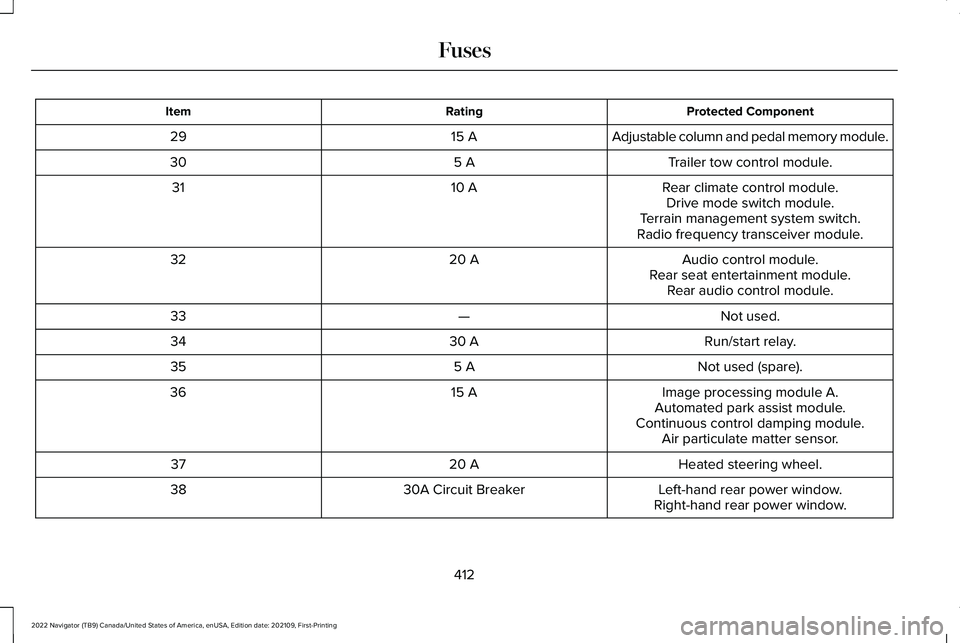
Protected Component
Rating
Item
Adjustable column and pedal memory module.
15 A
29
Trailer tow control module.
5 A
30
Rear climate control module.
10 A
31
Drive mode switch module.
Terrain management system switch.
Radio frequency transceiver module.
Audio control module.
20 A
32
Rear seat entertainment module.Rear audio control module.
Not used.
—
33
Run/start relay.
30 A
34
Not used (spare).
5 A
35
Image processing module A.
15 A
36
Automated park assist module.
Continuous control damping module. Air particulate matter sensor.
Heated steering wheel.
20 A
37
Left-hand rear power window.
30A Circuit Breaker
38
Right-hand rear power window.
412
2022 Navigator (TB9) Canada/United States of America, enUSA, Edition date: 202109, First-Printing Fuses
Page 429 of 646
If you disconnect or replace the battery and
your vehicle has an automatic transmission,
it must relearn its adaptive strategy. Because
of this, the transmission may shift firmly when
first driven. This is normal operation while
the transmission fully updates its operation
to optimum shift feel.
Battery Sensor Reset
When you install a new battery, reset the
battery sensor by doing the following:
1. Switch the ignition on, and leave the
engine off.
Note: Complete Steps 2 and 3 within 10
seconds.
2. Flash the high beam headlamps five times, ending with the high beams off.
3. Press and release the brake pedal three
times.
The battery warning lamp flashes three times
to confirm that the reset is successful. Battery Management System (If Equipped)
The system monitors battery conditions and
takes actions to extend battery life. If
excessive battery drain is detected, the
system temporarily disables some electrical
systems to protect the battery.
Systems included are:
• Heated rear window.
• Heated seats.
• Climate control.
• Heated steering wheel.
• Audio unit.
• Navigation system.
A message may appear in the information
display to alert you that battery protection
actions are active. This message is only for
notification that an action is taking place, and
not intended to indicate an electrical problem
or that the battery requires replacement. After battery replacement, or in some cases
after charging the battery with an external
charger, the battery management system
requires eight hours of vehicle sleep time to
relearn the battery state of charge. During
this time, your vehicle must remain fully
locked with the ignition switched off.
Note:
Prior to relearning the battery state of
charge, the battery management system
may temporarily disable some electrical
systems.
Electrical Accessory Installation
To make sure the battery management
system works correctly, do not connect an
electrical device ground connection directly
to the battery negative post. This can cause
inaccurate measurements of the battery
condition and potential incorrect system
operation.
Note: If you add electrical accessories or
components to the vehicle, it may adversely
affect battery performance and durability.
This may also affect the performance of
other electrical systems in the vehicle.
425
2022 Navigator (TB9) Canada/United States of America, enUSA, Edition date: 202109, First-Printing Maintenance
Page 492 of 646
AUDIO SYSTEM PRECAUTIONS
WARNING: Driving while distracted
can result in loss of vehicle control, crash
and injury. We strongly recommend that
you use extreme caution when using any
device that may take your focus off the
road. Your primary responsibility is the safe
operation of your vehicle. We recommend
against the use of any hand-held device
while driving and encourage the use of
voice-operated systems when possible.
Make sure you are aware of all applicable
local laws that may affect the use of
electronic devices while driving.
Listening to loud audio for long periods of
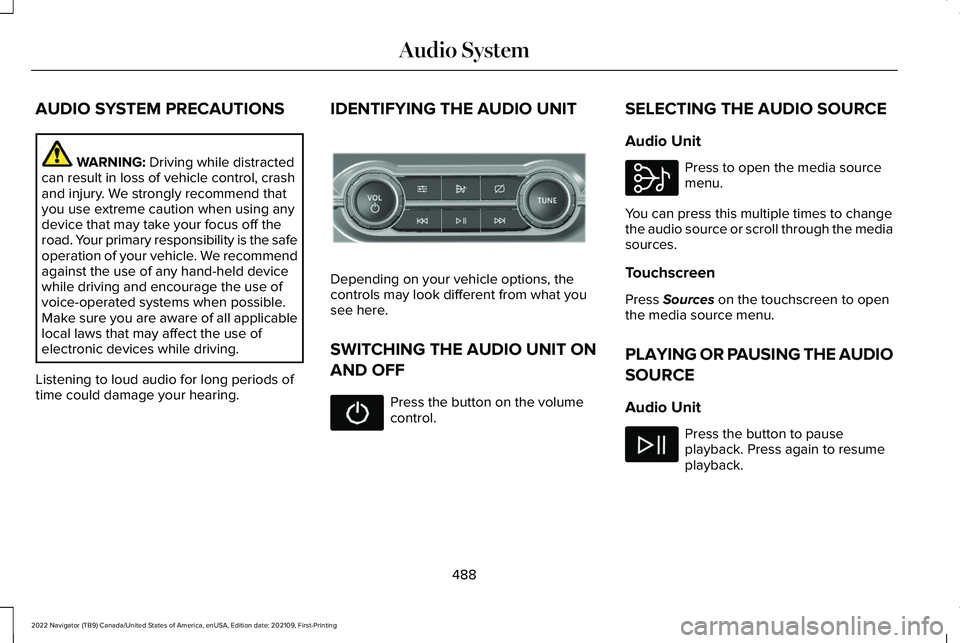
time could damage your hearing. IDENTIFYING THE AUDIO UNIT Depending on your vehicle options, the
controls may look different from what you
see here.
SWITCHING THE AUDIO UNIT ON
AND OFF
Press the button on the volume
control.SELECTING THE AUDIO SOURCE
Audio Unit Press to open the media source
menu.
You can press this multiple times to change
the audio source or scroll through the media
sources.
Touchscreen
Press
Sources on the touchscreen to open
the media source menu.
PLAYING OR PAUSING THE AUDIO
SOURCE
Audio Unit Press the button to pause
playback. Press again to resume
playback.
488
2022 Navigator (TB9) Canada/United States of America, enUSA, Edition date: 202109, First-Printing Audio SystemE308144 E308143
Page 493 of 646
Touchscreen
Press the button to pause
playback. Press again to resume
playback.
Note: Not all sources can be paused.
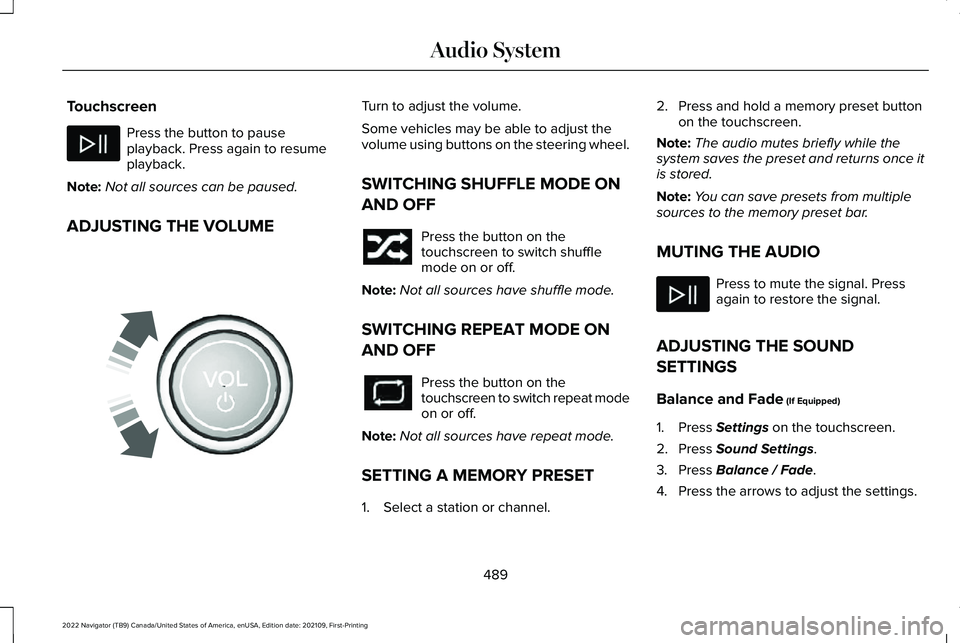
ADJUSTING THE VOLUME Turn to adjust the volume.
Some vehicles may be able to adjust the
volume using buttons on the steering wheel.
SWITCHING SHUFFLE MODE ON
AND OFF
Press the button on the
touchscreen to switch shuffle
mode on or off.
Note: Not all sources have shuffle mode.
SWITCHING REPEAT MODE ON
AND OFF Press the button on the
touchscreen to switch repeat mode
on or off.
Note: Not all sources have repeat mode.
SETTING A MEMORY PRESET
1. Select a station or channel. 2. Press and hold a memory preset button
on the touchscreen.
Note: The audio mutes briefly while the
system saves the preset and returns once it
is stored.
Note: You can save presets from multiple
sources to the memory preset bar.
MUTING THE AUDIO Press to mute the signal. Press
again to restore the signal.
ADJUSTING THE SOUND
SETTINGS
Balance and Fade (If Equipped)
1. Press
Settings on the touchscreen.
2. Press
Sound Settings.
3. Press
Balance / Fade.
4. Press the arrows to adjust the settings.
489
2022 Navigator (TB9) Canada/United States of America, enUSA, Edition date: 202109, First-Printing Audio System E248939
Page 494 of 646
Tone Settings
1. Press Settings on the touchscreen.
2. Press
Sound Settings.
3. Press
Tone Settings.
4. Press the arrows or slider bar to adjust the settings.
Speed Compensated Volume
1. Press
Settings on the touchscreen.
2. Press
Sound Settings.
3. Press
Speed Compensated Volume.
4. Press a setting.
Occupancy Mode
(If Equipped)
1. Press
Settings on the touchscreen.
2. Press
Sound Settings.
3. Press
Occupancy Mode.
4. Press a setting.
Sound Mode
(If Equipped)
1. Press
Settings on the touchscreen.
2. Press
Sound Settings. 3. Press
Sound Mode.
4. Press a setting.
SETTING THE CLOCK AND DATE
1. Press
Settings on the touchscreen.
2. Press
Clock Settings.
3. Set the time.
Note: The
AM and PM options are not
available if 24-hour mode is on.
Switching Automatic Time Updates On
and Off
1. Press
Settings on the touchscreen.
2. Press
Clock Settings.
3. Switch
Automatic time zone update on
or off. AM/FM RADIO
AM/FM RADIO LIMITATIONS
The further you travel from an AM or FM
station, the weaker the signal and the weaker
the reception.
Hills, mountains, tall buildings, bridges,
tunnels, freeway overpasses, parking
garages, dense tree foliage and
thunderstorms can interfere with the
reception.
When you pass a ground-based broadcast
repeating tower, a stronger signal may
overtake a weaker one and result in the
audio system muting.
490
2022 Navigator (TB9) Canada/United States of America, enUSA, Edition date: 202109, First-Printing Audio System
Page 495 of 646
SELECTING A RADIO STATION
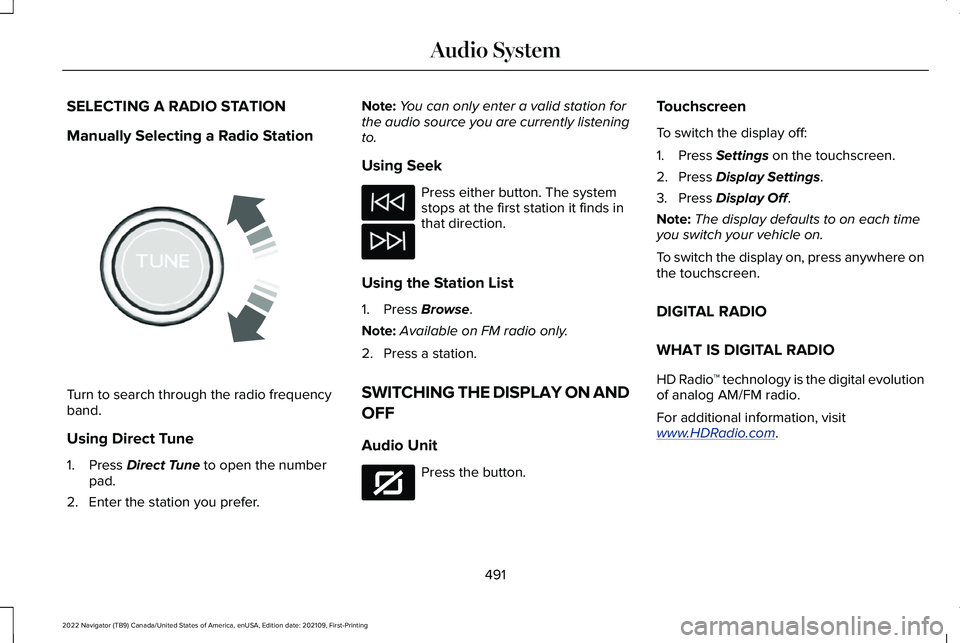
Manually Selecting a Radio Station
Turn to search through the radio frequency
band.
Using Direct Tune
1. Press Direct Tune to open the number
pad.
2. Enter the station you prefer. Note:
You can only enter a valid station for
the audio source you are currently listening
to.
Using Seek Press either button. The system
stops at the first station it finds in
that direction.
Using the Station List
1. Press
Browse.
Note: Available on FM radio only.
2. Press a station.
SWITCHING THE DISPLAY ON AND
OFF
Audio Unit Press the button.Touchscreen
To switch the display off:
1. Press
Settings on the touchscreen.
2. Press
Display Settings.
3. Press
Display Off.
Note: The display defaults to on each time
you switch your vehicle on.
To switch the display on, press anywhere on
the touchscreen.
DIGITAL RADIO
WHAT IS DIGITAL RADIO
HD Radio ™ technology is the digital evolution
of analog AM/FM radio.
For additional information, visit
www .HDR adio . com .
491
2022 Navigator (TB9) Canada/United States of America, enUSA, Edition date: 202109, First-Printing Audio SystemE270235 E272035
Page 496 of 646
HD Radio Technology is manufactured under
license from iBiquity Digital Corporation and
foreign patents. HD Radio and the HD and
HD Radio logos are proprietary trademarks
of DTS. The vehicle manufacturer and DTS
are not responsible for the content sent using
HD Radio technology. Content may be
changed, added or deleted at any time at
the station owner's discretion.
HOW DOES DIGITAL RADIO WORK
Your system has a special receiver that
allows it to receive digital broadcasts in
addition to analog broadcasts.
HD1 signifies the main programming status
and is available in both analog and digital
broadcasts. Other multicast stations are only
available digitally and could contain new or
different content.
Note:
When the system first receives an HD1
station, it plays the station in the analog
version until it verifies the station is an HD
Radio station. Then it shifts to the digital
version. Note:
There is an audio mute delay when
switching to an HD2 or HD3 station because
the system has to reacquire and decode the
digital signal.
DIGITAL RADIO LIMITATIONS
If you are outside the reception area, the
system could not work.
If you are on the fringe of the reception area,
the station could mute due to weak signal
strength.
Note: If you are listening to HD1, the system
changes back to the analog broadcast until
the digital broadcast is available again. If
you are listening to any other multicast
channels, the station mutes and stays muted
unless it is able to connect to the digital
signal again.
Depending on the station quality, you could
hear a slight sound change when the station
changes between analog and digital audio.
You cannot access a saved HD station if your
vehicle is outside the station ’s reception
area. SWITCHING DIGITAL RADIO
RECEPTION ON AND OFF
1. Press Settings on the touchscreen.
2. Press
Radio Settings.
3. Switch
AM HD Radio or FM HD Radio
on or off.
DIGITAL RADIO INDICATORS
HD Radio Indicator
The indicator appears when HD Radio is on
and you tune to a station broadcasting HD
Radio technology. The color of the indicator changes to indicate
the system status.
492
2022 Navigator (TB9) Canada/United States of America, enUSA, Edition date: 202109, First-Printing Audio SystemE142616
Page 497 of 646
Gray indicates the system is acquiring a
digital station.
Orange indicates digital audio is playing.
Multicast Indicator
The multicast indicator appears if the current
station is broadcasting multiple digital
broadcasts. The highlighted numbers
indicate additional digital channels available.
Note:
For stations that have more than one
HD multicast, the HD indicator and radio text
appears as a button. Press the button to
cycle through all of the HD stations on that
specific frequency.
SATELLITE RADIO (IF EQUIPPED)
WHAT IS SATELLITE RADIO
Your factory-installed SiriusXM radio system
includes a limited subscription term, which
begins on the date of sale or lease of your
vehicle. See an authorized dealer for
availability. For additional information about extended
subscription terms, visit
www .Sirius XM. com
in the United States, www .Sirius XM. ca in
Canada, or call SiriusXM at 1-888-539-7474.
Note: SiriusXM reserves the unrestricted
right to change, rearrange, add or delete
programming including canceling, moving
or adding particular channels, and its prices,
at any time, with or without notice to you.
Neither SiriusXM and its affiliates nor Ford
Motor Company and its affiliates will be
liable to you or any third party for any such
modification, suspension or termination.
SATELLITE RADIO LIMITATIONS
For optimal reception performance, keep the
antenna clear of snow and ice build-up and
keep luggage and other material as far away
from the antenna as possible. Placing
luggage over the antenna may reduce
performance. Factory-installed and
aftermarket vehicle structures including, but
not limited to, roof racks and soft top roofs
in a partially open position could reduce
reception performance. Hills, mountains, tall buildings, bridges,
tunnels, freeway overpasses, parking
garages, dense tree foliage and
thunderstorms can interfere with your
reception.
When you pass a ground-based
broadcast-repeating tower, a stronger signal
may overtake a weaker one and could result
in the audio system muting. Your display
could show an error message to indicate the
interference.
LOCATING THE SATELLITE RADIO
IDENTIFICATION NUMBER
1. Select SiriusXM as the audio source.
2. Tune to channel 0.
SELECTING A CHANNEL
Manually Selecting a Channel
Press the button to find the
previous or next available radio
channel.
493
2022 Navigator (TB9) Canada/United States of America, enUSA, Edition date: 202109, First-Printing Audio SystemE328569 E328570
Page 498 of 646
Linear Tuner
The linear tuner is displayed when manually
selecting a channel. You can swipe left or
right on the linear tuner carousel to navigate
through the channel list. Tap on a channel
title to listen to it.
Using Direct Tune
1. Press the channel up or down button to
open the linear tuner screen.
2. Press Direct Tune to open the number
pad.
3. Enter the channel you prefer.
Using Browse
1. Press
Browse.
2. Select a channel.
SATELLITE RADIO SETTINGS
Subscription
Your subscription status is displayed. You
can subscribe or manage your subscription
directly from the touchscreen. Listener Add/Switch
You can create up to five listener profiles per
SiriusXM account. Each listener profile can
be personalized with a name and profile
image.
Note:
Requires a trial or active subscription
to use.
Note: A default profile is available when no
listener profiles are created.
SiriusXM Favorites
SiriusXM Favorites are shown for the active
listener profile. While you are listening to
SiriusXM, you can save favorites by: •
Tapping the currently tuned channel or
show logo on the SiriusXM audio screen.
A favorite icon appears next to the logo
when it is saved as a favorite.
• Tuning to a channel or show you want to
save as a favorite. Navigate to the
SiriusXM Favorites screen and press the
Add Current button. The currently tuned
channel or show is saved as a favorite.
• Saving a radio preset. This saves the
currently tuned SiriusXM channel or show
as a favorite.
Note: Requires a trial or active subscription
to use.
Listening History
Listening history is a list of recently listened
to SiriusXM content and is shown for the
active listener profile. You can view, manage
and reset the listening history using the
controls on the touchscreen.
Note: Requires a trial or active subscription
to use.
494
2022 Navigator (TB9) Canada/United States of America, enUSA, Edition date: 202109, First-Printing Audio System
Page 499 of 646
Listener Settings
Listener settings apply to the active listener
profile.
Note:
Requires a trial or active subscription
to use.
Note: A default profile is available when no
listener profiles are created. Help and Support
You can contact SiriusXM Customer Care
directly from SYNC and view information
required to manage your SiriusXM account.
495
2022 Navigator (TB9) Canada/United States of America, enUSA, Edition date: 202109, First-Printing Audio System