change time LINCOLN NAVIGATOR 2022 User Guide
[x] Cancel search | Manufacturer: LINCOLN, Model Year: 2022, Model line: NAVIGATOR, Model: LINCOLN NAVIGATOR 2022Pages: 646, PDF Size: 7.29 MB
Page 272 of 646
Why does active park assist not search for
a parking space?
The transmission is in reverse (R). Your
vehicle must be moving forward to be
able to detect a parking space.
Why does active park assist not offer a
parking space? The sensors could be blocked. For
example, snow, ice or large
accumulations of dirt. Blocked sensors
can affect how the system functions.
Why does active park assist not offer a
parking space? The sensors in the front or rear bumper
could be damaged.
Why does active park assist not offer a
parking space? There is not enough room in the parking
space for your vehicle to safely park.
Why does active park assist not offer a
parking space? There is not enough space for the
parking maneuver on the opposite side
of the parking space. Why does active park assist not offer a
parking space?
The parking space is more than 5 ft
(1.5 m) or less than 2 ft (0.5 m) away from
your vehicle.
Why does active park assist not offer a
parking space? Your vehicle's speed is greater than
22 mph (35 km/h)
for parallel parking or
greater than 19 mph (30 km/h) for
perpendicular parking.
Why does active park assist not offer a
parking space? You recently disconnected or replaced
the battery. After you reconnect the
battery you must drive your vehicle on
a straight road for a short period of time.
Why does active park assist not correctly
position the vehicle into a parking space? An irregular curb along the parking
space prevents the system from
correctly aligning your vehicle. Why does active park assist not correctly
position the vehicle into a parking space?
Vehicles or objects bordering the space
could not be correctly parked.
Why does active park assist not correctly
position the vehicle into a parking space? Your vehicle stopped too far past the
parking space.
Why does active park assist not correctly
position the vehicle into a parking space? The tires are not correctly installed or
maintained. For example, using a spare
tire, not inflated correctly, improper size,
or of different sizes.
Why does active park assist not correctly
position the vehicle into a parking space? A repair or alteration changed the
detection capabilities.
Why does active park assist not correctly
position the vehicle into a parking space? A parked vehicle has a high attachment.
For example, a salt sprayer, snowplow
or moving truck bed.
268
2022 Navigator (TB9) Canada/United States of America, enUSA, Edition date: 202109, First-Printing Active Park Assist
Page 283 of 646
1. Press Features on the touchscreen.
2. Press
Driver Assistance.
3. Press
Cruise Control.
4. Press
Normal Cruise Control. The cruise control indicator
replaces the adaptive cruise
control indicator if you select
normal cruise control. The gap setting does
not display, and the system does not respond
to lead vehicles. Automatic braking remains
active to maintain set speed. The system
remembers the last setting when you start
your vehicle.
LANE CENTERING
HOW DOES LANE CENTERING WORK
Adaptive cruise control with lane centering
uses radar and camera sensors to help keep
your vehicle in the middle of the lane by
applying continuous assistance steering
torque input toward the lane center on
highways. Note:
The adaptive cruise control gap setting
operates normally.
If you drive off-center within the lane, the
system sets and maintains that preferred lane
position. The system provides continuous
assistance steering torque input toward the
preferred position.
Note: The system can only set preferred lane
positions within the lane.
Note: If the system cancels, the preferred
position erases. On the next activation, the
system provides continuous assistance
steering torque input toward the lane center.
LANE CENTERING PRECAUTIONS WARNING:
Do not use the system
when towing a trailer. Failure to follow this
instruction could result in the loss of
control of your vehicle, personal injury or
death. WARNING: Do not use the system if
any changes or modifications to the
steering wheel have been made. Any
changes or modifications to the steering
wheel could affect the functionality or
performance of the system. Failure to
follow this instruction could result in the
loss of control of your vehicle, personal
injury or death.
Adaptive cruise control precautions apply to
lane centering unless stated otherwise or
contradicted by a lane centering precaution.
See
Adaptive Cruise Control Precautions
(page 270).
LANE CENTERING REQUIREMENTS
You must keep your hands on the steering
wheel at all times.
279
2022 Navigator (TB9) Canada/United States of America, enUSA, Edition date: 202109, First-Printing Adaptive Cruise ControlE332905
Page 284 of 646
The system only activates when all of the
following occur:
•
You have adaptive cruise control with
stop and go on.
• Lane centering assist is enabled in your
information and entertainment screen.
See Switching Lane Centering On and
Off (page 280).
• You have your hands on the steering
wheel.
• The system detects both lane markings.
Note: If it does not detect valid lane
markings, the system stays inactive until
valid markings are available.
LANE CENTERING LIMITATIONS
Adaptive cruise control limitations apply to
lane centering unless stated otherwise or
contradicted by a lane centering limitation.
See
Adaptive Cruise Control Limitations
(page 271). Lane Centering may not correctly operate in
any of the following conditions:
•
Your vehicle is not centered in the lane.
• The lane is too narrow or wide.
• The system does not detect at least one
lane marking or when lanes merge or
split.
• Limited steering torque input is applied.
• Areas under construction or new
infrastructure.
• When modifications to the steering
system have been made.
• When using a spare tire.
• In high wind conditions.
Note: The driving assistance torque is limited
and may not be sufficient for all driving
situations such as driving through tight
curves or driving through curves at high
speeds.
Note: In exceptional conditions, the system
may deviate from the center line. SWITCHING LANE CENTERING ON
AND OFF
You must keep your hands on the steering
wheel at all times.
The controls are on the steering wheel. Press the button.
The indicator appears in the information
display. When the system is on, the color of
the indicator changes to indicate the system
status.
You can override the system at any time by
steering your vehicle.
Note: The correct requirements must be met
before you can switch the system on.
See
Lane Centering Requirements (page 279).
Enabling and Disabling Lane Centering
1. Press
Features on the touchscreen.
2. Press
Driver Assistance.
3. Press
Cruise Control.
4. Press
Lane Centering Assist.
280
2022 Navigator (TB9) Canada/United States of America, enUSA, Edition date: 202109, First-Printing Adaptive Cruise ControlE308131
Page 285 of 646
LANE CENTERING ALERTS
You must keep your hands on the steering
wheel at all times.
When the system is active and detects no
steering activity for a period of time, the
system alerts you to put your hands on the
steering wheel. If you do not react to the
warnings the system cancels and slows your
vehicle down to idle speeds while
maintaining steering control. See Lane
Centering Automatic Cancellation (page
281).
The system also alerts you if your vehicle
crosses lane markings without detected
steering activity.
Note: The system could detect a light grip
or touch on the steering wheel as hands-off
driving. LANE CENTERING AUTOMATIC
CANCELLATION
When an external condition cancels the
system, for example, no lane markings
available, a tone sounds and a message
appears in the instrument cluster display.
If your vehicle starts to slow down, you must
provide steering input to the wheel and press
the accelerator pedal to regain full system
performance.
Automatic cancellation can also occur if:
•
The lane becomes too wide or too
narrow.
• The system cannot detect valid lane
markings.
• Lane markings cross over one another.
Note: The system disables until the next key
cycle if your vehicle slows down due to driver
inactivity twice within a key cycle. LANE CENTERING INDICATORS Illuminates when you switch lane
centering on. The color of the
indicator changes to indicate the
system status.
Gray indicates the system is on but inactive.
Green indicates the system is active and
applying steering torque assistance input to
keep your vehicle in the center of the lane.
Amber with an audible tone and then gray
indicates a system automatic cancellation.
INTELLIGENT ADAPTIVE CRUISE
CONTROL
HOW DOES INTELLIGENT ADAPTIVE
CRUISE CONTROL WORK
Intelligent adaptive cruise control combines
speed sign recognition with adaptive cruise
control to adjust the cruise set speed to the
speed limit detected by the speed sign
recognition system. As the system detects
new speed signs, the set speed updates.
281
2022 Navigator (TB9) Canada/United States of America, enUSA, Edition date: 202109, First-Printing Adaptive Cruise ControlE297977
Page 293 of 646
Using Activation Prompts
When the prompt appears, press
the button to switch ActiveGlide
on.
The indicator appears in the instrument
cluster. When the system is on, the color of
the indicator changes to indicate the system
status.
Note: You must enable activation prompts
in the touchscreen.
Using Steering Wheel Controls Using the adaptive cruise control
and lateral support buttons, ensure
both systems are active.
ActiveGlide activates.
Switching ActiveGlide Off Press either the lateral support or
adaptive cruise control button
when system is active or in
standby mode.
ActiveGlide turns off through each
ignition cycle. ACTIVEGLIDE™ ALERTS
When ActiveGlide is providing hands-on
driving or transitioning to hands-on driving
from hands-free driving and detects no
steering activity for a certain period of time,
the system alerts you with a message in the
instrument cluster to put your hands on the
steering wheel. After the first alert, the
system alerts you with a message in the
instrument cluster and an audible warning.
When ActiveGlide is providing hands-on or
hands-free driving and detects you are not
looking at the road for a certain period of
time, the system alerts you to return your
eyes to the road. Depending on where you
are looking, the alert can be a message in
the instrument cluster and an audible
warning.
If you do not react to the warnings,
ActiveGlide cancels, quickly activates and
releases the brakes, and slows your vehicle
down to low speeds while maintaining
steering control.
If your vehicle slows down and you resume
control, a message appears to prompt you
to press the accelerator pedal to allow the
system to resume.
Note:
If the system detects repeated
inactivity, it disables until the next key cycle.
ACTIVEGLIDE™ AUTOMATIC
CANCELLATION
When an external condition cancels
ActiveGlide, for example, no lane markings
available, a tone sounds and a message
appears in the instrument cluster. If your vehicle starts to slow down,
you must take control of steering
and press and release the button
to reactivate ActiveGlide.
System cancellation can also occur if:
• The lane becomes too narrow.
• The system cannot detect valid lane
markings.
289
2022 Navigator (TB9) Canada/United States of America, enUSA, Edition date: 202109, First-Printing ActiveGlide™ (If Equipped)E144529 E308131 E144529 E308131 E144529 E308130
Page 294 of 646
•
Lane markings cross.
• Your eyes are not on the road or your
hands are not the steering wheel.
If you have your hands on the steering wheel
and your eyes are on the road when the
feature is active and a cancellation occurs,
the system sounds a tone and displays a
cancelled graphic in the instrument cluster.
If you are not paying attention to the road or
your hands are not on the steering wheel
and a cancellation occurs, the system
displays a message and a tone sounds until
you resume control. If you do not resume
control in time, ActiveGlide quickly activates
and releases the brakes, and slows your
vehicle down to low speeds while
maintaining steering control. If your vehicle
slows down and you resume control, a
message appears to prompt you to press the
accelerator pedal to allow the system to
resume.
Note: The system disables until the next key
cycle if it detects repeated inactivity. ACTIVEGLIDE™ INDICATORS When on, the color of the indicator
changes to indicate the status.
Gray indicates ActiveGlide is on
but inactive.
Green indicates ActiveGlide is active and
applying continuous steering support.
Blue indicates ActiveGlide is active and
hands-free driving mode is available.
Hands-On Driving Support Available When this indicator is present, you must keep
your hands on the steering wheel.
Hands-Free Driving Support Available
A graphic in the instrument cluster of a
steering wheel without hands indicates the
hands-free driving mode is available.
When this indicator is present, you can
remove your hands from the steering wheel.
290
2022 Navigator (TB9) Canada/United States of America, enUSA, Edition date: 202109, First-Printing ActiveGlide™ (If Equipped)E297977 E333236 E333232
Page 297 of 646
WHAT IS DRIVE MODE CONTROL
Your vehicle has various drive modes that
you can select for different driving
conditions. Depending on the drive mode
that you select, the system adjusts various
vehicle settings.
HOW DOES DRIVE MODE
CONTROL WORK
Drive mode control adjusts your vehicle
configuration for each mode you select.
Changing the drive mode adjusts the
steering effort and feel of the steering
system.
The stability and traction control assist your
vehicle control in adverse conditions or
high-performance driving.
Throttle control enhances the powertrain
response, transmission controls become
optimized with shift schedules, and
four-wheel drive settings are optimized and
tuned to each mode.
Changing the drive mode can engage or
disengage the electronic locking differentials.
Changing the drive mode changes the
four-wheel drive mode to the default setting
for the selected drive mode.
Note:
The system has diagnostic checks that
continuously monitor the system for proper
operation. If a mode is unavailable due to a
system fault, the drive mode system defaults
to normal. When the system defaults to
normal, the driveline settings remain the
same as prior to the system fault. Note:
The system reverts to the normal
mode each time you start your vehicle. At
startup the system also displays a prompt
on the instrument cluster display that gives
you the option to return to the previously
selected drive mode during the last ignition
cycle. If you select yes, the system returns
to the last selected drive mode and the
default driveline settings associated with
that mode. If you select no, the system
remains in normal mode and the driveline
settings remain the same as selected in the
prior ignition cycle. If you do not select yes
or no, the system stays in normal mode and
the driveline settings remain the same as
selected in the prior ignition cycle.
293
2022 Navigator (TB9) Canada/United States of America, enUSA, Edition date: 202109, First-Printing Drive Mode Control
Page 298 of 646
SELECTING A DRIVE MODE
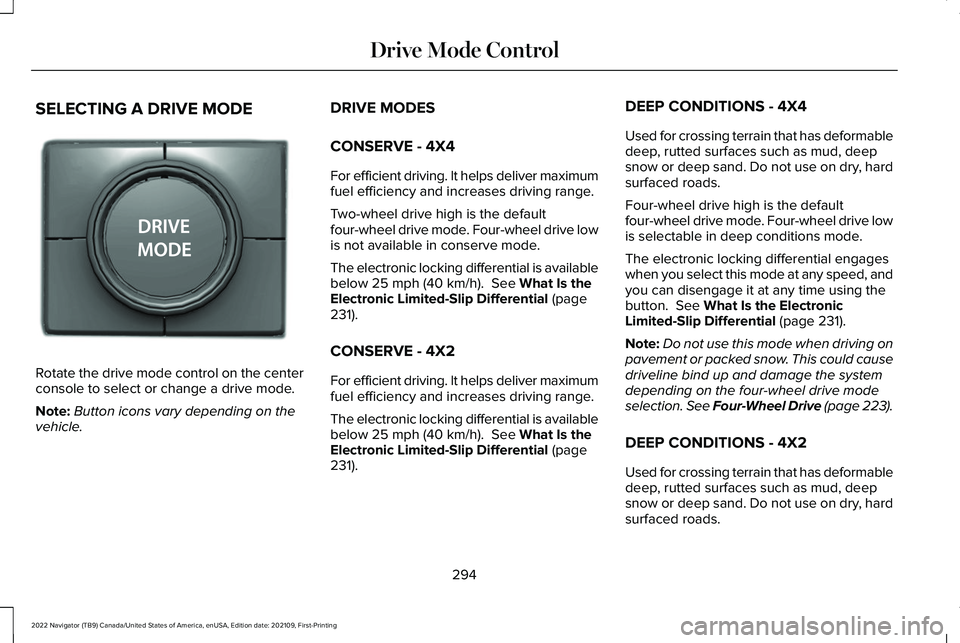
Rotate the drive mode control on the center
console to select or change a drive mode.
Note:
Button icons vary depending on the
vehicle. DRIVE MODES
CONSERVE - 4X4
For efficient driving. It helps deliver maximum
fuel efficiency and increases driving range.
Two-wheel drive high is the default
four-wheel drive mode. Four-wheel drive low
is not available in conserve mode.
The electronic locking differential is available
below 25 mph (40 km/h). See What Is the
Electronic Limited-Slip Differential (page
231).
CONSERVE - 4X2
For efficient driving. It helps deliver maximum
fuel efficiency and increases driving range.
The electronic locking differential is available
below
25 mph (40 km/h). See What Is the
Electronic Limited-Slip Differential (page
231). DEEP CONDITIONS - 4X4
Used for crossing terrain that has deformable
deep, rutted surfaces such as mud, deep
snow or deep sand. Do not use on dry, hard
surfaced roads.
Four-wheel drive high is the default
four-wheel drive mode. Four-wheel drive low
is selectable in deep conditions mode.
The electronic locking differential engages
when you select this mode at any speed, and
you can disengage it at any time using the
button.
See What Is the Electronic
Limited-Slip Differential (page 231).
Note: Do not use this mode when driving on
pavement or packed snow. This could cause
driveline bind up and damage the system
depending on the four-wheel drive mode
selection. See Four-Wheel Drive (page 223).
DEEP CONDITIONS - 4X2
Used for crossing terrain that has deformable
deep, rutted surfaces such as mud, deep
snow or deep sand. Do not use on dry, hard
surfaced roads.
294
2022 Navigator (TB9) Canada/United States of America, enUSA, Edition date: 202109, First-Printing Drive Mode ControlE246604
Page 304 of 646
LANE KEEPING SYSTEM
LIMITATIONS
The lane keeping system only operates when
the vehicle speed is greater than 40 mph
(64 km/h).
The system works when the camera can
detect at least one lane marking.
Note: When you select Aid or Alert and Aid
mode and the system detects no steering
activity for a short period of time, the system
alerts you to put your hands on the steering
wheel. The system may detect a light grip or
touch on the steering wheel as hands-off
driving.
The lane keeping system may not correctly
operate in any of the following conditions:
• The lane keeping system does not detect
at least one lane marking.
• You switch the turn signal on.
• You apply direct steering, accelerate fast
or brake hard.
• The vehicle speed is less than
40 mph
(64 km/h). •
The anti-lock brake, stability control or
traction control system activates.
• The lane is too narrow.
• Something is obscuring the camera or it
is unable to detect the lane markings due
to environment, traffic or vehicle
conditions.
• Entering or exiting a tight curve when
driving at high speeds.
The lane keeping system may not correct
lane positioning in any of the following
conditions:
• High winds.
• Uneven road surfaces.
• Heavy or uneven loads.
• Incorrect tire pressure.
SWITCHING THE LANE KEEPING
SYSTEM ON AND OFF To activate the lane keeping
system, press the button on the
steering wheel.To deactivate the lane keeping system, press
the button again.
Note:
When switching the system on or off
a message appears in the information and
entertainment display to show the status.
Note: The system stores the on or off setting
until manually changed, unless it detects a
MyKey™. If the system detects a MyKey™, it
defaults to the last setting for that MyKey™.
Note: If the system detects a MyKey™,
pressing the button does not affect the on
or off status of the system. You can only
change the mode and intensity settings.
SWITCHING THE LANE KEEPING
SYSTEM MODE
The lane keeping system has different
settings that you can view or adjust using
the information display.
The system stores the last known selection
for each of these settings. You do not need
to readjust your settings each time you
switch on the system.
300
2022 Navigator (TB9) Canada/United States of America, enUSA, Edition date: 202109, First-Printing Lane Keeping SystemE334922
Page 307 of 646
While the lane keeping system is on, the
color of the lane markings change to indicate
the system status. Red
Yellow
Green
Gray
Indicates that the system is
providing or has just provided a lane keeping alert warning.
Indicates that the system is
providing or has just provided a lane keeping aid intervention.
Indicates that the system is avail-
able or ready to provide a warning or intervention on the indicated side.
Indicates that the system is
temporarily unavailable to provide a warning or intervention on the indicated side.
BLIND SPOT ASSIST
WHAT IS BLIND SPOT ASSIST
Blind spot assist is an extension of the lane
keeping system.
It may help you identify adjacent vehicles
during a lane change.
Blind spot assist provides a blind spot
warning and steering assistance to help
during lane changes. HOW DOES BLIND SPOT ASSIST
WORK Activate and deactivate the system
using the lane keeping system
button on the steering wheel.
During lane changes, the design of the blind
spot assist feature detects vehicles in, or
approaching, your blind spot and provides
a warning, plus steering assistance to direct
your vehicle back into your lane.
When active, this system functions with or
without the use of direction indicators and
hazard flashers. You must keep your hands on the steering
wheel at all times.
BLIND SPOT ASSIST LIMITATIONS
All system limitations present in the basic
lane keeping system also apply to blind spot
assist.
Blind spot assist does not function under the
following conditions:
•
The system does not detect lane
markings.
• One or both rear radar sensors become
blocked or faulty.
• You attach a trailer with a wiring
connection to your vehicle.
303
2022 Navigator (TB9) Canada/United States of America, enUSA, Edition date: 202109, First-Printing Lane Keeping SystemE334922