change time LINCOLN NAVIGATOR 2022 Owner's Manual
[x] Cancel search | Manufacturer: LINCOLN, Model Year: 2022, Model line: NAVIGATOR, Model: LINCOLN NAVIGATOR 2022Pages: 646, PDF Size: 7.29 MB
Page 310 of 646
BLIND SPOT ASSIST WITH TRAILER
COVERAGE
WHAT IS BLIND SPOT ASSIST WITH
TRAILER COVERAGE
Blind spot assist with trailer coverage is an
extension of the lane keeping system.
It may help you identify adjacent vehicles
during a lane change.
Blind spot assist provides a blind spot
warning and steering assistance to help
during lane changes.
When attaching a trailer, ensure you have
properly set up the trailer coverage settings.
See Blind Spot Information System With
Trailer Coverage (page 313).
HOW DOES BLIND SPOT ASSIST WITH
TRAILER COVERAGE WORK Activate and deactivate the system
using the lane keeping system
button on the steering wheel. During lane changes, the design of the blind
spot assist feature detects vehicles in, or
approaching, your blind spot and provides
a warning, plus steering assistance to direct
your vehicle back into your lane.
If a supported trailer is connected, the
function is reduced to only detecting vehicles
on both sides of your vehicle and trailer,
extending rearward from the exterior mirrors
to the end of your trailer.
See Blind Spot
Information System With Trailer Coverage
(page
313).
When active, this system functions with or
without the use of direction indicators and
hazard flashers.
You must keep your hands on the steering
wheel at all times.
BLIND SPOT ASSIST WITH TRAILER
COVERAGE LIMITATIONS
All system limitations present in the basic
lane keeping system also apply to blind spot
assist.
Blind spot assist does not function under the
following conditions: •
The system does not detect lane
markings.
• One or both rear radar sensors become
blocked or faulty.
• You have not configured the attached
trailer correctly in the trailer tow menus
or an unsupported trailer has been
attached. Only certain trailer shapes and
dimensions are supported.
See Blind
Spot Information System With Trailer
Coverage Limitations
(page 313).
Note: Blind spot assist with trailer coverage
could have reduced performance if you
attach a trailer to your vehicle.
Blind spot assist may have difficulty detecting
hazards under the following conditions:
• If a vehicle is approaching in an adjacent
lane at a relative speed much higher than
your vehicle.
• Bad weather conditions are present that
obstruct the sensors.
• Attaching bike or cargo racks could
cause false alerts due to obstruction of
the sensor.
306
2022 Navigator (TB9) Canada/United States of America, enUSA, Edition date: 202109, First-Printing Lane Keeping SystemE334922
Page 313 of 646
 when I can s\
ee the lane markings on the road?
Your vehicle speed is less than 40 mph (65")
LANE KEEPING SYSTEM – FREQUENTLY ASKED QUESTIONS
Why is the feature not available (lane markings are gray) when I can s\
ee the lane markings on the road?
Your vehicle speed is less than 40 mph (65 km/h).
The sun is shining directly into the camera lens. A quick intentional lane change has occurred.
Your vehicle stays too close to the lane markings for an extended interva\
l of time. Driving at high speeds in curves.
The last alert warning or aid intervention occurred a short time ago. Ambiguous lane markings, for example, in construction zones. Rapid transition from light to dark, or from dark to light. Sudden offset in lane markings.ABS or AdvanceTrac ™ is active.
There is a camera blockage due to dirt, grime, fog, frost or water on the windshield. You are driving too close to the vehicle in front of you.
Transitioning between no lane markings to lane markings, or vice versa. There is standing water on the road.
Faint lane markings, for example, partial yellow lane markings on concrete roads.
309
2022 Navigator (TB9) Canada/United States of America, enUSA, Edition date: 202109, First-Printing Lane Keeping System
Page 326 of 646
Cyclist Detection Limitations
Cyclist detection is active at speeds up to
50 mph (80 km/h).
Cyclist detection functions optimally when
detected hazards are clearly identifiable.
System performance may reduce in
situations where cyclists are fast-moving,
partly obscured, have a complex
background, or cannot be distinguished from
a group.
Intersection Assist
(If Equipped)
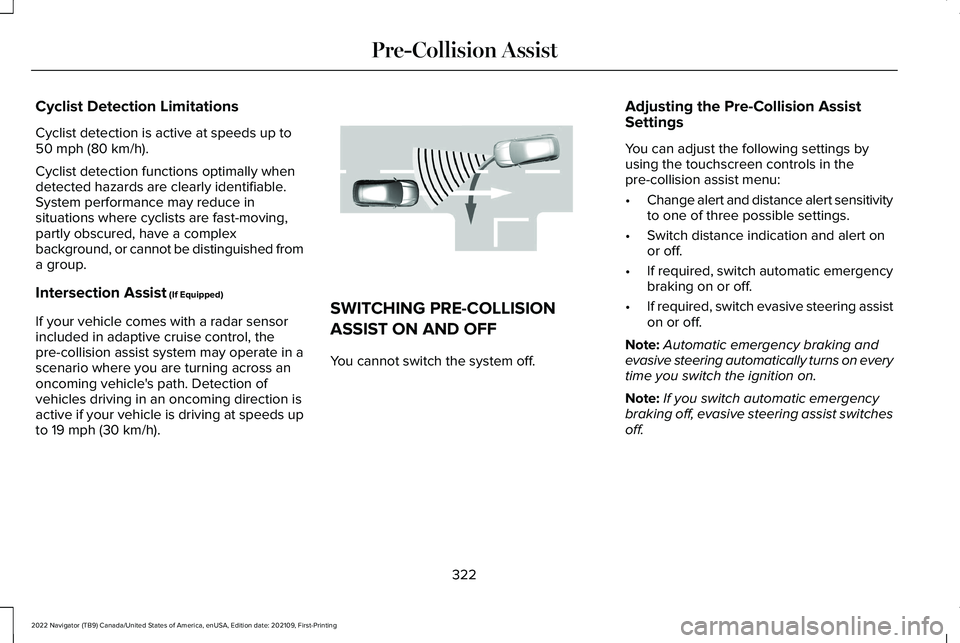
If your vehicle comes with a radar sensor
included in adaptive cruise control, the
pre-collision assist system may operate in a
scenario where you are turning across an
oncoming vehicle's path. Detection of
vehicles driving in an oncoming direction is
active if your vehicle is driving at speeds up
to
19 mph (30 km/h). SWITCHING PRE-COLLISION
ASSIST ON AND OFF
You cannot switch the system off.
Adjusting the Pre-Collision Assist
Settings
You can adjust the following settings by
using the touchscreen controls in the
pre-collision assist menu:
•
Change alert and distance alert sensitivity
to one of three possible settings.
• Switch distance indication and alert on
or off.
• If required, switch automatic emergency
braking on or off.
• If required, switch evasive steering assist
on or off.
Note: Automatic emergency braking and
evasive steering automatically turns on every
time you switch the ignition on.
Note: If you switch automatic emergency
braking off, evasive steering assist switches
off.
322
2022 Navigator (TB9) Canada/United States of America, enUSA, Edition date: 202109, First-Printing Pre-Collision AssistE309750
Page 329 of 646
SWITCHING DISTANCE INDICATION
ON AND OFF
To switch the system on or off, use the
touchscreen:
1. Press Features on the touchscreen.
2. Press
Driver Assistance.
3. Press
Pre-Collision Assist.
4. Switch
Distance Indication on or off.
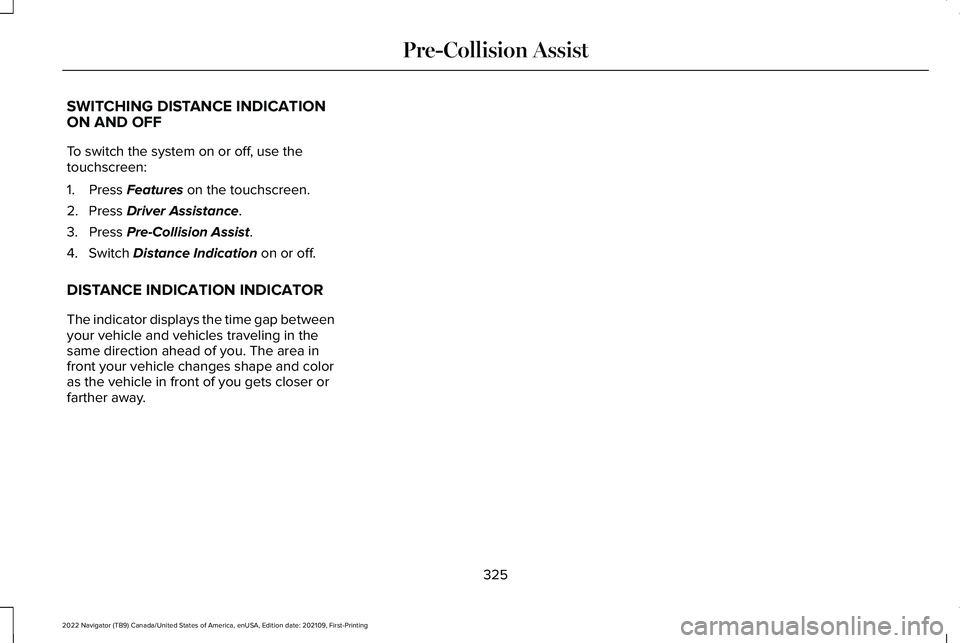
DISTANCE INDICATION INDICATOR
The indicator displays the time gap between
your vehicle and vehicles traveling in the
same direction ahead of you. The area in
front your vehicle changes shape and color
as the vehicle in front of you gets closer or
farther away.
325
2022 Navigator (TB9) Canada/United States of America, enUSA, Edition date: 202109, First-Printing Pre-Collision Assist
Page 361 of 646
3.
When you plug in a trailer with electric or
electric-over-hydraulic brakes, a message
confirming connection appears in the
information display.
4. Use the gain adjustment to find the desired starting point. A gain setting of
6.0 is a good starting point for heavier
loads.
Note: Use the following steps to adjust the
gain setting whenever road, weather and
trailer, or vehicle loading conditions, change
from when you initially set the gain.
5. In a traffic-free environment, tow the trailer on a dry, level surface and squeeze
the manual control lever completely.
6. If the trailer wheels lock up, indicated by
squealing tires, reduce the gain setting.
If the trailer wheels turn freely, increase
the gain setting. Repeat Steps 5 and 6
until the gain setting is at a point just
below trailer wheel lock-up. If towing a
heavier trailer, trailer wheel lock-up may
not be attainable even with the maximum
gain setting of 10.
Note: Only perform this procedure at speeds
of approximately 20–25 mph (30–40 km/h). Note:
The trailer brake controller reduces
output at vehicle speeds below 11 mph
(18 km/h) so that trailer and vehicle braking
is not jerky or harsh. This feature is only
available when applying the brakes using
your vehicle's brake pedal, not the controller.
Note: Your vehicle's brake system and the
trailer brake system work independently of
each other. Changing the gain setting on the
controller does not affect the operation of
your vehicle's brakes whether you attach a
trailer or not.
Note: With the proper electrical connection,
pressing your vehicle brake pedal or using
the manual control lever illuminates both
trailer and vehicle brake lamps.
Note: When you switch the engine off, the
controller output is disabled and the display
and module shut down. The controller
module and display turn on when you switch
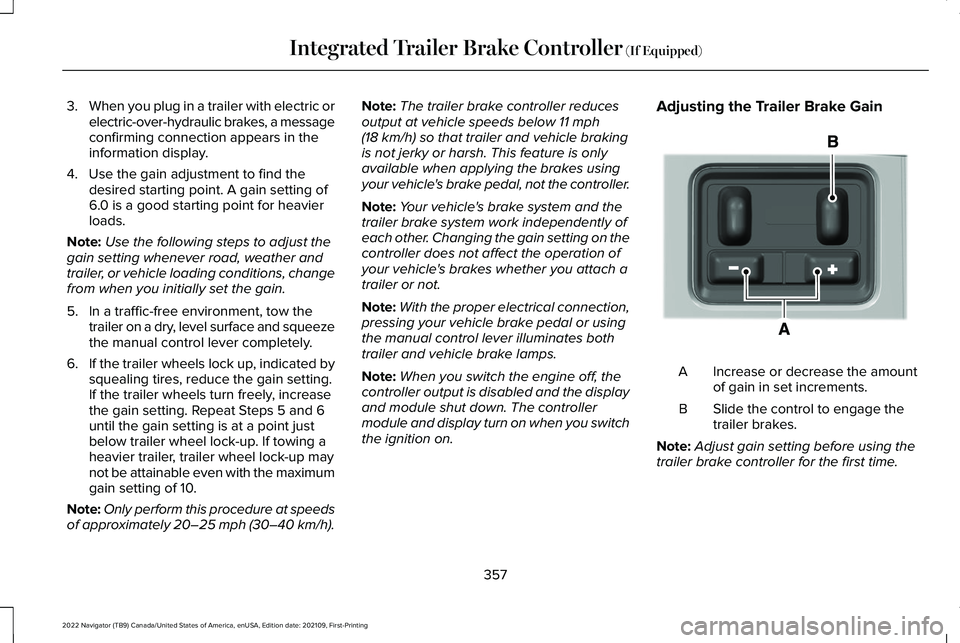
the ignition on. Adjusting the Trailer Brake Gain
Increase or decrease the amount
of gain in set increments.
A
Slide the control to engage the
trailer brakes.
B
Note: Adjust gain setting before using the
trailer brake controller for the first time.
357
2022 Navigator (TB9) Canada/United States of America, enUSA, Edition date: 202109, First-Printing Integrated Trailer Brake Controller
(If Equipped)E333154
Page 376 of 646
TRAILER BACKUP ASSISTANCE –
FREQUENTLY ASKED QUESTIONS
Why does the trailer not reverse straight?
Verify the sticker is correctly applied.
Other factors such as the hitch
connection, road camber, road slope
and trailer suspension could influence
how straight the system can reverse the
trailer when the control knob is not
turned. You can compensate for the
trailer drifting to the right or left by
slowly turning the knob until the trailer
is following your desired path and then
holding the knob in that position. What does it mean if the system remains
on one message for an extended time
during calibration?
The camera could need to be cleaned,
the sticker could be blocked, the
drawbar could be outside the allowed
range of 9–18 in (23–46 cm) or you
could need to move to a different area
to change the lighting and background.
Verify the sticker is in the proper
location.
See Applying the Trailer
Reversing Aid Sticker (page 364). You
can move to a different area or change
the direction you are driving or setup
the system at a different time of day.
Some trailers are not compatible with
the sticker and camera system.
What does it mean if the system pauses
during calibration? There could be steering input or trailer
movement during the straight drive
portion of the calibration process. What does it mean if the system displays
hold steering steady during turn?
Part of the calibration process for the
sticker setup requires a steady turn. If
you are continually moving the steering
wheel during the turn, this delays the
calibration process. To enable the
calibration process, hold the steering
wheel at the same position when
turning.
What does it mean if the system displays
that it is not available? There could be a sub-system that the
system uses that is not correctly
operating or there could be a battery
voltage issue. If the system continues
to display it is not available, visit your
authorized dealer to have your vehicle
checked.
372
2022 Navigator (TB9) Canada/United States of America, enUSA, Edition date: 202109, First-Printing Trailer Backup Assistance
(If Equipped)
Page 378 of 646
What does it mean if the trailer is at its
maximum angle or the system deactivated
by trailer angle?
You are at the maximum controllable
trailer angle for the system. Place your
vehicle in drive (D) and pull forward to
get the truck and trailer back to an
in-line position. If this message
consistently displays, this could indicate
the sticker is incorrectly applied, the
trailer needs to be recalibrated or the
drawbar or the trailer dimensions are
outside of the supported range. The
system is designed to work with
drawbars that have a license plate to
hitch ball center measurement of 9–18 in
(23–46 cm) when installed. The system
is designed to work with trailers that
have a hitch point to center of the axle
or axles measurement of
6–33 ft
(1.85–10.05 m). Do not attempt to use
drawbars or trailers that have a length
outside of this range as the system
performance degrades and could cause
improper system function. Check that
the correct trailer is selected in the touchscreen. Verify the sticker is
correctly applied and check that the
drawbar and the trailer dimensions are
within the allowed range. Then, delete
the trailer from the system and repeat
the setup process to calibrate the trailer.
What does it mean when the system tells
you to take control of the steering wheel? The system is no longer steering the
vehicle and you must take over steering.
There are four reasons the system could
display this message. The first reason
the system could display this message
is that you have touched the steering
wheel when the system is steering. The
second reason the system could display
this message is that you have exceeded
the maximum speed for the feature. The
third reason the system could display
this message is that the trailer is not
detected. The final reason the system
could display this message is that an
internal condition for system operation
is not met that requires your vehicle to
return to manual control of the steering. What does it mean if the system does not
detect a trailer?
The system requires a clear view of the
sticker placed on the trailer. You must
keep the camera lens and sticker clean
for the system to correctly operate. If
the system cannot initially detect the
trailer, it could be necessary for you to
change the lighting conditions by
moving your vehicle and trailer or
waiting until the conditions change. See
Applying the Trailer Reversing Aid
Sticker (page 364). Some trailers are not
compatible with the sticker and camera
system.
Note: The system is designed to be used
with the same trailer connection every time
you choose the trailer from the touchscreen.
When using a different drawbar or a different
pin hole on drawbars with more than one,
connecting the drawbar to your vehicle
affects the trailer position and you may need
to repeat the trailer setup and calibration
process.
374
2022 Navigator (TB9) Canada/United States of America, enUSA, Edition date: 202109, First-Printing Trailer Backup Assistance
(If Equipped)
Page 386 of 646
TRAILER REVERSE GUIDANCE –
FREQUENTLY ASKED QUESTIONS
What does it mean if the system remains
on one message for an extended time
during calibration?
The camera could need to be cleaned,
the sticker could be blocked, the
drawbar could be outside the allowed
range of 9–18 in (23–46 cm) or you
could need to move to a different area
to change the lighting and background.
Verify the sticker is in the proper
location.
See Applying the Trailer
Reverse Aid Sticker (page 376). You can
move to a different area or change the
direction you are driving or setup the
system at a different time of day. Some
trailers are not compatible with the
sticker and camera system.
What does it mean if the system pauses
during calibration? There could be steering input or trailer
movement during the straight drive
portion of the calibration process. What does it mean if the system displays
hold steering steady during turn?
Part of the calibration process for the
sticker setup requires a steady turn. If
you are continually moving the steering
wheel during the turn, this delays the
calibration process. To enable the
calibration process, hold the steering
wheel at the same position when
turning.
What does it mean if the system displays
that it is not available? There could be a sub-system that the
system uses that is not correctly
operating or there could be a battery
voltage issue. If the system continues
to display it is not available, visit your
authorized dealer to have your vehicle
checked. What does it mean if the system displays
that driving is required to initialize steering?
The steering system needs to learn
internal parameters to fully turn on the
feature. Drive your vehicle straight
forward above
25 mph (40 km/h) for
approximately 5 minutes. This could also
occur when your vehicle is new, there
is a battery voltage issue or if the
steering system has been serviced.
What does it mean if the system does not
detect a trailer? The system requires a clear view of the
sticker placed on the trailer. You must
keep the camera lens and sticker clean
for the system to correctly operate. If
the system cannot initially detect the
trailer, it could be necessary for you to
change the lighting conditions by
moving your vehicle and trailer or
waiting until the conditions change. See
Applying the Trailer Reverse Aid
Sticker (page 376). Some trailers are not
compatible with the sticker and camera
system.
382
2022 Navigator (TB9) Canada/United States of America, enUSA, Edition date: 202109, First-Printing Trailer Reverse Guidance
(If Equipped)
Page 389 of 646
BREAKING-IN
Your vehicle requires a break-in period. For
the first 1,000 mi (1,600 km), avoid driving at
high speeds, heavy braking, aggressive
shifting or using your vehicle to tow. During
this time, your vehicle may exhibit some
unusual driving characteristics.
DRIVING ECONOMICALLY
The following helps to improve fuel
consumption:
•
Drive smoothly, accelerate gently and
anticipate the road ahead to avoid heavy
braking.
• Regularly check your tire pressures and
make sure that they are inflated to the
correct pressure.
• Follow the recommended maintenance
schedule and carry out the
recommended checks.
• Plan your journey and check the traffic
before you set off. It is more efficient to
combine errands into a single trip
whenever possible. •
Avoid idling the engine in cold weather
or for extended periods. Start the engine
only when you are ready to set off.
• Do not carry unnecessary weight in your
vehicle as extra weight wastes fuel.
• Do not add unnecessary accessories to
the exterior of your vehicle, for example
running boards. If you use a roof rack,
remember to fold it down or remove it
when not in use.
• Do not shift into neutral when you are
braking or when your vehicle is slowing
down.
• Shut all windows when driving at high
speeds.
• Switch off all electric systems when not
in use, for example air conditioning. Make
sure that you unplug any accessories
from the auxiliary power points when not
in use. DRIVING IN SPECIAL CONDITIONS
EMERGENCY MANEUVERS
In an unavoidable emergency where you
must make a sudden sharp maneuver, turn
the steering wheel only as rapidly and as far
as required to avoid the emergency. Apply
smooth pressure to the accelerator pedal or
brake pedal as needed. Avoid abrupt
steering, acceleration and braking changes.
Abrupt changes could increase the risk of
vehicle roll over, loss of vehicle control and
personal injury. If possible, use any available
road surfaces to bring your vehicle under
control.
385
2022 Navigator (TB9) Canada/United States of America, enUSA, Edition date: 202109, First-Printing Driving Hints
Page 423 of 646
WARNING: Do not remove the
coolant reservoir cap when the engine is
on or the cooling system is hot. Wait 10
minutes for the cooling system to cool
down. Cover the coolant reservoir cap with
a thick cloth to prevent the possibility of
scalding and slowly remove the cap.
Failure to follow this instruction could result
in personal injury. WARNING:
Do not add engine
coolant when the engine is on or the
cooling system is hot. Failure to follow this
instruction could result in personal injury. WARNING:
Do not add coolant
further than the MAX mark. WARNING: Do not put coolant in the
windshield washer reservoir. If sprayed on
the windshield, coolant could make it
difficult to see through the windshield. WARNING:
Do not allow the fluid to
touch your skin or eyes. If this happens,
rinse the affected areas immediately with
plenty of water and contact your physician.
Note: Do not use stop leak pellets, cooling
system sealants, or non-specified additives
as they can cause damage to the engine
cooling or heating systems. Resulting
component damage may not be covered by
the vehicle Warranty.
Note: Automotive fluids are not
interchangeable.
It is very important to use prediluted coolant
approved to the correct specification in order
to avoid plugging the small passageways in
the engine cooling system.
See Capacities
and Specifications (page 469). Do not mix
different colors or types of coolant in your
vehicle. Mixing of engine coolants or using
an incorrect coolant may harm the engine or
cooling system components and could void
the vehicle Warranty. Note:
If prediluted coolant is not available,
use the approved concentrated coolant
diluting it to 50/50 with deionized or distilled
water.
See Capacities and Specifications
(page 469). Using water that has not been
deionized may contribute to deposit
formation, corrosion and plugging of the
small cooling system passageways.
To top up the coolant level do the following:
1. Unscrew the cap slowly. Any pressure escapes as you unscrew the cap.
2. Add enough prediluted coolant to reach
the correct level.
Note: We do not recommend the use of
recycled coolant.
3. Replace the coolant reservoir cap. Turn the cap clockwise until it contacts the
hard stop.
4. Check the coolant level in the coolant reservoir the next few times you drive
your vehicle. If necessary, repeat step 2.
419
2022 Navigator (TB9) Canada/United States of America, enUSA, Edition date: 202109, First-Printing Maintenance