change time LINCOLN NAVIGATOR 2022 Owner's Guide
[x] Cancel search | Manufacturer: LINCOLN, Model Year: 2022, Model line: NAVIGATOR, Model: LINCOLN NAVIGATOR 2022Pages: 646, PDF Size: 7.29 MB
Page 427 of 646
Change the engine air filter element at the
proper intervals. See Normal Scheduled
Maintenance (page 532).
When changing the engine air filter, use only
the air filter element listed.
See Motorcraft
Parts (page 470).
Note: Failure to use the correct air filter
element may result in severe engine
damage. Resulting component damage may
not be covered by the vehicle Warranty.
Note: When servicing the air cleaner, do not
allow foreign material to enter the air
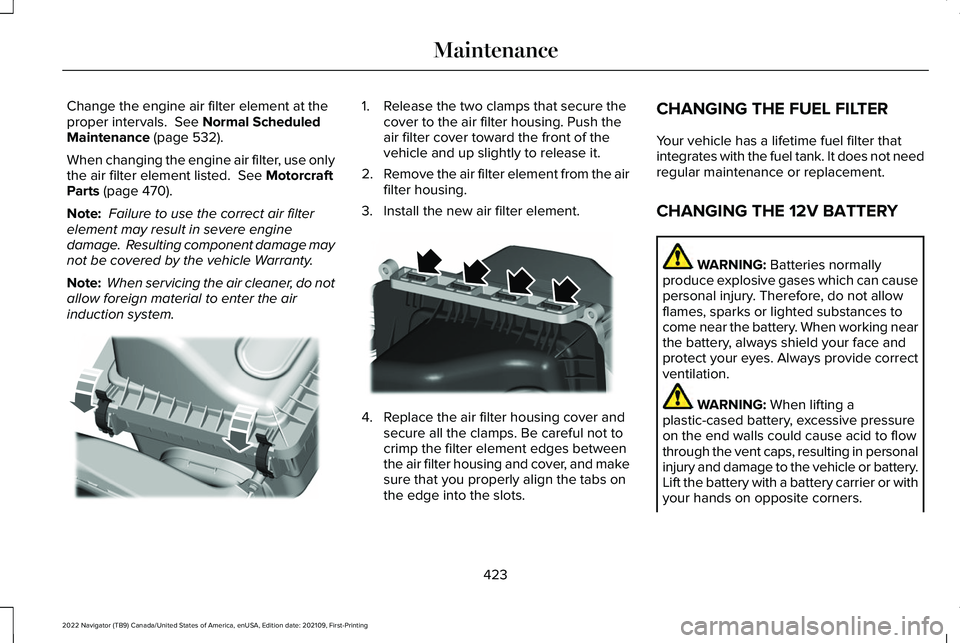
induction system. 1. Release the two clamps that secure the
cover to the air filter housing. Push the
air filter cover toward the front of the
vehicle and up slightly to release it.
2. Remove the air filter element from the air
filter housing.
3. Install the new air filter element. 4. Replace the air filter housing cover and
secure all the clamps. Be careful not to
crimp the filter element edges between
the air filter housing and cover, and make
sure that you properly align the tabs on
the edge into the slots. CHANGING THE FUEL FILTER
Your vehicle has a lifetime fuel filter that
integrates with the fuel tank. It does not need
regular maintenance or replacement.
CHANGING THE 12V BATTERY
WARNING:
Batteries normally
produce explosive gases which can cause
personal injury. Therefore, do not allow
flames, sparks or lighted substances to
come near the battery. When working near
the battery, always shield your face and
protect your eyes. Always provide correct
ventilation. WARNING:
When lifting a
plastic-cased battery, excessive pressure
on the end walls could cause acid to flow
through the vent caps, resulting in personal
injury and damage to the vehicle or battery.
Lift the battery with a battery carrier or with
your hands on opposite corners.
423
2022 Navigator (TB9) Canada/United States of America, enUSA, Edition date: 202109, First-Printing MaintenanceE248801 E248800
Page 443 of 646
A. P: Indicates a tire, designated by the
Tire and Rim Association, that may be
used for service on cars, sport utility
vehicles, minivans and light trucks.
Note:
If your tire size does not begin with a
letter this may mean it is designated by
either the European Tire and Rim
Technical Organization or the Japan Tire
Manufacturing Association.
B.
215: Indicates the nominal width of
the tire in millimeters from sidewall edge
to sidewall edge. In general, the larger
the number, the wider the tire.
C.
65: Indicates the aspect ratio which
gives the tire's ratio of height to width.
D.
R: Indicates a radial type tire.
E.
15: Indicates the wheel or rim
diameter in inches. If you change your
wheel size, you will have to purchase
new tires to match the new wheel
diameter. F.
95: Indicates the tire's load index. It
is an index that relates to how much
weight a tire can carry. You may find this
information in your owner’ s manual. If
not, contact a local tire dealer.
Note: You may not find this information
on all tires because it is not required by
federal law.
G.
H: Indicates the tire's speed rating.
The speed rating denotes the speed at
which a tire is designed to be driven for
extended periods of time under a
standard condition of load and inflation
pressure. The tires on your vehicle may
operate at different conditions for load
and inflation pressure. These speed
ratings may need to be adjusted for the
difference in conditions. The ratings
range from
81 mph (130 km/h) to
186 mph (299 km/h). These ratings are
listed in the following chart.
Note: You may not find this information
on all tires because it is not required by
federal law. Speed rating
Letter rating
81 mph (130 km/h)
M
87 mph (140 km/h)
N
99 mph (159 km/h)
Q
106 mph (171 km/h)
R
112 mph (180 km/h)
S
118 mph (190 km/h)
T
124 mph (200 km/h)
U
130 mph (210 km/h)
H
149 mph (240 km/h)
V
439
2022 Navigator (TB9) Canada/United States of America, enUSA, Edition date: 202109, First-Printing Wheel and Tire Information
Page 492 of 646
AUDIO SYSTEM PRECAUTIONS
WARNING: Driving while distracted
can result in loss of vehicle control, crash
and injury. We strongly recommend that
you use extreme caution when using any
device that may take your focus off the
road. Your primary responsibility is the safe
operation of your vehicle. We recommend
against the use of any hand-held device
while driving and encourage the use of
voice-operated systems when possible.
Make sure you are aware of all applicable
local laws that may affect the use of
electronic devices while driving.
Listening to loud audio for long periods of
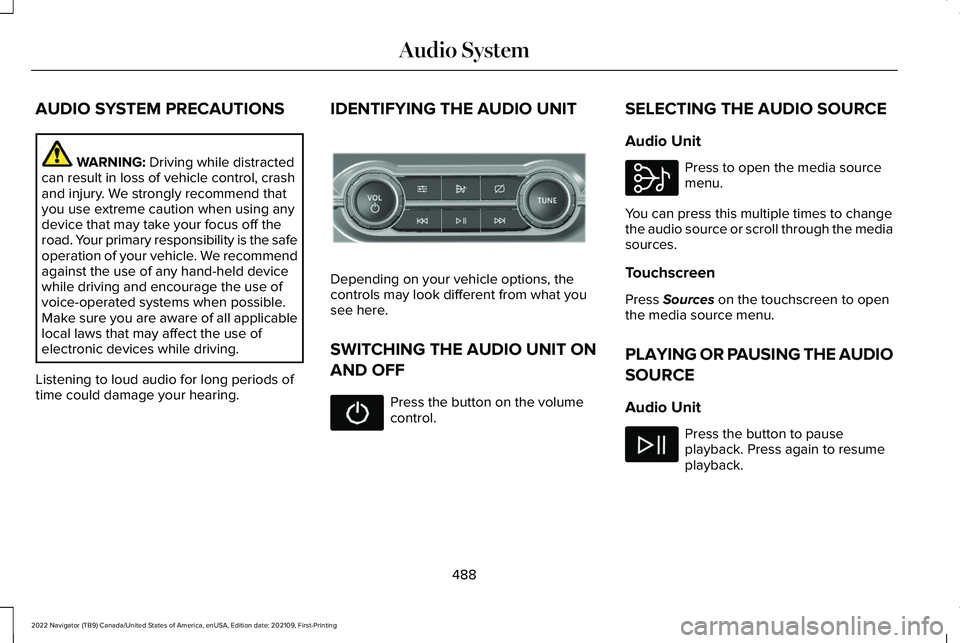
time could damage your hearing. IDENTIFYING THE AUDIO UNIT Depending on your vehicle options, the
controls may look different from what you
see here.
SWITCHING THE AUDIO UNIT ON
AND OFF
Press the button on the volume
control.SELECTING THE AUDIO SOURCE
Audio Unit Press to open the media source
menu.
You can press this multiple times to change
the audio source or scroll through the media
sources.
Touchscreen
Press
Sources on the touchscreen to open
the media source menu.
PLAYING OR PAUSING THE AUDIO
SOURCE
Audio Unit Press the button to pause
playback. Press again to resume
playback.
488
2022 Navigator (TB9) Canada/United States of America, enUSA, Edition date: 202109, First-Printing Audio SystemE308144 E308143
Page 496 of 646
HD Radio Technology is manufactured under
license from iBiquity Digital Corporation and
foreign patents. HD Radio and the HD and
HD Radio logos are proprietary trademarks
of DTS. The vehicle manufacturer and DTS
are not responsible for the content sent using
HD Radio technology. Content may be
changed, added or deleted at any time at
the station owner's discretion.
HOW DOES DIGITAL RADIO WORK
Your system has a special receiver that
allows it to receive digital broadcasts in
addition to analog broadcasts.
HD1 signifies the main programming status
and is available in both analog and digital
broadcasts. Other multicast stations are only
available digitally and could contain new or
different content.
Note:
When the system first receives an HD1
station, it plays the station in the analog
version until it verifies the station is an HD
Radio station. Then it shifts to the digital
version. Note:
There is an audio mute delay when
switching to an HD2 or HD3 station because
the system has to reacquire and decode the
digital signal.
DIGITAL RADIO LIMITATIONS
If you are outside the reception area, the
system could not work.
If you are on the fringe of the reception area,
the station could mute due to weak signal
strength.
Note: If you are listening to HD1, the system
changes back to the analog broadcast until
the digital broadcast is available again. If
you are listening to any other multicast
channels, the station mutes and stays muted
unless it is able to connect to the digital
signal again.
Depending on the station quality, you could
hear a slight sound change when the station
changes between analog and digital audio.
You cannot access a saved HD station if your
vehicle is outside the station ’s reception
area. SWITCHING DIGITAL RADIO
RECEPTION ON AND OFF
1. Press Settings on the touchscreen.
2. Press
Radio Settings.
3. Switch
AM HD Radio or FM HD Radio
on or off.
DIGITAL RADIO INDICATORS
HD Radio Indicator
The indicator appears when HD Radio is on
and you tune to a station broadcasting HD
Radio technology. The color of the indicator changes to indicate
the system status.
492
2022 Navigator (TB9) Canada/United States of America, enUSA, Edition date: 202109, First-Printing Audio SystemE142616
Page 497 of 646
Gray indicates the system is acquiring a
digital station.
Orange indicates digital audio is playing.
Multicast Indicator
The multicast indicator appears if the current
station is broadcasting multiple digital
broadcasts. The highlighted numbers
indicate additional digital channels available.
Note:
For stations that have more than one
HD multicast, the HD indicator and radio text
appears as a button. Press the button to
cycle through all of the HD stations on that
specific frequency.
SATELLITE RADIO (IF EQUIPPED)
WHAT IS SATELLITE RADIO
Your factory-installed SiriusXM radio system
includes a limited subscription term, which
begins on the date of sale or lease of your
vehicle. See an authorized dealer for
availability. For additional information about extended
subscription terms, visit
www .Sirius XM. com
in the United States, www .Sirius XM. ca in
Canada, or call SiriusXM at 1-888-539-7474.
Note: SiriusXM reserves the unrestricted
right to change, rearrange, add or delete
programming including canceling, moving
or adding particular channels, and its prices,
at any time, with or without notice to you.
Neither SiriusXM and its affiliates nor Ford
Motor Company and its affiliates will be
liable to you or any third party for any such
modification, suspension or termination.
SATELLITE RADIO LIMITATIONS
For optimal reception performance, keep the
antenna clear of snow and ice build-up and
keep luggage and other material as far away
from the antenna as possible. Placing
luggage over the antenna may reduce
performance. Factory-installed and
aftermarket vehicle structures including, but
not limited to, roof racks and soft top roofs
in a partially open position could reduce
reception performance. Hills, mountains, tall buildings, bridges,
tunnels, freeway overpasses, parking
garages, dense tree foliage and
thunderstorms can interfere with your
reception.
When you pass a ground-based
broadcast-repeating tower, a stronger signal
may overtake a weaker one and could result
in the audio system muting. Your display
could show an error message to indicate the
interference.
LOCATING THE SATELLITE RADIO
IDENTIFICATION NUMBER
1. Select SiriusXM as the audio source.
2. Tune to channel 0.
SELECTING A CHANNEL
Manually Selecting a Channel
Press the button to find the
previous or next available radio
channel.
493
2022 Navigator (TB9) Canada/United States of America, enUSA, Edition date: 202109, First-Printing Audio SystemE328569 E328570
Page 504 of 646
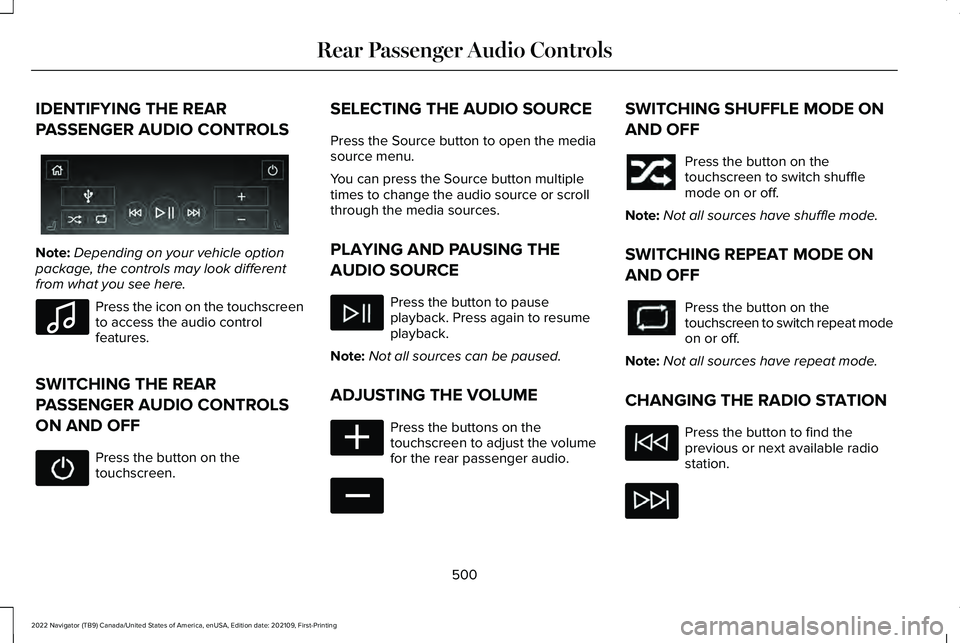
IDENTIFYING THE REAR
PASSENGER AUDIO CONTROLS
Note:
Depending on your vehicle option
package, the controls may look different
from what you see here. Press the icon on the touchscreen
to access the audio control
features.
SWITCHING THE REAR
PASSENGER AUDIO CONTROLS
ON AND OFF Press the button on the
touchscreen. SELECTING THE AUDIO SOURCE
Press the Source button to open the media
source menu.
You can press the Source button multiple
times to change the audio source or scroll
through the media sources.
PLAYING AND PAUSING THE
AUDIO SOURCE
Press the button to pause
playback. Press again to resume
playback.
Note: Not all sources can be paused.
ADJUSTING THE VOLUME Press the buttons on the
touchscreen to adjust the volume
for the rear passenger audio. SWITCHING SHUFFLE MODE ON
AND OFF
Press the button on the
touchscreen to switch shuffle
mode on or off.
Note: Not all sources have shuffle mode.
SWITCHING REPEAT MODE ON
AND OFF Press the button on the
touchscreen to switch repeat mode
on or off.
Note: Not all sources have repeat mode.
CHANGING THE RADIO STATION Press the button to find the
previous or next available radio
station.
500
2022 Navigator (TB9) Canada/United States of America, enUSA, Edition date: 202109, First-Printing Rear Passenger Audio ControlsE356495 E100027 E356421 E356422
Page 510 of 646
PHONE PRECAUTIONS
WARNING: Driving while distracted
can result in loss of vehicle control, crash
and injury. We strongly recommend that
you use extreme caution when using any
device that may take your focus off the
road. Your primary responsibility is the safe
operation of your vehicle. We recommend
against the use of any hand-held device
while driving and encourage the use of
voice-operated systems when possible.
Make sure you are aware of all applicable
local laws that may affect the use of
electronic devices while driving.
CONNECTING YOUR PHONE
Go to the settings menu on your device and
switch
Bluetooth® on. Press the phone option on the
feature bar.
1. Press
Add Phone. Note:
A prompt alerts you to search for your
vehicle on your cell phone.
2. Select your vehicle on your cell phone.
Note: A number appears on your cell phone
and on the touchscreen.
3. Confirm the number on your cell phone matches the number on the touchscreen.
Note: The touchscreen indicates that you
have successfully paired your cell phone.
4. Download the phonebook from your cell
phone when you are prompted.
Note: If you pair more than one cell phone,
use the phone settings on the center display
to specify the primary phone. You can
change this setting at any time.
PHONE MENU
This menu becomes available after pairing
a phone.
Recent Call List
Display and select an entry from a list of
previous calls. Contacts
Display a smart search form to look up your
contacts. Use the List button to alphabetically
sort your contacts.
Favorites
Display the list of favorite contacts that are
set up on your phone.
Messaging
Displays the list of text messages to read,
listen to, or respond to.
Email
Displays the list of emails to read, listen to,
or respond to.
Phone List
Display the list of paired or connected
devices that you can select.
Note:
Up to 12 devices can be stored.
506
2022 Navigator (TB9) Canada/United States of America, enUSA, Edition date: 202109, First-Printing Phone
Page 517 of 646
APP PRECAUTIONS
WARNING: Driving while distracted
can result in loss of vehicle control, crash
and injury. We strongly recommend that
you use extreme caution when using any
device that may take your focus off the
road. Your primary responsibility is the safe
operation of your vehicle. We recommend
against the use of any hand-held device
while driving and encourage the use of
voice-operated systems when possible.
Make sure you are aware of all applicable
local laws that may affect the use of
electronic devices while driving.
APP REQUIREMENTS
When you start an app through the system
for the first time, you could be asked to grant
certain permissions. You can review and
change the permissions that you have
granted at any time when your vehicle is not
moving. We recommend that you check your
data plan before using your apps through the system. Using them could result in
additional charges. We also recommend that
you check the app provider's terms and
conditions and privacy policy before using
their app. Make sure that you have an active
account for apps that you want to use
through the system. Some apps will work
with no setup. Others require you to
configure some personal settings before you
can use them.
ACCESSING APPS
Select the apps option on the
feature bar.
ENABLING APPS ON AN IOS
DEVICE Select the apps option on the
feature bar.
1. Select Mobile Apps Help.
2. Follow the instructions to pair and connect your device via
Bluetooth® or
with a USB cable. 3. Start the apps on your device that you
want to use.
4. Select the app that you want to use on the touchscreen.
Note: Some apps may run through Apple
CarPlay if it is enabled.
Note: Closing an app on your device will
close it on the touchscreen.
Note: For troubleshooting assistance select
Mobile Apps List under Mobile Apps Help.
ENABLING APPS ON AN ANDROID
DEVICE Select the apps option on the
feature bar.
1. Select Mobile Apps Help.
2. Follow the instructions to pair and connect your device via
Bluetooth® or
with a USB cable.
3. Start the apps on your device that you want to use.
4. Select
Find Mobile Apps.
513
2022 Navigator (TB9) Canada/United States of America, enUSA, Edition date: 202109, First-Printing Apps
Page 531 of 646
There are several Lincoln Protect extended
service plans available in various time,
distance and deductible combinations. Each
plan is tailored to fit your own driving needs,
including reimbursement for towing and
rental. When you purchase a Lincoln Protect
extended service plan, you receive added
peace-of-mind protection throughout
Canada, the United States and Mexico,
provided by a network of participating
authorized Lincoln dealers.
Note:
Repairs performed outside of Canada,
the United States and Mexico are not eligible
for Lincoln Protect extended service plan
coverage.
This information is subject to change. For
more information, visit your local Lincoln of
Canada dealer or www.LincolnCanada.com
to find the Lincoln Protect extended service
plan that is right for you.
527
2022 Navigator (TB9) Canada/United States of America, enUSA, Edition date: 202109, First-Printing Lincoln Protect
Page 532 of 646
GENERAL MAINTENANCE
INFORMATION
Why Maintain Your Vehicle?
Carefully following the maintenance
schedule helps protect against major repair
expenses resulting from neglect or
inadequate maintenance and may help to
increase the value of your vehicle when you
sell or trade it. Keep all receipts for
completed maintenance with your vehicle.
It is important that you have your vehicle
serviced at the proper times. These intervals
serve two purposes: first is to maintain the
reliability of your vehicle and the second is
to keep the cost of owning your vehicle
down.
It is your responsibility to have all scheduled
maintenance performed and to make sure
that the materials used meet the
specifications identified in this owner's
manual. See Capacities and Specifications
(page 469).
Failure to perform scheduled maintenance
and regularly inspect your vehicle may result
in vehicle damage not covered by the vehicle
Warranty.
Why Maintain Your Vehicle at Your
Dealership?
Our Genuine Replacement Parts
Dealerships stock our parts and our
authorized branded re-manufactured
replacement parts. These parts meet or
exceed our specifications. Parts installed at
your dealership carry a nationwide 24-month
or unlimited mile (kilometer) parts and labor
limited warranty.
If you do not use our authorized parts they
may not meet our specifications and could
affect emissions compliance.
Protecting Your Investment
Maintenance is an investment that pays
dividends in the form of improved reliability,
durability and resale value. To maintain the
proper performance of your vehicle and its
emission control systems, make sure you
have scheduled maintenance performed at
the designated intervals.
Your vehicle comes with the Intelligent
Oil-Life Monitor system, a message appears
in the information display at the proper oil
change interval. This interval may be up to
one year or
10,000 mi (16,000 km), hybrid
vehicles could exceed 10,000 mi (16,000 km).
When the oil change message appears in
the information display, it is time for an oil
change. Make sure you perform the oil
change within two weeks or 500 mi (800 km)
of the message appearing. Make sure to
reset the Intelligent Oil-Life Monitor after
each oil change. See Resetting the Engine
Oil Change Reminder
(page 418).
528
2022 Navigator (TB9) Canada/United States of America, enUSA, Edition date: 202109, First-Printing Scheduled Maintenance