length LINCOLN NAVIGATOR 2022 User Guide
[x] Cancel search | Manufacturer: LINCOLN, Model Year: 2022, Model line: NAVIGATOR, Model: LINCOLN NAVIGATOR 2022Pages: 646, PDF Size: 7.29 MB
Page 371 of 646
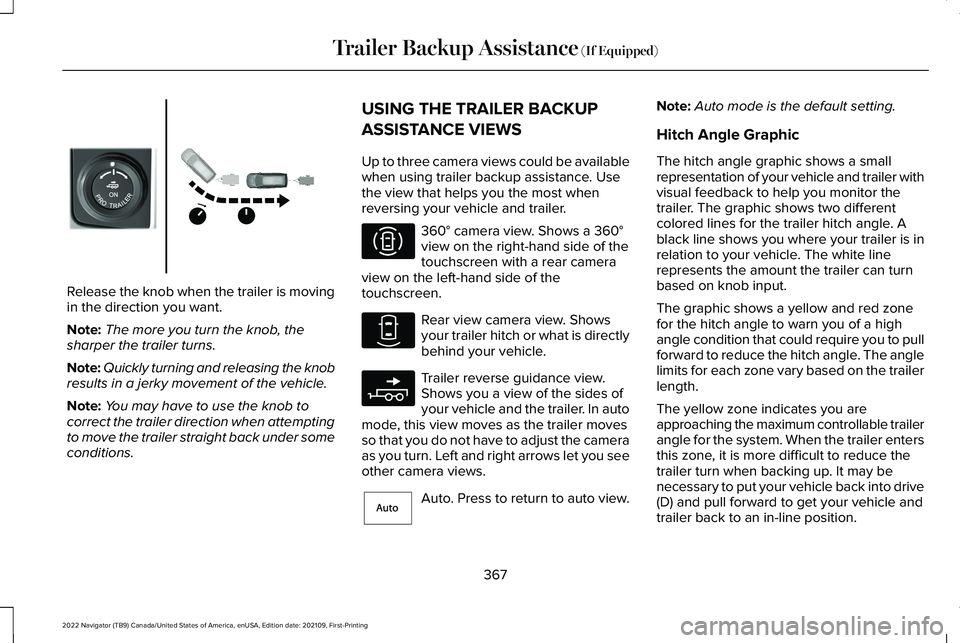
Release the knob when the trailer is moving
in the direction you want.
Note:
The more you turn the knob, the
sharper the trailer turns.
Note: Quickly turning and releasing the knob
results in a jerky movement of the vehicle.
Note: You may have to use the knob to
correct the trailer direction when attempting
to move the trailer straight back under some
conditions. USING THE TRAILER BACKUP
ASSISTANCE VIEWS
Up to three camera views could be available
when using trailer backup assistance. Use
the view that helps you the most when
reversing your vehicle and trailer. 360° camera view. Shows a 360°
view on the right-hand side of the
touchscreen with a rear camera
view on the left-hand side of the
touchscreen. Rear view camera view. Shows
your trailer hitch or what is directly
behind your vehicle.
Trailer reverse guidance view.
Shows you a view of the sides of
your vehicle and the trailer. In auto
mode, this view moves as the trailer moves
so that you do not have to adjust the camera
as you turn. Left and right arrows let you see
other camera views. Auto. Press to return to auto view.Note:
Auto mode is the default setting.
Hitch Angle Graphic
The hitch angle graphic shows a small
representation of your vehicle and trailer with
visual feedback to help you monitor the
trailer. The graphic shows two different
colored lines for the trailer hitch angle. A
black line shows you where your trailer is in
relation to your vehicle. The white line
represents the amount the trailer can turn
based on knob input.
The graphic shows a yellow and red zone
for the hitch angle to warn you of a high
angle condition that could require you to pull
forward to reduce the hitch angle. The angle
limits for each zone vary based on the trailer
length.
The yellow zone indicates you are
approaching the maximum controllable trailer
angle for the system. When the trailer enters
this zone, it is more difficult to reduce the
trailer turn when backing up. It may be
necessary to put your vehicle back into drive
(D) and pull forward to get your vehicle and
trailer back to an in-line position.
367
2022 Navigator (TB9) Canada/United States of America, enUSA, Edition date: 202109, First-Printing Trailer Backup Assistance
(If Equipped)E349264 E310996 E310967 E310965 E315644
Page 378 of 646
What does it mean if the trailer is at its
maximum angle or the system deactivated
by trailer angle?
You are at the maximum controllable
trailer angle for the system. Place your
vehicle in drive (D) and pull forward to
get the truck and trailer back to an
in-line position. If this message
consistently displays, this could indicate
the sticker is incorrectly applied, the
trailer needs to be recalibrated or the
drawbar or the trailer dimensions are
outside of the supported range. The
system is designed to work with
drawbars that have a license plate to
hitch ball center measurement of 9–18 in
(23–46 cm) when installed. The system
is designed to work with trailers that
have a hitch point to center of the axle
or axles measurement of
6–33 ft
(1.85–10.05 m). Do not attempt to use
drawbars or trailers that have a length
outside of this range as the system
performance degrades and could cause
improper system function. Check that
the correct trailer is selected in the touchscreen. Verify the sticker is
correctly applied and check that the
drawbar and the trailer dimensions are
within the allowed range. Then, delete
the trailer from the system and repeat
the setup process to calibrate the trailer.
What does it mean when the system tells
you to take control of the steering wheel? The system is no longer steering the
vehicle and you must take over steering.
There are four reasons the system could
display this message. The first reason
the system could display this message
is that you have touched the steering
wheel when the system is steering. The
second reason the system could display
this message is that you have exceeded
the maximum speed for the feature. The
third reason the system could display
this message is that the trailer is not
detected. The final reason the system
could display this message is that an
internal condition for system operation
is not met that requires your vehicle to
return to manual control of the steering. What does it mean if the system does not
detect a trailer?
The system requires a clear view of the
sticker placed on the trailer. You must
keep the camera lens and sticker clean
for the system to correctly operate. If
the system cannot initially detect the
trailer, it could be necessary for you to
change the lighting conditions by
moving your vehicle and trailer or
waiting until the conditions change. See
Applying the Trailer Reversing Aid
Sticker (page 364). Some trailers are not
compatible with the sticker and camera
system.
Note: The system is designed to be used
with the same trailer connection every time
you choose the trailer from the touchscreen.
When using a different drawbar or a different
pin hole on drawbars with more than one,
connecting the drawbar to your vehicle
affects the trailer position and you may need
to repeat the trailer setup and calibration
process.
374
2022 Navigator (TB9) Canada/United States of America, enUSA, Edition date: 202109, First-Printing Trailer Backup Assistance
(If Equipped)
Page 382 of 646
Note:
During calibration, the system
determines the trailer length. The system
supports trailer lengths of 6–33 ft
(1.85–10.05 m) distance from the hitch point
to the center of the axle or axles. The system
is designed to work with drawbars that have
a license plate to hitch ball center
measurement of
9–18 in (23–46 cm) when
installed. Do not attempt to use drawbars or
trailers that have a length outside of this
range as the system performance degrades
and could cause improper system function.
Note: The touchscreen shows if you are
going too slow or fast. Calibration pauses if
the speed is outside the required range of
2–9 mph (4–15 km/h)
.
Note: You need to complete at least a
90°
turn, and longer trailers could require a 180°
turn. Camera trailer tracking requires the
system to locate the hitch ball as well as
determine the trailer length. Some trailers
could require you to drive straight then turn
multiple times before calibration completes.
The touchscreen provides instructions and
notifies you when calibration completes. Note:
For best results, do not calibrate the
system at night.
SWITCHING TRAILER REVERSE
GUIDANCE ON AND OFF
Shift into reverse (R), press the rear camera
button to expand the menu, press the trailer
icon and use the touchscreen to select the
connected trailer.
Note: If the trailer was connected just prior
to turning the system on, you may need to
drive forward to initialize the system. Follow
the instructions on the touchscreen to
activate the system.
USING TRAILER REVERSE
GUIDANCE VIEWS
Up to three camera views could be available
when using trailer reverse guidance. Use the
view that helps you the most when reversing
your vehicle and trailer. 360°
camera view. Shows a 360°
view on the right-hand side of the
touchscreen with a rear camera
view on the left-hand side of the
touchscreen. Rear view camera view. Shows
your trailer hitch or what is directly
behind your vehicle.
Trailer reverse guidance view.
Shows you a view of the sides of
your vehicle and the trailer. In auto
mode, this view moves as the trailer moves
so that you do not have to adjust the camera
as you turn. Left and right arrows let you see
other camera views. Straight backup mode. Shows
which way to turn your steering
wheel to keep the trailer straight.
Use this view when you want to keep your
trailer completely in line with your vehicle.
Note: It may be helpful to shift your vehicle
into drive (D), pull forward and straighten out
the vehicle and trailer before engaging
straight backup mode.
378
2022 Navigator (TB9) Canada/United States of America, enUSA, Edition date: 202109, First-Printing Trailer Reverse Guidance
(If Equipped)E310996 E310967 E310965 E224484
Page 383 of 646
This takes you back to the 360°
camera system and out of the
trailer reverse guidance feature. Auto. Press to return to auto view.
Note: Auto mode is the default setting. Hitch Angle Graphic
The hitch angle graphic shows a small
representation of your vehicle and trailer with
visual feedback to help you monitor the
trailer. The graphic shows two different
colored lines for the trailer hitch angle. A
black line shows you where your trailer is in
relation to your vehicle. The white line
represents the amount the trailer can turn
based on steering wheel position.
The graphic shows a yellow and red zone
for the hitch angle to warn you of a high
angle condition that could require you to pull
forward to reduce the hitch angle. The angle
limits for each zone vary based on the trailer
length. The yellow zone indicates you are
approaching the maximum controllable trailer
angle for the system. When the trailer enters
this zone, it is more difficult to reduce the
trailer turn when backing up. It may be
necessary to put your vehicle back into drive
(D) and pull forward to get your vehicle and
trailer back to an in-line position.
The red zone indicates you have exceeded
the maximum controllable trailer angle for
the system. Immediately stop reversing. Put
your vehicle into drive (D) and pull forward
until the trailer is no longer in the red zone.
379
2022 Navigator (TB9) Canada/United States of America, enUSA, Edition date: 202109, First-Printing Trailer Reverse Guidance
(If Equipped)E224486 E315644
Page 385 of 646
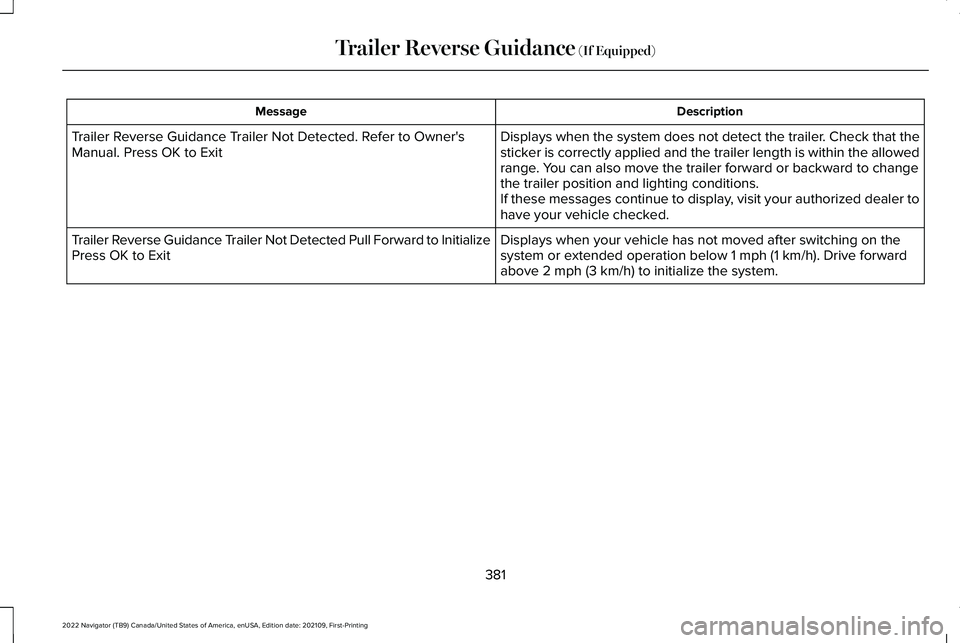
Description
Message
Displays when the system does not detect the trailer. Check that the
sticker is correctly applied and the trailer length is within the allowed
range. You can also move the trailer forward or backward to change
the trailer position and lighting conditions.
If these messages continue to display, visit your authorized dealer to
have your vehicle checked.
Trailer Reverse Guidance Trailer Not Detected. Refer to Owner's
Manual. Press OK to Exit
Displays when your vehicle has not moved after switching on the
system or extended operation below 1 mph (1 km/h). Drive forward
above 2 mph (3 km/h) to initialize the system.
Trailer Reverse Guidance Trailer Not Detected Pull Forward to Initialize
Press OK to Exit
381
2022 Navigator (TB9) Canada/United States of America, enUSA, Edition date: 202109, First-Printing Trailer Reverse Guidance
(If Equipped)
Page 399 of 646
WARNING: Switch the ignition off
before removing the recovery hook. Failure
to do so could result in personal injury. WARNING:
The recovery hook can
become hot. Let the recovery hook cool
down before removing it. Failure to do so
could result in personal injury.
Your vehicle has frame-mounted front
recovery hooks.
Note: Do not apply a load to the recovery
hooks that is greater than the gross vehicle
weight rating of your vehicle.
Before using recovery hooks:
• Make sure all attaching points are secure
and capable of withstanding the applied
load.
• Do not use chains, cables or tow straps
with metal hook ends.
• Only use recovery straps that have a
minimum breaking strength two to three
times the gross vehicle weight of the
stuck vehicle. •
Make sure the recovery strap is in good
condition and free of visible cuts, tears
or damage.
• Use a damper device such as a tarp,
heavy blanket or piece of carpet, and
place it over the recovery strap to help
absorb the energy in the event the strap
breaks.
• Make sure the stuck vehicle is not loaded
heavier than its gross vehicle weight
rating specified on the certification label.
• Align the tow vehicle and stuck vehicle
in a straight line, within 10 degrees.
• Keep bystanders to the sides of the
vehicle, at a distance of at least twice the
length of the recovery strap. This helps
avoid injury from the hazard of a recovery
hook or strap breaking, or a vehicle
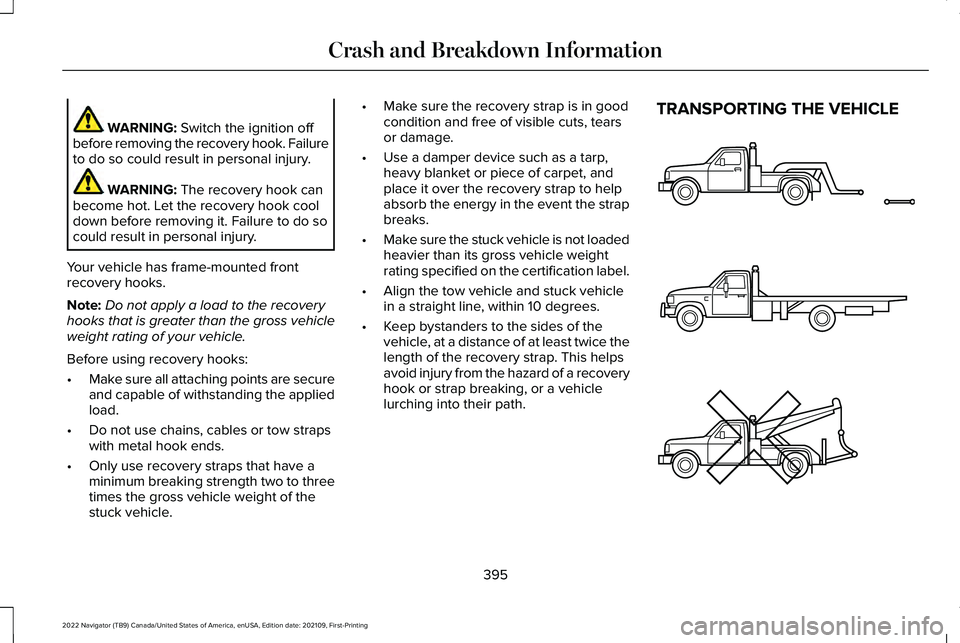
lurching into their path. TRANSPORTING THE VEHICLE
395
2022 Navigator (TB9) Canada/United States of America, enUSA, Edition date: 202109, First-Printing Crash and Breakdown InformationE143886
Page 545 of 646
Disputes submitted to the BBB AUTO LINE
program are usually decided within 40 days
after you file your claim with the BBB. You
are not bound by the decision, and may
reject the decision and proceed to court
where all findings of the BBB Auto Line
dispute, and decision, are admissible in the
court action. Should you choose to accept
the BBB AUTO LINE decision, Ford is then
bound by the decision, and must comply with
the decision within 30 days of receipt of your
acceptance letter.
BBB AUTO LINE Application: Using the
information that follows, please call or write
to request a program application. You will
be asked for your name and address, general
information about your new vehicle,
information about your warranty concerns,
and any steps you have already taken to try
to resolve them. A Customer Claim Form will
be mailed that needs to be completed,
signed and returned to the BBB along with
proof of ownership. Upon receipt, the BBB
reviews the claim for eligibility under the
Program Summary Guidelines.
You can get more information by calling
BBB AUTO LINE at 1-800-955-5100, or
writing to:
BBB AUTO LINE a Division of BBB National
Programs, Inc.
1676 International Drive, Suite 550
McLean, VA 22102
BBB AUTO LINE applications can also be
requested by calling the Ford Motor
Company Customer Relationship Center at
1-800-392-3673.
For additional information, refer to the Better
Business Bureau website.
Note:
Ford Motor Company reserves the
right to change eligibility limitations, modify
procedures, or to discontinue this process
at any time without notice and without
obligation. THE MEDIATION AND
ARBITRATION PROGRAM -
CANADA
For vehicles delivered to authorized
Canadian dealers. In those cases where you
continue to feel that the efforts by Ford of
Canada and the authorized dealer to resolve
a factory-related vehicle service concern
have been unsatisfactory, Ford of Canada
participates in an impartial third party
mediation/arbitration program administered
by the Canadian Motor Vehicle Arbitration
Plan (CAMVAP).
The CAMVAP program is a straightforward
and relatively speedy alternative to resolve
a disagreement when all other efforts to
produce a settlement have failed. This
procedure is without cost to you and is
designed to eliminate the need for lengthy
and expensive legal proceedings.
541
2022 Navigator (TB9) Canada/United States of America, enUSA, Edition date: 202109, First-Printing Customer Information
Page 624 of 646
Autowipers.......................................................114
Adjusting the Sensitivity of the Rain
Sensor.................................................................115
Autowipers Settings.............................................114
What Are Autowipers..........................................114
B
Battery See: Changing the 12V Battery.......................423
Beginning a Voice Interaction..................504
Blind Spot Assist...........................................303 Blind Spot Assist Indicators.............................
304
Blind Spot Assist Limitations...........................303
How Does Blind Spot Assist Work.................303
What Is Blind Spot Assist..................................303
Blind Spot Assist with Trailer Coverage.....................................................306
Blind Spot Assist with Trailer Coverage Indicators..........................................................307
Blind Spot Assist with Trailer Coverage Limitations.......................................................306
How Does Blind Spot Assist with Trailer Coverage Work..............................................306
What Is Blind Spot Assist with Trailer Coverage.........................................................306 Blind Spot Information System
...................311
Blind Spot Information System –
Troubleshooting..............................................315
Blind Spot Information System With Trailer Coverage..........................................................313
Blind Spot Information System Indicators......................................................315
Blind Spot Information System Limitations.....................................................311
Blind Spot Information System Precautions...................................................311
Blind Spot Information System Requirements..............................................312
Blind Spot Information System – Troubleshooting..........................................315
Blind Spot Information System – Information Messages..........................................................315
Blind Spot Information System With Trailer Coverage......................................................313
Blind Spot Information System With Trailer Coverage Limitations.....................................313
Selecting a Trailer................................................314
Setting a Trailer Length......................................313
What Is Blind Spot Information System with Trailer Coverage..............................................313
Bluetooth®.......................................................512 Body Control Module Fuse Box...............408
Accessing the Body Control Module Fuse
Box.....................................................................408
Identifying the Fuses in the Body Control Module Fuse Box...........................................409
Locating the Body Control Module Fuse Box.....................................................................408
Bonnet Lock See: Opening and Closing the Hood.............414
Booster Seats
..................................................48
Brake Fluid Specification...........................234
Brake Over Accelerator..............................233
Brake Precautions........................................233
Brakes.............................................................233 Anti-Lock Braking System................................233
Brakes – Troubleshooting................................234
Brakes – Troubleshooting..........................234 Brakes – Frequently Asked Questions........235
Brakes – Warning Lamps.................................234
Breaking-In.....................................................385
C
Calculating Payload.....................................337
Calculating the Load Limit..........................337
Canceling the Set Speed...........................276
Capacities and Specifications...................469
620
2022 Navigator (TB9) Canada/United States of America, enUSA, Edition date: 202109, First-Printing Index