phone LINCOLN NAVIGATOR 2022 Owner's Manual
[x] Cancel search | Manufacturer: LINCOLN, Model Year: 2022, Model line: NAVIGATOR, Model: LINCOLN NAVIGATOR 2022Pages: 646, PDF Size: 7.29 MB
Page 505 of 646
CENTER DISPLAY PRECAUTIONS
WARNING: Driving while distracted
can result in loss of vehicle control, crash
and injury. We strongly recommend that
you use extreme caution when using any
device that may take your focus off the
road. Your primary responsibility is the safe
operation of your vehicle. We recommend
against the use of any hand-held device
while driving and encourage the use of
voice-operated systems when possible.
Make sure you are aware of all applicable
local laws that may affect the use of
electronic devices while driving.
CENTER DISPLAY LIMITATIONS
Speed-restricted Features
For your safety, some features are not
available while the vehicle is in motion at or
above
5 mph (8 km/h). Settings that are not
critical while driving your vehicle are shown
as restricted on your display. Some of these
settings include: •
System updates.
• Personal profiles setup.
• Valet mode setup.
• Driver assistance settings.
Vehicle Settings
• MyKey setup.
• Door keypad code setup.
• Backup start passcode setup.
These restricted features become available
when your vehicle is no longer in motion.
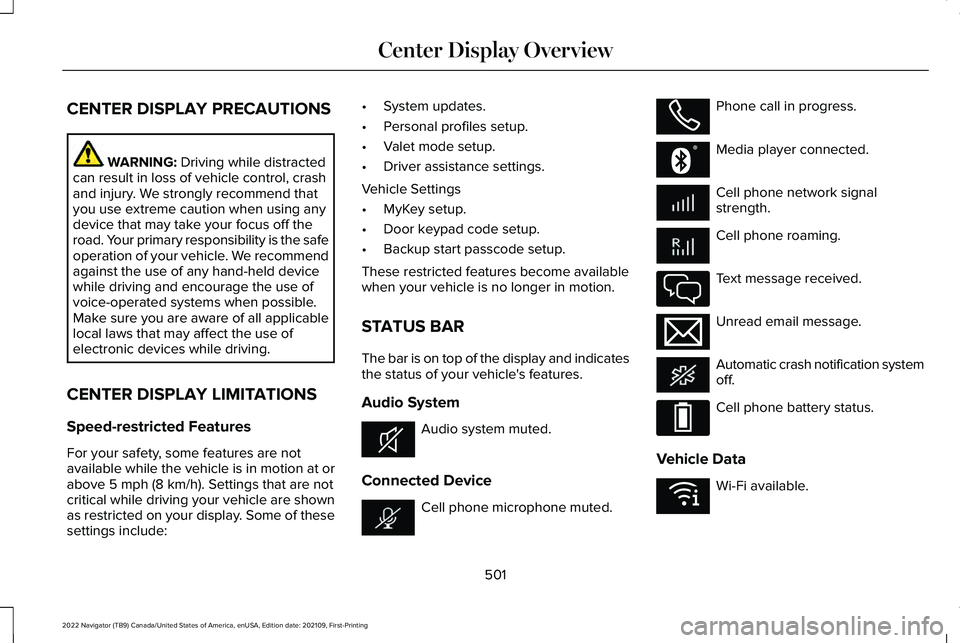
STATUS BAR
The bar is on top of the display and indicates
the status of your vehicle's features.
Audio System Audio system muted.
Connected Device Cell phone microphone muted. Phone call in progress.
Media player connected.
Cell phone network signal
strength.
Cell phone roaming.
Text message received.
Unread email message.
Automatic crash notification system
off.
Cell phone battery status.
Vehicle Data Wi-Fi available.
501
2022 Navigator (TB9) Canada/United States of America, enUSA, Edition date: 202109, First-Printing Center Display OverviewE353221 E353213 E353208 E335295 E353216 E335293 E353219
Page 506 of 646
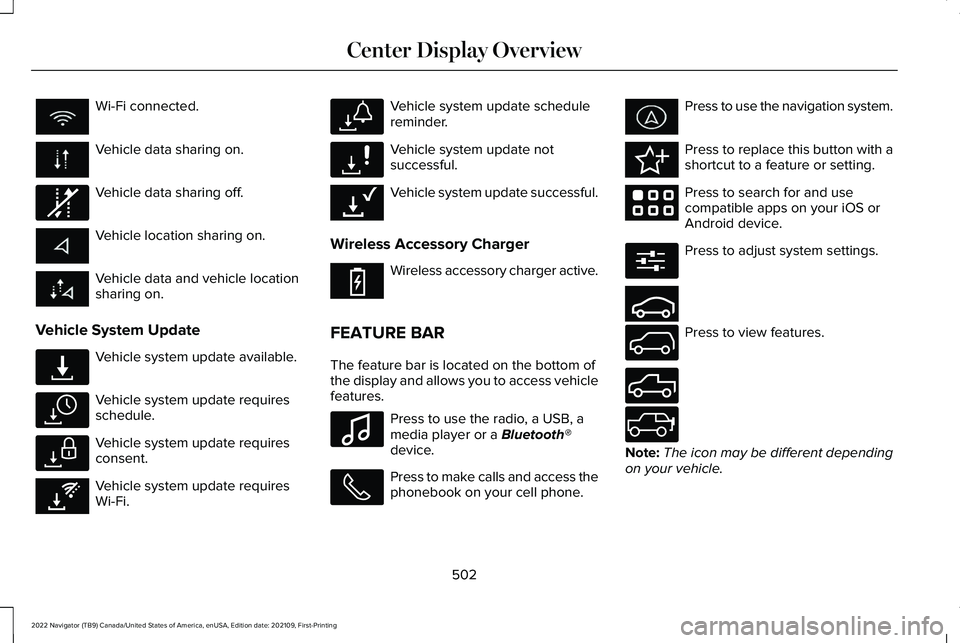
Wi-Fi connected.
Vehicle data sharing on.
Vehicle data sharing off.
Vehicle location sharing on.
Vehicle data and vehicle location
sharing on.
Vehicle System Update Vehicle system update available.
Vehicle system update requires
schedule.
Vehicle system update requires
consent.
Vehicle system update requires
Wi-Fi. Vehicle system update schedule
reminder.
Vehicle system update not
successful.
Vehicle system update successful.
Wireless Accessory Charger Wireless accessory charger active.
FEATURE BAR
The feature bar is located on the bottom of
the display and allows you to access vehicle
features. Press to use the radio, a USB, a
media player or a Bluetooth®
device. Press to make calls and access the
phonebook on your cell phone. Press to use the navigation system.
Press to replace this button with a
shortcut to a feature or setting.
Press to search for and use
compatible apps on your iOS or
Android device.
Press to adjust system settings.
Press to view features.
Note:
The icon may be different depending
on your vehicle.
502
2022 Navigator (TB9) Canada/United States of America, enUSA, Edition date: 202109, First-Printing Center Display Overview E335292 E327789 E327785 E327786 E353217 E327787 E327788 E353218 E353214 E100027 E358432 E353220 E280315 E353210 E335299 E335300 E347104
Page 509 of 646
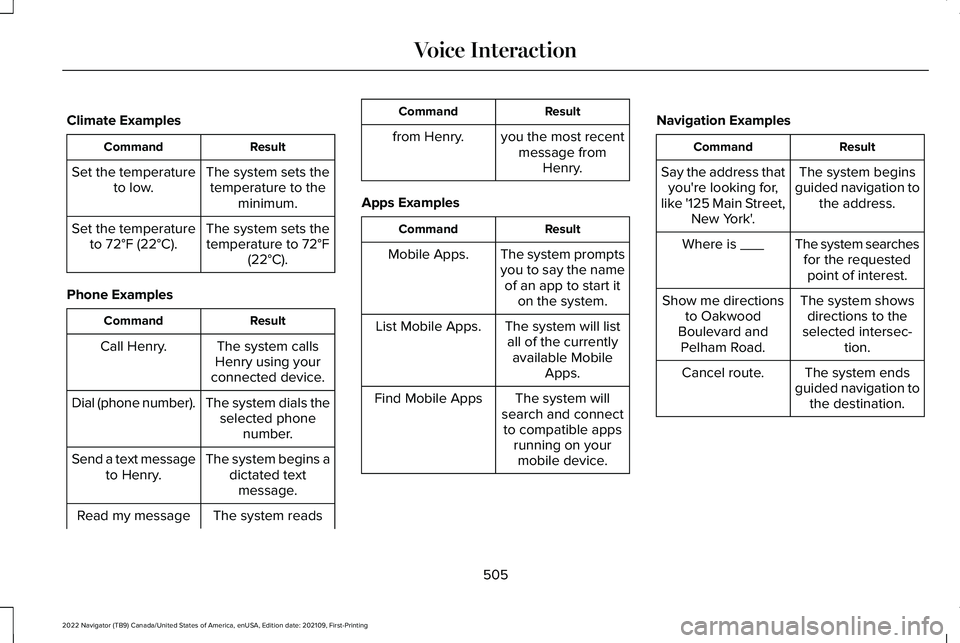
Climate Examples
Result
Command
The system sets thetemperature to the minimum.
Set the temperature
to low.
The system sets thetemperature to 72°F
(22°C).
Set the temperature
to 72°F (22°C).
Phone Examples Result
Command
The system calls
Henry using your
connected device.
Call Henry.
The system dials theselected phone number.
Dial (phone number).
The system begins adictated textmessage.
Send a text message
to Henry.
The system reads
Read my message Result
Command
from Henry. you the most recent message fromHenry.
Apps Examples Result
Command
The system prompts
you to say the nameof an app to start it on the system.
Mobile Apps.
The system will listall of the currently available Mobile Apps.
List Mobile Apps.
The system will
search and connect to compatible apps running on yourmobile device.
Find Mobile Apps Navigation Examples Result
Command
The system begins
guided navigation to the address.
Say the address that
you're looking for,
like '125 Main Street, New York'.
The system searchesfor the requestedpoint of interest.
Where is ___
The system showsdirections to the
selected intersec- tion.
Show me directions
to Oakwood
Boulevard and Pelham Road.
The system ends
guided navigation to the destination.
Cancel route.
505
2022 Navigator (TB9) Canada/United States of America, enUSA, Edition date: 202109, First-Printing Voice Interaction
Page 510 of 646
PHONE PRECAUTIONS
WARNING: Driving while distracted
can result in loss of vehicle control, crash
and injury. We strongly recommend that
you use extreme caution when using any
device that may take your focus off the
road. Your primary responsibility is the safe
operation of your vehicle. We recommend
against the use of any hand-held device
while driving and encourage the use of
voice-operated systems when possible.
Make sure you are aware of all applicable
local laws that may affect the use of
electronic devices while driving.
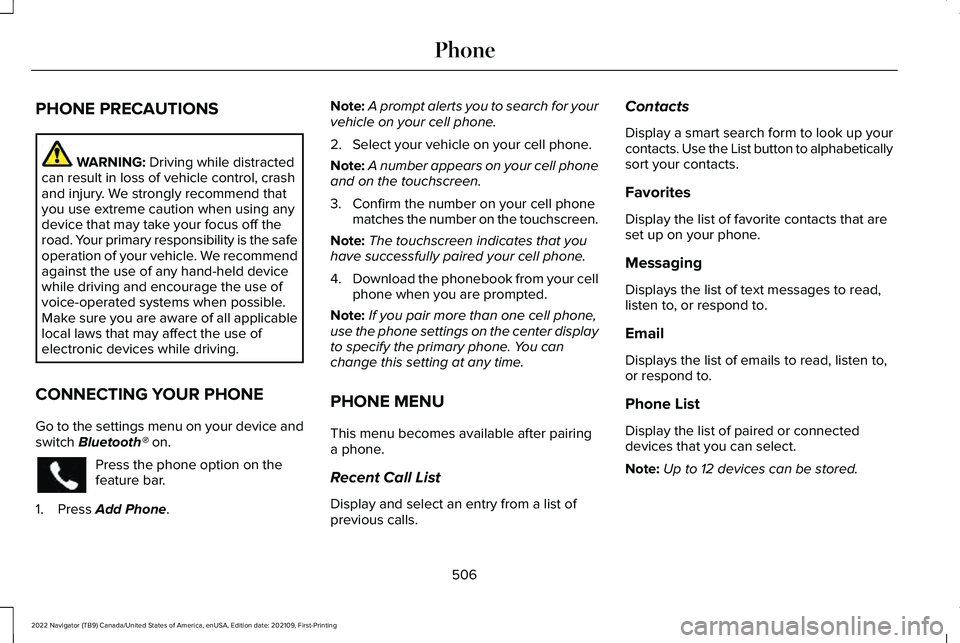
CONNECTING YOUR PHONE
Go to the settings menu on your device and
switch
Bluetooth® on. Press the phone option on the
feature bar.
1. Press
Add Phone. Note:
A prompt alerts you to search for your
vehicle on your cell phone.
2. Select your vehicle on your cell phone.
Note: A number appears on your cell phone
and on the touchscreen.
3. Confirm the number on your cell phone matches the number on the touchscreen.
Note: The touchscreen indicates that you
have successfully paired your cell phone.
4. Download the phonebook from your cell
phone when you are prompted.
Note: If you pair more than one cell phone,
use the phone settings on the center display
to specify the primary phone. You can
change this setting at any time.
PHONE MENU
This menu becomes available after pairing
a phone.
Recent Call List
Display and select an entry from a list of
previous calls. Contacts
Display a smart search form to look up your
contacts. Use the List button to alphabetically
sort your contacts.
Favorites
Display the list of favorite contacts that are
set up on your phone.
Messaging
Displays the list of text messages to read,
listen to, or respond to.
Email
Displays the list of emails to read, listen to,
or respond to.
Phone List
Display the list of paired or connected
devices that you can select.
Note:
Up to 12 devices can be stored.
506
2022 Navigator (TB9) Canada/United States of America, enUSA, Edition date: 202109, First-Printing Phone
Page 511 of 646
Do Not Disturb
Reject incoming calls and switch ring tones
and alerts off.
Phone Keypad
Directly dial a number.
Voice Control
Say a command to use the Google or Siri
voice assistant available on your connected
phone to access supported features.
Note:
Some features under the phone menu
may not be available if the feature is not
supported through the phone.
507
2022 Navigator (TB9) Canada/United States of America, enUSA, Edition date: 202109, First-Printing Phone
Page 512 of 646
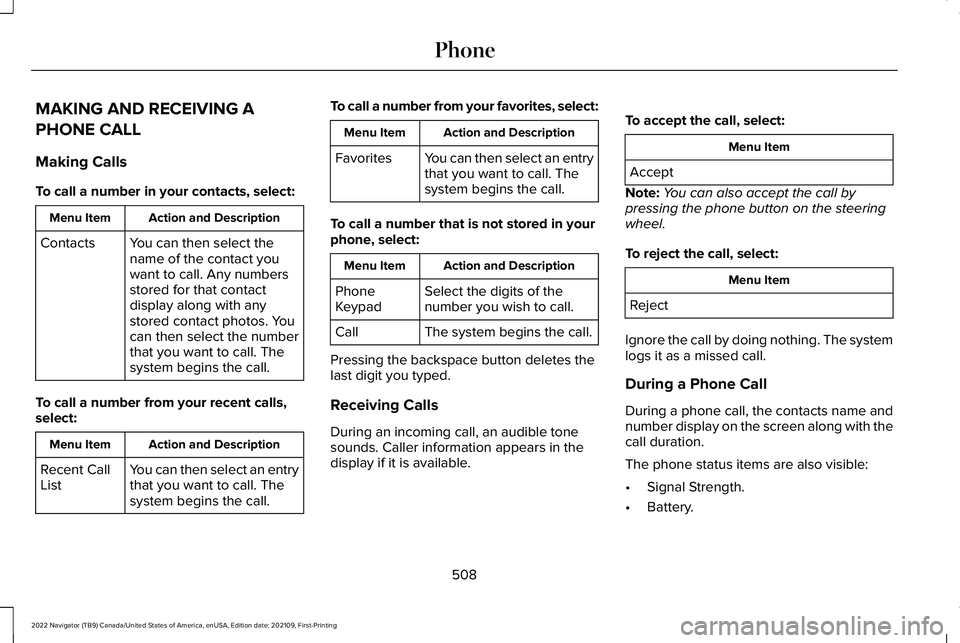
MAKING AND RECEIVING A
PHONE CALL
Making Calls
To call a number in your contacts, select:
Action and Description
Menu Item
You can then select the
name of the contact you
want to call. Any numbers
stored for that contact
display along with any
stored contact photos. You
can then select the number
that you want to call. The
system begins the call.
Contacts
To call a number from your recent calls,
select: Action and Description
Menu Item
You can then select an entry
that you want to call. The
system begins the call.
Recent Call
List To call a number from your favorites, select: Action and Description
Menu Item
You can then select an entry
that you want to call. The
system begins the call.
Favorites
To call a number that is not stored in your
phone, select: Action and Description
Menu Item
Select the digits of the
number you wish to call.
Phone
Keypad
The system begins the call.
Call
Pressing the backspace button deletes the
last digit you typed.
Receiving Calls
During an incoming call, an audible tone
sounds. Caller information appears in the
display if it is available. To accept the call, select: Menu Item
Accept
Note: You can also accept the call by
pressing the phone button on the steering
wheel.
To reject the call, select: Menu Item
Reject
Ignore the call by doing nothing. The system
logs it as a missed call.
During a Phone Call
During a phone call, the contacts name and
number display on the screen along with the
call duration.
The phone status items are also visible:
• Signal Strength.
• Battery.
508
2022 Navigator (TB9) Canada/United States of America, enUSA, Edition date: 202109, First-Printing Phone
Page 513 of 646
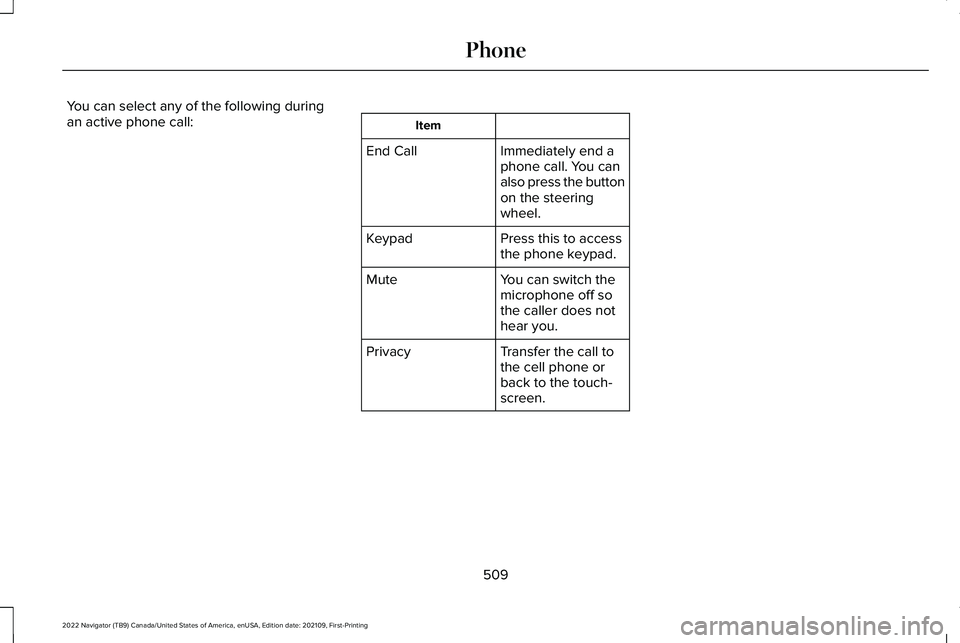
You can select any of the following during
an active phone call:
Item
Immediately end a
phone call. You can
also press the button
on the steering
wheel.
End Call
Press this to access
the phone keypad.
Keypad
You can switch the
microphone off so
the caller does not
hear you.
Mute
Transfer the call to
the cell phone or
back to the touch-
screen.
Privacy
509
2022 Navigator (TB9) Canada/United States of America, enUSA, Edition date: 202109, First-Printing Phone
Page 514 of 646
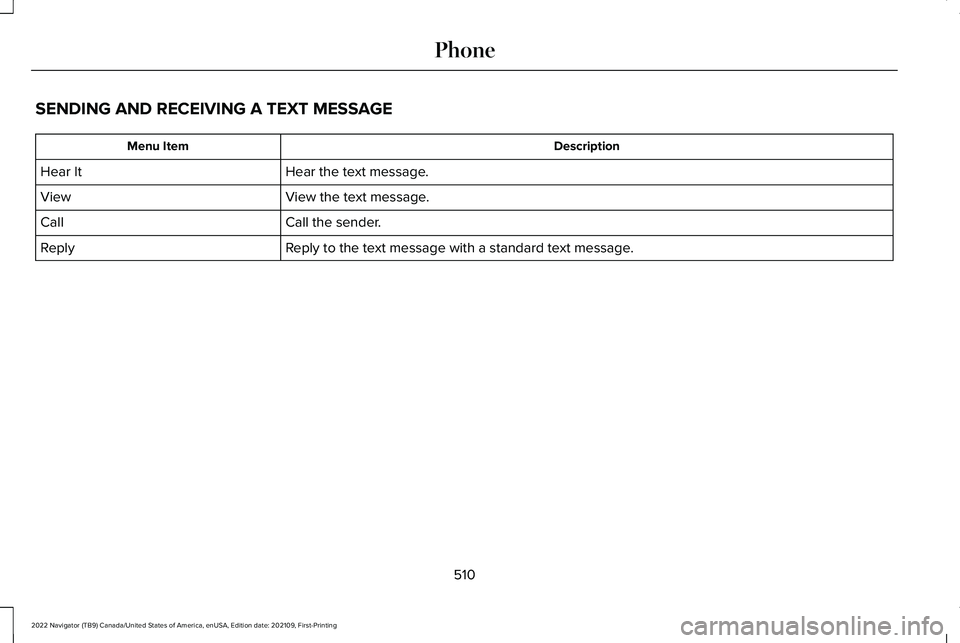
SENDING AND RECEIVING A TEXT MESSAGE
Description
Menu Item
Hear the text message.
Hear It
View the text message.
View
Call the sender.
Call
Reply to the text message with a standard text message.
Reply
510
2022 Navigator (TB9) Canada/United States of America, enUSA, Edition date: 202109, First-Printing Phone
Page 515 of 646
SWITCHING TEXT MESSAGE
NOTIFICATION ON AND OFF
iOS
1. Go to the settings menu on your cell
phone.
2. Select Bluetooth®.
3. Select the information icon to the right of
your vehicle.
4. Switch text message notification on or off.
Android
1. Go to the settings menu on your cell phone.
2. Select
Bluetooth®.
3. Select the profiles option.
4. Select the phone profile.
5. Switch text message notification on or off.
511
2022 Navigator (TB9) Canada/United States of America, enUSA, Edition date: 202109, First-Printing Phone
Page 518 of 646
5. Select the app that you want to use on
the touchscreen.
Note: Some devices may lose the ability to
play music over USB when Mobile Apps are
enabled.
Note: Some apps may run through Android
Auto if it is enabled.
Note: Closing an app on your device will
close it on the touchscreen.
Note: For troubleshooting assistance select
Mobile Apps List under Mobile Apps Help.
SWITCHING APPLE CARPLAY ON
AND OFF
Enabling Apple CarPlay with USB
1. Connect your device to a USB port.
2. Follow the instructions on your device and the touchscreen.
Note: Selecting "Enable Wireless CarPlay"
on your device will prepare the device for
wireless carplay when you re-enter the
vehicle. Enabling Apple CarPlay with Wireless
1. Pair your device to Bluetooth®.
2. Follow the instructions on your device and the touchscreen.
Disabling Apple CarPlay Select the settings option on the
feature bar.
1. Press Phone List.
2. Select your device from the list.
3. Press Disable.
Re-Enabling Apple CarPlay Select the settings option on the
feature bar.
1. Press Phone List.
2. Select your device from the list.
3. Press Connect to Apple CarPlay. SWITCHING ANDROID AUTO ON
AND OFF
Enabling Android Auto with USB
(If
Equipped)
1. Connect your device to a USB port.
2. Follow the instructions on the touchscreen.
Note: Certain features of the system are not
available when you are using Android Auto.
Enabling Android Auto with Wireless
1. Pair your device to
Bluetooth®.
2. Follow the instructions on your device and the touchscreen.
Note: Certain Android Devices do not
support Android Auto Wireless. Please check
your Android OS version for compatibility.
Disabling Android Auto Select the settings option on the
feature bar.
1. Press Phone List.
514
2022 Navigator (TB9) Canada/United States of America, enUSA, Edition date: 202109, First-Printing Apps