radio LINCOLN NAVIGATOR 2022 Owner's Manual
[x] Cancel search | Manufacturer: LINCOLN, Model Year: 2022, Model line: NAVIGATOR, Model: LINCOLN NAVIGATOR 2022Pages: 646, PDF Size: 7.29 MB
Page 498 of 646
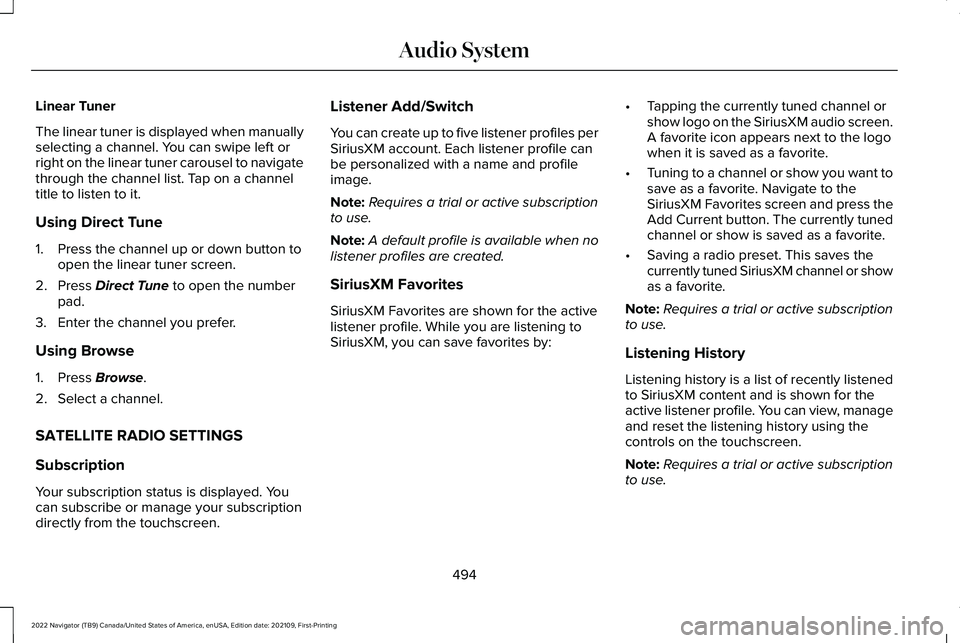
Linear Tuner
The linear tuner is displayed when manually
selecting a channel. You can swipe left or
right on the linear tuner carousel to navigate
through the channel list. Tap on a channel
title to listen to it.
Using Direct Tune
1. Press the channel up or down button to
open the linear tuner screen.
2. Press Direct Tune to open the number
pad.
3. Enter the channel you prefer.
Using Browse
1. Press
Browse.
2. Select a channel.
SATELLITE RADIO SETTINGS
Subscription
Your subscription status is displayed. You
can subscribe or manage your subscription
directly from the touchscreen. Listener Add/Switch
You can create up to five listener profiles per
SiriusXM account. Each listener profile can
be personalized with a name and profile
image.
Note:
Requires a trial or active subscription
to use.
Note: A default profile is available when no
listener profiles are created.
SiriusXM Favorites
SiriusXM Favorites are shown for the active
listener profile. While you are listening to
SiriusXM, you can save favorites by: •
Tapping the currently tuned channel or
show logo on the SiriusXM audio screen.
A favorite icon appears next to the logo
when it is saved as a favorite.
• Tuning to a channel or show you want to
save as a favorite. Navigate to the
SiriusXM Favorites screen and press the
Add Current button. The currently tuned
channel or show is saved as a favorite.
• Saving a radio preset. This saves the
currently tuned SiriusXM channel or show
as a favorite.
Note: Requires a trial or active subscription
to use.
Listening History
Listening history is a list of recently listened
to SiriusXM content and is shown for the
active listener profile. You can view, manage
and reset the listening history using the
controls on the touchscreen.
Note: Requires a trial or active subscription
to use.
494
2022 Navigator (TB9) Canada/United States of America, enUSA, Edition date: 202109, First-Printing Audio System
Page 500 of 646
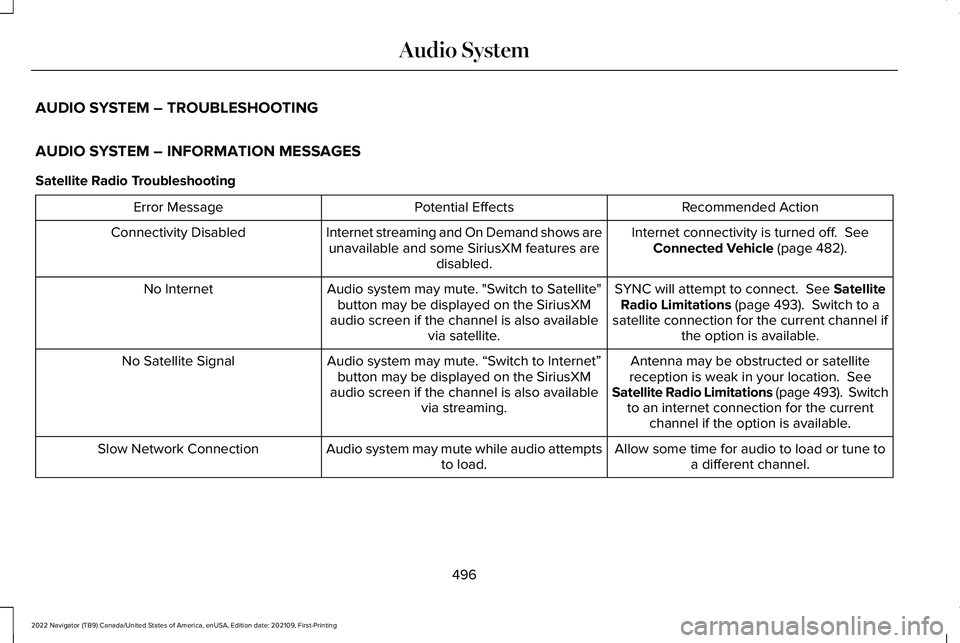
AUDIO SYSTEM – TROUBLESHOOTING
AUDIO SYSTEM – INFORMATION MESSAGES
Satellite Radio Troubleshooting
Recommended Action
Potential Effects
Error Message
Internet connectivity is turned off. See
Connected Vehicle (page 482).
Internet streaming and On Demand shows are
unavailable and some SiriusXM features are disabled.
Connectivity Disabled
SYNC will attempt to connect.
See Satellite
Radio Limitations (page 493). Switch to a
satellite connection for the current channel if the option is available.
Audio system may mute. "Switch to Satellite"
button may be displayed on the SiriusXM
audio screen if the channel is also available via satellite.
No Internet
Antenna may be obstructed or satellite
reception is weak in your location.
See
Satellite Radio Limitations (page 493). Switch to an internet connection for the current channel if the option is available.
Audio system may mute. “Switch to Internet”
button may be displayed on the SiriusXM
audio screen if the channel is also available via streaming.
No Satellite Signal
Allow some time for audio to load or tune toa different channel.
Audio system may mute while audio attempts
to load.
Slow Network Connection
496
2022 Navigator (TB9) Canada/United States of America, enUSA, Edition date: 202109, First-Printing Audio System
Page 501 of 646
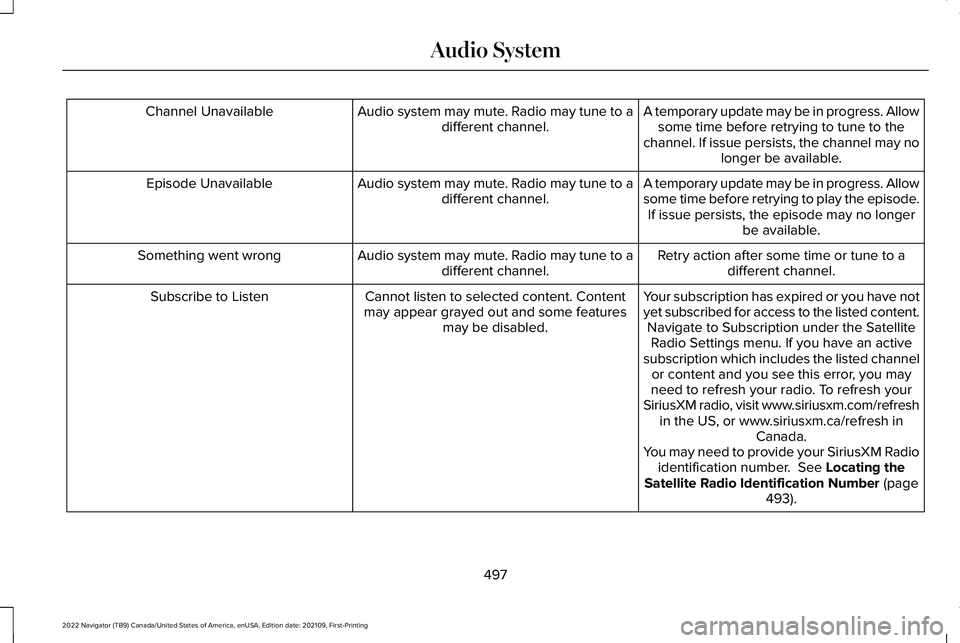
A temporary update may be in progress. Allow
some time before retrying to tune to the
channel. If issue persists, the channel may no longer be available.
Audio system may mute. Radio may tune to a
different channel.
Channel Unavailable
A temporary update may be in progress. Allow
some time before retrying to play the episode.If issue persists, the episode may no longer be available.
Audio system may mute. Radio may tune to a
different channel.
Episode Unavailable
Retry action after some time or tune to adifferent channel.
Audio system may mute. Radio may tune to a
different channel.
Something went wrong
Your subscription has expired or you have not
yet subscribed for access to the listed content.Navigate to Subscription under the SatelliteRadio Settings menu. If you have an active
subscription which includes the listed channel or content and you see this error, you may
need to refresh your radio. To refresh your
SiriusXM radio, visit www.siriusxm.com/refresh in the US, or www.siriusxm.ca/refresh in Canada.
You may need to provide your SiriusXM Radio identification number. See Locating the
Satellite Radio Identification Number (page
493).
Cannot listen to selected content. Content
may appear grayed out and some features may be disabled.
Subscribe to Listen
497
2022 Navigator (TB9) Canada/United States of America, enUSA, Edition date: 202109, First-Printing Audio System
Page 502 of 646
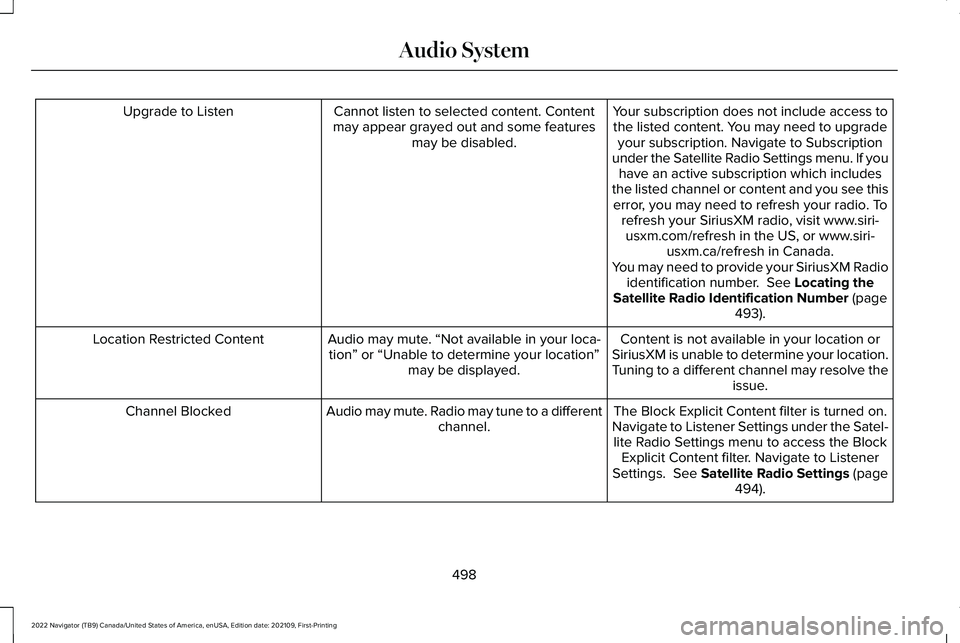
Your subscription does not include access to
the listed content. You may need to upgrade your subscription. Navigate to Subscription
under the Satellite Radio Settings menu. If you have an active subscription which includes
the listed channel or content and you see this error, you may need to refresh your radio. To refresh your SiriusXM radio, visit www.siri-usxm.com/refresh in the US, or www.siri- usxm.ca/refresh in Canada.
You may need to provide your SiriusXM Radio identification number. See Locating the
Satellite Radio Identification Number (page
493).
Cannot listen to selected content. Content
may appear grayed out and some features may be disabled.
Upgrade to Listen
Content is not available in your location or
SiriusXM is unable to determine your location.
Tuning to a different channel may resolve the issue.
Audio may mute. “Not available in your loca-
tion ” or “Unable to determine your location ”
may be displayed.
Location Restricted Content
The Block Explicit Content filter is turned on.
Navigate to Listener Settings under the Satel- lite Radio Settings menu to access the Block Explicit Content filter. Navigate to Listener
Settings.
See Satellite Radio Settings (page
494).
Audio may mute. Radio may tune to a different
channel.
Channel Blocked
498
2022 Navigator (TB9) Canada/United States of America, enUSA, Edition date: 202109, First-Printing Audio System
Page 503 of 646

If issue persists, you may need to visit an
authorized dealer for service.
Audio may mute. Access to SiriusXM features
may be unavailable.
Antenna Problem or Hardware Problem
Allow SiriusXM some time to completeupdating.
Audio may mute.
SiriusXM Updating...
No action necessary. If loading time is longerthan usual, See Satellite Radio Limitations
(page 493).
Audio may mute. Content may be temporarily
unavailable while loading.
Loading...
No action necessary. Allow SiriusXM sometime to finish loading.
Audio may mute. Content and controls may
be temporarily unavailable.
SiriusXM Loading...
499
2022 Navigator (TB9) Canada/United States of America, enUSA, Edition date: 202109, First-Printing Audio System
Page 504 of 646
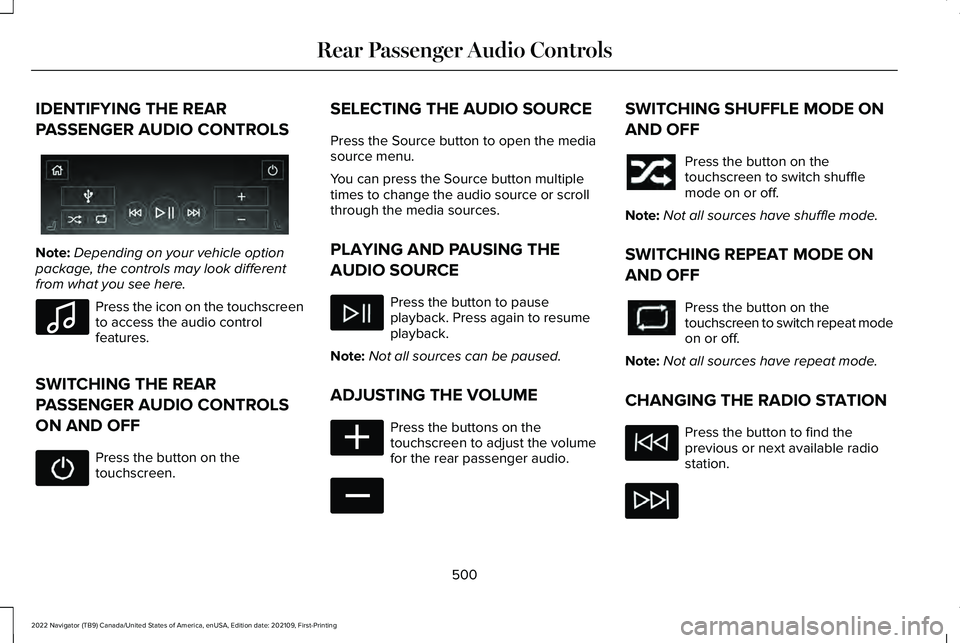
IDENTIFYING THE REAR
PASSENGER AUDIO CONTROLS
Note:
Depending on your vehicle option
package, the controls may look different
from what you see here. Press the icon on the touchscreen
to access the audio control
features.
SWITCHING THE REAR
PASSENGER AUDIO CONTROLS
ON AND OFF Press the button on the
touchscreen. SELECTING THE AUDIO SOURCE
Press the Source button to open the media
source menu.
You can press the Source button multiple
times to change the audio source or scroll
through the media sources.
PLAYING AND PAUSING THE
AUDIO SOURCE
Press the button to pause
playback. Press again to resume
playback.
Note: Not all sources can be paused.
ADJUSTING THE VOLUME Press the buttons on the
touchscreen to adjust the volume
for the rear passenger audio. SWITCHING SHUFFLE MODE ON
AND OFF
Press the button on the
touchscreen to switch shuffle
mode on or off.
Note: Not all sources have shuffle mode.
SWITCHING REPEAT MODE ON
AND OFF Press the button on the
touchscreen to switch repeat mode
on or off.
Note: Not all sources have repeat mode.
CHANGING THE RADIO STATION Press the button to find the
previous or next available radio
station.
500
2022 Navigator (TB9) Canada/United States of America, enUSA, Edition date: 202109, First-Printing Rear Passenger Audio ControlsE356495 E100027 E356421 E356422
Page 506 of 646
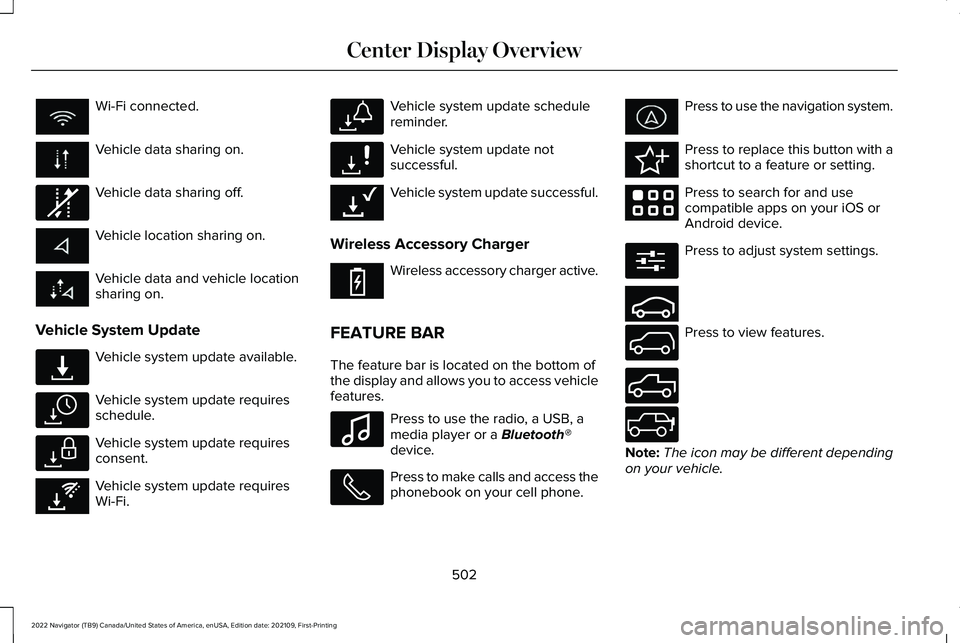
Wi-Fi connected.
Vehicle data sharing on.
Vehicle data sharing off.
Vehicle location sharing on.
Vehicle data and vehicle location
sharing on.
Vehicle System Update Vehicle system update available.
Vehicle system update requires
schedule.
Vehicle system update requires
consent.
Vehicle system update requires
Wi-Fi. Vehicle system update schedule
reminder.
Vehicle system update not
successful.
Vehicle system update successful.
Wireless Accessory Charger Wireless accessory charger active.
FEATURE BAR
The feature bar is located on the bottom of
the display and allows you to access vehicle
features. Press to use the radio, a USB, a
media player or a Bluetooth®
device. Press to make calls and access the
phonebook on your cell phone. Press to use the navigation system.
Press to replace this button with a
shortcut to a feature or setting.
Press to search for and use
compatible apps on your iOS or
Android device.
Press to adjust system settings.
Press to view features.
Note:
The icon may be different depending
on your vehicle.
502
2022 Navigator (TB9) Canada/United States of America, enUSA, Edition date: 202109, First-Printing Center Display Overview E335292 E327789 E327785 E327786 E353217 E327787 E327788 E353218 E353214 E100027 E358432 E353220 E280315 E353210 E335299 E335300 E347104
Page 508 of 646
WHAT IS VOICE INTERACTION
Voice Interaction allows you to control
vehicle features using conversational
requests.
SETTING THE WAKE WORD
1. Press the Settings option on the feature
bar.
2. Press the Voice Control button.
3. Switch on Listen for Wake Word.
4. Press Preferred Wake Word
5. Select a wake word.
BEGINNING A VOICE
INTERACTION
Say the selected wake word. Press the voice interaction button
on the steering wheel. VOICE INTERACTION EXAMPLES
General Examples Result
Command
The system resetsthe current voice interaction.
Start Over.
The system ends the
current voice interac-tion.
Cancel.
The system goes tothe next page.
Next Page.
The system goes tothe previous page.
Previous Page.
The system displaysa list of available
commands you can use on the current screen.
Help. Entertainment Examples Result
Command
The system plays theselected music.
Play The Beatles.
The system shows
the selected music.
Show music by The
Beatles.
The system tunes
the radio to 101.9 FM.
Tune to FM 101.9.
The system tunesthe radio to Sirius Channel 2.
Set the station to
Sirius Channel 2.
504
2022 Navigator (TB9) Canada/United States of America, enUSA, Edition date: 202109, First-Printing Voice InteractionE142599
Page 520 of 646
HOW DO PERSONAL PROFILES
WORK
This feature allows you to create multiple
personal profiles enabling users to
personalize vehicle
’s settings such as seats
and mirrors, as well as non-positional settings
like radio, navigation, driver assist system
settings. Positional settings are saved by
holding a memory seat button.
Non-positional settings are saved you
change a setting while a profile is active. You
can create one profile for each preset
memory seat button along with a guest
profile.
Recalling and Changing a Profile
You can recall a profile using the
touchscreen or the preset button you
selected when you created your profile. You
can also link a remote control and a mobile
device to your profile, which are used to
recall it. ENABLING OR DISABLING
PERSONAL PROFILES
When you switch on the Personal Profiles
feature:
•
Unlocking a door with a remote control
or mobile device that is not linked to a
driver profile does not change the active
profile, but remains in the last known
profile. It does not change the positional
settings.
• Pressing a memory seat button that is
not linked to a driver profile or saved to
a preset setting does not change the
active profile, but remains in the last
known profile. It does not change the
positional settings.
• Pressing a memory seat button that is
not linked to a driver profile but is saved
to a preset setting does not change the
active profile, but remains in the last
known profile. It recalls the positional
settings that you saved to that memory
seat button. When you switch off a Personal Profiles
feature:
•
Unlocking a door with a remote control
or mobile device does not recall any
non-positional settings but still recalls
positional settings from the driver profile
which the remote control or mobile
device is linked to.
• Pressing a memory seat button that is
not linked to a driver profile or saved to
a preset setting does not change the
positional or non-positional settings.
• Pressing a memory seat button that is
linked to a driver profile or has saved to
a preset setting recalls the positional
settings that you saved to that memory
seat button.
CREATING A PERSONAL PROFILE
Use the touchscreen to create a personal
profile.
1. Switch the vehicle on and leave the vehicle in park (P).
2. Select the Personal Profiles button under
Settings.
516
2022 Navigator (TB9) Canada/United States of America, enUSA, Edition date: 202109, First-Printing Personal Profiles
Page 527 of 646
For a complete listing of the accessories that
are available for your vehicle, please contact
your authorized dealer or visit the online
store website:
Web Address (United States)
https://accessories.lincoln.com/ Web Address (Canada)
www.lincolncanada.com
We will repair or replace any properly
authorized dealer-installed Lincoln Original
Accessory found to be defective in
factory-supplied materials or workmanship
during the warranty period, as well as any
component damaged by the defective
accessories.
We will warrant your Lincoln Original
Accessory through the warranty that provides
the greatest benefit:
• 24 months, unlimited mileage.
• The remainder of your new vehicle
limited warranty. Lincoln Licensed Accessories
The accessory manufacturer designs,
develops and therefore warrants Lincoln
Licensed Accessories, and does not design
or test these accessories to Lincoln
engineering requirements. Contact an
authorized Lincoln dealer for the accessory
manufacturer's limited warranty details and
request a copy of the Lincoln Licensed
Accessories product limited warranty from
the accessory manufacturer. See your
warranty guide for more information.
For maximum vehicle performance, keep the
following information in mind when adding
accessories or equipment to your vehicle:
•
When adding accessories, equipment,
passengers and luggage to your vehicle,
do not exceed the total weight capacity
of the vehicle or of the front or rear axle
(GVWR or GAWR as indicated on the
Safety Compliance Certification label).
Ask an authorized dealer for specific
weight information.
• The Federal Communications
Commission (FCC) and Canadian Radio
Telecommunications Commission (CRTC)
regulate the use of mobile
communications systems that have radio
transmitters, for example two-way radios,
telephones and theft alarms. Any such
equipment installed in your vehicle
should comply with Federal
Communications Commission (FCC) and
Canadian Radio Telecommunications
Commission (CRTC) regulations and
should only be installed by an authorized
dealer.
523
2022 Navigator (TB9) Canada/United States of America, enUSA, Edition date: 202109, First-Printing Accessories