steering LINCOLN NAVIGATOR 2022 Service Manual
[x] Cancel search | Manufacturer: LINCOLN, Model Year: 2022, Model line: NAVIGATOR, Model: LINCOLN NAVIGATOR 2022Pages: 646, PDF Size: 7.29 MB
Page 257 of 646
ELECTRIC POWER STEERING
ELECTRIC POWER STEERING
PRECAUTIONS
WARNING: The electric power
steering system has diagnostic checks that
continuously monitor the system. If a fault
is detected, a message displays in the
information display. Stop your vehicle as
soon as it is safe to do so. Switch the
vehicle off. After at least 10 seconds, switch
the vehicle on and watch the information
display for a steering system warning
message. If a steering system warning
message returns, have the system checked
as soon as possible. WARNING:
If the system detects an
error, you may not feel a difference in the
steering, however a serious condition may
exist. Have your vehicle checked as soon
as possible. Failure to do so may result in
loss of steering control. Adapt your speed and driving behavior
according to reduced steering assist.
Extreme continuous steering may increase
the effort to steer. This occurs to prevent
internal overheating and damage to the
steering system. If this occurs, you will not
lose the ability to steer your vehicle manually
nor will it cause damage to the system.
Normal steering and driving allows the
system to cool down and steering assist
returns to normal.
Note:
There is no fluid reservoir to check or
fill.
ELECTRIC POWER STEERING
ADAPTIVE STEERING
(If Equipped)
The adaptive steering system changes the
steering ratio with changes to vehicle speed,
optimizing the steering response in all
conditions. The system also changes when
you switch on the transmission tow/haul
feature. When you select the tow/haul button,
the adaptive steering system reduces vehicle
sensitivity to steering inputs at higher vehicle
speeds, while maintaining the ease of
parking and maneuverability at low speeds. Note:
The adaptive steering system
continuously monitors for faults. If the system
detects a fault, a message appears in the
information display. If a red warning
message displays, stop your vehicle as soon
as it is safe to do so. The message could
clear if the fault is no longer present. If an
adaptive steering system warning message
appears each time you start your vehicle,
have the system checked as soon as
possible.
Note: The system has a locking device. It
remains mechanically locked at a fixed
steering ratio with the lock engaged. You
may notice a click when you turn your
vehicle on or off.
Note: If your vehicle loses electrical power
or detects a fault when you are driving, the
system shuts down and you retain a normal
steering function with a fixed steering ratio.
During this time, it is possible that the
steering wheel could not be straight when
the vehicle is driving straight ahead. In
addition, you could notice that the steering
wheel angle required to steer your vehicle
could be different.
253
2022 Navigator (TB9) Canada/United States of America, enUSA, Edition date: 202109, First-Printing Steering
Page 258 of 646
Note:
During parking maneuvers, the
adaptive steering system balances the driver
workload for various steering wheel inputs
and vehicle loading conditions. Under
extreme operating conditions the system
locking device could engage. This strategy
prevents overheating and permanent
damage to the adaptive steering system.
Typical steering and driving maneuvers
allow the system to cool and return to normal
operation. Adaptive Learning
Adaptive learning helps correct road
irregularities and improves overall handling
and steering. It communicates with the brake
system to help operate advanced stability
control and crash avoidance systems.
Additionally, whenever you disconnect the
battery or install a new battery, you must
drive your vehicle a short distance before
the system relearns the strategy and
reactivates all systems.STEERING – TROUBLESHOOTING
STEERING – WARNING INDICATORS The adaptive steering system
indicator illuminates if the system
detects a fault during the
continuous diagnostic checks.
Note: If a red warning message displays,
stop your vehicle as soon as it is safe to do
so.
STEERING – INFORMATION MESSAGES Action
Message
The power steering system has detected a condition that requiresservice. Have your vehicle checked as soon as possible.
Steering Fault Service Now
The power steering system is not working. Stop your vehicle in a safeplace. Have your vehicle checked as soon as possible.
Steering Loss Stop Safely
The power steering system has detected a condition that requiresservice. Have your vehicle checked as soon as possible.
Steering Assist Fault Service Required
The steering system has detected a condition that requires service. Have your vehicle checked as soon as possible.
Steering Lock Malfunction Service Now
254
2022 Navigator (TB9) Canada/United States of America, enUSA, Edition date: 202109, First-Printing SteeringE223375
Page 262 of 646
FRONT PARKING AID AUDIBLE
WARNINGS
A warning tone sounds when there is an
object within 28 in (70 cm) from the front
bumper. As your vehicle moves closer to an
object, the rate of the tone increases.
The warning tone continuously sounds when
an object is
12 in (30 cm) or less from the
front bumper.
Note: If the detected object is
12 in (30 cm)
or less from your vehicle, visual indication
remains on.
SIDE PARKING AID
WHAT IS THE SIDE PARKING AID
The front and rear outermost parking aid
sensors map objects that are near to the
sides of your vehicle.
SIDE PARKING AID LIMITATIONS
The sensor coverage is up to
24 in (60 cm)
from the sides of your vehicle. The side parking aid may not function if:
•
Your vehicle remains stationary for over
two minutes.
• The anti-lock brake system activates.
• The traction control system activates.
• Your vehicle is in park (P).
• The steering wheel angle information is
not available. You must drive at least
492 ft (150 m) above 19 mph (30 km/h) to
reset the steering wheel angle
information.
Note: If you switch traction control off, the
side sensing system also turns off.
To reinitialize the system, drive the length of
your vehicle.
The side parking aid does not detect an
object that is moving toward the side of your
vehicle, for example another vehicle moving
at a low speed, if it does not pass a front or
rear parking aid sensor. If the transmission is in reverse (R), the side
sensing system provides audible warnings.
When your vehicle is moving slowly,
obstacles are detected within
24 in (60 cm)
and are inside the driving path of your
vehicle. If your vehicle remains stationary for
a few seconds, the audible warning turns off.
Visual indication is always present in reverse
(R).
If your vehicle is in neutral (N), the side
sensing system provides visual indication
only when your vehicle is moving slowly and
there is a front or rear parking aid obstacle
detected, and the side obstacle is within
24 in (60 cm)
from the side of your vehicle.
If your vehicle remains stationary for a few
seconds, the visual indication turns off.
If the transmission is in drive (D) or any other
forward gear, the side sensing system
provides audible and visual warnings. When
your vehicle is moving slowly, obstacles are
detected within
24 in (60 cm) and are inside
the driving path of your vehicle. If your
vehicle remains stationary for a few seconds,
the visual indication and audible warning
turns off.
258
2022 Navigator (TB9) Canada/United States of America, enUSA, Edition date: 202109, First-Printing Parking Aids
Page 267 of 646
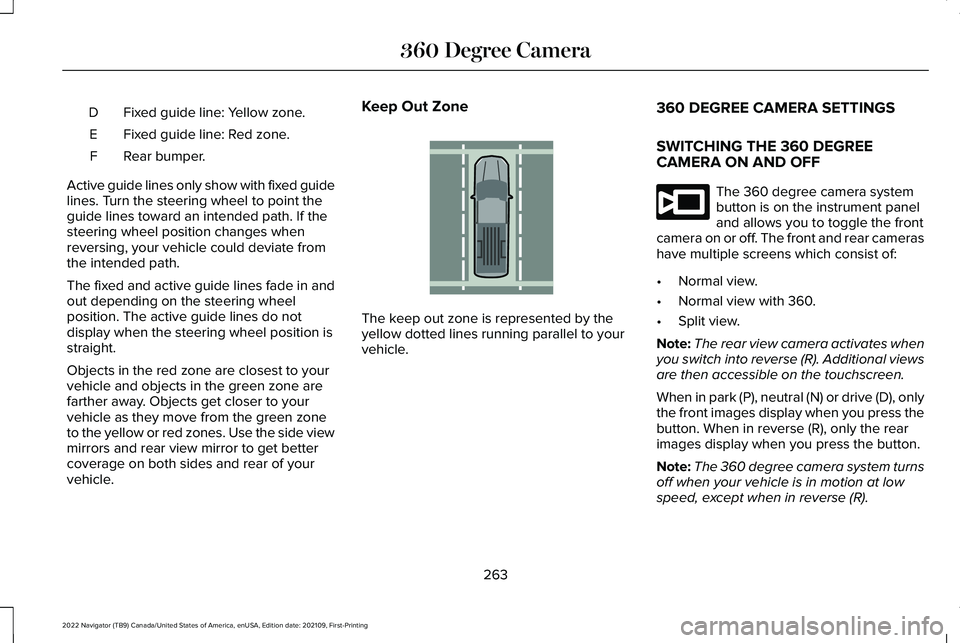
Fixed guide line: Yellow zone.
D
Fixed guide line: Red zone.
E
Rear bumper.
F
Active guide lines only show with fixed guide
lines. Turn the steering wheel to point the
guide lines toward an intended path. If the
steering wheel position changes when
reversing, your vehicle could deviate from
the intended path.
The fixed and active guide lines fade in and
out depending on the steering wheel
position. The active guide lines do not
display when the steering wheel position is
straight.
Objects in the red zone are closest to your
vehicle and objects in the green zone are
farther away. Objects get closer to your
vehicle as they move from the green zone
to the yellow or red zones. Use the side view
mirrors and rear view mirror to get better
coverage on both sides and rear of your
vehicle. Keep Out Zone
The keep out zone is represented by the
yellow dotted lines running parallel to your
vehicle.
360 DEGREE CAMERA SETTINGS
SWITCHING THE 360 DEGREE
CAMERA ON AND OFF The 360 degree camera system
button is on the instrument panel
and allows you to toggle the front
camera on or off. The front and rear cameras
have multiple screens which consist of:
• Normal view.
• Normal view with 360.
• Split view.
Note: The rear view camera activates when
you switch into reverse (R). Additional views
are then accessible on the touchscreen.
When in park (P), neutral (N) or drive (D), only
the front images display when you press the
button. When in reverse (R), only the rear
images display when you press the button.
Note: The 360 degree camera system turns
off when your vehicle is in motion at low
speed, except when in reverse (R).
263
2022 Navigator (TB9) Canada/United States of America, enUSA, Edition date: 202109, First-Printing 360 Degree CameraE310341 E332186
Page 269 of 646
WHAT IS ACTIVE PARK ASSIST
Assists you with parking in and out of parking
spaces.
HOW DOES ACTIVE PARK ASSIST
WORK
Active park assist uses sensors to detect
parking spaces. Active park assist controls
steering, acceleration, braking and shifting
as required to maneuver into or out of a
parking space when activate.
ACTIVE PARK ASSIST
PRECAUTIONS
WARNING: You must remain in your
vehicle when the system turns on. At all
times, you are responsible for controlling
your vehicle, supervising the system and
intervening, if required. Failure to take care
may result in the loss of control of your
vehicle, serious personal injury or death. WARNING: The sensors may not
detect objects in heavy rain or other
conditions that cause interference. WARNING:
You are responsible for
controlling your vehicle at all times. The
system is designed to be an aid and does
not relieve you of your responsibility to
drive with due care and attention. Failure
to follow this instruction could result in the
loss of control of your vehicle, personal
injury or death. WARNING:
Do not use the system
with accessories that extend beyond the
front or rear of your vehicle, for example a
trailer hitch or bike rack. The system is not
able to make corrections for the additional
length of the accessories. SWITCHING ACTIVE PARK ASSIST
ON AND OFF Press the parking aid button, then
press the active park assist icon
on the touchscreen to bring up full
screen notifications.
Press the soft keys on the touchscreen to
switch between the parallel park in,
perpendicular park in, or parallel park out
parking modes.
Cancelling Active Park Assist
To cancel parking assistance at any time,
shift out of neutral (N).
Pausing Active Park Assist
To pause parking assistance at any time,
release the parking aid button.
If you open the passenger or rear doors,
active park assist pauses.
To resume parking, press and hold the
parking aid button again.
265
2022 Navigator (TB9) Canada/United States of America, enUSA, Edition date: 202109, First-Printing Active Park AssistPE326188
Page 270 of 646
ENTERING A PARALLEL PARKING
SPACE
1. Press the parking aid button.
Note:
The system detects other vehicles and
curbs to find a parking space.
2. Press the active park assist icon on the touchscreen.
3. Select parallel parking.
4. Use the turn signal lever to search for a parking space on the driver or passenger
side of your vehicle.
Note: If you do not use the turn signal lever,
the system searches for a parking space on
the passenger side of your vehicle.
5. Drive your vehicle approximately 3 ft (1 m)
away from and parallel to the other
parked vehicles when searching for a
parking space.
Note: A tone sounds and a message
appears in the information and
entertainment display when active park
assist finds a suitable parking space.
6. Press and hold the brake pedal. 7.
Release the steering wheel and shift into
neutral (N).
8. Press and hold the active park assist button.
9. Release the brake pedal to allow your vehicle to park.
Note: You can slow down your vehicle at
any time by pressing the brake pedal.
Note: When parallel parking between
objects, the system parks closer to the object
in front of your vehicle to allow easier access
to the luggage compartment.
Note: When parking is complete, your
vehicle shifts into park (P).
ENTERING A PERPENDICULAR
PARKING SPACE
1. Press the parking aid button.
Note: Active park assist does not recognize
parking space lines and centers your vehicle
between objects.
2. Press the active park assist icon on the touchscreen. 3. Select perpendicular parking.
4. Use the turn signal lever to search for a
parking space on the driver or passenger
side of your vehicle.
Note: If you do not use the turn signal lever,
the system searches for a parking space on
the passenger side of your vehicle.
5. Drive your vehicle approximately 3 ft (1 m)
away from and perpendicular to the other
parked vehicles when searching for a
parking space.
Note: A tone sounds and a message
appears in the information and
entertainment display when active park
assist finds a parking space.
6. Press and hold the brake pedal.
7. Release the steering wheel and shift into
neutral (N).
8. Press and hold the parking aid button.
9. Release the brake pedal to allow the vehicle to park.
Note: Active park assist backs your vehicle
into parking spaces.
266
2022 Navigator (TB9) Canada/United States of America, enUSA, Edition date: 202109, First-Printing Active Park Assist
Page 271 of 646
Note:
Active park assist aligns the front end
of your vehicle with the lane side of the
object next to it.
Note: When the system detects only one
object, it allows enough distance to open
the door on either side.
Note: You can slow down your vehicle at
any time by pressing the brake pedal.
Note: When parking is complete, your
vehicle shifts into park (P).
EXITING A PARKING SPACE
Active park assist only assists leaving parallel
parking spaces.
1. Press the parking aid button.
2. Press the active park assist icon on the touchscreen.
3. Select parallel park exit.
4. Use the turn signal to choose the direction to exit the parking space.
5. Press and hold the brake pedal.
6. Release the steering wheel and shift into
neutral (N). 7. Release the parking brake.
8. Press and hold the parking aid button.
9. Release the brake pedal to allow your
vehicle to move.
Note: After active park assist drives your
vehicle to a position where you can exit the
parking space in a forward movement, a
message appears instructing you to take full
control of your vehicle.
10. Take control of your vehicle.
Note: You can slow down your vehicle at
any time by pressing the brake pedal. ACTIVE PARK ASSIST –
TROUBLESHOOTING
ACTIVE PARK ASSIST – INFORMATION
MESSAGES Action
Message
The system requiresservice. Have your
vehicle checked as soon as possible.
Active Park Fault
ACTIVE PARK ASSIST – FREQUENTLY
ASKED QUESTIONS
Why does active park assist not operate
correctly? The system is unable to detect a vehicle,
curb or object to park next to or in
between. The system needs boundary
objects to operate correctly.
Why does active park assist not search for
a parking space? You have switched traction control off.
267
2022 Navigator (TB9) Canada/United States of America, enUSA, Edition date: 202109, First-Printing Active Park Assist
Page 277 of 646
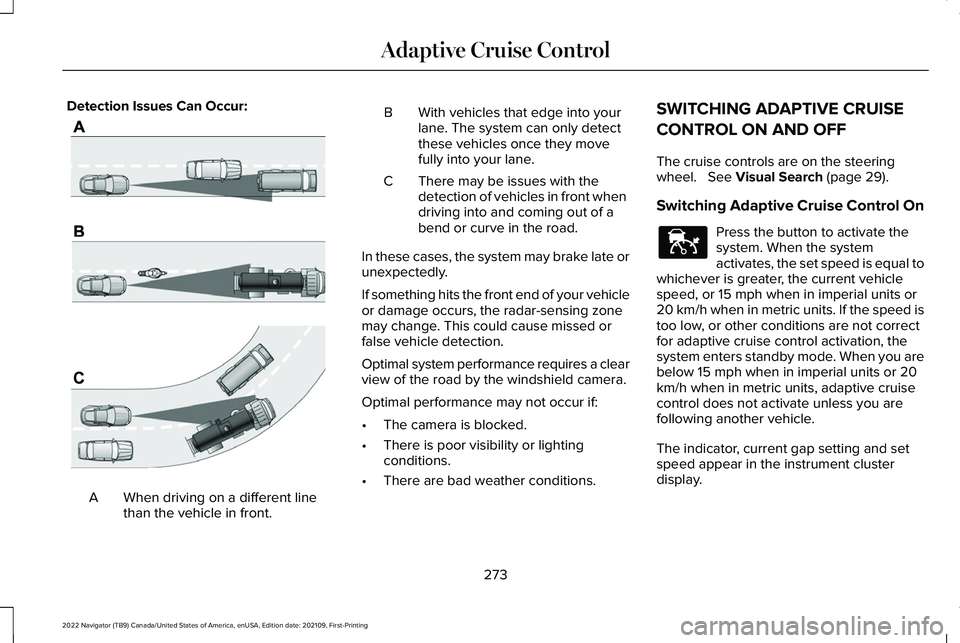
Detection Issues Can Occur:
When driving on a different line
than the vehicle in front.
A B With vehicles that edge into your
lane. The system can only detect
these vehicles once they move
fully into your lane.
There may be issues with the
detection of vehicles in front when
driving into and coming out of a
bend or curve in the road.
C
In these cases, the system may brake late or
unexpectedly.
If something hits the front end of your vehicle
or damage occurs, the radar-sensing zone
may change. This could cause missed or
false vehicle detection.
Optimal system performance requires a clear
view of the road by the windshield camera.
Optimal performance may not occur if:
• The camera is blocked.
• There is poor visibility or lighting
conditions.
• There are bad weather conditions. SWITCHING ADAPTIVE CRUISE
CONTROL ON AND OFF
The cruise controls are on the steering
wheel. See Visual Search (page 29).
Switching Adaptive Cruise Control On Press the button to activate the
system. When the system
activates, the set speed is equal to
whichever is greater, the current vehicle
speed, or 15 mph when in imperial units or
20 km/h when in metric units. If the speed is
too low, or other conditions are not correct
for adaptive cruise control activation, the
system enters standby mode. When you are
below 15 mph when in imperial units or 20
km/h when in metric units, adaptive cruise
control does not activate unless you are
following another vehicle.
The indicator, current gap setting and set
speed appear in the instrument cluster
display.
273
2022 Navigator (TB9) Canada/United States of America, enUSA, Edition date: 202109, First-Printing Adaptive Cruise ControlE71621 E144529
Page 283 of 646
1. Press Features on the touchscreen.
2. Press
Driver Assistance.
3. Press
Cruise Control.
4. Press
Normal Cruise Control. The cruise control indicator
replaces the adaptive cruise
control indicator if you select
normal cruise control. The gap setting does
not display, and the system does not respond
to lead vehicles. Automatic braking remains
active to maintain set speed. The system
remembers the last setting when you start
your vehicle.
LANE CENTERING
HOW DOES LANE CENTERING WORK
Adaptive cruise control with lane centering
uses radar and camera sensors to help keep
your vehicle in the middle of the lane by
applying continuous assistance steering
torque input toward the lane center on
highways. Note:
The adaptive cruise control gap setting
operates normally.
If you drive off-center within the lane, the
system sets and maintains that preferred lane
position. The system provides continuous
assistance steering torque input toward the
preferred position.
Note: The system can only set preferred lane
positions within the lane.
Note: If the system cancels, the preferred
position erases. On the next activation, the
system provides continuous assistance
steering torque input toward the lane center.
LANE CENTERING PRECAUTIONS WARNING:
Do not use the system
when towing a trailer. Failure to follow this
instruction could result in the loss of
control of your vehicle, personal injury or
death. WARNING: Do not use the system if
any changes or modifications to the
steering wheel have been made. Any
changes or modifications to the steering
wheel could affect the functionality or
performance of the system. Failure to
follow this instruction could result in the
loss of control of your vehicle, personal
injury or death.
Adaptive cruise control precautions apply to
lane centering unless stated otherwise or
contradicted by a lane centering precaution.
See
Adaptive Cruise Control Precautions
(page 270).
LANE CENTERING REQUIREMENTS
You must keep your hands on the steering
wheel at all times.
279
2022 Navigator (TB9) Canada/United States of America, enUSA, Edition date: 202109, First-Printing Adaptive Cruise ControlE332905
Page 284 of 646
The system only activates when all of the
following occur:
•
You have adaptive cruise control with
stop and go on.
• Lane centering assist is enabled in your
information and entertainment screen.
See Switching Lane Centering On and
Off (page 280).
• You have your hands on the steering
wheel.
• The system detects both lane markings.
Note: If it does not detect valid lane
markings, the system stays inactive until
valid markings are available.
LANE CENTERING LIMITATIONS
Adaptive cruise control limitations apply to
lane centering unless stated otherwise or
contradicted by a lane centering limitation.
See
Adaptive Cruise Control Limitations
(page 271). Lane Centering may not correctly operate in
any of the following conditions:
•
Your vehicle is not centered in the lane.
• The lane is too narrow or wide.
• The system does not detect at least one
lane marking or when lanes merge or
split.
• Limited steering torque input is applied.
• Areas under construction or new
infrastructure.
• When modifications to the steering
system have been made.
• When using a spare tire.
• In high wind conditions.
Note: The driving assistance torque is limited
and may not be sufficient for all driving
situations such as driving through tight
curves or driving through curves at high
speeds.
Note: In exceptional conditions, the system
may deviate from the center line. SWITCHING LANE CENTERING ON
AND OFF
You must keep your hands on the steering
wheel at all times.
The controls are on the steering wheel. Press the button.
The indicator appears in the information
display. When the system is on, the color of
the indicator changes to indicate the system
status.
You can override the system at any time by
steering your vehicle.
Note: The correct requirements must be met
before you can switch the system on.
See
Lane Centering Requirements (page 279).
Enabling and Disabling Lane Centering
1. Press
Features on the touchscreen.
2. Press
Driver Assistance.
3. Press
Cruise Control.
4. Press
Lane Centering Assist.
280
2022 Navigator (TB9) Canada/United States of America, enUSA, Edition date: 202109, First-Printing Adaptive Cruise ControlE308131