warning LINCOLN NAVIGATOR 2023 Owners Manual
[x] Cancel search | Manufacturer: LINCOLN, Model Year: 2023, Model line: NAVIGATOR, Model: LINCOLN NAVIGATOR 2023Pages: 660, PDF Size: 14.04 MB
Page 466 of 660
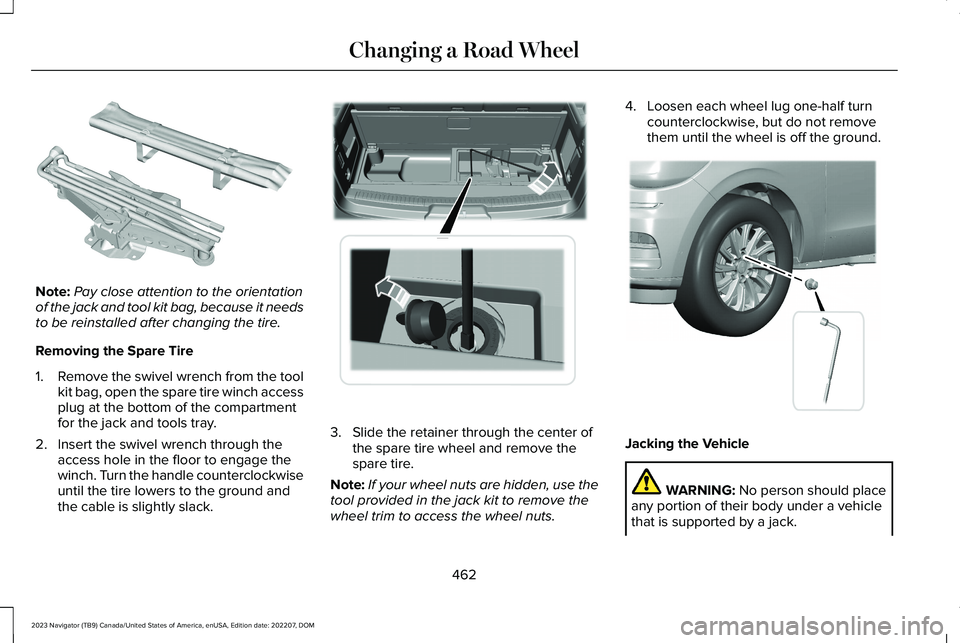
Note:Pay close attention to the orientationof the jack and tool kit bag, because it needsto be reinstalled after changing the tire.
Removing the Spare Tire
1.Remove the swivel wrench from the toolkit bag, open the spare tire winch accessplug at the bottom of the compartmentfor the jack and tools tray.
2.Insert the swivel wrench through theaccess hole in the floor to engage thewinch. Turn the handle counterclockwiseuntil the tire lowers to the ground andthe cable is slightly slack.
3.Slide the retainer through the center ofthe spare tire wheel and remove thespare tire.
Note:If your wheel nuts are hidden, use thetool provided in the jack kit to remove thewheel trim to access the wheel nuts.
4.Loosen each wheel lug one-half turncounterclockwise, but do not removethem until the wheel is off the ground.
Jacking the Vehicle
WARNING: No person should placeany portion of their body under a vehiclethat is supported by a jack.
462
2023 Navigator (TB9) Canada/United States of America, enUSA, Edition date: 202207, DOMChanging a Road WheelE252435 E273399 E358685
Page 467 of 660
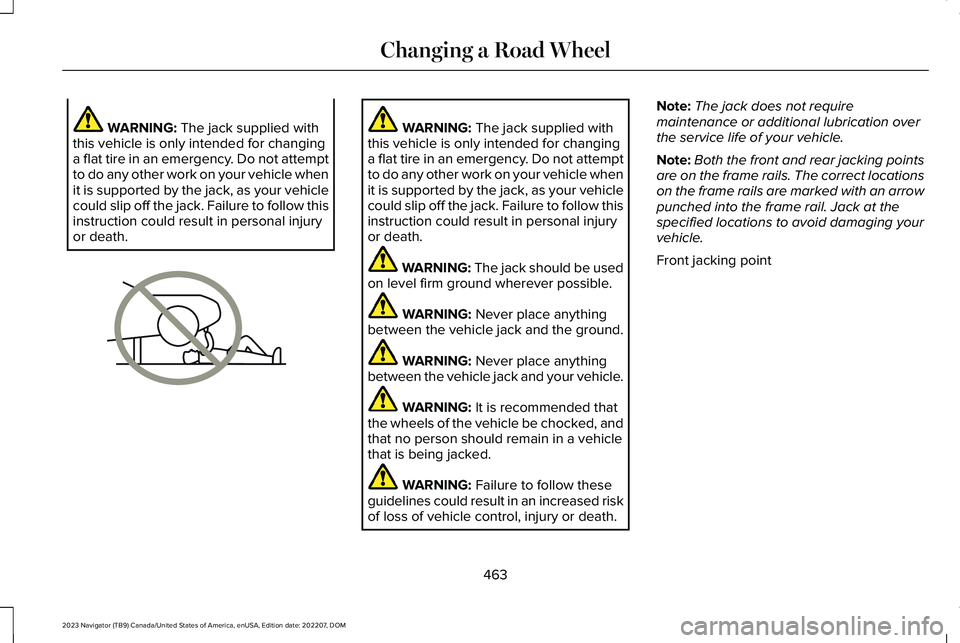
WARNING: The jack supplied withthis vehicle is only intended for changinga flat tire in an emergency. Do not attemptto do any other work on your vehicle whenit is supported by the jack, as your vehiclecould slip off the jack. Failure to follow thisinstruction could result in personal injuryor death.
WARNING: The jack supplied withthis vehicle is only intended for changinga flat tire in an emergency. Do not attemptto do any other work on your vehicle whenit is supported by the jack, as your vehiclecould slip off the jack. Failure to follow thisinstruction could result in personal injuryor death.
WARNING: The jack should be usedon level firm ground wherever possible.
WARNING: Never place anythingbetween the vehicle jack and the ground.
WARNING: Never place anythingbetween the vehicle jack and your vehicle.
WARNING: It is recommended thatthe wheels of the vehicle be chocked, andthat no person should remain in a vehiclethat is being jacked.
WARNING: Failure to follow theseguidelines could result in an increased riskof loss of vehicle control, injury or death.
Note:The jack does not requiremaintenance or additional lubrication overthe service life of your vehicle.
Note:Both the front and rear jacking pointsare on the frame rails. The correct locationson the frame rails are marked with an arrowpunched into the frame rail. Jack at thespecified locations to avoid damaging yourvehicle.
Front jacking point
463
2023 Navigator (TB9) Canada/United States of America, enUSA, Edition date: 202207, DOMChanging a Road WheelE166722
Page 469 of 660
Stowing the Flat or Spare Tire
1.Lay the tire on the ground, near the rearof the vehicle, with the valve stem sidefacing up.
2.Slide the wheel partially under thevehicle and install the retainer throughthe wheel center. You may have toremove the wheel center cap prior topushing the retainer through the centerof the wheel. To remove the center cap,press it off with the jack tool from theinner side of the wheel. Pull on the cableto align the components at the end of thecable.
3.Using the swivel wrench, insert it throughthe access hole behind the third row seatand engage the winch.
4.Turn the swivel wrench clockwise untilthe tire is raised to its stowed positionunderneath the vehicle. The wrenchbecomes harder to turn and the sparetire winch ratchets or slips when the tireis raised to maximum tightness. A clickingsound can be heard from the winchindicating that the tire is properly stowed.
5.Carefully place all tools back into the toolkit bag.
6.Reinstall the tool kit bag on the jack andtighten the straps.
7.Reinstall the jack properly on the bracketand secure with the wing nut.
8.Close the access hole with the rubberplug.
9.If the vehicle has an access panel,reinstall.
10.Unblock the wheel.
WHEEL NUTS
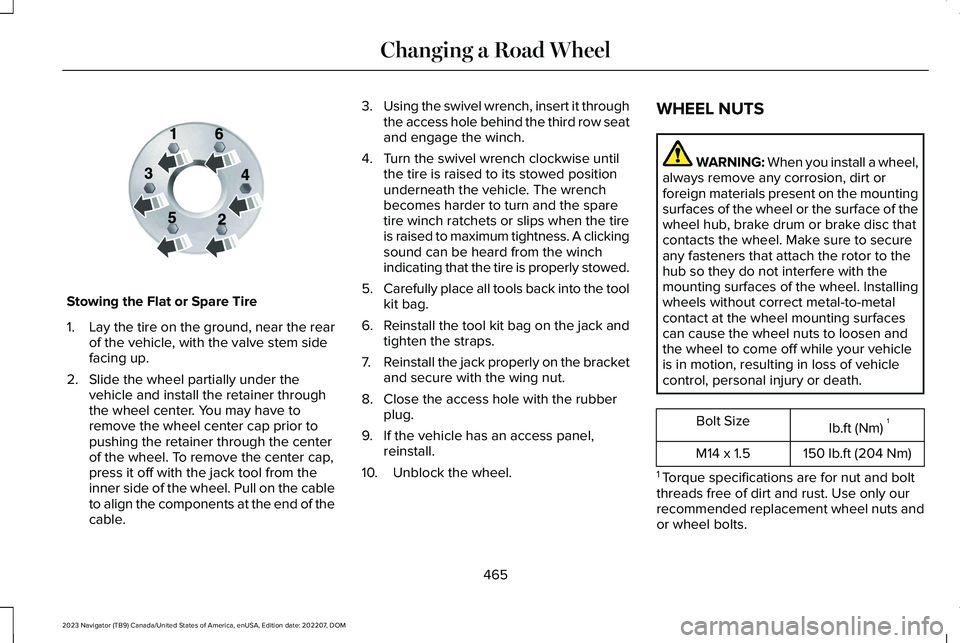
WARNING: When you install a wheel,always remove any corrosion, dirt orforeign materials present on the mountingsurfaces of the wheel or the surface of thewheel hub, brake drum or brake disc thatcontacts the wheel. Make sure to secureany fasteners that attach the rotor to thehub so they do not interfere with themounting surfaces of the wheel. Installingwheels without correct metal-to-metalcontact at the wheel mounting surfacescan cause the wheel nuts to loosen andthe wheel to come off while your vehicleis in motion, resulting in loss of vehiclecontrol, personal injury or death.
lb.ft (Nm)1Bolt Size
150 lb.ft (204 Nm)M14 x 1.5
1 Torque specifications are for nut and boltthreads free of dirt and rust. Use only ourrecommended replacement wheel nuts andor wheel bolts.
465
2023 Navigator (TB9) Canada/United States of America, enUSA, Edition date: 202207, DOMChanging a Road WheelE166719
Page 478 of 660
AIR CONDITIONING SYSTEM
CAPACITY AND SPECIFICATION
WARNING: The air conditioningrefrigerant system contains refrigerantunder high pressure. Only qualified
personnel should service the airconditioning refrigerant system. Openingthe air conditioning refrigerant system cancause personal injury.
Use refrigerant and oil that meets the definedspecifications.
If you do not use refrigerant and oil thatmeets the defined specifications, it couldresult in:
•Component damage that your vehiclewarranty does not cover.
•Reduced vehicle performance.
Capacities
Refrigerant OilRefrigerantVariant
6.1 fl oz (180 ml)37 oz (1.05 kg)All.
Materials
SpecificationName
WSS-M17B21-AR-1234yf Refrigerant(U.S.)R-1234yf Refrigerant / Frigorigène R-1234yf(Canada)YN-33-A(U.S.)HS7Z-19B519-BA(Canada)
WSS-M2C300-A2Motorcraft® R-1234yf Refrigerant PAG Oil(U.S.)Motorcraft® R-1234yf Refrigerant PAG Oil / Huile PAG pour frigorigène R-1234yfMotorcraft®(Canada)YN-35(U.S. & Canada)
474
2023 Navigator (TB9) Canada/United States of America, enUSA, Edition date: 202207, DOMCapacities and Specifications
Page 490 of 660
AUDIO SYSTEM PRECAUTIONS
WARNING: Driving while distractedcan result in loss of vehicle control, crashand injury. We strongly recommend thatyou use extreme caution when using anydevice that may take your focus off theroad. Your primary responsibility is the safeoperation of your vehicle. We recommendagainst the use of any hand-held devicewhile driving and encourage the use ofvoice-operated systems when possible.Make sure you are aware of all applicablelocal laws that may affect the use ofelectronic devices while driving.
Listening to loud audio for long periods oftime could damage your hearing.
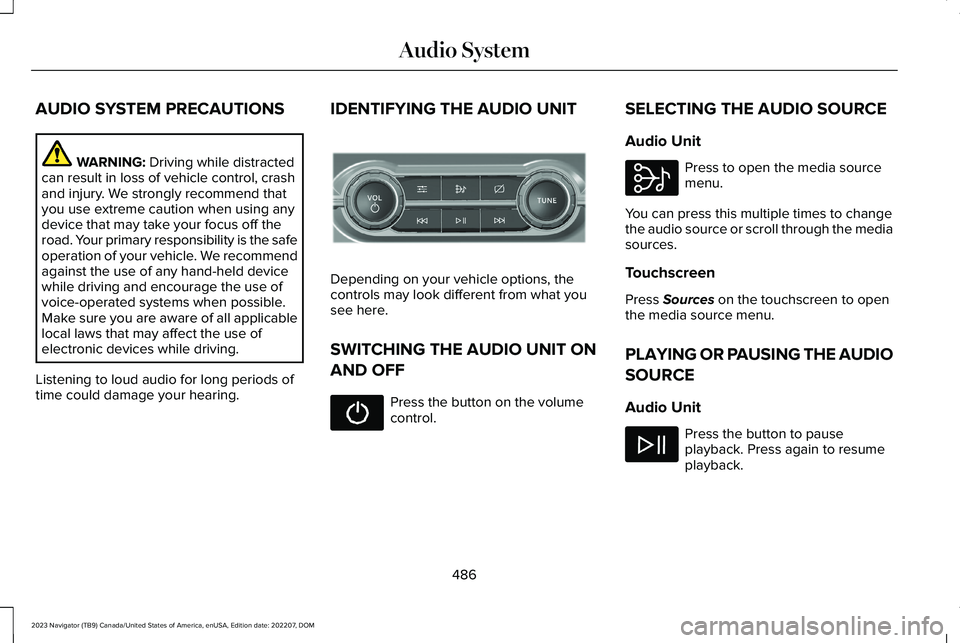
IDENTIFYING THE AUDIO UNIT
Depending on your vehicle options, thecontrols may look different from what yousee here.
SWITCHING THE AUDIO UNIT ON
AND OFF
Press the button on the volumecontrol.
SELECTING THE AUDIO SOURCE
Audio Unit
Press to open the media sourcemenu.
You can press this multiple times to changethe audio source or scroll through the mediasources.
Touchscreen
Press Sources on the touchscreen to openthe media source menu.
PLAYING OR PAUSING THE AUDIO
SOURCE
Audio Unit
Press the button to pauseplayback. Press again to resumeplayback.
486
2023 Navigator (TB9) Canada/United States of America, enUSA, Edition date: 202207, DOMAudio SystemE308144 E308143
Page 502 of 660
CENTER DISPLAY PRECAUTIONS
WARNING: Driving while distractedcan result in loss of vehicle control, crashand injury. We strongly recommend thatyou use extreme caution when using anydevice that may take your focus off theroad. Your primary responsibility is the safeoperation of your vehicle. We recommendagainst the use of any hand-held devicewhile driving and encourage the use ofvoice-operated systems when possible.Make sure you are aware of all applicablelocal laws that may affect the use ofelectronic devices while driving.
CENTER DISPLAY LIMITATIONS
Speed-restricted Features
For your safety, some features are notavailable while the vehicle is in motion at orabove 5 mph (8 km/h). Settings that are notcritical while driving your vehicle are shownas restricted on your display. Some of thesesettings include:
•Software updates.
•Personal profiles setup.
•Valet mode setup.
•Driver assistance settings.
•MyKey setup.
•Door keypad code setup.
These restricted features become availablewhen your vehicle is no longer in motion.
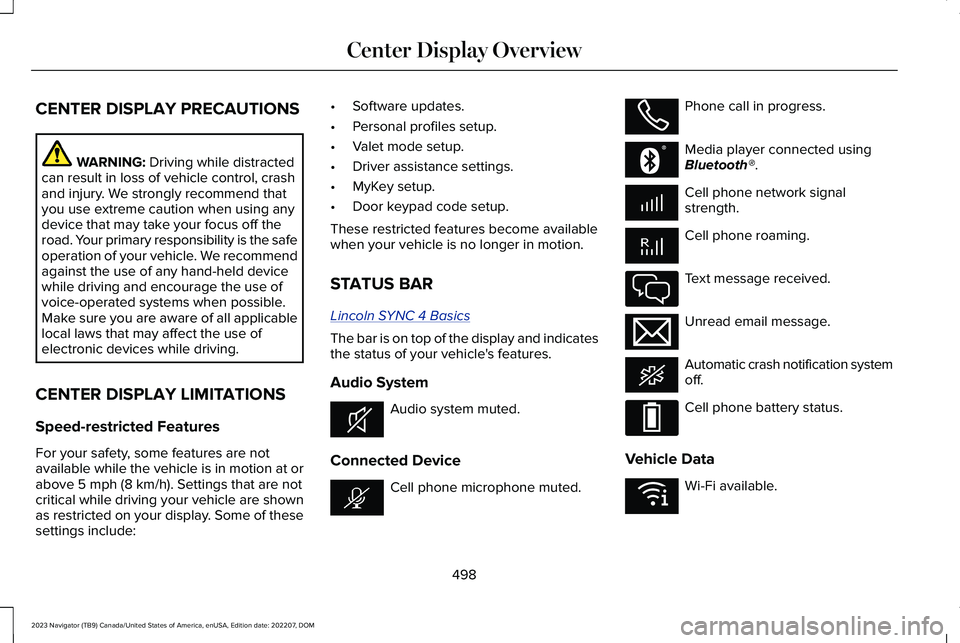
STATUS BAR
Lincoln SYNC 4 Basics
The bar is on top of the display and indicatesthe status of your vehicle's features.
Audio System
Audio system muted.
Connected Device
Cell phone microphone muted.
Phone call in progress.
Media player connected usingBluetooth®.
Cell phone network signalstrength.
Cell phone roaming.
Text message received.
Unread email message.
Automatic crash notification systemoff.
Cell phone battery status.
Vehicle Data
Wi-Fi available.
498
2023 Navigator (TB9) Canada/United States of America, enUSA, Edition date: 202207, DOMCenter Display OverviewE353221 E353213 E353208 E335295 E353216 E335293 E353219
Page 509 of 660
PHONE PRECAUTIONS
WARNING: Driving while distractedcan result in loss of vehicle control, crashand injury. We strongly recommend thatyou use extreme caution when using anydevice that may take your focus off theroad. Your primary responsibility is the safeoperation of your vehicle. We recommendagainst the use of any hand-held devicewhile driving and encourage the use ofvoice-operated systems when possible.Make sure you are aware of all applicablelocal laws that may affect the use ofelectronic devices while driving.
CONNECTING YOUR PHONE
Go to the settings menu on your device andswitch Bluetooth® on.
Press the phone option on thefeature bar.
1.Press Add Phone.
Note:A prompt alerts you to search for yourvehicle on your cell phone.
2.Select your vehicle on your cell phone.
Note:A number appears on your cell phoneand on the touchscreen.
3.Confirm the number on your cell phonematches the number on the touchscreen.
Note:The touchscreen indicates that youhave successfully paired your cell phone.
4.Download the phonebook from your cellphone when you are prompted.
Note:If you pair more than one cell phone,use the phone settings on the center displayto specify the primary phone. You canchange this setting at any time.
PHONE MENU
This menu becomes available after pairinga phone.
Recent Call List
Display and select an entry from a list ofprevious calls.
Contacts
Display a smart search form to look up yourcontacts. Use the List button to alphabeticallysort your contacts.
Favorites
Display the list of favorite contacts that areset up on your phone.
Messaging
Displays the list of text messages to read,listen to, or respond to.
Email
Displays the list of emails to read, listen to,or respond to.
Phone List
Display the list of paired or connecteddevices that you can select.
Note:Up to 12 devices can be stored.
505
2023 Navigator (TB9) Canada/United States of America, enUSA, Edition date: 202207, DOMPhone
Page 515 of 660
CONNECTING A BLUETOOTH®
DEVICE
1.Make sure Bluetooth® is enabled on yourdevice.
2.Press Settings on the touchscreen.
3.Press Connectivity.
4.Press Bluetooth.
5.Press Add a Bluetooth Device.
Note:A prompt alerts you to search for yourvehicle on your device.
6.Select your vehicle on your device.
Note:A number appears on your device andon the touchscreen.
7.Confirm that the number on your devicematches the number on the touchscreen.
Note:The touchscreen indicates that youhave successfully paired your device.
The Bluetooth® word mark and logos areregistered trademarks owned by BluetoothSIG, Inc. and any use of such marks by FordMotor Company is under license. Othertrademarks and trade names are those oftheir respective owners.
PLAYING MEDIA USING
BLUETOOTH®
WARNING: Driving while distractedcan result in loss of vehicle control, crashand injury. We strongly recommend thatyou use extreme caution when using anydevice that may take your focus off theroad. Your primary responsibility is the safeoperation of your vehicle. We recommendagainst the use of any hand-held devicewhile driving and encourage the use ofvoice-operated systems when possible.Make sure you are aware of all applicablelocal laws that may affect the use ofelectronic devices while driving.
Connect your device.
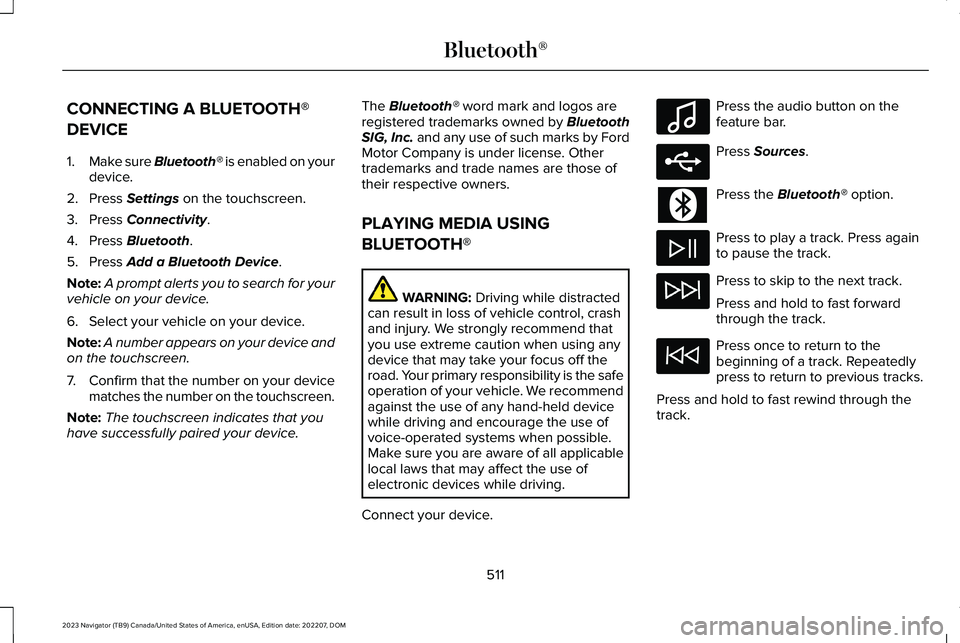
Press the audio button on thefeature bar.
Press Sources.
Press the Bluetooth® option.
Press to play a track. Press againto pause the track.
Press to skip to the next track.
Press and hold to fast forwardthrough the track.
Press once to return to thebeginning of a track. Repeatedlypress to return to previous tracks.
Press and hold to fast rewind through thetrack.
511
2023 Navigator (TB9) Canada/United States of America, enUSA, Edition date: 202207, DOMBluetooth®E100027 E250655
Page 516 of 660
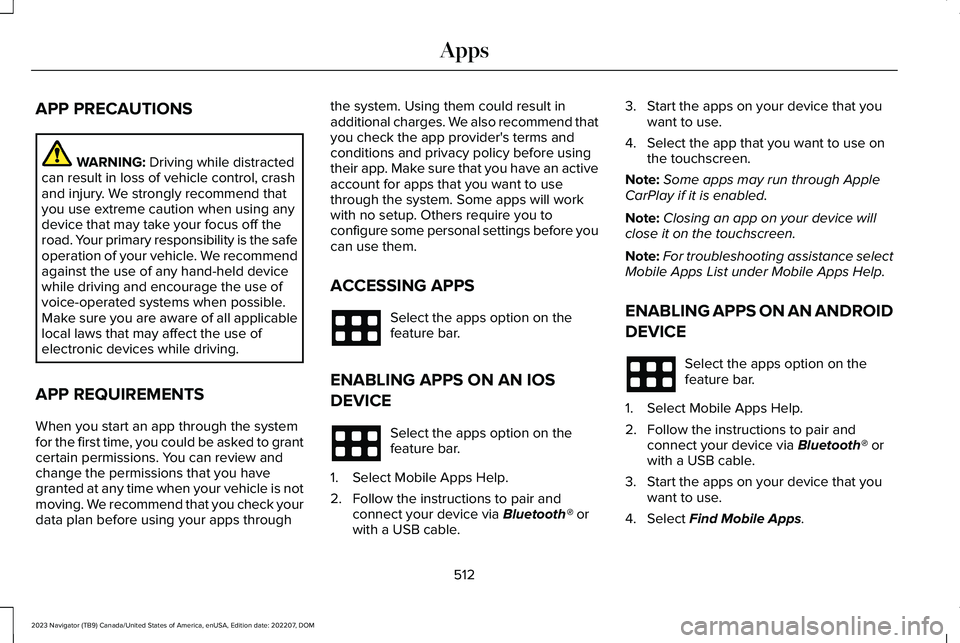
APP PRECAUTIONS
WARNING: Driving while distractedcan result in loss of vehicle control, crashand injury. We strongly recommend thatyou use extreme caution when using anydevice that may take your focus off theroad. Your primary responsibility is the safeoperation of your vehicle. We recommendagainst the use of any hand-held devicewhile driving and encourage the use ofvoice-operated systems when possible.Make sure you are aware of all applicablelocal laws that may affect the use ofelectronic devices while driving.
APP REQUIREMENTS
When you start an app through the systemfor the first time, you could be asked to grantcertain permissions. You can review andchange the permissions that you havegranted at any time when your vehicle is notmoving. We recommend that you check yourdata plan before using your apps through
the system. Using them could result inadditional charges. We also recommend thatyou check the app provider's terms andconditions and privacy policy before usingtheir app. Make sure that you have an activeaccount for apps that you want to usethrough the system. Some apps will workwith no setup. Others require you toconfigure some personal settings before youcan use them.
ACCESSING APPS
Select the apps option on thefeature bar.
ENABLING APPS ON AN IOS
DEVICE
Select the apps option on thefeature bar.
1.Select Mobile Apps Help.
2.Follow the instructions to pair andconnect your device via Bluetooth® orwith a USB cable.
3.Start the apps on your device that youwant to use.
4.Select the app that you want to use onthe touchscreen.
Note:Some apps may run through AppleCarPlay if it is enabled.
Note:Closing an app on your device willclose it on the touchscreen.
Note:For troubleshooting assistance selectMobile Apps List under Mobile Apps Help.
ENABLING APPS ON AN ANDROID
DEVICE
Select the apps option on thefeature bar.
1.Select Mobile Apps Help.
2.Follow the instructions to pair andconnect your device via Bluetooth® orwith a USB cable.
3.Start the apps on your device that youwant to use.
4.Select Find Mobile Apps.
512
2023 Navigator (TB9) Canada/United States of America, enUSA, Edition date: 202207, DOMApps
Page 536 of 660
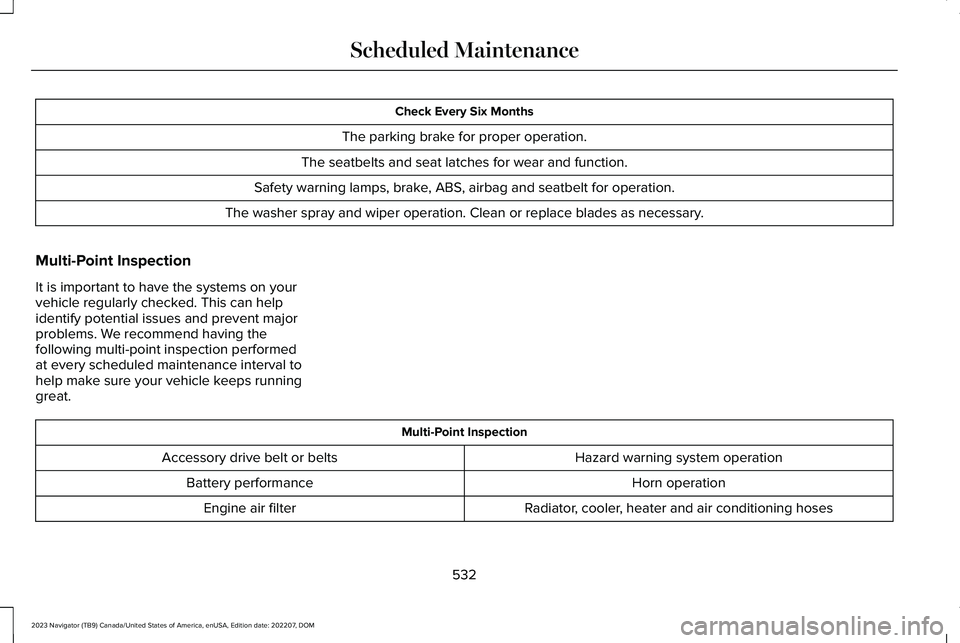
Check Every Six Months
The parking brake for proper operation.
The seatbelts and seat latches for wear and function.
Safety warning lamps, brake, ABS, airbag and seatbelt for operation.
The washer spray and wiper operation. Clean or replace blades as necessary.
Multi-Point Inspection
It is important to have the systems on yourvehicle regularly checked. This can helpidentify potential issues and prevent majorproblems. We recommend having thefollowing multi-point inspection performedat every scheduled maintenance interval tohelp make sure your vehicle keeps runninggreat.
Multi-Point Inspection
Hazard warning system operationAccessory drive belt or belts
Horn operationBattery performance
Radiator, cooler, heater and air conditioning hosesEngine air filter
532
2023 Navigator (TB9) Canada/United States of America, enUSA, Edition date: 202207, DOMScheduled Maintenance