audio LINCOLN NAVIGATOR 2023 Owner's Manual
[x] Cancel search | Manufacturer: LINCOLN, Model Year: 2023, Model line: NAVIGATOR, Model: LINCOLN NAVIGATOR 2023Pages: 660, PDF Size: 14.04 MB
Page 498 of 660
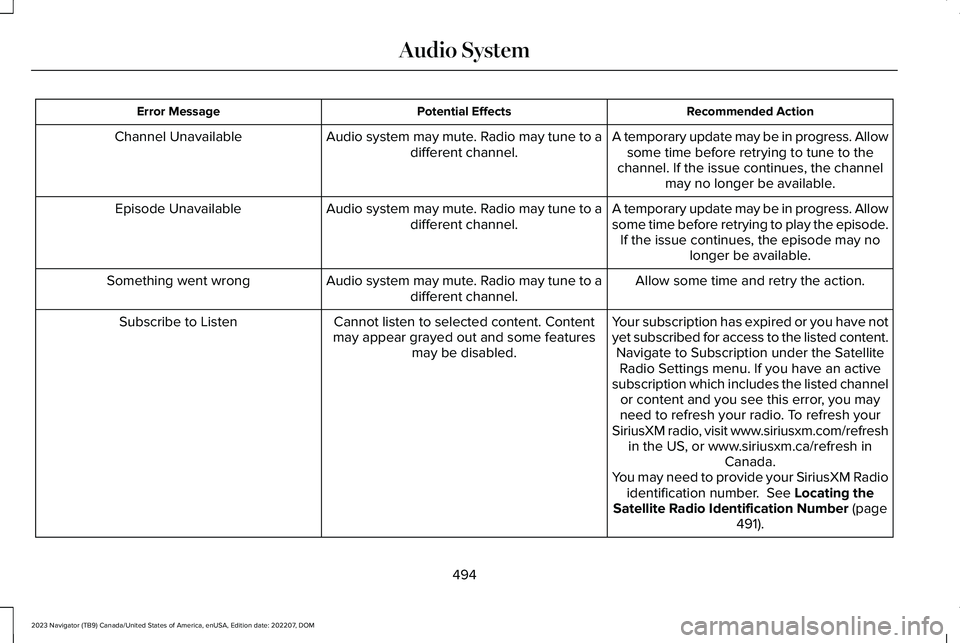
Recommended ActionPotential EffectsError Message
A temporary update may be in progress. Allowsome time before retrying to tune to thechannel. If the issue continues, the channelmay no longer be available.
Audio system may mute. Radio may tune to adifferent channel.Channel Unavailable
A temporary update may be in progress. Allowsome time before retrying to play the episode.If the issue continues, the episode may nolonger be available.
Audio system may mute. Radio may tune to adifferent channel.Episode Unavailable
Allow some time and retry the action.Audio system may mute. Radio may tune to adifferent channel.Something went wrong
Your subscription has expired or you have notyet subscribed for access to the listed content.Navigate to Subscription under the SatelliteRadio Settings menu. If you have an activesubscription which includes the listed channelor content and you see this error, you mayneed to refresh your radio. To refresh yourSiriusXM radio, visit www.siriusxm.com/refreshin the US, or www.siriusxm.ca/refresh inCanada.You may need to provide your SiriusXM Radioidentification number. See Locating theSatellite Radio Identification Number (page491).
Cannot listen to selected content. Contentmay appear grayed out and some featuresmay be disabled.
Subscribe to Listen
494
2023 Navigator (TB9) Canada/United States of America, enUSA, Edition date: 202207, DOMAudio System
Page 499 of 660
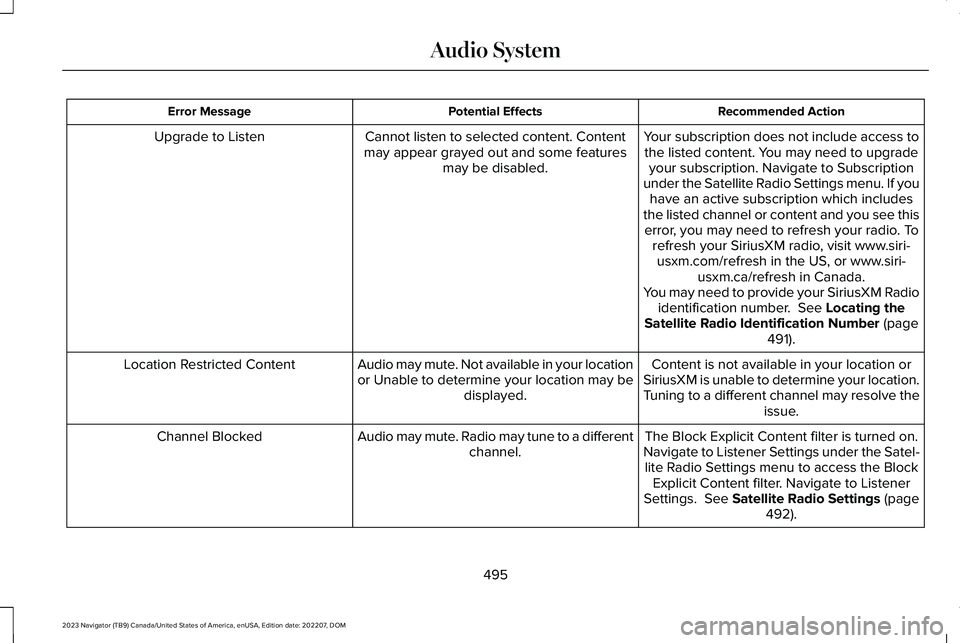
Recommended ActionPotential EffectsError Message
Your subscription does not include access tothe listed content. You may need to upgradeyour subscription. Navigate to Subscriptionunder the Satellite Radio Settings menu. If youhave an active subscription which includesthe listed channel or content and you see thiserror, you may need to refresh your radio. Torefresh your SiriusXM radio, visit www.siri-usxm.com/refresh in the US, or www.siri-usxm.ca/refresh in Canada.You may need to provide your SiriusXM Radioidentification number. See Locating theSatellite Radio Identification Number (page491).
Cannot listen to selected content. Contentmay appear grayed out and some featuresmay be disabled.
Upgrade to Listen
Content is not available in your location orSiriusXM is unable to determine your location.Tuning to a different channel may resolve theissue.
Audio may mute. Not available in your locationor Unable to determine your location may bedisplayed.
Location Restricted Content
The Block Explicit Content filter is turned on.Navigate to Listener Settings under the Satel-lite Radio Settings menu to access the BlockExplicit Content filter. Navigate to ListenerSettings. See Satellite Radio Settings (page492).
Audio may mute. Radio may tune to a differentchannel.Channel Blocked
495
2023 Navigator (TB9) Canada/United States of America, enUSA, Edition date: 202207, DOMAudio System
Page 500 of 660
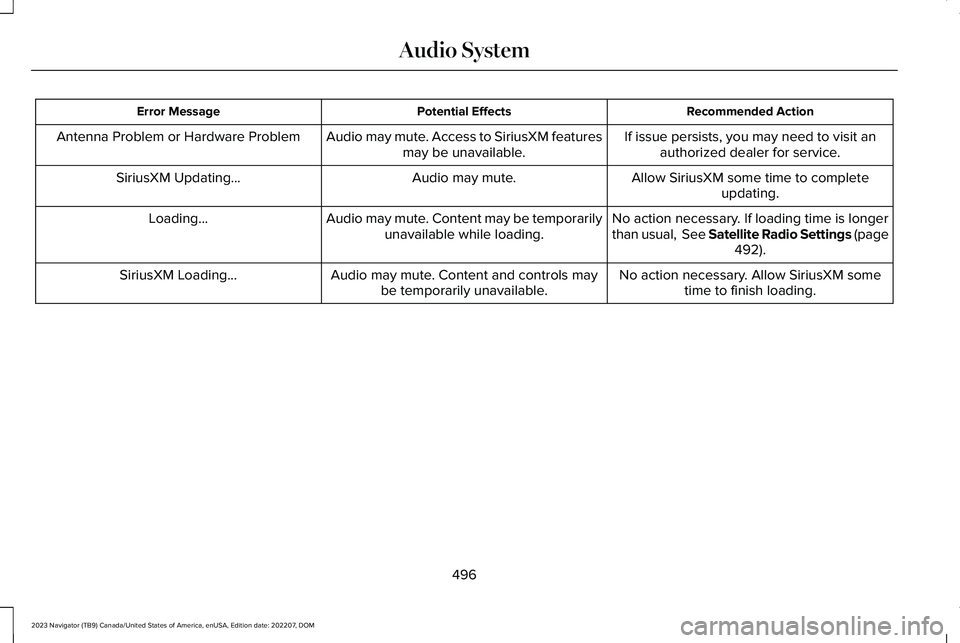
Recommended ActionPotential EffectsError Message
If issue persists, you may need to visit anauthorized dealer for service.Audio may mute. Access to SiriusXM featuresmay be unavailable.Antenna Problem or Hardware Problem
Allow SiriusXM some time to completeupdating.Audio may mute.SiriusXM Updating...
No action necessary. If loading time is longerthan usual, See Satellite Radio Settings (page492).
Audio may mute. Content may be temporarilyunavailable while loading.Loading...
No action necessary. Allow SiriusXM sometime to finish loading.Audio may mute. Content and controls maybe temporarily unavailable.SiriusXM Loading...
496
2023 Navigator (TB9) Canada/United States of America, enUSA, Edition date: 202207, DOMAudio System
Page 501 of 660
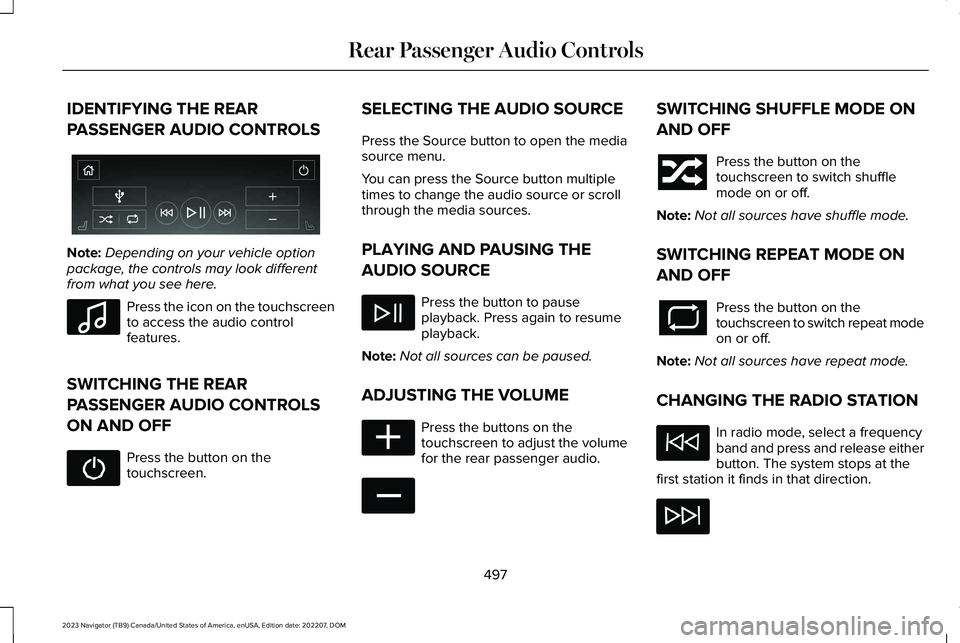
IDENTIFYING THE REAR
PASSENGER AUDIO CONTROLS
Note:Depending on your vehicle optionpackage, the controls may look differentfrom what you see here.
Press the icon on the touchscreento access the audio controlfeatures.
SWITCHING THE REAR
PASSENGER AUDIO CONTROLS
ON AND OFF
Press the button on thetouchscreen.
SELECTING THE AUDIO SOURCE
Press the Source button to open the mediasource menu.
You can press the Source button multipletimes to change the audio source or scrollthrough the media sources.
PLAYING AND PAUSING THE
AUDIO SOURCE
Press the button to pauseplayback. Press again to resumeplayback.
Note:Not all sources can be paused.
ADJUSTING THE VOLUME
Press the buttons on thetouchscreen to adjust the volumefor the rear passenger audio.
SWITCHING SHUFFLE MODE ON
AND OFF
Press the button on thetouchscreen to switch shufflemode on or off.
Note:Not all sources have shuffle mode.
SWITCHING REPEAT MODE ON
AND OFF
Press the button on thetouchscreen to switch repeat modeon or off.
Note:Not all sources have repeat mode.
CHANGING THE RADIO STATION
In radio mode, select a frequencyband and press and release eitherbutton. The system stops at thefirst station it finds in that direction.
497
2023 Navigator (TB9) Canada/United States of America, enUSA, Edition date: 202207, DOMRear Passenger Audio ControlsE356495 E100027 E356421 E356422
Page 502 of 660
CENTER DISPLAY PRECAUTIONS
WARNING: Driving while distractedcan result in loss of vehicle control, crashand injury. We strongly recommend thatyou use extreme caution when using anydevice that may take your focus off theroad. Your primary responsibility is the safeoperation of your vehicle. We recommendagainst the use of any hand-held devicewhile driving and encourage the use ofvoice-operated systems when possible.Make sure you are aware of all applicablelocal laws that may affect the use ofelectronic devices while driving.
CENTER DISPLAY LIMITATIONS
Speed-restricted Features
For your safety, some features are notavailable while the vehicle is in motion at orabove 5 mph (8 km/h). Settings that are notcritical while driving your vehicle are shownas restricted on your display. Some of thesesettings include:
•Software updates.
•Personal profiles setup.
•Valet mode setup.
•Driver assistance settings.
•MyKey setup.
•Door keypad code setup.
These restricted features become availablewhen your vehicle is no longer in motion.
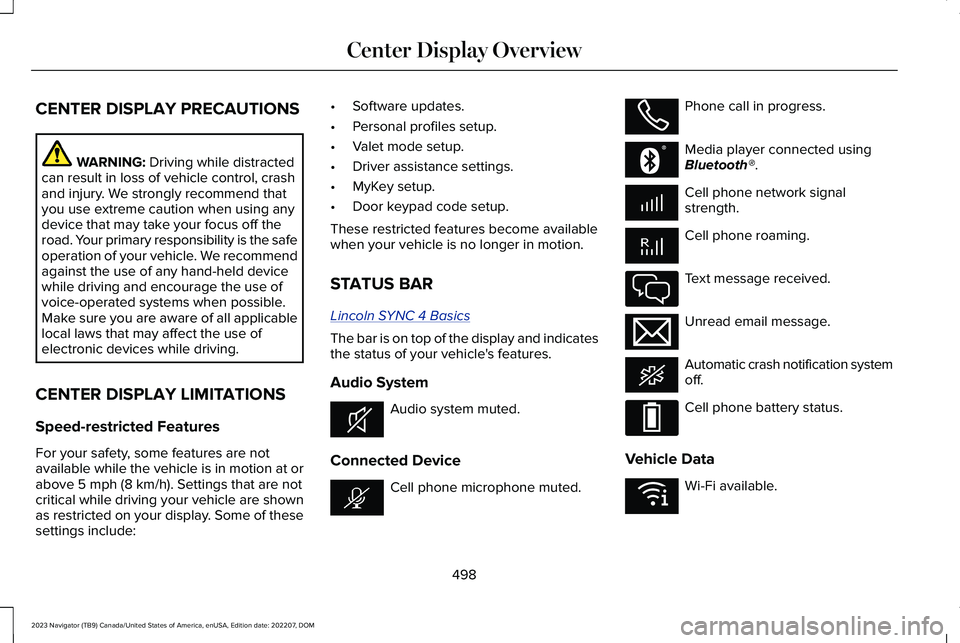
STATUS BAR
Lincoln SYNC 4 Basics
The bar is on top of the display and indicatesthe status of your vehicle's features.
Audio System
Audio system muted.
Connected Device
Cell phone microphone muted.
Phone call in progress.
Media player connected usingBluetooth®.
Cell phone network signalstrength.
Cell phone roaming.
Text message received.
Unread email message.
Automatic crash notification systemoff.
Cell phone battery status.
Vehicle Data
Wi-Fi available.
498
2023 Navigator (TB9) Canada/United States of America, enUSA, Edition date: 202207, DOMCenter Display OverviewE353221 E353213 E353208 E335295 E353216 E335293 E353219
Page 504 of 660
INFORMATION ON DEMAND
SCREEN
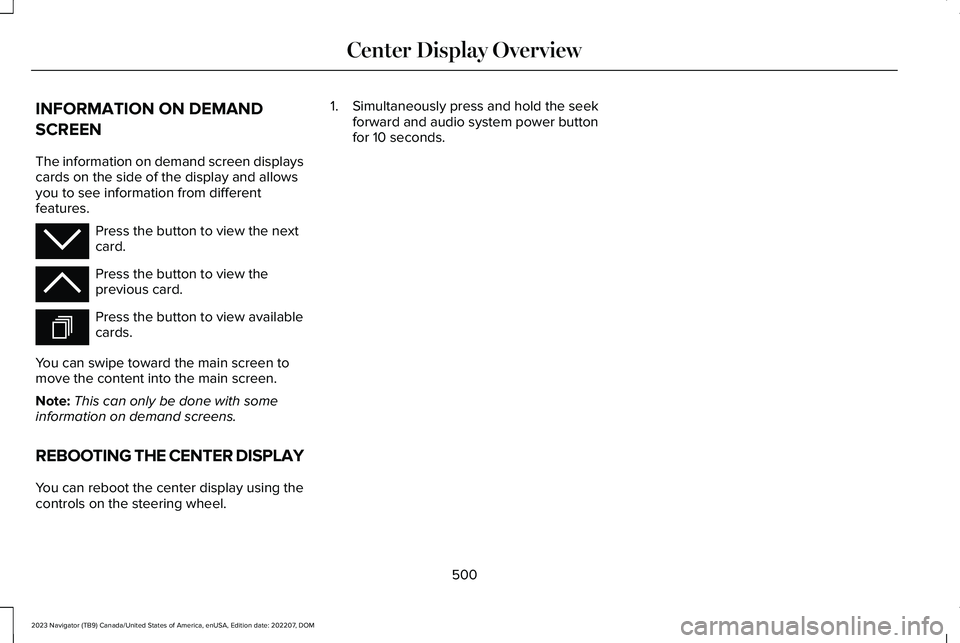
The information on demand screen displayscards on the side of the display and allowsyou to see information from differentfeatures.
Press the button to view the nextcard.
Press the button to view theprevious card.
Press the button to view availablecards.
You can swipe toward the main screen tomove the content into the main screen.
Note:This can only be done with someinformation on demand screens.
REBOOTING THE CENTER DISPLAY
You can reboot the center display using thecontrols on the steering wheel.
1.Simultaneously press and hold the seekforward and audio system power buttonfor 10 seconds.
500
2023 Navigator (TB9) Canada/United States of America, enUSA, Edition date: 202207, DOMCenter Display OverviewE353212 E353211 E353209
Page 512 of 660
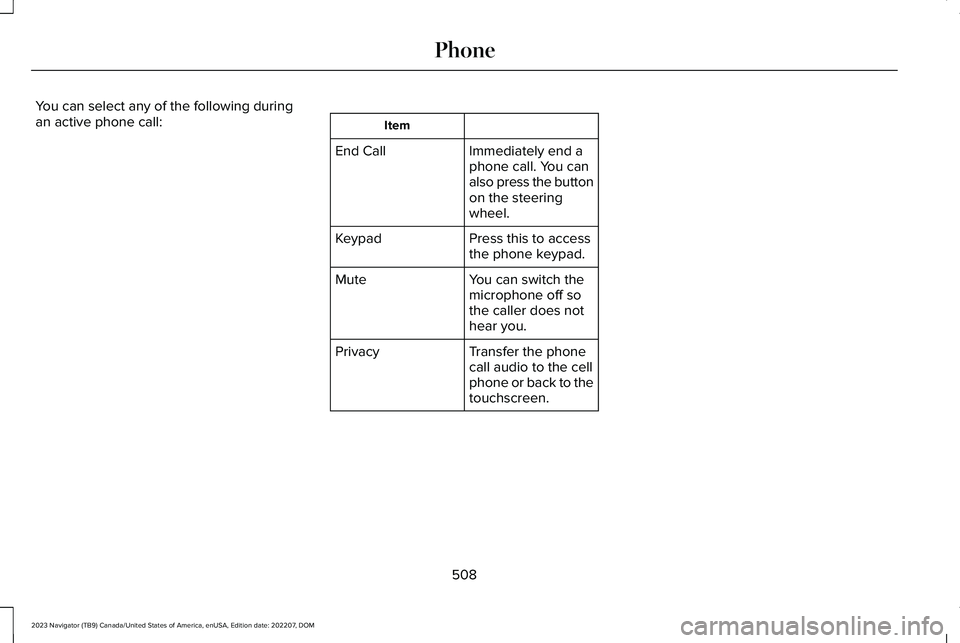
You can select any of the following duringan active phone call:Item
Immediately end aphone call. You canalso press the buttonon the steeringwheel.
End Call
Press this to accessthe phone keypad.Keypad
You can switch themicrophone off sothe caller does nothear you.
Mute
Transfer the phonecall audio to the cellphone or back to thetouchscreen.
Privacy
508
2023 Navigator (TB9) Canada/United States of America, enUSA, Edition date: 202207, DOMPhone
Page 515 of 660
CONNECTING A BLUETOOTH®
DEVICE
1.Make sure Bluetooth® is enabled on yourdevice.
2.Press Settings on the touchscreen.
3.Press Connectivity.
4.Press Bluetooth.
5.Press Add a Bluetooth Device.
Note:A prompt alerts you to search for yourvehicle on your device.
6.Select your vehicle on your device.
Note:A number appears on your device andon the touchscreen.
7.Confirm that the number on your devicematches the number on the touchscreen.
Note:The touchscreen indicates that youhave successfully paired your device.
The Bluetooth® word mark and logos areregistered trademarks owned by BluetoothSIG, Inc. and any use of such marks by FordMotor Company is under license. Othertrademarks and trade names are those oftheir respective owners.
PLAYING MEDIA USING
BLUETOOTH®
WARNING: Driving while distractedcan result in loss of vehicle control, crashand injury. We strongly recommend thatyou use extreme caution when using anydevice that may take your focus off theroad. Your primary responsibility is the safeoperation of your vehicle. We recommendagainst the use of any hand-held devicewhile driving and encourage the use ofvoice-operated systems when possible.Make sure you are aware of all applicablelocal laws that may affect the use ofelectronic devices while driving.
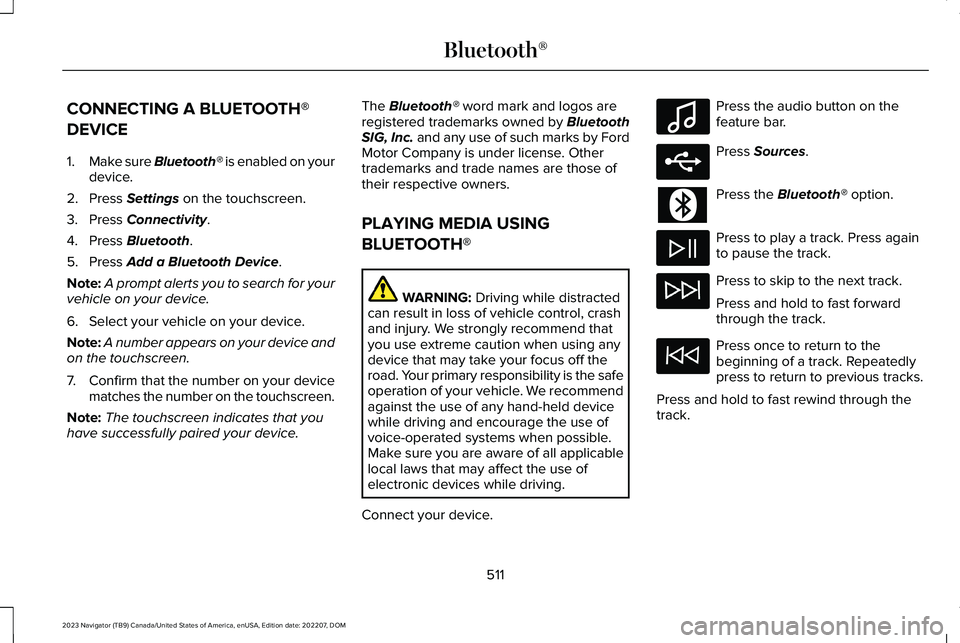
Connect your device.
Press the audio button on thefeature bar.
Press Sources.
Press the Bluetooth® option.
Press to play a track. Press againto pause the track.
Press to skip to the next track.
Press and hold to fast forwardthrough the track.
Press once to return to thebeginning of a track. Repeatedlypress to return to previous tracks.
Press and hold to fast rewind through thetrack.
511
2023 Navigator (TB9) Canada/United States of America, enUSA, Edition date: 202207, DOMBluetooth®E100027 E250655
Page 598 of 660
•Links to Third Party Sites: TheSOFTWARE may provide you with theability to link to third party sites. The thirdparty sites are not under the control ofFORD MOTOR COMPANY, its affiliatesand/or its designated agent. NeitherFORD MOTOR COMPANY nor itsaffiliates nor its designated agent areresponsible for (I) the contents of anythird party sites, any links contained inthird party sites, or any changes orupdates to third party sites, or (ii)webcasting or any other form oftransmission received from any thirdparty sites. If the SOFTWARE provideslinks to third party sites, those links areprovided to you only as a convenience,and the inclusion of any link does notimply an endorsement of the third partysite by FORD MOTOR COMPANY, itsaffiliates and/or its designated agent.
•Obligation to Drive Responsibly: Yourecognize your obligation to driveresponsibly and keep attention on theroad. You will read and abide with theDEVICES operating instructionsparticularly as they pertain to safety andyou agree to assume any risk associated
with the use of the DEVICES.
UPGRADES AND RECOVERY MEDIA: If theSOFTWARE is provided by FORD MOTORCOMPANY separate from the DEVICES onmedia such as a ROM chip, CD ROM disk(s)or via web download or other means, and islabeled "For Upgrade Purposes Only" or "ForRecovery Purposes Only" you may install one(1) copy of such SOFTWARE onto theDEVICES as a replacement copy for theexisting SOFTWARE, and use it inaccordance with this EULA, including anyadditional EULA terms accompanying theupgrade SOFTWARE.
INTELLECTUAL PROPERTY RIGHTS: Alltitle and intellectual property rights in and tothe SOFTWARE (including but not limited toany images, photographs, animations, video,audio, music, text and "applets" incorporatedinto the SOFTWARE), the accompanyingprinted materials, and any copies of theSOFTWARE, are owned by FORD MOTORCOMPANY, or its affiliates or suppliers. TheSOFTWARE is licensed, not sold. You maynot copy the printed materials accompanyingthe SOFTWARE. All title and intellectualproperty rights in and to the content which
may be accessed through use of theSOFTWARE is the property of the respectivecontent owner and may be protected byapplicable copyright or other intellectualproperty laws and treaties. This EULA grantsyou no rights to use such content outside itsintended use. All rights not specificallygranted under this EULA are reserved byFORD MOTOR COMPANY, its affiliates, andthird party software and service providersand suppliers. Use of any on-line serviceswhich may be accessed through theSOFTWARE may be governed by therespective terms of use relating to suchservices. If this SOFTWARE containsdocumentation that is provided only inelectronic form, you may print one copy ofsuch electronic documentation.
594
2023 Navigator (TB9) Canada/United States of America, enUSA, Edition date: 202207, DOMCustomer Information
Page 606 of 660
(b) use your own personal judgment whiledriving. If you feel that a route suggested bythe TeleNav Software instructs you toperform an unsafe or illegal maneuver,places you in an unsafe situation, or directsyou into an area that you consider to beunsafe, do not follow such instructions;
(c) do not input destinations, or otherwisemanipulate the TeleNav Software, unlessyour vehicle is stationary and parked;
(d) do not use the TeleNav Software for anyillegal, unauthorized, unintended, unsafe,hazardous, or unlawful purposes, or in anymanner inconsistent with this Agreement;
(e) arrange all GPS and wireless devices andcables necessary for use of the TeleNavSoftware in a secure manner in your vehicleso that they will not interfere with yourdriving and will not prevent the operation ofany safety device (such as an airbag).
You agree to indemnify and hold TeleNavharmless against all claims resulting from anydangerous or otherwise inappropriate useof the TeleNav Software in any movingvehicle, including as a result of your failureto comply with the directions above.
2. Account Information
You agree: (a) when registering the TeleNavSoftware, to provide TeleNav with true,accurate, current, and complete informationabout yourself, and (b) to inform TeleNavpromptly of any changes to such information,and to keep it true, accurate, current andcomplete.
3. Software License
•Subject to your compliance with theterms of this Agreement, TeleNav herebygrants to you a personal, non-exclusive,non-transferable license (except asexpressly permitted below in connectionwith your permanent transfer of theTeleNav Software license), without theright to sublicense, to use the TeleNavSoftware (in object code form only) inorder to access and use the TeleNavSoftware. This license shall terminateupon any termination or expiration of thisAgreement. You agree that you will usethe TeleNav Software only for yourpersonal business or leisure purposes,and not to provide commercial navigationservices to other parties.
3.1 License Limitations
•(a) reverse engineer, decompile,disassemble, translate, modify, alter orotherwise change the TeleNav Softwareor any part thereof; (b) attempt to derivethe source code, audio library orstructure of the TeleNav Software withoutthe prior express written consent ofTeleNav; (c) remove from the TeleNavSoftware, or alter, any of TeleNav's or itssuppliers' trademarks, trade names,logos, patent or copyright notices, orother notices or markings; (d) distribute,sublicense or otherwise transfer theTeleNav Software to others, except aspart of your permanent transfer of theTeleNav Software; or (e) use the TeleNavSoftware in any manner that
I. infringes the intellectual property orproprietary rights, rights of publicity orprivacy or other rights of any party,
ii. violates any law, statute, ordinance orregulation, including but not limited to lawsand regulations related to spamming, privacy,consumer and child protection, obscenity ordefamation, or
602
2023 Navigator (TB9) Canada/United States of America, enUSA, Edition date: 202207, DOMCustomer Information