audio MASERATI LEVANTE 2019 User Guide
[x] Cancel search | Manufacturer: MASERATI, Model Year: 2019, Model line: LEVANTE, Model: MASERATI LEVANTE 2019Pages: 436, PDF Size: 15.24 MB
Page 190 of 436
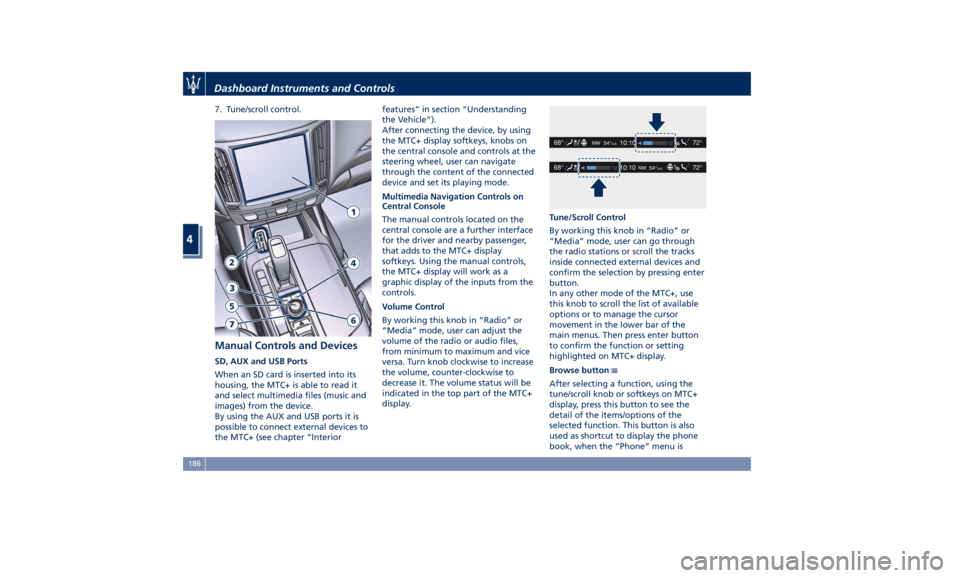
7. Tune/scroll control.
Manual Controls and Devices SD, AUX and USB Ports
When an SD card is inserted into its
housing, the MTC+ is able to read it
and select multimedia files (music and
images) from the device.
By using the AUX and USB ports it is
possible to connect external devices to
the MTC+ (see chapter “Interior features” in section “Understanding
the Vehicle”).
After connecting the device, by using
the MTC+ display softkeys, knobs on
the central console and controls at the
steering wheel, user can navigate
through the content of the connected
device and set its playing mode.
Multimedia Navigation Controls on
Central Console
The manual controls located on the
central console are a further interface
for the driver and nearby passenger,
that adds to the MTC+ display
softkeys. Using the manual controls,
the MTC+ display will work as a
graphic display of the inputs from the
controls.
Volume Control
By working this knob in “Radio” or
“Media” mode, user can adjust the
volume of the radio or audio files,
from minimum to maximum and vice
versa. Turn knob clockwise to increase
the volume, counter-clockwise to
decrease it. The volume status will be
indicated in the top part of the MTC+
display. Tune/Scroll Control
By working this knob in “Radio” or
“Media” mode, user can go through
the radio stations or scroll the tracks
inside connected external devices and
confirm the selection by pressing enter
button.
In any other mode of the MTC+, use
this knob to scroll the list of available
options or to manage the cursor
movement in the lower bar of the
main menus. Then press enter button
to confirm the function or setting
highlighted on MTC+ display.
Browse button
After selecting a function, using the
tune/scroll knob or softkeys on MTC+
display, press this button to see the
detail of the items/options of the
selected function. This button is also
used as shortcut to display the phone
book, when the “Phone” menu isDashboard Instruments and Controls
4
186
Page 193 of 436
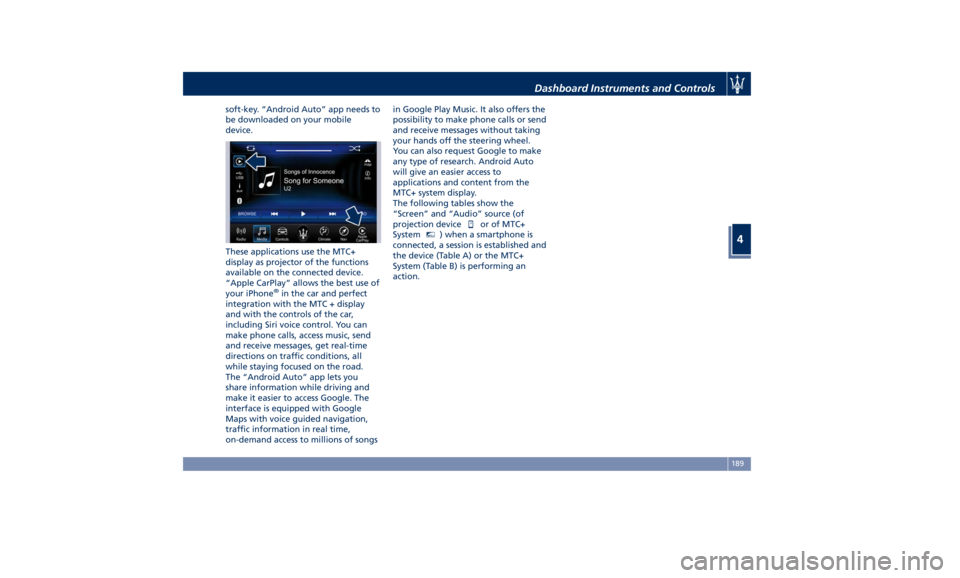
soft-key. “Android Auto” app needs to
be downloaded on your mobile
device.
These applications use the MTC+
display as projector of the functions
available on the connected device.
“Apple CarPlay” allows the best use of
your iPhone ®
in the car and perfect
integration with the MTC + display
and with the controls of the car,
including Siri voice control. You can
make phone calls, access music, send
and receive messages, get real-time
directions on traffic conditions, all
while staying focused on the road.
The “Android Auto” app lets you
share information while driving and
make it easier to access Google. The
interface is equipped with Google
Maps with voice guided navigation,
traffic information in real time,
on-demand access to millions of songs in Google Play Music. It also offers the
possibility to make phone calls or send
and receive messages without taking
your hands off the steering wheel.
You can also request Google to make
any type of research. Android Auto
will give an easier access to
applications and content from the
MTC+ system display.
The following tables show the
“Screen” and “Audio” source (of
projection device
or of MTC+
System MTC+
) when a smartphone is
connected, a session is established and
the device (Table A) or the MTC+
System (Table B) is performing an
action. Dashboard Instruments and Controls
4
189
Page 194 of 436
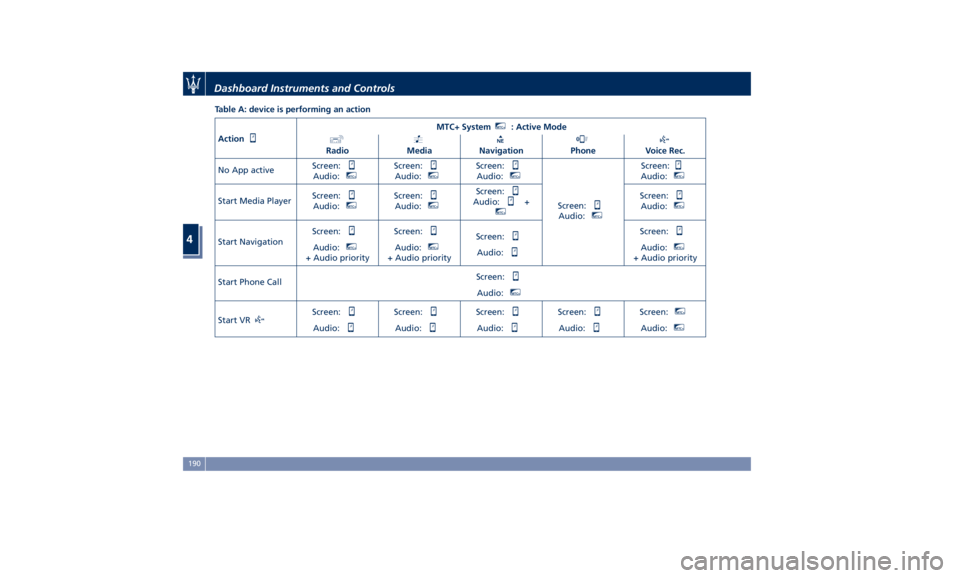
Table A: device is performing an action
Action MTC+ System MTC+
: Active Mode
Radio Media Navigation Phone Voice Rec.
No App active Screen:
Audio: MTC+
Screen:
Audio: MTC+
Screen:
Audio: MTC+
Screen:
Audio: MTC+
Screen:
Audio: MTC+
Start Media Player Screen:
Audio: MTC+
Screen:
Audio: MTC+
Screen:
Audio: + MTC+
Screen:
Audio: MTC+
Start Navigation Screen:
Audio: MTC+
+ Audio priority Screen:
Audio: MTC+
+ Audio priority Screen:
Audio: Screen:
Audio: MTC+
+ Audio priority
Start Phone Call Screen:
Audio: MTC+
Start VR Screen:
Audio: Screen:
Audio: Screen:
Audio: Screen:
Audio: Screen: MTC+
Audio: MTC+
Dashboard Instruments and Controls
4
190
Page 195 of 436
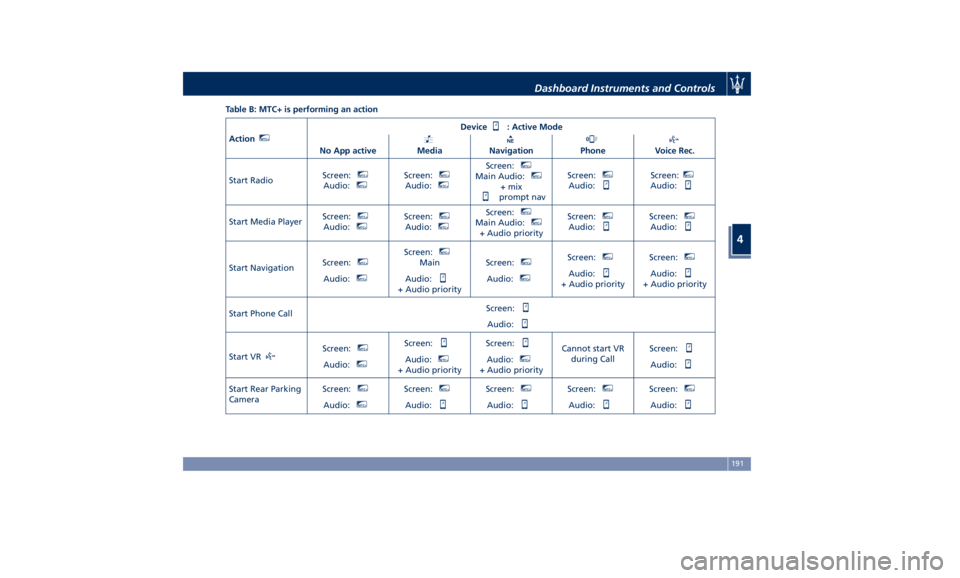
Table B: MTC+ is performing an action
Action MTC+
Device : Active Mode
No App active Media Navigation Phone Voice Rec.
Start Radio Screen: MTC+
Audio: MTC+
Screen: MTC+
Audio: MTC+
Screen: MTC+
Main Audio: MTC+
+ mix
prompt nav Screen: MTC+
Audio: Screen: MTC+
Audio:
Start Media Player Screen: MTC+
Audio: MTC+
Screen: MTC+
Audio: MTC+
Screen: MTC+
Main Audio: MTC+
+ Audio priority Screen: MTC+
Audio: Screen: MTC+
Audio:
Start Navigation Screen: MTC+
Audio: MTC+
Screen: MTC+
Main
Audio:
+ Audio priority Screen: MTC+
Audio: MTC+
Screen: MTC+
Audio:
+ Audio priority Screen: MTC+
Audio:
+ Audio priority
Start Phone Call Screen:
Audio:
Start VR Screen: MTC+
Audio: MTC+
Screen:
Audio: MTC+
+ Audio priority Screen:
Audio: MTC+
+ Audio priority Cannot start VR
during Call Screen:
Audio:
Start Rear Parking
Camera Screen: MTC+
Audio: MTC+
Screen: MTC+
Audio: Screen: MTC+
Audio: Screen: MTC+
Audio: Screen: MTC+
Audio:Dashboard Instruments and Controls
4
191
Page 196 of 436
Audio Controls The vehicle is equipped with audio
controls that allow both driver and
front passenger to operate the audio
system. These controls can be used to
adjust audio volume, change radio
station or mode (FM, AM, USB, etc).
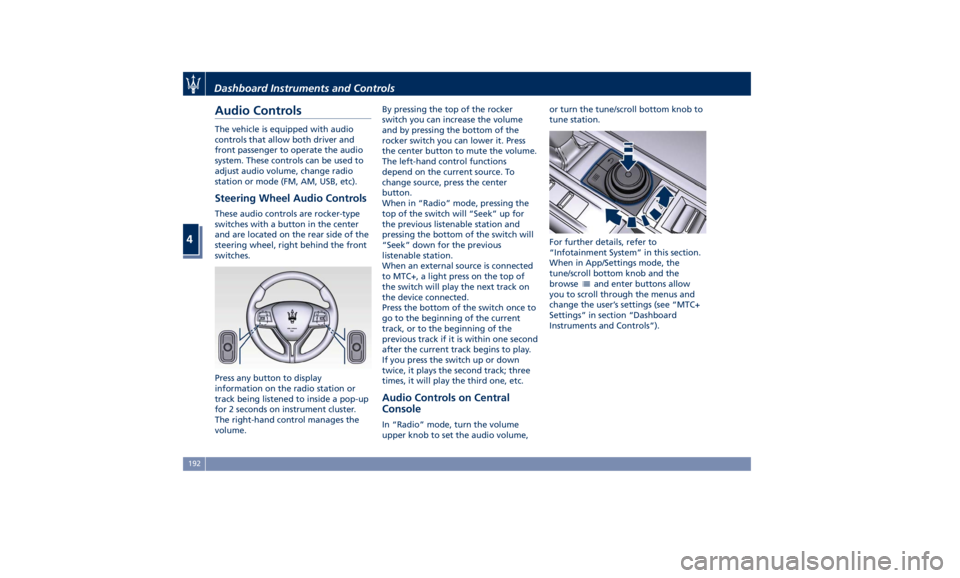
Steering Wheel Audio Controls These audio controls are rocker-type
switches with a button in the center
and are located on the rear side of the
steering wheel, right behind the front
switches.
Press any button to display
information on the radio station or
track being listened to inside a pop-up
for 2 seconds on instrument cluster.
The right-hand control manages the
volume. By pressing the top of the rocker
switch you can increase the volume
and by pressing the bottom of the
rocker switch you can lower it. Press
the center button to mute the volume.
The left-hand control functions
depend on the current source. To
change source, press the center
button.
When in “Radio” mode, pressing the
top of the switch will “Seek” up for
the previous listenable station and
pressing the bottom of the switch will
“Seek” down for the previous
listenable station.
When an external source is connected
to MTC+, a light press on the top of
the switch will play the next track on
the device connected.
Press the bottom of the switch once to
go to the beginning of the current
track, or to the beginning of the
previous track if it is within one second
after the current track begins to play.
If you press the switch up or down
twice, it plays the second track; three
times, it will play the third one, etc.
Audio Controls on Central
Console In “Radio” mode, turn the volume
upper knob to set the audio volume, or turn the tune/scroll bottom knob to
tune station.
For further details, refer to
“Infotainment System” in this section.
When in App/Settings mode, the
tune/scroll bottom knob and the
browse
and enter buttons allow
you to scroll through the menus and
change the user’s settings (see “MTC+
Settings” in section “Dashboard
Instruments and Controls”).Dashboard Instruments and Controls
4
192
Page 197 of 436
Audio System The vehicle is equipped with an audio
system that offers superior sound
quality, higher sound pressure levels
and reduced energy consumption.
The system maximizes the amplifier
and speaker technology delivering
substantially higher components and
system efficiency.
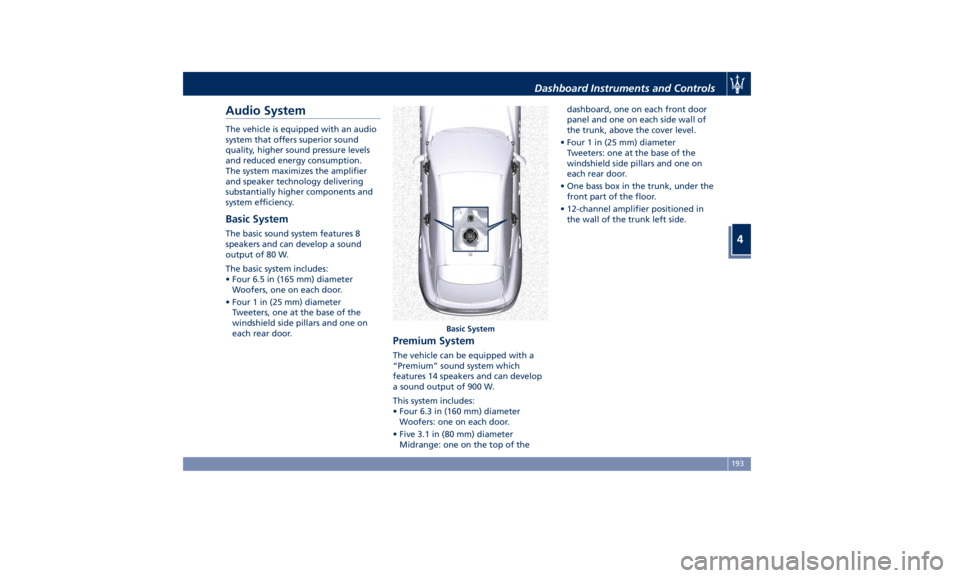
Basic System The basic sound system features 8
speakers and can develop a sound
output of 80 W.
The basic system includes:
• Four 6.5 in (165 mm) diameter
Woofers, one on each door.
• Four 1 in (25 mm) diameter
Tweeters, one at the base of the
windshield side pillars and one on
each rear door.
Premium System The vehicle can be equipped with a
“Premium” sound system which
features 14 speakers and can develop
a sound output of 900 W.
This system includes:
• Four 6.3 in (160 mm) diameter
Woofers: one on each door.
• Five 3.1 in (80 mm) diameter
Midrange: one on the top of the dashboard, one on each front door
panel and one on each side wall of
the trunk, above the cover level.
• Four 1 in (25 mm) diameter
Tweeters: one at the base of the
windshield side pillars and one on
each rear door.
• One bass box in the trunk, under the
front part of the floor.
• 12-channel amplifier positioned in
the wall of the trunk left side.
Basic SystemDashboard Instruments and Controls
4
193
Page 198 of 436
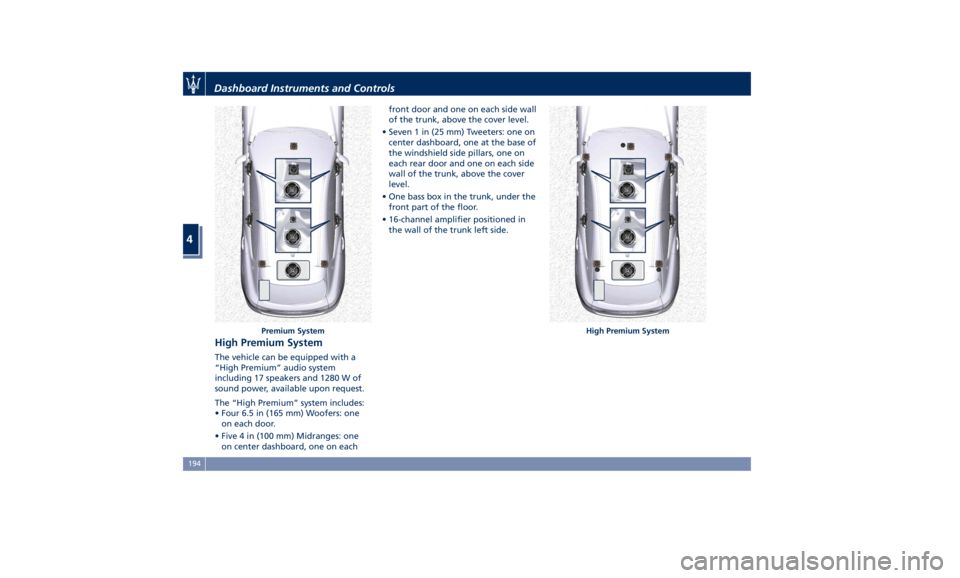
High Premium System The vehicle can be equipped with a
“High Premium” audio system
including 17 speakers and 1280 W of
sound power, available upon request.
The “High Premium” system includes:
• Four 6.5 in (165 mm) Woofers: one
on each door.
• Five 4 in (100 mm) Midranges: one
on center dashboard, one on each front door and one on each side wall
of the trunk, above the cover level.
• Seven 1 in (25 mm) Tweeters: one on
center dashboard, one at the base of
the windshield side pillars, one on
each rear door and one on each side
wall of the trunk, above the cover
level.
• One bass box in the trunk, under the
front part of the floor.
• 16-channel amplifier positioned in
the wall of the trunk left side.
Premium System High Premium SystemDashboard Instruments and Controls
4
194
Page 203 of 436
NOTE:
• For further details refer to the
“Maserati Touch Control Plus
(MTC+)” guide.
• All settings must be edited with
ignition device set to RUN position.
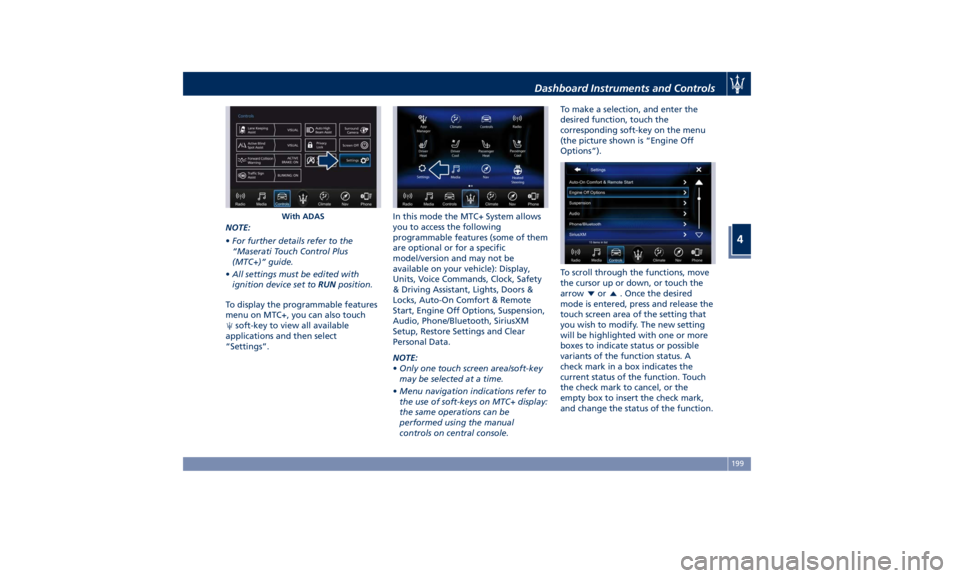
To display the programmable features
menu on MTC+, you can also touch
soft-key to view all available
applications and then select
“Settings”. In this mode the MTC+ System allows
you to access the following
programmable features (some of them
are optional or for a specific
model/version and may not be
available on your vehicle): Display,
Units, Voice Commands, Clock, Safety
& Driving Assistant, Lights, Doors &
Locks, Auto-On Comfort & Remote
Start, Engine Off Options, Suspension,
Audio, Phone/Bluetooth, SiriusXM
Setup, Restore Settings and Clear
Personal Data.
NOTE:
• Only one touch screen area/soft-key
may be selected at a time.
• Menu navigation indications refer to
the use of soft-keys on MTC+ display:
the same operations can be
performed using the manual
controls on central console. To make a selection, and enter the
desired function, touch the
corresponding soft-key on the menu
(the picture shown is “Engine Off
Options”).
To scroll through the functions, move
the cursor up or down, or touch the
arrow
or . Once the desired
mode is entered, press and release the
touch screen area of the setting that
you wish to modify. The new setting
will be highlighted with one or more
boxes to indicate status or possible
variants of the function status. A
check mark in a box indicates the
current status of the function. Touch
the check mark to cancel, or the
empty box to insert the check mark,
and change the status of the function.With ADAS Dashboard Instruments and Controls
4
199
Page 211 of 436
clearance when driver takes
transmission to P (Park) to help
entry into and exit from the vehicle
and unloading of cargo from the
trunk compartment. The feature
can be set to “On” or “Off”.
• Warning/Suspension Warning
Messages Only
Select this mode to choose whether
to display only warnings (option
“On”). The feature can be set to
“On” or “Off”.
• Tire Change Mode/Stationary Auto
Leveling
Select this mode to disable the
pneumatic suspension to avoid
automatic levelling, when vehicle
must be lifted for changing a wheel
or tire. The feature can be set to
“On” or “Off”.
• Transport To Mode
Select this mode to lower the
pneumatic suspension to minimum
ride height and disable system
operation to help vehicle loading
and transport, for instance on the
platform of a tow truck. The feature
can be set to “On” or “Off”.
• Wheel Alignment Mode
Select this mode to prevent
automatic pneumatic suspension alignment when servicing
suspension and/or steering parts.
The feature can be set to “On” or
“Off”.
Audio This feature enables to view and set
the available audio modes depending
on the type of audio system supplied
on the car.
The following modes refer to the
“High Premium” audio system.
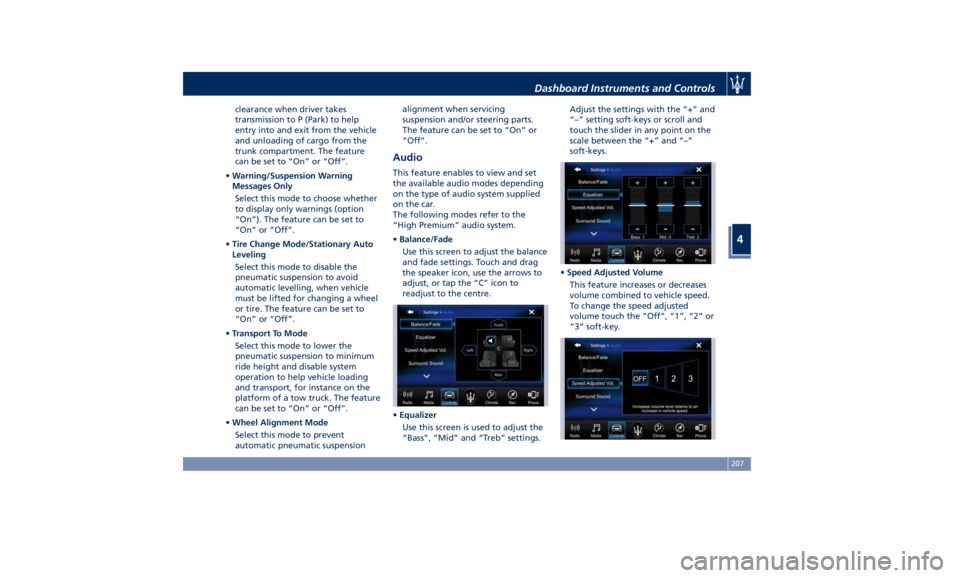
• Balance/Fade
Use this screen to adjust the balance
and fade settings. Touch and drag
the speaker icon, use the arrows to
adjust, or tap the “C” icon to
readjust to the centre.
• Equalizer
Use this screen is used to adjust the
“Bass”, “Mid” and “Treb” settings. Adjust the settings with the “+” and
“–” setting soft-keys or scroll and
touch the slider in any point on the
scale between the “+” and “–”
soft-keys.
• Speed Adjusted Volume
This feature increases or decreases
volume combined to vehicle speed.
To change the speed adjusted
volume touch the “Off”, “1”, “2” or
“3” soft-key.Dashboard Instruments and Controls
4
207
Page 212 of 436
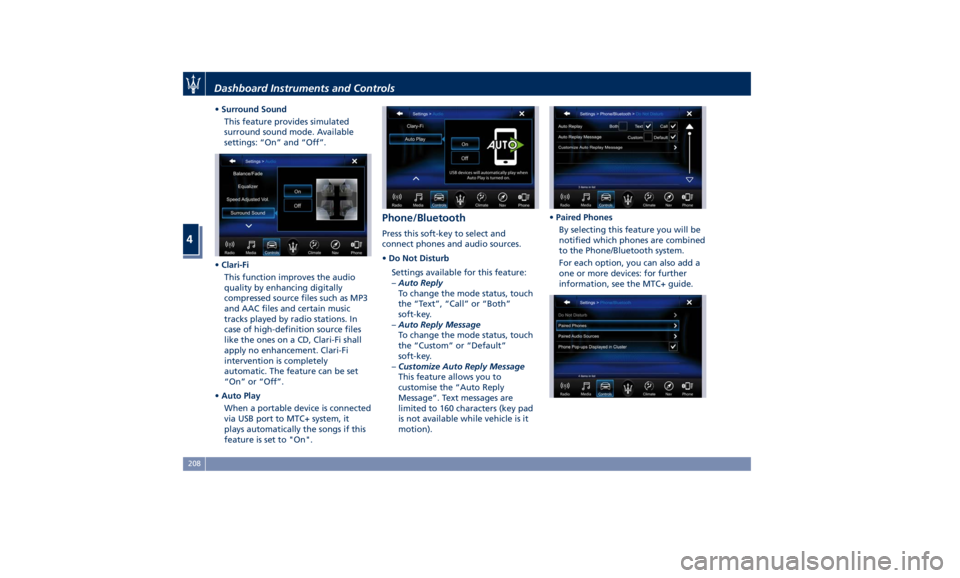
• Surround Sound
This feature provides simulated
surround sound mode. Available
settings: “On” and “Off”.
• Clari-Fi
This function improves the audio
quality by enhancing digitally
compressed source files such as MP3
and AAC files and certain music
tracks played by radio stations. In
case of high-definition source files
like the ones on a CD, Clari-Fi shall
apply no enhancement. Clari-Fi
intervention is completely
automatic. The feature can be set
“On” or “Off”.
• Auto Play
When a portable device is connected
via USB port to MTC+ system, it
plays automatically the songs if this
feature is set to "On". Phone/Bluetooth Press this soft-key to select and
connect phones and audio sources.
• Do Not Disturb
Settings available for this feature:
– Auto Reply
To change the mode status, touch
the “Text”, “Call” or “Both”
soft-key.
– Auto Reply Message
To change the mode status, touch
the “Custom” or “Default”
soft-key.
– Customize Auto Reply Message
This feature allows you to
customise the “Auto Reply
Message”. Text messages are
limited to 160 characters (key pad
is not available while vehicle is it
motion). • Paired Phones
By selecting this feature you will be
notified which phones are combined
to the Phone/Bluetooth system.
For each option, you can also add a
one or more devices: for further
information, see the MTC+ guide.Dashboard Instruments and Controls
4
208