audio MASERATI LEVANTE 2019 Owner's Manual
[x] Cancel search | Manufacturer: MASERATI, Model Year: 2019, Model line: LEVANTE, Model: MASERATI LEVANTE 2019Pages: 436, PDF Size: 15.24 MB
Page 213 of 436
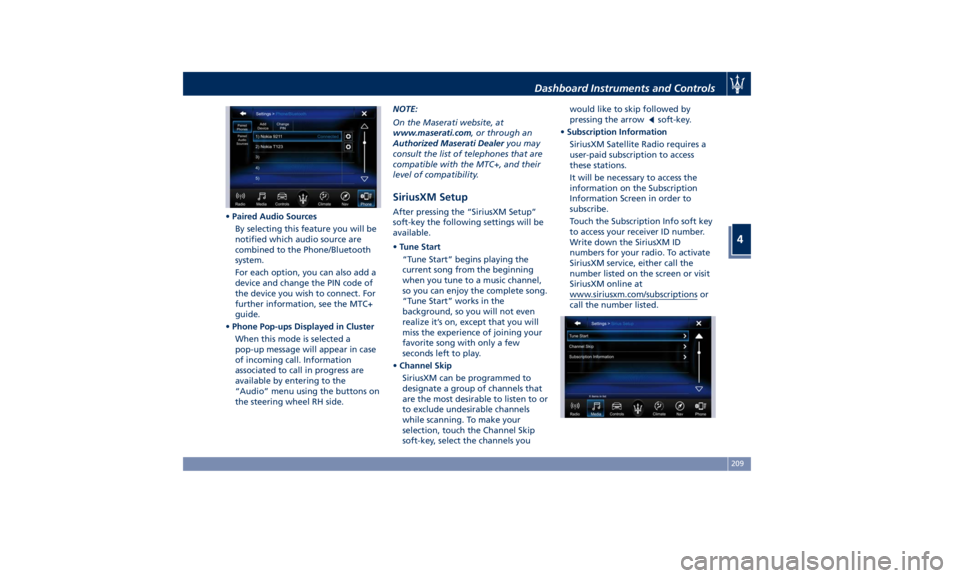
• Paired Audio Sources
By selecting this feature you will be
notified which audio source are
combined to the Phone/Bluetooth
system.
For each option, you can also add a
device and change the PIN code of
the device you wish to connect. For
further information, see the MTC+
guide.
• Phone Pop-ups Displayed in Cluster
When this mode is selected a
pop-up message will appear in case
of incoming call. Information
associated to call in progress are
available by entering to the
“Audio” menu using the buttons on
the steering wheel RH side. NOTE:
On the Maserati website, at
www.maserati.com , or through an
Authorized Maserati Dealer you may
consult the list of telephones that are
compatible with the MTC+, and their
level of compatibility.
SiriusXM Setup After pressing the “SiriusXM Setup”
soft-key the following settings will be
available.
• Tune Start
“Tune Start” begins playing the
current song from the beginning
when you tune to a music channel,
so you can enjoy the complete song.
“Tune Start” works in the
background, so you will not even
realize it’s on, except that you will
miss the experience of joining your
favorite song with only a few
seconds left to play.
• Channel Skip
SiriusXM can be programmed to
designate a group of channels that
are the most desirable to listen to or
to exclude undesirable channels
while scanning. To make your
selection, touch the Channel Skip
soft-key, select the channels you would like to skip followed by
pressing the arrow
soft-key.
• Subscription Information
SiriusXM Satellite Radio requires a
user-paid subscription to access
these stations.
It will be necessary to access the
information on the Subscription
Information Screen in order to
subscribe.
Touch the Subscription Info soft key
to access your receiver ID number.
Write down the SiriusXM ID
numbers for your radio. To activate
SiriusXM service, either call the
number listed on the screen or visit
SiriusXM online at
www.siriusxm.com/subscriptions or
call the number listed.Dashboard Instruments and Controls
4
209
Page 214 of 436
Restore Settings When this feature is selected, it will
reset the “Display”, “Clock”, “Audio”,
and “Radio Settings” to their default
settings.
Run this feature and a pop-up will
appear asking user to confirm default
settings resetting. Select “Yes” to
restore, or “Cancel” to exit. Once the
settings are restored, a pop-up appears
confirming that settings have been
reset to default and then the MTC+
will restart.
Clear Personal Data When this feature is selected, it will
remove personal data concerning
settings and/or options that have been
modified compared to factory settings
and will also remove from system
memory Bluetooth devices and presets.
To remove personal information, select
this feature and a pop-up will appear
asking confirmation to delete all
personal data. Select “OK” to clear, or
“Cancel” to exit. Once the data have
been cleared, a pop up appears
confirming that personal data have
been cleared and then the MTC+ will
restart. Dashboard Compartment There is a glove box compartment on
the passenger side of the dashboard to
store small items or documents.
WARNING!
Do not operate the vehicle with a
glove compartment lid in the open
position. Cellular phones, music
players, and other handheld electronic
devices should be stowed while
driving. Use of these devices while
driving could cause an accident due to
distraction.
CAUTION!
Do not place objects weighing over
22 lb (10 kg) in the glove box
compartment.
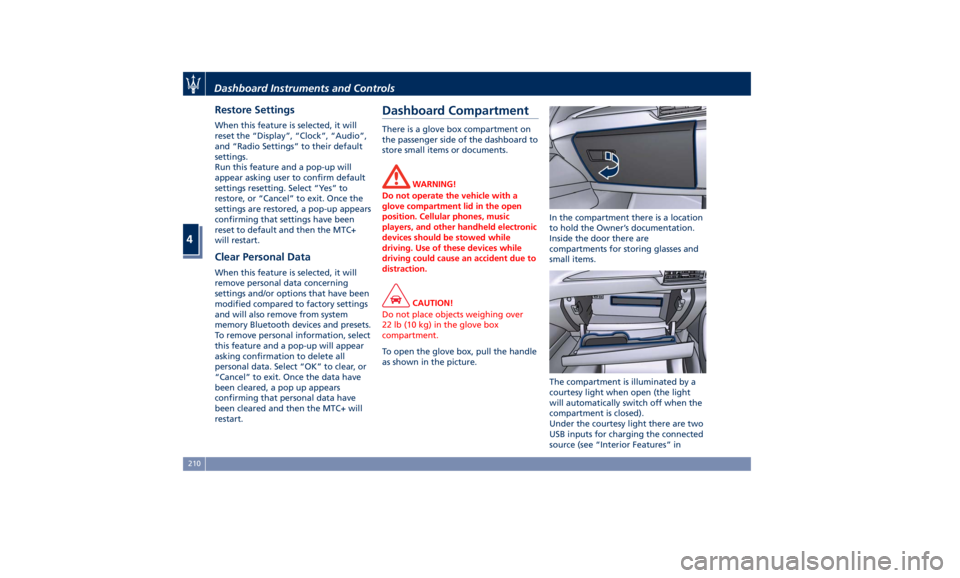
To open the glove box, pull the handle
as
shown in the picture. In the compartment there is a location
to hold the Owner’s documentation.
Inside the door there are
compartments for storing glasses and
small items.
The compartment is illuminated by a
courtesy light when open (the light
will automatically switch off when the
compartment is closed).
Under the courtesy light there are two
USB inputs for charging the connected
source (see “Interior Features” inDashboard Instruments and Controls
4
210
Page 228 of 436
Phone and Voice Controls
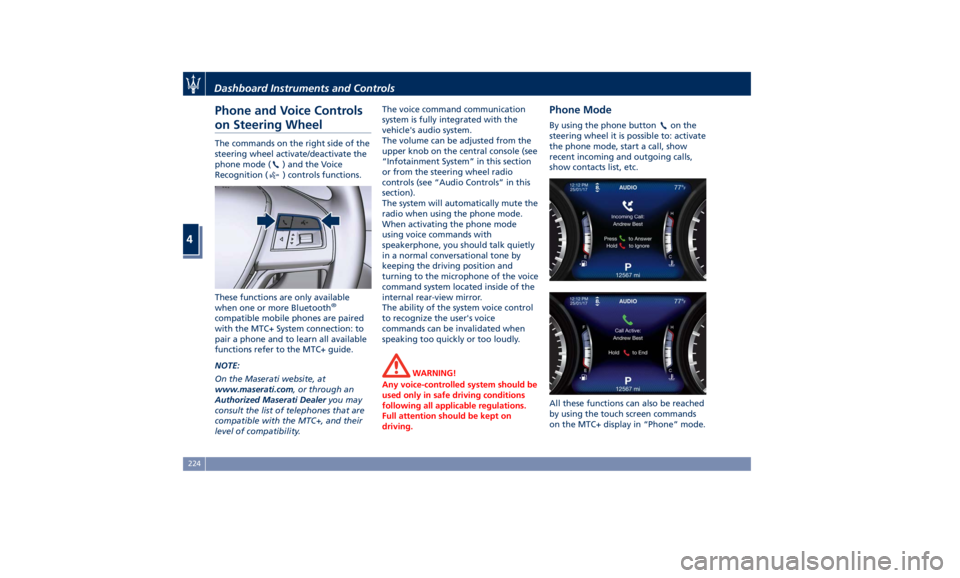
on Steering Wheel The commands on the right side of the
steering wheel activate/deactivate the
phone mode (
) and the Voice
Recognition (
) controls functions.
These functions are only available
when one or more Bluetooth ®
compatible mobile phones are paired
with the MTC+ System connection: to
pair a phone and to learn all available
functions refer to the MTC+ guide.
NOTE:
On the Maserati website, at
www.maserati.com , or through an
Authorized Maserati Dealer you may
consult the list of telephones that are
compatible with the MTC+, and their
level of compatibility. The voice command communication
system is fully integrated with the
vehicle's audio system.
The volume can be adjusted from the
upper knob on the central console (see
“Infotainment System” in this section
or from the steering wheel radio
controls (see “Audio Controls” in this
section).
The system will automatically mute the
radio when using the phone mode.
When activating the phone mode
using voice commands with
speakerphone, you should talk quietly
in a normal conversational tone by
keeping the driving position and
turning to the microphone of the voice
command system located inside of the
internal rear-view mirror.
The ability of the system voice control
to recognize the user's voice
commands can be invalidated when
speaking too quickly or too loudly.
WARNING!
Any voice-controlled system should be
used only in safe driving conditions
following all applicable regulations.
Full attention should be kept on
driving. Phone Mode By using the phone button on the
steering wheel it is possible to: activate
the phone mode, start a call, show
recent incoming and outgoing calls,
show contacts list, etc.
All these functions can also be reached
by using the touch screen commands
on the MTC+ display in “Phone” mode.Dashboard Instruments and Controls
4
224
Page 229 of 436
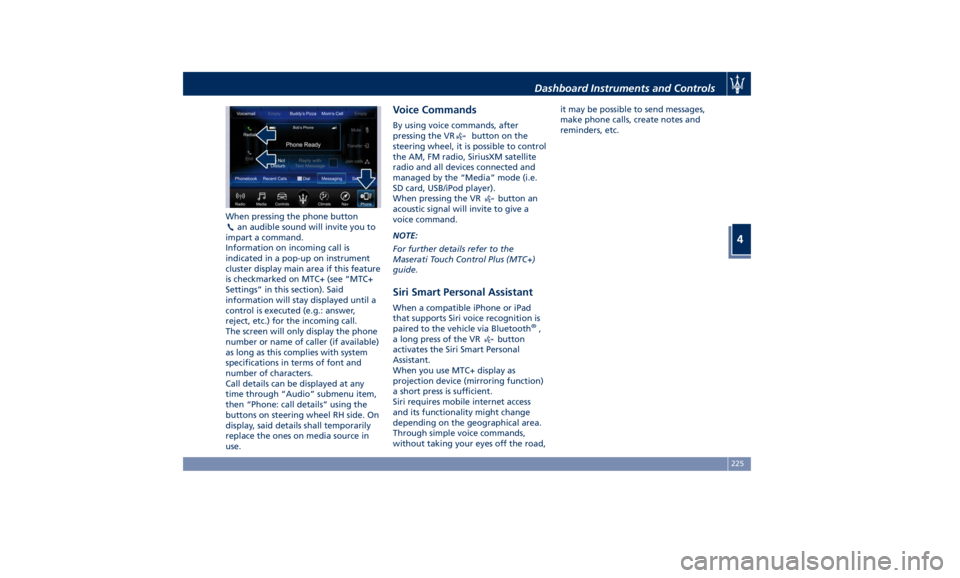
When pressing the phone button
an audible sound will invite you to
impart a command.
Information on incoming call is
indicated in a pop-up on instrument
cluster display main area if this feature
is checkmarked on MTC+ (see “MTC+
Settings” in this section). Said
information will stay displayed until a
control is executed (e.g.: answer,
reject, etc.) for the incoming call.
The screen will only display the phone
number or name of caller (if available)
as long as this complies with system
specifications in terms of font and
number of characters.
Call details can be displayed at any
time through “Audio” submenu item,
then “Phone: call details” using the
buttons on steering wheel RH side. On
display, said details shall temporarily
replace the ones on media source in
use. Voice Commands By using voice commands, after
pressing the VR
button on the
steering wheel, it is possible to control
the AM, FM radio, SiriusXM satellite
radio and all devices connected and
managed by the “Media” mode (i.e.
SD card, USB/iPod player).
When pressing the VR
button an
acoustic signal will invite to give a
voice command.
NOTE:
For further details refer to the
Maserati Touch Control Plus (MTC+)
guide.
Siri Smart Personal Assistant When a compatible iPhone or iPad
that supports Siri voice recognition is
paired to the vehicle via Bluetooth ®
,
a long press of the VR
button
activates the Siri Smart Personal
Assistant.
When you use MTC+ display as
projection device (mirroring function)
a short press is sufficient.
Siri requires mobile internet access
and its functionality might change
depending on the geographical area.
Through simple voice commands,
without taking your eyes off the road, it may be possible to send messages,
make phone calls, create notes and
reminders, etc.
Dashboard Instruments and Controls
4
225
Page 313 of 436
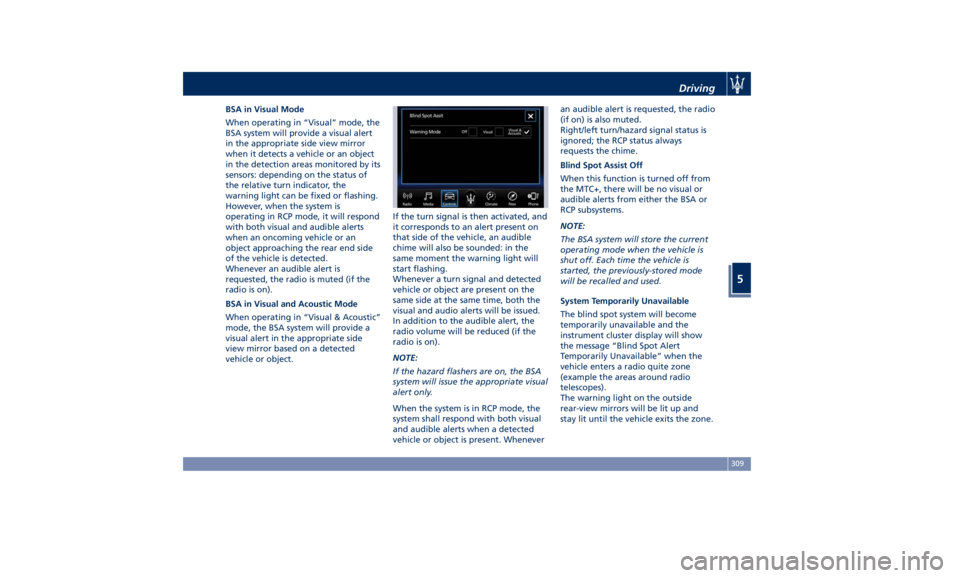
BSA in Visual Mode
When operating in “Visual” mode, the
BSA system will provide a visual alert
in the appropriate side view mirror
when it detects a vehicle or an object
in the detection areas monitored by its
sensors: depending on the status of
the relative turn indicator, the
warning light can be fixed or flashing.
However, when the system is
operating in RCP mode, it will respond
with both visual and audible alerts
when an oncoming vehicle or an
object approaching the rear end side
of the vehicle is detected.
Whenever an audible alert is
requested, the radio is muted (if the
radio is on).
BSA in Visual and Acoustic Mode
When operating in “Visual & Acoustic”
mode, the BSA system will provide a
visual alert in the appropriate side
view mirror based on a detected
vehicle or object. If the turn signal is then activated, and
it corresponds to an alert present on
that side of the vehicle, an audible
chime will also be sounded: in the
same moment the warning light will
start flashing.
Whenever a turn signal and detected
vehicle or object are present on the
same side at the same time, both the
visual and audio alerts will be issued.
In addition to the audible alert, the
radio volume will be reduced (if the
radio is on).
NOTE:
If the hazard flashers are on, the BSA
system will issue the appropriate visual
alert only.
When the system is in RCP mode, the
system shall respond with both visual
and audible alerts when a detected
vehicle or object is present. Whenever an audible alert is requested, the radio
(if on) is also muted.
Right/left turn/hazard signal status is
ignored; the RCP status always
requests the chime.
Blind Spot Assist Off
When this function is turned off from
the MTC+, there will be no visual or
audible alerts from either the BSA or
RCP subsystems.
NOTE:
The BSA system will store the current
operating mode when the vehicle is
shut off. Each time the vehicle is
started, the previously-stored mode
will be recalled and used.
System Temporarily Unavailable
The blind spot system will become
temporarily unavailable and the
instrument cluster display will show
the message “Blind Spot Alert
Temporarily Unavailable” when the
vehicle enters a radio quite zone
(example the areas around radio
telescopes).
The warning light on the outside
rear-view mirrors will be lit up and
stay lit until the vehicle exits the zone.Driving
5
309
Page 320 of 436
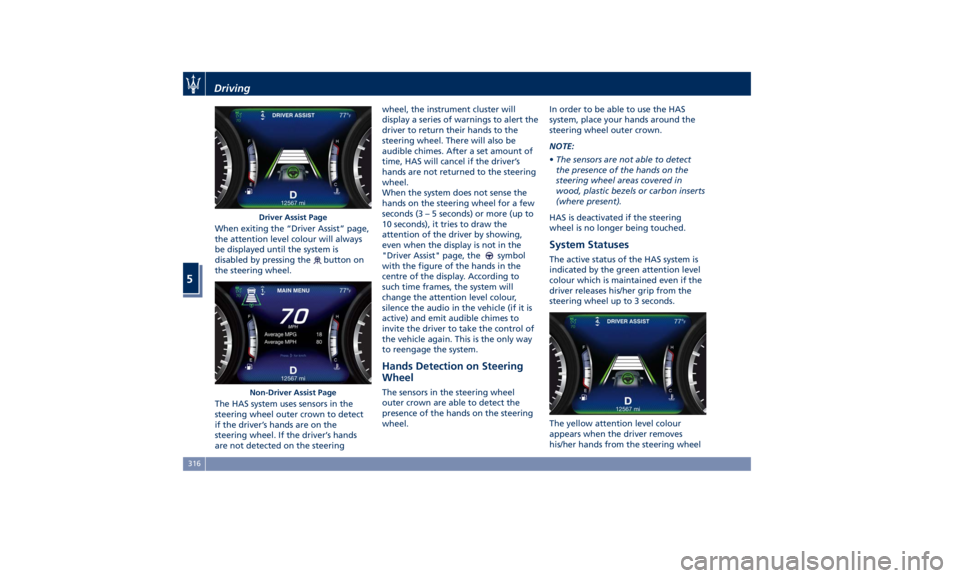
When exiting the “Driver Assist” page,
the attention level colour will always
be displayed until the system is
disabled by pressing the
button on
the steering wheel.
The HAS system uses sensors in the
steering wheel outer crown to detect
if the driver’s hands are on the
steering wheel. If the driver’s hands
are not detected on the steering wheel, the instrument cluster will
display a series of warnings to alert the
driver to return their hands to the
steering wheel. There will also be
audible chimes. After a set amount of
time, HAS will cancel if the driver’s
hands are not returned to the steering
wheel.
When the system does not sense the
hands on the steering wheel for a few
seconds (3 – 5 seconds) or more (up to
10 seconds), it tries to draw the
attention of the driver by showing,
even when the display is not in the
"Driver Assist" page, the
symbol
with the figure of the hands in the
centre of the display. According to
such time frames, the system will
change the attention level colour,
silence the audio in the vehicle (if it is
active) and emit audible chimes to
invite the driver to take the control of
the vehicle again. This is the only way
to reengage the system.
Hands Detection on Steering
Wheel The sensors in the steering wheel
outer crown are able to detect the
presence of the hands on the steering
wheel. In order to be able to use the HAS
system, place your hands around the
steering wheel outer crown.
NOTE:
• The sensors are not able to detect
the presence of the hands on the
steering wheel areas covered in
wood, plastic bezels or carbon inserts
(where present).
HAS is deactivated if the steering
wheel is no longer being touched.
System Statuses The active status of the HAS system is
indicated by the green attention level
colour which is maintained even if the
driver releases his/her grip from the
steering wheel up to 3 seconds.
The yellow attention level colour
appears when the driver removes
his/her hands from the steering wheelDriver Assist Page
Non-Driver Assist PageDriving
5
316
Page 428 of 436
Abbreviations .................9
Accessories
Aftermarket Parts and Accessories
Statement .................13
Active Blind Spot Assist - ABSA . . . .310
Adaptive Cruise Control (ACC) . . . .286
Activation/Deactivation ...... .289
Display Warnings and
Maintenance ............. .294
Precautions while Driving with
ACC ................... .295
Setting the Following Distance . .291
Setting the Speed .......... .290
Airbag.....................65
Advanced Front Air Bag
Properties .................66
Air Bag Deployment Result .....71
Air Bag Deployment Sensors and
Controls ..................15
Air Bag System Components .....66
Front Air Bag Inflator Units .....70
Passenger Air bag Labels .......20
Supplemental Restraint System
(SRS) .....................65
Supplemental Seat-mounted Side
Air Bags (SAB) ..............68
Supplemental Side Air Bag Inflatable
Curtain (SABIC) ..............68
Transport of persons with
disability ..................72
Air Conditioning (A/C) System . . . .214
A/C Distribution ........... .154
Dual-zone Climate Controls . . . .214 Four-zone Climate Controls . . . .221
Alarm, Vehicle Security ..........27
ALR (Automatic Locking Retractor) . .63
Anti-Lock Braking System (ABS) and
Electronic Brake-force Distribution
(EBD) ................... .274
Assistance ...................11
Assistance, if you need ..........11
ATC (Automatic Temperature
Control) ................. .220
Audio Controls .............. .192
Audio Controls on Central
Console ................. .192
Steering Wheel Audio Controls . .192
Audio, setting .............. .207
Audio System ............... .193
Automatic Transmission
Manual Release of Transmission .360
AUX, USB and SD Memory Card
Ports .................... .135
AWD, All-Wheel Drive ......... .243
BAS (Brake Assist System) ...... .275
Battery ................... .381
Battery Recharge .......... .384
Battery Remote Posts Position. . .358
Maintaining Battery Charge . . . .403
To Disconnect the Battery .... .382
To Reconnect the Battery
..... .383
Blind
Spot Alert ............. .305
Blind
Spot Alert (BSA)
BSA System .............. .305
RCP - Rear Cross Path ........ .308 Bluetooth, Customer settings .... .208
Bodywork Maintenance and Care . .397
Pre-Short Drop Function ..... .400
Protection from Atmospheric
Agents ................. .397
Useful Advice to Keep the Bodywork
in Good Condition ......... .398
Brakes
Brake and Stability Control System
(ESC) ................... .273
Brake Overheating ......... .280
Brake System ............. .273
Manual Release of Parking
Brake .................. .356
Parking Brake ............. .268
Using the Brakes ........... .280
Capacity/Refillings ........... .406
Cargo Area ................ .139
Accessories Compartment .... .142
Cargo Area Extension ....... .143
Installing the Cargo Net ...... .144
Loading with Rear Seatbacks Folded
Down .................. .141
Luggage Fasteners and
Retainers ................ .140
Ski and Snowboard Bag
Compartment ............. .141
Trunk Compartment Cover .... .142
Vehicle Load Carrying Capacity . .139
Child Restraint Systems ..........74
Children too large for Booster
Seats .....................75Index
9 424